Have you ever tried connecting a new device to Wi-Fi and been asked for a security key? If so, you may have wondered what that term actually means.
Many people see this message but are unsure if it refers to a password, code, or something else.
Simply put, a network security key is the password that helps protect your wireless network from unauthorized access. It plays an important role in keeping your internet connection and personal information secure.
In this guide, I’ll explain what a network security key is, how it works, why it matters, and where you can find it when needed.
You’ll also learn about different types of network security keys, common connection issues, and practical tips to keep your Wi-Fi network safe and secure.
What Is a Network Security Key?
A network security key is a password or passphrase that allows authorized devices to connect to a secured wireless network.
It serves as a security measure to verify users and prevent unauthorized access to the network.
Think of a network security key as the lock on your Wi-Fi network. Just as you need the right key to unlock a door, you need the correct network security key to access a wireless connection.
When you enter the key, the router verifies your device and decides if it can join the network. This is called authentication and access control.
In most cases, a network security key is the same thing as your Wi-Fi password.
While different devices may use different terms, both refer to the credentials required to connect to a protected network.
Beyond controlling access, a network security key helps protect wireless communications by encrypting them. This prevents unauthorized access, data spying, and information theft.
How Does a Network Security Key Work?
A network security key works with your router and device to verify access and protect data during wireless communication.
- Verifies User Access: When a security key is entered, the router checks whether it matches the stored credentials before allowing network access.
- Establishes A Secure Connection: Your device and router complete a handshake that verifies identities and establishes a trusted connection.
- Encrypts Transmitted Data: Once connected, the security key helps encrypt data, preventing unauthorized users from reading transmitted information.
- Protects Against Interception: Encrypted wireless traffic appears unreadable to anyone attempting to intercept network communications without the correct key.
- Works With WPA2 And WPA3: Modern security protocols use the network security key to strengthen authentication and secure wireless communications.
Why Does a Network Security Key Matter?
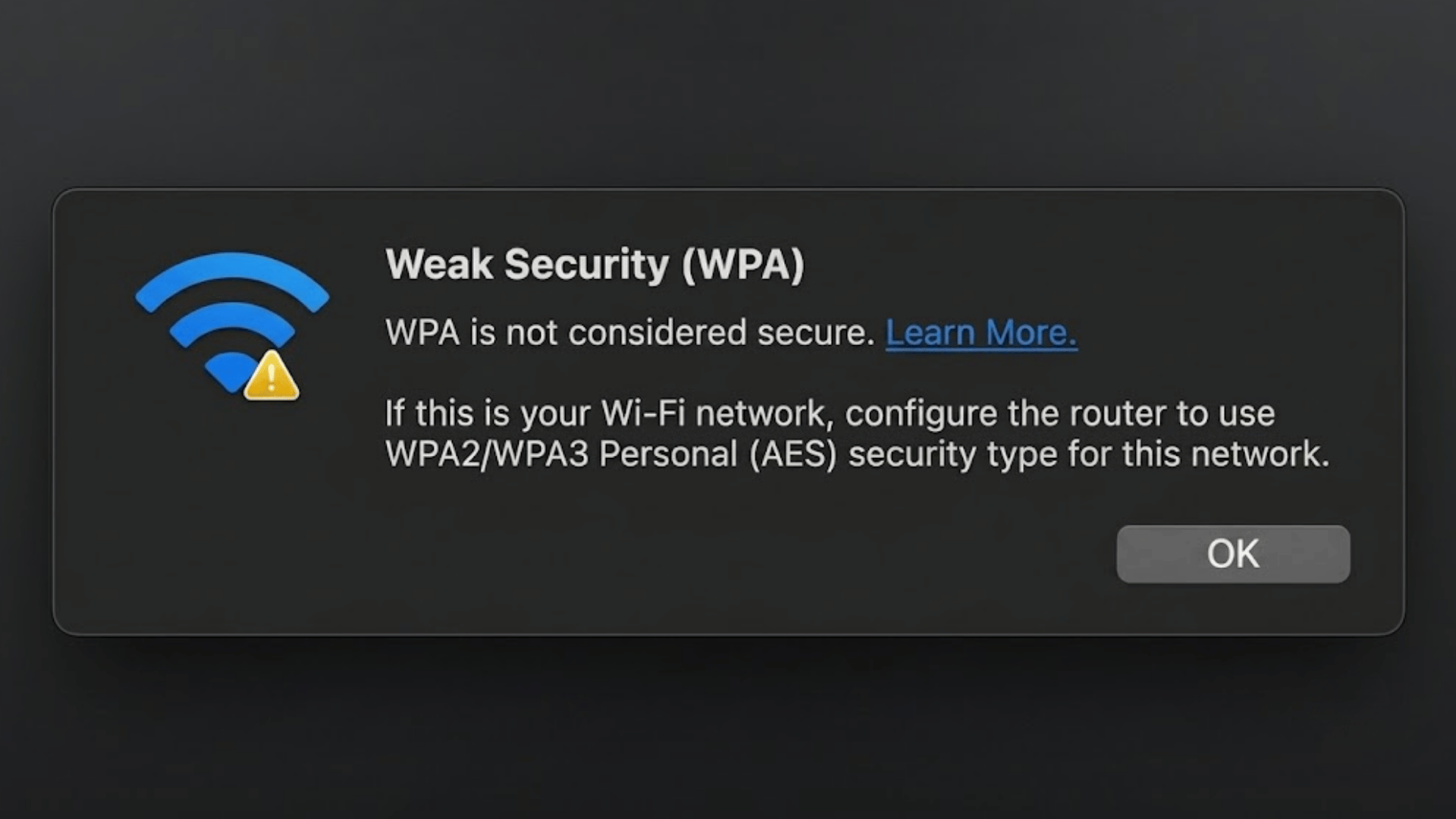
A network security key does more than allow devices to connect to Wi-Fi. It plays an important role in keeping networks secure and private.
1. Prevents Unauthorized Access
One of the primary purposes of a network security key is to prevent unauthorized users from connecting to a Wi-Fi network.
The router requires the correct key before granting access, ensuring that only approved devices can join.
This authentication process helps block unwanted connections from neighbors, strangers, or potential attackers.
By restricting network access to authorized users, a security key reduces security risks and helps maintain a safer and more controlled wireless environment.
2. Protects Personal and Business Data
A network security key works with encryption protocols such as WPA2 and WPA3 to protect data transmitted across a wireless network.
Encryption converts information into a secure format that is difficult for unauthorized parties to read.
This helps safeguard sensitive data, including passwords, financial information, emails, and business records.
Doesnt matter if users are working remotely or browsing at home; a network security key plays a critical role in reducing the risk of data theft and interception.
3. Helps Secure Smart Home Devices
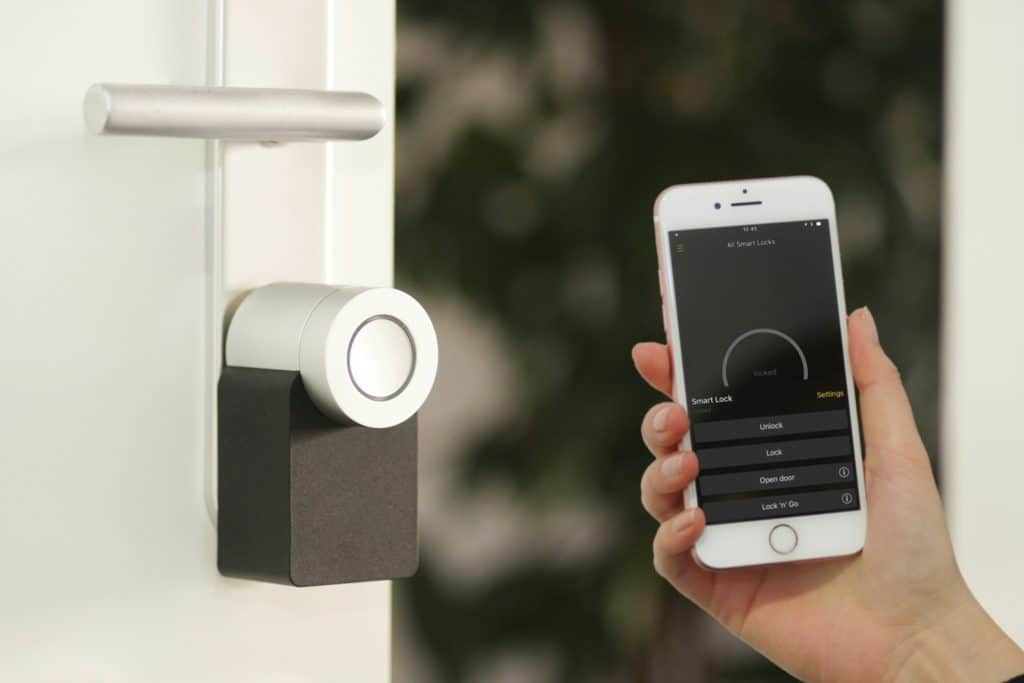
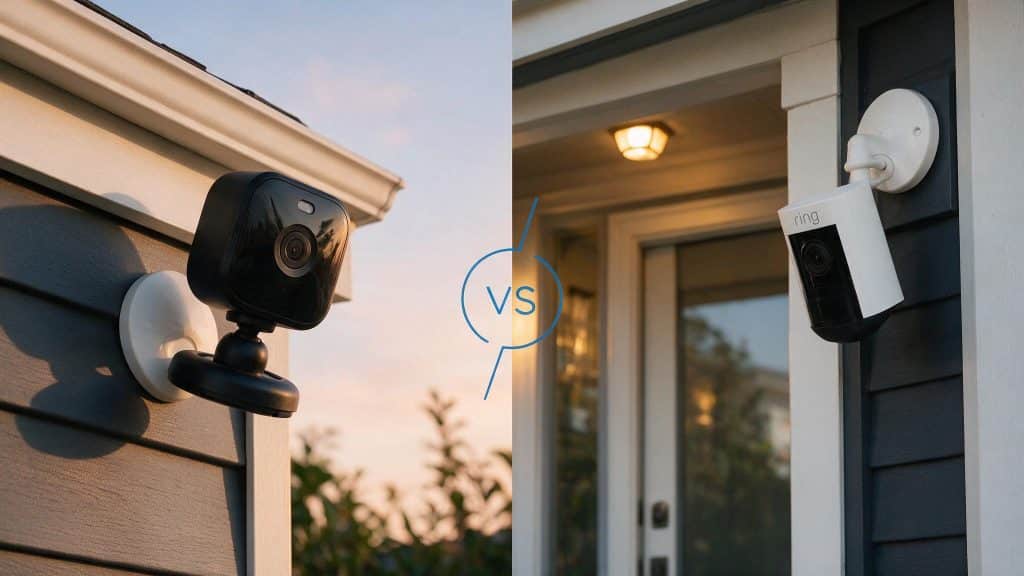
Modern homes often rely on smart devices such as security cameras, smart speakers, thermostats, and door locks.
These devices connect to the internet through a wireless network, making security essential.
A network security key helps protect smart home devices by preventing unauthorized users from accessing the network.
This reduces the risk of outsiders manipulating connected devices, compromising personal privacy, or using vulnerable devices as entry points for cyberattacks.
4. Reduces Cybersecurity Risks
A strong network security key helps reduce the risk of cyber threats on a wireless network. Weak passwords are easier for attackers to guess, increasing the chances of unauthorized access.
In contrast, a strong key acts as an added layer of protection.
When combined with WPA2 or WPA3 encryption and updated router settings, it helps defend against hacking attempts, malware, and network breaches that could put devices and personal data at risk.
5. Maintains Network Performance
A network security key not only improves security but also helps maintain consistent network performance.
When unauthorized users gain access to a Wi-Fi network, they may consume bandwidth through streaming, downloads, or other online activities. This can slow internet speeds for legitimate users.
By restricting access to authorized devices, a network security key helps ensure that available bandwidth is used efficiently, resulting in more reliable performance and a better overall internet experience.
6. Supports Safe Online Activities
Many online activities involve sharing sensitive information, such as logging into accounts, making purchases, or accessing cloud-based services.
A network security key helps create a secure connection between devices and the router, reducing the risk of unauthorized monitoring.
This added layer of protection supports safer web browsing, online banking, video conferencing, and other internet-based activities.
As a result, users can interact online with greater confidence that their information is being protected.
7. Controls Access to the Network
Another important purpose of a network security key is to control who can use a wireless network.
Before a device is allowed to connect, the router verifies that the correct key has been entered.
This access control process helps ensure that network resources are available only to authorized users.
In homes, schools, and workplaces, controlling access is essential for protecting sensitive information and maintaining a secure networking environment.
8. Supports Secure Wireless Communication
Wireless networks transmit data through radio signals that can potentially be detected by nearby devices.
A network security key enables encryption that protects these communications while data travels between devices and the router.
This security measure helps prevent unauthorized individuals from viewing or capturing transmitted information.
Secure wireless communication helps keep personal information private while strengthening the overall security of the network during everyday online activities.
Is a Network Security Key the Same as a Wi-Fi Password?
Yes, in most cases, a network security key is the same as a Wi-Fi password. Both terms refer to the credentials required to connect a device to a secured wireless network.
The difference is mainly in the terminology used by devices, operating systems, and network settings.
While routers often label it as a Wi-Fi password or wireless password, some computers and smartphones may refer to it as a network security key.
Regardless of the name, they serve the same purpose: authenticating users before granting access to the network.
When you enter the correct password, the router verifies your credentials and allows your device to connect. This process helps prevent unauthorized access and protects data transmitted over the network.
In modern Wi-Fi networks, the security key typically works alongside WPA2 or WPA3 encryption standards for stronger protection.
Types of Network Security Keys
Different network security keys offer varying levels of protection for wireless networks.
| Security Type | What It Is | Security Level | Recommended Today? |
| WEP (Wired Equivalent Privacy) | An older wireless security standard with known vulnerabilities. | Low | No |
| WPA (Wi-Fi Protected Access) | An improvement over WEP with stronger encryption. | Moderate | No |
| WPA2 (Wi-Fi Protected Access 2) | A widely used security standard for home and business networks. | High | Yes |
| WPA3 (Wi-Fi Protected Access 3) | The latest Wi-Fi security standard with enhanced protection features. | Very High | Yes, Best Option |
WEP: Outdated and Insecure
WEP was introduced in 1997 and was the first widely used wireless encryption standard. It uses a static key, which means the same key is used for every packet of data transmitted.
Modern tools can crack a WEP key in minutes. If your router is still set to WEP, switch it immediately.
No home or business should be using this protocol today.
WPA2: The Current Standard for Most Homes
WPA2 replaced WEP and WPA and has been the baseline security standard since 2004. It uses AES (Advanced Encryption Standard) encryption, which is significantly harder to break.
Most consumer routers default to WPA2. It is reliable for home use and remains acceptable for most setups as long as you use a strong password.
WPA3: The Right Choice for New Devices
WPA3 was introduced in 2018 and adds meaningful improvements over WPA2.
It uses a process called Simultaneous Authentication of Equals (SAE), which makes offline dictionary attacks much harder.
If your router supports WPA3, enable it. Newer smart home devices, including many security cameras and smart locks, are already built to take advantage of it.
Where to Find Your Network Security Key?
The location of your network security key depends on the device or network setup you are using.
1. On Your Router
Most internet service providers and router manufacturers place a label on the back, bottom, or side of the device.
In my experience, checking the router label is usually the fastest way to find the network security key on a home network.
This label often displays information such as the Wi-Fi network name (SSID) and the default password.
If the password has never been changed, the printed key can be used to connect new devices to the network.
2. On Windows
Windows computers can display a saved network security key if they are already connected to the Wi-Fi network.
Users can access the Network and Sharing Center, open the wireless network properties, and view the password through the Security tab.
The key is usually hidden by default, but selecting the option to show characters reveals it.
This method is useful when the password has been forgotten, but the computer remains connected.
3. On Mac
Mac users can locate a saved network security key through the Keychain Access application.
This built-in macOS tool stores passwords and security credentials for various services, including Wi-Fi networks.
After opening Keychain Access, users can search for their network name and view the saved password by verifying their administrator credentials.
This provides a secure way to recover the network security key without resetting router settings.
4. On Android
Many Android devices allow users to view or share saved Wi-Fi passwords directly from network settings.
Depending on the device manufacturer and Android version, users can access the Wi-Fi settings, select the connected network, and generate a QR code containing the password information.
In some cases, the password can be displayed after identity verification.
This feature makes it easier to connect additional devices without manually entering the key.
5. On iPhone
Apple devices provide access to saved Wi-Fi passwords through the Wi-Fi settings menu.
In newer versions of iOS, users can tap the connected network to view the password after authenticating with Face ID, Touch ID, or the device passcode.
I have found this feature especially useful when reconnecting devices after changing a Wi-Fi password.
The password can then be copied and shared with other devices when necessary. This method offers a convenient and secure way to retrieve a network security key on an iPhone.
6. Through Router Settings
If the network security key has been changed from its default value, it can usually be found in the router’s administration panel.
Users can access this panel by entering the router’s IP address into a web browser and signing in with administrator credentials.
Within the wireless or Wi-Fi settings section, the current security key is typically displayed or can be revealed.
This method works regardless of the device being used to access the network.
How to Create a Strong Network Security Key?
A strong network security key helps protect your Wi-Fi network from unauthorized access and common cyber threats.
- Use a Long Password: Create a security key with at least twelve characters to make guessing and cracking attempts significantly more difficult.
- Combine Different Character Types: Include uppercase letters, lowercase letters, numbers, and symbols to increase password complexity and strengthen overall security.
- Avoid Personal Information: Do not use names, birthdays, addresses, or other easily discoverable details that attackers could quickly guess.
- Skip Common Words and Patterns: Avoid predictable passwords like “password123” or simple sequences that are frequently targeted by automated attacks.
- Create a Unique Password: Use a password that is not shared with other accounts to reduce security risks.
- Consider a Memorable Passphrase: A longer phrase made of unrelated words can be easier to remember and harder to crack.
- Update It When Necessary: Change your network security key after suspected breaches, unauthorized access, or major router configuration changes.
Causes of Network Security Key Mismatch Error
A network security key mismatch error occurs when the password entered does not match the network’s security key.
| Common Cause | Simple Fix |
| Incorrect password entered | Re-enter the Wi-Fi password carefully, paying attention to uppercase and lowercase letters. |
| The router password was changed | Use the updated password or check the router settings for the current key. |
| Saved network credentials are outdated | Forget the network on your device and reconnect using the correct password. |
| Typing errors or extra spaces | Ensure there are no accidental spaces or incorrect characters in the password. |
| Router or device glitch | Restart both the router and the device, then try connecting again. |
| Incorrect security settings | Verify that the device and router are using compatible security protocols, such as WPA2 or WPA3. |
How to Change Your Network Security Key?
To change your network security key, log in to your router’s settings page, update the Wi-Fi password, and save the changes.
Once updated, all connected devices must reconnect using the new security key.
The process usually starts by entering your router’s IP address into a web browser and signing in with the administrator credentials.
After accessing the settings dashboard, navigate to the wireless or Wi-Fi security section. There, you can replace the existing network security key with a new, stronger password.
When creating a new key, choose a combination of letters, numbers, and symbols to improve security. After saving the changes, the router may restart automatically.
Because the old password will no longer work, you’ll need to reconnect phones, computers, smart TVs, and other devices using the updated network security key.
Best Practices to Keep Your Network Secure
Good Wi-Fi security relies on a combination of strong passwords, updated settings, and regular network monitoring.
- Use WPA3 or WPA2 Security: These modern encryption standards provide stronger protection against unauthorized access and more effectively secure data transmissions.
- Create a Strong Network Security Key: Use a long, unique password that includes letters, numbers, and symbols to strengthen wireless network security.
- Keep Router Firmware Updated: Regular updates fix security vulnerabilities, improve performance, and help protect your network from emerging threats.
- Change Default Router Credentials: Replacing default administrator usernames and passwords reduces the risk of unauthorized access to router settings.
- Set Up a Guest Network: A separate guest network limits access to your primary devices while allowing visitors to connect to the internet.
- Monitor Connected Devices: Regularly reviewing connected devices helps identify unknown connections and potential security issues before they escalate.
- Disable Unused Features: Turning off unused services and connections reduces potential entry points for attackers.
- Restart and Review Settings Periodically: Occasional maintenance helps ensure that security settings remain up to date and continue to protect your wireless network effectively.
Conclusion
Understanding a network security key makes Wi-Fi management easier. It is simply the password that protects your network, devices, and personal data from unauthorized access.
I hope this guide has helped you understand how network security keys work and why they matter.
Knowing where to find your key, how it works, and how to create a strong one can help you maintain a safer, more reliable internet connection.
As more devices depend on wireless networks, good Wi Fi security is more important than ever. I also recommend reviewing your network settings regularly to keep your connection secure.
Have you ever had trouble finding your network security key or fixing a connection issue? Share your experience in the comments below.
Frequently Asked Questions
What Are the Most Hacked Passwords?
Commonly hacked passwords include 123456, password, 123456789, qwerty, admin, and password123 because they are predictable and widely used.
How to Check if a Phone Is Hacked?
Yes. Check for unusual battery drain, unknown apps, excessive data usage, pop-ups, overheating, or unauthorized account activity.
Which Password Manager Has Never Been Hacked?
No major password manager can guarantee it has never experienced a security incident. However, 1Password has no known breach that has exposed customer vault data.
What Does a Network Security Key Look Like?
A network security key usually looks like a Wi Fi password, containing a mix of letters, numbers, and symbols, such as X7kP@92LmQ4.