Typing an emoji should take one press, not three clicks through a menu nobody remembers. Every operating system hides its own emoji keyboard shortcut behind a different key combination, and most typing habits never adjust to find it.
Windows opens a full panel from any text box, while Mac ties the same task to a function key, and phones handle it differently again.
Add emoticons, Alt codes, and a few app-specific quirks, and it is easy to see why people still search the web and copy an emoji by hand. Below, you will learn each shortcut by device, including a few fixes for when a key combination stops responding the way it should.
Emoji Keyboard Shortcut Options at a Glance
Comparing every shortcut side by side saves you from hunting through separate sections when you only need one platform right now. Windows, Mac, iPhone, iPad, Android, and Chromebook each store emoji access behind a different key or icon, so start here first.
|
Device |
Shortcut |
Opens |
|---|---|---|
|
Windows 10 / 11 |
Windows key + period (or semicolon) |
Emoji panel with GIFs, kaomoji, and symbols |
|
Mac (current) |
Fn or Globe key + E |
Emoji suggestion or the Character Viewer |
|
Mac (older systems) |
Control + Command + Space |
Character Viewer |
|
iPhone / iPad |
Globe or emoji key on keyboard |
Emoji keyboard |
|
Android |
Emoji key on keyboard |
Emoji keyboard |
|
Chromebook |
Search (or Launcher) + Shift + Space |
Emoji, symbol, and GIF picker |
Keep this comparison close while you read the walkthroughs below. The Chromebook row above is the one most guides skip entirely, so it is worth bookmarking if you split your time between a laptop and a school or work Chromebook.
How to Open the Emoji Panel on Windows and Mac
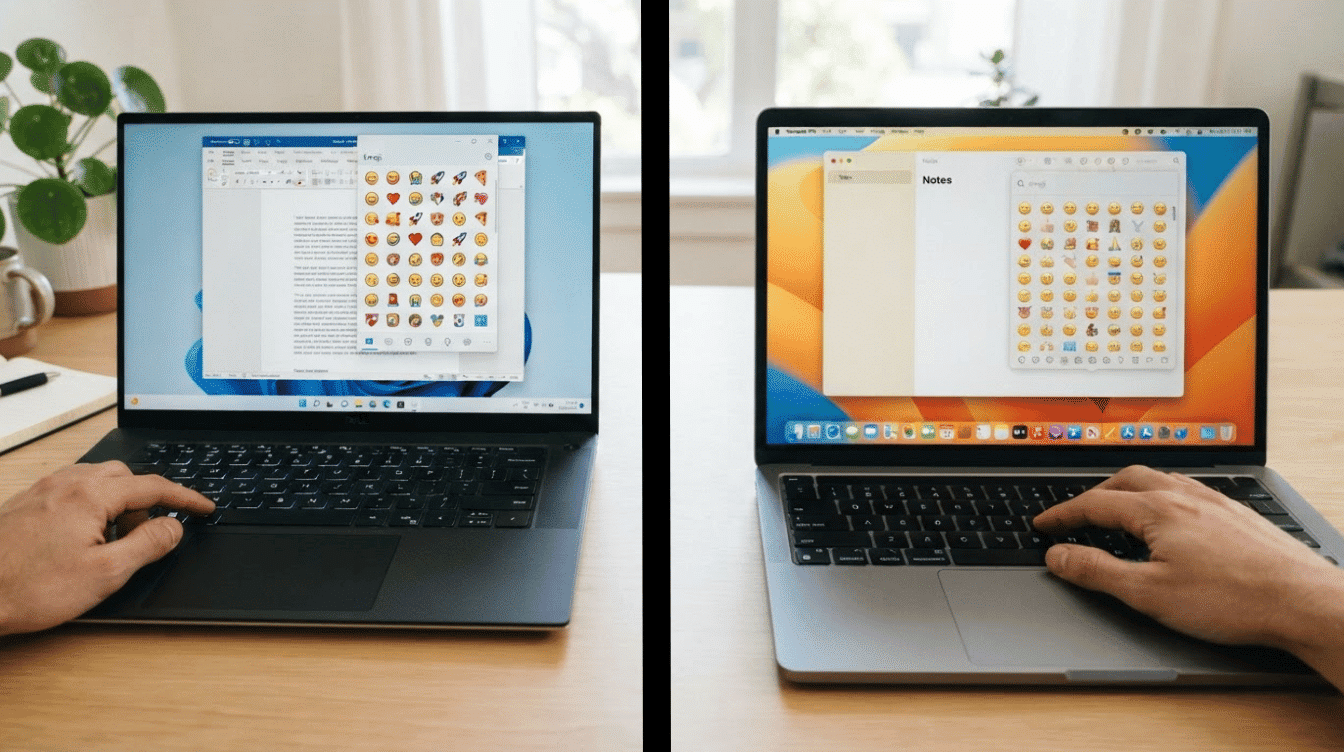
Both platforms hide the same feature behind different keys, and the exact combination has shifted slightly over time. Here is what actually works today, along with the older methods still worth knowing.
1. Windows 11 and Current Windows 10 Builds
Click inside any text field, whether that is a document, a browser address bar, or a chat window, then press the Windows key and the period key together.
A floating panel appears near the cursor, organized into emoji, GIFs, stickers, and symbols, a layout confirmed in Microsoft’s own keyboard documentation.
Typing a word such as heart or cat searches across every category at once, which is often faster than scrolling. Selecting any result inserts it exactly where the cursor sits, and the panel closes once you click elsewhere.
2. Older Windows 10 Builds
Some older Windows 10 builds don’t respond to the period shortcut, for reasons that vary by machine rather than by a specific version.
If that happens, try Windows key plus semicolon instead, since it opens the same panel and works as a reliable fallback worth remembering.
Once the panel opens, it behaves identically no matter which key combination triggered it, so nothing else about the process changes.
3. Mac’s Fn or Globe Key Method
Click into any text field on a Mac, then type a word that hints at the emoji you want, such as thumbs up or birthday cake, before pressing the Fn key or the Globe key together with E, a method Apple documents in its official guide.
If a matching suggestion appears, pressing Return replaces your typed words with the emoji directly.
When nothing matches closely enough, the full Character Viewer opens instead, letting you browse categories or search by name until you find the exact symbol you wanted.
4. Mac Character Viewer from the Menu
Every Mac app includes a menu-based route to emoji that doesn’t require you to remember any key combination at all.
Open the Edit menu from the menu bar at the top of the screen, then choose Emoji & Symbols, and the same Character Viewer used by the keyboard shortcut appears immediately.
This method works consistently across recent macOS versions, which makes it a dependable fallback whenever a keyboard shortcut has been reassigned, disabled, or forgotten.
5. Mac’s Older Control-Command-Space Shortcut
Before Apple introduced the Fn and Globe key method, Control-Command-Space was the standard way to open the Character Viewer on a Mac, and the combination still works in many apps today, one of the standard keyboard commands that federal accessibility testing guidance treats as a baseline check.
Results vary slightly depending on the macOS version installed and how a particular app handles keyboard input, so treat this shortcut as a secondary option rather than the first one to try. If nothing happens, the Fn or Globe method works just as well.
Emoji Shortcuts on iPhone, iPad, Android, and Chromebook
On an iPhone or iPad, tap the Globe icon on the on-screen keyboard (or hold the emoji key if your layout shows one) to switch straight to the emoji keyboard, then tap the ABC or Globe icon again to switch back to typing letters.
On Android, the process is nearly identical: tap the smiley face icon on the on-screen keyboard, which sits in the same corner as the language switcher on most keyboard apps, including Gboard and Samsung Keyboard.
Chromebooks use a different combination entirely: Search (labeled Launcher on newer models) plus Shift plus Space. This opens a picker with emoji, symbols, and GIFs, and it works the same way in Google Docs, Gmail, and most Chrome tabs since ChromeOS handles the shortcut at the system level rather than inside individual apps.
If your Chromebook is school- or work-managed, this shortcut can occasionally be restricted by device policy, so it is worth checking with an administrator before assuming the key combination itself is broken.
Typing Emoji with Text Characters
Emojis are not the only way to express tone through text. Typed emoticons still work in plenty of chat apps and turn into recognizable faces the moment you finish typing them, no picker required.
|
Mood |
Emoticon Examples |
|---|---|
|
Happy |
🙂 🙂 😀 |
|
Wink |
😉 😉 |
|
Playful |
😛 ;P |
|
Sad |
🙁 🙁 |
|
Crying |
:'( |
|
Heart |
<3 |
|
Laughing |
XD xD |
Whether a typed combination becomes a graphic depends on the app receiving it, so results vary from platform to platform. Slack and iMessage convert most of these automatically, while Notes and plain text editors tend to leave them as characters, so test a new app once before relying on it for something time-sensitive.
Using Alt Codes for Emoji and Symbols
Alt codes predate the modern emoji panel and still work for a smaller set of symbols across most Windows applications with a text field. The process is simple once you know the steps.
- Turn on Num Lock first, since most codes require it to register correctly.
- Hold down the Alt key without releasing it.
- Enter the four-digit code on the numeric keypad, including any leading zero.
- Release Alt once the character appears in your text.
- Use the numeric keypad specifically; the number row at the top of a laptop keyboard will not work.
For everyday emoji, the built-in panel stays the simpler choice. Alt codes are most useful for symbols the panel skips entirely, such as trademark marks or currency signs used in formal documents.
Where Shortcuts Work by App
Word, Google Docs, Outlook, most browsers, and chat apps such as Slack and Messages all accept the Windows and Mac shortcuts above without extra setup, since they insert whatever character the operating system hands over.
Excel is the one everyday exception worth flagging directly: the panel often opens, but the emoji lands in the formula bar as a plain box instead of a colored icon, which trips people up the first time they try it in a shared spreadsheet.
Some older desktop programs behave the same way, particularly ones built before emoji became a standard part of Unicode text.
If you manage a lot of shortcuts across devices, our full breakdown of essential keyboard shortcuts by operating system has bookmarking alongside this one.
Fixing an Emoji Shortcut That Does Not Work

A shortcut that suddenly stops responding is rarely a sign that your device lost emoji support. Most failures trace back to a small setting or a distracted click, and the fixes below take less time to try.
|
Problem |
What to Check |
|---|---|
|
Windows + period does nothing |
Confirm the cursor sits inside a text field, then try another app |
|
Emoji panel opens but nothing inserts |
The app field may block that character type |
|
Fn/Globe + E does not respond on Mac |
Check the Fn key setting under Keyboard preferences |
|
Control-Command-Space fails |
Use Fn/Globe + E or the Edit menu instead |
|
Alt code fails |
Switch to the numeric keypad rather than the number row |
|
Emoji shows as a box |
The font or app may not support that character yet |
Work through this list before assuming an app lacks emoji support altogether. Once you land on the emoji keyboard shortcut that fits how you actually type, muscle memory takes over within a day or two, and the handful of apps that still resist usually point to a genuine compatibility gap rather than a setting you missed.
Wrapping It Up
Across Windows, Mac, phones, and Chromebooks, the fastest route to an emoji is almost always a shortcut you haven’t tried yet, not one that doesn’t exist.
A Windows emoji shortcut and a Mac shortcut solve the same problem in two different ways, and once either one is set up, the copy-and-paste habit tends to fade on its own within a week of regular use.
The troubleshooting steps above cover the handful of apps that still resist, from Excel’s formula bar to older desktop software, so nothing here is left as a dead end.
Every emoji keyboard shortcut covered in this piece takes under a minute to set up and start using today. Try the one that matches your device, and drop a comment if a shortcut behaves differently on your setup.
Frequently Asked Questions
Does the Emoji Shortcut Work the Same in Every Browser, Like Chrome versus Edge?
Yes. A Windows emoji shortcut is generated by the operating system, not the browser, so Chrome, Edge, and Firefox all receive the same panel. The only exception is a browser field that blocks rich text entirely, such as some password managers’ search bars.
Why Does Pressing the Globe Key on a Mac Sometimes Switch Languages Instead of Opening Emoji?
On a Mac set up with more than one input source or keyboard layout, the Globe key’s default job is to switch between them, not open emoji. Open System Settings, Keyboard, and check the “Press Globe key to” menu; if it is set to Change Input Source, switch it to Show Emoji & Symbols to free up the key for emoji use.
Is There One Emoji Shortcut that Works Identically Across Every Operating System?
No, and that is by design. Each operating system reserves its own key combinations for system-level functions, so Windows, macOS, ChromeOS, iOS, and Android each built their emoji shortcut on top of an existing set of reserved keys. The comparison table near the top of this piece is the fastest way to find your specific combination without memorizing all five.
Why Does a Shortcut Sometimes Type a Plain Colon or Letter Instead of Opening the Panel?
This usually means the app intercepted the key combination before the operating system could, which most often happens in terminal apps, games, and some remote desktop tools. Clicking into a standard text field in a browser or document, then retrying the shortcut, usually resolves it.
What Is the Difference Between an Emoji and an Emoticon?
An emoji is a graphical character, like a small icon. An emoticon is built from ordinary keyboard characters arranged to resemble a face, such as a colon and a closing parenthesis, and it renders as plain text unless the receiving app converts it automatically.