Chromebooks are built for speed. That is part of the appeal. But spend a few months loading tabs, installing extensions, and clicking through ChromeOS updates, and even a solid device starts to drag.
Pages take longer to load. Apps stutter. Clicking around feels sluggish in a way that should not happen on a machine you bought for exactly that reason.
If you are asking why my Chromebook is so slow, you are probably not dealing with a hardware problem. Most slowdowns come from digital clutter that builds up quietly in the background.
The good news is that nearly all of it is reversible, and most fixes take under five minutes.
This blog post walks through the main causes and the practical steps to fix them, in order from quickest to most involved.
Why is Your Chromebook so Slow?
ChromeOS is lightweight by design, but it still has limits. Before making changes, it helps to know what is actually happening under the hood.
- Too many open tabs: Every tab you keep open consumes RAM, even when you have not looked at it in hours. Most budget Chromebooks ship with 4 GB of RAM, and 20 open tabs push that close to its ceiling.
- Extension bloat: Browser extensions do not sit idle. Many run continuously in the background, pulling memory and processing power even when you are not actively using them.
- Low storage: ChromeOS uses available local storage as virtual memory. When your drive drops below 10 to 15 percent free, the system struggles with basic tasks, file management, and updates.
- Outdated ChromeOS: An older version may carry unpatched bugs that create unnecessary resource overhead. Google releases minor ChromeOS updates roughly every two to three weeks.
- Android and Linux apps left running: These environments demand more than ChromeOS was originally designed to handle. Leaving a Linux terminal or a handful of Android apps open quietly eats RAM and CPU cycles.
The best first step before making any changes is to open the built-in Task Manager by pressing Search + Esc. It shows, in real time, which processes, tabs, and extensions are consuming the most CPU and memory on your device.
How to Make Your Chromebook Faster?
Start with these fixes before assuming the device is too old or that the hardware is failing. Most take only a few minutes, and working through them in order covers the vast majority of ChromeOS performance problems.
1. Restart Your Chromebook the Right Way
This sounds too simple, but it fixes a surprising number of slowdowns. The issue is that most Chromebook users never actually restart their device properly.
Closing the lid puts the machine to sleep, not off. Sleep mode keeps background processes running and never clears temporary memory.
A proper restart means clicking the time display in the bottom-right corner, selecting the power icon, and choosing Restart. This clears temporary memory, stops background processes, and loads ChromeOS fresh.
Doing this once a week prevents the gradual build-up that turns a quick device into a sluggish one.
If your Chromebook also shows odd display behavior alongside the slowness, such as a rotated or misaligned screen, the Chromebook screen rotation guide covers those fixes separately and is worth a look before assuming hardware is involved.
2. Clear Your Browser Cache and Cookies
The most common complaint after a ChromeOS update is “my Chromebook got slow overnight.” In most cases, cached files are the culprit.
Browsers store local copies of web pages, images, and scripts to speed up repeat visits. Over time, those files build into a significant drain on storage and processing speed.
To clear them, open Chrome and press Ctrl + Shift + Delete. Select “Cached images and files” along with “Cookies and other site data.” If the slowdown started recently, selecting “Last 4 weeks” is usually enough.
For persistent lag that has been building for months, choosing “All time” clears a much larger chunk of accumulated junk. This is one of the fastest free fixes for ChromeOS performance, and the same principle behind clearing cache on devices applies across every platform.
This will not delete saved passwords or autofill data unless you specifically check those boxes.
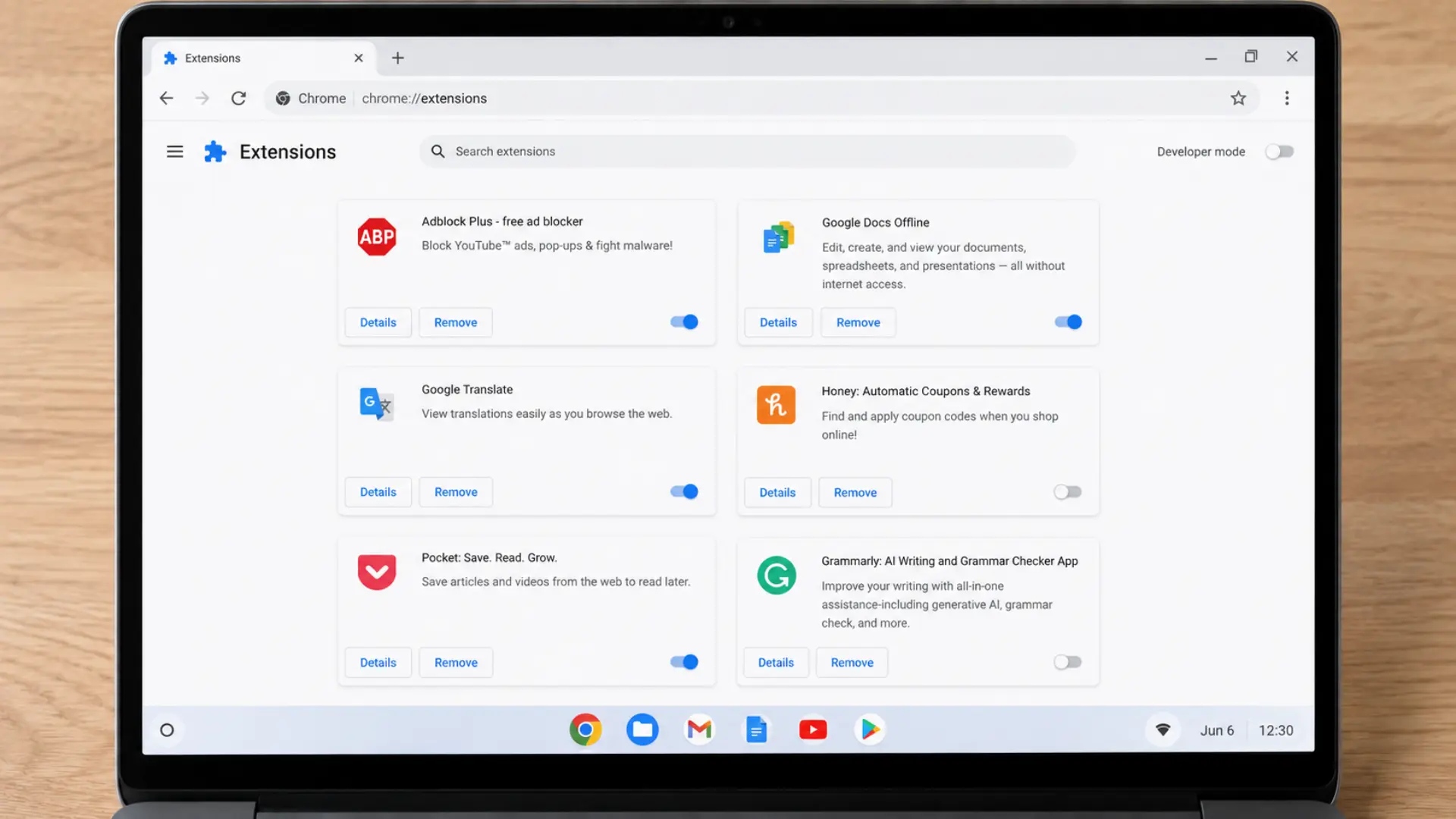
3. Audit and Remove Unused Extensions
Extensions are the hidden weight most Chromebook users carry without realizing it.
A single extension that manages downloads or blocks ads may run continuously, using CPU cycles whether or not you have the browser open. Multiply that by eight or ten extensions installed over the years, and the performance hit becomes real.
To audit your extensions, type chrome://extensions into the address bar. You will see everything currently installed and whether it is active.
- For extensions you are not sure about, open the Task Manager (Search + Esc) and check which items are drawing the most memory.
- Disable anything you do not recognize or actively use. A practical threshold that works well is keeping five or fewer extensions enabled at any given time.
Building smart technology habits around software management, including regular extension audits, makes a bigger long-term difference than any single fix.
4. Free up Storage to Keep Chrome OS Breathing
Storage management is less obvious than clearing a cache, but it matters just as much. ChromeOS uses available local storage as virtual memory.
Once you drop below roughly 10 to 15 percent free space, the system slows down on tasks that would otherwise be instant, including opening apps, saving files, and running updates.
To check your storage, go to Settings > Device > Storage management.
This gives a clear breakdown of what is occupying space. Common culprits include old files in the Downloads folder, offline content, and screenshots that have piled up over months.
A few steps that recover space quickly:
- Move photos and documents to Google Drive rather than keeping local copies
- Delete downloads you no longer need (most files there were meant to be temporary)
- Remove offline content from apps you rarely use without a connection
- If you allocated disk space for Linux, check whether you actually use it. Removing Linux from Settings > Advanced > Developers returns that storage immediately.
According to consistent findings across ChromeOS support documentation, keeping at least 10-15% of internal storage free is one of the most reliable ways to maintain baseline performance on any Chromebook model.
5. Keep Chrome OS and Your Apps Updated
This step gets skipped more than it should. Outdated ChromeOS versions carry performance bugs that Google has already patched in newer releases. Running an older build means carrying issues that have been resolved for everyone else.
To check for updates, go to Settings > About ChromeOS > Check for updates.
Chrome OS downloads and installs any available update automatically. After installation, a restart applies the changes.
Do the same for Android apps. Open the Google Play Store, tap the profile icon in the top right, and choose Manage apps and device to see pending updates. Apps optimized for newer ChromeOS builds often run noticeably better after a simple update.
6. Advanced Tweaks: Chrome Flags and Hyper-Threading
If the standard fixes have helped, but you want to push performance further, Chrome flags offer targeted options. These are experimental settings that Google tests before releasing widely.
Type chrome://flags into the address bar to access them.
Three flags worth testing on a slow Chromebook:
- Parallel downloading (#enable-parallel-downloading): Splits downloads into smaller simultaneous chunks. Performance testing has shown download speed improvements of up to 40 percent for larger files when this flag is active.
- GPU rasterization (#enable-gpu-rasterization): Offloads web page rendering from the CPU to the GPU. This produces noticeably smoother scrolling and faster page loads on most devices.
- Experimental canvas features (#enable-experimental-canvas-features): Improves rendering performance for complex web content and certain web-based apps.
Each change requires a browser restart to take effect. If any flag causes instability, reset it to Default in the same menu.
Separately, Chromebooks ship with Hyper-Threading turned off by default. Enabling it via chrome://flags#scheduler-configuration (select “Enables Hyper-Threading on relevant CPUs”) lifts performance on compute-intensive tasks.
The trade-off is a slight increase in exposure to certain hardware-level vulnerabilities. For personal devices used on trusted home or office networks, it is a reasonable exchange.
Google’s own performance settings documentation explains the security context clearly for anyone who wants the full picture before enabling it.
When to Powerwash Your Chromebook?
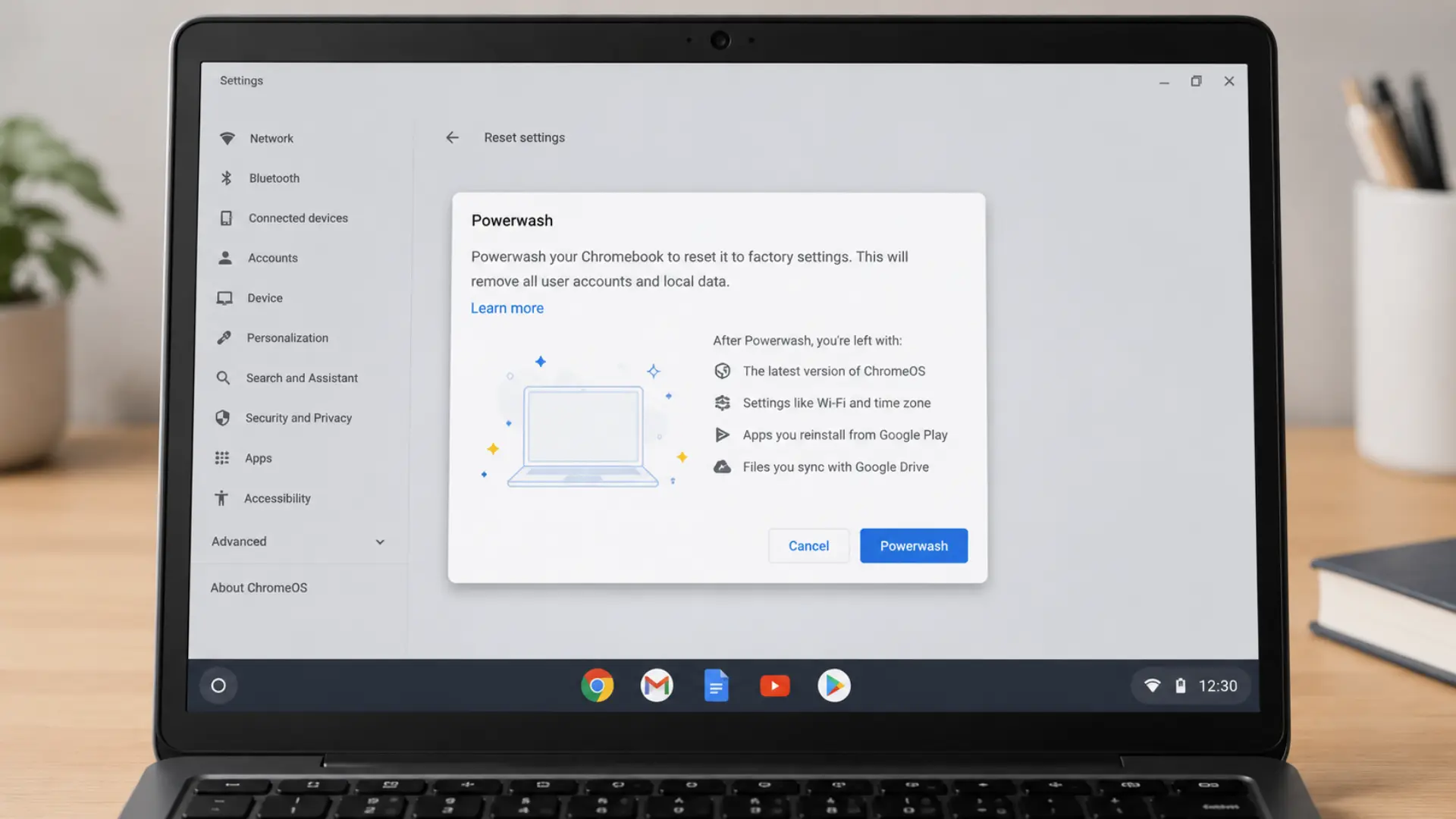
A Powerwash is ChromeOS’s factory reset. It erases all local files, accounts, and settings, then restores the device to its out-of-box state.
Because Chromebooks are cloud-first, the most important data is already safe in Google Drive, Gmail, and Chrome Sync, so the process is far less disruptive than a Windows reset.
Run a Powerwash when the previous steps have not resolved the problem, when ChromeOS feels sluggish regardless of what you do, or when corrupted settings appear to be at the root of the issue.
Before starting:
- Back up any files in your Downloads folder to Google Drive or an external drive (these are the only files that do not sync automatically)
- Note any apps or extensions you want to reinstall afterward
To Powerwash: Settings > Advanced > Reset settings > Powerwash > Reset.
Follow the on-screen instructions. After signing back in with your Google account, Chrome OS automatically restores Chrome sync data.
Reinstall only the apps and extensions you genuinely need. This is also a good opportunity to resist adding back the clutter that caused the slowdown in the first place.
Conclusion
A slow Chromebook is almost never a hardware problem. It is almost always accumulated clutter: too many tabs, extension creep, a cache that has not been cleared in months, and storage that has drifted past a comfortable threshold.
Running through the steps in this guide from top to bottom takes under 30 minutes and covers the vast majority of performance issues people run into with ChromeOS devices in 2026.
The bigger win is turning some of these into habits. A weekly restart, occasional cache clears, and periodic extension audits keep your Chromebook running closer to the way it felt on day one.
Speed is not just about what you fix once. It is about what you maintain consistently.
If one of these fixes made a real difference on your device, drop a comment below and let others know which step helped most. It is useful information for anyone landing on this page with the same frustration.
Frequently Asked Questions
Does Adding a Micro SD Card Make a Chromebook Faster?
Not directly. A microSD card only adds storage. It may help if your Chromebook is slow because internal storage is nearly full.
How Often Should I Clear My Chromebook Cache?
Once a month is enough for most users. Clear it sooner if pages load slowly after an update or heavy browsing.
Can Android Apps Make a Chromebook Slower?
Yes. Heavy Android apps can use RAM in the background, especially on Chromebooks with 4 GB or less. Close unused apps from Task Manager.
Is It Worth Fixing a Slow Chromebook or Buying a New One?
Check the Auto Update Expiration date first. If it has two or more years left, try fixing it. If it has expired or is close to expiration, buying new makes more sense.