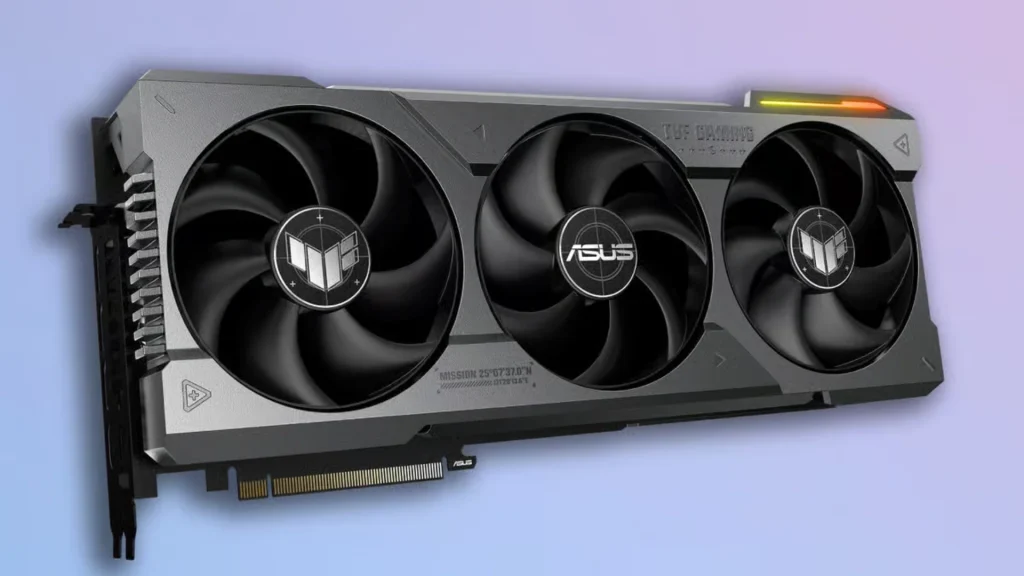
Display problems can appear without warning, such as screen flickering, freezing, or sudden lag. When this happens, I do not always see a full system restart as the best first step.
Learning how to refresh graphics card drivers gives me a quicker way to restart the driver and reload display settings without closing everything.
I see this method as a simple troubleshooting step that can fix many minor graphics issues.
Refreshing the graphics card driver can help restore normal performance, correct resolution problems, and clear temporary display errors.
In this guide, I explain how to refresh graphics card drivers on Windows and Mac using clear steps.
If visual issues are causing trouble, refreshing the graphics card driver is often the easiest place to start before moving on to driver updates or reinstalling.
What Does Refreshing a Graphics Card Do?
Refreshing a graphics card driver is a user-friendly and straightforward way to fix common display problems.
When learning how to refresh graphics card drivers, it helps to know that this process restarts the driver software without affecting files, apps, or hardware.
It clears the GPU’s cache and restarts the driver without closing your apps or restarting your PC
Refreshing the graphics card driver also reloads basic display settings, which often restores smooth performance right away.
This method is commonly used as an early troubleshooting step because it is quick, safe, and does not require a complete system restart.
For many users, refreshing the graphics card driver is the easiest way to address minor visual issues before moving on to driver updates or reinstalling the driver completely.
How to Refresh the Graphics Card on Windows?
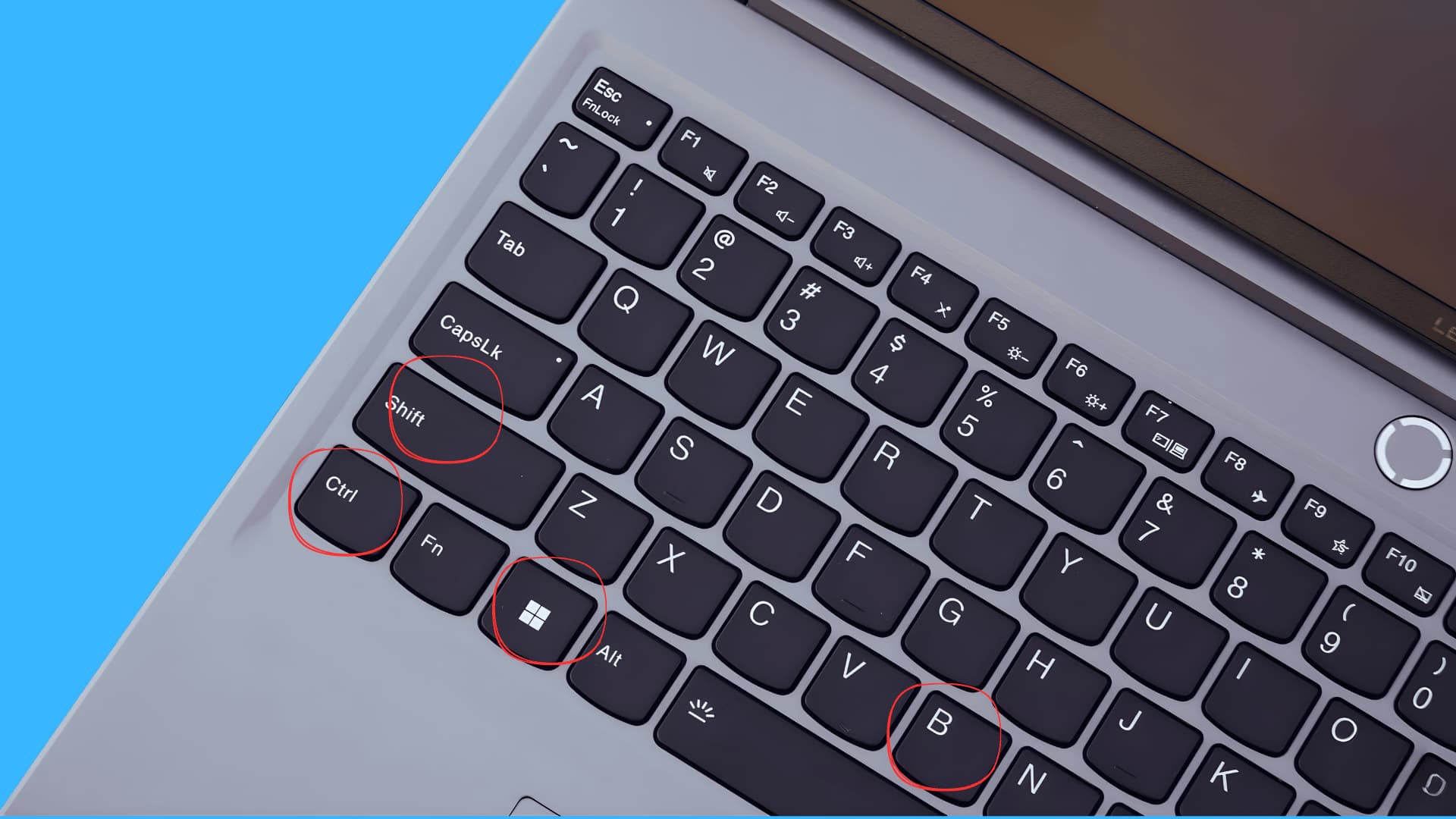
Windows provides simple built-in ways to refresh graphics card drivers without restarting the entire system.
1. Keyboard Shortcut Method
This method is the quickest way to update the graphics card driver when experiencing sudden display issues.
Press Windows + Ctrl + Shift + B at the same time on your keyboard.
The screen may briefly flicker or turn black, which is normal. This action restarts the graphics driver in the background without closing apps or files.
It helps fix screen flickering, freezing, resolution glitches, and short performance drops caused by temporary driver errors.
2. Device Manager Method
This method refreshes the graphics driver by manually restarting it through system settings.
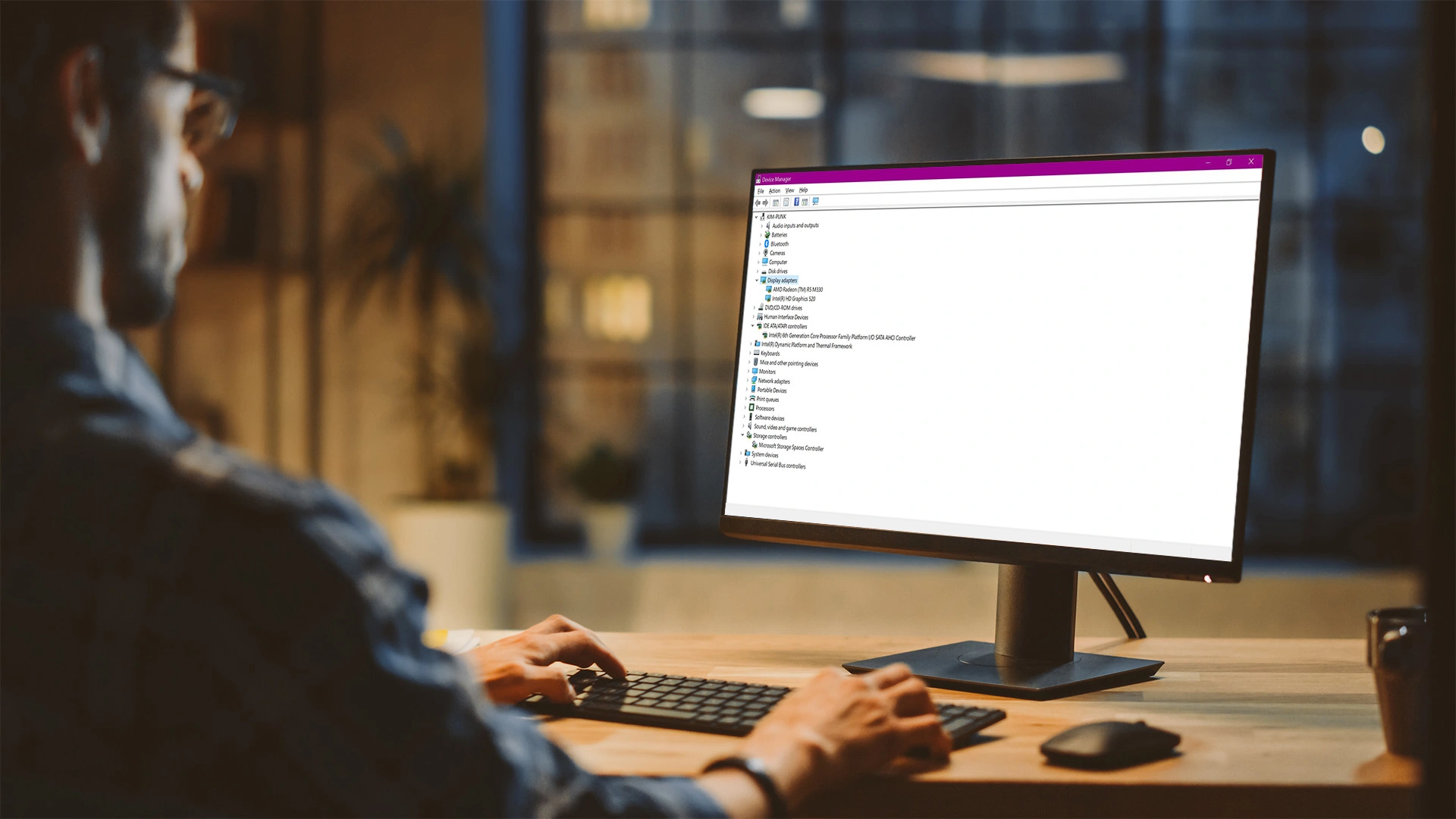
Open Device Manager from the Start menu and expand Display adapters. Right-click your graphics card and select Disable device.
Wait a few seconds, then right-click it again and choose Enable device. This forces Windows to reload the driver and reset display services.
It helps resolve persistent display issues when the keyboard shortcut does not work.
How to Refresh the Graphics Card on Mac?
macOS refreshes graphics card drivers by restarting display-related system processes rather than performing manual driver restarts.
1. Restart WindowServer
Restarting the WindowServer process refreshes display services and reloads graphics settings on macOS.
Open Activity Monitor from Applications or by using Spotlight search. Locate WindowServer in the list of running system processes. Select it and choose Force Quit.
The screen may briefly go black or reset as the system automatically restarts the display services.
This method helps fix screen flickering, lag, resolution issues, and temporary visual glitches without restarting the entire system.
2. Log Out Method
Logging out of your macOS user account refreshes graphics services in the background.
Click the Apple menu and select Log Out to end the current session. Once logged out, sign back into your account as usual.
During this process, macOS reloads display drivers and resets active graphics processes.
This method avoids a full system restart and helps resolve persistent visual issues, frozen screens, or display inconsistencies caused by a temporary graphics driver problem.
How to Reset Graphics Card Settings to Default?
This section explains how to reset graphics card settings to fix display issues caused by custom configurations or driver tweaks.
1. Reset NVIDIA Graphics Settings
This method resets all custom graphics settings to their original values. It uses the NVIDIA Control Panel to restore default driver settings.
- Open NVIDIA Control Panel: Right-click anywhere on the desktop. Choose NVIDIA Control Panel from the menu.
- Go to Manage 3D settings: Open the Manage 3D settings section. This gives access to the global graphics configuration option.
- Restore defaults: Click the Restore button in the settings panel. This resets all graphics settings to default.
2. Reset AMD Graphics Settings
AMD software provides a built-in option to reset graphics settings. It clears custom changes and restores default driver behavior.
- Open AMD Software: Open the software from the system tray icon. It can also be launched from the Start menu.
- Access settings menu: Open the main menu inside the software. Navigate to the settings section from there.
- Reset factory defaults: Choose the reset option from the settings menu. This restores the graphics settings to their default values.
3. Reset Intel Graphics Settings
Intel graphics settings can be restored through the Graphics Command Center. This resets display and performance settings to the default.
- Open Intel Graphics Command Center: Find it via Start menu search.
- Go to preferences: Access display and graphics options.
- Reset to default: Restore original settings to fix display problems.
After restoring the default settings, restart the computer to ensure the changes apply properly. If the issue continues, consider updating the graphics driver or checking other display settings.
When does Refreshing the Graphics Card Driver fail?
Refreshing the graphics card driver is often the first step to fix display issues, but it does not solve every problem.
While learning how to refresh graphics card drivers can clear temporary glitches, some issues run deeper.
If screen flickering, crashes, or performance drops continue after multiple refresh attempts, the driver may be outdated or corrupted.
In these cases, refreshing alone cannot restore stable performance. This stage signals a move beyond basic troubleshooting and into stronger steps.
Updating the graphics card driver can add missing fixes and improve compatibility. If problems still persist, a full driver reinstall may be needed to replace damaged files.
Knowing when to refresh the graphics card driver is not enough to avoid repeated quick fixes; it leads to a more reliable solution.
How to Uninstall and Reinstall Graphics Card Drivers?
Uninstalling and reinstalling the graphics card driver is often the next step when refreshing does not fix display problems.
This process removes damaged or outdated driver files and replaces them with a clean version. When learning how to refresh graphics card drivers, it helps to know when a full reinstall is needed.
Start by uninstalling the current driver through Device Manager, which clears existing driver data.
After removal, the system can reinstall the driver automatically, or you can manually install the latest version from the manufacturer.
Reinstalling the graphics card driver can fix persistent screen flickering, crashes, and driver errors.
This method restores stable performance and ensures the graphics card works properly with the operating system.
Graphics Issues Fixed by Driver Refresh
Refreshing graphics card drivers helps fix temporary driver-related issues without restarting the system or changing hardware settings.
- Screen Flickering or Flashing: Refreshing the graphics card driver clears short-term driver glitches that cause flickering or flashing screens.
- Frozen or Unresponsive Display: Restarting the graphics driver can restore the screen when it becomes stuck or stops responding.
- Graphics Driver Not Responding Errors: Refreshing reloads the driver process, which can fix driver timeout or crash messages.
- Incorrect Resolution or Scaling: A graphics driver refresh reloads display settings and fixes resolution or scaling problems.
- Sudden Visual Lag or Stutter: Restarting the graphics driver can improve performance affected by temporary driver issues.
Graphics Card Troubleshooting Tips
These tips help identify common graphics-related problems when refreshing the graphics card driver does not fix the issue.
- Check Display Cables: Loose or damaged cables can cause screen flickering or signal loss.
- Monitor System Temperature: Overheating can reduce graphics performance and cause instability.
- Close Unused Applications: Running too many apps can strain the graphics driver.
- Use System Troubleshooters: Built-in troubleshooters can detect driver and display issues. They help identify problems without manual configuration.
- Test in Safe Mode: This helps confirm if the issue is caused by graphics drivers or other software.
Conclusion
Refreshing the graphics card driver is often the quickest way to resolve common display issues like flickering, freezing, or unresponsive screens.
It is a simple step that can restore normal performance without changing system settings.
If refreshing the driver does not fix the problem, resetting graphics settings, updating drivers, or performing a full reinstall can help identify the root cause.
Following these troubleshooting steps in order helps avoid unnecessary changes and saves time.
The next time display problems appear, start by refreshing the graphics card driver before moving on to more advanced fixes.
Still facing display issues after refreshing the driver? Share the problem in the comments, and the team will help troubleshoot the issue.
Frequently Asked Questions
What Does It Mean to Refresh a Graphics Card Driver?
Refreshing a graphics card driver restarts the driver software. It clears temporary glitches without uninstalling or updating the driver.
Is Refreshing the Graphics Card Driver Safe?
Yes, it is a safe troubleshooting step. It does not affect files, apps, or hardware settings.
How Often Can I Refresh My Graphics Card and Drivers?
Drivers can be refreshed whenever display issues appear. There is no limit on how many times it can be done.