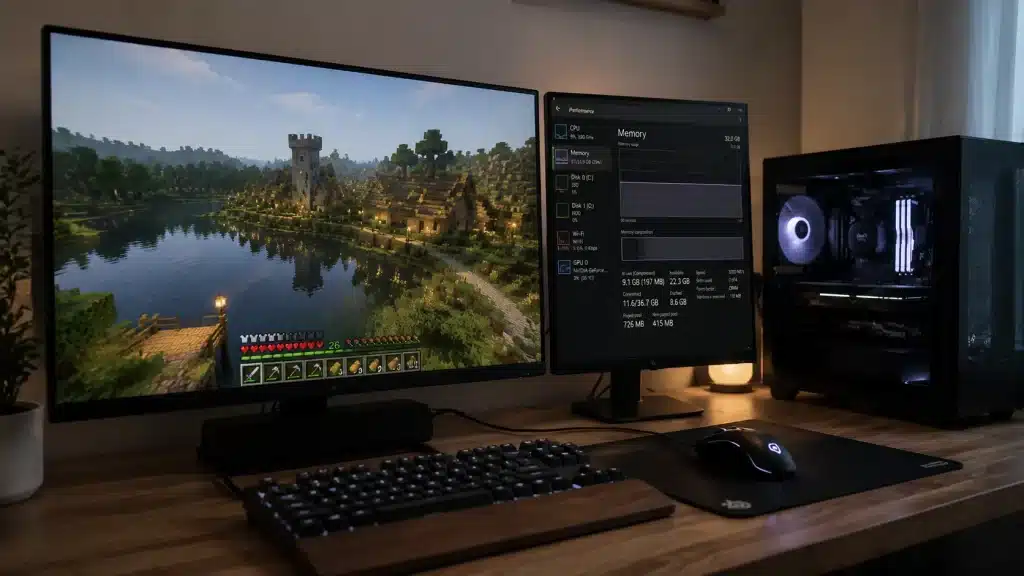
If you have ever watched Minecraft freeze while building, waited endlessly for chunks to load, or seen the game crash after launching a large modpack, you already know how frustrating performance issues can be.
In many cases, the problem is related to how much memory Minecraft is allowed to use. Learning how to allocate more RAM to Minecraft can help reduce memory-related crashes, improve loading times, and make modded gameplay smoother.
However, assigning more RAM is not always the answer. Giving Minecraft too much memory can sometimes create new performance issues.
The right amount depends on your computer’s total RAM, Minecraft edition, mods, shaders, and the type of worlds you play.
What Does Allocating More RAM to Minecraft Mean?
RAM (Random Access Memory) is what your computer uses to temporarily store data it needs quick access to while a program is running.
In Minecraft, RAM is used to hold things like loaded chunks, entities, textures, and whatever mods or resource packs you’re running at the time.
Allocating more RAM doesn’t add physical memory to your computer; that would mean swapping internal hardware parts. What you’re actually doing is telling the Minecraft launcher how much of your existing memory the game can use.
By default, this limit is often set fairly low, which is fine for vanilla survival but can quickly become a bottleneck once you start adding mods, shaders, or big resource packs.
How Much RAM Should You Allocate to Minecraft?
Once you know your total system RAM, the next question is how much of it Minecraft actually needs. The answer depends entirely on how you play; a plain survival world and a mod-stacked pack put very different demands on your memory, so it helps to have a quick reference before you start adjusting anything.
| Minecraft Setup | Recommended RAM Allocation |
|---|---|
| Vanilla Minecraft | 2GB–4GB |
| Small Modpacks | 4GB–6GB |
| Large Modpacks | 6GB–8GB |
| Heavy Modpacks (100+ mods) | 8GB–10GB |
| Minecraft With High-Resolution Textures | 4GB–8GB |
One rule worth keeping in mind: try not to assign more than half of your total system RAM to Minecraft. Your operating system, background apps, and browser tabs all need memory too
Since programs left running quietly can eat into the same memory pool Minecraft needs, starving them can cause more lag than it solves.
Check How Much RAM Your Computer Has Before Allocating More
Before you touch any settings, it’s worth taking thirty seconds to confirm how much RAM you’re actually working with. Assigning more memory than your computer physically has won’t make Minecraft faster; it can cause crashes or make things worse.
Check RAM on Windows: Start Menu → Search “System Information” (or open Task Manager) → Performance → Memory → Check Installed RAM.
Check RAM On Mac: Apple Menu → About This Mac → Memory.
Once you know your total RAM, you’ll have a much clearer idea of what’s realistic to allocate.
Note: A computer with 8GB of RAM shouldn’t usually allocate all 8GB to Minecraft, since the operating system and other running apps need memory too, and if you’re already short on drive space, that can slow things down further.
How to Give Minecraft More RAM Using Different Methods
Minecraft performance often depends on how much memory it can access. Follow these methods to increase RAM allocation through launchers and settings for smoother gameplay.
1. Using the Official Minecraft Launcher
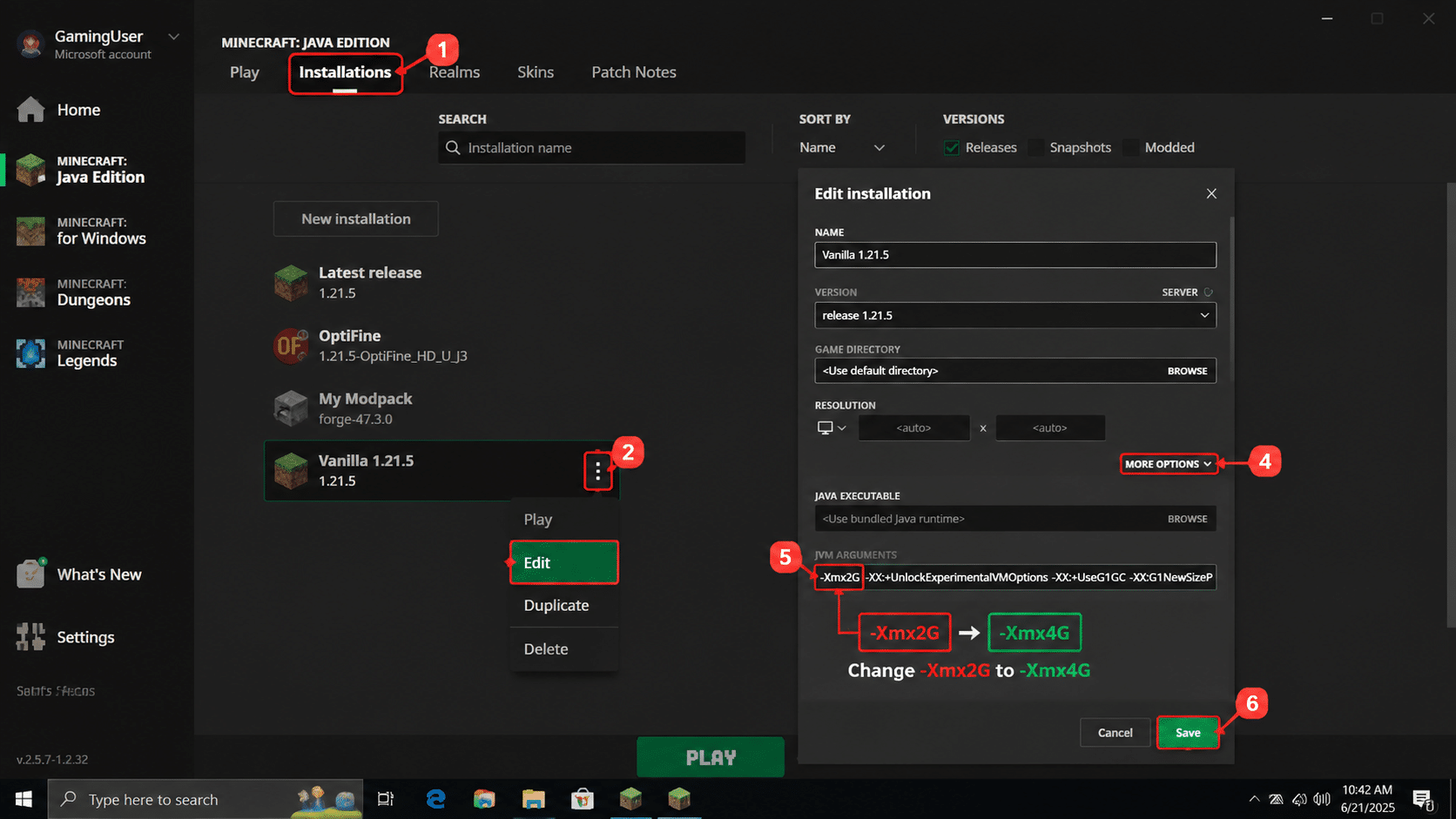
The official Minecraft Launcher lets Java Edition players manually control how much RAM Minecraft can use.
- Open the Minecraft Launcher and sign in to your Microsoft account.
- Switch the edition selector to Minecraft: Java Edition.
- Go to the Installations tab and select the profile you want to edit.
- Click the three-dot menu beside that profile and choose Edit.
- Open More Options to reveal the JVM Arguments field.
- Find the value after -Xmx and change it (e.g.,
-Xmx2Gto-Xmx4G). - Click Save, then fully restart the launcher before playing. It also helps to stay on the latest launcher version, since older builds are more prone to bugs.
2. Through CurseForge
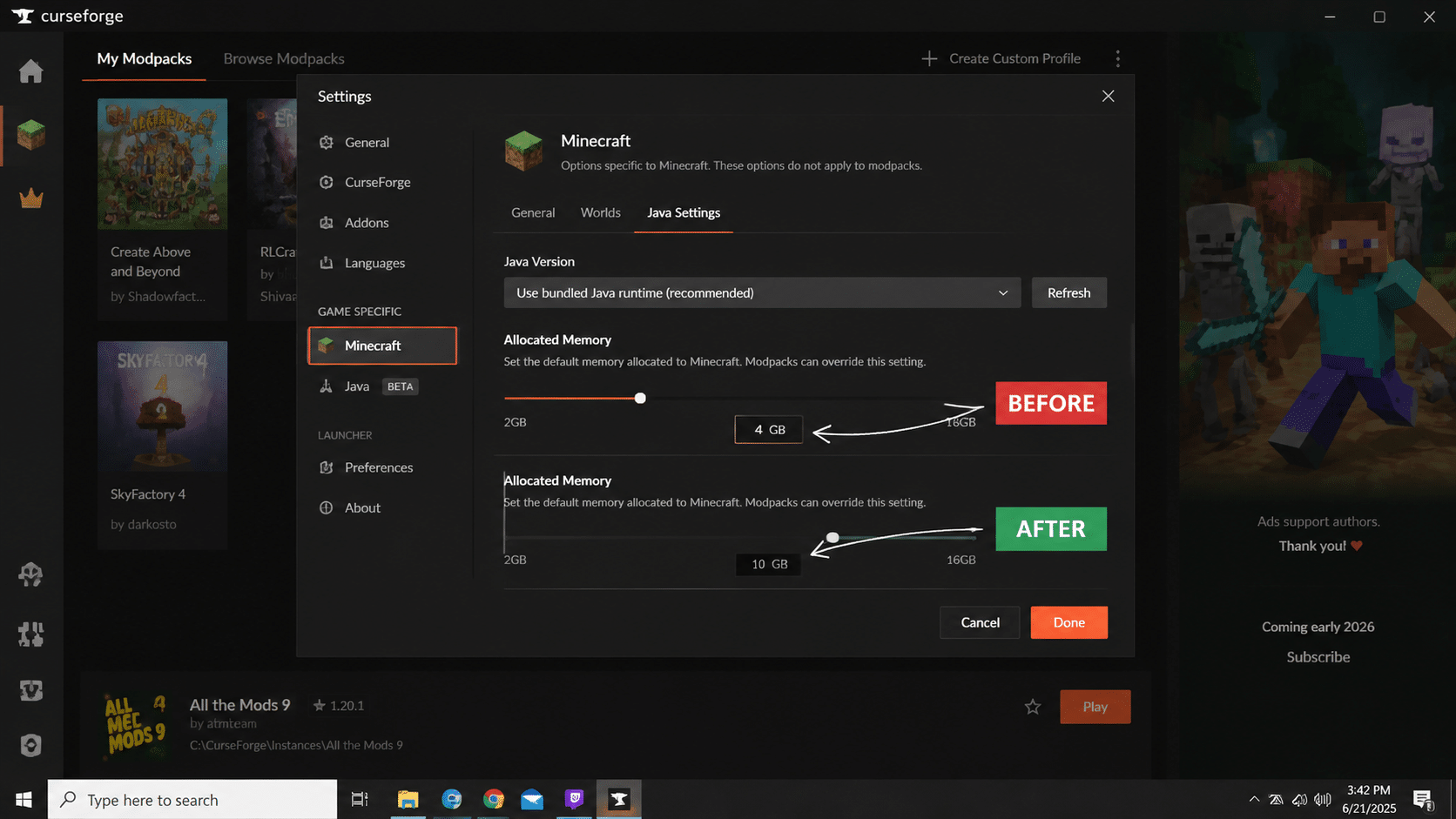
CurseForge simplifies memory management with a built-in slider, letting you assign different RAM amounts to each modpack instance without manually editing JVM arguments.
- Open CurseForge and click Settings in the sidebar.
- Navigate to Minecraft (Game Specific) in the settings menu.
- Select Java Settings to open memory controls.
- Locate the Allocated Memory slider.
- Drag the slider to your desired RAM amount.
- Save your changes before closing the settings window.
- Launch your modpack to apply the new allocation.
3. Allocation in Prism Launcher
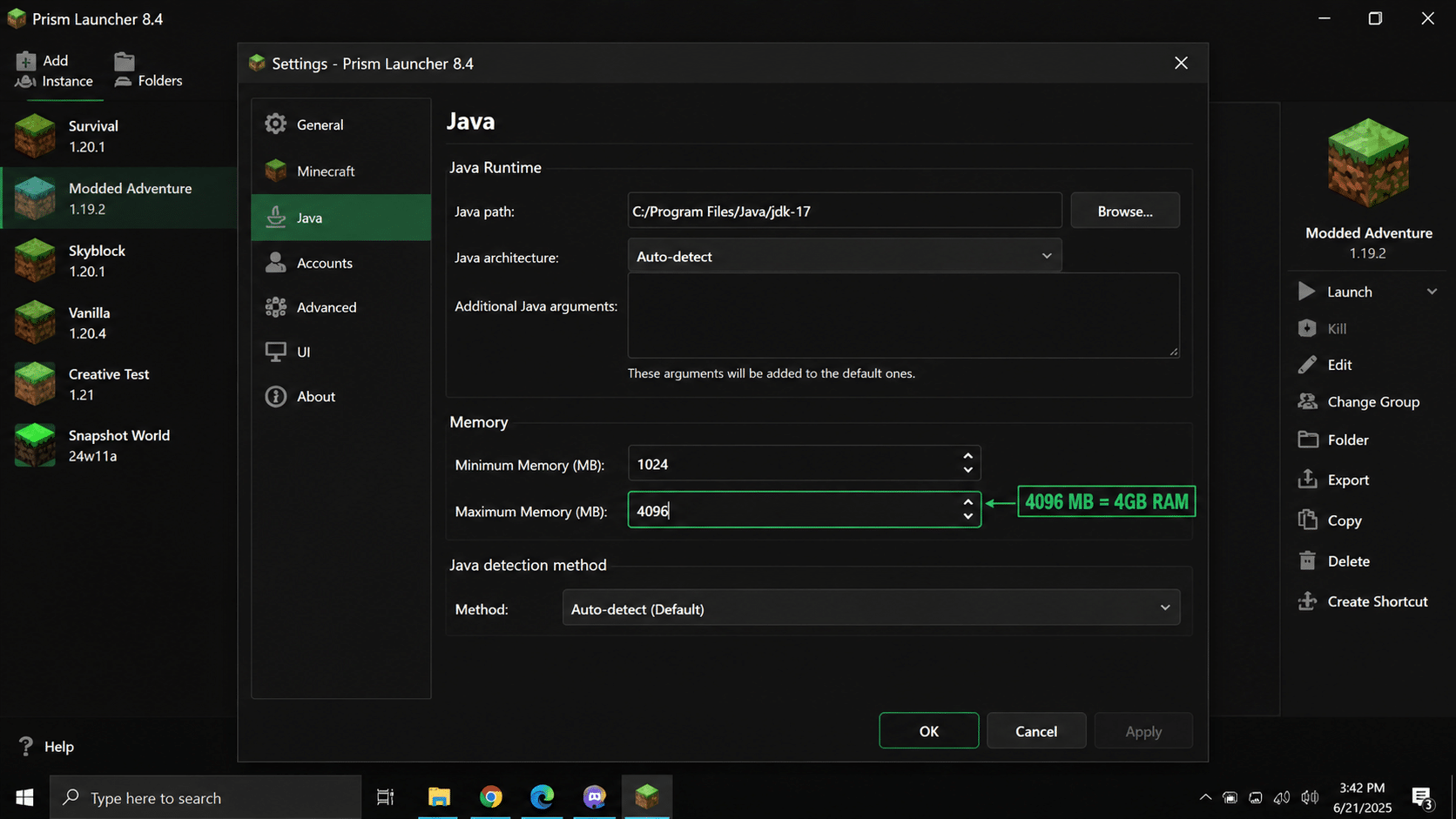
Prism Launcher offers a lightweight, straightforward way to set maximum memory in megabytes, ideal for players managing multiple custom instances.
- Open Prism Launcher and go to Settings.
- Select the Java tab from the settings menu.
- Find the Maximum Memory (MB) field.
- Enter your desired amount (e.g., 4096 for 4GB).
- Confirm the value matches your intended GB allocation.
- Save your changes and close the settings window.
- Restart the launcher, then launch your instance.
4. Bedrock Edition
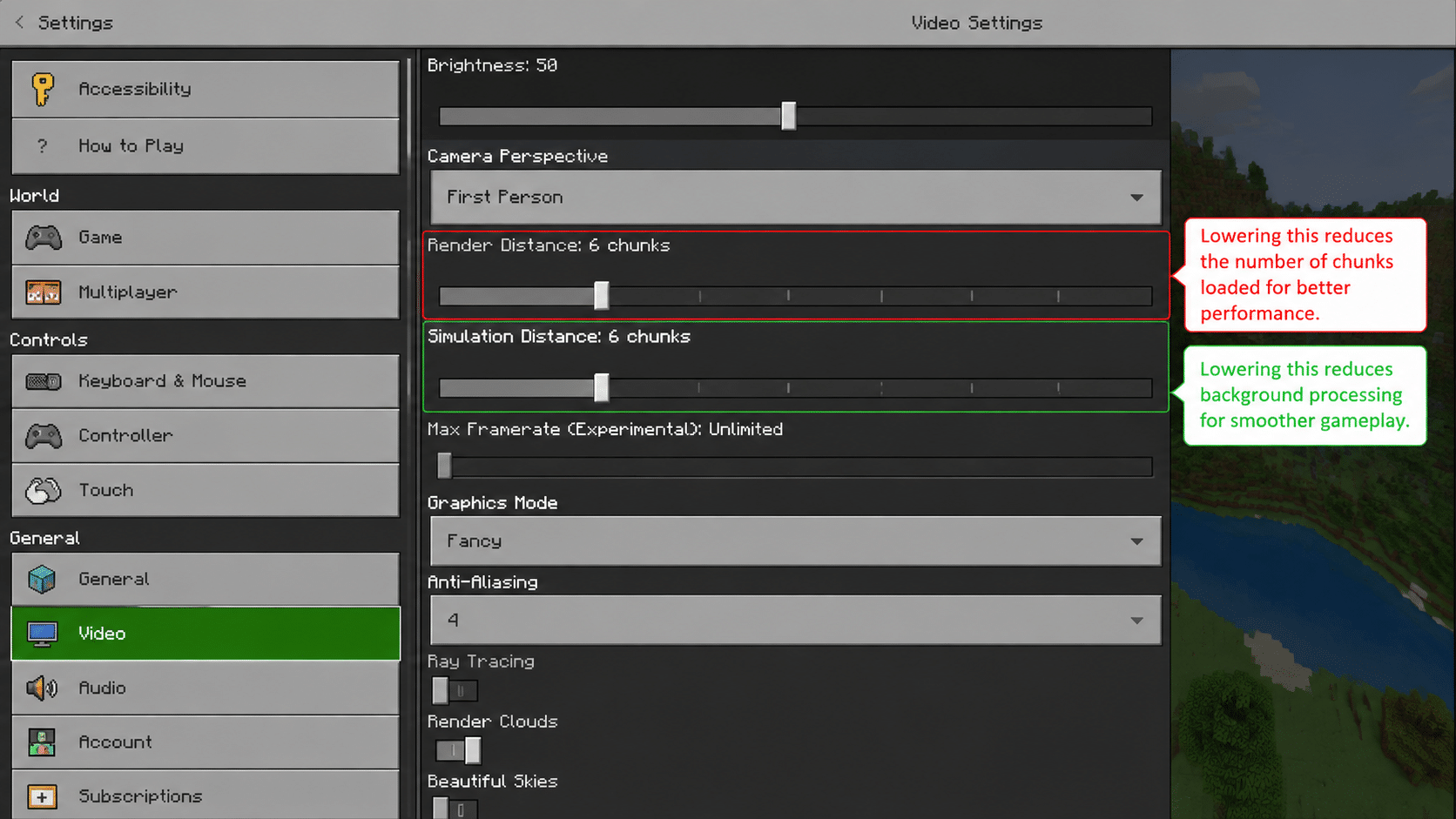
Bedrock Edition has no JVM access, so you can’t manually allocate RAM; instead, performance improvements come from adjusting in-game graphics and system settings.
- Open Settings from the Bedrock main menu.
- Go to the Video tab.
- Lower the Render Distance slider.
- Reduce Simulation Distance to ease background processing.
- Close unnecessary background apps on your device.
- Keep performance steady by updating your display drivers regularly.
5. Through Game Settings (Video & Performance Options)
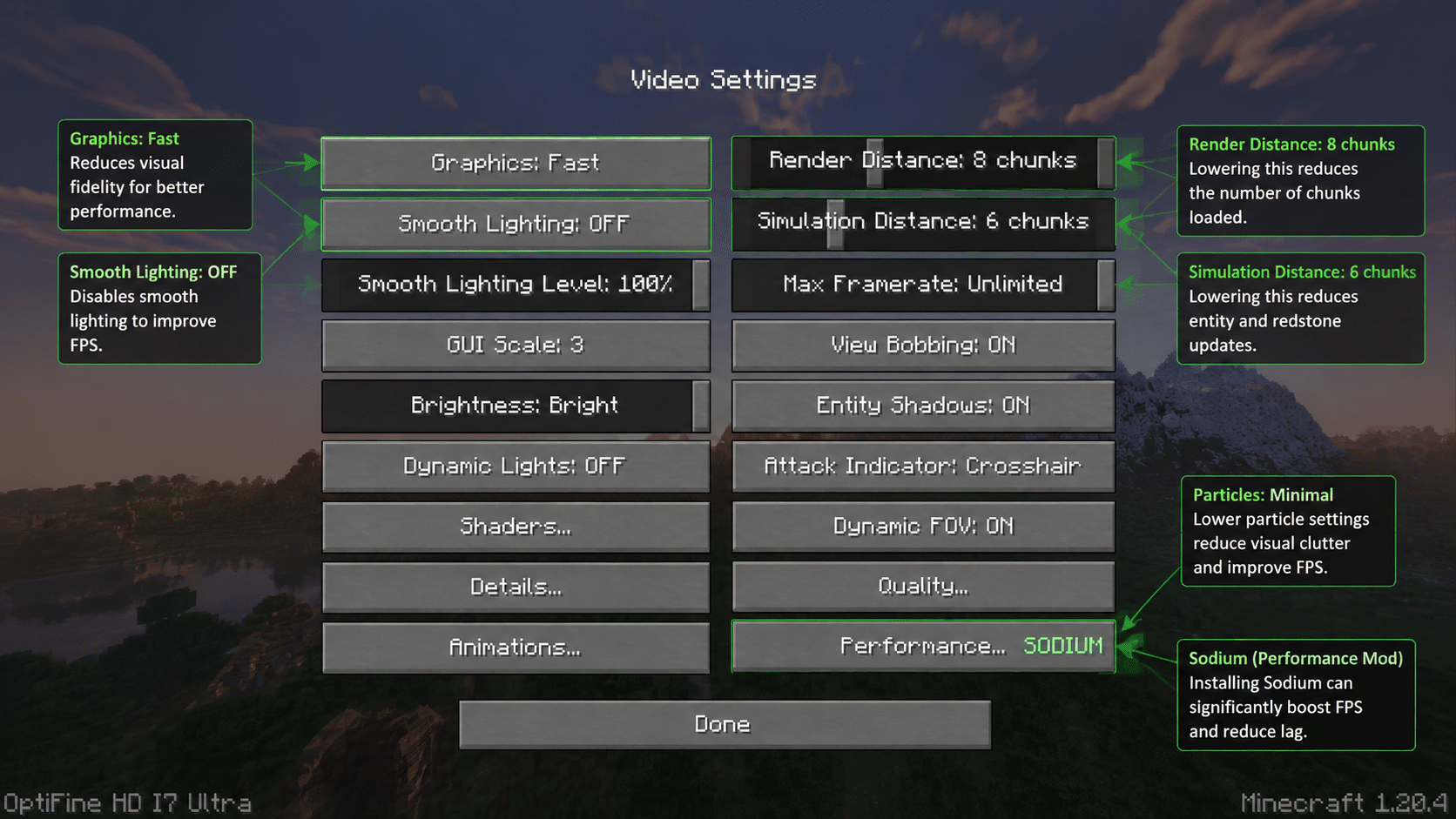
Adjusting in-game video settings reduces memory and CPU strain directly, offering a quick alternative or supplement to increasing your JVM RAM allocation.
- Open Options and select Video Settings.
- Lower Render Distance to reduce loaded chunks.
- Reduce Simulation Distance to limit active entity updates.
- Set Graphics to Fast instead of Fancy.
- Disable Smooth Lighting for lighter rendering.
- Lower Particles to Minimal.
- Consider installing a performance mod like Sodium if you’re using Java Edition, and stick to sources you already trust for any mod file.
Tip: Quick MB-to-GB reference for CurseForge and Prism: 4096 MB = 4GB, 6144 MB = 6GB, 8192 MB = 8GB. Bedrock doesn’t allow manual RAM allocation the way Java Edition does, so its fixes work through optimizing performance rather than raising a memory ceiling.
Choosing the right RAM settings can reduce crashes, improve stability, and make demanding Minecraft setups run better. Pick the method that matches your edition and playing style
What Minecraft Players Recommend About RAM Allocation
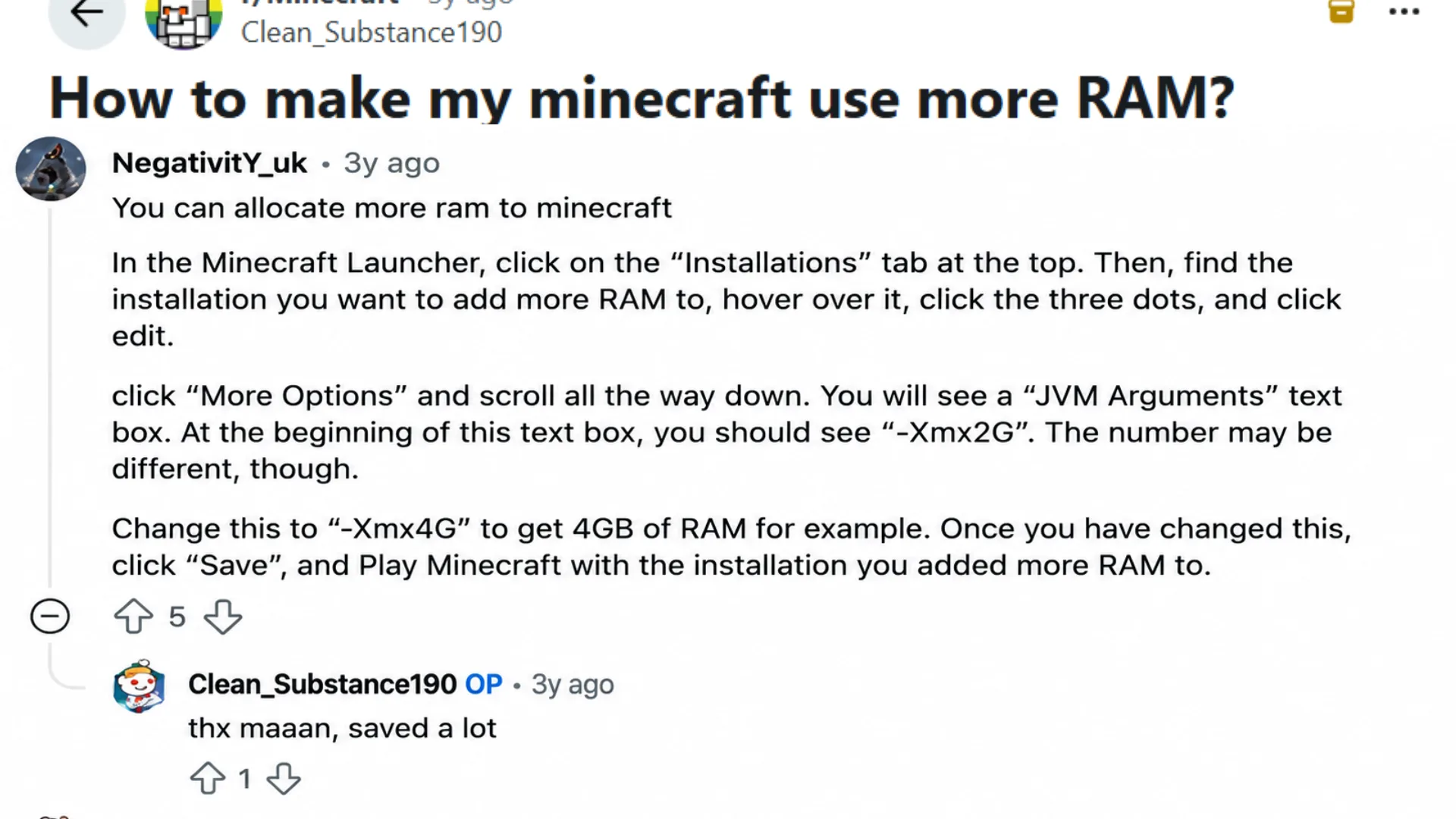
Scroll through Reddit threads or Minecraft forums, and you’ll notice a pretty consistent pattern in what experienced players recommend.
Many suggest sticking to around 4GB for normal, unmodded gameplay, since going much higher rarely makes a noticeable difference for vanilla worlds.
Players running modpacks tend to bump that up to 6GB or more, especially once shaders or large mod collections are involved.
A recurring theme across these discussions is that extra RAM doesn’t fix every type of lag. Plenty of players report that after increasing their allocation, they still experience stutters, usually traced back to CPU limitations, outdated drivers, or an overloaded mod list.
Common Mistakes When Allocating RAM to Minecraft
Changing Minecraft’s RAM settings can improve performance, but incorrect adjustments may create new problems. Avoid these common mistakes to make sure your allocated memory matches your system and gameplay needs.
| Mistake | Problem | Fix |
|---|---|---|
| Assigning Too Much RAM | Extra memory can cause Java garbage collection delays and stutters. | Allocate only what your setup needs. |
| Changing Wrong JVM Settings | Editing unknown arguments can cause launch issues. | Only adjust the -Xmx value. |
| Allocating RAM to Bedrock | Bedrock does not support JVM-based RAM settings. | Optimize graphics and system settings instead. |
| Not Restarting Launcher | New RAM settings will not apply immediately. | Close and reopen the launcher. |
The biggest issue is treating RAM as a universal fix. The best results come from matching your memory settings with your Minecraft version, hardware, mods, and overall system usage
Does Allocating More RAM Increase Minecraft FPS?
No, allocating more RAM to Minecraft does not directly increase FPS. RAM helps the game manage larger worlds, modpacks, shaders, and high-resolution texture packs more efficiently, which can reduce lag spikes and memory-related stutters.
If Minecraft already has enough available memory, adding extra RAM will not make the game run at a higher frame rate. FPS performance mainly depends on your CPU, GPU, graphics settings, and optimization options.
A powerful processor and graphics card usually have a much bigger impact on FPS than increasing RAM allocation.
For smoother gameplay, players should assign an appropriate amount of RAM, lower demanding settings, update graphics drivers, and use optimization tools when needed.
Proper RAM allocation improves stability, but it is not a replacement for better hardware.
Final Thoughts
Getting Minecraft to run better often comes down to giving it the right amount of memory without overloading your system. I found that knowing how to allocate more RAM to Minecraft can help you manage mods, shaders, and larger worlds more smoothly.
You can improve your gameplay by choosing suitable RAM settings, checking your system limits, and fixing common performance issues.
I also recommend focusing on CPU, GPU, and game settings because RAM is only one part of performance. These simple changes help you enjoy a more stable Minecraft experience.
Try these tips on your setup and share your results or questions in the comments, or check out related Minecraft performance tips for more help.
Frequently Asked Questions
How Much RAM Does Minecraft Need with Mods?
Minecraft modpacks usually need more RAM than vanilla gameplay because mods add extra blocks, entities, textures, and systems. Small modpacks often work with 4GB–6GB, while larger packs may require 8GB or more.
Why is Minecraft Not Using All Allocated RAM?
Minecraft only uses RAM when needed. Allocating 8GB does not mean the game will constantly consume all 8GB. The launcher simply sets the maximum memory limit available to the game.
Can I Use Different RAM Settings for Different Minecraft Versions?
Yes. Many launchers allow separate memory settings for different profiles or instances. This lets you assign lower RAM to lightweight versions and more memory to demanding modpacks
What Happens If I Give Minecraft too Much RAM?
Assigning excessive RAM can leave too little memory for your operating system and other applications. It may also increase Java garbage collection delays, causing stutters instead of improving gameplay.