A user on Reddit recently shared a frustrating experience:
“My computer keeps saying there is not enough disk space, but I barely installed anything. What do you do when you face insufficient space?”
-from Reddit.com
This situation is more common than you think. Many Windows users suddenly see warnings like “computer low disk space” or “not enough space on disk” without understanding the cause. If you’ve ever wondered “why is my storage always full?” or “my C drive is full without reason Windows 11”, this guide will walk you through practical, effective solutions. Please scroll down.
What Does Low Disk Space Mean
Low disk space in Windows occurs when your system drive (C:) is nearly full, which directly affects system performance rather than being just a minor issue.
Why It Matters
Windows needs free space for temporary files, virtual memory, updates, and app caching. Without it, the system cannot run efficiently.
Common Symptoms of Low Disk Space
If you see “not enough disk space,” you may also experience:
- ⚠️ Repeated low disk space warnings
- 🐢 Slower performance and lag
- ❌ Failed app installations or updates
- 🔄 Windows update errors
- 💥 App crashes or freezing
- 📂 Inability to save or download files
- 🌐 Browser crashes or loading issues
- ⚙️ System instability or startup problems
These issues highlight why low disk space can seriously impact your PC and needs to be fixed promptly.
5 Effective Ways to Fix Low Disk Space on C Drive
Here are five effective methods to fix this issue.
- Third-party partition tools like EaseUS Partition Master make it easier to manage disk space and extend the system drive by merging the Unallocated space.
- If you prefer to manually remove temporary files, refer to Method 2.
- For deleting system cache, downloaded program files, and delivery optimization files, check Methods 3 and 4.
- To prevent low disk space issues in the future, you can follow Method 5 directly.
Method 1. Extend C Drive without Losing Data🔥
The fastest way to fix low disk space in Windows 11/10/8/7 is to increase the storage of your system drive instead of repeatedly deleting files.
In this case, a convenient partition manager is EaseUS Partition Master. Its Extend feature allows you to resize partitions and automatically use available space, making it easy to fix “not enough disk space” errors.
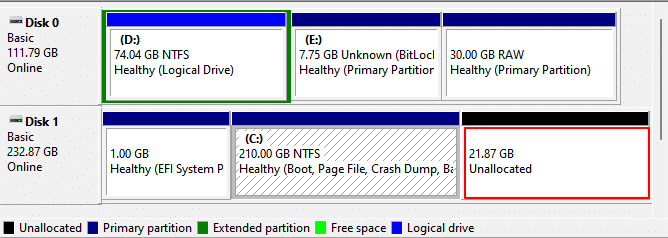
Step 1. Please press Win + X > choose Disk Management to open it > find the disk that includes your C drive > check whether there exists an Unallocated space beside your C drive.
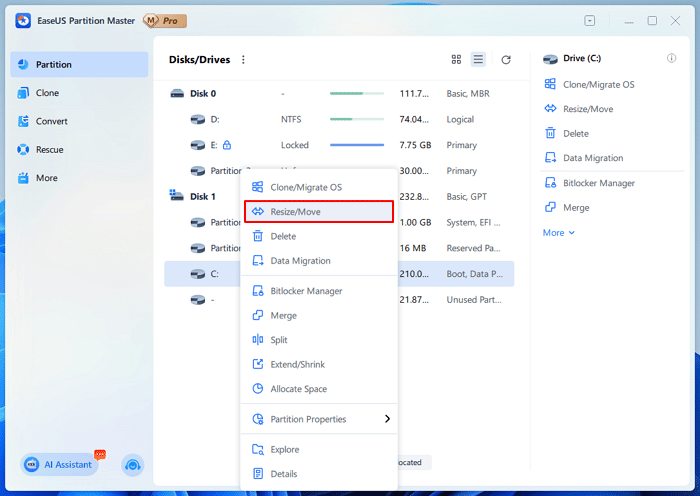
Step 2. If there is an Unallocated space, launch EaseUS Partition Master on your Windows > right-click on the C drive > select Resize/Move.
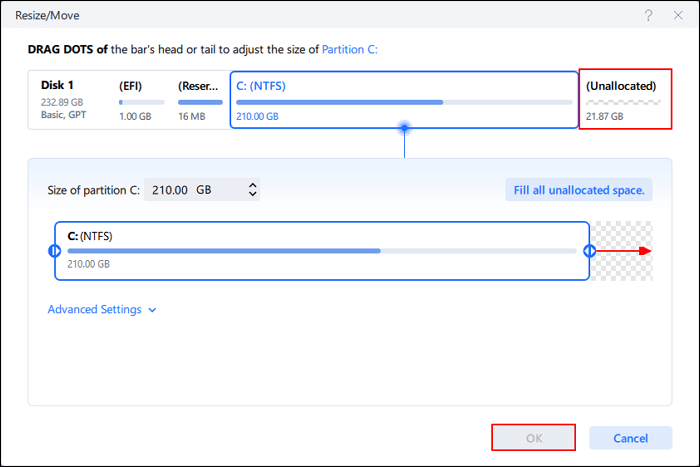
Step 3. Drag the dot to the right to extend C drive with the Unallocated space > click OK > follow-on instructions to go on.
However, if the disk that contains your C drive does not have the Unallocated space, you can use EaseUS Partition Master to create an Unallocated space first by shrinking the volume of an adjacent C partition.
Method 2. Manually Delete Temp files
To fix low disk space errors on your C drive, one of the easiest methods is to remove temporary files. These are files created by Windows and various apps during normal use, and they often stay on your system even after they’re no longer needed. Over time, they can quietly take up a lot of storage space.
By clearing these unnecessary junk files, you can free up space and help resolve issues like the “not enough space on disk” error.
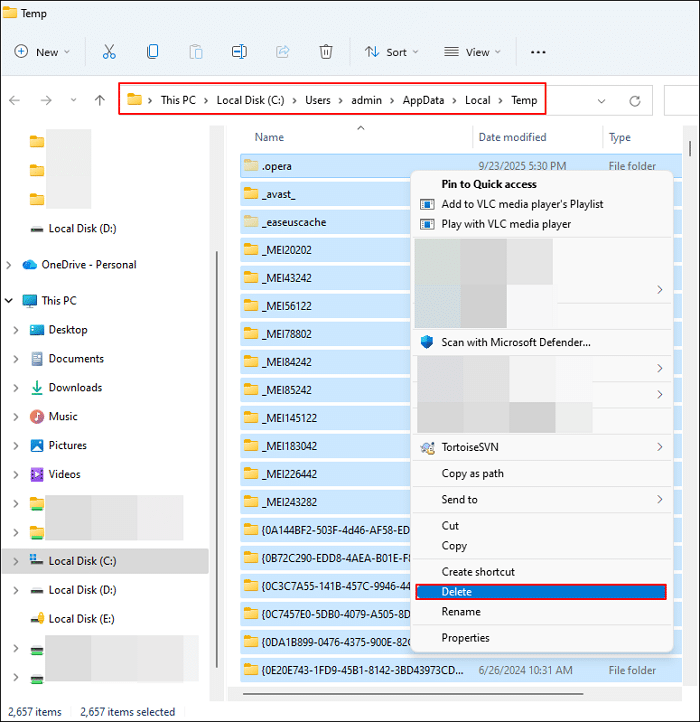
Step 1. Please press Win + R to open the Run window > type %temp% in the box > click OK or press Enter to open the Temp folder.
Step 2. Press Ctrl + A to choose all the temp files > click Delete.
Method 3. Delete temporary files via Storage Sense Settings
Besides, you can use the built-in Storage Sense feature in Windows to free up storage by removing unnecessary files, including temporary files, system cache, and items in the Recycle Bin as it directly targets temporary files that accumulate over time. Here are the steps.
Step 1. Press Win + I to open Windows Settings > select System > click Storage > under the Storage tab, activate Storage Sense.
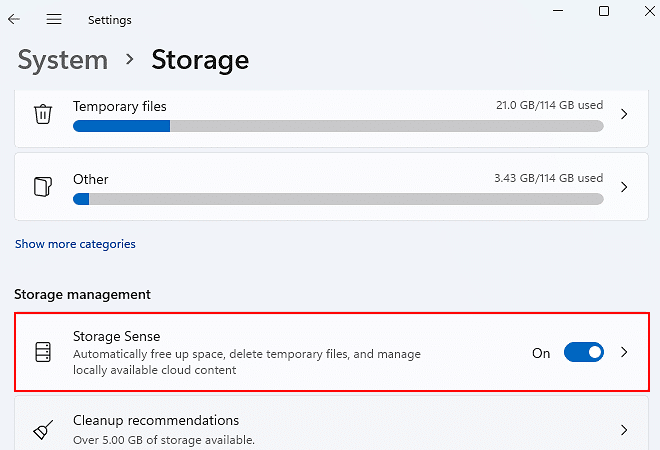
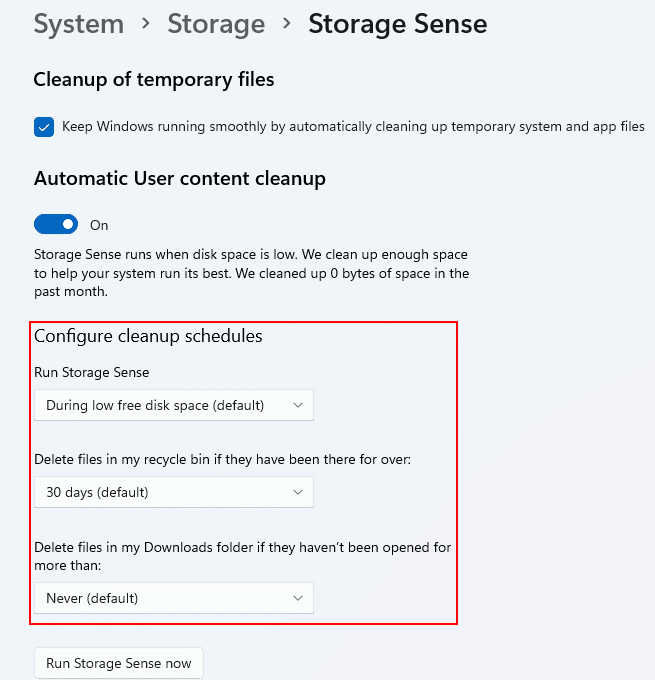
Step 2. Under the Cleanup of temporary files, tick the box. If needed, you can also set cleanup schedules.
Method 4. Run Disk Cleanup
To fix low disk space errors on the C drive, you can use another Windows built-in tool, Disk Cleanup. Disk Cleanup scans your system for unnecessary files, such as temporary files, system cache, and leftover Windows update data and allows you to safely remove them.
By running Disk Cleanup on the C drive and selecting “Clean up system files,” you can free up significant space, making it an effective solution for resolving “there is not enough disk space” issues.
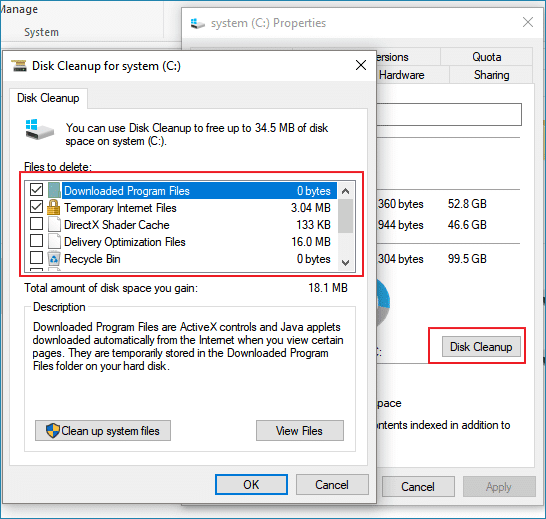
Step 1. Press Win+ E to open Windows File Explorer > click This PC > right-click on your system drive > select Properties > click Disk Cleanup.
Step 2. Under the Files to delete tab, select the files you want to remove > click OK.
Method 5. Save New Personal Files to Another Drive
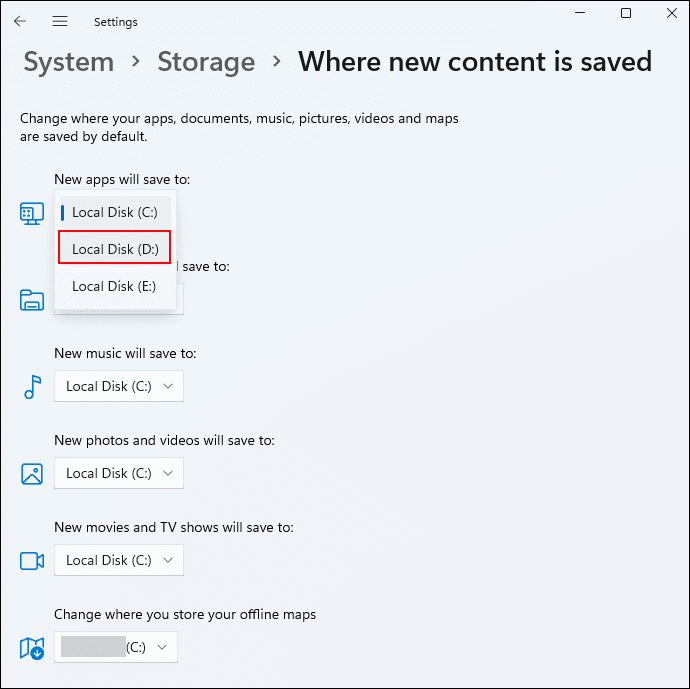
You can prevent future low disk space issues on your C drive by saving new files to another drive instead of the default system drive. Using a secondary drive with more space can help avoid repeated “low disk space” warnings and reduce the need for constant file cleanup, making it an effective long-term storage solution in Windows.
Step 1. Please press Win + I to open Windows Settings > select System > choose Storage.
Step 2. In the Storage window, scroll down to find the Advanced storage settings option.
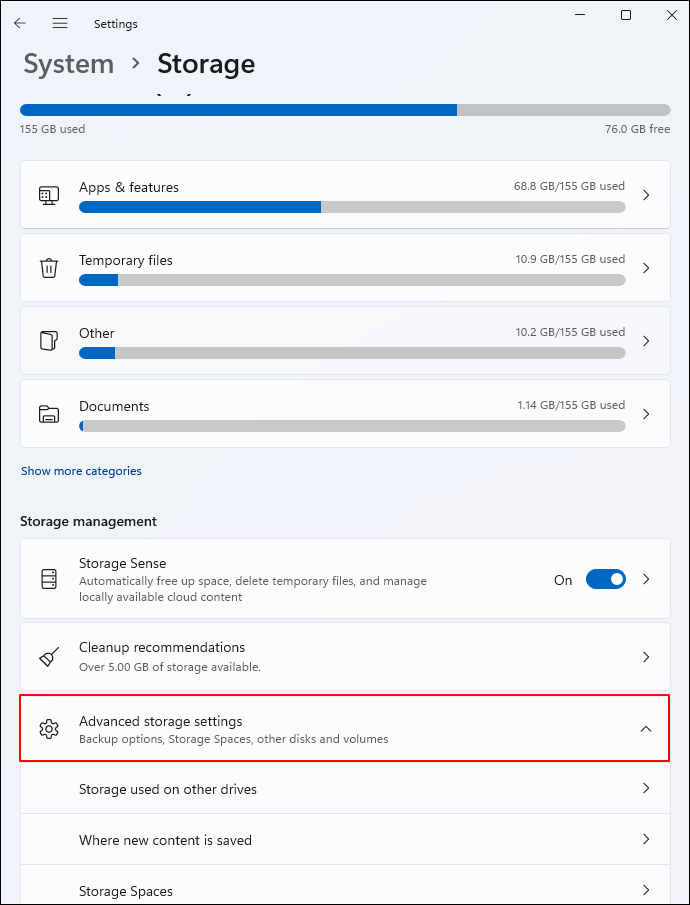
Step 3. In the new window, set a new saved drive or location for your new apps, files, music, photos, etc.
Conclusion
Fixing low disk space errors on the C drive is crucial for keeping your Windows PC fast, stable, and responsive. When you see warnings like “not enough space on disk” or “computer low disk space,” it usually means your system drive is overloaded with temporary files, apps, updates, or hidden system data.
While built-in tools like Storage Sense, Disk Cleanup, and manual cleanup methods can help free up space, they may not always provide a long-term solution. For a more effective and lasting fix, expanding your system drive is often the best option.
This is where EaseUS Partition Master Professional stands out. It offers a fast, safe, and convenient way to extend your C drive with just a few clicks – no advanced technical skills required.
FAQs
Additionally, this section includes several practical tips for fixing low disk space issues. Please check them out if you’re intersted.
- Can Windows Virus & Threat Protection fix low disk errors on C drive?
Yes, it can if the issue is caused by malware. Sometimes, viruses or malware can take up a large amount of disk space by corrupting system files. If you suspect your PC may be infected, it’s recommended to use a trusted antivirus tool such as Windows Security to perform a full system scan and remove any threats.
- Why is my C drive getting filled for no reason?
Because your C drive is likely filling up due to hidden temporary files, Windows updates, system restore points, or application cache accumulation.
- Why is my disk space full when I have nothing?
If your computer shows a full disk but no visible files, it is usually caused by hidden system files, large temporary files, malware, or file system errors.