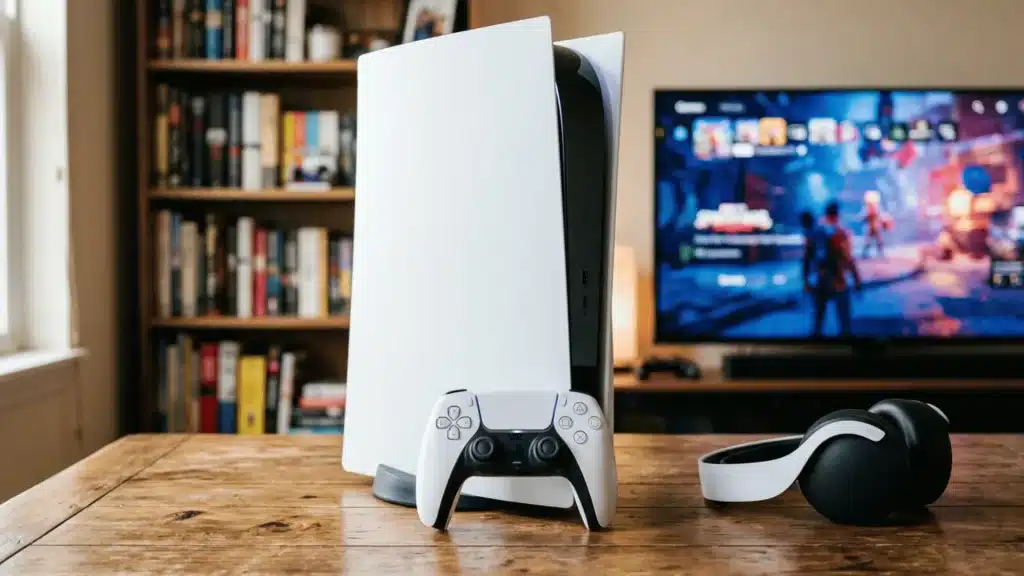
You put your Bluetooth headphones in pairing mode, open your PS5 settings, and expect them to connect. Instead, there’s no pairing option, leaving you wondering what went wrong.
The reason is simple: Sony blocks direct Bluetooth audio to reduce latency and improve gaming performance.
Fortunately, you can still use your favorite headphones with the right workaround. Several connection methods are available, each with its own advantages and trade-offs.
Choosing the right one depends on whether you prioritize low latency, convenience, microphone support, or avoiding additional hardware.
Whether you have AirPods, Sony WH-1000XM headphones, or another Bluetooth headset, this guide explains the easiest ways to connect them and get the best possible gaming experience.
Why Doesn’t the PS5 Support Bluetooth Headphones?
The PS5 includes Bluetooth hardware, but it does not allow standard Bluetooth audio profiles such as A2DP (Advanced Audio Distribution Profile).
Instead, Bluetooth is limited to controllers, keyboards, and licensed accessories.
The main reason is latency. Standard Bluetooth audio typically introduces a delay of 100–200 milliseconds. In fast-paced games, even this small delay can affect timing, reaction, and spatial awareness.
Sony’s Tempest 3D AudioTech is also designed for precise sound positioning, which requires stable, low-latency delivery. Standard Bluetooth cannot reliably meet that requirement.
Sony’s own official headsets, including the PULSE 3D Wireless Headset and the PlayStation Pulse Elite, use proprietary 2.4GHz wireless technology precisely because it offers lower latency and more stable bandwidth than standard Bluetooth.
There is also a bandwidth allocation issue.
The PS5 reserves its Bluetooth connection for the DualSense controller, and adding a Bluetooth audio stream to the same frequency space can create conflicts that result in audio drops or input lag.
Things to Know Before Connecting Bluetooth Headphones
A few practical realities are worth understanding before choosing a method. Getting these wrong is usually why setups fail or disappoint.
- Direct Pairing: The PS5 does not support pairing with standard Bluetooth headphones through its built-in Bluetooth settings.
- Mic Support: Most Bluetooth adapters transmit audio output only. Your headphones’ built-in microphone typically will not work for voice chat. When both audio and mic are active over Bluetooth simultaneously, audio quality often drops significantly due to how Bluetooth handles bidirectional audio.
- Audio Latency: The amount of delay between on-screen action and sound depends on the connection method and the Bluetooth codec being used.
- TV Delay: Routing audio through your TV’s Bluetooth can introduce additional lag due to HDMI processing and the TV’s own audio transmission.
- Extra Hardware: For the best wireless experience, you’ll usually need an external USB Bluetooth adapter or a 3.5mm Bluetooth transmitter.
How to Connect Bluetooth Headphones to PS5?
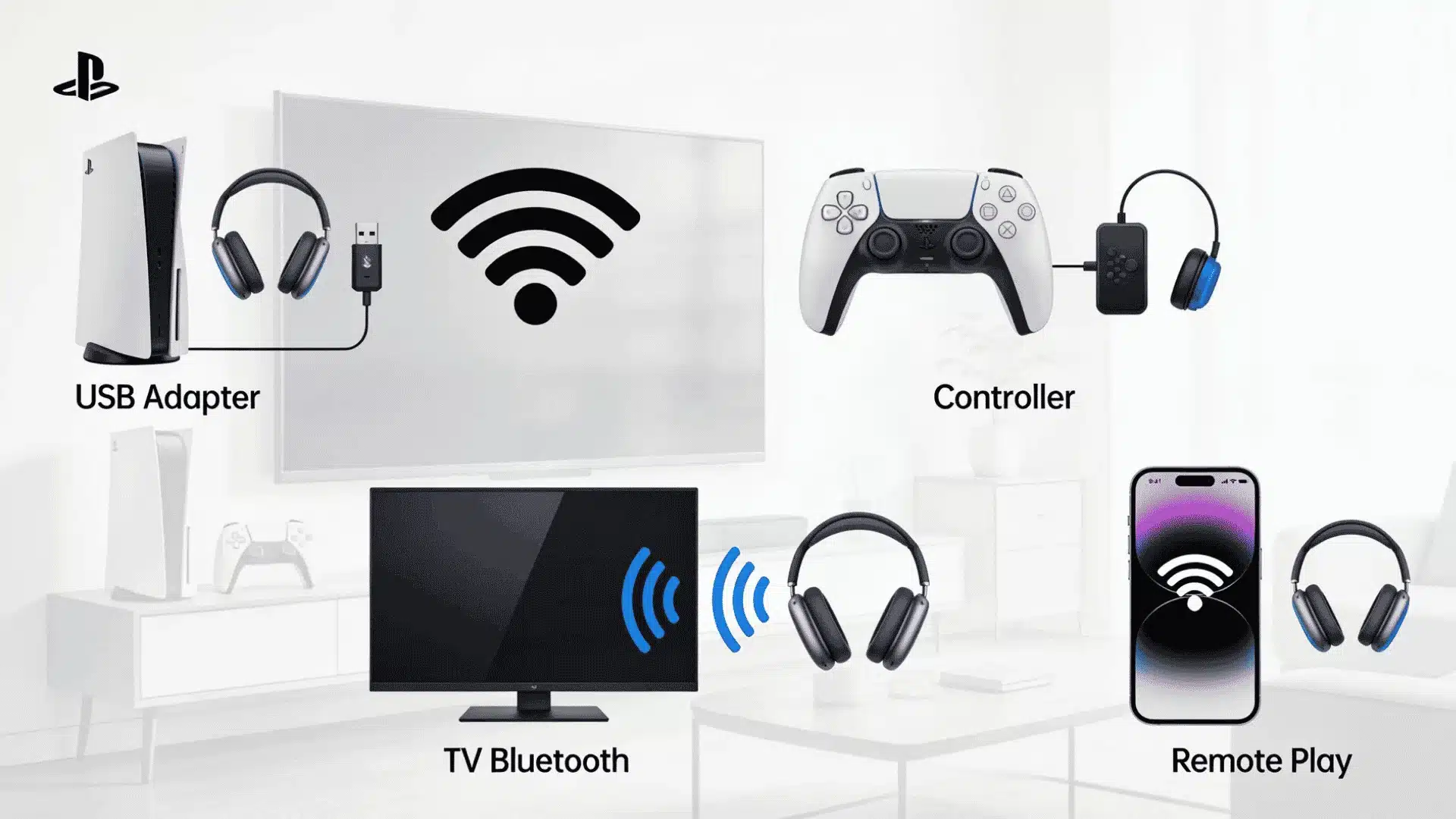
There are 3 effective ways to connect Bluetooth headphones to a PS5. The best option depends on whether you prioritize low latency, convenience, or avoiding extra hardware.
Method 1: USB Bluetooth Adapter (Best Overall Method)
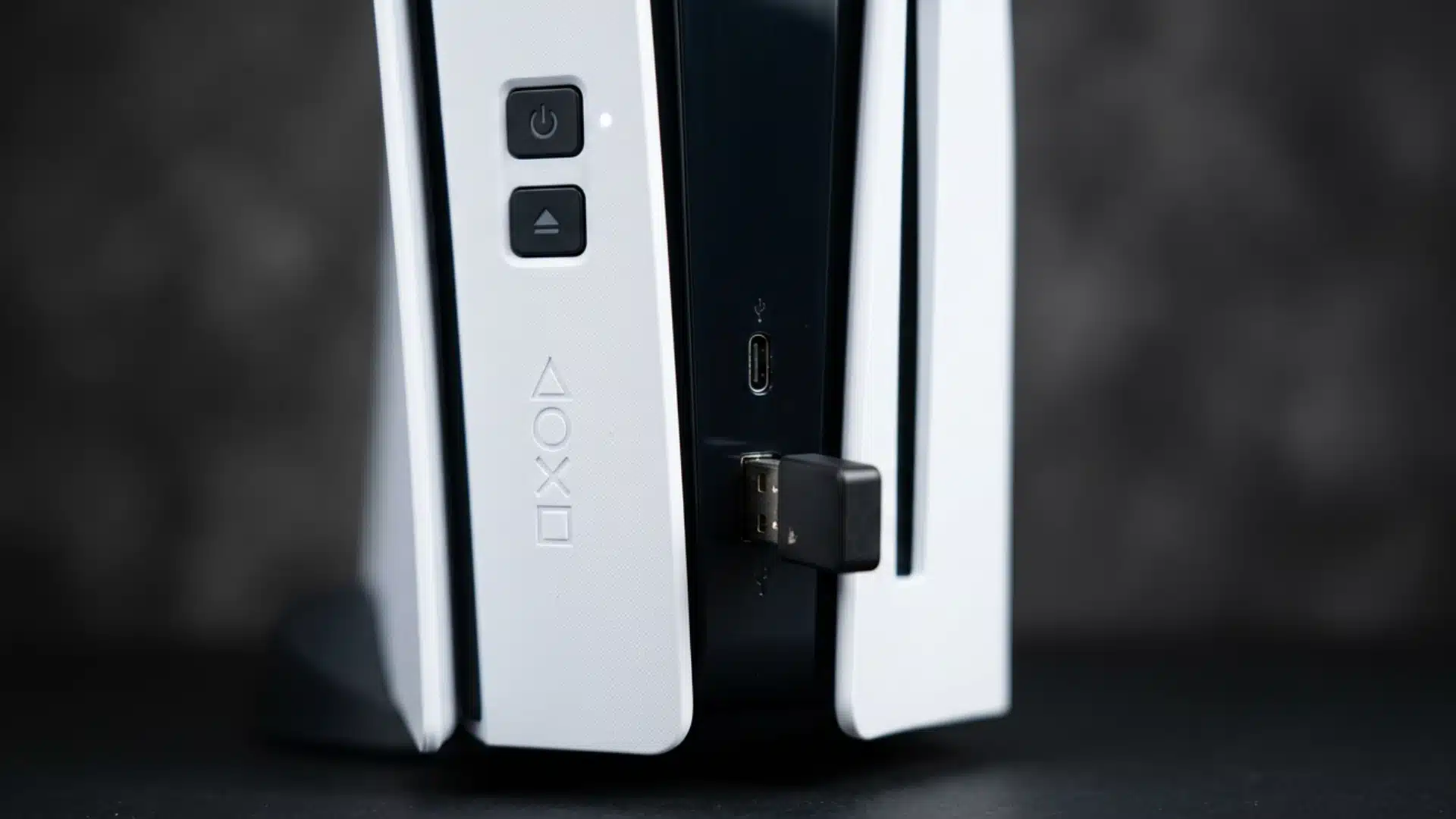
A USB Bluetooth adapter is the most reliable way to connect Bluetooth headphones to a PS5. It plugs into the console and acts as an external audio device, bypassing the system’s Bluetooth restrictions.
For the best performance, choose an adapter with Bluetooth 5.0 and aptX Low Latency or aptX Adaptive support.
Also confirm the adapter is plug-and-play and UAC2 compliant (the USB audio standard the PS5 uses to recognize external audio devices). If the adapter requires a driver installation, it will not work on the console.
Setup Steps:
- Plug the adapter into the PS5.
- Put the adapter and headphones in pairing mode.
- Wait for them to connect.
- Go to Settings → Sound → Audio Output.
- Select the USB device.
- Set Output to Headphones → All Audio.
Dedicated gaming headsets for PS5 use 2.4GHz wireless rather than standard Bluetooth, which sidesteps all of these adapter requirements and delivers better latency with a simpler setup.
Method 2: 3.5mm Bluetooth Transmitter via DualSense Controller
A Bluetooth transmitter connected to the DualSense controller’s 3.5mm jack converts wired audio into a Bluetooth signal for your headphones.
It’s a good alternative if you want to keep the console’s USB ports free.
After plugging in the transmitter, pair it with your headphones and make sure the controller’s headphone jack is selected as the audio output on the PS5.
Setup Steps
- Connect the transmitter to the controller.
- Pair it with your headphones.
- Open Settings → Sound → Audio Output.
- Select the controller/headphone jack.
- Set Output to Headphones → All Audio.
Method 3: TV Bluetooth Audio
If your TV supports Bluetooth audio output, you can pair your headphones with the television instead of the PS5. The console sends audio to the TV through HDMI, and the TV forwards it to your headphones wirelessly.
This method requires no additional hardware and is the easiest to configure.
The trade-off is noticeable audio delay. It works for casual single-player games and streaming, but the delay is distracting for anything fast-paced.
Setup Steps
- Enable Bluetooth on your TV.
- Pair your headphones with the TV.
- Keep PS5 audio output set to HDMI.
Method 4: PS Remote Play
PS Remote Play lets you stream PS5 gameplay to a phone, tablet, or PC, then pair Bluetooth headphones directly to that device.
Since the secondary device handles audio natively, your headphones connect without any console-side restrictions.
The practical limitation is stream latency. Audio and video both route through the network, which adds delay on top of any Bluetooth lag.
On a 5GHz Wi-Fi connection with a responsive network, this is manageable for casual play, but it is not suitable for competitive gaming.
This method is most useful when you want to use headphones you already own without buying any hardware.
- Install the PS Remote Play app on your phone, tablet, or PC.
- Connect to your PS5 through the app.
- Pair your Bluetooth headphones to the device running Remote Play.
- Audio from the PS5 will route through your headphones via the secondary device.
Which PS5 Bluetooth Connection Method is Best?
The table below compares the most important factors to help you pick the best option for your setup.
| Method | Latency | Cost | Ease of setup | Mic support | Extra hardware |
|---|---|---|---|---|---|
| USB Bluetooth adapter | Low (with aptX LL/Adaptive) | Low to medium | Medium | Limited | Yes |
| 3.5mm Bluetooth transmitter | Medium | Low | Easy | Limited | Yes |
| TV Bluetooth audio | High | Free (if TV supports it) | Very easy | TV-dependent | No |
| PS Remote Play | Variable (network dependent) | Free | Easy | Device-dependent | No |
| Wired via DualSense controller | Lowest | Free | Very easy | Yes | No |
For competitive gaming, a USB Bluetooth adapter with aptX Low Latency or aptX Adaptive support is the best wireless option.
If you want zero compromise on latency and already own wired headphones, plugging them directly into the DualSense remains the simplest and most reliable path.
AirPods & Popular Bluetooth Headphones on PS5
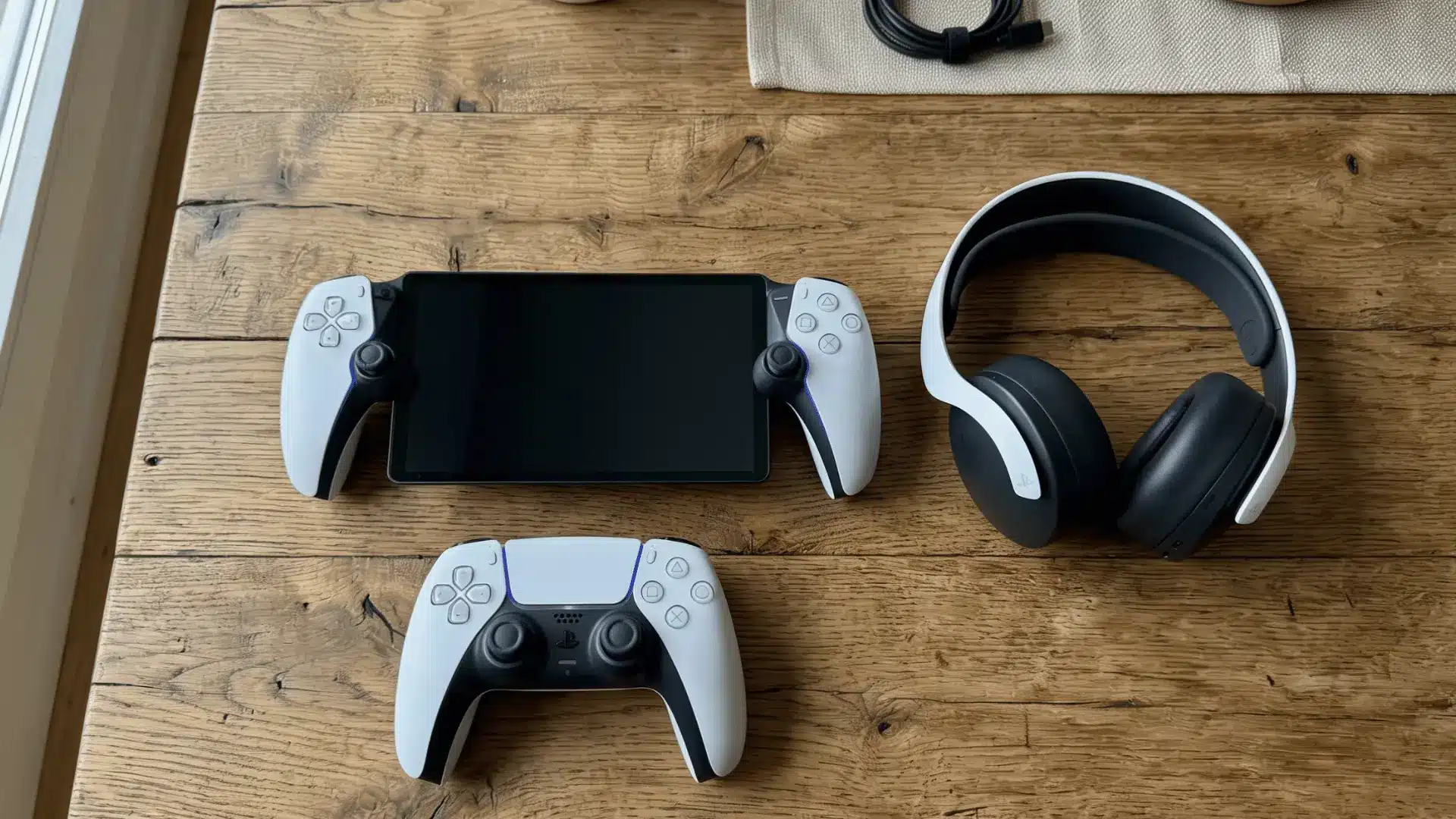
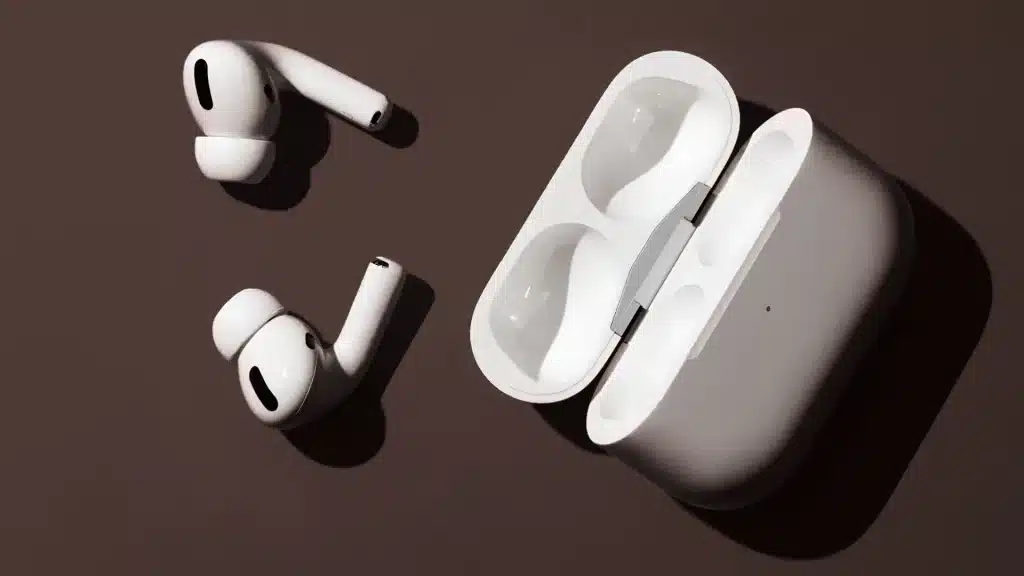
Most popular Bluetooth headphones can work with a PS5 through one of the methods above, but none can connect directly through the console’s Bluetooth settings. AirPods require a compatible USB Bluetooth adapter.
They work well for game audio once connected, but the microphone will not function for voice chat through the adapter.
For anything competitive, the latency through an adapter is still higher than that of a dedicated gaming headset, and the mic limitation is a real constraint.
The Sony WH-1000XM4 and WH-1000XM5 also need a USB Bluetooth adapter.
These headphones support aptX Adaptive when connected to a compatible source, so pairing them with an adapter that also supports aptX Adaptive delivers the best possible audio quality and lag.
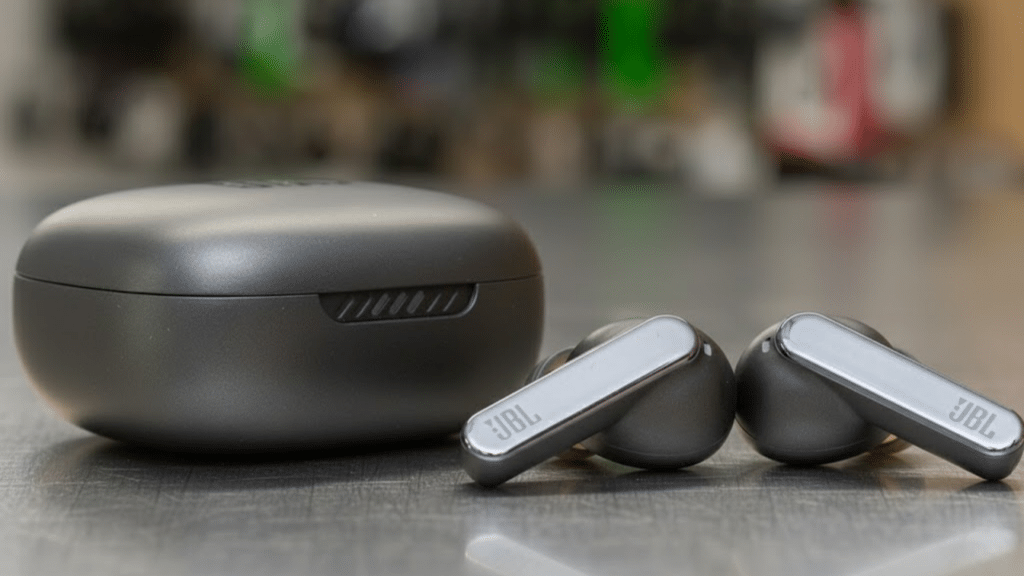
If you are researching wireless headphones for everyday use that double as a casual gaming pair, the JBL Tune 520BT covers the connectivity basics at a lower price point.
What to Look for in a Bluetooth Adapter for PS5?
The adapter you choose will determine latency, range, and whether the setup actually works on the console. A few specifications matter more than the price.
- Bluetooth 5.0 or newer: Better range, more stable connections, and improved bandwidth handling compared to older versions.
- aptX Low Latency or aptX Adaptive support: These codecs reduce audio delay to under 60ms, which is low enough that most users will not notice any lag during gameplay. SBC-only adapters are not suitable for gaming.
- Plug-and-play with UAC2 compliance: The PS5 does not install drivers. If the adapter needs driver software, it will not work on the console. Look for adapters explicitly listed as PS5 compatible.
- USB-A or USB-C connector: Confirm the connector matches the ports on your console, or that an adapter is included.
Spending a little more on a reputable adapter generally pays off.
Budget adapters that support only SBC introduce latency that makes gaming frustrating, and the cost of returning and replacing them exceeds the initial price difference.
Should You Just Buy a PS5-Compatible Headset Instead?
A PS5-compatible wireless headset, such as Sony’s PULSE 3D or PULSE Elite, uses 2.4GHz wireless rather than Bluetooth.
This means lower latency, simpler setup, full microphone support, and proper integration with Tempest 3D Audio without any of the adapter complications.
If you do not already own good Bluetooth headphones, buying a PS5-native headset is worth considering seriously.
The setup experience is much smoother, and you avoid the mic limitations that come with most Bluetooth adapter setups.
If you do own a quality pair of Bluetooth headphones, a USB adapter is a cost-effective way to use them on the PS5 without buying something new.
Troubleshooting Common PS5 Bluetooth Issues
Most Bluetooth connection problems on the PS5 can be resolved with a few simple fixes. If you encounter pairing issues, audio lag, or missing sound, the tips below can help you quickly identify and resolve the problem.
1. No Audio Detected
If your headphones aren’t producing any sound, try plugging the Bluetooth adapter into a different USB port, preferably one on the back of the PS5.
Also, verify that the USB adapter is selected as the active output device under Settings → Sound → Audio Output. If another device is selected, the PS5 may continue to send audio to it.
Codec quality and signal conditions both affect detection. Research on Bluetooth performance in shared wireless bands confirms that proximity and frequency overlap are the two most common causes of unstable connections.
2. Audio Lag or Delay
Noticeable lag almost always comes from codec limitations.
Confirm your adapter supports aptX Low Latency or aptX Adaptive, and that your headphones support the same codec. An SBC-only connection will produce lag even with an otherwise good adapter.
Also confirm that the codec mismatch is not the issue: if your headphones only support SBC and AAC but your adapter advertises aptX, the connection will fall back to SBC automatically.
3. Headphones Not Pairing
If your headphones won’t connect, reset both the headset and the Bluetooth adapter before trying again.
Keeping the devices close together during the initial pairing process can also improve the success of the connection.
Some headphones automatically reconnect to previously paired devices, such as your phone or laptop. Disconnect them from those devices first to ensure they enter pairing mode properly.
4. Microphone Not Working
Most Bluetooth adapters support audio output only, so no microphone function through the headphones is expected behavior.
Some specialized adapters include a “talk mode” that enables mic passthrough, but activating it typically reduces audio quality significantly due to Bluetooth bandwidth constraints.
For reliable voice chat, the DualSense controller’s built-in microphone or a separate USB microphone is a more practical option.
Common Mistakes to Avoid
Even with the right setup, simple mistakes can lead to connection issues or poor audio performance. Avoid these common pitfalls to ensure a smoother PS5 Bluetooth experience.
- Direct Pairing: Don’t expect the PS5 to pair with Bluetooth headphones the same way a smartphone or laptop does, as standard Bluetooth audio is not supported.
- Cheap Adapters: Using low-cost adapters without low-latency codec support can lead to poor audio quality and noticeable lag during gameplay.
- Mic Support: Don’t assume your headphones’ built-in microphone will work, since most Bluetooth adapters only transmit audio output.
- TV Bluetooth: Avoid relying on your TV’s Bluetooth connection for competitive gaming, as the added processing delay can affect timing.
- Codec Compatibility: Make sure your adapter and headphones support the same low-latency codec, such as aptX Low Latency or aptX Adaptive, for the best performance.
- Audio Settings: Always set Output to Headphones to “All Audio” in the PS5 settings so that both game and chat audio are routed correctly.
- Zero Latency: Standard Bluetooth headphones will always introduce some delay, so don’t expect a completely lag-free experience.
- USB Ports: Plug your adapter into a stable USB port and, if possible, try the rear ports if the console fails to detect the device properly.
Conclusion
Connecting Bluetooth headphones to a PS5 may not be as straightforward as expected, but it’s far from impossible. With the right setup, you can enjoy wireless audio without compromising your gaming experience.
The best choice ultimately depends on your priorities. A USB Bluetooth adapter offers the most balanced solution for most users, while other methods can work well in specific situations.
By understanding the console’s limitations and choosing the right approach, you can get the most out of the headphones you already own and focus on what matters most: enjoying your games.
Which method worked best for you, or did you run into any unexpected issues? Share your experience in the comments below; it could help other gamers find the right solution.
Frequently Asked Questions
Can You Connect Two Bluetooth Headphones to the PS5 at the Same Time?
No. The PS5 only supports one audio output at a time, even when using a Bluetooth adapter. For shared listening, a wired headphone splitter is the simplest alternative.
Will a Bluetooth Adapter Drain the PS5’s USB Power?
No. USB Bluetooth adapters consume very little power and won’t affect console performance. However, a 3.5mm Bluetooth transmitter may slightly reduce the DualSense controller’s battery life.
Does the PS5 Support Bluetooth for Anything Other than Controllers?
Yes. The PS5 supports Bluetooth keyboards, mice, and some licensed accessories, but it does not allow standard Bluetooth audio connections for headphones.
Do Bluetooth Headphones Work for Movies and Streaming Apps on PS5?
Yes. Once connected through a Bluetooth adapter or TV, your headphones will play audio from games, streaming apps, and other media on the PS5.