Many Windows laptop users notice slow performance after running multiple apps for several hours. Switching between browsers, editing tools, and other programs can make the system feel slower than usual.
If your device freezes during tasks or takes longer to respond, clearing the RAM cache can help manage memory usage and fix occasional slowdowns.
Windows handles cached memory automatically, but manually clearing it can be useful when troubleshooting performance issues.
This guide explains how to clear the RAM cache on Windows using Task Manager, RAM Map, system settings, and other practical methods.
What is RAM Cache?
RAM cache is temporary data stored in memory for recently used apps, files, and processes. Windows keeps this data ready so frequently accessed items can load faster instead of being retrieved again from the hard drive or SSD.
It is also called standby memory and is released automatically when another program needs that space.
High memory usage in Task Manager does not always indicate a problem, as cached data is a normal part of Windows memory management.
Slow performance usually comes from too many active apps, memory leaks, or background processes using excessive resources. Knowing this difference helps decide when clearing the RAM cache is actually needed.
When to Clear Cache?
Clearing the cache isn’t something to do on a fixed schedule, but there are a few specific situations worth watching for. Here’s when it makes sense to step in:
- Your laptop slows down after running for long periods, even once you’ve closed the programs you were using.
- Apps freeze or respond slowly, which can be a sign that memory isn’t being released properly.
- Memory usage stays unusually high even when only a few apps are open.
- You’re troubleshooting a performance issue and want to rule memory out as the cause.
If none of these match what you’re seeing, there’s usually no need to clear anything at all. If one or more matches, the next step is to confirm what’s actually going on before you touch a single setting.
Checking Current RAM Usage
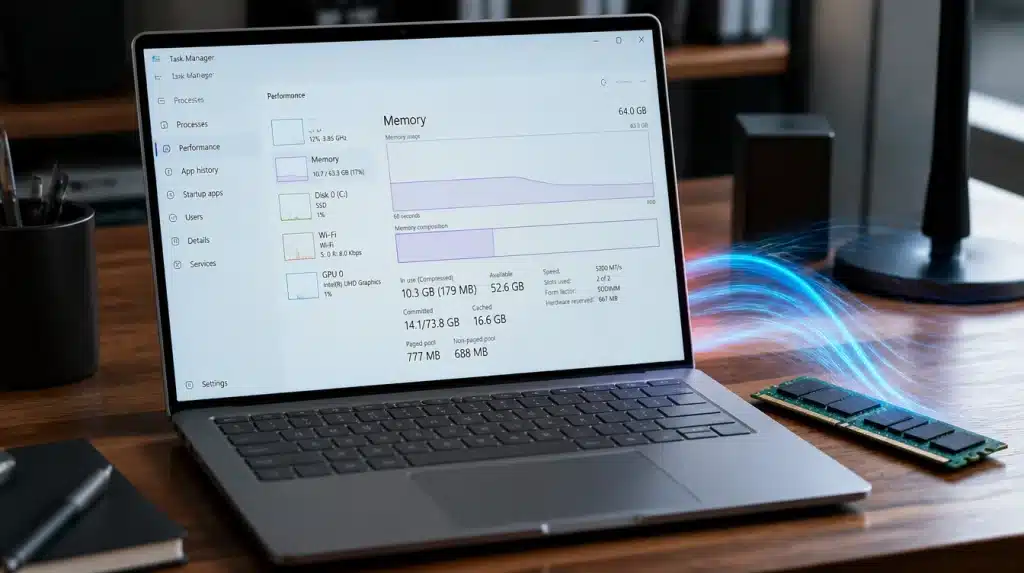
Before trying any RAM cache fix, check how your system is using memory. This helps identify whether cached data is the cause or if another app is consuming too many resources.
Follow these steps:
- Press Ctrl + Shift + Esc to open Task Manager.
- Select Performance > Memory to view current usage.
- Check used, available, and cached memory to understand what is active.
- Open the Processes tab and sort by memory usage to find apps using the most RAM.
After checking your memory usage, you can choose the right approach rather than applying random fixes. The following methods explain different ways to clear the RAM cache on Windows.
Steps to Clear RAM Cache on Windows
Clearing RAM cache on Windows does not always require advanced tools. The right step depends on what is causing high memory usage, from temporary background processes to apps using too many resources.
Step 1: Restart Windows
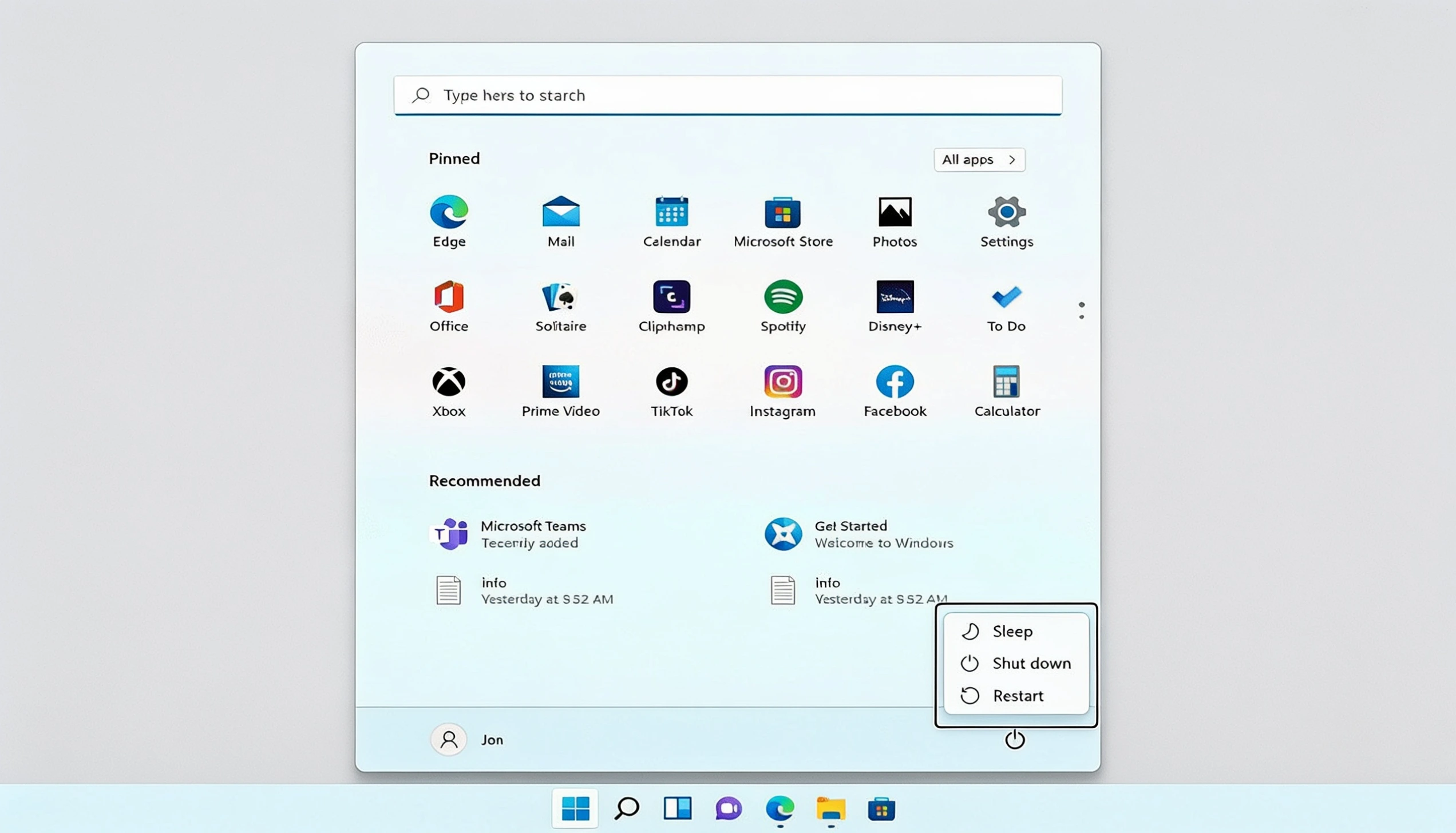
Restarting is the simplest way to clear temporary memory data and refresh system processes. It is a good first step when the laptop feels slow or apps stop responding.
Follow these steps:
- Save your work and close open programs.
- Click Start > Power > Restart.
- Wait for Windows to complete the reboot.
- Open Task Manager and check memory usage again.
If the slowdown disappears after restarting, no further action may be needed. If the issue returns, continue with the next step.
Step 2: Close High Memory Apps Through Task Manager
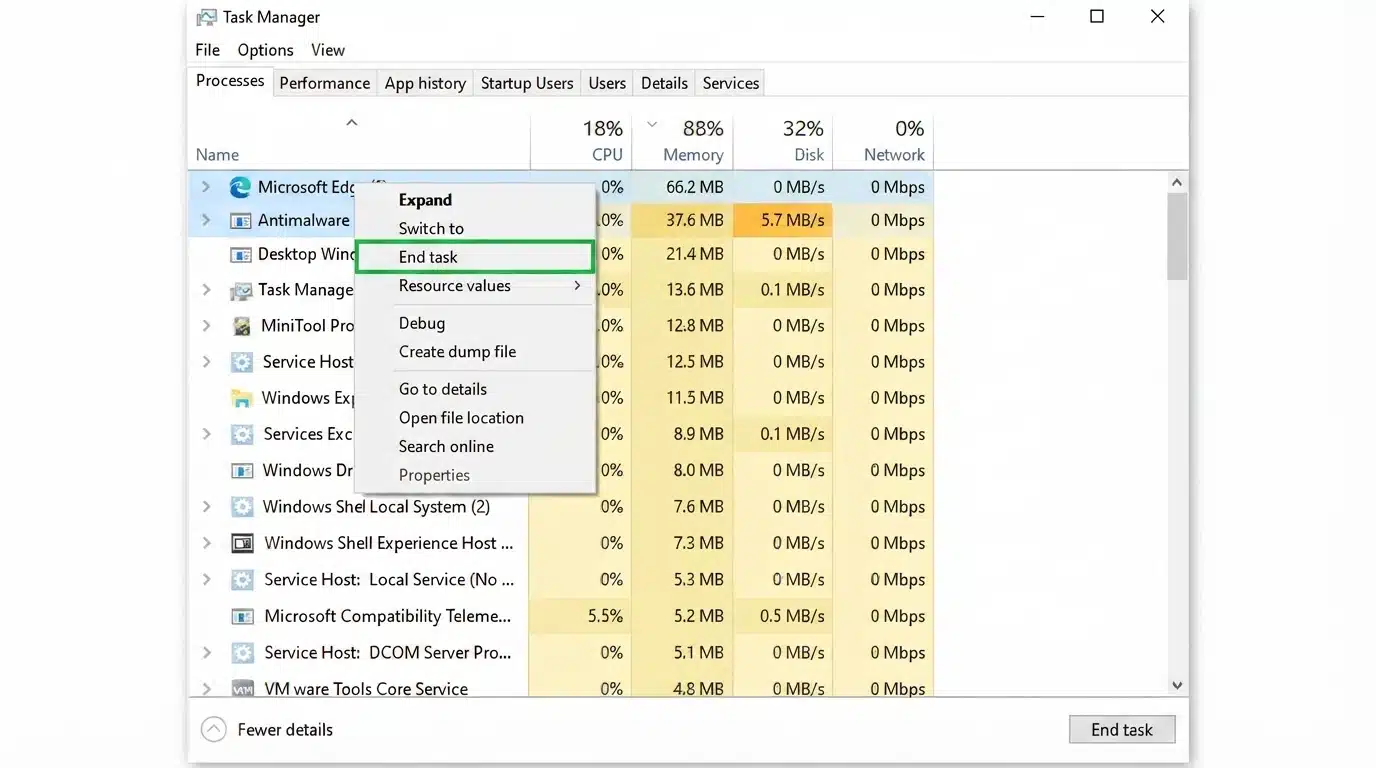
Some apps continue using large amounts of RAM even when they are not actively being used. Task Manager helps find and close these programs.
Follow these steps:
- Press Ctrl + Shift + Esc to open Task Manager.
- Select the Processes tab.
- Click the Memory column to sort apps by RAM usage.
- Select unnecessary programs. If an application refuses to close normally, you may need to force-quit the program before checking whether memory usage improves.
- Click End Task to close the selected app.
This step works best when a specific app is consuming too much memory. For cached standby memory, the next step can help.
Step 3: Clear Standby Memory Using RAMMap
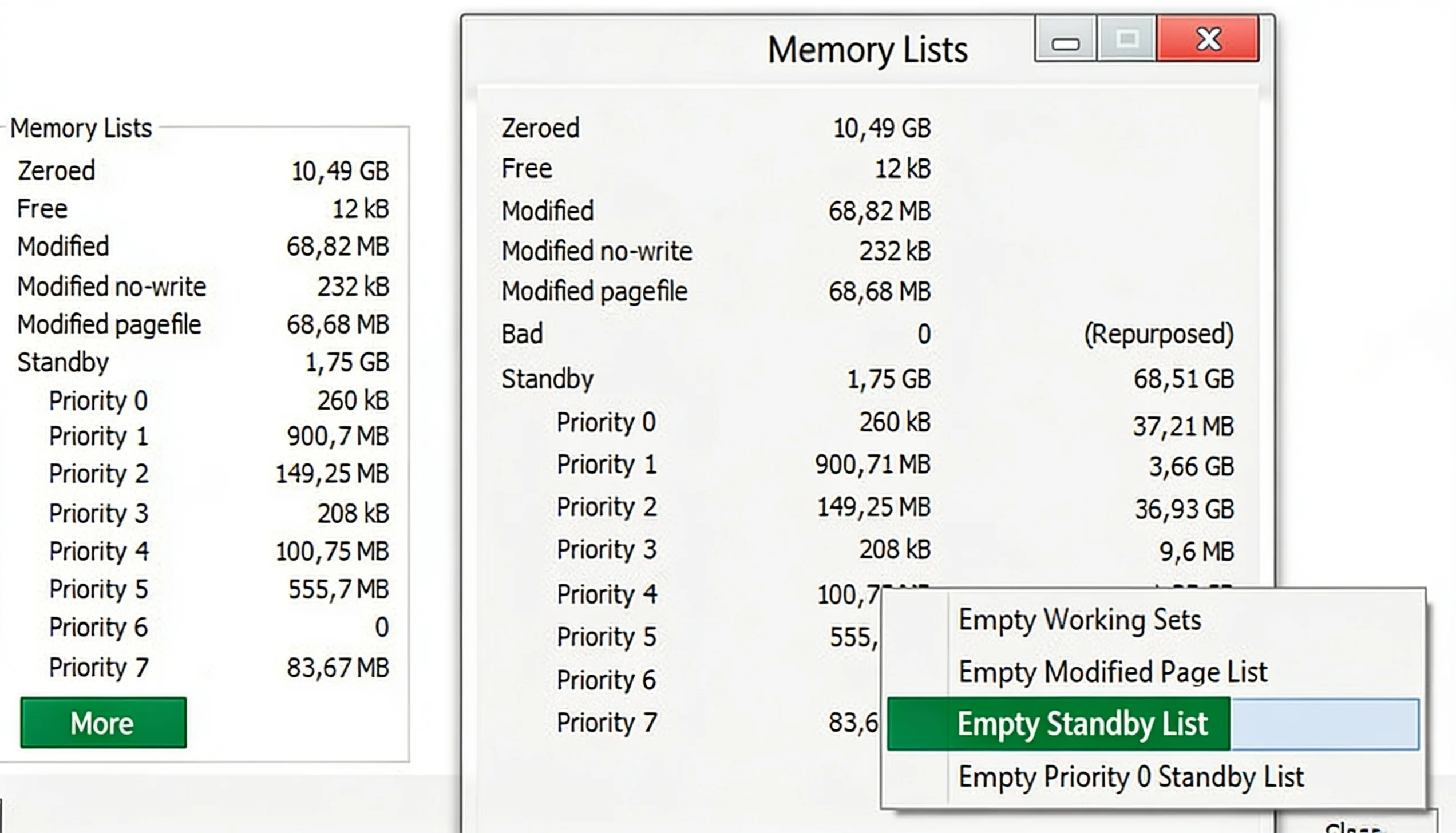
RAMMap is a Microsoft Sysinternals tool that allows users to clear standby memory when cached data remains high. It is useful when normal Windows memory management does not release enough space.
Follow these steps:
- Download RAMMap from Microsoft Sysinternals.
- Open the tool with administrator access.
- Select the Empty menu.
- Click Empty Standby List.
- Check RAM usage after the process finishes.
These steps are a little complex, but the result is a smooth-working Windows.
Step 4: Create a RAM Cleanup Shortcut
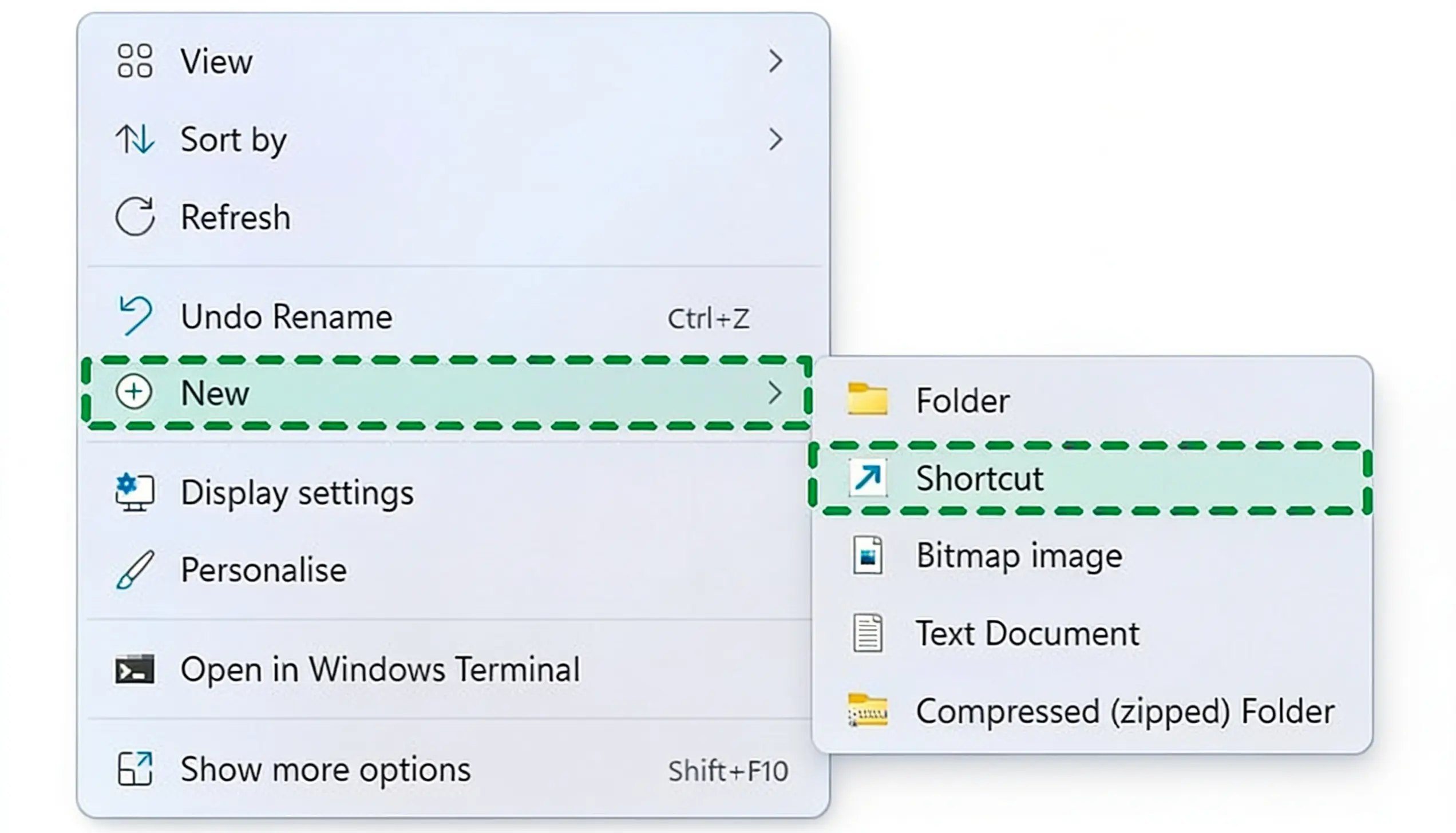
Creating a shortcut can speed up repeated memory cleanup, especially for users who often troubleshoot RAM usage.
Follow these steps:
- Right-click on the desktop.
- Select New > Shortcut.
- Add the required RAM cleanup command or tool location.
- Name the shortcut and save it.
- Open it whenever memory cleanup is needed.
This will make RAM cache clearing fast and easy with a shortcut.
Step 5: Manage Startup Apps
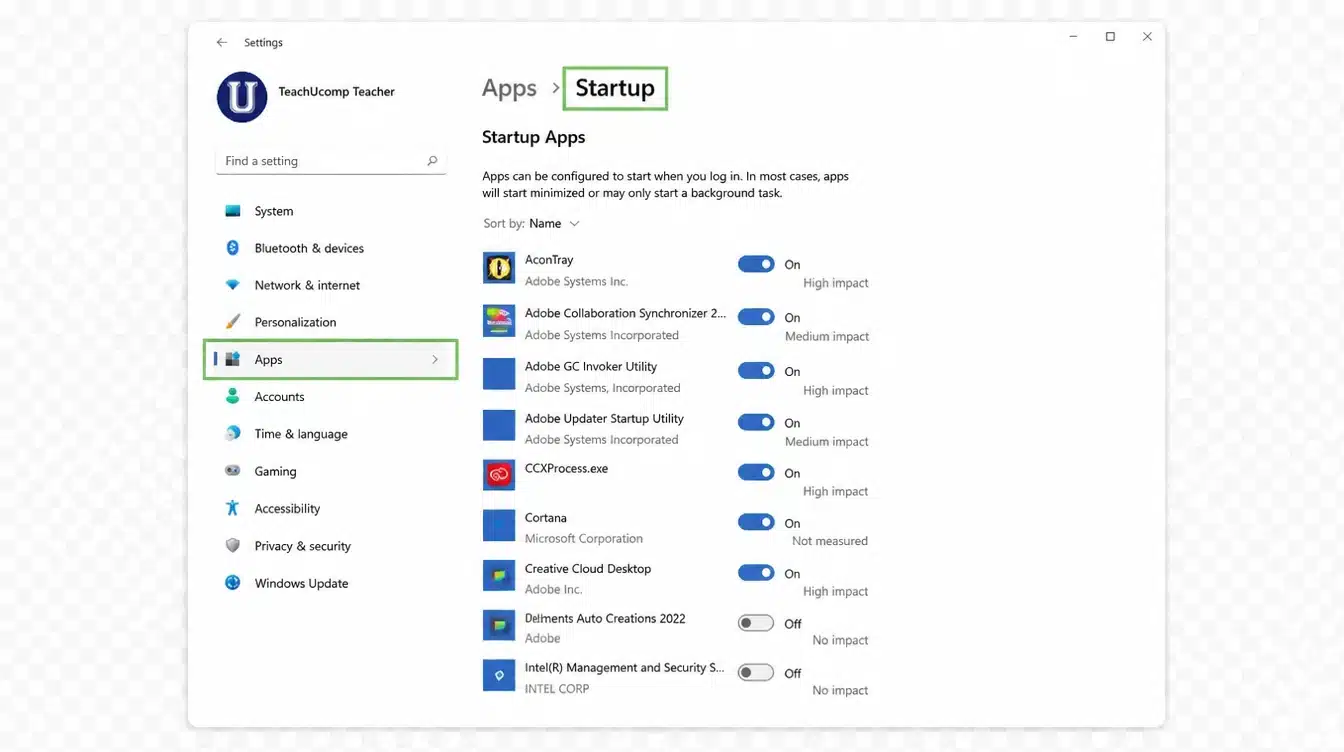
Programs that launch when Windows starts can use RAM before any apps are opened manually. Reducing unnecessary startup apps helps lower memory usage from the beginning.
Follow these steps:
- Open Settings.
- Go to Apps > Startup.
- Review the programs that start with Windows.
- Turn off apps you do not need immediately.
- Restart your laptop and check RAM usage.
These steps cover simple and advanced ways to clear the RAM cache on Windows. Start by restarting and closing unused apps, then move on to tools like RAMMap if memory issues persist.
Choose the Right Fix for Your Situation
It’s useful to match your symptoms to the right step. Use whichever line below matches what you’re actually seeing:
- Laptop feels sluggish overall after hours of use →start with Step 1: Restart Windows.
- One app is clearly eating up memory →go straight to Step 2: Task Manager.
- Memory stays high even after closing apps →try Step 3: RAM Map to clear standby memory.
- You find yourself doing this cleanup often →set up Step 4: a reusable shortcut.
- RAM fills up right after you turn the laptop on →address Step 5: trim your startup apps.
If more than one symptom sounds familiar, it’s fine to work through several steps in order; they don’t conflict with each other, and each one clears a different type of memory buildup.
How to Prevent RAM Buildup
A few small habits can keep memory from filling up in the first place, which means less time spent clearing cache and more time actually getting things done.
Reduce Background Applications
Cutting down on what’s running in the background is one of the simplest changes you can make. Try the following:
- Close apps you’re not actively using.
- Limit the number of open browser tabs.
- Remove programs that run in the background without you realizing it.
Even small adjustments here add up over a full day of use, and they pair well with managing what launches at startup.
Manage Startup Programs
Keeping your startup list lean is just as important as managing what’s open during the day. Here’s what to focus on:
- Disable apps that launch automatically.
- Keep only the programs you actually rely on active.
Together, these two habits go a long way toward keeping memory usage under control without any extra effort on your part. If you’ve done all of this and performance still isn’t where it should be, hardware may be the real limitation.
Upgrade Hardware When Needed
Software fixes can only do so much if your laptop simply doesn’t have enough memory to begin with.
If your laptop struggles even after trying every method above, first make sure the problem is not caused by a low disk space error on the C drive, then consider adding more RAM as a long-term fix.
Clearing cache cannot make up for memory that isn’t there in the first place; it only frees up what’s already being held.
Once you’ve hit that ceiling, upgrading is the practical next step rather than continuing to chase software fixes.
Common Cache Mistakes
Not every popular “fix” for slow memory actually helps, and a few habits are worth dropping if you want your memory management to stay effective long-term. Here’s a quick rundown of what to avoid and what to do instead:
| Mistake | Why It Doesn’t Help | What To Do Instead |
|---|---|---|
| Confusing RAM cache with storage cache | RAM cache clears itself on shutdown; storage cache (like browser files) stays on disk until deleted manually | Clear browser or app storage cache separately, using each program’s own settings |
| Relying on third-party “RAM cleaner” apps | Windows already manages memory well; many of these tools add little value and some slow the system by running in the background | Stick to built-in tools like Task Manager and RAM Map instead |
| Clearing RAM too frequently | Windows releases cached memory on its own, so constant manual clearing adds effort without adding speed | Only clear the cache when you notice an actual slowdown, freeze, or memory that won’t drop |
Sticking to this table as a quick reference keeps your routine simple and effective, rather than turning it into a time-wasting habit.
Wrapping Things Up
Clearing RAM cache can help when a Windows laptop feels slow, apps stop responding, or memory usage stays unusually high.
This guide covered what RAM cache does, how to check memory usage, and different ways to clear cached data using built-in Windows tools and manual steps.
The key is knowing when clearing cache is actually needed and when normal memory usage is not a concern.
For more helpful Windows tips, troubleshooting guides, and practical tech solutions, visit our page and stay updated with easy fixes for everyday device problems.
Frequently Asked Questions
Does Clearing the RAM Cache Delete Any Files or Settings?
No, clearing the RAM cache only removes temporary memory data. Your files, installed programs, and personal settings remain completely untouched by the process.
Does Putting My Laptop to Sleep Clear the RAM Cache the Same Way a Restart Does?
Sleep mode keeps your session active and doesn’t clear cached memory. Only a full restart or shutdown actually resets RAM and frees up standby memory.
Can Antivirus Software Cause High RAM Usage?
Yes, background scanning from antivirus tools can temporarily raise RAM usage. This is normal behavior and usually settles once the scan finishes running.
Is RAM Cache the Same as The Windows Page File?
No, the page file is disk-based overflow storage for extra memory, while RAM cache lives entirely inside physical memory for faster, temporary access.