Have you ever opened a Google app and noticed there is a whole set of tools working behind it? Many people use Gmail, Drive, Docs, and Calendar but are unsure what Google Workspace actually adds or how it differs from a regular Google account.
If you are a student, freelancer, professional, or part of a team, understanding these tools can help you choose the right setup for your needs.
Google Workspace combines familiar apps with extra features for better organization, storage, and collaboration.
This blog explains what Google Workspace is, the apps included, plan options, pricing, differences from free accounts, and how to get started.
What is Google Workspace?
Google Workspace is a paid collection of Google productivity tools that adds features like custom email addresses, increased storage, user management, and additional controls.
It bundles apps you’ve probably used for free: Gmail, Docs, Drive, and more, but adds business-grade extras: more storage, admin controls, stronger security, and real customer support.
That’s the main shift from personal to business use. Instead of piecing together free accounts and hoping they hold up as a team grows, everything sits under one paid subscription, with one place to manage users, billing, and access if something needs fixing.
It used to carry a different name, G Suite, before Google renamed it in 2020, though the apps inside stayed largely the same.
Apps Included in Workspace
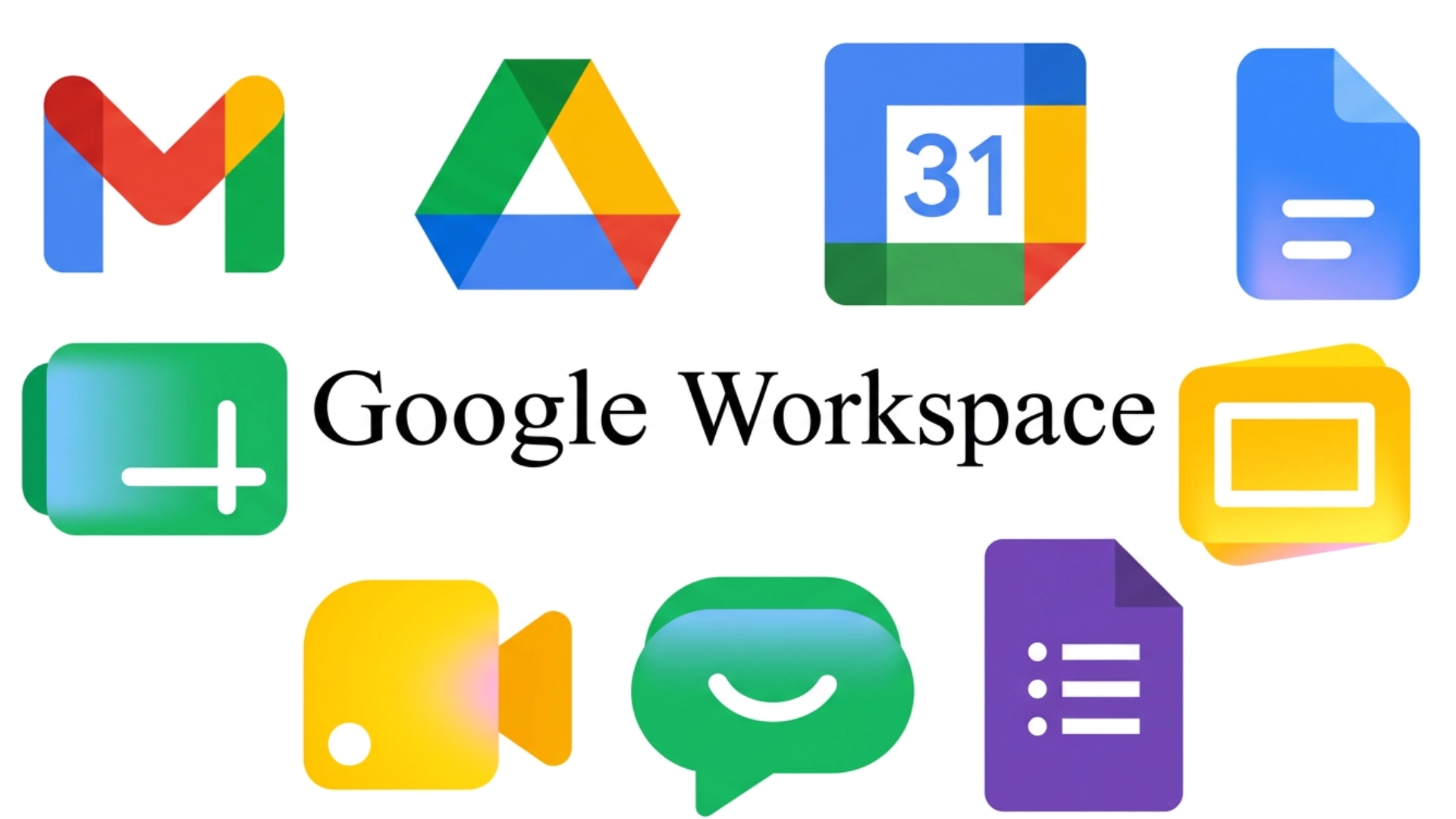
Workspace isn’t one single app; it’s a set of tools that work together. Here’s what each one actually does and who gets the most use out of it.
1. Gmail for Business Email
Gmail is usually the first thing people upgrade for, since it’s the most visible sign of the switch; clients see it before anything else about the business. That first impression alone is usually enough to justify moving off a personal account.
- What changes: The same inbox and interface you’re used to, running on a custom domain instead of a generic one.
- Extra features: More storage, added phishing protection so employees can watch for suspicious emails, and group addresses like support@ or sales@.
- Best for: businesses that want a branded, trustworthy email address.
2. Google Drive for Storage
Drive provides a central place to store, organize, and share files without relying on individual devices. Once files are centralized here, sharing with clients or teammates no longer requires email attachments.
- What changes: Storage moves well beyond the free tier, with room to grow further on higher plans.
- Extra features: Set view, comment, or edit permissions per file; automatic backup, since experts recommend teams protect files with backups, so a crashed laptop doesn’t mean lost work.
- Best for: teams that share files often and need reliable backup.
3. Google Calendar for Scheduling
Booking meetings gets a lot less painful once everyone’s calendar is visible in one place. No more guessing who’s free. For businesses juggling client calls and internal meetings, this alone saves real hours every week.
- What changes: Shared calendars let you see coworkers’ availability instead of trading “does this time work?” emails.
- Extra features: Set working hours, create team or project calendars, and auto-add Meet links to invites.
- Best for: teams coordinating meetings across multiple people.
4. Google Docs for Writing
Docs handles anything you’d normally write in a word processor: proposals, reports, contracts, internal notes. The difference shows up the moment more than one person needs to edit. No more juggling “final_v2_FINAL” file names; everyone’s working from one live copy.
- What changes: Same writing tool, but built for real-time collaboration instead of emailing file versions back and forth.
- Extra features: Live editing, comments, edit history, and templates for common documents like resumes or meeting notes.
- Best for: collaborative writing and shared editing.
5. Google Sheets for Spreadsheets
Sheets covers everything from simple budgets to detailed financial tracking. Its real strength shows up once more than one person needs to look at the numbers. For small businesses tracking inventory or client data, this often replaces the need for pricier spreadsheet software.
- What changes: Multiple people can work in the same spreadsheet at once, with updates showing instantly for everyone.
- Extra features: Formulas, pivot tables, charts, connected sheets pulling from larger databases, and cell-level comment threads.
- Best for: shared budgets and data tracking.
6. Google Slides for Presentations
Slides works well for pitch decks, internal presentations, or client proposals. It won’t replace a design agency, but it covers most everyday needs well. Switching from PowerPoint doesn’t mean rebuilding old decks; existing files import without a hitch.
- What changes: A simpler design toolkit than PowerPoint, but built for building decks together in real time.
- Extra features: Speaker notes, browser-based presenting, PowerPoint file imports, and version history.
- Best for: quick, collaborative presentation building.
7. Google Meet for Video Calls
Video calls used to mean a separate app and a separate login. Not anymore. For remote or hybrid teams, this usually removes the need for a separate video conferencing subscription.
- What changes: Meet sits directly inside Gmail and Calendar, so joining a call takes one click.
- Extra features: Longer call limits, recording, noise cancellation, and support for larger meetings than a personal account allows.
- Best for: remote meetings and client calls.
8. Google Chat for Messaging
Not every conversation needs a full email thread, and Chat is built for exactly those moments, easing day-to-day team communication. For teams already paying for a separate chat tool, this often replaces that subscription entirely.
- What changes: Fast, informal messaging for quick decisions and short updates.
- Extra features: Dedicated spaces per project or department, searchable history, and direct links into shared Docs or Sheets.
- Best for: fast internal team communication.
9. Google Forms for Surveys
Getting feedback usually means picking the right tool without overcomplicating things, and Forms keeps that part simple. It’s included free with every plan, making it one of the more overlooked but genuinely useful tools in Workspace.
- What changes: Drag-and-drop question building, ready to share in minutes.
- Extra features: Responses feed straight into a connected Sheet; supports multiple-choice, short-answer, and rating scales.
- Best for: collecting feedback or simple data.
Workspace vs. Free Google Account
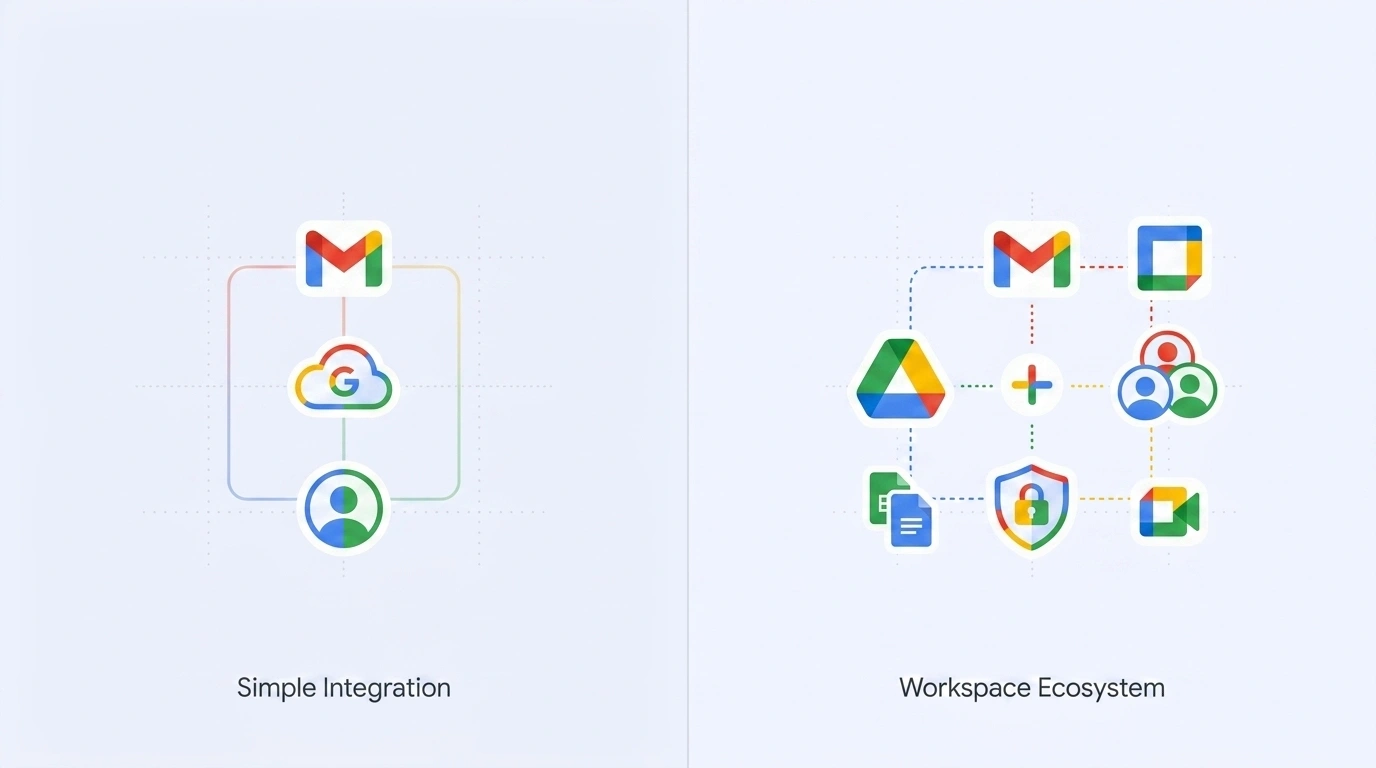
The main differences between free accounts and Workspace come down to account management, storage limits, and business-focused controls that lower your hacking risk.
| Feature | Free Google Account | Google Workspace | Why It Matters |
|---|---|---|---|
| Email address | @gmail.com | @yourcompany.com | Creates a professional business identity |
| Storage | 15GB shared across services | 30GB and more per user | Provides more room for business files and documents |
| Customer support | Community forums only | 24/7 support options | Helps resolve account or service issues faster |
| Admin controls | No central management | Full admin console | Lets businesses manage users, access, and settings |
| Security features | Basic security tools | 2FA, phishing protection, and data controls | Adds more protection for business information |
For a solo hobby project, free tools are fine. For running an actual business, these gaps start to matter fast.
How Does Google Workspace Work?
Google Workspace works by combining essential productivity tools into one cloud-based platform. Businesses can set up accounts, create professional email addresses, manage files, collaborate with teams, and control security through a simple workflow.
- Create a Google Workspace Account: Choose a suitable plan, add your business domain name, and create user accounts for your team members.
- Set Up Business Email: Connect your company domain with Gmail and create professional email addresses for employees to communicate effectively.
- Manage Files and Teams: Store files securely in Google Drive and collaborate in real time using tools like Docs, Sheets, and Slides.
- Control Users and Security: Use the Admin console to manage users, assign permissions, and adjust security settings to protect business data.
Google Workspace provides a simple way for businesses to manage communication, teamwork, and security through connected tools available from any location.
Is Google Workspace Worth It?
Google Workspace can be a valuable choice for users who need more than basic online tools. It is worth considering if you want a professional email address, easy team collaboration, reliable cloud storage, and business-focused security features.
Companies can use it to manage communication, share files, and work together more efficiently from anywhere. Freelancers and small businesses can also benefit from its organized workflow and professional setup.
However, Google Workspace may not be the right fit for everyone. If you only need a personal email account, simple file storage, or basic document access, free Google services may be enough. The right choice depends on your work requirements, team size, and the features you need.
Google Workspace Plans and Who They Suit
Google Workspace offers multiple plans designed for different business sizes, storage requirements, and security needs. Each plan includes essential Google tools with additional features as businesses grow.
| Plan | Best For | Storage | Key Features |
|---|---|---|---|
| Business Starter | Freelancers and small teams | 30GB/user | Custom email, Gmail, Drive, Docs, Meet, basic security |
| Business Standard | Growing businesses | 2TB/user | More storage, shared drives, advanced Meet features |
| Business Plus | Security-focused businesses | 5TB/user | Enhanced security, eDiscovery, management tools |
| Enterprise | Large organizations | Custom | Advanced security, compliance, and controls |
The ideal Google Workspace plan depends on team size, collaboration needs, storage requirements, and security expectations. Small teams can start with Starter and upgrade as they expand.
Google Workspace Alternatives
While Google Workspace is a popular choice for online collaboration, some users may prefer other platforms based on their existing tools, budget, and business requirements.
- Microsoft 365: Best for businesses using Microsoft Office tools like Word, Excel, and PowerPoint. It offers strong desktop applications, advanced features, and seamless integration with Microsoft services.
- Zoho Workplace: Best for budget-conscious businesses looking for affordable productivity tools. It provides email, document creation, storage, and collaboration features at competitive pricing.
- Dropbox Business: Best for teams that mainly need secure file storage and sharing. It focuses on easy file management, team access controls, and cloud-based collaboration.
The right alternative depends on your workflow, preferred applications, and budget. Compare features carefully to find the platform that supports your team’s daily tasks.
Final Workspace Wrap
Choosing the right digital tools can make daily work easier, and Google Workspace brings email, storage, collaboration, and security features together in one place.
If you are wondering what Google Workspace is, it is a platform that helps individuals and businesses manage tasks, communicate, and work together online.
I believe understanding its plans and features helps you select the option that matches your needs. You can compare storage, security, and collaboration tools before making a decision.
If you run a small team or a growing company, the right setup can improve productivity and organization. Share your thoughts, try these tips, and let us know your experience in the comments.
Frequently Asked Questions
Can I Use Google Workspace without Owning a Business?
Yes, individuals can use Google Workspace for professional needs, personal projects, or custom email addresses, even without running a registered company.
Can I Transfer My Existing Gmail Account to Google Workspace?
Yes, existing emails, contacts, and files can be moved to Workspace using Google’s migration tools or supported transfer methods.
Does Google Workspace Work on Mobile Devices?
Yes, Workspace apps are available on Android and iOS devices, allowing users to access emails, files, calendars, and documents anywhere.
Can I Use My Own Domain with Google Workspace?
Yes, Google Workspace supports custom domains, allowing users to create professional email addresses using their existing website domain.