An email can be ready long before it should actually reach someone’s inbox. Learning how to schedule send in Outlook makes that timing easier to control, especially when a message is prepared late, meant for another time zone, or needs to land during working hours.
If you’ve ever thought, “I’ll send it in the morning,” only to worry about forgetting, Outlook already has tools built for that job. The catch is that the steps change depending on the Outlook version being used.
New Outlook, Classic Outlook, Outlook on the web, and Mac handle scheduled delivery a little differently.
The key methods, settings, and common delivery issues are explained clearly so scheduled emails reach the right inbox at the intended time without unnecessary guesswork.
Quick Answer: How to Schedule Send in Outlook
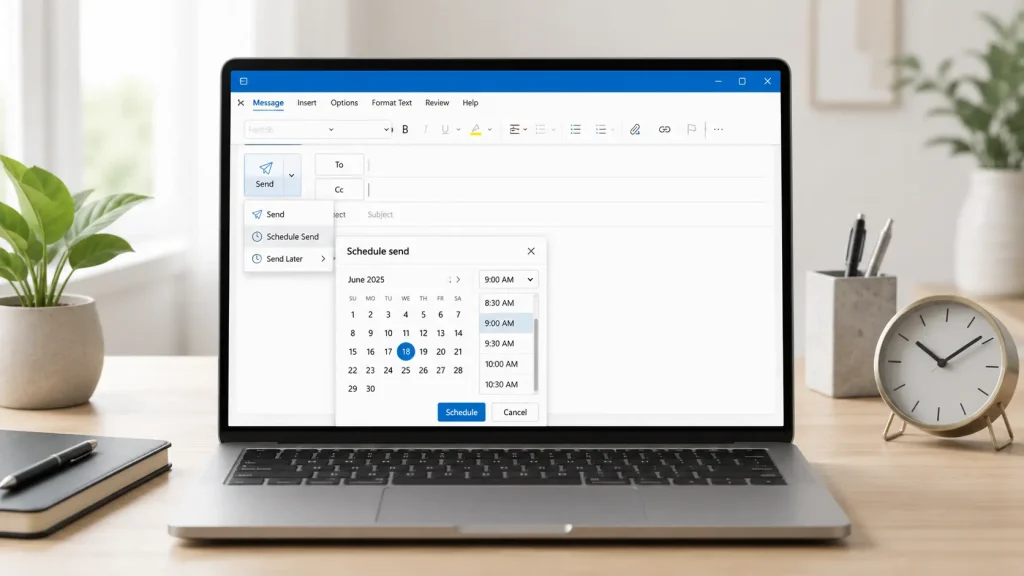
In New Outlook or Outlook on the web, compose your email, click the arrow beside Send, choose Schedule Send, and select a delivery time, ideally checked against the official U.S. time standard if the recipient is in a different time zone.
In Classic Outlook, compose the message, open Options or Message Options, select Delay Delivery, check Do not deliver before, choose the date and time, and then click Send.
The biggest difference is where the message waits. New Outlook and web-based scheduled messages stay in Drafts, while Classic Outlook delayed messages remain in the Outbox until delivery.
Schedule Send vs. Delay Delivery in Outlook: What’s the Difference?
Outlook uses different tools for sending emails later depending on the version. Although Schedule Send and Delay Delivery accomplish a similar goal, they don’t work the same way.
| Feature | Delay Delivery | Schedule Send |
|---|---|---|
| Best for | Classic Outlook | New Outlook and Outlook on the web |
| Location | Message Options/Options | Send drop-down |
| Message waits in | Outbox | Drafts |
| Main purpose | Hold a message until a specified time | Schedule a future send time |
| Connection behavior | Outlook must be online and connected | Cloud-based for supported accounts |
The “cloud-based” row above reflects the same core idea behind the standard technical definition of cloud computing, where the processing happens on remote servers instead of your device.
Undo Send also exists, but it serves a different purpose. Undo Send only gives you a brief window to stop a message immediately after selecting Send. It is not a replacement for scheduling an email hours or days in advance.
Which Outlook Version Are You Using?
Before following the scheduling steps, identify which Outlook interface you have because the controls are different.
If you see the newer interface and a small drop-down arrow beside Send, you are likely using New Outlook for Windows. That version uses Schedule Send.
A traditional ribbon with tabs such as File, Home, and Options points to Classic Outlook for Windows. Classic Outlook uses Delay Delivery instead.
If Outlook is open in your browser, you are using Outlook on the web or Outlook.com. It also uses the Schedule Send option beside Send.
Mac users can use Schedule Send on supported Outlook versions and account types, and confirming your version also matters when setting automatic away replies or adjusting other delivery-based settings.
How to Schedule or Delay an Email in Outlook
Scheduling an email in Outlook takes only a few clicks, but the exact steps depend on your app version. From the desktop, web, or mobile version, the right option helps you send messages at the perfect time.
1. New Outlook for Windows
New Outlook uses the built-in Schedule Send option directly from the compose window, one of several handy time-saving tools built into the newer interface.
- Write your email and add the recipient, subject, and attachments.
- Click the arrow beside Send.
- Select Schedule Send.
- Choose one of the suggested times or select a custom date and time.
- Confirm the scheduled send.
After you schedule the message, Outlook keeps it in the Drafts folder until the selected delivery time.
One important limitation is that Microsoft currently does not support Schedule Send in New Outlook for POP or IMAP accounts. If the option is missing for an account added through IMAP, the account type may be the reason.
2. Classic Outlook for Windows
Classic Outlook uses Delay Delivery rather than the newer Schedule Send menu.
- Compose your email.
- Open the Options tab or the Message Options arrow in the Tags group.
- Under Delivery options, check Do not deliver before.
- Choose the date and time you want.
- Select Close.
- Finish the message and click Send.
The message moves to your Outbox and stays there until the delivery time. If you use the simplified ribbon and cannot see Message Options, open Options and select More commands to reach the delivery settings.
3. Outlook on the Web
Outlook on the web uses almost the same Schedule Send workflow as New Outlook, which is convenient when timing a message around standard federal work-schedule guidance for typical business hours.
- Create a new email.
- Add the recipient, subject, and message.
- Click the drop-down arrow beside Send.
- Choose Schedule Send.
- Select a suggested time or choose a custom date and time.
- Confirm the scheduled send.
The email stays in Drafts until the scheduled delivery time.
4. Outlook for Mac
Supported Outlook for Mac versions also provide a Schedule Send option. The scheduled message remains in Drafts until it is delivered.
- Draft your email and add at least one recipient.
- Select the arrow beside Send.
- Choose Schedule Send.
- Enter the date and time.
- Select OK.
Previous Outlook for Mac versions may call the feature Send Later. Microsoft also notes that Schedule Send on Mac requires a supported Exchange-based account and does not work with POP or IMAP accounts such as Gmail, Yahoo, or iCloud. For supported accounts, the message can still be delivered when Outlook is closed.
5. Outlook Mobile App
Scheduling emails from the Outlook mobile app lets you choose a delivery time directly while composing messages on your phone, a habit shaped by how email clients have advanced for on-the-go use.
- Create your message.
- Tap the options menu near Send.
- Select Schedule Send.
- Choose when the email should go out.
Follow the steps for your Outlook version to send emails later without manually tracking them. With the right setting, Outlook handles delivery timing while you focus on other tasks.
Where Do Scheduled Emails Go in Outlook?
In my experience helping teams clean up messy inboxes, the most common Schedule Send headache isn’t picking the wrong time. It’s forgetting which folder holds the message when someone needs to fix it fast.
| Outlook Version | Where the Message Waits |
|---|---|
| New Outlook for Windows | Drafts |
| Outlook on the web/Outlook.com | Drafts |
| Classic Outlook for Windows | Outbox |
| Outlook for Mac | Drafts |
This difference matters when you want to review, cancel, edit, or send a message earlier than planned.
If you scheduled a message in New Outlook but cannot find it in the Outbox, check Drafts instead. Classic Outlook does the opposite and holds Delay Delivery messages in the Outbox.
Does Outlook Need to Stay Open for a Scheduled Email to Send?
It depends on which Outlook version and scheduling method you use.
Classic Outlook relies on the Outbox-based Delay Delivery workflow. Microsoft states that Outlook must be online and connected for the delayed message to be delivered. If Outlook is unavailable at the scheduled time, delivery can wait until it reconnects.
Outlook on the web handles Schedule Send through the online mailbox, so you do not have to keep the browser tab open after scheduling the message.
For supported Microsoft 365 or Exchange accounts, New Outlook follows the newer cloud-based scheduling behavior rather than Classic Outlook’s local Outbox workflow. Microsoft guidance also confirms that Outlook on the web can send the message even when you are no longer logged in.
On Outlook for Mac, Microsoft specifically confirms that supported scheduled messages can send even when Outlook is not open.
How to Add an Automatic Delay for Every Outlook Email
If you want a short review window before messages leave your inbox, Outlook rules can automatically delay outgoing emails. To see this exact feature applied step by step, watch this video by Tom Henry.
- Open the Rules settings in your Outlook app and create a new rule.
- Choose the option to apply the rule to messages you send.
- Skip conditions if you want the delay applied to every email.
- Select defer Delivery by several minutes and set your preferred delay time.
- Save the rule and enable it for future messages.
This feature helps catch mistakes, but availability and delay limits can vary by Outlook version.
How to Send a Delayed Outlook Email Right Away
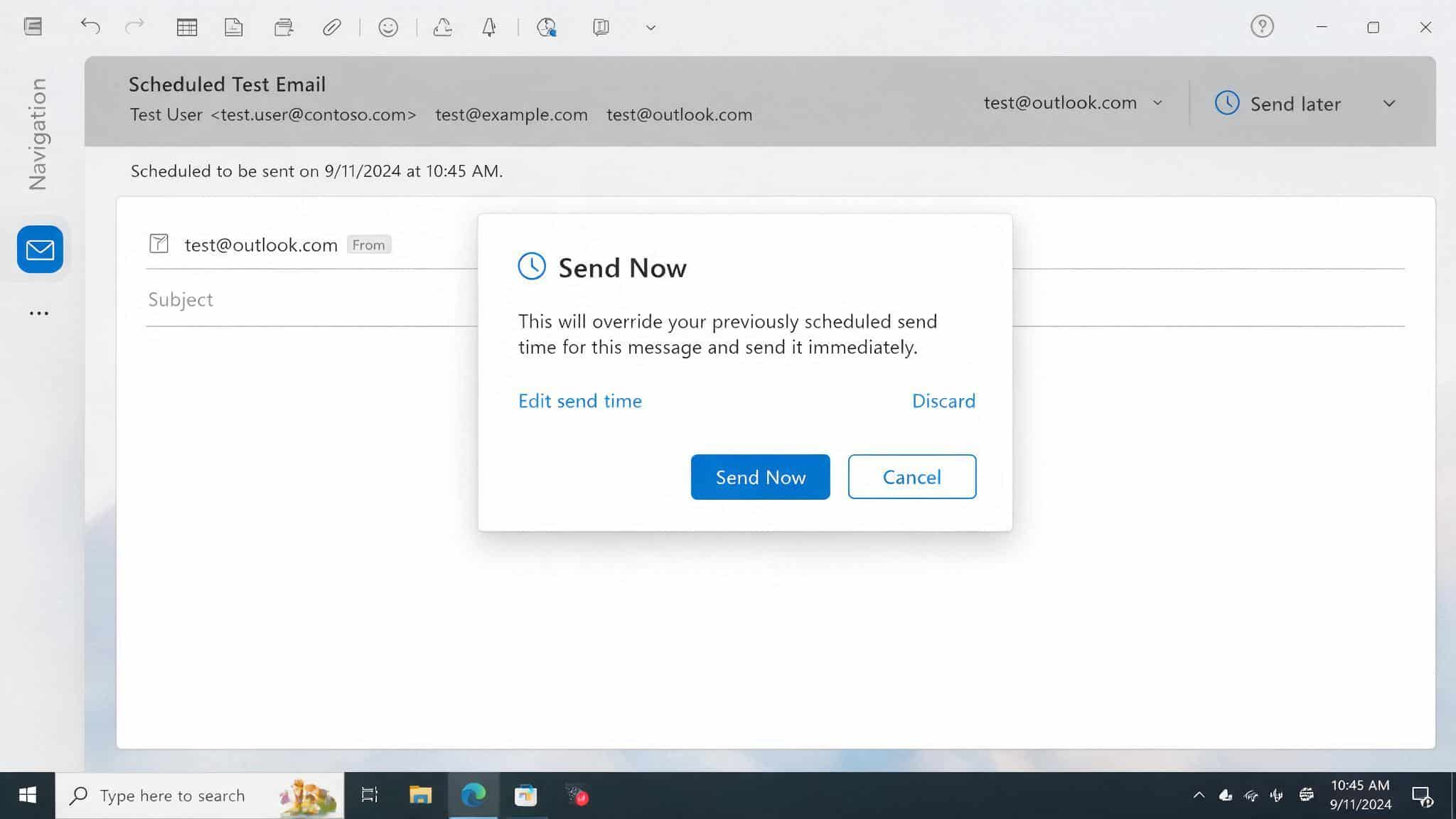
Changed your mind about the scheduled time? You can remove the delay and send the message immediately by following these steps.
-
New Outlook/Web: Open the scheduled email, choose Send Now or remove the scheduled time before sending.
-
Classic Outlook: Open the email from the Outbox, go to Options → Delay Delivery, set the delivery date and time, then select Send.
-
Third-party tools: If you use Boomerang or automation platforms, open the scheduled message and use their Send Now option.
Sending immediately gives you full control when plans suddenly change or a message needs to reach the recipient sooner than planned.
Why Didn’t My Scheduled Outlook Email Send?
A scheduled Outlook email may miss its send time because of connection issues, unsupported accounts, incorrect timing, or differences between Outlook versions.
| Problem | Why It Happens | What to Do |
|---|---|---|
| Classic Outlook Was Offline | Delay Delivery needs Outlook to be online and connected. | Reconnect Outlook and check the Outbox. |
| Email Is Still in Drafts | New Outlook and web keep scheduled emails in Drafts. | Open it and confirm the scheduled time. |
| Email Is Still in the Outbox | Classic Outlook holds delayed emails there until delivery. | Check the time and internet connection. |
| Unsupported Account | POP and IMAP may not support Schedule Send in New Outlook. | Check your account type or use a supported account. |
| Wrong Date or Time | An incorrect date, AM/PM, or time zone can delay delivery. | Review the delivery settings and reschedule. |
Checking the folder, connection, account type, and scheduled time usually reveals the issue quickly and helps prevent future Outlook delivery delays.
Smart Ways to Use Outlook Scheduled Emails Effectively
Small scheduling habits can make Outlook’s send-later tools much more useful.
- Account for recipient time zones: Schedule messages for the recipient’s normal working hours, not your own.
- Use short delays for important emails: A brief buffer can help catch forgotten attachments, names, or recipients.
- Schedule late-night drafts for business hours: Write when convenient without sending notifications at an awkward time.
- Review pending messages before deadlines: Check Drafts or Outbox if the email contains information that may change before it sends.
- Use the right feature for the job: Pick Schedule Send for a specific future time and a delay rule when you only need a short review window.
The best scheduling method is the one that matches both your Outlook version and what you want the delay to accomplish.
Final Check
Scheduling an email at the right time can make communication feel more organized and reliable. Once you know how to schedule send in Outlook, the main thing is choosing the method that matches your Outlook version.
New Outlook and the web use Schedule Send, while Classic Outlook relies on Delay Delivery. You also know where scheduled messages are stored, how to edit or cancel them, and what to check if delivery does not happen as planned.
I’d recommend testing the feature with a simple draft before using it for an important message. That way, you can confirm the settings work as expected.
Try scheduling an email today, and share your experience or questions in the comments.
Frequently Asked Questions
Can I Schedule an Email to Repeat Automatically in Outlook?
Yes. In New Outlook, Outlook on the web, and Outlook for Mac, open the message in Drafts and choose Cancel Send, or delete it outright before the scheduled time. In Classic Outlook, open the message in the Outbox and delete it there instead. Once a message actually goes out, it can’t be canceled, only recalled, and recall isn’t guaranteed to work.
Will My Computer Time Affect a Scheduled Outlook Email?
Yes, incorrect device time zones or system clock settings can cause delivery timing issues.
Can I Schedule Emails from a Shared Outlook Mailbox?
Yes, but availability depends on your account permissions and Microsoft 365 setup.
Does Scheduling an Email Work Without an Internet Connection?
New Outlook and web scheduling rely on online services, while Classic Outlook Delay Delivery may require Outlook to be running.
Can I Schedule an Email to Arrive in Another Time Zone?
Yes, choose a delivery time based on the recipient’s location and verify your Outlook time zone settings.