Choosing among the best emulators for Android can be confusing when every option claims to offer faster speeds, smoother gameplay, or broader app support.
Users often look for Android emulators to play mobile games on a PC, run apps on a larger screen, test applications during development, or use Android software on older computers.
The right choice depends on factors such as performance, compatibility, system requirements, and available features.
We will compare popular Android emulators for Windows across categories such as gaming, general app use, development, and low-end PCs, helping users find an option that best matches their needs.
What is an Android Emulator and How Does It Work?
Ever wished you could run your favorite Android apps on a bigger screen without switching devices?
According to the official Android Emulator documentation, an Android emulator for Windows makes this possible by creating a virtual Android environment on your Windows PC.
Simply put, an Android emulator is a program that emulates the Android operating system, allowing users to install and use Android apps and games on a computer.
These emulators work through virtualization, a technology that creates a separate virtual space inside your Windows system.
Instead of replacing your existing operating system, virtualization allows the emulator to use your computer’s hardware resources, such as the processor, memory, and graphics card, to run Android apps smoothly.
The main difference between an emulator and installing Android directly is flexibility. Installing Android on a PC usually requires changing the system setup or creating a separate boot option, while an emulator runs like any other Windows application.
This makes it easier to switch between PC programs and Android apps without changing your device’s main operating system.
How to Choose the Right Android Emulator
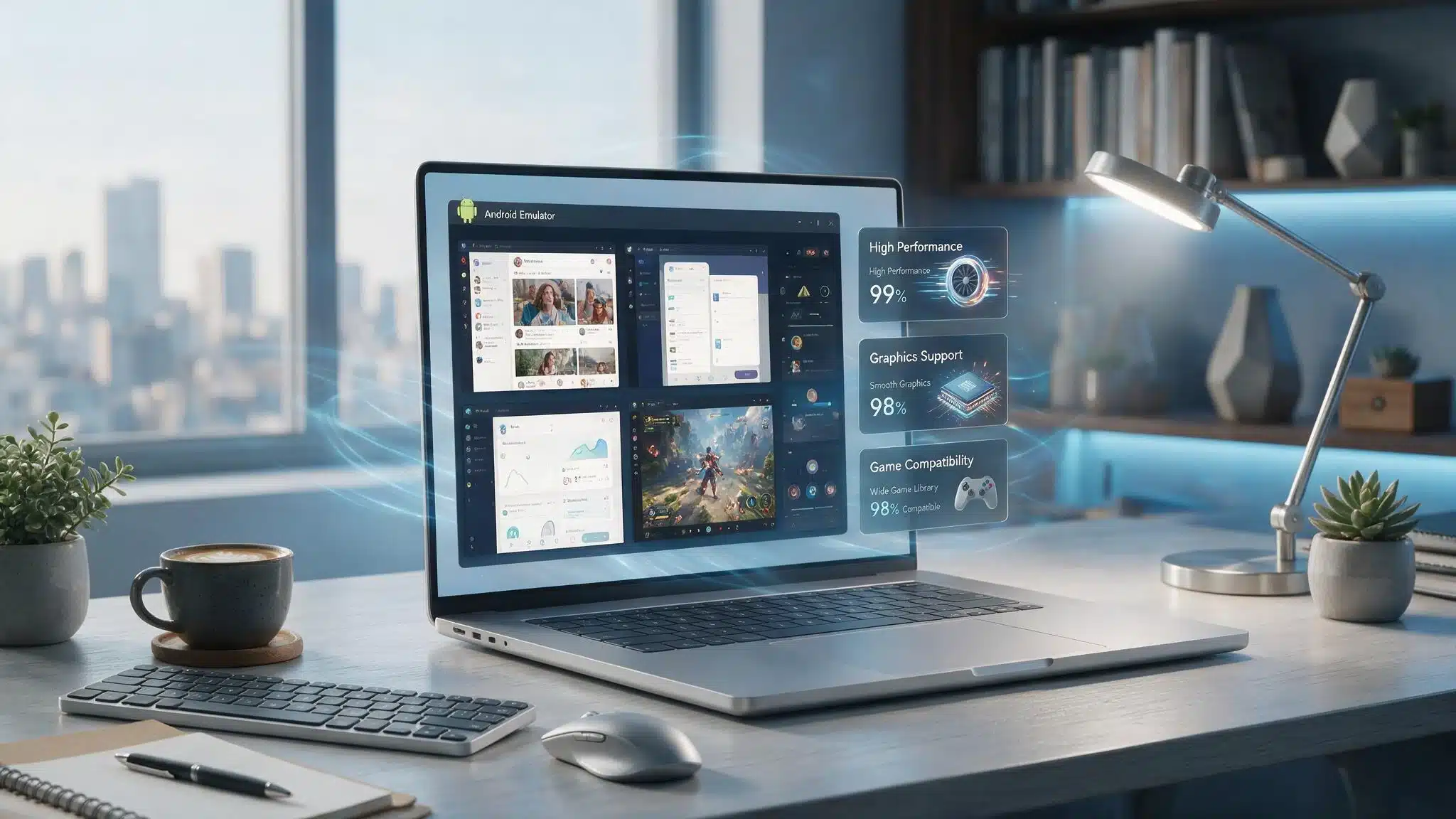
Choosing the right Android emulator for Windows depends on how you plan to use it. A gamer looking for high frame rates may need different features compared to someone who only wants to use messaging or productivity apps. Before picking an emulator, consider these important factors:
1. Performance: A good emulator should run apps smoothly without frequent freezing or delays. Check how well it handles multiple apps, demanding games, and longer usage sessions.
2. RAM Usage: Android emulators use your computer’s memory to create a virtual Android device. Lightweight options are better for older PCs, while powerful systems can handle emulators with higher resource requirements.
3. Graphics Support: Graphics performance matters, especially for gaming. Support for technologies like GPU acceleration helps improve visual quality, reduce lag, and provide smoother gameplay.
4. Game Compatibility: Not every emulator supports every Android game equally. Look for options that work well with popular titles and offer features such as key mapping, high FPS settings, and multiple instances.
5. Keyboard and Controller Support: For PC gaming, controls can make a major difference. Emulators with keyboard shortcuts, mouse controls, and controller support provide a more comfortable experience compared to touchscreen-only input.
6. Ads and Privacy: Some free Android emulators include advertisements or request additional permissions. Checking privacy settings, downloading from official sources, and reviewing user feedback can help you choose a safer option.
7. Developer Features: Developers need more than app access. Features such as device simulation, Android version testing, screen size adjustments, and debugging tools make certain emulators better suited for app development.
Considering these factors will help you select an emulator that matches your PC setup and the way you want to use Android apps on Windows.
Best Android Emulators for Windows Compared

The best Android emulator for Windows depends on your needs, whether gaming, app testing, or everyday use. Here are the top Android emulators for Windows, compared by features, performance, and overall experience.
1. BlueStacks 5: Best Overall Android Emulator
BlueStacks 5 provides a balanced Android experience for Windows users, supporting gaming, everyday apps, and general Android usage. It offers wide app compatibility with features designed for smoother gameplay and easier app management.
If your main goal is retro gaming rather than running Android apps, emulator consoles offer another way to enjoy classic games on dedicated hardware.
- Best For: Gaming, Android apps, and general PC use.
- Compatibility: Supports a wide range of Android games and applications, including demanding titles.
- Key Features: Keyboard mapping, customizable controls, multi-instance support, and performance settings.
2. LDPlayer: Best for Android Gaming
LDPlayer is focused on gaming performance, offering smooth gameplay, high FPS support, and customizable controls. It is designed for users who want better control options and efficient performance while playing Android games on Windows.
- Best For: FPS games, competitive gaming, and users managing multiple accounts.
- Compatibility: Optimized for popular Android games with support for high frame rates.
- Key Features: Keyboard and mouse controls, graphics optimization, and multi-instance support.
3. MuMu Player: Best Low-Distraction Gaming Experience
MuMu Player offers a simple interface with fewer interruptions, making it suitable for users who want a cleaner emulator experience. It provides easy access to settings and supports smooth gaming on compatible systems.
- Best For: Users looking for a simple interface and fewer advertisements.
- Compatibility: Handles Android games smoothly on suitable Windows systems.
- Key Features: Clean interface, keyboard controls, and multiple instance support.
4. NoxPlayer: Best For Custom Controls And Macros
NoxPlayer focuses on customization and automation features, giving users more control over their Android environment. It includes tools to adjust settings and create automated actions for repetitive tasks.
- Best For: Users who need macros, automation, and customized controls.
- Compatibility: Supports different Android configurations and gaming setups.
- Key Features: Macro recording, CPU allocation controls, screen adjustments, and device profiles.
5. MEmu Play: Best For Older PCs
MEmu Play is designed for users with older or budget computers who need a lightweight Android emulator. It supports flexible performance adjustments to help users run apps smoothly on limited hardware.
- Best For: Older PCs, budget systems, and lightweight Android usage.
- Compatibility: Supports Intel and AMD processors with adjustable performance settings.
- Key Features: Memory allocation controls, graphics adjustments, and processor usage settings.
6. Android Studio Emulator: Best For Developers
Android Studio Emulator is Google’s official tool for developers who need to test Android applications. It allows accurate device simulation and supports different Android versions and configurations.
- Best For: App development, testing, and debugging.
- Compatibility: Simulates various Android devices, screen sizes, and operating system versions.
- Key Features: Android Virtual Device (AVD), device simulation, and development testing tools.
Best Emulators for Android: Performance and Experience Overview
| Emulator | Best For | RAM Usage | Ads Experience | User Experience |
|---|---|---|---|---|
| BlueStacks 5 |
Gaming, apps, and |
Medium | Moderate | Beginner-friendly with wide app support |
| LDPlayer | Competitive gaming and FPS titles |
Low-medium | Low | Smooth controls with gaming-focused features |
| MuMu Player | High FPS gaming and fewer interruptions |
Low | Minimal | Clean interface and a simple setup |
| NoxPlayer | Custom controls and automation |
Medium | Moderate | Flexible settings with macro support |
| MEmu Play | Older PCs and budget systems |
Low | Low-moderate | Lightweight performance with adjustable settings |
| Android Studio Emulator | App development and testing |
High | None | Advanced tools for developers |
Note: Emulator performance can vary depending on your PC hardware, Windows version, Android version, and the apps or games being used. RAM usage and overall experience may differ between systems.
Android Emulator Performance Tips
Even a powerful emulator can slow down if system settings are not optimized. These quick adjustments can improve speed, reduce lag, and provide a smoother experience while gaming, running apps, or testing Android software.
- Enable Virtualization: Turn on CPU virtualization (Intel VT-x or AMD-V) in the BIOS to improve emulator performance.
- Adjust RAM Allocation: Assign suitable memory based on your PC specifications to balance emulator speed and overall system performance.
- Update Graphics Drivers: Keep GPU drivers up to date to improve graphics rendering, reduce crashes, and enhance gameplay.
- Close Background Apps: Shut down unnecessary programs running in the background to free CPU and RAM resources.
Applying these settings can help Android emulators run more smoothly, especially on systems with limited resources or during demanding tasks.
Android Emulator Community Opinions: What Users Actually Prefer
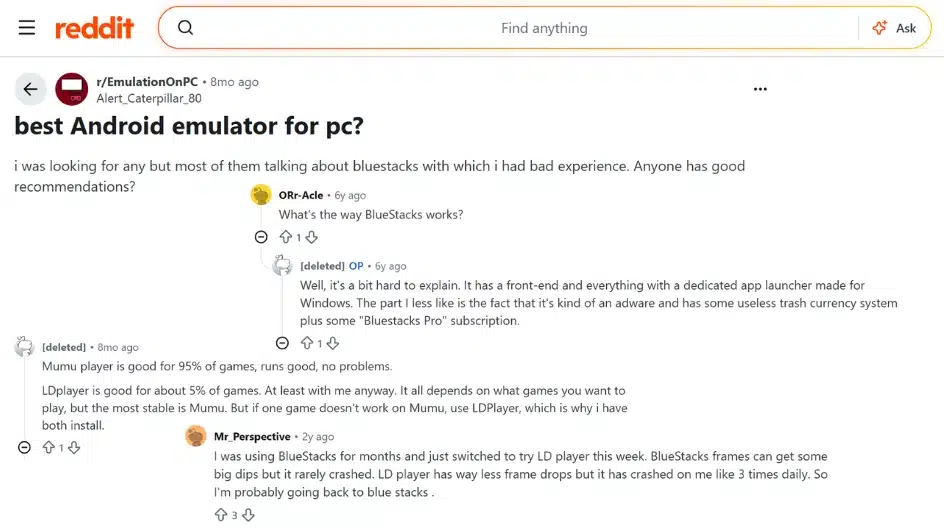
User discussions on Reddit and gaming forums show that Android emulator preferences vary with individual needs, system performance, and the types of apps users want to run.
Many gamers compare popular options like BlueStacks, LDPlayer, and MuMu Player by looking at factors such as FPS stability, resource usage, control options, advertisement frequency, and game compatibility.
Gaming users often prefer LDPlayer for performance-focused gameplay, while others choose BlueStacks for its broad app support and beginner-friendly features. MuMu Player is frequently mentioned by users who want fewer interruptions and a cleaner experience.
Developers usually prefer the Android Studio Emulator because Google provides it and offers reliable tools for app testing, device simulation, and debugging.
Community members also recommend downloading emulators only from official websites, as modified installers from unknown sources may contain unwanted software or create security risks.
Are Android Emulators Safe To Use?
Android emulators are generally safe when downloaded from trusted sources and installed correctly. Since emulators create a virtual Android environment on your PC, safety mainly depends on where you download them and the apps you install inside them.
Follow these practices:
- Download emulators only from official websites.
- Check the permissions requested during installation.
- Avoid modified or unofficial versions.
- Keep antivirus software active.
- Update the emulator regularly.
Users should also review installed apps inside the emulator and avoid installing unknown applications, just like they would on a regular Android device.
Final Verdict
The best emulators for Android depend on how you plan to use them.
Gamers may prefer LDPlayer or BlueStacks 5, developers often benefit from the Android Studio Emulator, and users with older PCs may find MEmu Play a better fit.
Performance, compatibility, and hardware requirements all influence the right choice.
Before installing any emulator, review the system requirements, download it from the official website, and check recent user feedback.
Comparing these factors will help you choose the Android emulator that best matches your needs and delivers a reliable experience.
Frequently Asked Questions
Is BlueStacks Better than LDPlayer?
Yes, BlueStacks is a strong all-purpose option with wide app support, while LDPlayer focuses more on gaming performance and FPS stability. The better choice depends on whether users prioritize general use or gaming features.
Which Android Emulator Uses the Least RAM?
MEmu Play and LDPlayer are often considered lighter options compared with some larger emulators. Actual RAM usage depends on settings, Android version, and the apps being used.
Are Android Emulators Safe for Windows PCs?
Yes, Android emulators are generally safe when downloaded from official sources. Users should avoid unofficial versions and check installed apps to reduce security risks.