Canva can feel almost unavoidable once you start working with social posts, presentations, or quick business graphics.
I’ve found the real question isn’t why people use it, but whether it fits the kind of work you actually need to do.
For someone new to design, it can make basic visual tasks feel much easier, while experienced users may notice limits much sooner.
That difference is why opinions about Canva can vary so much from one person to another. Look at how Canva is used, what users tend to like or dislike, how pricing compares across plans, and which types of people are most likely to find it useful.
What is Canva, Exactly?
Canva is a browser-based design tool that lets people build social posts, presentations, videos, resumes, and marketing material without prior design training or expensive software.
It runs on a drag-and-drop editor stocked with templates, stock photos, fonts, and icons, so you start from a finished layout instead of a blank page.
When I timed myself building a five-slide client pitch deck from a template with zero design-software background, it took under fifteen minutes, including swapping in brand colors and a logo.
That’s the practical answer to what Canva is built to do: less a design program, more a shortcut to a finished-looking result.
It syncs across desktop and mobile, and both free and paid tiers exist depending on how many extra features you need; teams get shared folders and brand kits, solo users mostly get speed.
How People Actually Use Canva
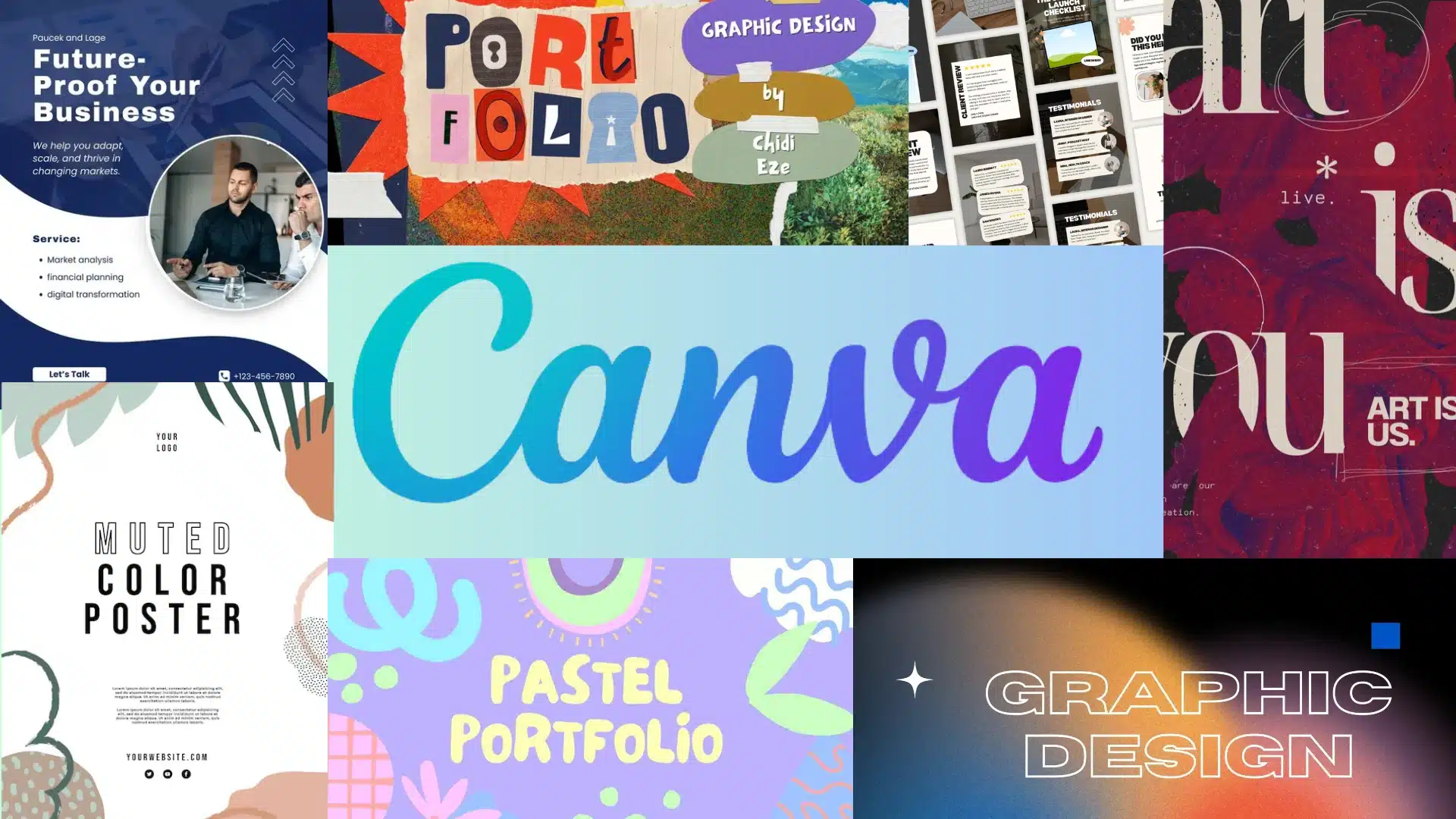
Beyond opinions, it helps to look at what people build with Canva day to day. It shows up across three main areas: social content, business materials, and team workflows.
1. Social Media and Quick Graphics
This is the most common everyday use, since these projects rarely need much beyond a template swap, though the same licensing rules still apply to commercial use.
- Instagram and Facebook posts
- Story graphics and highlight covers
- Simple ad creatives
- Promotional announcements
- Reusable templates recycled for dozens of posts
2. Presentations and Business Content
Business use tends to center on professional-looking content that doesn’t need custom design work:
- Pitch decks and internal presentations
- Flyers and printed handouts
- One-page marketing sheets
- Simple graphics for meetings or reports
- Basic branding materials for small companies, which make up the majority of U.S. businesses
3. Templates and Team Collaboration
Teams lean on shared templates and locked design elements to keep output consistent across contributors:
- Shared brand templates so everyone starts from the same layout
- Locked logos and colors
- Multiple people editing the same file at once
- Older designs reused as a starting point for new campaigns
- Simple approval steps before content goes live
Marketing teams in particular say this keeps their output consistent, even during a busy workweek.
Canva Reviews: What Users Actually Like and Dislike
Across forums, comparison sites, and Canva reviews on social media, casual users tend to rate it highly, while trained designers flag the same handful of frustrations. Here’s what shows up most consistently on each side:
|
Pros |
Cons |
|---|---|
|
Easy to learn; most people start creating within minutes with no design background |
Interface changes; recent updates moved familiar tools around |
|
Large template library covering almost any format |
Buried features; certain settings feel harder to find as the platform grows |
|
Fast turnaround compared to older design software |
Paid restrictions, premium templates, photos, and fonts sit behind a subscription |
|
Beginner-friendly, drag-and-drop editor |
Occasional bugs, slow loading, or glitches during busy sessions |
|
Syncs across desktop, tablet, and phone |
Limited fine control; precise editing feels restrictive to trained designers |
These strengths are what keep solo creators and small teams renewing their subscription, even as the complaints above set realistic expectations for anyone coming from professional design software.
Canva for Beginners and Professionals
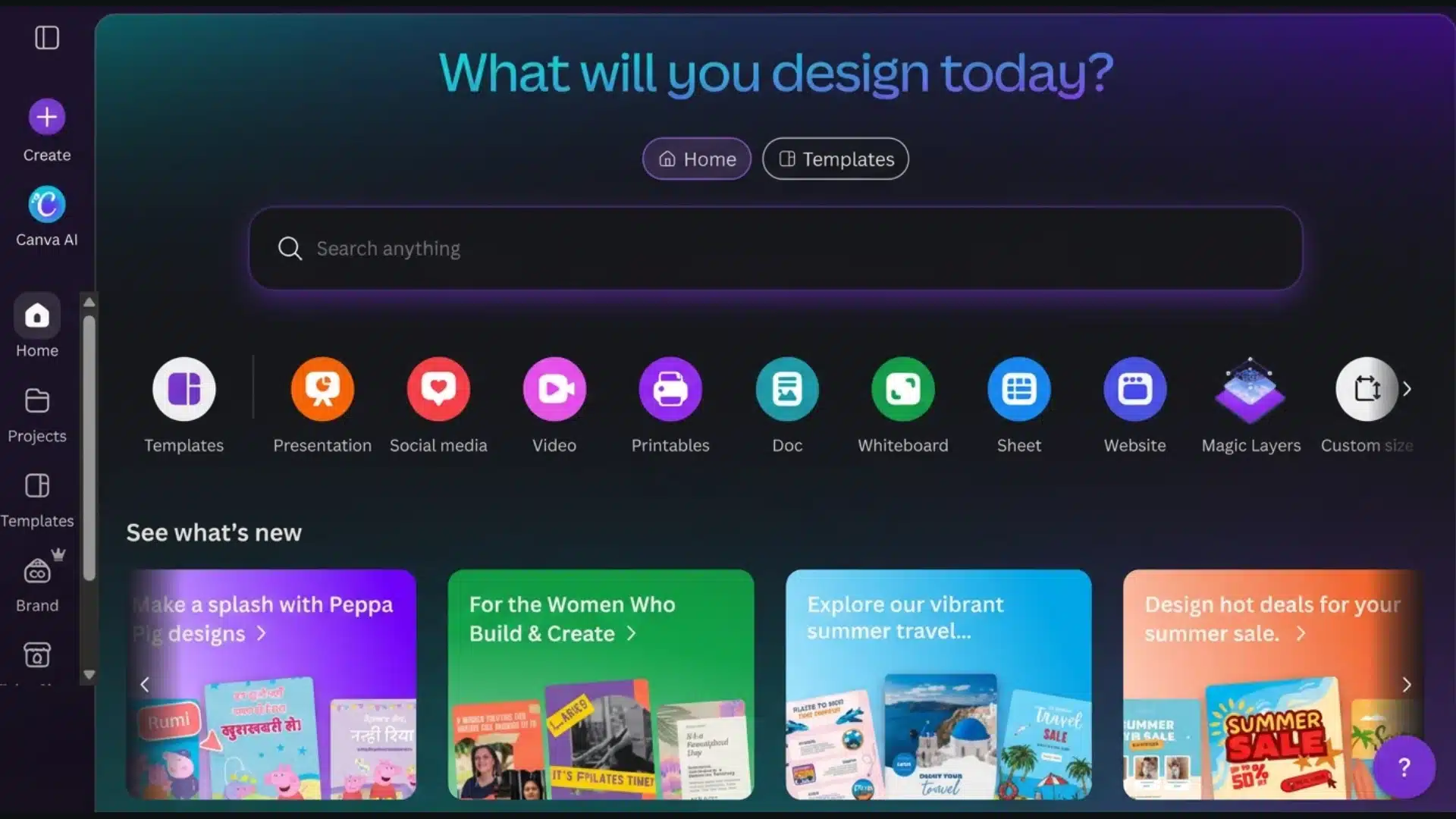
Not everyone uses Canva the same way, and experience level plays a big role in how people rate it.
- Students: Use Canva for school projects, presentations, resumes, and basic designs. They usually value simple tools, ready-made templates, and free options that help them create content quickly.
- Small Business Owners: Use Canva for marketing materials, social media posts, flyers, and promotional designs. They value affordable solutions that save time without needing advanced design skills.
- Social Media Managers: Rely on Canva for creating daily posts, ad creatives, stories, and branded content. They value a large template library and quick editing features for frequent content needs.
- Freelancers: Use Canva for client projects, presentations, social media designs, and quick revisions. They value flexibility, easy customization, and the ability to handle different types of design work.
- Professional Designers: Use Canva for simpler tasks, client-editable templates, and faster production. They value the time saved on routine designs while keeping more complex work in advanced design software.
Beginners generally value how little training the tool requires, while professionals tend to use it selectively, often for quick production work rather than detailed design projects.
In my own client work, small-business owners were the fastest converts; they cared far less about pixel precision than about shipping a flyer before a weekend sale.
What Reddit Users Say About Canva
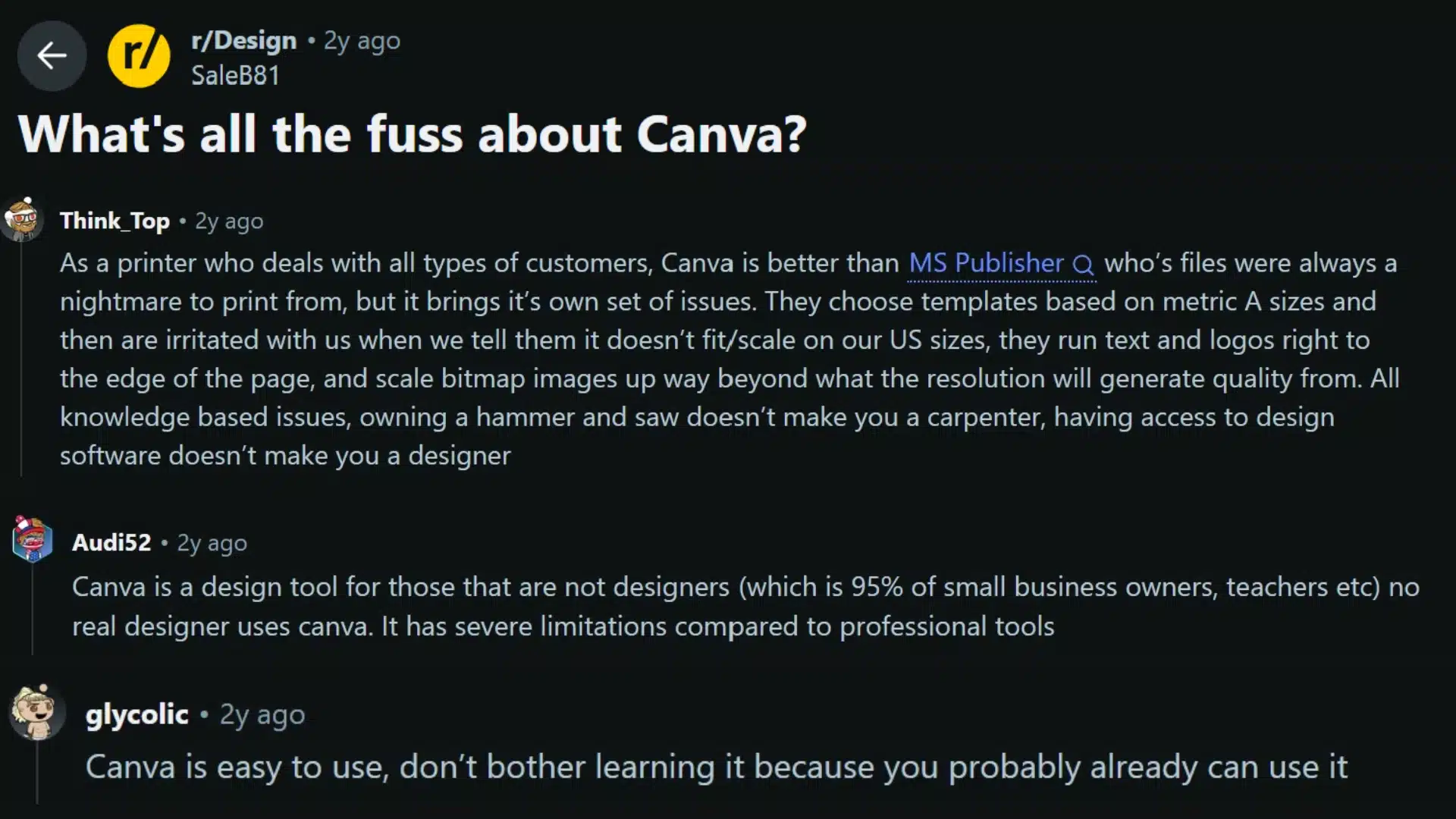
People discussing Canva often praise how easy it is to use, especially for quick social media graphics, simple marketing materials, and everyday visual content. At the same time, several users point out that it has clear limits for complex or technical design work.
The general view is that Canva works well for beginners, small business owners, teachers, and people who need fast results without advanced design skills.
More experienced designers may prefer professional software for large catalogs, detailed print jobs, or projects that require precise control.
Printing can also cause issues when page sizes, image resolution, margins, or scaling aren’t set correctly. Overall, the discussion presents Canva as practical for simple tasks but less suitable for demanding design work.
Canva vs. Adobe Express, Figma, and PowerPoint
Canva rarely gets picked in a vacuum. Most people comparing tools are weighing it against Adobe Express, Figma, or the office software they already own. Roughly:
|
Tool |
Best for |
Learning curve |
|---|---|---|
|
Canva |
Fast templates across almost any graphic format |
Minutes |
|
Adobe Express |
Similar template speed, tighter fit with Photoshop/Illustrator assets |
Minutes |
|
Figma |
Pixel-precise control; built for UI and product design |
Steeper |
|
PowerPoint / Google Slides |
Familiar, works offline, less visual by default |
Minutes |
Inside Canva’s AI Tools (Magic Studio)
Canva’s free plan includes limited access to its Magic Studio AI tools, a capped number of Magic Write and Magic Eraser uses, enough to try them, but not enough for regular use.
Pro unlocks the fuller AI toolkit (background remover, Magic Resize, a larger monthly AI-credit allowance) plus the full premium template and stock library.
Exact AI-credit caps have changed more than once this year, so treat any specific number as a snapshot rather than a promise; check Canva’s own pricing page for the current allowance before you upgrade for this reason alone.
The background remover is the one feature that’s saved me the most real time; prepping client product photos used to take twenty minutes in another editor and takes about ten seconds here.
Canva Pricing Plans
Cost is one of the first things people check before trying Canva, and it’s also one of the more confusing parts of the platform, since the pricing has shifted more than once in the past couple of years. Older guides still floating around often quote outdated numbers from before Canva restructured its team plan.
|
Plan |
Typical Cost |
Best For |
|---|---|---|
|
Free |
$0 |
Casual users, students, and one-off projects |
|
Pro |
Roughly $15–18/month (cheaper billed annually) |
Solo creators who want premium templates, AI tools, and a brand kit |
|
Teams / Business |
Roughly $20–25 per user/month, no seat minimum |
Small teams that need shared brand controls and collaboration |
|
Enterprise |
Custom, quote-only pricing |
Larger organizations needing admin controls and dedicated support |
Enterprise plans are typically only available once an organization commits to a minimum seat count, which pushes many mid-size teams toward the Teams or Business tier instead.
Because these numbers keep changing, it’s worth checking Canva’s own pricing page for the current rate before budgeting around any figure you see in a review.
Is Canva Worth Using Today?
Based on real Canva reviews, my own testing across client work, and where the free tier stops, the honest verdict is that it depends on what you’re building, not on what any single review tells you.
If you’re a student, small business owner, or social media manager doing routine graphics, Canva is very likely built for exactly your workload.
If you’re a trained designer on detailed branding or print-heavy work, you’ll likely hit its ceiling and want software with deeper control, and that’s a fair trade for the speed you get everywhere else.
The clients I’ve worked with who were happiest with Canva were the ones who stopped trying to make it behave like Photoshop and just used it for what it’s built for. Test it on one real project you actually have, not a demo file; you’ll know within the hour whether the workflow fits how you work.
Final Decision
Canva earns its reputation for a reason: it turns basic design work into something almost anyone can finish in minutes, and that’s the entire point of what Canva is built to do.
In my own client work, that speed is exactly why I keep reaching for it before anything fancier. But the Canva reviews worth trusting also admit its limits: locked-down fine control, paywalled premium features, and shifting pricing. I’ve hit all three myself, usually right when a client asks for one small tweak the template won’t allow.
Free is genuinely usable, Pro suits solo creators who need the AI tools and full asset library, and Business only earns its cost once a team needs shared brand approval.
None of that replaces testing it on your own project. If you’ve used Canva for something specific, tell me about it in the comments; it’ll help the next person decide faster than another spec sheet does.
Frequently Asked Questions
Does Canva Work Without an Internet Connection?
Canva needs an internet connection for most editing and syncing features. Limited access may vary by device, but full functionality generally requires an internet connection.
Can Canva Open PowerPoint Files?
Yes, Canva can import many PowerPoint files for editing. Some fonts, animations, layouts, or formatting may change slightly during the conversion process.
Can Canva Designs Be Used for Commercial Projects?
Many Canva elements can be used commercially under its licensing terms, but restrictions apply to certain content. Always check the license before selling finished designs.
What File Formats Can Canva Export?
Canva supports common export formats including PNG, JPG, PDF, MP4, and GIF; Pro also unlocks extras like transparent-background PNGs. Exact options can depend on the design type and account plan.