Two weeks after opening a vendor invoice, I went looking for it again and found nothing; not in Sent, not in Drafts, nothing that looked like it had ever existed in my inbox.
Gmail hadn’t deleted the email; it had quietly filed it under archived Gmail mail, a single search away from where I kept checking.
That mix-up is common, because Gmail’s archive doesn’t behave like a folder you can browse by scrolling; it behaves more like a drawer that closes on its own.
Once you know how to find archived emails in Gmail, get them back, and stop the pileup, a message you thought was gone shows up in about five seconds.
Why Can’t You Find an Archived Email in Your Inbox?
It’s usually not gone; it’s just filed somewhere you’re not looking. Gmail doesn’t organize archived mail the way most people expect: there’s no “Archive” folder to click into, no visual cue that a message even left your Inbox, and no notification when it happens.
Instead, the email sits inside All Mail alongside everything else you’ve ever sent or received, which means a normal scroll through your Inbox will never turn it up, no matter how far back you go.
Keep that filing system in mind alongside your regular inbox filtering settings, since a message can end up out of sight for more than one reason.
That gap between where people look and where Gmail actually keeps the message is the reason “I know I read this email” turns into a five-minute search. Once you know where to look and which search terms actually
What Actually Happens When You Archive an Email in Gmail
People use “archived,” “deleted,” and “lost in spam” almost interchangeably, but Gmail treats them as three completely different states, a distinction that matters most once you start thinking about reclaiming space without deleting anything. This table is the fastest way to see the difference at a glance
|
State |
Where the email lives |
How long it stays there |
Counts against storage? |
|---|---|---|---|
|
Archived |
All Mail |
Indefinitely, until you delete or move it |
Yes |
|
Trashed |
Trash |
30 days, then auto-deleted |
Yes, until permanently removed |
|
Spam |
Spam folder |
30 days, then auto-deleted |
Yes, until permanently removed |
|
Permanently deleted |
Nowhere |
Unrecoverable after ~30 days in Trash |
No |
How to Find Archived Emails in Gmail on Your Computer
Desktop users can find archived emails in two ways: by checking the All Mail folder or using Gmail search. Follow the methods below to locate your archived messages quickly.
Method 1: Open the All Mail Folder
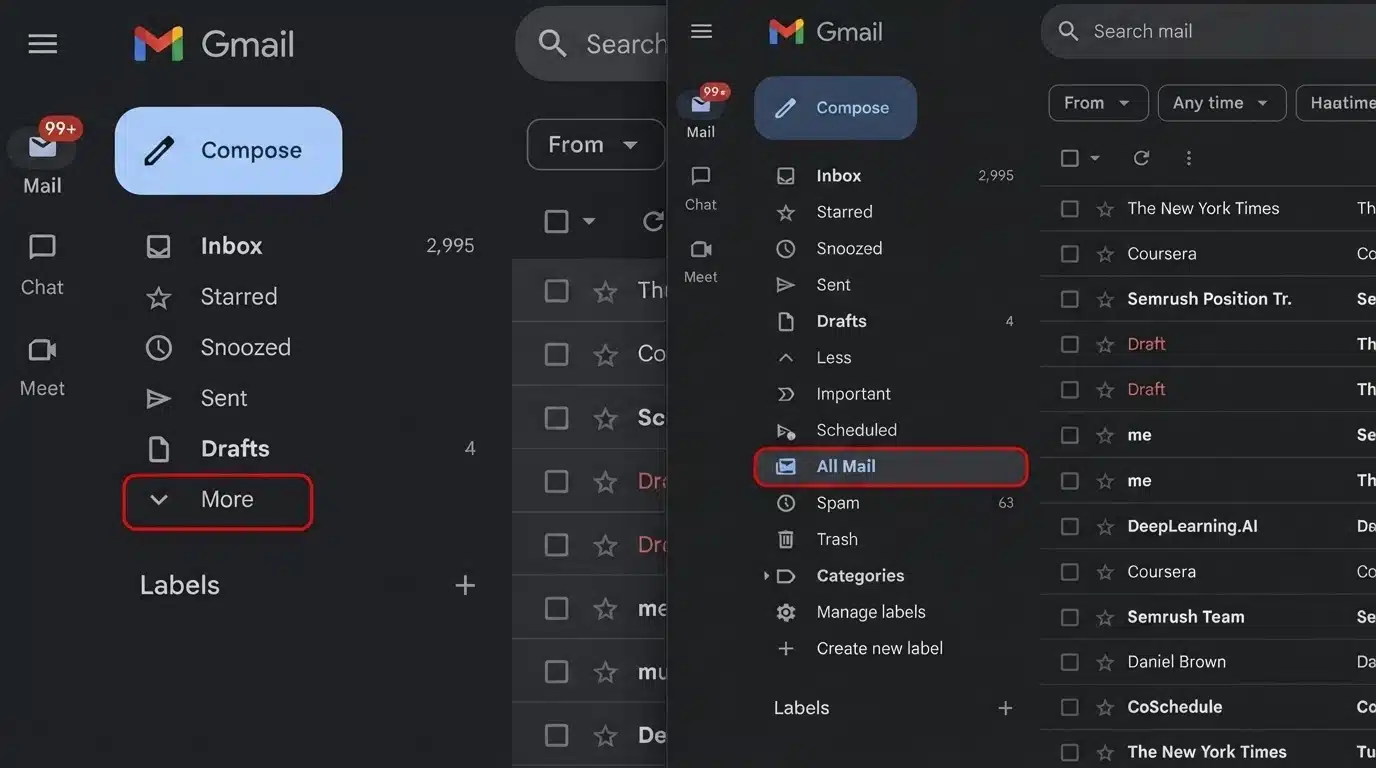
Follow these steps to find archived emails manually:
- Sign in to Gmail in your browser.
- Open the left sidebar and click More if the full menu is collapsed.
- Select All Mail.
- Scroll to find the message, or use Ctrl+F (Cmd+F on Mac) to search the page for a sender name or subject line.
- Open the email once you spot it.
All Mail contains every message except what’s sitting in Trash or Spam, so archived mail always shows up here. This route works best when the email is recent, or you remember enough about it to scroll to the right time frame, proof of how far email client design has come from the days of static folders.
Method 2: Search for Archived Emails Directly
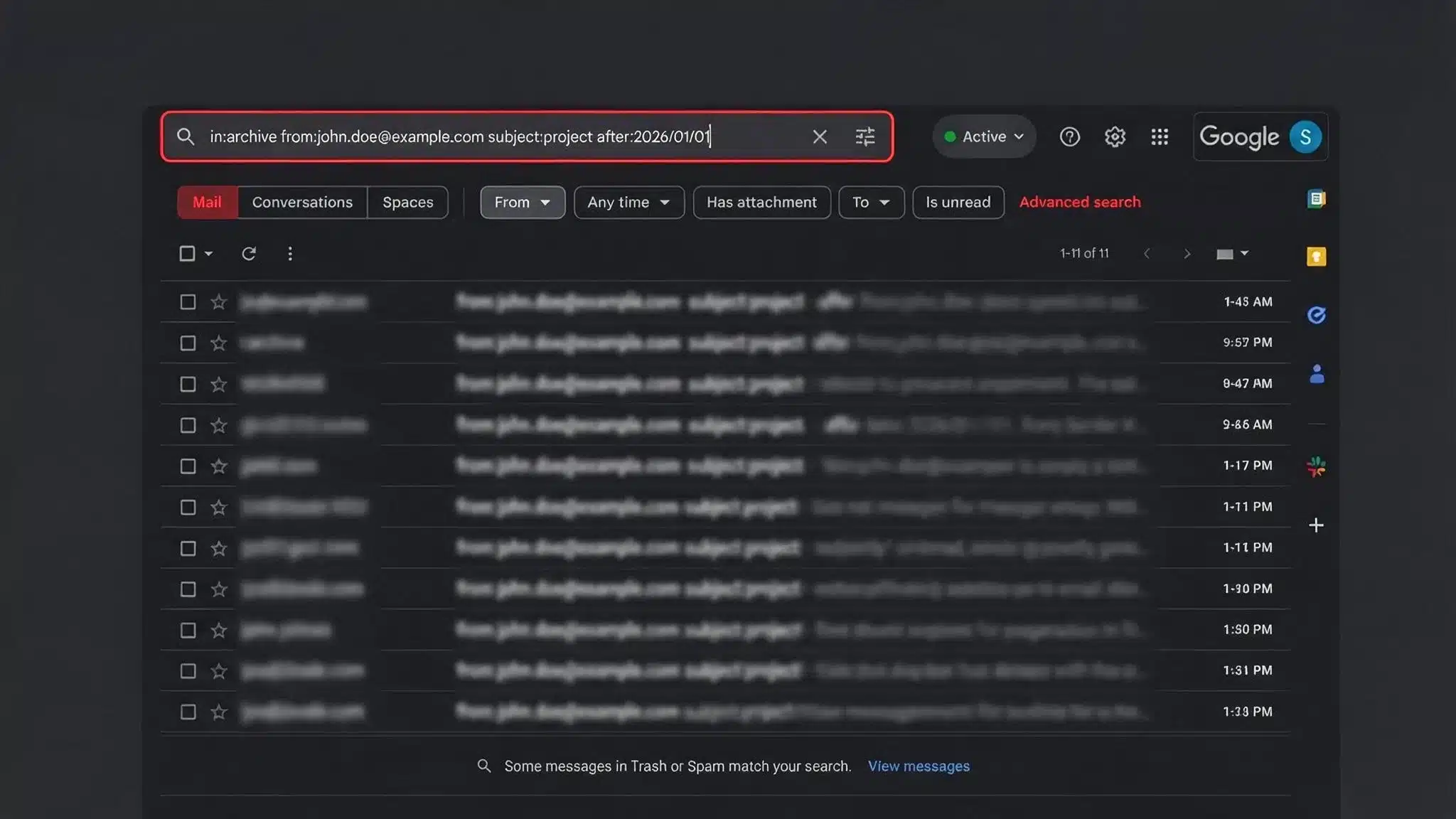
Gmail search is a faster option when you have a large inbox or need to find an older archived message. Use search commands to narrow down results instantly.
Steps to follow:
- Click the Gmail search bar at the top.
- Type in: archive and press Enter.
- Add filters like from: name, subject: word, or after:2026/01/01 to narrow results.
- Combine filters to quickly find the exact archived email.
This method saves time compared to manually checking All Mail, especially when searching through many emails, and if a sender name or subject line looks slightly off while you’re searching, since that’s often one of the common phishing warning signs worth knowing.
Finding Archived Emails on Android and iPhone
The mobile experience closely mirrors desktop, just tucked into a smaller menu. Android and iOS both offer the same two options. You get there through a slightly different tap sequence. The table below lines up both platforms side by side so you can follow the steps for your device.
Step 1:Open the Gmail app: Apple Mail won’t show archived Gmail labels, so iPhone and iPad users need the Gmail app itself, not the built-in Mail app.
Step 2:Open the menu: Android: tap the menu icon (three lines) in the top left; iPhone/iPad: tap your profile photo or the menu icon in the top left.
Step 3:Go to All Mail: Android: select All Mail from the menu; iPhone/iPad: tap All Mail.
Step 4:Or skip straight to search: Type in:archive into the search bar (Android) or search field (iPhone/iPad) instead of browsing.
Step 5:Tap the message to open it: Same step on both platforms. If you’re using Gmail through Safari or Chrome on mobile instead of the app, the layout matches the desktop browser almost exactly, so the earlier computer steps apply there too.
The two platforms line up almost exactly, with only minor differences in where the menu icon sits, a reminder that apps often hide a few smartphone features in plain sight.
A Faster Habit: Search Operators and the Archive Keyboard Shortcut
A coworker showed me Gmail’s keyboard shortcuts years ago, and it’s the one Gmail habit that actually stuck: with shortcuts turned on (Settings → See all settings → General → Keyboard shortcuts → On), selecting a message and pressing it archives it instantly, no mouse required.
The same reflex is worth building for anything that looks like a scam; reporting suspicious phishing messages takes just as little effort and helps cut down on junk before it ever needs archiving.
A few other operators to keep in your back pocket alongside in:archive:
older_than:1y: surfaces anything archived over a year agois:unread in:archive: catches archived messages you never actually openedlabel:work in:archive: combines a label with the archive search for a faster narrow-down
None of this replaces the basic in:archive search; it just cuts the time down when your archive runs into the thousands of messages, which happens faster than most people expect.
How to View or Recover an Archived Gmail Message?
Finding an archived Gmail message is only the first step. After you locate it, decide whether to read the email without changing its location or move it back to your Inbox.
- If you only want to read the message: Go to Gmail, select All Mail, open the email, and read it. The message will remain archived, and its location will not change.
- If you want the email to appear in your main Inbox again: Open the message and select the Move to Inbox option. You can also right-click the email and choose Move to Inbox. The message will then return to your Inbox view.
- To recover multiple archived emails at once: Go to All Mail, select the required messages using the checkboxes, and click Move to Inbox. All selected emails will be restored together.
Remember, these actions are not permanent. You can move emails between your Inbox and All Mail whenever you need to.
Does Archiving Free Up Storage Space in Gmail?
No, and this trips people up all the time. Archiving only removes the Inbox label; the message, and any attachments it carries, still sit in All Mail and still count toward your total Google storage.
If you’re trying to actually reclaim space, archiving alone won’t do it. I learned this the hard way after “cleaning up” a decade of newsletters into the archive and watching my storage bar barely move.
To actually recover space, you need to delete the message (which moves it to Trash, where it’s permanently removed after 30 days) or empty Trash directly.
Large attachments are usually the real culprit; searching has:attachment larger:10M will surface the worst offenders faster than archiving ever will.
Archive vs. Mute vs. Snooze: Which One Should You Use?
All three make a message vanish from your Inbox, which is exactly why people mix them up. The real difference shows up later, in how (and whether) that message ever comes back.
|
Action |
What It Does |
Best For |
|---|---|---|
|
Archive |
Removes the Inbox label permanently until you manually move it back |
Anything you’re done with but might need later |
|
Mute |
Archives the thread and keeps archiving any future replies to it automatically |
Noisy group threads you’re cc’d on but don’t need to follow |
|
Snooze |
Temporarily removes a message and schedules it to reappear at a set date or time |
Things you need to act on later, just not today |
If an archived message keeps reappearing, it’s not un-archiving itself; a new reply landed in that old thread and pulled the whole conversation back. Muting is the fix for that.
When a Search Comes Up Empty
If in archive doesn’t turn up what you’re looking for, work through these before assuming the email is gone:
- Check Trash. Anything sitting there gets permanently deleted after 30 days; check before that window closes.
- Check Spam. Gmail routes messages here on its own, without asking, based on sender reputation and content signals.
- Check the Promotions, Social, and Updates tabs. These live inside the Inbox itself, separate from All Mail, so a general search can miss them if a message never left the Inbox at all.
- Check Filters and Blocked Addresses under Settings; a filter may be quietly archiving, deleting, or relabeling mail from a specific sender without you noticing.
- Broaden the search term. An overly specific keyword, an exact subject line, for instance, can hide a match that’s sitting right there under slightly different wording.
Working through these in order rules out a different hiding spot each time, so you don’t recheck the same folder twice.
Habits that Keep Archived Mail from Piling Up
None of this requires new software, just a handful of small habits that keep archived Gmail mail from turning into a folder you’re afraid to open.
- Label before you archive anything you might need later; a label stays attached to a message no matter where it ends up, so it’s always one click away in the sidebar.
- Star anything important before it leaves the Inbox, so it surfaces under Starred regardless of label.
- Set up a filter to label senders automatically instead of archiving them blind; this is what would have saved me the forgotten-newsletter situation above.
- Checking All Mail on a set schedule weekly works well if you tend to archive heavily and skip labeling.
- Search before you scroll. Manually paging through months of mail is slow and easy to misjudge; a specific operator almost always beats visual scanning.
None of these take more than a few seconds, but done consistently, they turn the archive into something you can actually search instead of a pile you avoid.
Final Thoughts
Archiving is Gmail’s version of tidying up, not throwing away; every archived Gmail message stays fully intact in All Mail, attachments and all, until you decide otherwise.
Once a saved search or a weekly habit of checking All Mail becomes routine, finding archived emails in Gmail stops being a puzzle and becomes a five-second lookup
Even if you’re chasing down a single invoice or reclaiming a whole thread of old client mail, the message was never actually gone; it was just sitting one layer deeper than the folder you check every morning.
If a subject line disappears on you again, bookmark this page, or drop a comment with what tripped you up; it helps shape what we check next time Gmail changes something.
Frequently Asked Questions
If I Archive an Email by Mistake, Will the Sender Know?
No. Archiving is a purely private action on your side of the account; it changes nothing about read receipts, delivery status, or anything visible to the sender.
Does Archiving Stop Me from Getting Replies in That Thread?
No. If someone replies to an archived thread, the new message automatically pulls the whole conversation back into your Inbox. Archiving only affects the thread’s current state, not future activity on it.
Can I Set Gmail to Archive Emails Automatically After a Set Amount of Time?
Not natively: there’s no built-in “auto-archive after X days” setting. The closest workaround is a filter matching specific senders or keywords with the “Skip the Inbox (Archive it)” action, which applies the moment the email arrives, not on a delay.
Is There a Limit to How Many Emails I Can Keep Archived?
No fixed limit on message count. The actual ceiling is your Google account’s total storage (shared across Gmail, Drive, and Photos), since archived mail still counts against it. You’ll get a warning email as you approach that cap, regardless of how the mail is labeled.
Does Archiving on My Phone Also Archive the Email on My Computer?
Yes. Archiving is a label change on Google’s servers, not a local action, so it syncs across every device signed into that account within moments: phone, tablet, and browser all show the same state.