Keeping LG TV software updated helps maintain smooth performance, improve app compatibility, fix bugs, and add new features released by LG.
Regular updates can also improve system stability and address security issues affecting smart TV functionality.
Knowing how to update an LG TV properly ensures the process is completed safely without interrupting your viewing experience.
Follow these steps to update LG TV software by covering how to check the current software version, download available updates, and install them using simple step-by-step methods.
What is an LG TV Software Update?
An LG TV software update is a release from LG that improves the operating system running on the television. This software, also called firmware, controls important functions like menus, settings, connectivity, picture features, and smart TV performance.
A TV software update is different from a regular app update. Software updates improve the entire TV system, while app updates only change individual applications like Netflix, YouTube, or Disney+.
While software updates improve performance, the overall viewing experience also depends on the type of display panel your TV uses, such as QLED or OLED TVs.
Regular updates can provide several benefits, including:
- Fixing performance issues: Updates can resolve slow menus, freezing, crashes, and other software-related problems.
- Improving compatibility with streaming apps: New software helps the TV work better with updated versions of streaming services.
- Adding new features: LG may introduce improvements to settings, smart features, or system functions through software updates.
- Improving security and stability: Updates can fix software weaknesses and make the TV more reliable during everyday use.
How to Check Your LG TV Software Version
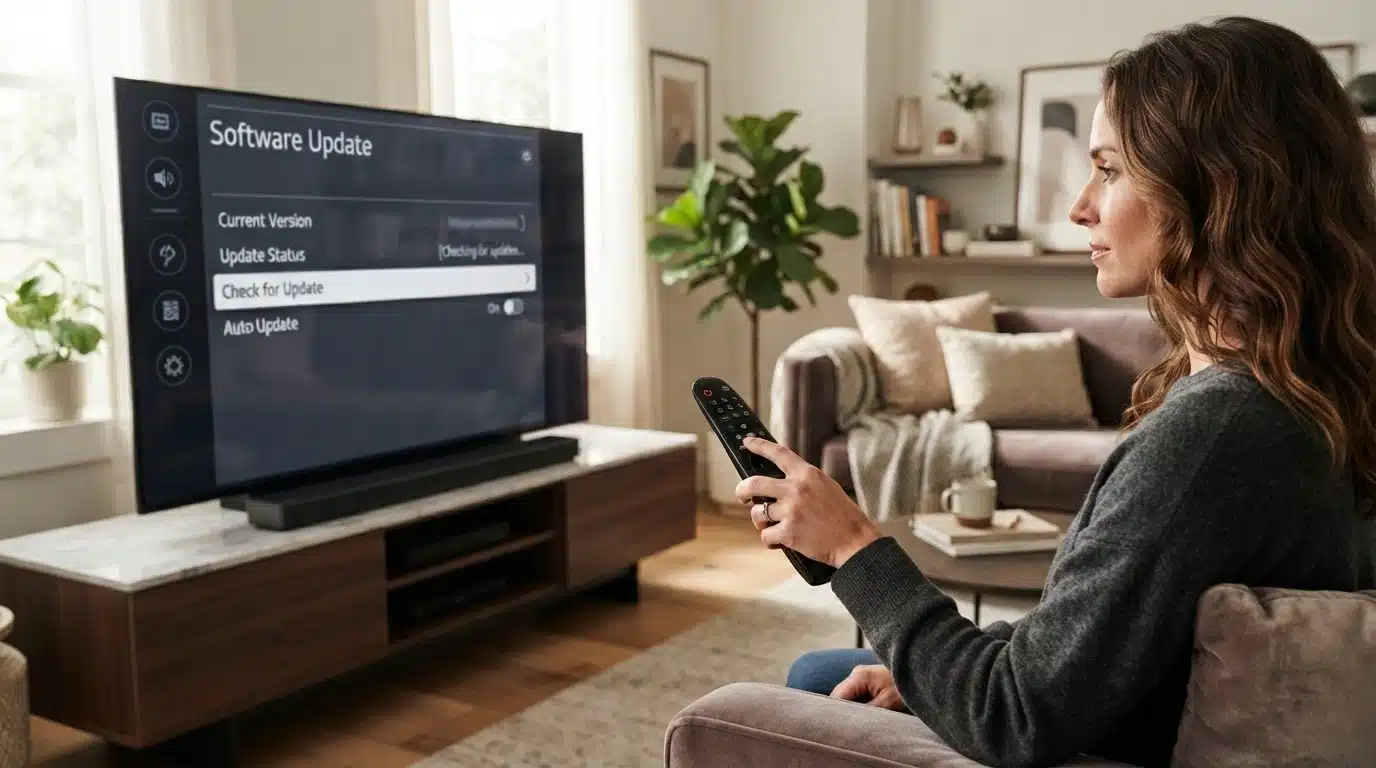
Before installing any update, check the software version currently running on your LG TV. This helps you confirm if your TV needs an update and makes it easier to identify software-related issues. You can check the version information directly from your TV settings by following these steps
Step 1: Open the Settings Menu: Press the Settings button on your LG TV remote. If your remote does not have a Settings button, press the Home button and select the gear icon to open the settings menu.
Step 2: Go to All Settings: From the quick settings menu, select All Settings to access the complete list of TV options.
Step 3: Select Support: Scroll through the available options and choose Support. This section contains software, troubleshooting, and maintenance settings for your LG TV.
Step 4: Open Software Update: Select Software Update to view information about the current software version installed on your TV.
Step 5: Check the Version and Available Updates: Your TV will display the current software version and show whether a newer update is available. If an update is listed, you can download and install it using the available option.
Checking the software version first ensures that you install the correct update and keep your LG TV running with the latest improvements.
Methods to Update LG TV Software
LG Smart TVs offer multiple ways to update software depending on your TV’s settings and internet availability. It can be updated automatically, manually through internet settings, or using a USB drive. Choose the right method for your model and follow the steps carefully
Method 1: Update LG TV Software Automatically
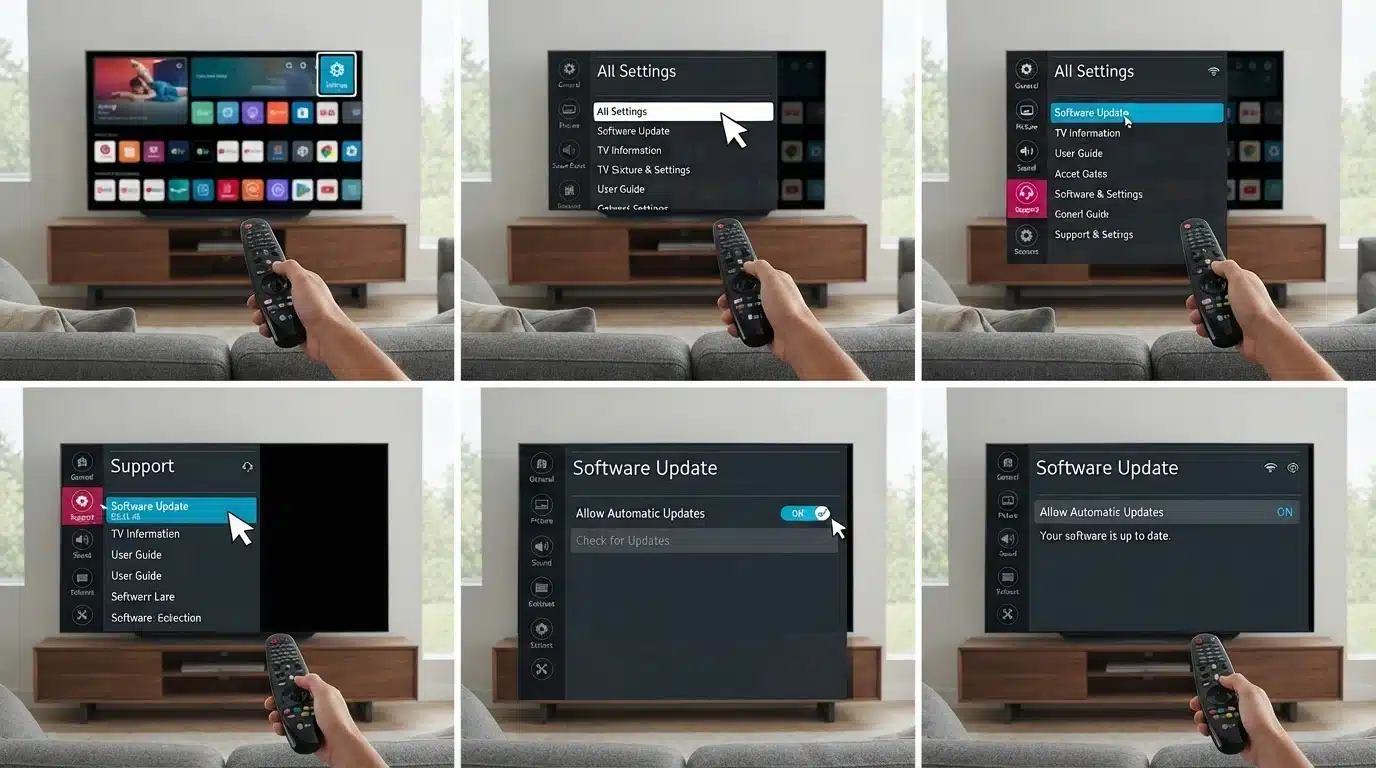
The automatic update feature is the easiest way to keep your LG TV software up to date. Once enabled, your TV automatically checks for available updates and downloads them when connected to the internet.
Steps to Enable Automatic Updates:
- Open Settings: Press the Settings button on your remote or select the gear icon on the home screen.
- Access All Settings: Select All Settings to view your TV’s main options.
- Open Support Settings: Go to Support to find software-related options.
- Select Software Update: Choose Software Update to manage update settings.
- Turn On Automatic Updates: Enable Allow Automatic Updates so your TV can check for new software automatically.
- Stay Connected to the Internet: Keep your LG TV connected to Wi-Fi or Ethernet to receive available updates.
Method 2: Update LG TV Software Manually Through the Internet
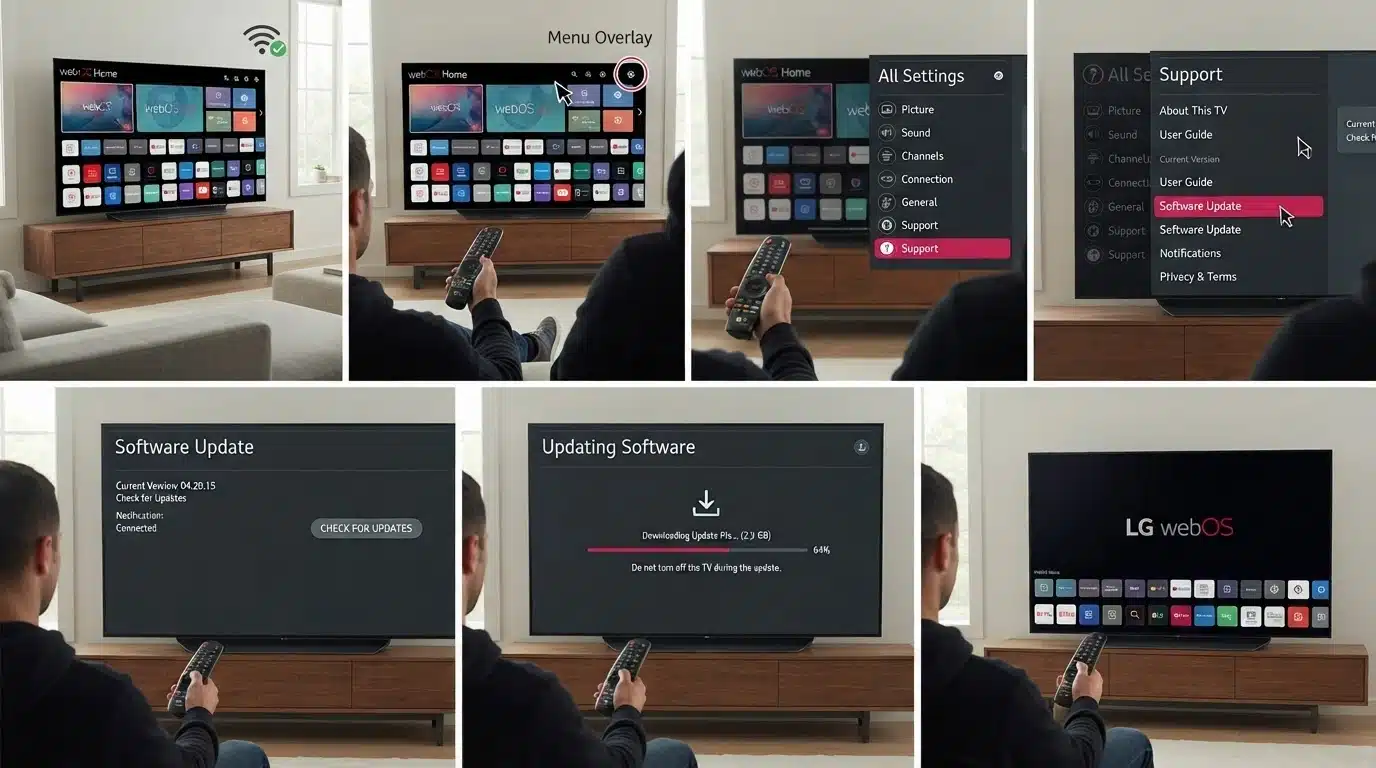
If automatic updates are turned off, you can manually check for and install the latest LG TV software using an internet connection. This method allows you to update your TV whenever a new version is available
Steps to Update an LG TV Using Wi-Fi or the Internet:
- Connect Your TV to the Internet: Ensure your LG TV is connected to a stable Wi-Fi or Ethernet network.
- Open Settings: Press the Settings button on your remote or select the gear icon on the home screen.
- Go to Support: Open All Settings and select Support from the menu.
- Access Software Update: Select Software Update to view available updates.
- Check for Updates: Select Check for Updates to find the latest software version.
- Download and Install the Update: If a new update is available, choose Download and Install to begin.
- Complete the Installation: Wait for the update to finish and allow your LG TV to restart before using it.
Method 3: Update LG TV Software Using a USB Drive
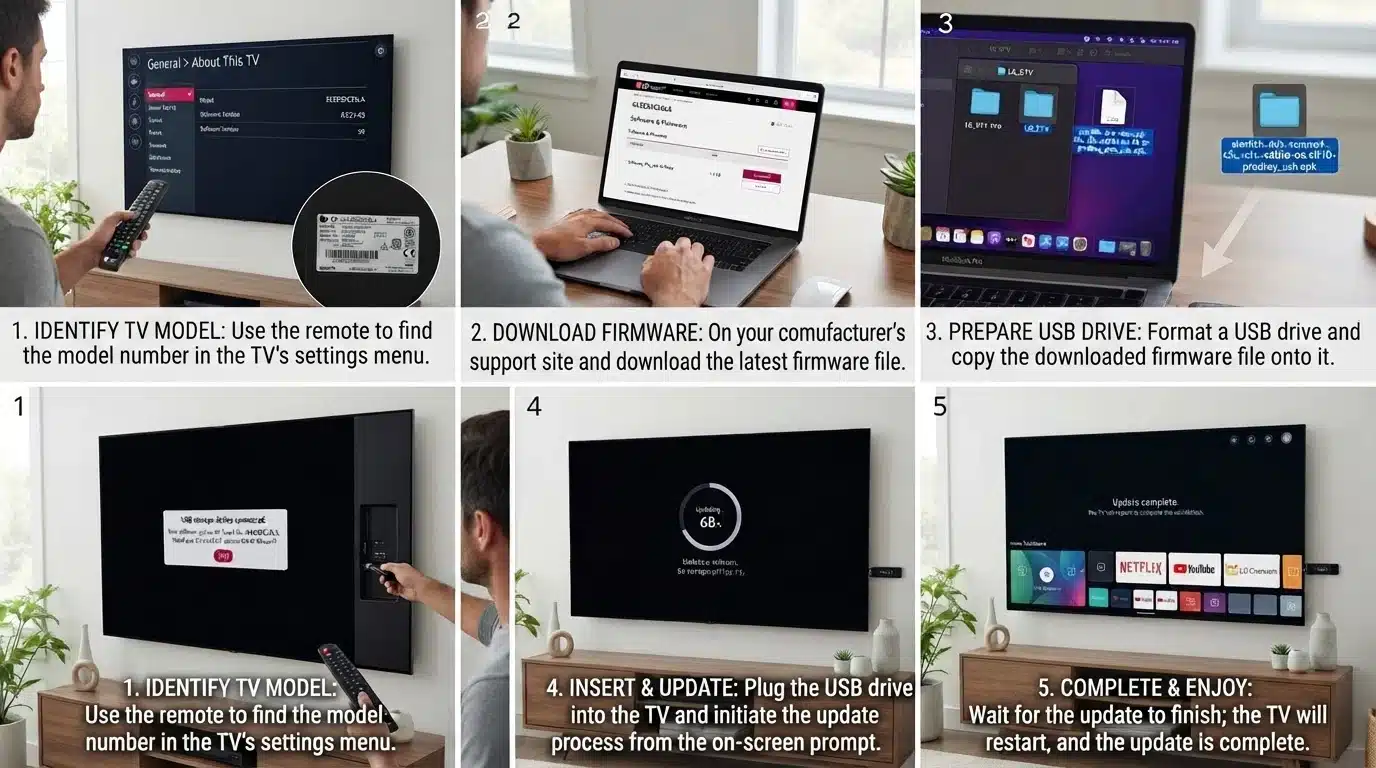
Updating LG TV software through a USB drive is a helpful option when the TV is not connected to the internet or when a manual firmware installation is required.
This method involves downloading the correct update file from LG’s official website and installing it directly on the TV.
Steps to Update LG TV Software Using USB:
- Check your LG TV model number: Find the exact model’s name from the TV settings or the label on the back of the TV.
- Download the firmware update: Visit LG’s official support website and download the latest software file made for your TV model.
- Transfer the file to a USB drive: Extract the downloaded firmware and copy the required update folder to a compatible USB drive.
- Insert the USB drive into your TV: Connect the USB drive to the LG TV’s USB port and wait for the update prompt.
- Complete the installation: Follow the on-screen instructions and allow the TV to restart after the update finishes.
- Always use firmware that matches your exact LG TV model to avoid update errors or installation issues.
Common LG TV Update Problems and Fixes
LG TV software updates usually work without issues, but problems can occur due to internet errors, incorrect files, or compatibility limits. The table below covers common update problems and quick solutions.
|
Problem |
Possible Cause |
Solution |
|
The update option is missing |
Older TV model or unsupported software version |
Check your TV model on LG’s official support page for available updates. |
|
Update fails repeatedly |
Weak internet connection or download interruption |
Restart your router, check the connection, and try updating again. |
|
TV freezes during update |
Temporary installation issue |
Wait for the update to complete and avoid unplugging the TV. |
|
USB update does not work |
Wrong firmware file or USB setup issue |
Download the correct firmware for your TV model and follow LG’s USB update steps. |
|
Apps stop working after the update |
App compatibility issue after software change |
Update or reinstall affected apps and restart the TV. |
If update problems continue after trying these fixes, checking LG’s official support resources or contacting LG customer support can help identify model-specific issues.
How to Check If Your LG TV Updated Successfully
After installing a software update, it is important to confirm that the new firmware was applied correctly.
Checking the software version and testing key TV functions can help identify any issues caused by an incomplete update or compatibility problems.
To verify the update:
- Open Software Update Settings: Press the Settings button on your LG remote, go to All Settings, select Support, and open Software Update.
- Check the Software Version: Compare the installed software version with the latest version shown during the update process or on LG’s official support page.
- Test TV Functions: Open streaming apps, check the Wi-Fi connection, and test picture and sound settings to ensure everything works properly.
- Confirm Previous Issues Are Fixed: If the update was installed to fix problems like app crashes, slow performance, or connectivity errors, check whether those issues have been resolved.
A successful update should improve system stability without affecting normal TV functions. If problems persist, restarting the TV or checking for any available updates may help.
Final Thoughts
Updating an LG TV’s software is a simple process when the correct steps are followed.
This guide covered how to check your current software version, update through the internet, use a USB drive, and fix common update problems safely.
If the question is how to update LG TV software without causing issues, the best approach is to follow the official update methods and check compatibility before installation.
Your LG TV can run smoothly by checking for software updates regularly and installing the latest firmware when available.
Frequently Asked Questions
How Often Should I Check for LG TV Software Updates?
Checking for updates every few months helps ensure your LG TV receives important fixes, performance improvements, and compatibility support for apps and connected devices.
Can an Old LG TV Still Receive Software Updates?
Older LG TV models may receive limited updates depending on hardware support and webOS version. Check LG’s official support page for update availability.
Will Updating LG TV Software Improve Picture Quality?
Software updates may improve picture processing, compatibility, and system performance, but they usually do not change the TV’s hardware-based display capabilities.
Can I Use My LG TV While a Software Update Is Installing?
No, avoid using or turning off the TV during installation. Interrupting the process may cause update errors or software issues.
Where Can I Safely Download LG TV Firmware?
Download LG TV firmware only from LG’s official website to avoid incorrect files, compatibility problems, or installation errors during the update process.