Most teams don’t fail at execution because they lack effort. They fail because no one can see what’s actually happening.
Tasks sit in email threads, updates happen in hallway conversations, and “who owns this?” becomes an awkward question nobody wants to answer.
Small delays pile up fast when visibility disappears, and accountability becomes unclear.
Trello fixes that by putting every task, deadline, and team member on a single visual board.
I’ve helped teams move off spreadsheet chaos onto Trello in under an afternoon, and the difference is usually immediate.
This guide covers everything you need to start using Trello for project management today.
What is Trello Project Management?
Trello project management is the practice of organizing tasks and team workflows inside Trello’s visual board interface.
Developed in 2011 and acquired by Atlassian in 2017, Trello now has over 50 million registered users and records more than 76 million monthly site visits.
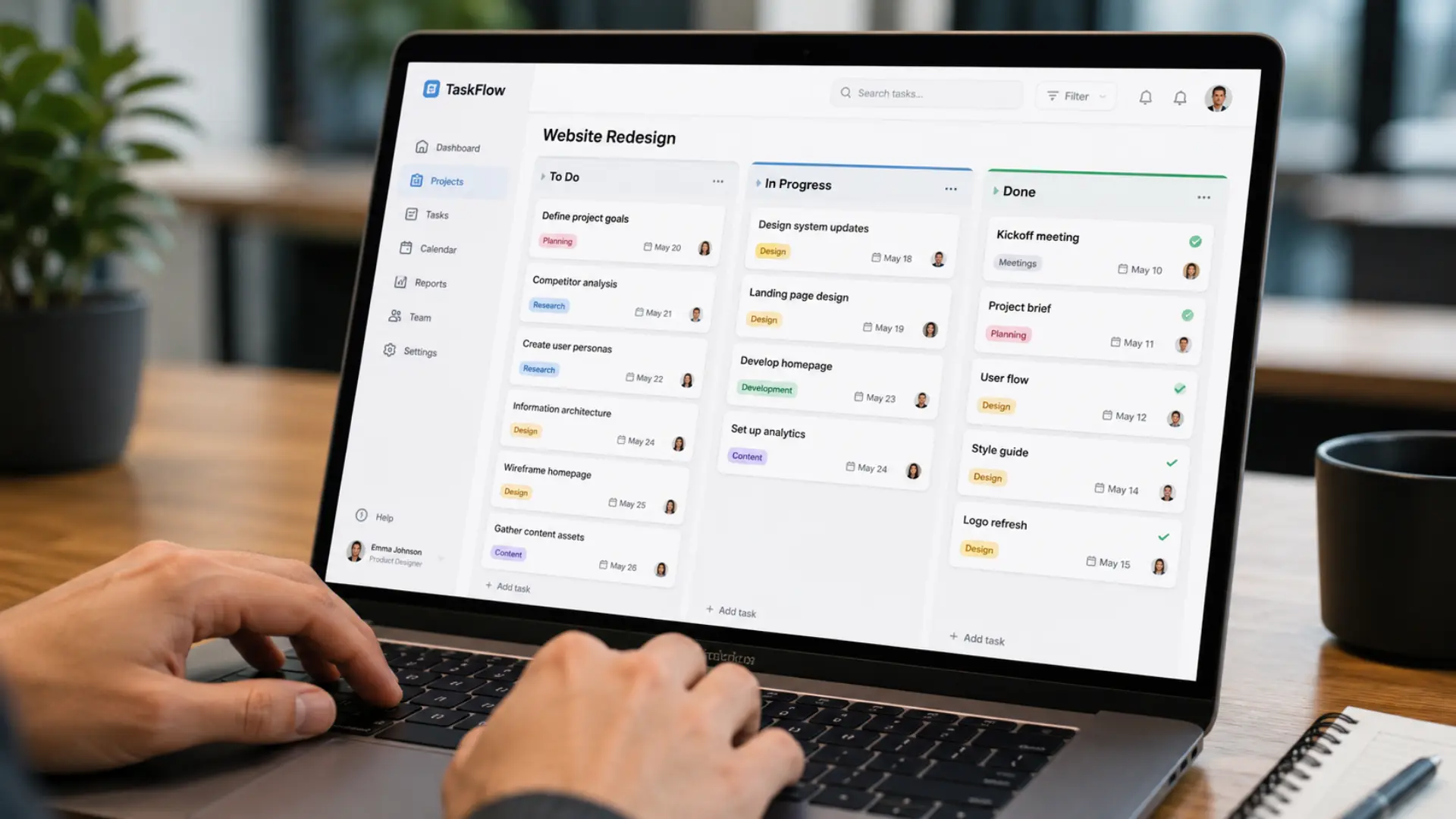
The tool is built around three structural elements: boards, lists, and cards. A board represents a project or workflow.
Lists inside each board represent stages, such as “To Do,” “In Progress,” and “Done.”
Cards represent individual tasks, and teams drag them from one list to another as work progresses.
The system is grounded in the Kanban methodology, a visual workflow approach that traces its origins to manufacturing floor management, where keeping work visible was the first step to reducing bottlenecks.
New team members typically grasp the board in under five minutes. That’s not a small thing when you’re onboarding a group mid-project.
Core Trello Features for Project Management
Trello’s feature set has grown well beyond its origins as a simple card board.
The 2025 tool updates introduced an Inbox for capturing scattered tasks and a Planner feature that connects directly to Google Calendar, giving teams a cleaner view of deadlines across active projects.
1. Boards, Lists, and Cards
Boards are the foundation of every Trello project management workflow. You create one board per project or department, then add lists to map your process stages.
Cards hold all the task details: assignees, due dates, checklists, attachments, labels, and comment threads.
Cards on Standard and above plans support nested checklists with individual assignees per item.
This matters when a single task involves multiple people completing distinct steps. A card stays open until every checklist item is marked complete, so tasks don’t quietly drop off the board.
2. Butler Automation
Butler is Trello’s built-in automation tool. It handles rules, triggers, and scheduled commands without any code.
You can build a rule that moves a card to “In Review” and notifies the project lead when a checklist is completed, or one that archives cards older than 30 days from a “Done” list.
For teams already exploring workflow automation tools, Butler handles the most common repetitive tasks without a third-party app.
3. Power-Ups and Integrations
Power-Ups are Trello’s integrations and add-ons. The platform connects with over 200 apps, including Slack, Google Drive, Jira, Salesforce, and Zoom.
Free plan users have access to unlimited Power-Ups, a restriction that Atlassian removed in an earlier policy update, making the free tier significantly more useful.
If your team depends on a particular tool, there is likely a direct Power-Up for it.
4. Views: Timeline, Calendar, Table, Dashboard
Trello’s default view is the Kanban board, but the platform supports several other ways to view the same data. Timeline view works like a Gantt chart and helps teams catch scheduling conflicts early.
Calendar view maps due dates across a monthly grid. Table view pulls all cards from every list into a spreadsheet-style layout. The Dashboard view displays metrics such as cards per member and completion rates.
The limitation worth flagging: Timeline, Calendar, Table, and Dashboard views are only available on Premium and Enterprise plans. The free tier gives you the board view only.
How to Use Trello for Project Management: Step by Step
Getting the initial setup right prevents most of the common frustrations teams run into. Here is the process that works.
- Create a workspace. A workspace is the container for all your boards. Set one up for your team or organization first, then invite members from there.
- Create a board. Name it after the project or workflow you’re managing. Set visibility to private, workspace, or public depending on who needs access.
- Add your lists. Start with “To Do,” “In Progress,” and “Done.” Three lists are enough to get moving. You can add more stages once the workflow is clearer.
- Create cards. Add one card per task. Use an action verb in the name so the work is unambiguous: “Write product brief” rather than just “Brief.”
- Assign members and due dates. Open each card and add the person responsible, plus a deadline. Both appear on the card face without clicking in, which keeps the board readable at a glance.
- Add labels. Color-coded labels mark priority, department, or content type and make filtering a crowded board fast.
- Create checklists. For multi-step tasks, add a checklist to the card and assign different team members to each item.
- Set up the Butler rules. Start with one or two automations. A rule that moves a card to “Done” when all checklist items are complete is a good first one to build.
- Run standups on the board. Trello works best as a live coordination surface, not a status report filed at the end of the week.
Best Use Cases for Trello in Till Now
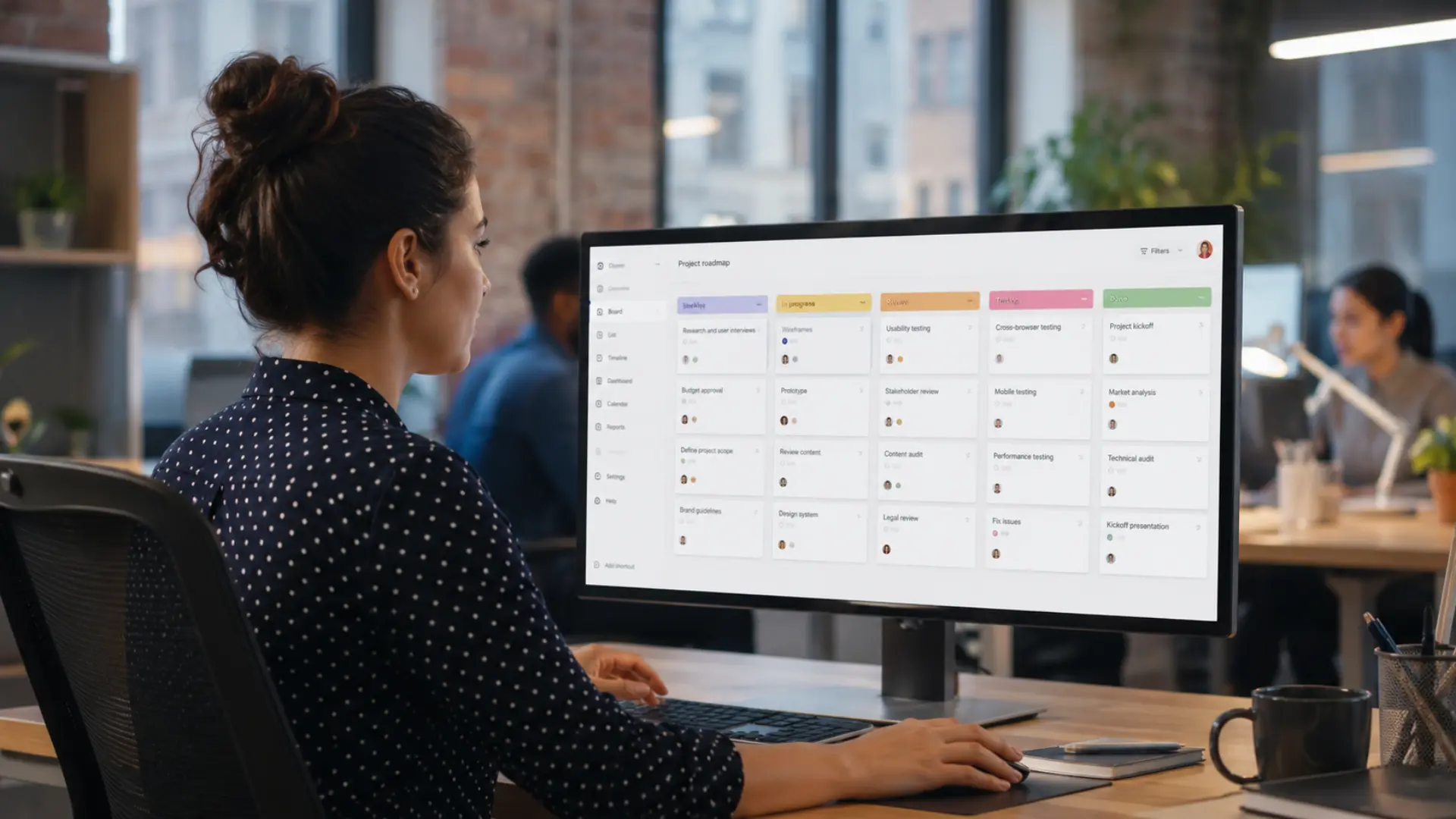
Trello works across a wide range of industries, but it performs best when visual task tracking matters more than complex reporting. These are the setups that consistently deliver:
- Marketing content calendars: Create lists for each production stage, such as “Briefed,” “In Writing,” “In Review,” and “Scheduled.” Assign one card per piece and use labels for channel or content type. The pipeline is visible to the whole team at all times.
- Software sprint boards: Map a sprint with lists matching Agile stages. Cards represent user stories or tickets, and Butler can auto-assign reviewers as work progresses.
- Event planning workflows: From venue scouting to post-event wrap-up, Trello keeps every task owner accountable. Teams managing trade show project workflows often run a board per event with supplier cards, deadlines, and logistics tasks all in one view.
- Sales pipelines: Lists become pipeline stages (“Lead,” “Contacted,” “Proposal Sent,” “Closed”). Cards carry contact notes, follow-up dates, and deal details in one place.
- Client onboarding checklists: Build a template board and duplicate it for every new client. Contract signing, first deliverable, and review milestones stay tracked without building anything from scratch.
- High-volume event logistics: Teams coordinating time-sensitive, multi-person tasks get real value from the full-picture visibility a Trello board provides. Teams managing high-demand event logistics find that a shared board reduces the status messages that slow everyone down.
In all these cases, Trello delivers when the workflow has distinct stages, the team size is manageable, and clarity about task ownership matters more than depth of analytics.
Trello Pricing: What Each Plan Includes
Trello pricing is billed annually. Monthly billing adds roughly 20-25% per user. Atlassian offers a 75% discount on Standard and Premium for verified nonprofits and 50% off for academic institutions.
| Plan | Price | Best for | Key limits |
|---|---|---|---|
| Free | $0 | Individuals, small teams | 10 boards per workspace, Kanban view only |
| Standard | $5/user/mo | Growing teams | Unlimited boards, advanced checklists, no timeline view |
| Premium | $10/user/mo | Mid-size teams | All views, unlimited automation, admin controls |
| Enterprise | $17.50/user/mo | Organizations 25+ | Multi-workspace management, advanced security, SSO |
Both Premium and Enterprise include a 14-day free trial, which is enough time to evaluate the views and automation before committing.
Where Does Trello Work Well?
Trello performs best when teams need a clean, visual system without the complexity of heavier project management platforms. Its simplicity is exactly why many teams adopt it quickly and continue using it for years.
- Visual teams: Designers, marketers, and content producers tend to adopt it fast because the board matches how they already think about work in stages.
- Simple workflows: Straightforward three- to five-stage processes are Trello’s natural territory. Setup takes minutes, not days.
- Remote and async teams: Real-time card updates and comment threads reduce the need for check-in meetings.
- Budget-aware teams: The free plan is genuinely useful. Most small teams don’t need to upgrade right away.
I’ve seen teams build genuinely sophisticated systems within Trello by creatively combining Butler and Power-Ups. It’s possible. But if deep analytics or dependency mapping are real requirements, that’s an honest signal to consider tools built around those features from day one.
Key Limitations of Trello Project Management
Trello handles a wide range of workflows well, but it has real gaps that become friction points as teams grow. Knowing these upfront helps you decide whether Trello fits your current needs or whether a more capable tool is the smarter starting point.
- No native task dependencies: Trello has no built-in way to link tasks so that one is blocked until another is complete, requiring workarounds via Power-Ups or manual label conventions.
- Weak reporting across all plans: Even the Premium Dashboard shows only card counts and overdue tasks, not the output-level or time-efficiency data most leadership reviews need.
- Advanced views are paywalled: Timeline, Calendar, Table, and Dashboard views are locked to Premium and Enterprise, leaving free and Standard users with the Kanban board only.
- No native time tracking: Trello does not log hours against tasks on any plan, so teams that need this must add a paid Power-Up such as Harvest or Toggl on top of their existing subscription.
- Cross-board visibility breaks down at scale: Managing ten or more active boards simultaneously becomes difficult, and consolidating work across them requires a Premium workspace-level view.
- No portfolio management layer: Trello has no native way to view progress, resource allocation, or status across multiple projects at once, which is a standard feature in tools like Asana, ClickUp, and Monday.com.
Conclusion
Trello project management works because it stays simple. The visual board takes minutes to configure and almost no time to explain to someone new, which is rare in project software.
Its free plan covers the core features most teams actually use, and the paid tiers add views and automation depth without forcing complexity on groups that don’t need it.
The teams that get the most from Trello start with a clean three-list setup, let the workflow shape itself, and add automation gradually once the process is clear.
Don’t try to build the perfect board before the team has used it for a week.
If you already run a Trello setup, share how your team configured it in the comments below.
Frequently Asked Questions
Does Trello Work Offline?
Trello has limited offline functionality on its mobile apps. You can view previously loaded boards and make some edits, but changes sync only after you reconnect to the internet. For teams that need reliable offline access regularly, this is worth factoring into your platform decision before committing.
Can I Use Trello for Personal Projects Alongside Team Boards?
Yes. Trello lets you create separate workspaces under the same account, one for personal use and one for your team. Personal boards are completely separate from your team’s workspace, so there is no visibility overlap between them.
What Happened to Trello Power-Ups After Atlassian Acquired It?
Atlassian acquired Trello in 2017, and the Power-Up limit was initially one per board on the free plan. Atlassian removed that restriction in 2019, giving all tiers access to unlimited Power-Ups. The integration library has expanded significantly since then, with third-party developers adding new Power-Ups on a regular basis.