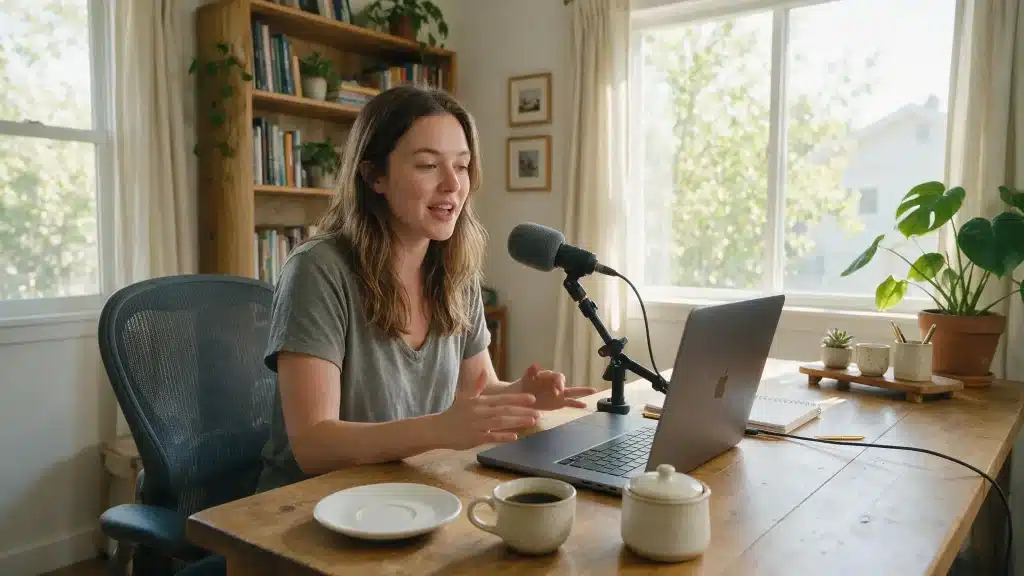
Typing isn’t always the fastest or most comfortable way to get words onto a screen, especially when thoughts move faster than fingers can keep up.
Apple Dictation solves this by letting you skip the keyboard entirely; spoken words turn into text in Notes, Mail, Messages, and most other Mac apps.
It comes in handy for dashing off long emails, taking notes during a class or meeting, or simply giving your hands a break after hours of typing.
Setting it up is straightforward: turn on Dictation in Keyboard settings, pick a shortcut, click inside a text field, and start talking.
What is Apple Dictation on Mac?
Apple Dictation is a built-in macOS feature that converts spoken words into typed text. It works in most places where you would normally type, including Notes, Mail, Messages, Pages, browser forms, and many third-party apps.
Dictation is mainly intended for entering text. It does not provide full voice control of windows, menus, buttons, and other onscreen items.
For those actions, macOS offers a separate accessibility feature called Voice Control.
Language support, automatic punctuation, offline processing, and some commands can vary by Mac model, macOS version, language, and region.
You can check the options available on your device under System Settings > Keyboard > Dictation.
How to Use Dictation on Mac: Step-by-Step
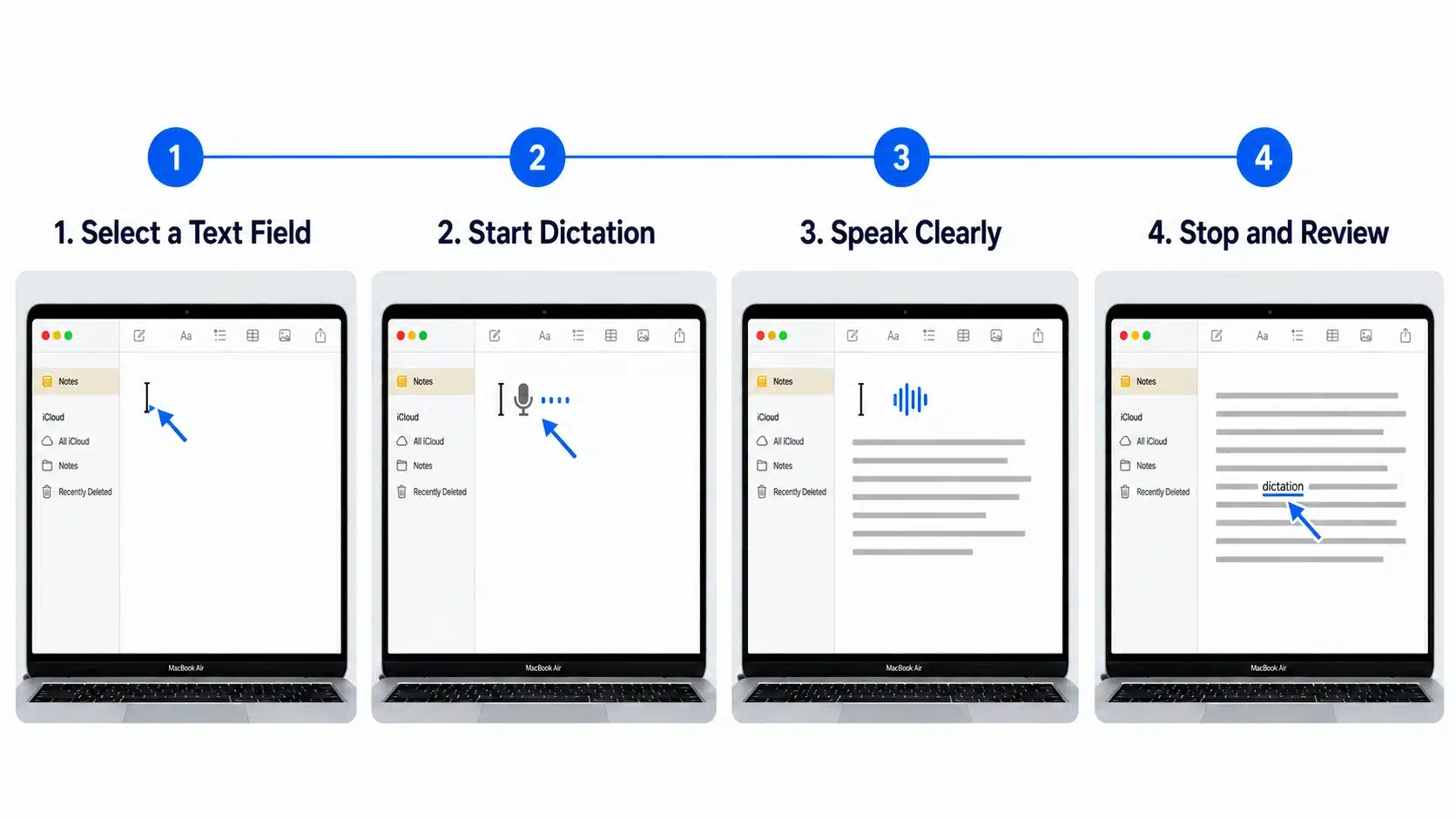
Once Dictation is enabled, you can use it in most places where text can be entered. The process remains nearly the same across Notes, Mail, Pages, Messages, and supported third-party apps.
Step 1: Open an App and Select a Text Field
Start by opening the app in which you want your spoken words to appear. Make sure the cursor is placed inside an editable area before activating Dictation.
- Open Notes, Mail, Pages, Messages, or another supported app.
- Click inside the text field or document.
- Position the cursor where the new text should begin.
Step 2: Start Dictation
Use the shortcut selected under Keyboard settings to activate Dictation. Your Mac will show a visual indicator or play a tone when it is ready to listen.
- Press the Microphone key or your selected keyboard shortcut.
- You can also choose Edit > Start Dictation in supported apps.
- Wait for the cursor to pulse or the ready tone to play.
Step 3: Speak Your Text Clearly
Begin speaking at a natural and steady pace once the listening indicator appears. You can say punctuation and formatting commands aloud while continuing your sentence.
- Speak clearly without rushing your words.
- Say commands such as “comma,” “period,” or “question mark.”
- Say “new line” or “new paragraph” to arrange the text.
Step 4: Stop Dictation and Review the Text
Turn off Dictation when you have finished speaking, then check the converted text for mistakes. Names, numbers, and similar-sounding words may need manual correction.
- Press the Escape key, Microphone key, or Dictation shortcut.
- Click an underlined word to view suggested alternatives.
- Type or dictate corrections where needed.
- Save or send the text only after reviewing it.
Your dictated text is now ready. If no words appear, check the selected microphone, Dictation shortcut, language, and app permissions before trying again.
Choose Your Apple Dictation Settings
Before using Dictation, review the available settings under System Settings > Keyboard > Dictation.
Select the language and regional variation that matches how you speak, then choose the microphone your Mac should use.
You can leave the microphone source on Automatic or select the built-in microphone, AirPods, headset, or another connected device.
Next, choose a keyboard shortcut to start and stop Dictation. You can also turn automatic punctuation on if you want macOS to add commas, periods, and question marks while you speak.
Test the selected settings in Notes before using Dictation for a longer document.
Useful Dictation Commands on Mac
Spoken commands let you add punctuation, spacing, capitalization, and certain symbols without reaching for the keyboard. Support can vary by language and macOS version.
| Say This | What Appears or Happens |
| Comma | , |
| Period or full stop | . |
| Question mark | ? |
| Exclamation mark | ! |
| Colon | : |
| Semicolon | ; |
| Open quote | “ |
| Close quote | ” |
| New line | Moves the cursor to the next line |
| New paragraph | Starts a separate paragraph |
| All caps on | Begins capitalized text |
| All caps off | Ends capitalized text |
| Heart emoji | Inserts a heart emoji where supported |
| Open parenthesis | ( |
| Close parenthesis | ) |
Speak commands clearly but keep the rest of your sentence natural. If automatic punctuation is enabled, you may not need to say every comma or period.
For formal writing, read the completed paragraph once before sending it. Punctuation commands can sometimes appear as ordinary words if the system does not interpret them correctly.
How to Correct Dictation Mistakes
Even clear speech can produce the wrong word, especially with names, abbreviations, technical terms, and words that sound alike.
Apple may underline uncertain text in blue. Click the underlined word to see suggested alternatives.
You can also improve the editing process by:
- Pausing after a sentence before reviewing it
- Typing names and technical terms manually
- Checking dates, prices, addresses, and phone numbers
- Keeping sentences shorter when the wording is complex
- Moving closer to the microphone in a noisy room
- Confirming that the correct regional language is selected
On supported Apple silicon Macs, you can use the keyboard while Dictation remains active. Dictation pauses while you type and resumes when you stop typing.
Dictation vs Voice Control vs Text-to-Speech
These Mac features all involve speech, but they do different jobs. Apple explains how to use Voice Control commands on Mac to enter text and control onscreen items by voice.
| Feature | Main Purpose | Suitable Use |
| Dictation | Changes spoken words into typed text | Writing notes, emails, and documents |
| Voice Control | Controls the Mac and enters text through voice commands | Operating the Mac without a keyboard or mouse |
| Spoken Content | Reads selected or onscreen text aloud | Listening to written text |
| Siri | Responds to requests and performs supported actions | Opening apps, setting reminders, and answering questions |
Standard Dictation is unavailable while Voice Control is turned on because Voice Control provides its own dictation system. To check Voice Control, open System Settings > Accessibility > Voice Control.
Text-to-speech is also different from speech-to-text. Spoken Content reads existing words aloud, while Dictation converts your voice into new written text.
How to Fix Dictation Not Working on Mac
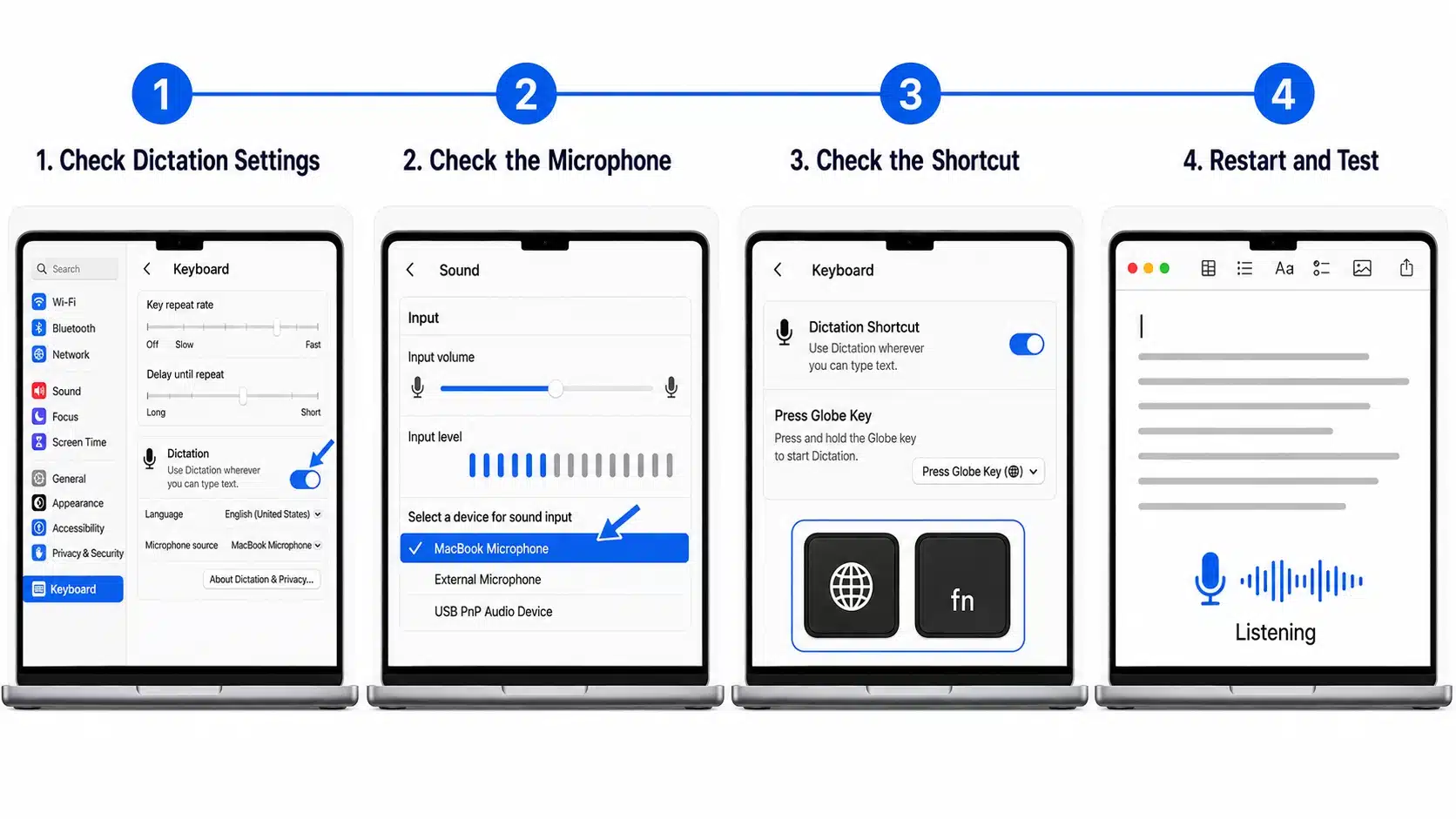
If pressing the shortcut does nothing or the wrong words keep appearing, test one possible cause at a time. Begin with the shortcut and microphone before changing wider system settings. Apple provides additional checks for cases where Dictation on Mac does not work as expected.
Step 1: Confirm the Shortcut
Dictation’s shortcut isn’t always what you expect, and it can change over time or get reassigned. Before troubleshooting anything else, verify what’s actually set so you’re testing the right trigger.
- Open System Settings > Keyboard > Dictation and note the assigned shortcut
- Don’t assume double-tapping Fn works; the combination can change
- If it conflicts with another app command, reassign it and test in Notes
Step 2: Test the Microphone
If Dictation isn’t picking up your voice, the mic itself is the first thing to rule out. A quick level check tells you whether the hardware is even receiving sound.
- Open System Settings > Sound > Input and select your mic
- Speak normally and watch the input-level meter
- If it doesn’t move, check for a mute switch, reconnect the device, or try another mic.
Step 3: Review Microphone Permissions
Even a working mic won’t help if an app doesn’t have permission to use it. macOS keeps this locked down by default, so it’s worth double-checking access here.
- Go to System Settings > Privacy & Security > Microphone
- Allow access for any app that needs it
- If an app is missing, open it and try its voice feature; macOS should then prompt for permission.
Step 4: Check the Dictation Language
A language or region mismatch can quietly produce garbled or wrong words, even when your mic and permissions are fine. This step is easy to overlook but often the actual culprit.
- Return to Dictation settings and confirm language/region match your speech
- Remove unused languages if accidental switching is causing errors
Step 5: Turn Off Voice Control
Voice Control and standard Dictation don’t play well together, since they rely on different speech-entry systems. If Voice Control is active, it can silently block Dictation from working normally.
- Open System Settings > Accessibility > Voice Control
- Turn it off, then retry standard Dictation
- Voice Control uses its own speech system, which blocks normal Dictation behavior.
Step 6: Restart the Feature
When nothing else seems to fix it, a simple reset can clear out temporary glitches. This is a good final step before assuming something deeper is wrong.
- Turn Dictation off, wait a few seconds, turn it back on
- Close and reopen the app you were typing in
- Still stuck? Restart your Mac and install pending macOS updates, which also keep Safari updated, then retest in Notes.
If you’ve worked through all seven steps and Dictation still isn’t behaving, the issue may point to a hardware fault or a deeper software conflict worth raising with Apple Support directly.
If the problem continues, restart the Mac and install available macOS updates. Testing again in Notes can confirm if the problem has been resolved.
If software problems continue even after updating macOS, a factory reset may be worth considering as a last resort.
What Reddit Users Say About Mac Dictation
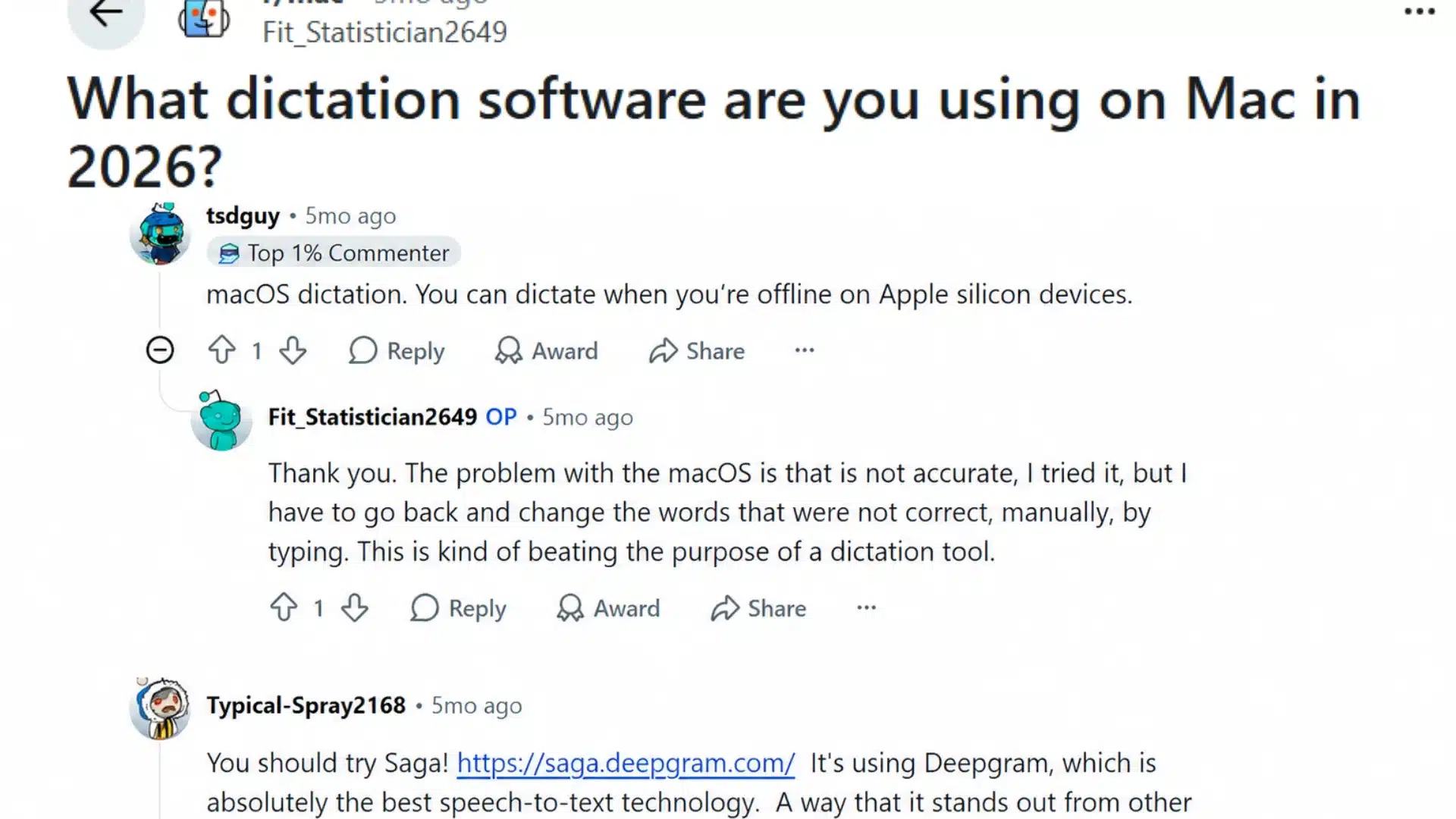
Reddit users report mixed experiences with Mac Dictation. One commenter noted that Dictation can work offline on Apple silicon Macs, which may help when an internet connection is unavailable.
However, another user said recognition errors forced them to correct several words manually, reducing the time saved through voice typing.
Other commenters suggested third-party speech-to-text tools that allow spoken corrections, such as changing a misspelled word or removing the last phrase before the text appears.
Final Note
Once you know how to use Dictation on Mac, writing a note or email can take only a shortcut and a few spoken sentences. Enable the feature in Keyboard settings, choose the right microphone and language, then click inside a text field before speaking.
Start with a short test in Notes to check the listening indicator, punctuation commands, and text accuracy.
If Dictation does not respond, confirm the shortcut, microphone input, app permissions, and Voice Control setting before trying wider fixes.
Try dictating a short message now and check out the related Mac tips for more ways to save time while working.
Frequently Asked Questions
Is Apple Dictation Free to Use?
Yes. Apple Dictation is included with macOS and does not require a separate purchase or paid Apple subscription. Internet or language requirements may still vary.
Can Mac Dictation Transcribe a Recorded Audio File?
Standard Dictation is made for live speech through a microphone. It does not directly upload and transcribe saved interviews, meetings, podcasts, or video files.
Can Dictation Identify Different Speakers?
No. Standard Mac Dictation converts speech into text but does not identify speakers or add separate speaker labels. Meeting transcription software is more suitable for that task.