Have you noticed an app slowing down, using more storage, or experiencing loading issues even when your phone seems to work normally? The app Cache is often associated with these situations.
It stores temporary files that help apps load faster and provide a smoother experience, but these files can build up over time.
Understanding what app Cache is can help you decide when clearing it is useful and when it is better to leave it unchanged.
This explanation covers how the app Cache works, when to clear it, and the difference between clearing the Cache and clearing app data on Android devices.
App Cache Quick Overview
App Cache is a small amount of temporary data stored by apps to help them load content faster and provide a smoother experience. These files are created automatically during regular app usage and are usually safe to remove when needed.
| Category | Details |
|---|---|
| Definition | Temporary files stored by apps for faster loading |
| Purpose | Helps apps access frequently used information quickly |
| Stored Data | Images, thumbnails, scripts, and temporary files |
| Safe To Clear | Yes, clearing Cache does not usually remove personal data |
| Common Devices | Android phones and tablets |
Understanding app Cache helps explain why apps may use storage space even when they’re working normally. The next section explains how these temporary files work and why apps create them in the first place.
When Should You Clear App Cache?

Clearing an app’s Cache can free storage and fix minor performance issues without removing your account, settings, or personal data.
1. When an App Starts Running Slowly
If an app takes longer than usual to open, freezes during normal use, or responds slowly, outdated Cache files may be the cause. Clearing the Cache removes temporary files and allows the app to create fresh versions of those files when needed.
This can be useful for apps that store large amounts of temporary content, such as browsers, social media apps, and streaming platforms. However, slow performance can also be caused by other factors, such as limited storage, outdated software, or device performance issues.
2. When an App Shows Loading or Display Problems
Sometimes an app may show outdated information, fail to load certain content, or display images incorrectly. These issues can happen when stored temporary files no longer match the latest version of the app or its content.
Clearing Cache can refresh these temporary files and may resolve minor loading problems. If the issue continues after clearing Cache, the cause may be related to the app itself, device settings, or a required update.
3. When Your Device Storage is Getting Low
Apps can store Cache files over time, and some may collect more temporary data than others. Video platforms, browsers, and social media apps often create more Cache because they handle images, videos, and other frequently accessed content.
Clearing Cache can free up some storage space without removing your saved accounts, personal files, or app settings. The amount of space recovered depends on how much temporary data the app has stored.
If clearing cached files is not enough, there are several other ways to free up storage without losing data that can help recover additional space safely.
4. When You are Troubleshooting App Issues
Clearing Cache is often one of the first simple steps when an app behaves unexpectedly. It can help refresh stored temporary files before trying more advanced solutions.
However, clearing Cache is not a guaranteed fix for every problem. Issues caused by account errors, damaged app installations, or system problems may require different troubleshooting steps.
How to Clear App Cache On Android
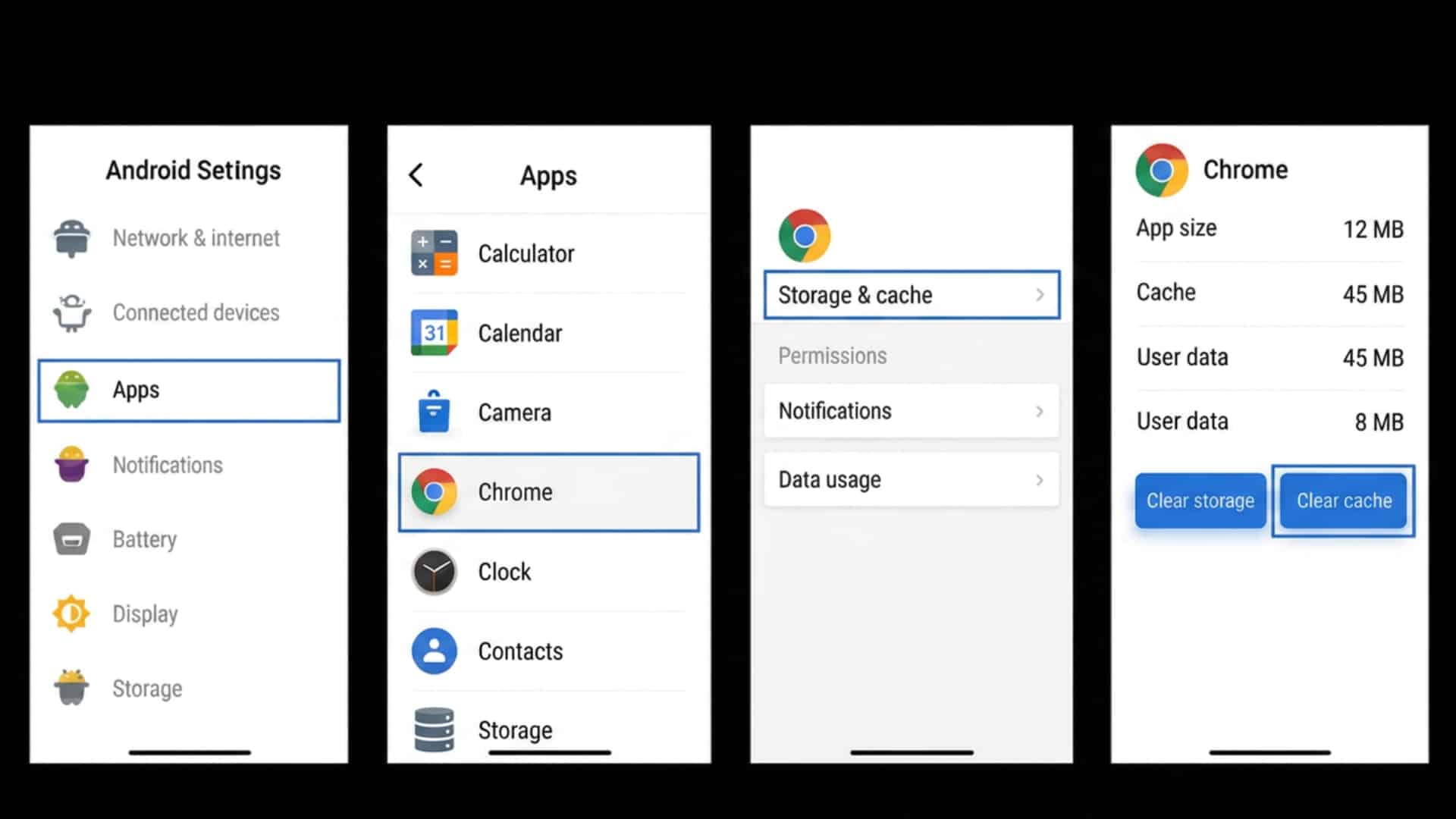
Clearing the app Cache removes temporary files stored by an app and can help fix minor issues or free up some storage space. The exact menu names may vary slightly depending on the Android version and device brand, but the overall process remains similar.
Step 1: Open Android Settings
- Open the Settings app on your Android phone.
- Scroll through the menu and look for options related to apps or device management.
- The Settings app is where Android provides controls for installed applications and stored data.
Step 2: Select The App You Want To Clear
- Tap Apps, Applications, or Apps & notifications depending on your device.
- Find and select the app that is causing issues or using extra storage.
- Choose the specific app to access its information page.
Step 3: Open Storage Settings
- Tap Storage or Storage & Cache from the app information page.
- Android will show details about the space the app uses, including cached files and app data.
- Check the available options carefully before selecting any action.
Step 4: Tap Clear Cache
- Select Clear Cache to remove temporary files stored by the app.
- The app will keep your login details, settings, and personal information.
- Cache files may build again as you continue using the app.
These steps apply only to Android devices. iPhone users clear app cache differently, depending on the app and iOS version.
Clear Cache vs Clear App Data
Clearing Cache and clearing app data are two different options available in Android settings, but they are often confused. While both remove stored information from an app, the types of data removed and the effects on the app differ.
| Feature | Clear Cache | Clear App Data |
|---|---|---|
| Removes | Temporary files such as images, thumbnails, and stored resources | App settings, saved preferences, accounts, and stored app information |
| Effect On App | Usually keeps the app in the same state | Resets the app as if it were opened for the first time |
| Login Information | Usually remains saved | May remove saved login details |
| When To Use | When an app is slow or has minor issues | When troubleshooting serious app problems |
| Risk Level | Generally safe for regular troubleshooting | Use carefully because important app information may be removed |
Understanding the difference between clearing Cache and clearing app data helps you choose the right option. In most common situations, clearing Cache is the safer first step because it removes temporary files without resetting the app.
Does Clearing App Cache Delete Anything Important?
Many users hesitate to clear the app Cache because they worry about losing photos, accounts, or important settings. Understanding what Cache removes and what stays on the device can help you use this option safely.
Does Cache Delete Personal Data?
Clearing the app Cache does not usually remove personal files such as photos, videos, documents, messages, or account information. It only removes temporary files created by the app, which can be recreated when you use the app again.
For example, clearing Cache from a social media app may remove stored images or temporary loading files, but it will not delete your uploaded content or account.
What Happens After Clearing Cache?
After clearing Cache, an app may take slightly longer to load the first time because it needs to create temporary files again. As you continue using the app, new Cache files are stored to improve future loading and overall app performance.
Clearing Cache does not permanently stop an app from saving temporary files. It simply removes the current stored Cache and allows the app to rebuild it.
Should You Clear App Cache Regularly?
Clearing Cache is safe, but it is not necessary to do it every day. Android already manages temporary files, so clearing Cache is mainly useful when an app is slow, storage is limited, or temporary storage issues appear.
Clear Cache When Apps Slow Down
- Remove temporary files if an app takes longer to open or respond than usual.
- Clearing Cache may refresh outdated files that are causing minor performance issues.
- Check for app updates if the problems persist after clearing the Cache.
Clear Cache When Storage Is Limited
- Some apps store large amounts of temporary data over time.
- Removing Cache can free up storage space without deleting personal files.
- Video, social media, and browser apps often collect more cached files.
Avoid Clearing Cache Without A Reason
- Clearing the Cache too often is unnecessary because apps recreate these files.
- Android can manage temporary storage automatically in normal situations.
- Use Cache clearing as a troubleshooting step rather than a daily habit.
Final Thoughts
App Cache is a small but useful part of how apps work on Android devices. Knowing what Cache does, when it may cause issues, and which troubleshooting steps to try can help users manage their apps with more confidence.
Clearing Cache is not a replacement for fixing every app problem, but it can be a helpful step before trying more advanced solutions.
Before removing any stored information, always check the option you are selecting to avoid clearing app data by mistake.
If an app continues to cause problems, consider checking for updates or contacting the app developer for further support.
Frequently Asked Questions
Does App Cache Affect Phone Battery Life?
App Cache usually has little direct effect on battery usage. However, if an app has outdated cached files or keeps encountering loading issues, refreshing the Cache may help the app work normally again.
Why Does My App Cache Keep Increasing?
The app Cache keeps increasing because apps continue to create temporary files during normal use. Apps that handle large amounts of images, videos, or online content may build Cache faster than simpler apps.
Can I Clear the Cache for All Apps at Once on Android?
Most Android phones do not provide a universal option to clear Cache for every app at the same time. Users usually need to clear Cache individually through each app’s storage settings.
Does Clearing Cache Improve Phone Speed?
Clearing Cache may help in specific situations, such as when an app has outdated temporary files or unusual behavior. However, it does not automatically make the entire phone faster because Android already manages storage and background processes.