A computer can feel fast one moment and slow the next, even with strong hardware. The reason often comes down to how data moves inside the processor.
Every task your system runs depends on how quickly the CPU can access information. Instead of waiting for slower memory each time, it stores frequently used data in a small. High-speed area called cache memory.
Understanding what a CPU cache is helps explain why some systems respond instantly while others lag, even under similar conditions.
This hidden layer plays a key role in everyday performance, from browsing to gaming and multitasking.
What Is a CPU Cache?
A CPU cache is a small, high-speed memory block located inside or right next to the processor.
It stores the data and instructions the CPU uses most, so the chip doesn’t have to fetch them from slower RAM every time.
Cache memory works alongside RAM rather than replacing it. RAM holds the full working set for active programs, while cache holds the smaller slice of that data the processor needs right now.
Keeping that slice close to the core is what shortens the gap between a CPU request and a memory response.
Why Does CPU Cache Matter for Performance?
CPU cache matters because it helps the processor get important data faster. When frequently used data stays in the cache, the CPU does not need to wait as often for slower RAM.
This reduces delays when opening apps, browsing the web, switching between programs, and running games.
A good cache system also helps keep repeated instructions close to the processor, which improves response time. In gaming, it can support smoother handling of game logic, physics, and frequently loaded assets.
While cache is not the only factor behind speed, it plays a direct role in how quickly the CPU completes everyday tasks.
How Does CPU Cache Work?
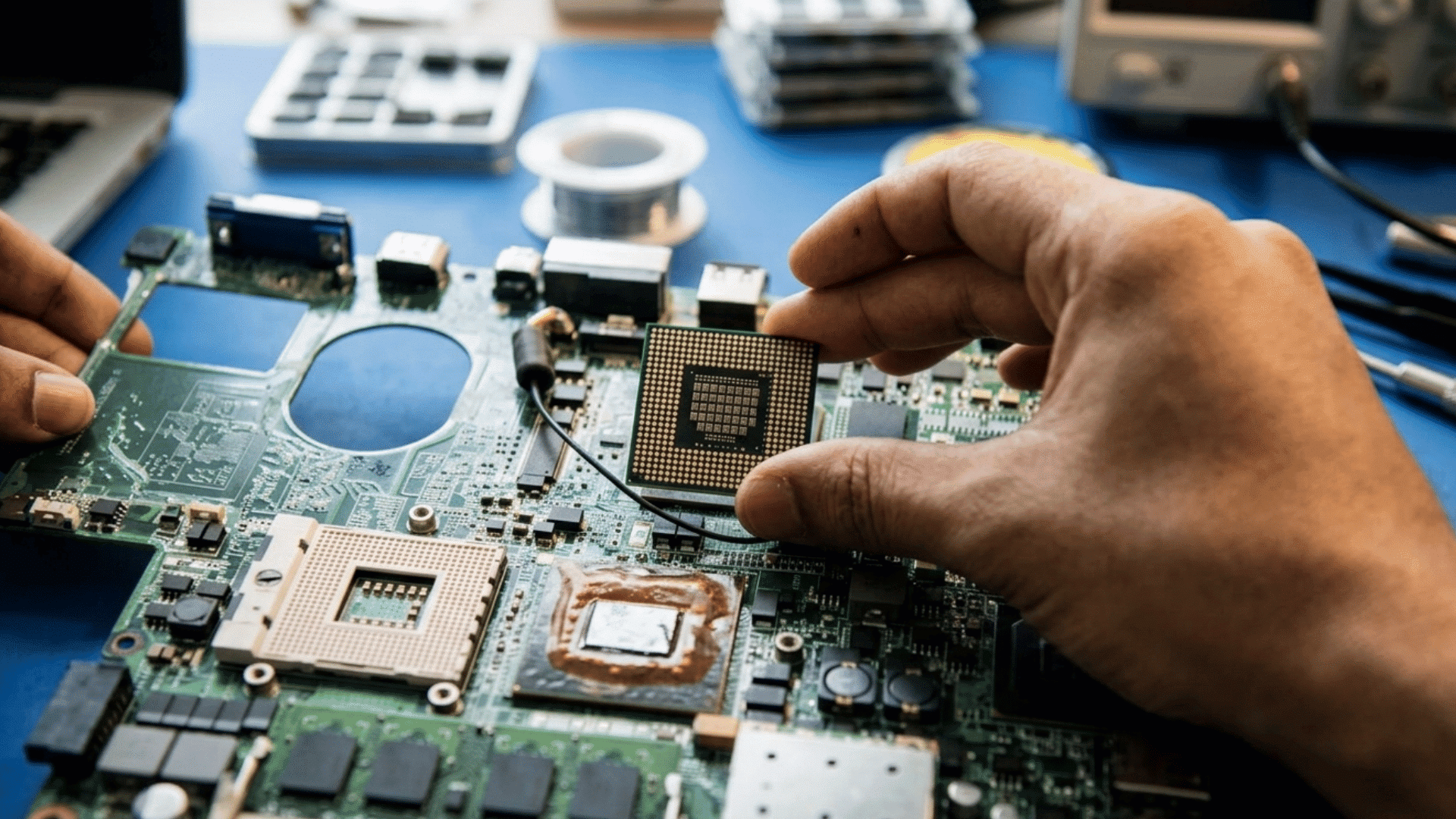
CPU cache works by storing frequently used data closer to the processor so it can be accessed quickly. When the CPU needs information, it first checks the cache before moving to slower RAM.
- Retrieval: The CPU looks in the cache first because the cache is far faster than main memory.
- Cache hit: The CPU finds the data already in the cache and uses it immediately, skipping RAM entirely. Frequent hits are what make an app or game feel responsive.
- Cache miss: The CPU can’t find the data in the cache and must fetch it from RAM, which is slower. Misses happen normally and aren’t a problem on their own, but too many in a row will slow the system down.
- Update: After a miss, the CPU stores a copy of the newly fetched data in the cache so it’s available again soon.
Different Levels of CPU Cache: L1, L2, and L3
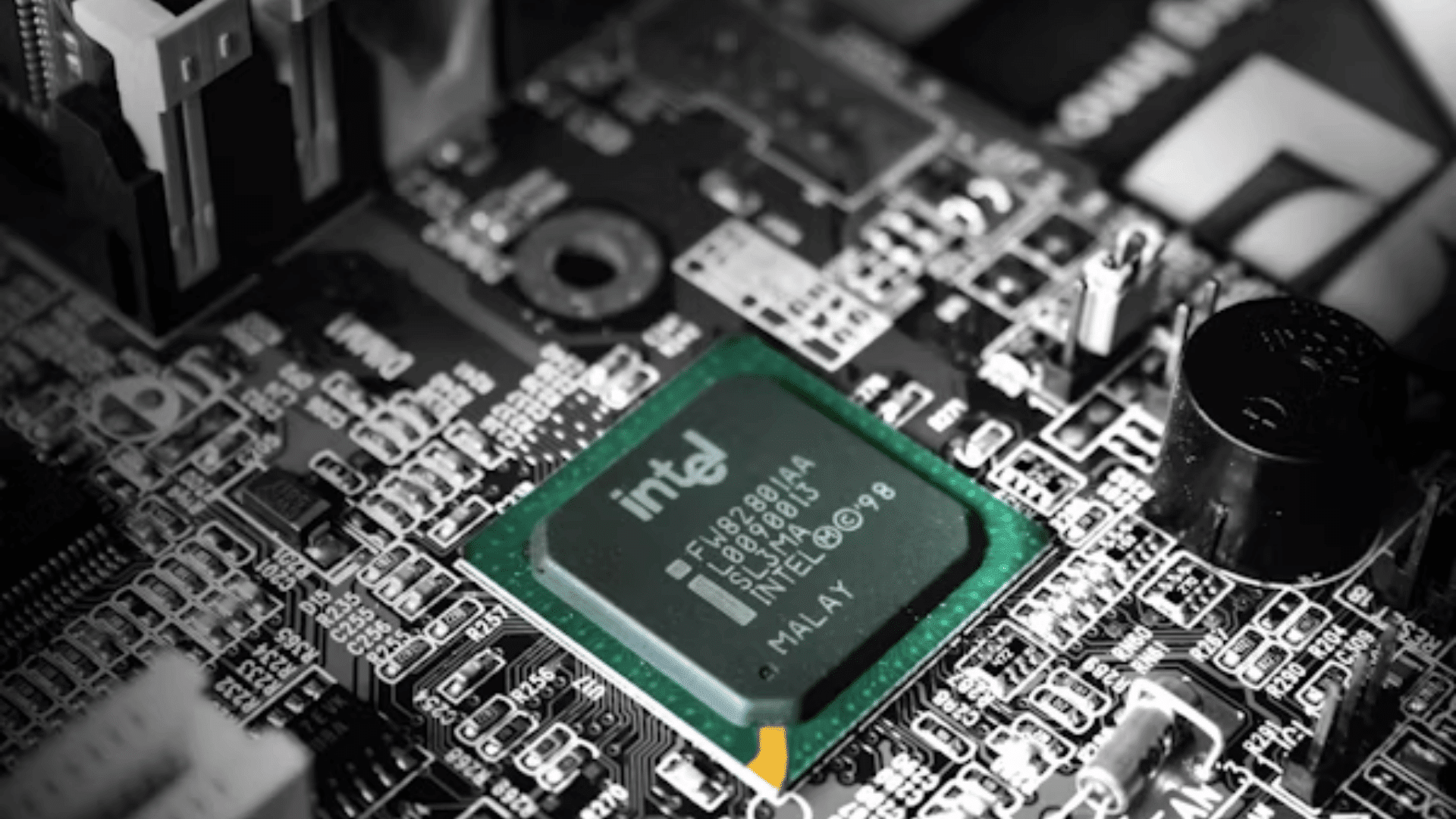
CPU cache is organized into multiple layers that work together to store data closer to the processor for faster access and smoother computing performance.
1. L1 Cache (Fastest, Smallest)
L1 cache is the closest memory unit to the CPU core and handles the most frequently used instructions and data during active processing.
It provides the fastest access among all cache levels and directly supports immediate execution needs.
Because of its limited capacity, it holds only the essential data the processor is currently working on.
This structure reduces instruction-handling delays and improves response time for real-time computing tasks, making it critical to smooth system performance across all operations.
2. L2 Cache (Balanced Layer)
L2 cache sits near the CPU core and acts as a backup when the L1 cache does not contain the required information. It offers a balance between speed and storage capacity.
Allowing it to hold more data than L1 while still providing faster access than RAM.
When the processor misses data in L1, it checks L2 before moving to slower memory.
This layer helps reduce repeated memory requests and supports steady processing during multitasking and heavy workloads, improving overall system stability and efficiency.
3. L3 Cache (Shared Cache)
L3 cache is shared across multiple CPU cores and stores commonly accessed data used by different processing units. It has a larger storage capacity compared to L1 and L2.
But operates at a slightly slower speed. This shared structure allows multiple cores to access the same data without repeatedly fetching it from RAM.
It plays an important role in balancing workload distribution across cores and maintaining consistent system performance during multitasking, gaming, and complex computing operations that involve frequent data sharing.
How to Check Your CPU Cache Size?
CPU cache size can be viewed using built-in system tools on Windows and Mac without needing any additional software.
- Windows Task Manager: Open Task Manager, go to the Performance tab, and select CPU to view L1, L2, and L3 cache details.
- Cache Details Section: Check the bottom-right area where cache sizes, CPU speed, and core count appear.
- Mac System Information: Open System Information from the Apple menu and view the Hardware Overview section for cache data.
- Apple Silicon Note: Cache reporting may differ slightly on Apple Silicon compared to Intel-based Macs.
- Command Line (Windows): Use WMIC or PowerShell commands to fetch CPU cache details without opening graphical tools.
CPU Cache vs RAM: Key Differences
CPU cache and RAM both store data for processing, but they differ in speed, size, and purpose within a computer system.
| Feature | CPU Cache | RAM |
|---|---|---|
| Speed | Extremely fast, closest to the CPU for instant access | Slower than cache, but faster than storage drives |
| Size | Very small capacity measured in KB or MB | Much larger capacity measured in GB |
| Location | Inside or very close to the CPU chip | Installed separately on the motherboard |
| Purpose | Stores frequently used data for quick CPU access | Stores active programs and system data temporarily |
| Latency | Very low delay for immediate processing | Higher delay compared to cache memory |
| Cost | More expensive per unit of memory | Cheaper per GB compared to cache |
| Role | Acts as an ultra-fast buffer for CPU operations | Acts as the main working memory for applications |
What Affects CPU Cache Performance?
CPU cache performance depends on several hardware and workload-related aspects that influence how data is accessed and processed during computing tasks.
- Cache Size: A larger cache stores more data and reduces repeated access to RAM, improving system speed during processing.
- Cache Speed: Faster cache reduces data retrieval time and improves system response during heavy workloads.
- Cache Level: Different cache levels handle data in separate ways, balancing speed and storage capacity.
- CPU Architecture: Processor design affects how efficiently cache is used across different operations.
- Workload Type: Different tasks such as gaming or editing change how cache resources are used.
- Cache Miss Rate: Higher miss rate causes delays because data must be fetched from slower memory sources.
Cache is only one piece of the performance picture. If you’re troubleshooting a slow Chromebook, open tabs and low storage are usually worth ruling out first.
How CPU Cache Improves Gaming and Everyday Tasks?
CPU cache improves system responsiveness by keeping frequently used data close to the processor, which helps reduce loading time and makes applications run more smoothly.
CPU cache allows faster loading of game assets and applications through quick data access.
It supports smooth gameplay by reducing lag and frame drops during processing.
It also ensures quick app response, where software opens without delay. With better multitasking, switching between apps becomes seamless.
It improves web browsing speed by loading pages and media quickly. Overall, efficient processing is achieved as repeated instructions are accessed instantly for smoother performance.
Common Misconceptions About CPU Cache
CPU cache is useful, but it is often misunderstood because size, speed, and purpose all affect how it works.
- Bigger cache doesn’t automatically mean a faster chip. Architecture and workload matter just as much as size.
- Cache doesn’t replace RAM. The two work together, with cache handling the small, active slice of data.
- L1, L2, and L3 aren’t interchangeable. Each has a different speed, size, and job
- Cache doesn’t store data permanently. It holds temporary, frequently used information to speed up processing.
Conclusion
CPU cache plays a key role in making modern computers fast and responsive by reducing the time needed to access frequently used data.
It acts as a bridge between the processor and main memory, ensuring smoother performance during tasks like gaming, browsing, and multitasking.
Without cache memory, the CPU would spend more time waiting for data, leading to delays and slower performance.
Understanding cache levels like L1, L2, and L3 helps you see how computing efficiency is improved.
If this guide helped you understand CPU cache better or answered a question you had, share your thoughts or experience in the comments below.
Your feedback could help other readers learn more about how computer hardware works.
Frequently Asked Questions
Does More CPU Cache Always Mean Better Performance?
Not always. More cache can help, but CPU architecture, clock speed, core design, and workload also affect real-world performance
Can CPU Cache Be Upgraded?
No. CPU cache is built directly into the processor, so it cannot be upgraded separately like RAM or storage.
Why is CPU Cache So Expensive?
CPU cache uses very fast memory placed inside the chip, which takes valuable processor space and costs more to design