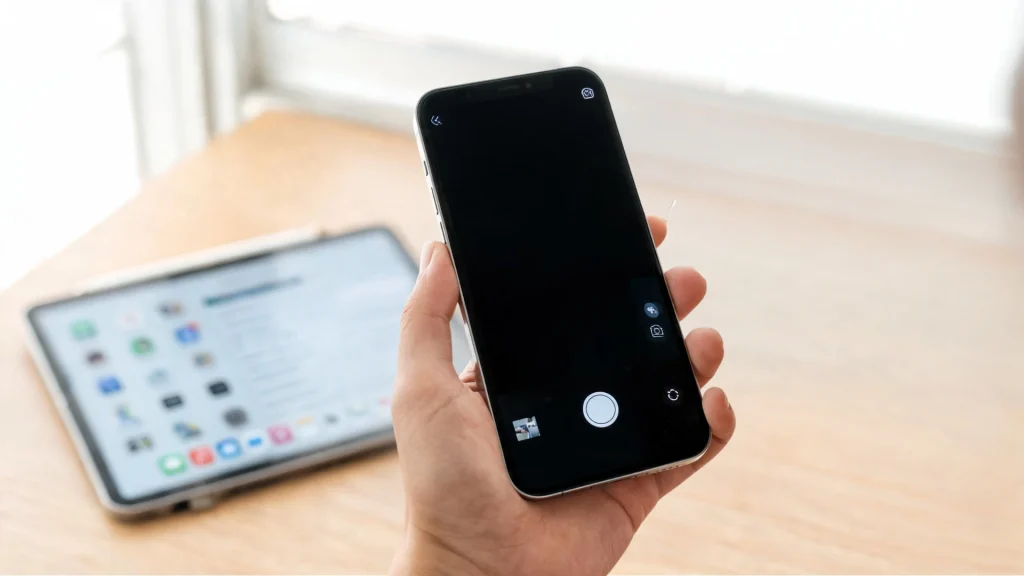
You reach for your phone to capture the moment, tap the camera icon, and nothing happens: a black screen, a frozen app, or no response at all.
Camera not working on iPhone right when you need it most? Here’s the part that should calm you down: it’s rarely the camera itself that’s broken.
Most of the time, it’s a stuck app, a leftover bug from a recent iOS update, or a permission setting switched off without you noticing.
None of that needs a repair shop. Below is the fastest path to a working camera again, starting with the quickest checks and moving toward more specific fixes if those don’t do it.
Why Your iPhone Camera Stopped Working
A stuck app, a bug from a recent iOS update, a blocked lens, or a permission flipped off- these four cover almost every case behind iPhone camera not working issues.
The app itself can freeze up without warning, an update can briefly conflict with cached data, a case or screen protector can sit just over the lens, or a setting can get switched off without you noticing.
Physical damage is possible, but it’s far less common than people assume when the camera first acts up.
That’s good news going in; most of what follows takes under a minute to try, doesn’t require any technical background, and none of it needs a repair shop.
Similar troubleshooting steps also fix many common iPhone problems, especially those caused by temporary software glitches or settings changes.
Basic Three Fixes for iPhone Camera Issues
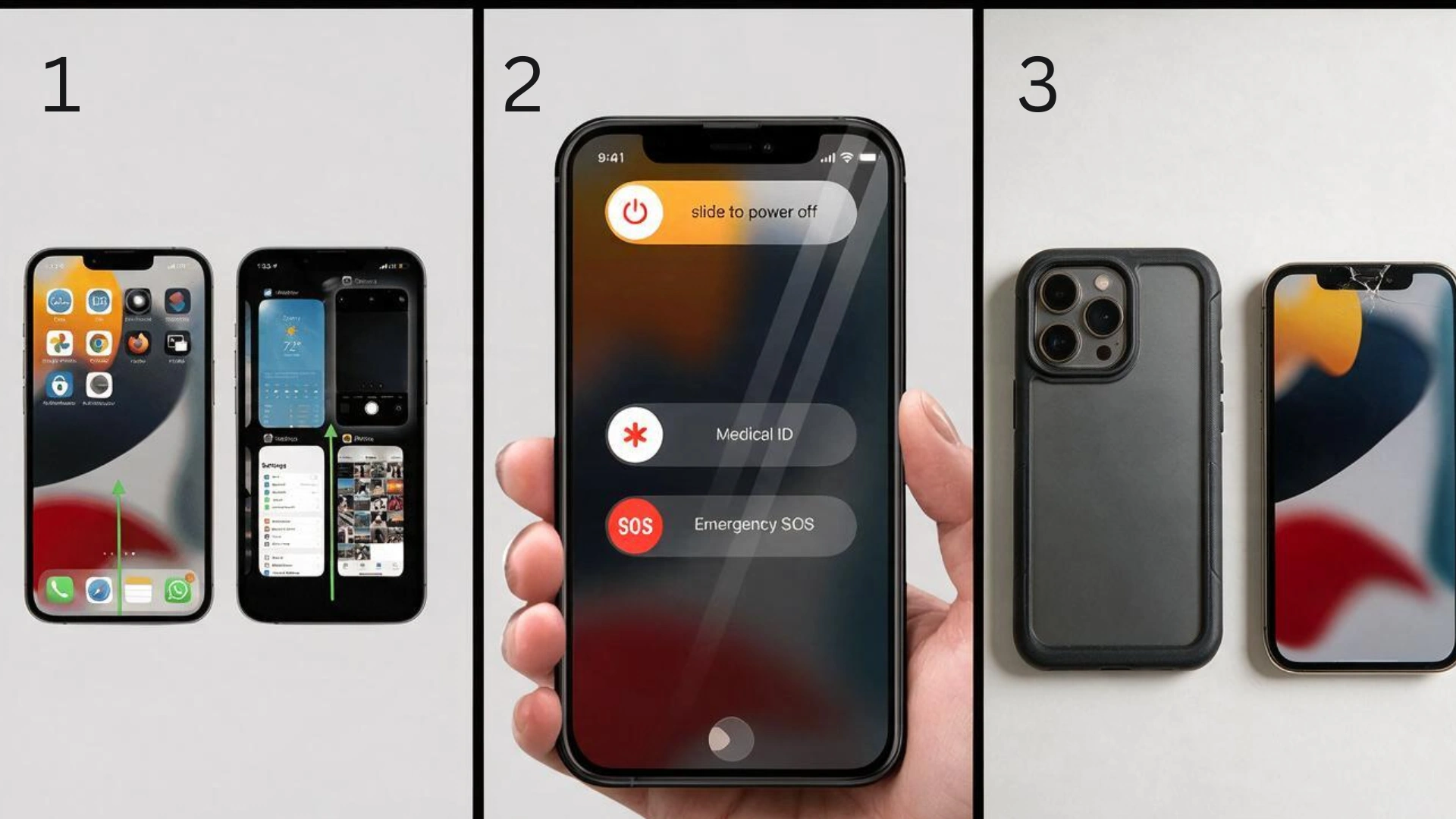
These three steps solve the majority of camera problems on their own, and they take under a minute each. Try them in order before moving to anything more specific.
1. Force Close and Reopen the Camera App
- Swipe up from the bottom edge of your iPhone screen and pause to open recent apps.
- On iPhones with a Home button, double-click the Home button instead.
- Swipe the Camera app card upward to close it.
- Open the Camera app again and check if it works.
2. Restart Your iPhone
- Press and hold the side button with either volume button until “slide to power off” appears.
- Drag the slider to turn off your iPhone.
- Wait about 30 seconds.
- Press and hold the side button again until the Apple logo appears.
3. Remove Your Case or Screen Protector
- Take off your phone case and inspect the camera area for anything blocking the lenses.
- Check for thick or raised case edges covering the camera.
- Look at the screen protector around the front camera cutout for cracks or lifting edges.
- Reopen the Camera app after removing any obstruction.
If any of these bring the camera back, you’re done. If you’re specifically stuck on a black screen, the table below breaks down a few common variations.
Black Screen on Camera: Find Your Fix
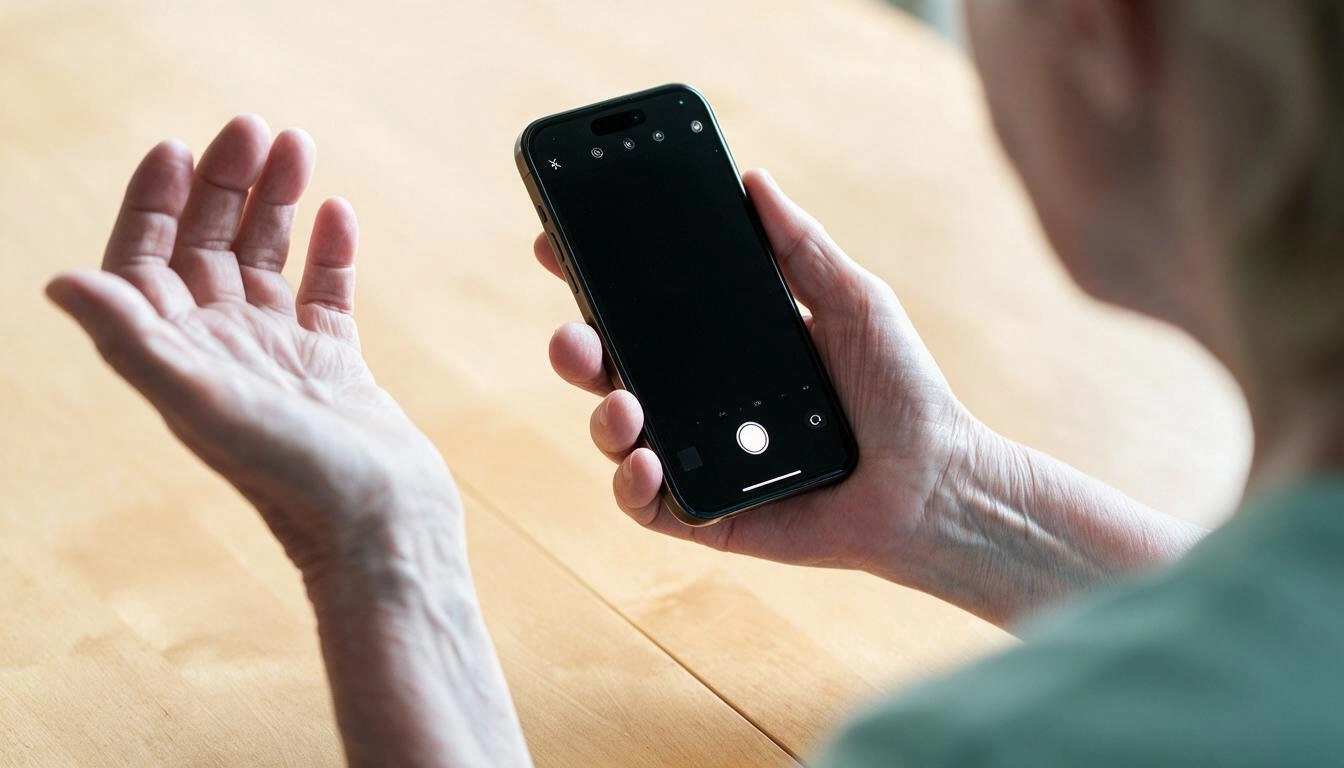
A black screen is one of the most common and most confusing complaints of the iPhone camera not working issue, since the app opens fine but shows nothing. It’s rarely a hardware issue, and usually comes down to one of these three patterns.
1. Camera Opens, but the Screen Stays Black
- What’s likely going on: Feed glitch
- Try this: Switch between the front and rear camera, then switch back
2. One Camera Works, the Other Doesn’t
- What’s likely going on: That camera module froze
- Try this: Force close the Camera app and reopen it
3. Camera Freezes Right After Opening
- What’s likely going on: Another app is holding the camera
- Try this: Close background apps like FaceTime or Zoom
A full restart, covered above, clears most of these on its own if the table’s suggestions don’t. If the screen is still black after trying both, the cause is likely more specific; check the sections below for what to look at next.
What’s Actually Blocking Your Camera
If the basic fixes did not work, the problem is often caused by a recent iOS update or a disabled camera permission. Check whether the issue started after an update or only affects certain apps to identify the right fix.
Camera Not Working After an iOS Update
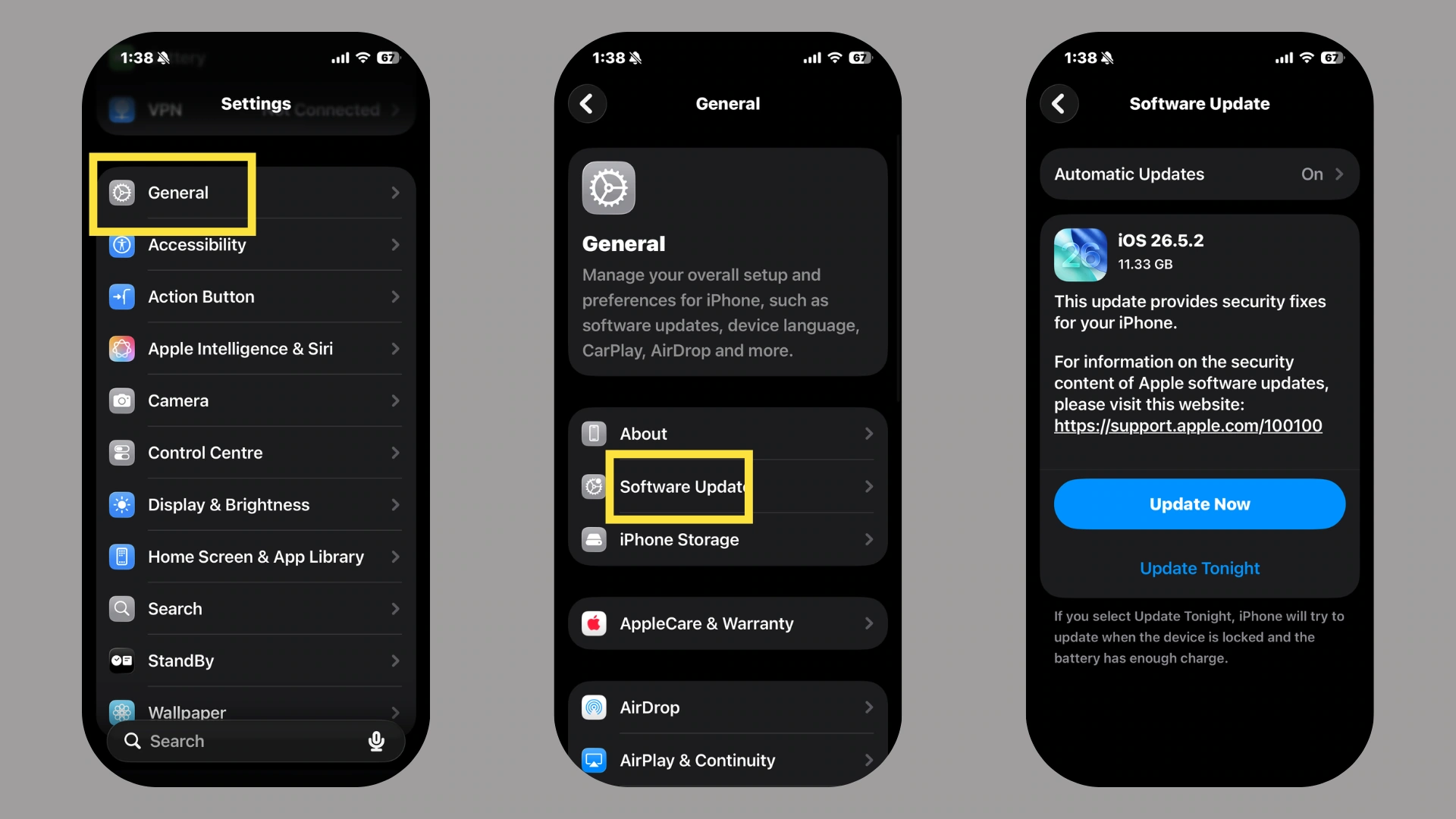
If the camera broke right around the time you updated iOS, the update is very likely the reason. This happens when an update briefly conflicts with cached app data or ships with a small bug that Apple hasn’t patched yet.
- Check Settings > General > Software Update for a follow-up patch; Apple often ships one within days of a buggy release.
- Update the Camera app itself, or any third-party camera app you use, in the App Store.
- If you haven’t restarted your phone since the update installed, do that now; it resolves a surprising share of these cases by itself.
A clear before-and-after timeline is the strongest sign this is your cause. If you never installed an update, or these steps don’t help, a permissions issue is worth checking next.
Fix iPhone Camera Permission Settings
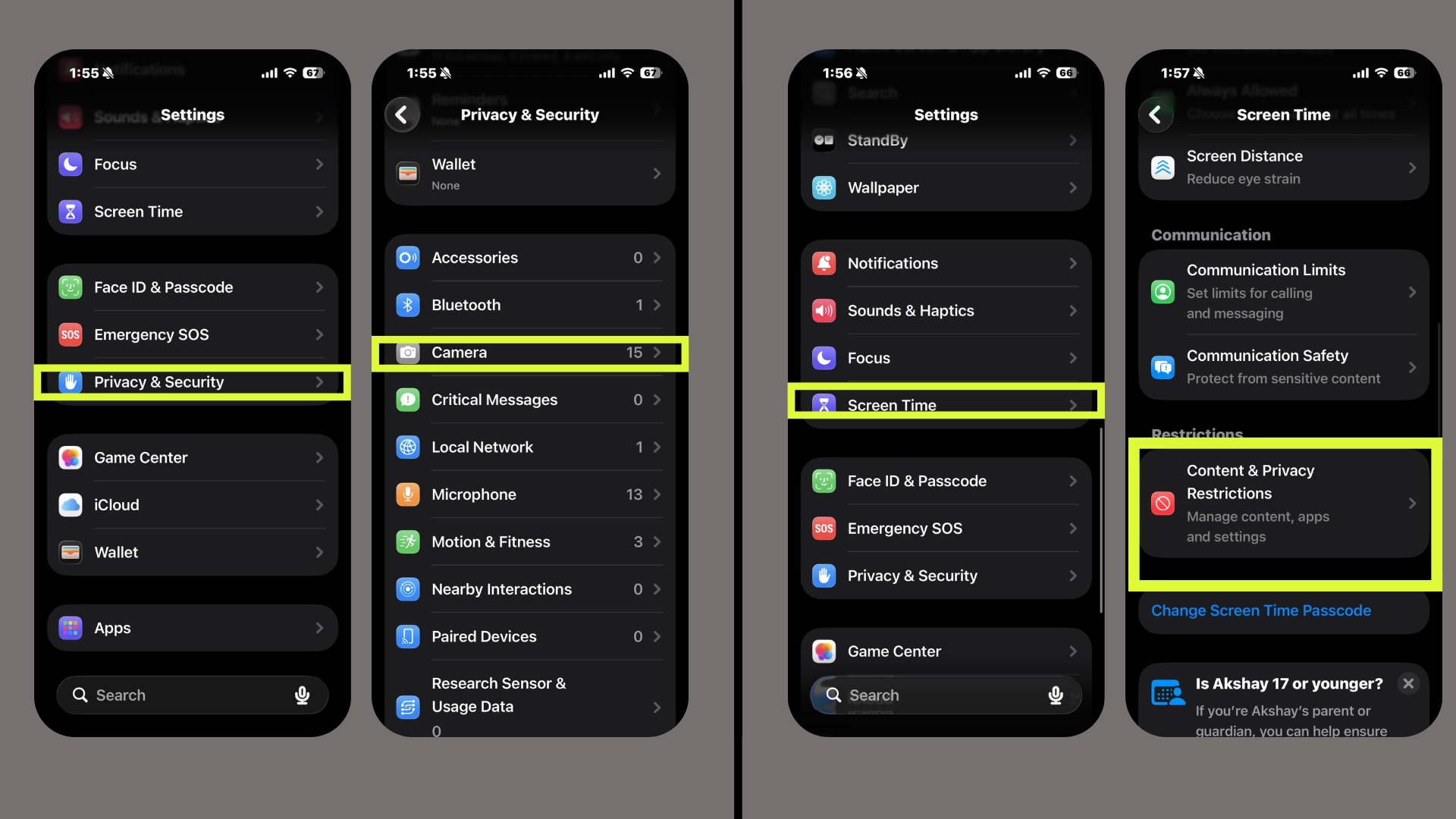
Sometimes the camera isn’t malfunctioning at all; it’s been blocked by a setting, often without you realizing it. This is especially common when the camera works in one app but not another.
- Turn on Camera access in Settings; go to Settings > Privacy & Security > Camera and confirm the toggle is on for the app you’re using. If the app isn’t listed at all, reinstalling it usually brings the permission prompt back.
- Check Screen Time restrictions; on shared or family devices, this is easy to miss. If Screen Time is on, go to Settings > Screen Time > Content & Privacy Restrictions > Camera and set it to “Allow.”
- Fix access for one specific app: if the built-in Camera app works but, say, Instagram or WhatsApp doesn’t, the problem sits with that app’s permission. Toggle its camera access off and back on, then reopen the app.
A camera that fails in every single app, including the native one, means permissions aren’t the cause, and it’s time for a broader reset. The tell for an actual permissions issue is that it’s inconsistent, working somewhere, not everywhere.
Advanced Fixes for iPhone Camera Problems
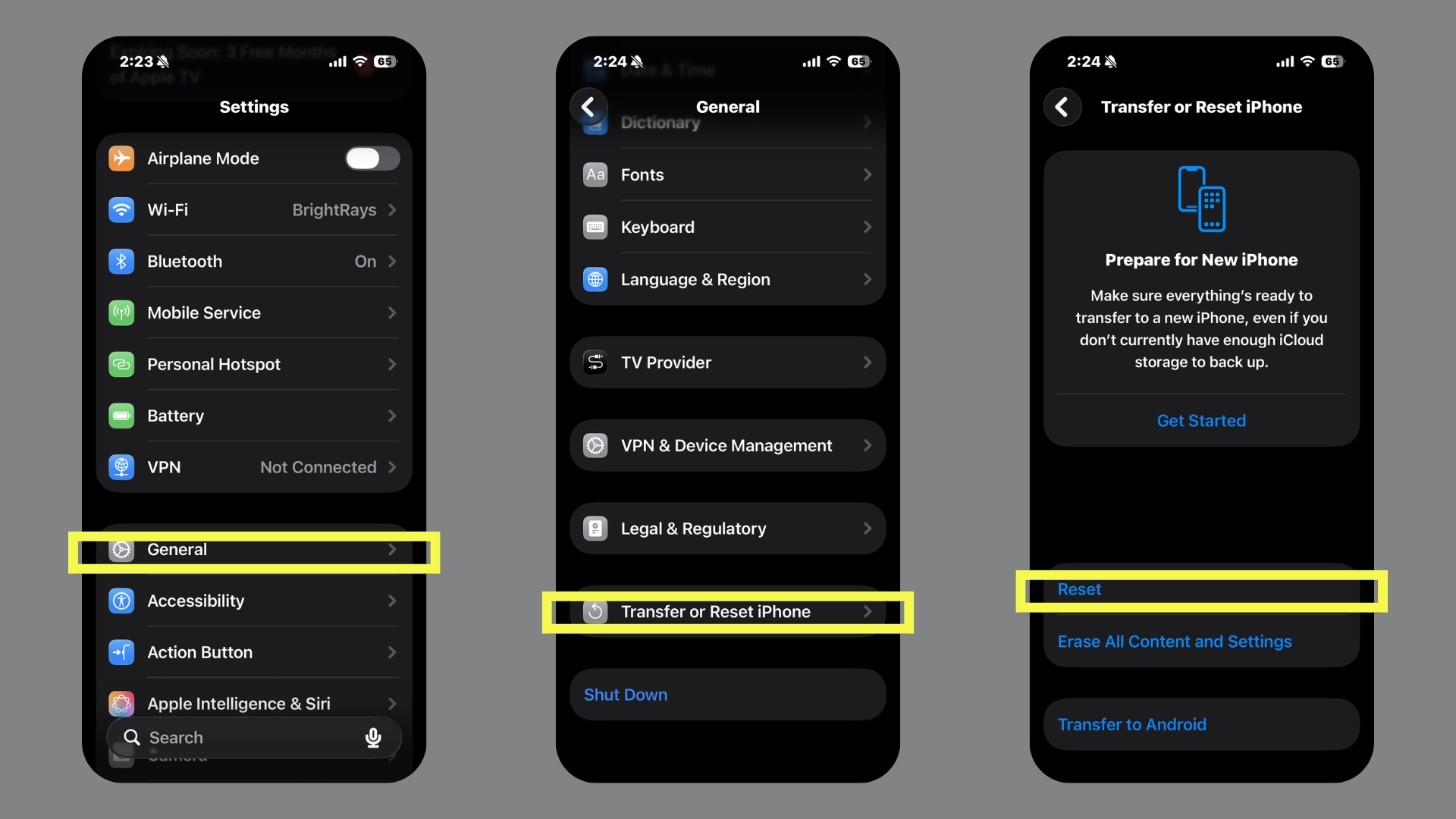
A few more involved steps are left if everything above came up empty in fixing the iPhone camera. They take a bit more time than a quick restart, but none of them wipe your photos, apps, or files.
Step 1: Reset All SettingsMethod:
- Open Settings > General > Transfer or Reset iPhone.
- Tap Reset, then select Reset All Settings.
- Enter your passcode to confirm. This puts things like Wi-Fi passwords and app permissions back to default, without deleting your photos or apps.
Step 2: Free Up Storage Space Method:
- Go to Settings > General > iPhone Storage.
- Review the list and delete large apps, videos, or files you don’t need.
- Restart your iPhone once space is freed up, since a nearly-full iPhone can make the Camera app behave unpredictably.
Step 3: Test the Camera Through a Different App Method:
- Open an app you haven’t already tested, like Messages or FaceTime.
- Try to access the camera from within that app.
- If it fails there too, you’ve confirmed the problem is system-wide rather than tied to one app or setting.
If the camera is still unresponsive in every app after this, the next likely explanation is something a software fix can’t reach.
Most people find their fix somewhere in the first two sections above. But if the camera keeps failing everywhere after all of this, it’s worth booking a check at anApple Store or authorized repair center.
Closing the Shutter
Most iPhone camera problems come down to something small: a stuck app, a recent update, or a permission quietly switched off, and a quick restart or settings check solves the majority of them without ever needing a repair shop.
Working through the sections in order, from the fastest fixes to the more specific checks, should have gotten your camera working again, or at least made it clear whether the issue is software or something a technician needs to look at.
Either way, you now know exactly what’s going on with your phone. If you enjoyed getting to the bottom of this one, there are plenty more everyday tech fixes waiting for you on the blog.
Frequently Asked Questions
Why Is My iPhone Camera Blurry or Won’t Focus?
This is usually a smudged lens or a case blocking part of it. Clean the lens with a soft cloth and remove any case obstruction before testing again.
How Much Does It Cost to Fix a Damaged iPhone Camera?
Out-of-warranty camera repairs typically range from $100 to $600 depending on the model. AppleCare+ users usually pay a much smaller service fee instead.
Can Cold Weather Affect How My iPhone Camera Performs?
Yes, extreme cold can temporarily slow the camera or cause lag. Warming the phone to normal temperature usually restores it within a few minutes.
Why Is My iPhone Flash Not Working Even Though the Camera Works Fine?
Flash issues are often separate from camera problems and may be tied to Low Power Mode or a blocked flash unit. Disable Low Power Mode and check for obstructions.