Joining an online meeting can feel uncertain when the screen fills with unfamiliar buttons and options. Learning how to use Zoom becomes easier once you know where to start and what each feature does.
I have seen many beginners struggle with simple steps like entering a meeting or adjusting audio settings, even though the process is straightforward. The right knowledge helps you join calls confidently and understand the basics of Zoom meetings.
The sections ahead explain the setup process, joining methods, meeting controls, and useful features that make online communication smoother.
A few practical tips can also prevent common problems during important calls. I recommend reviewing the main options before your next meeting so you feel prepared and more comfortable.
What is Zoom and How Does a Zoom Call Work?
Zoom is a video communication platform that lets people meet online through internet-connected devices, combining video, audio, chat, and screen sharing into one virtual room.
A call starts when a host creates a meeting and shares a link, ID, or passcode. Participants use those details to enter
Once connected, everyone communicates through their camera and microphone in real time, a setup that has become common across a wider mix of flexible virtual event formats.
Nothing here requires a technical background. Understanding this basic flow makes every later step, from joining to hosting, feel far less confusing than it first appears.
| Host creates meeting → Invitation is shared → Participants join → Audio and video connect → Everyone communicates online |
What You Need Before Using Zoom
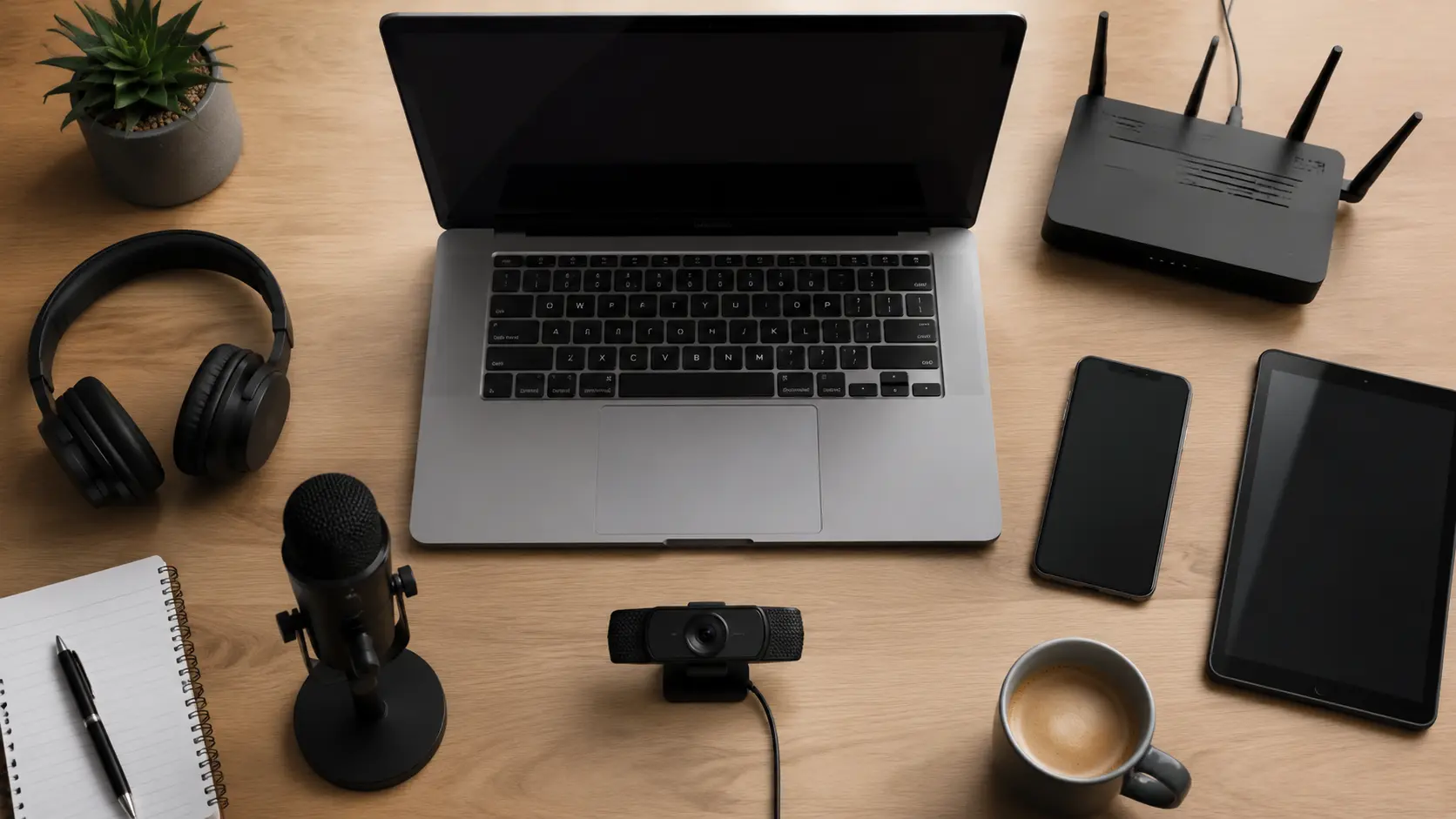
Most devices already have everything required, so setup rarely takes more than a few minutes to sort out properly, and the connection needs are modest too, sitting comfortably within the recommended internet speed guidelines published for smooth video calls.
- A device: laptop, smartphone, or tablet all work fine
- Internet connection: stable Wi-Fi or mobile data for clearer video
- Audio equipment: built-in mic and speakers, or headphones for better sound
- A camera: a webcam or a phone’s front camera
- Zoom access: the app or a browser for supported meetings
A Zoom account is not always necessary. If someone sends a meeting invitation, joining may only require clicking the link and entering a name.
Downloading and Setting Up Zoom
Before joining an important meeting, setting up Zoom properly can save time and prevent common issues. The process is simple, but it varies slightly depending on the device and how the platform will be used.
Download Zoom on a Computer
Installing Zoom on a computer is straightforward. Visit the official Zoom website and download the Zoom Workplace application. Once the file is downloaded, open it and follow the on-screen installation instructions.
Afterward, launching the app lets someone sign in or create a new account before joining or scheduling anything, as part of a wider move toward shifting technology adoption patterns in everyday workplaces.
Install Zoom on Android or iPhone
Zoom can also be installed easily on smartphones through the app stores. Open the Google Play Store on Android or the Apple App Store on iPhone, search for Zoom Workplace, and install the official application.
After opening the app, allow necessary permissions for the camera, microphone, and notifications. These permissions help Zoom deliver a smoother experience during video calls and ensure important features work correctly. This is similar to how access works across other virtual meeting platforms people rely on daily.
Create or Sign In to a Zoom Account
Creating a Zoom account is helpful for users who regularly schedule or host meetings. Open the Zoom app, select the Sign Up option, enter your email details, and complete the verification process.
After signing in, you can customize profile settings, schedule meetings, and manage different Zoom features. While an account is not always required to join meetings, it makes regular Zoom use more convenient.
How to Join a Zoom Meeting
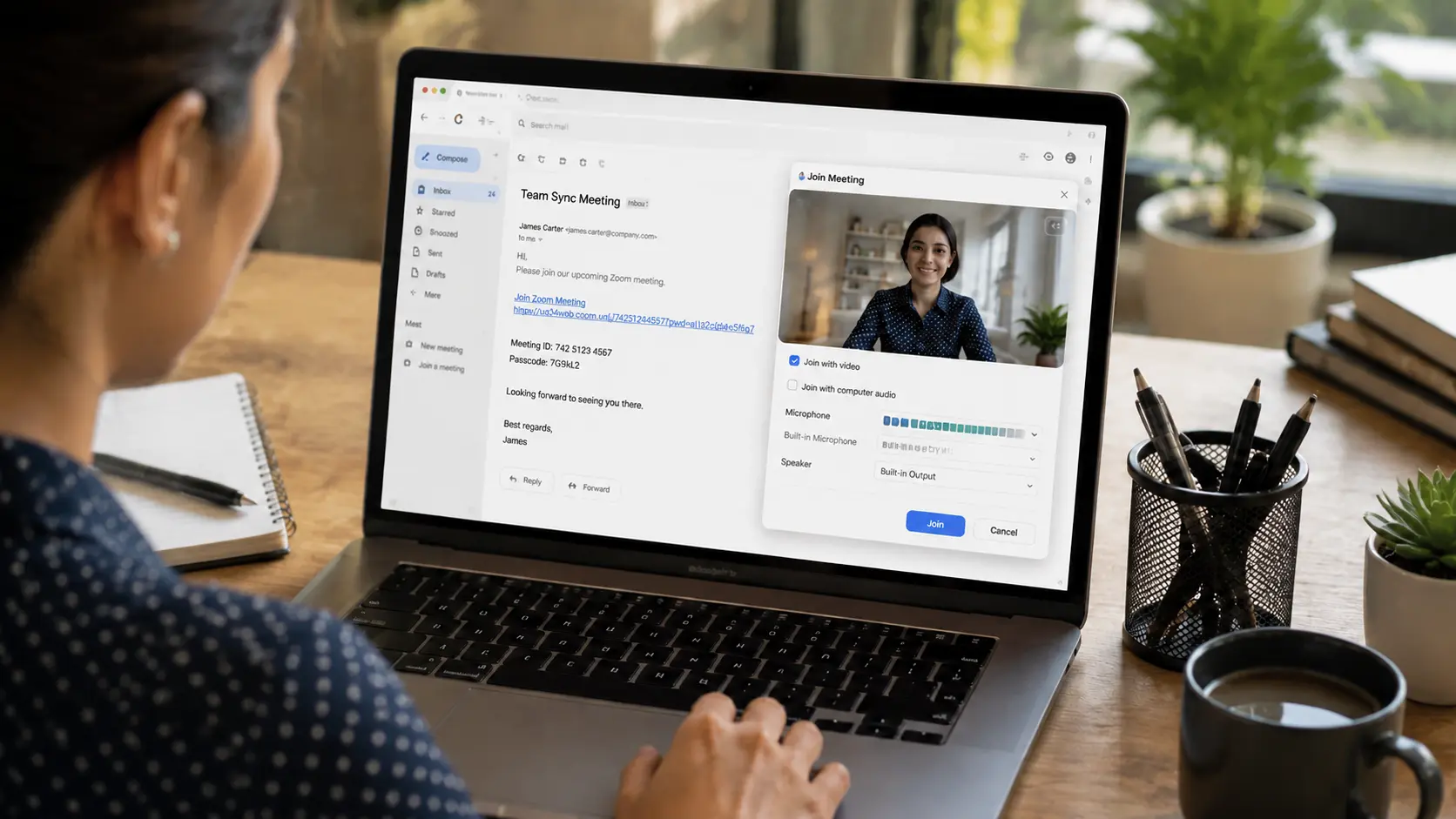
Joining a Zoom meeting is simple once you understand the available methods. The joining process depends on whether you receive a meeting link, ID, or browser access option.
1. Join a Zoom Meeting Using an Invite Link
Clicking the shared link opens Zoom automatically, shows a preview screen to test camera and mic, and lets someone type a name before selecting Join Meeting.
Testing both is worth doing since either can be active by default, a point echoed in official consumer safety tips for video calls. This is the simplest route for beginners.
Steps to join:
- Open the meeting invitation received through email or message.
- Click the Zoom meeting link shared by the host.
- Allow the Zoom application to open on your device.
- Enter your name if Zoom asks for participant details.
- Check your camera and microphone settings before joining.
- Click Join Meeting to enter the virtual room.
2. Join Using Meeting ID and Passcode
Joining with a meeting ID is useful when the host shares details manually instead of sending a direct link. This method is commonly used for online classes, workplace meetings, and situations where meeting details are shared through messages or announcements.
Steps to join:
- Open the Zoom application on your device.
- Select the Join option from the home screen.
- Enter the meeting ID provided by the host.
- Add your name for other participants to identify you.
- Enter the meeting passcode when requested.
- Select Join Meeting to connect to the call.
3. Join Zoom Through a Browser
Joining through a browser is a convenient option when you do not want to install the Zoom application. Browser access may not include every Zoom feature, but it works well for basic meetings and quick calls.
Steps to join:
- Open the Zoom meeting invitation link in your browser.
- Select the option to join from your browser if available.
- Allow your browser to access your microphone and camera.
- Enter your name before entering the meeting.
- Check the available audio and video settings.
- Click the join option to enter the meeting.
How to Create and Host a Zoom Meeting

Hosting a Zoom meeting allows you to organize online conversations, classes, presentations, or team discussions. As a host, you get control over important settings like participant access, meeting security, and available features.
Start an instant Zoom meeting
An instant meeting is useful when you need to connect with others quickly without scheduling a call in advance. To start one, open the Zoom application and select New Meeting.
Choose whether you want your camera enabled, check your microphone settings, and open the Participants option to invite others. Once the meeting starts, Zoom creates a virtual meeting room where invited users can join through the shared details.
Schedule a Zoom meeting in advance
Selecting Schedule, adding a topic, choosing a date and time, adjusting security settings like passcodes or waiting rooms, and saving the meeting generates a link ready to share ahead of time, not unlike the planning that goes into structured meeting space planning for in-person gatherings.
| Setting | What It Does |
|---|---|
| Meeting Passcode | Prevents unwanted access |
| Waiting Room | Allows the host to approve participants |
| Mute Upon Entry | Reduces background noise |
| Recording | Saves the meeting for later |
Invite People to Your Zoom Meeting
Copying the link, sharing the meeting ID and passcode, adding contacts directly, or sending calendar invitations all get people into the room without confusion, a task that mirrors what specialized event coordination services handle for larger gatherings.
A well-prepared meeting means less troubleshooting later. Once invitations go out, hosting mostly becomes about guiding the conversation itself.
How to Use Zoom During a Meeting

Once everyone joins a Zoom call, the platform provides several controls that help manage communication and keep the meeting organized.
The bottom toolbar includes important options like microphone control, camera settings, participant management, chat, and leaving the meeting. Understanding these features makes it easier to participate without interruptions.
| Control | Function |
|---|---|
| Mute | Turns the microphone on or off |
| Start Video | Enables or disables the camera |
| Participants | Shows people in the meeting |
| Chat | Opens text conversations |
| Leave | Exits the meeting |
Muting before joining a noisy space, unmuting only when it’s time to speak, and switching the camera off if the connection weakens keeps most calls running smoothly.
The chat panel also does more than send quick notes; keeping a written option available lines up with official accessibility communication guidance on giving everyone equal access to what’s being said.
Mute or unmute microphone: Open meeting toolbar → Select Mute to turn off audio → Click Unmute when you need to speak
Manage camera settings: Open meeting toolbar → Select Start Video to turn on the camera → Select it again to turn off video when needed
Fix audio issues: Check the microphone icon → Confirm the correct audio device is selected → Test settings if others cannot hear you
Use Zoom Chat: Open the Chat option → Type your message → Send questions, links, or quick updates without interrupting the speaker
Hosts can also manage chat permissions and decide whether messages are visible to everyone or only selected participants. These controls help make meetings more organized and easier to manage.
How to Share Your Screen on Zoom
Screen sharing is one of Zoom’s most useful features for presentations, tutorials, and demonstrations. It allows other participants to view what appears on your device.
The process is simple:
- Click Share Screen in the meeting toolbar.
- Select the window, document, or application you want to display.
- Click Share.
- Continue your presentation.
- Select Stop Share when finished.
| Sharing Option | Best Used For |
|---|---|
| Entire Screen | Showing multiple apps or switching between files |
| Specific Window | Presenting one document or program |
| Whiteboard | Explaining ideas visually |
Before sharing, close unnecessary windows and notifications to avoid displaying private information.
Screen sharing works best when only the required content is visible. It keeps the meeting focused and helps participants follow along easily.
How to Record a Zoom Meeting
Recording a Zoom meeting allows you to save important discussions and review them later. It is useful for classes, interviews, presentations, and work meetings.
Steps to record:
- Join or start a Zoom meeting.
- Click the Record button.
- Select the available recording option.
- Continue the meeting.
- Stop recording when finished.
| Note: Before recording, inform participants and make sure recording is allowed. Depending on your account settings, recordings may be saved locally on your device or stored through Zoom cloud options. |
Troubleshooting Zoom: Quick Solutions for Common Issues
Even after setting up Zoom correctly, small issues can appear during meetings. Most problems are related to audio, video, internet connection, or device permissions. Knowing the basic fixes can help avoid unnecessary interruptions.
| Problem | Possible Fix |
|---|---|
| The camera is not working | Check camera permissions and select the correct camera in settings |
| The microphone has no sound | Make sure the microphone is unmuted and test audio settings |
| The meeting link does not open | Update Zoom or try joining through a browser |
| Video keeps freezing | Improve the internet connection or close unused applications |
| Zoom app crashes | Restart the app or update to the latest version |
For many issues, leaving and rejoining the meeting solves temporary connection problems. Restarting the device can also refresh settings and fix minor errors.
Keeping Zoom updated and testing equipment before important calls reduces the chances of facing problems during a meeting.
Zoom Tips for a Better Meeting Experience
A few simple habits can make Zoom meetings smoother and easier to manage. Preparing before a call helps reduce technical issues and allows you to focus better on the conversation.
- Test your camera and microphone before joining.
- Use headphones for clearer audio.
- Keep Zoom updated for better performance.
- Choose a quiet place for meetings.
- Keep your device charged during long calls.
- Close unused apps to reduce lag.
- Mute your microphone when not speaking.
- Use chat for quick questions.
- Keep your display name clear.
- Check your internet if video quality drops.
- Save important files and meeting notes afterward.
Following these simple practices can make Zoom calls more organized, productive, and easier to manage for both beginners and regular users
Common Mistakes New Zoom Users Make
Many first-time users struggle with small mistakes that can easily be avoided. Understanding these errors before joining a call can make the experience much easier.
- Joining without checking audio: Some users enter meetings without testing their microphone or speakers, which can lead to confusion when they cannot hear or speak properly.
- Forgetting to mute the microphone: Background sounds like conversations, traffic, or device notifications can interrupt the meeting when the microphone remains active.
- Sharing the wrong screen: Selecting the entire screen without checking which windows are open may accidentally reveal private information or unrelated content.
- Ignoring Zoom updates: Older app versions may create compatibility issues and prevent some features from working correctly.
- Not checking the internet connection: Weak internet can cause audio delays, video freezes, and unexpected disconnections.
Final Thoughts
Getting comfortable with online meetings starts with understanding the basics of Zoom and its key features. I believe knowing the right steps makes every call easier to manage and less stressful.
You can join meetings, adjust settings, use essential tools, and avoid common issues with better preparation. Learning how to use Zoom helps you communicate confidently in classes, work discussions, and personal calls.
The main points are setting up the app, joining meetings, managing controls, and following simple meeting habits. I recommend practicing these features before an important call so you feel ready when it matters. Try these tips in your next Zoom meeting and share your experience or questions in the comments.
Frequently Asked Questions
Can I Use Zoom without Creating a Meeting Account?
Yes, you can join many Zoom meetings without creating an account. However, an account is required for features like scheduling meetings, managing settings, and hosting calls regularly.
How Long Can a Free Zoom Meeting Last?
Free Zoom meetings typically have a time limit for group calls. The duration may vary depending on Zoom’s current plans and policies, so it’s recommended to check the latest account details.
Can I Change My Background in Zoom?
Yes, Zoom allows users to change or blur their background during meetings. This feature helps maintain privacy and creates a cleaner appearance during video calls.
Does Zoom Work with Other Video Conferencing Platforms?
Zoom can connect with some external tools and services through integrations. However, participants usually need to join through Zoom itself unless a supported integration is being used.
Can I Use Zoom on Multiple Devices?
Yes, Zoom can be used across multiple devices, including computers, smartphones, and tablets. You can sign in to the same account and access meetings from different devices.