Every professional email begins as a routine act of trust.
A contract is attached. A client file is sent. A private update moves from one inbox to another. Nothing looks dangerous, which is exactly why the risk is so easy to miss.
The real threat is not always a dramatic breach. It can be a forwarded message, an exposed attachment, a shared device, or a security option left unused.
Email encryption changes that balance. It decides who can read a message, who can open a file, and how much control remains after you press send.
For businesses, that difference is not technical. It is reputational, legal, and financial.
This guide shows how secure email really works, where protection begins, and where the gaps quietly remain.
What Email Encryption Does (and Where It Falls Short)?
Email encryption is a way to protect your messages so that only the person you send them to can read them.
Without encryption, your emails are like digital postcards; anyone who handles them, such as email companies, hackers, or administrators, can see the content.
Most emails use a protocol called TLS (Transport Layer Security) while traveling between servers.
TLS is useful, but it only protects messages in transit. Once an email arrives in someone’s inbox, TLS protection ends. If that server is compromised or the account is accessed by someone else, the content is fully exposed.
End-to-end encryption(E2EE) is the stronger standard. It locks the message on your device before it leaves, and only the recipient’s device can unlock it.
Nobody in between, not even the email provider, can read the content.
This is the level of protection that matters when sending bank details, legal documents, signed contracts, or anything that should stay between two people.
Encryption Methods by Email Service
Different email services offer varying levels of protection for your messages. While some provide strong end-to-end encryption, others only offer basic security or simple workarounds.
Below is a clear comparison of the most popular email services and their encryption capabilities.
| Email Service | Encryption Method | End-to-End Encryption | Recipient Requirements | Best For | Limitations |
|---|---|---|---|---|---|
| Outlook | S/MIME or Microsoft Purview (OME) | Yes | Both parties need digital certificates | Legal, finance, healthcare, and internal business communication | Purview requires eligible Microsoft 365 plan; S/MIME requires certificate setup on both sides |
| Gmail | Client-Side Encryption | Yes | Google Workspace admin setup | Enterprise-level professional email security | Limited to select Workspace plans |
| Apple Mail | S/MIME | Yes | Both parties need digital certificates | Secure communication between professional contacts | Technical setup required |
| Yahoo Mail | Password-Protected Attachment | No | The recipient needs the password | Basic document sharing for professional use | No built-in email encryption |
Note: Outlook requires a Microsoft 365 Business plan or Azure add-on for Purview encryption. Gmail Confidential Mode is not true end-to-end encryption; only select Enterprise Workspace plans include Client-Side Encryption. Yahoo Mail has no native message-level encryption.
Ways to Send an Encrypted Email on Outlook
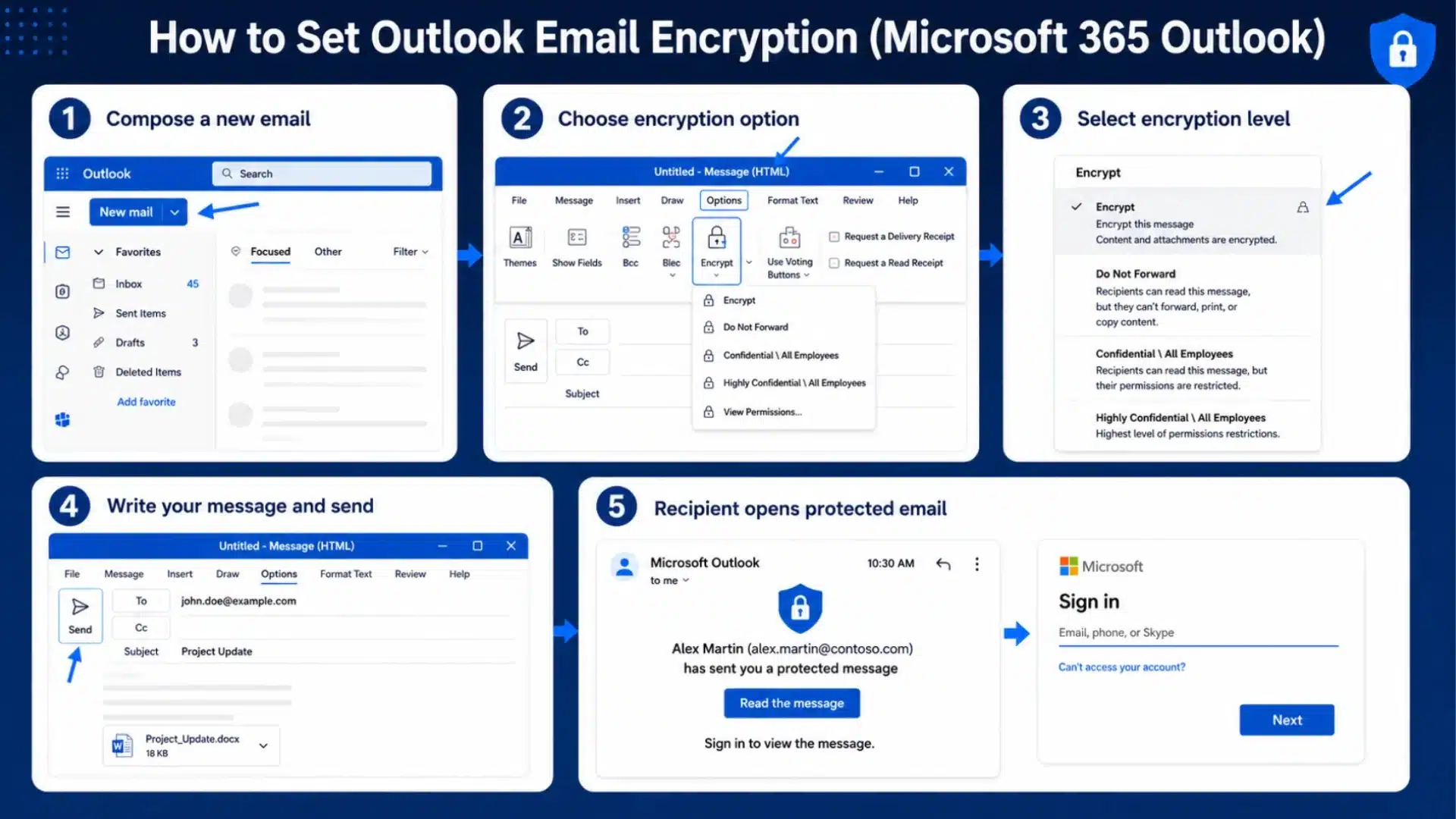
Outlook offers multiple ways to send encrypted emails depending on your needs, from quick built-in encryption to advanced certificate-based security and simple file protection. Here are the most effective methods:
1. How to Send Encrypted Email in Outlook (Purview / OME)
Microsoft Purview Message Encryption, formerly Office 365 Message Encryption, is the simplest option for most Outlook users on a business or Microsoft 365 plan.
Recipients outside your organization access the message through a secure web portal without needing a certificate.
- Open Outlook and click New Message.
- Go to the Options tab in the ribbon.
- Click Encrypt and choose from the available options: Encrypt , Do Not Forward , or a sensitivity label if configured by your admin.
- Write your message, add attachments, and send.
If you are using Outlook on the web, the encrypt option may appear as a lock icon or under the three-dot menu, depending on your version.
External recipients on Gmail or Yahoo will receive a link to view the message through a secure Microsoft portal.
2. How to Set Up S/MIME Encryption in Outlook?
S/MIME (Secure/Multipurpose Internet Mail Extensions) is a certificate-based standard that has been used since 1998. It requires both sender and recipient to have a valid digital certificate.
- Obtain a digital certificate from a trusted Certificate Authority such as Sectigo or DigiCert, or request one from your IT department.
- In Outlook, go to File > Options > Trust Center > Trust Center Settings.
- Select Email Security and click Settings under Encrypted email.
- Under Certificates and Algorithms, click Choose and select your S/MIME certificate.
- Click OK to save.
- Exchange a digitally signed email with your recipient first so Outlook can save their public key. After that, you can send encrypted messages to them.
Note: S/MIME certificates work with Microsoft 365 business accounts (work or school) and Gmail accounts added to Outlook. They do not work with Outlook.com, Hotmail.com, or Live.com personal accounts.
3. How to Send a Password-Protected Email in Outlook?
If you need to share a sensitive file through Outlook without configuring full encryption, a password-protected attachment is a practical workaround.
This applies when the recipient does not have a certificate, and your account does not support Purview encryption.
- Create your document in Word, Excel, or PDF format.
- Apply password protection to the file directly:
- Word/Excel: Go to File > Info > Protect Document > Encrypt with Password. Set a strong password and save it.
- PDF: Use Adobe Acrobat or a PDF tool to apply a password under File > Protect Using Password.
- Attach the protected file to your Outlook email.
- Write a general message in the email body. Do not include the password in the same email.
- Send the password to the recipient through a separate channel: a phone call, text message, or secure messaging app.
This is not encryption at the email level, but it does protect the content of the file even if the email is forwarded or intercepted.
For most casual sensitive-document scenarios, it is the quickest option that does not require any setup.
How to Send Encrypted Email on Other Platforms?
While Outlook offers built-in enterprise encryption, other email services handle secure messaging differently. Below are the best working methods for Gmail, Apple Mail, and Yahoo Mail.
1. How to Send Encrypted Email in Gmail
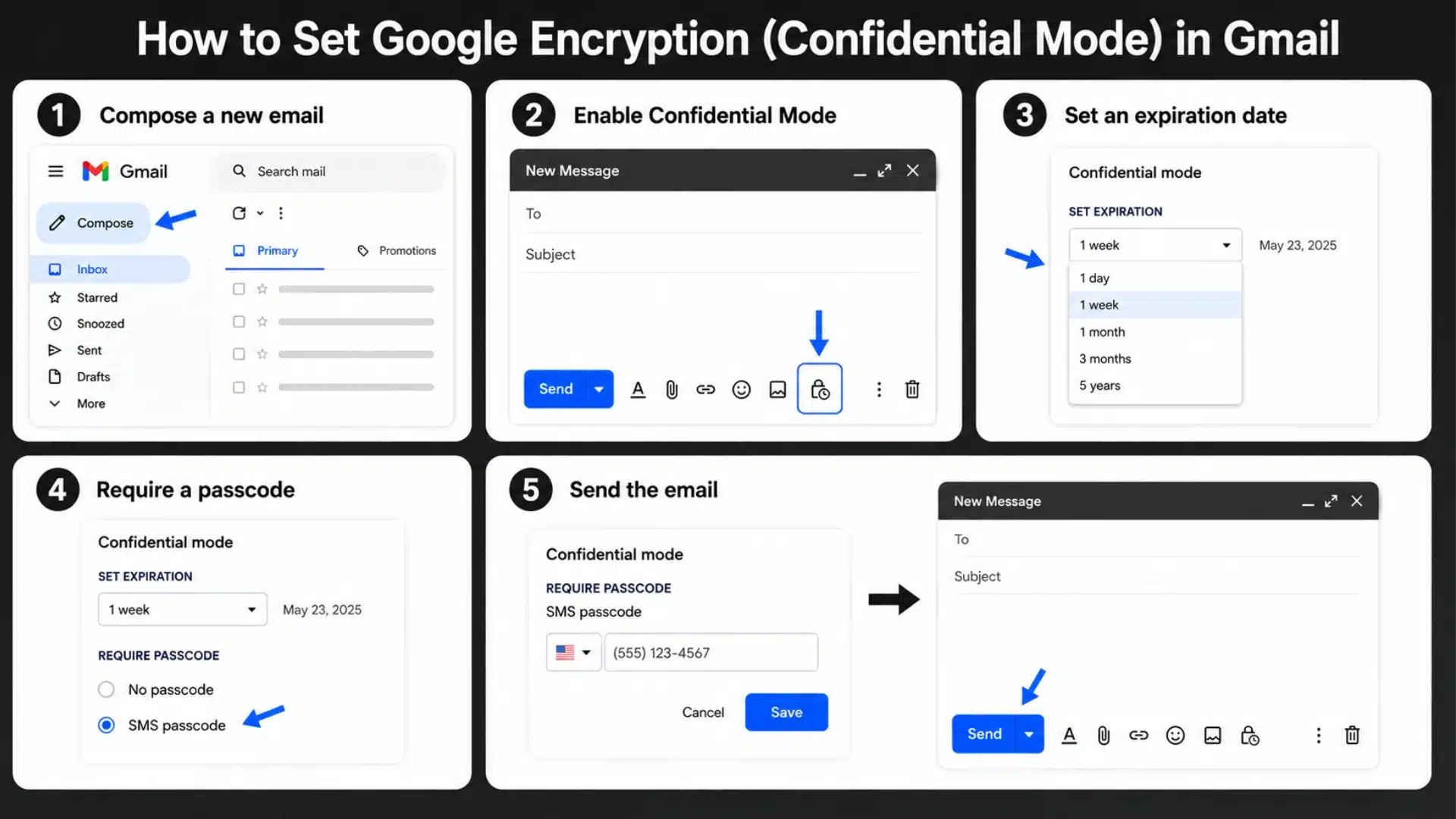
Gmail does not directly match Outlook encryption, but Confidential Mode is the closest built-in option for regular users.
- Open Gmail and click Compose.
- Write your message and add attachments.
- Click the Confidential Mode lock icon.
- Set an expiration date and passcode.
- Click Save, then send.
Confidential Mode cannot stop screenshots or photos of the screen.
For Google Workspace users with Client-Side Encryption enabled by your admin, a separate lock icon will appear in the compose window to apply true end-to-end encryption.
2. How to Send Encrypted Email in Apple Mail
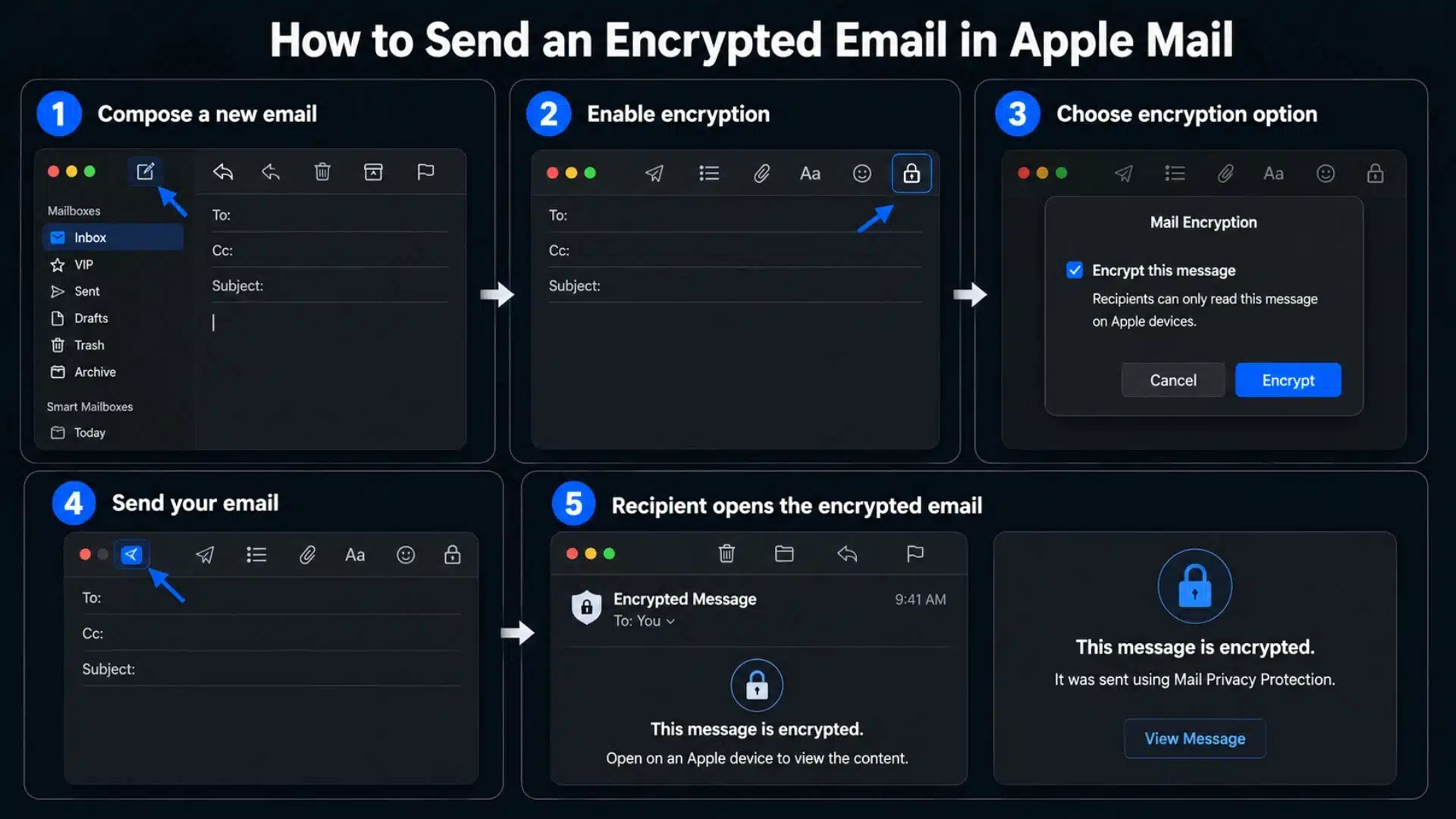
Apple Mail uses S/MIME, so both sender and recipient need valid digital certificates for encryption to work.
- Obtain a personal S/MIME certificate from a trusted provider like Sectigo or DigiCert.
- Install the certificate on your Mac and add it to Keychain Access.
- Open Apple Mail and enable S/MIME in your account settings.
- Select your installed certificate for signing and encryption in the account settings.
- Send the recipient a digitally signed email first.
- Ask them to reply with their own digitally signed email.
- Compose a new message to the recipient.
- Click the lock icon in the message window to enable encryption.
- Send the email once the lock icon is closed.
When composing an encrypted message in Apple Mail, the recipient’s name appears in blue if their certificate is valid and encryption is possible.
If their name appears in red, their certificate is missing, expired, or unrecognized, and the message will not be encrypted.
3. How to Send an Encrypted Email in Yahoo Mail
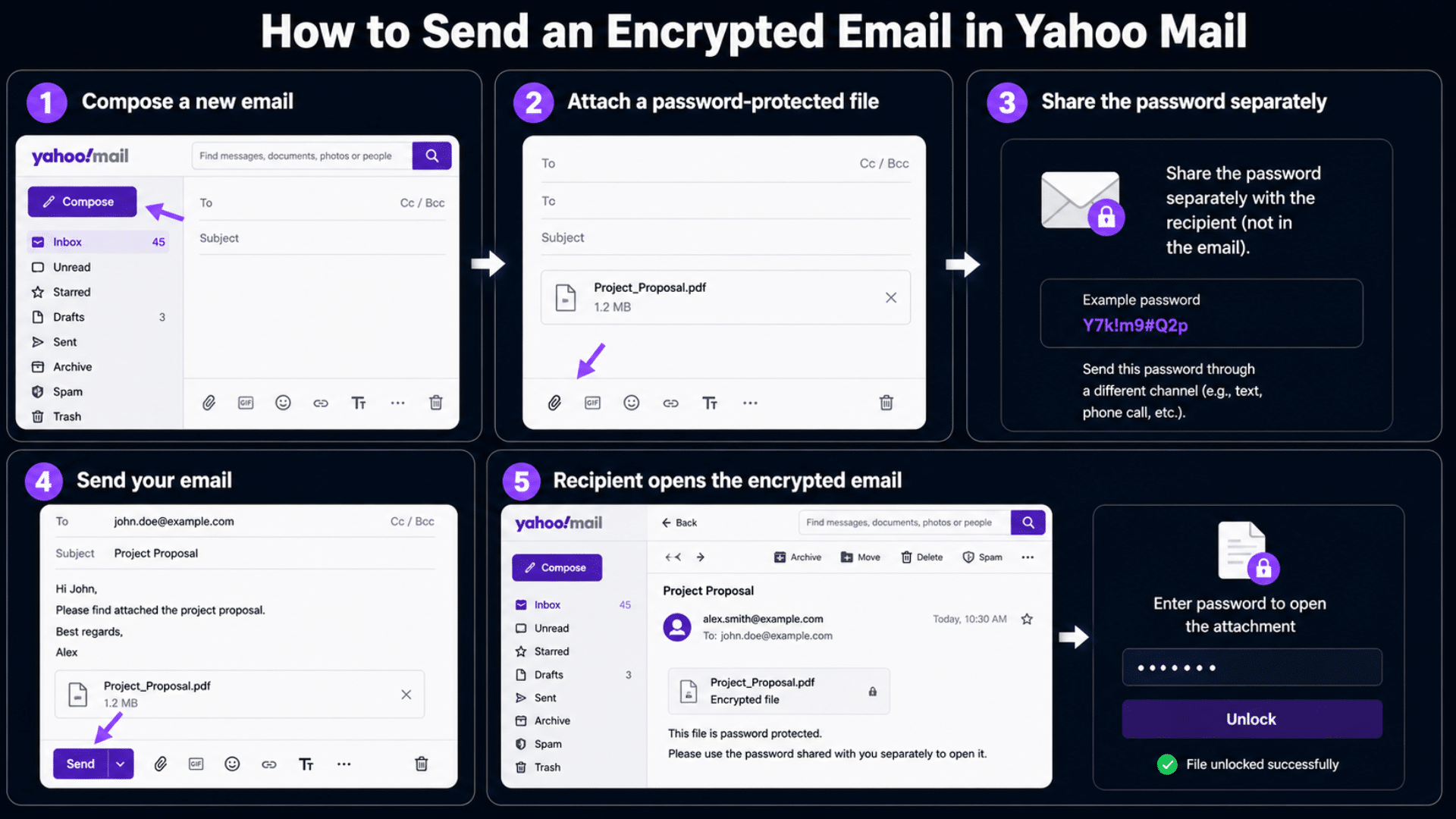
Yahoo Mail does not offer built-in message encryption like Outlook or Gmail Confidential Mode, so use a safer file-based workaround.
- Open Yahoo Mail.
- Write a general message.
- Avoid sensitive details in the email body.
- Attach a password-protected ZIP, PDF, or Word file.
- Share the password by call, text, or secure app.
- Use a third-party encryption tool if true message-level encryption is required.
Use Yahoo’s website, app, or supported sign-in methods for safer access.
For further guidance on building broader digital security habits, the online privacy protection guide covers account hygiene, monitoring settings, and what to do after a breach.
When to Use a Third-Party Encryption Tool?
Personal Gmail and Yahoo accounts do not offer true end-to-end encryption through built-in features. For users in those situations, third-party tools fill the gap.
Mailvelope is a browser extension that adds PGP (Pretty Good Privacy) encryption to Gmail, Yahoo Mail, and other webmail services.
Both sender and recipient need Mailvelope installed and need to exchange public keys before encrypted messages can be sent.
To get started with Mailvelope:
- Install the Mailvelope extension from the Chrome Web Store or Firefox Add-ons.
- Generate a key pair inside the extension (a public key and a private key).
- Share your public key with the recipient; they share theirs with you.
- When composing in Gmail or Yahoo Mail, the Mailvelope icon will appear. Click it to compose an encrypted message using the recipient’s public key.
PGP is the most established end-to-end encryption standard for personal email.
The setup takes more time than Confidential Mode, but it delivers genuine encryption without requiring any admin access or a paid plan.
Why Your Email Encryption is Not Working?

Email encryption often fails due to simple and common issues that are easy to miss.
The problem is usually caused by your subscription plan, admin restrictions, missing certificates, or incorrect app settings.
Before troubleshooting further, check these basic requirements for Outlook, Gmail, Apple Mail, and Yahoo Mail.
- Outlook: The Encrypt button may be missing if your plan does not support it, your admin has not enabled it, or you are using a third-party mail app.
- Gmail: If the lock icon is missing, your admin may have turned off Confidential Mode, or Workspace encryption may not be enabled.
- Apple Mail: Encryption needs S/MIME certificates. It will not work if your certificate is missing, expired, or not matched to the recipient.
- Yahoo Mail: Yahoo does not have built-in message encryption. Use a password-protected file, share the password separately, or use a secure third-party tool.
Best Practices for Encrypted Email Security
Encryption is one layer of protection. It doesn’t compensate for weak account security elsewhere. Setting up two-factor authentication on your Microsoft account is the highest-impact step most people haven’t taken yet.
Build these habits into your encrypted email workflow:
- Share passwords separately: Send file passwords or passcodes through a call, text, or secure app, not the same email.
- Verify recipients first: Confirm the address before sending sensitive files, especially client data, contracts, or financial records.
- Keep software updated: Update your email software and operating system to reduce the risk of known security flaws.
- Use secure file-sharing when needed: For highly sensitive documents, choose platforms that support access controls, expiration dates, and audit logs.
- Review retention rules: Encrypted emails left in old inboxes are only as safe as the account that protects them.
- Use a neutral subject line: The subject line is never encrypted, even when the message body is. Avoid putting sensitive details there. Use something like “Secure message” or “Confidential document” instead.
Conclusion
Learning how to send encrypted email is really about building better habits before sensitive information leaves your inbox.
A private file, contract, invoice, or client update should never be treated like a normal message.
I would always check the recipient, keep the subject line neutral, and choose the right protection before sending anything important.
You should also remember that encryption works best with strong passwords, two factor login, and careful file sharing.
Outlook, Gmail, Apple Mail, and Yahoo all handle protection differently, so the safest choice depends on your message.
Once you understand those limits, encrypted email becomes less confusing and more practical for daily work.
Have you ever used encrypted email for work or personal files? Tell us, share with us in comments below.
Frequently Asked Questions
Can I Send an Encrypted Email to Someone Outside My Organization?
Yes, but it depends on the service. Outlook encryption can work with external recipients, including Gmail and Yahoo users, through a secure portal or verification step.
Gmail Confidential Mode can also reach non-Gmail users, though it is not full end-to-end encryption.
Apple Mail needs S/MIME certificates on both sides, while Yahoo Mail usually requires a password-protected attachment or third-party encryption tool.
Does Email Encryption Protect the Subject Line?
No. The subject line is transmitted as plain text even when the message body is encrypted, whether using OME or S/MIME. Avoid putting sensitive information in the subject line.
Use a neutral subject, such as “Secure message” or “Confidential document,” instead.
Are Outlook, Gmail, Apple Mail, and Yahoo Mail HIPAA-compliant?
Not automatically. Outlook and Gmail can support HIPAA-compliant email only with eligible business plans, a signed BAA, correct admin settings, and proper PHI handling.
Apple Mail depends on the email provider and S/MIME setup, while Yahoo Mail is not a good choice for PHI unless used with a compliant third-party system.