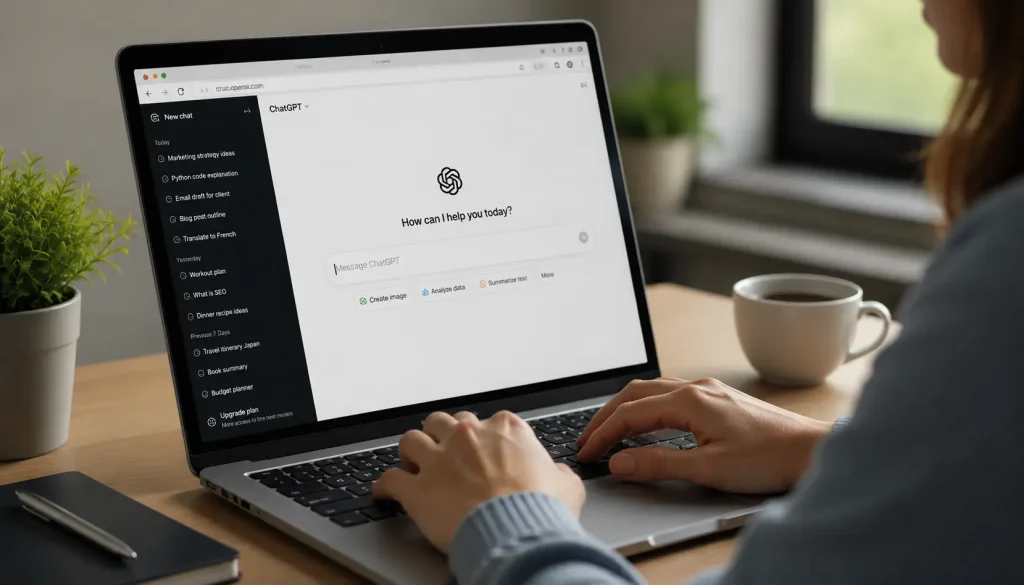
ChatGPT conversations can pile up faster than expected, from quick questions and brainstorming ideas to old chats you no longer need.
A cluttered chat history can make it harder to find important conversations and manage your account.
If you want a fresh start, learning how to delete all chats in ChatGPT can help you remove your saved conversations in just a few steps.
Before clearing everything, it is helpful to know where the deletion settings are, what gets removed, and what options are available for managing your chat history.
With the right steps, cleaning up your ChatGPT account takes only a few moments.
Can You Delete All Chats in ChatGPT at Once?
Yes, you can delete all chats in ChatGPT at once instead of removing conversations one by one.
This option helps clear your entire saved chat history quickly, especially if you have many old conversations stored in your account.
The process removes all saved chats, including conversations that may not be visible in your current sidebar view. Before confirming the deletion, make sure there is nothing important you want to keep because deleted chats cannot be recovered through ChatGPT.
Taking a quick look through your history first can help prevent accidentally removing conversations you may need later.
Before You Delete Everything, Know What Happens
It helps to know exactly what this action does and doesn’t do before you tap confirm.
- Deleting Chats Removes Your Conversation History: Every conversation disappears once deleted, with no way to get it back. Make sure there’s nothing in there you still need.
- Deleting Chats Does Not Delete Your Account: Your login, settings, and subscription stay exactly as they were. Only your chat list gets wiped clean.
- Memories and Custom GPTs are Separate: Deleting chats won’t erase saved Memories or affect Projects and custom GPTs. Those need to be cleared on their own under Settings.
The same goes for Projects, custom GPTs you’ve built or saved, and files you’ve uploaded to those spaces. Deleting your regular chat history won’t remove any of that content.
How to Delete All Chats in ChatGPT on All Devices
Old ChatGPT conversations can quickly fill up your history and make it harder to manage. Deleting all chats is a simple way to clear unwanted conversations and organize your account. The process may differ slightly across desktop, Android, and iPhone devices.
1. On Desktop
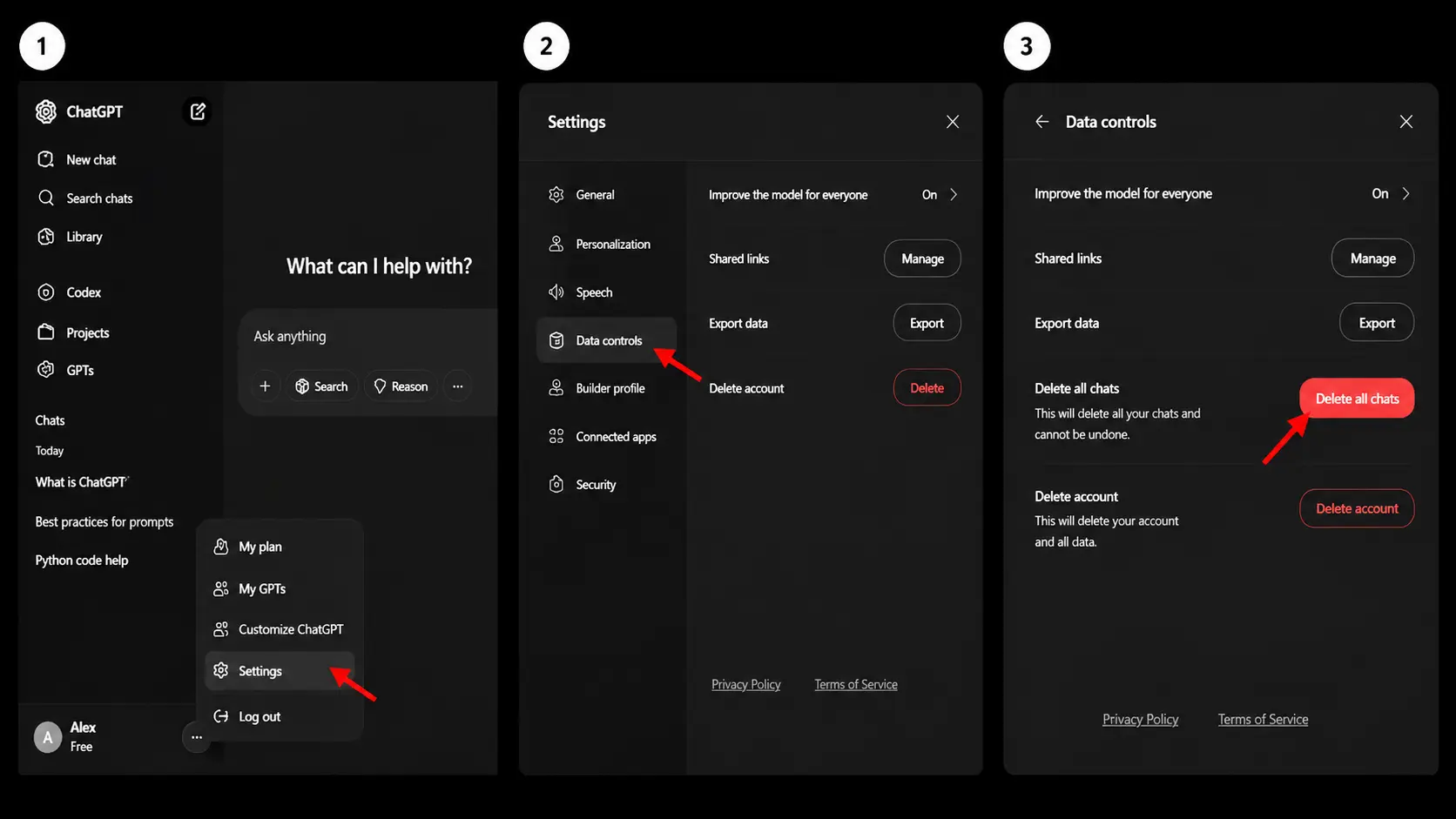
If you mainly use ChatGPT on a computer, you can clear your chat history directly from your account options. The desktop version provides a simple way to manage saved conversations without removing chats individually. Follow the steps below to clear your history when you want a cleaner ChatGPT workspace.
- Open ChatGPT in your browser: Visit the ChatGPT website and open it in your preferred browser.
- Sign in to your account: Enter your login details if you are not already signed in to your ChatGPT account.
- Open your profile menu: Look at the bottom-left corner of the ChatGPT screen and click your profile icon or account name to open the menu.
- Select Settings: From the menu that appears, choose Settings to access your account preferences.
- Open the Data Controls section: In the Settings window, find the section related to managing your data and chat history.
- Choose Delete All Chats: Select the option to delete all chats. A confirmation message will appear before the chats are removed.
- Confirm the deletion: Review the warning and confirm the action if you want to permanently clear your ChatGPT conversation history. Once deleted, these chats cannot be restored.
After deleting your chats from the desktop version, your conversation history will be cleared from your account. Make sure to review important conversations before removing them permanently.
Tip: If you don’t see this option where expected, check the troubleshooting section further down. It’s usually one of a few common issues.
2. On Mobile App
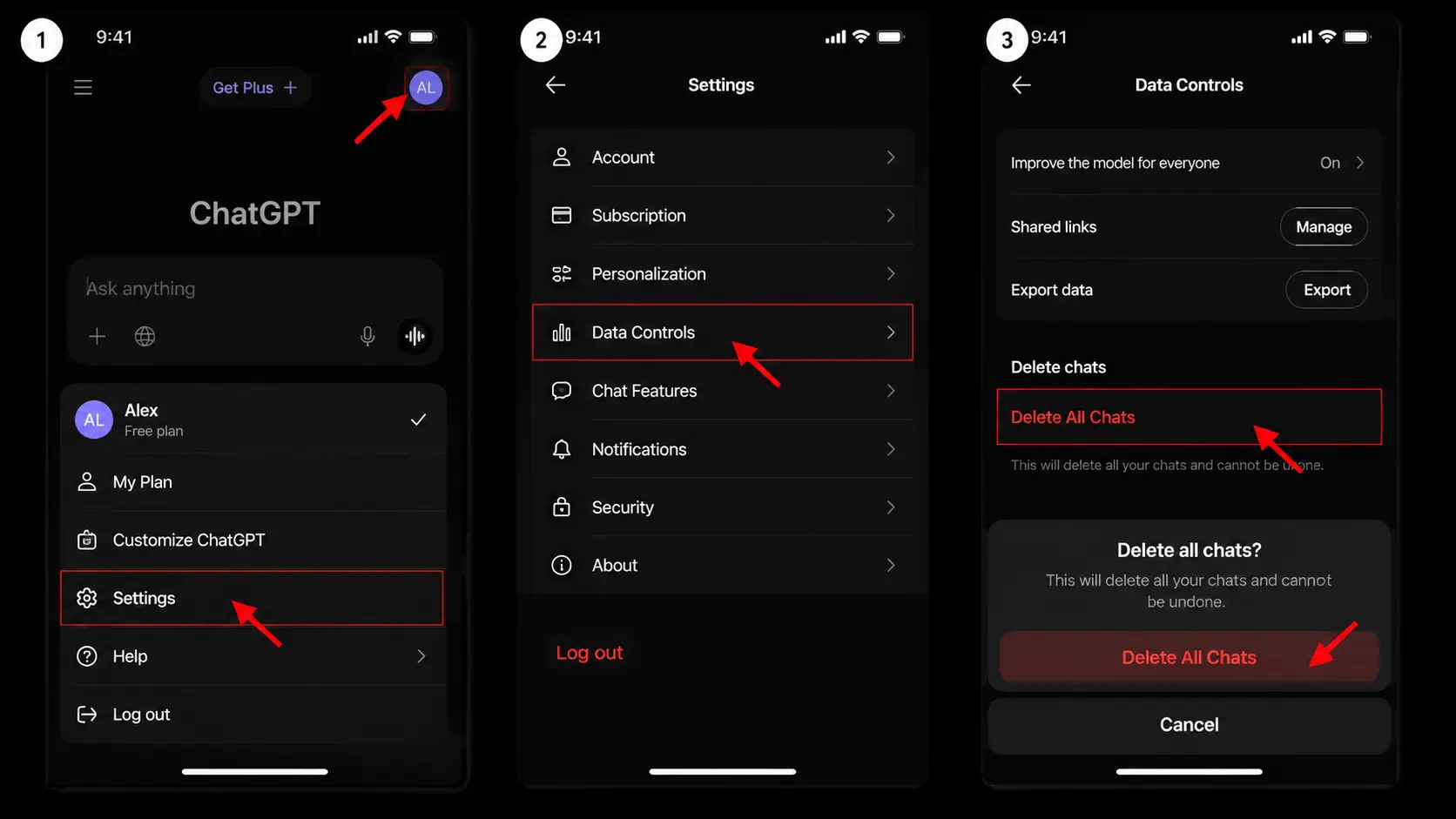
The ChatGPT Android app makes it easy to manage your conversations directly from your phone. Whether you have old questions, unused chats, or conversations you no longer want to keep, you can remove them through a few simple options in the app.
- Open the ChatGPT app and sign in: Launch the app on your phone and log into your account if you are not already signed in.
- Open your profile menu: Tap your profile icon or initials, usually shown in the corner of the app screen, to access account options.
- Go to Settings: Select Settings from the menu to manage your account preferences.
- Access Data Controls: Tap Data Controls to find options related to your chat history and stored information.
- Delete all chats: Choose Delete All Chats and confirm the action when prompted to permanently remove your conversations.
- Complete the deletion: Once confirmed, all saved chats will be removed from your account and cannot be restored.
Once your Android chat history is cleared, your saved conversations will no longer appear in your account. Checking your chats before deletion can help you avoid losing anything important.
How to Delete a Single Chat Instead?
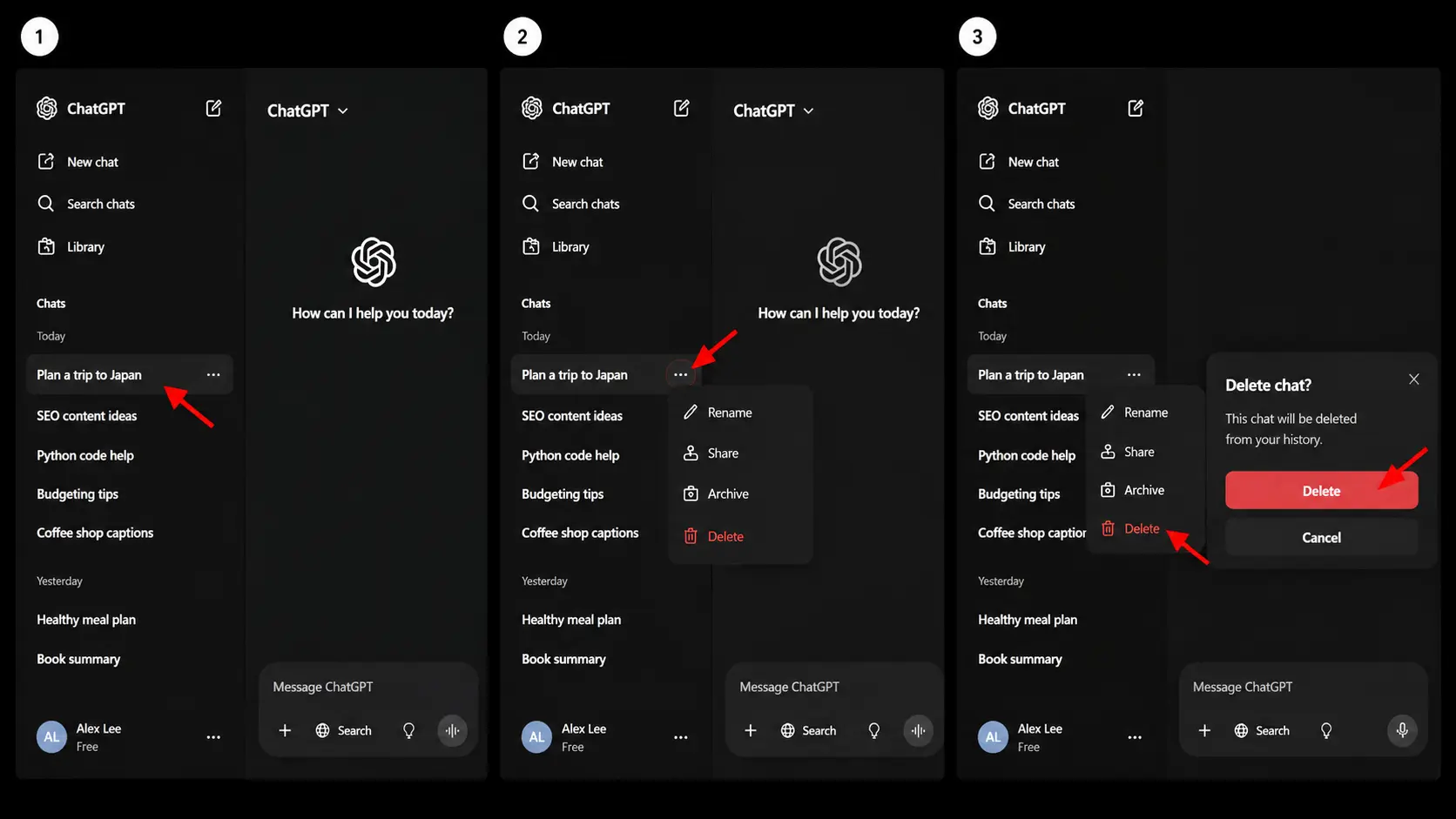
If you only want to remove a specific conversation, there is no need to delete your entire ChatGPT history. Deleting individual chats lets you keep important conversations while removing only the ones you no longer need.
- Open your chat history: Open ChatGPT and go to the sidebar where your previous conversations are listed.
- Find the chat you want to remove: Scroll through your chat list and locate the specific conversation you want to delete.
- Open the chat options: Hover over the chat on desktop or tap and hold it on mobile to view available options. Select the three-dot menu next to the conversation.
- Choose Delete: Select the Delete option from the menu to remove that particular chat.
- Confirm the deletion: Review the confirmation message and approve the action. The selected conversation will be permanently removed from your chat history.
This is a better option if most of your history is still useful and you only need to clean up a handful of old conversations.
Delete vs Archive Chats: What’s the Difference?
Deleting a ChatGPT conversation removes it permanently, while archiving only hides it from your main chat list. Archive is useful for keeping chats you may need later, whereas delete is meant for removing conversations you no longer want to keep.
| Aspect | Delete | Archive |
| What happens to the chat | Removed from your account permanently | Hidden from sidebar, but saved |
| Can you get it back | No | Yes, anytime |
| Storage | Frees up space in your account | Still counted as saved data |
| Best used when | You’re sure you won’t need it again | You might want to revisit it later |
| Effect on sidebar | Cleared completely | Cleared, but retrievable from archive |
Archiving and deleting serve different purposes when managing your ChatGPT history. Use archive to keep conversations organized without losing them and choose to delete only when you are sure you no longer need a chat.
Can You Delete Multiple Chats without Deleting Everything?
Right now, ChatGPT doesn’t have a direct way to select several chats from your main sidebar and delete just those.
But you do have a native workaround: archive the chats you want gone, then go to Settings > Data Controls > Manage next to Archived Chats and delete them from there in bulk.
Your other native choices remain deleting chats one at a time or using Delete All Chats to clear everything at once.
Browser Extensions:
- Only install extensions from developers you trust.
- Check what permissions the extension is asking for before installing.
- Be cautious with any tool that requests broad access to your browsing data.
How to Hide ChatGPT Conversations Without Deleting Them?
If you just want certain chats out of sight rather than gone for good, hiding them is really the same thing as archiving. ChatGPT doesn’t have a separate “hide” button, but archiving does the same job: it pulls a conversation out of your sidebar while keeping it fully intact and accessible later.
1. To Hide a Chat on Desktop
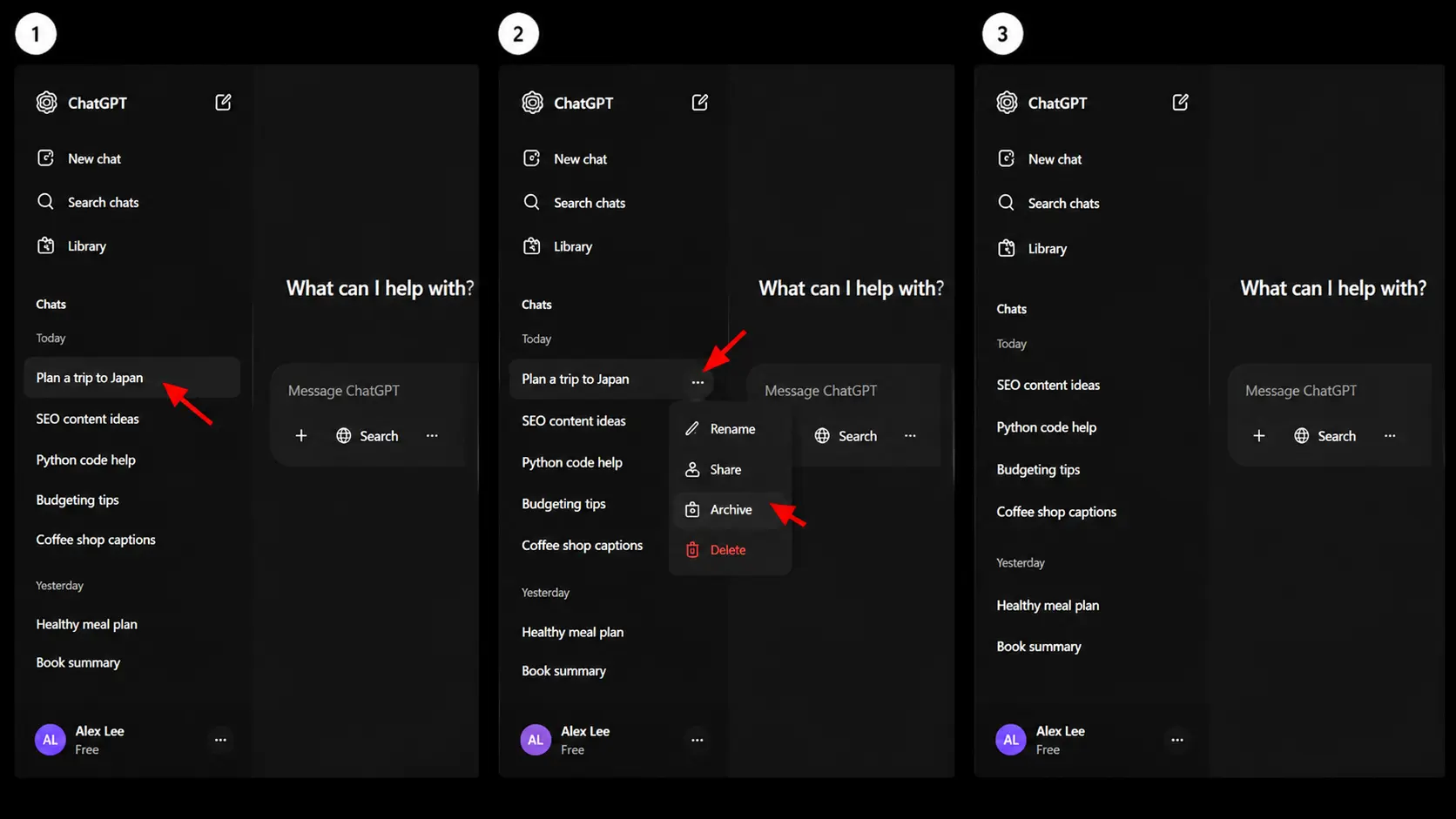
- Hover over the chat you want hidden in the sidebar.
- Click the three-dot menu next to it.
- Select Archive.
- The chat disappears from your sidebar immediately, no confirmation prompt needed
2. To Bring a Hidden Chat Back
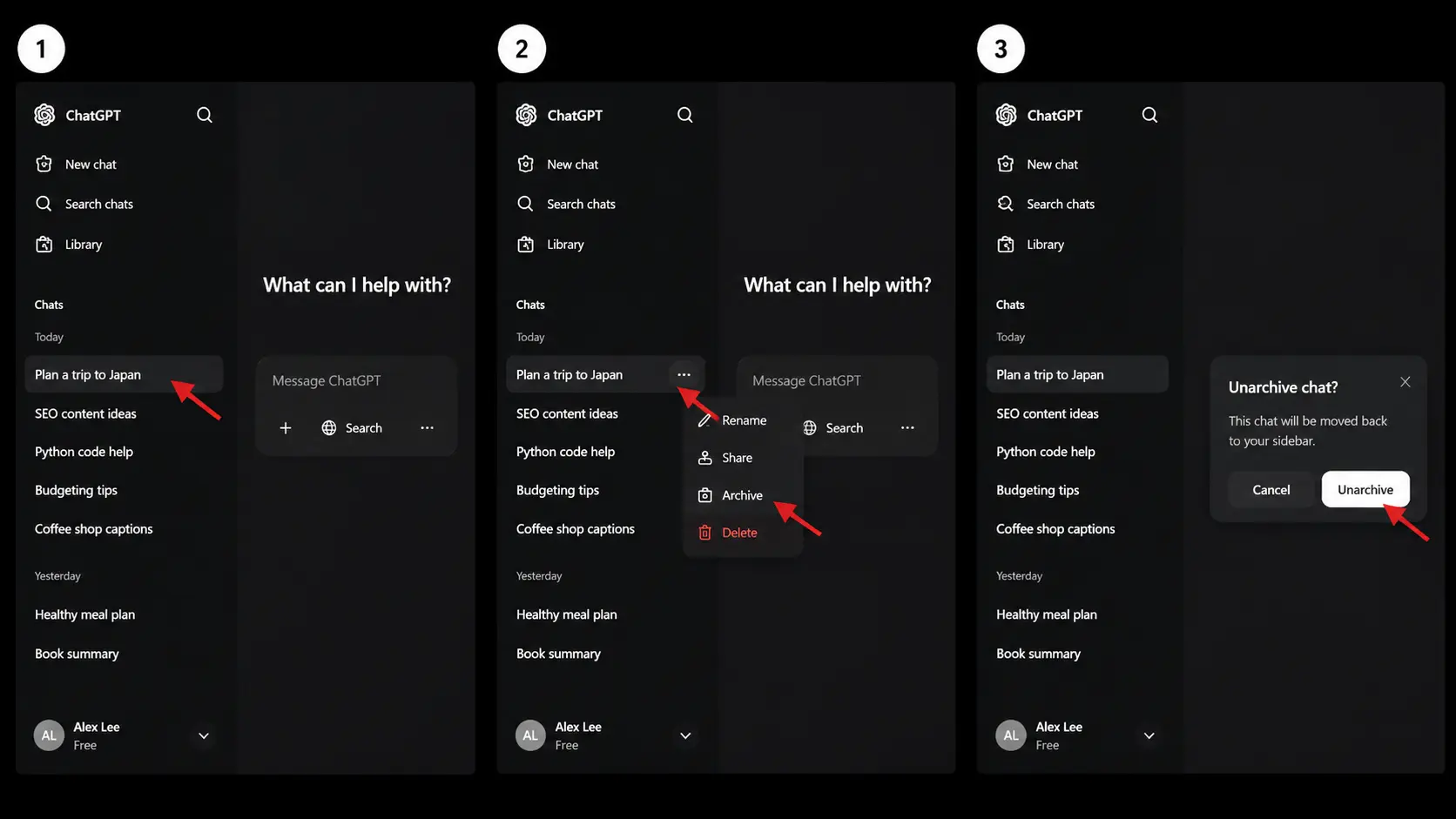
- Click your profile icon, then Settings.
- Go to Manage next to Archived chats.
- Click the chat name to view it or select Unarchive to move it back to your sidebar.
A couple of things worth knowing:
- Archived chats aren’t password-protected. Anyone with access to your account can still open them through the Archived Chats menu, so this is more about a tidy sidebar than true privacy.
- There’s currently no way to archive several chats at once. Each one needs to be hidden individually.
- If you’d rather a conversation never get saved in the first place, Temporary Chat is a better fit. Conversations started this way don’t appear in your history at all and aren’t available to revisit later.
Will Deleting Chats Improve Privacy?
Deleting old ChatGPT conversations can help keep your account history cleaner and reduce the amount of information stored in your chat list.
This can be especially useful when using ChatGPT on a shared computer, as removing old chats prevents others who access the same device from easily viewing your previous conversations.
It can also help remove conversations that contain personal details, private notes, drafts, or AI-generated content you have already reviewed, along with other information you no longer want to keep in your account history.
While deleting chats can improve privacy management, it is still important to be careful about the information you share in any online service.
Regularly reviewing and clearing unnecessary conversations can help you maintain better control over your chat history.
Final Thoughts
Managing your ChatGPT history is about keeping your digital space comfortable, organized, and free from conversations you no longer need.
If you want a cleaner sidebar, better privacy, or a fresh beginning, knowing how to delete all chats in ChatGPT can help you take control of your account.
While old conversations may hold useful ideas and memories, not every chat needs to stay forever. Taking a few moments to review what matters before clearing your history can make the process feel more intentional.
A well-managed chat history makes future interactions feel less cluttered and easier to handle, giving you a more personalized experience whenever you return to ChatGPT. Still have questions about ChatGPT chat deletion? Drop them in the comments below.
Frequently Asked Questions
Can Deleted ChatGPT Chats Ever Be Recovered?
No. Once a chat is deleted and the deletion is confirmed, there’s no built-in way to bring it back. If you think you might need a conversation later, archive it instead of deleting it.
Does Deleting Old Chats Affect Future ChatGPT Responses?
No, deleting previous conversations does not limit ChatGPT’s ability to answer new questions. Each new chat works separately unless memory features are being used.
Why Do Deleted Chats Still Appear for a Short Time?
Occasionally, a deleted chat may briefly still show up due to caching on the page. Refreshing the page or restarting the app usually clears this up.