Your Mac suddenly shows low storage, and when you check, “System Data” is using over 100GB with no clear explanation.
Many Mac users face this issue because Apple groups cache files, temporary data, logs, and hidden app files into one large storage category.
Over time, apps like Adobe, Chrome, Xcode, and Final Cut Pro create background files that continue growing silently.
This can slow down your Mac, cause storage warnings, and make updates harder to install. Most users also do not know which files are safe to remove and which ones should stay untouched.
In this blog, you will learn what System Data on Mac storage means, why it becomes so large, and how to clear system data on Mac safely to free up disk space.
Quick Answer: How to Clear System Data on Mac?
Open System Settings, go to General, then Storage to see how much System Data is using. From there, open Finder and press Command + Shift + G, type ~/Library, and open the Caches folder.
Move large cache folders from apps like Chrome, Adobe, and Xcode to Trash, then empty it. Most users recover between 5GB and 30GB this way.
If System Data is still unusually large after cleanup, old iPhone backups and Time Machine local snapshots are usually responsible for the rest.
What Files Count as System Data on Mac?
System Data includes many hidden files created by macOS and installed apps to help your Mac run smoothly. These files usually grow over time and quietly take up storage space.
- Cache files: Temporary files used to load apps and websites faster. Apps like Adobe and Chrome create large cache folders over time.
- Temporary files: Short term files created while installing apps, editing videos, browsing the web, or updating macOS.
- App support data: Background files used by apps to save settings, preferences, and extra resources needed for normal operation.
- macOS logs: System activity records that help macOS track errors, crashes, updates, and background processes.
- Old backups: Leftover iPhone backups, Time Machine snapshots, and update files stored locally on your Mac.
- Plugins and extensions: Extra files added by editing software, browsers, and creative apps to support additional features and tools.
- Developer files: Data created by apps like Xcode, including simulators, project builds, and testing files that can become very large.
- Browser cache files: Saved images, scripts, and website data from browsers like Safari and Chrome that help pages load faster.
Which Apps Create the Most System Data?
Not all apps contribute equally. In my experience helping productivity teams audit their Mac storage, a handful of apps are responsible for the majority of System Data growth.
Xcode device simulators alone can exceed 20GB. Adobe Creative Cloud caches from Premiere Pro and After Effects routinely hit 10GB to 40GB on active machines.
Chrome’s cache and profile data often grows past 5GB within a few months of regular use.
Final Cut Pro render files and proxy media are another major source. If you have any of these installed, they are the right place to start your cleanup.
How to Free up Disk Space on Mac by Clearing System Data?
System Data can slowly fill your Mac storage with cache files and temporary app data. These simple methods help free space safely.
Step 1: Check Your System Storage
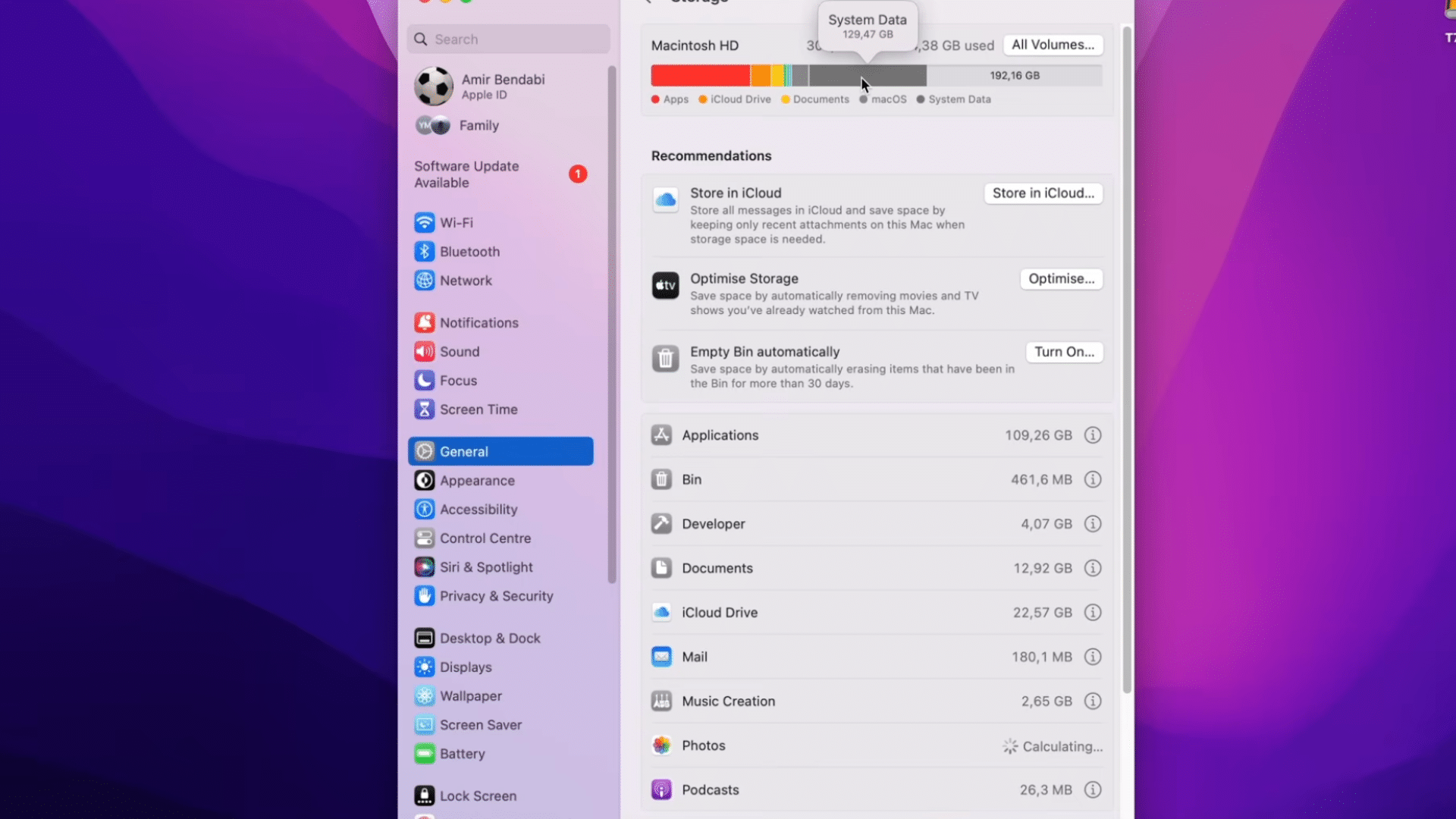
Start by clicking the Apple logo in the top-left corner of your screen. Open System Settings and go to General, then Storage. Wait a few seconds while macOS checks your storage usage.
Look for the “System Data” section to see how much space it is taking.
This gives you a clear idea of how much storage you may recover after cleaning cache files and temporary system data from your Mac.
Step 2: Open the Hidden Library Folder
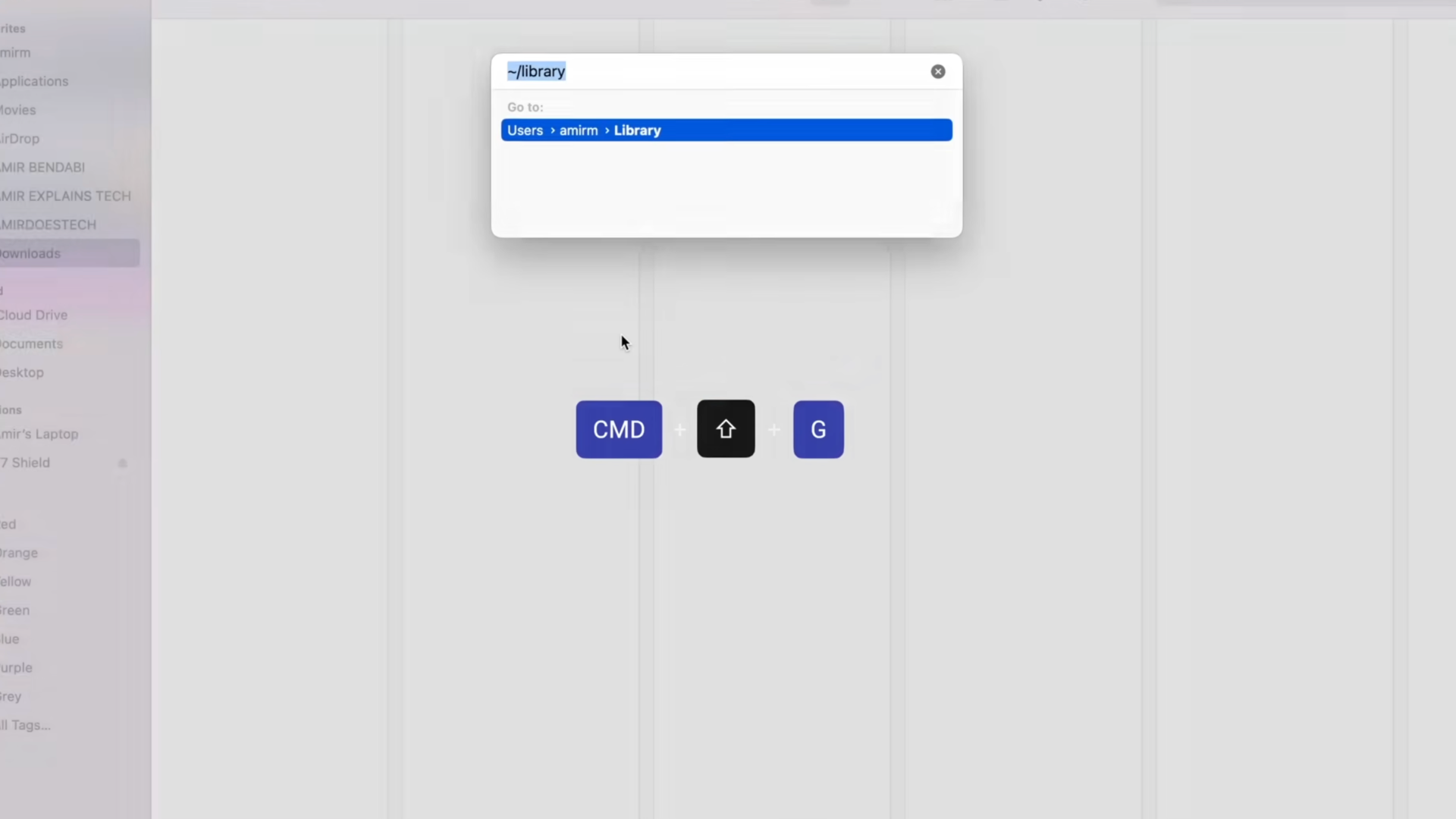
Open Finder on your Mac. Press Command + Shift + G together to open the “Go to Folder” window. Type ~/Library and press Enter.
This will open the hidden Library folder where macOS stores cache files, logs, and temporary app data.
Many large system files build up here over time, especially if you use editing apps, browsers, or development tools regularly on your Mac.
Step 3: Open the Caches Folder

Inside the Library folder, look for the folder named “Caches” and open it. This folder stores temporary files created by apps to help them load faster.
You can right-click the Caches folder and choose “Get Info” if you want to check how much storage it uses.
On many Macs, cache files grow very large over time and can take up many gigabytes of unnecessary storage space.
Step 4: Find Large Cache Files
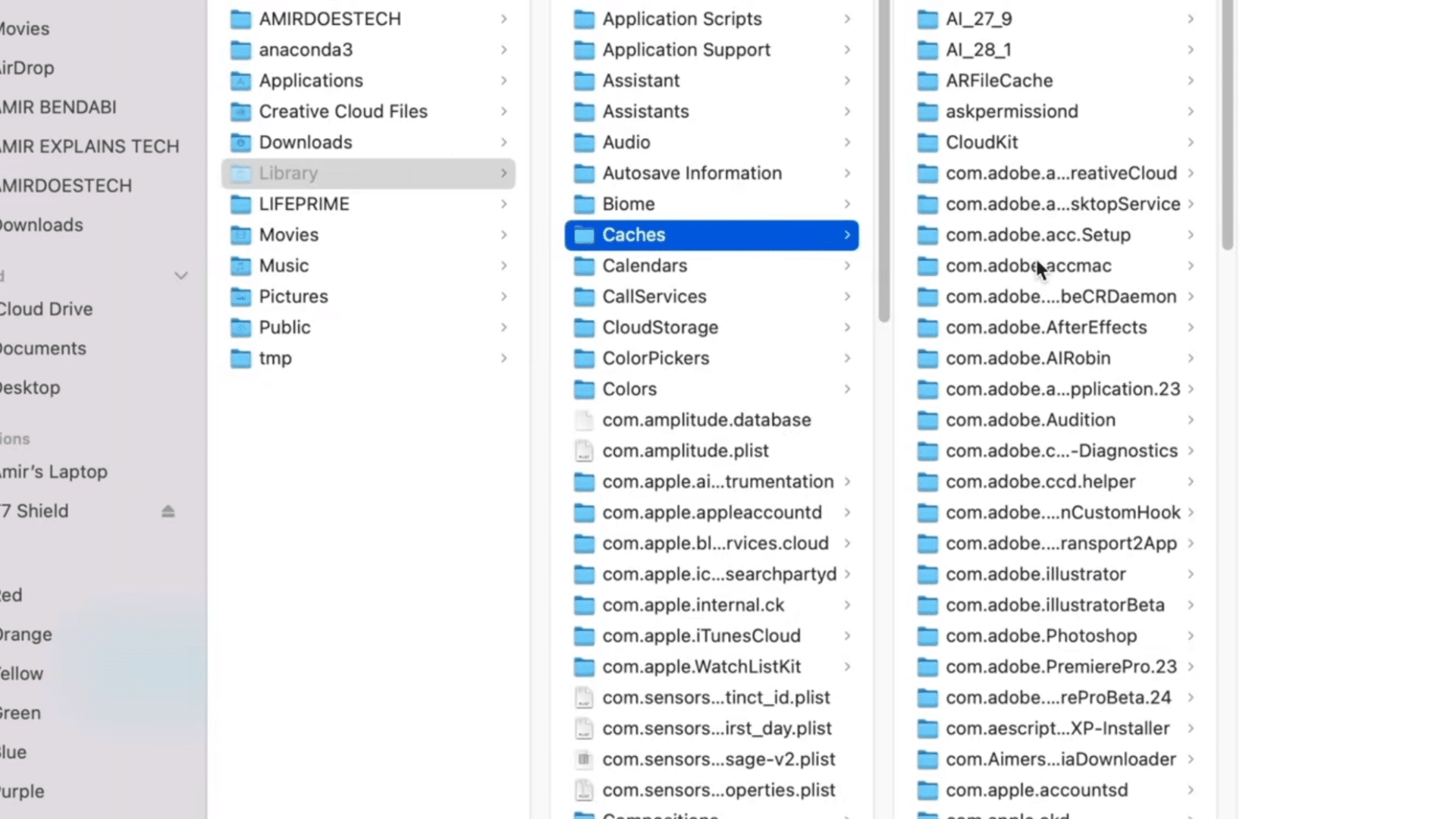
Look through the folders inside the Caches section and search for apps that may store large temporary files. Editing apps, browsers, and developer tools often create huge cache folders.
Right-click any folder and select “Get Info” to check its size. Large cache folders can sometimes use over 100GB of storage.
Finding these oversized folders helps you know which files are safe to remove for quick storage cleanup.
Step 5: Delete Unwanted Cache Files
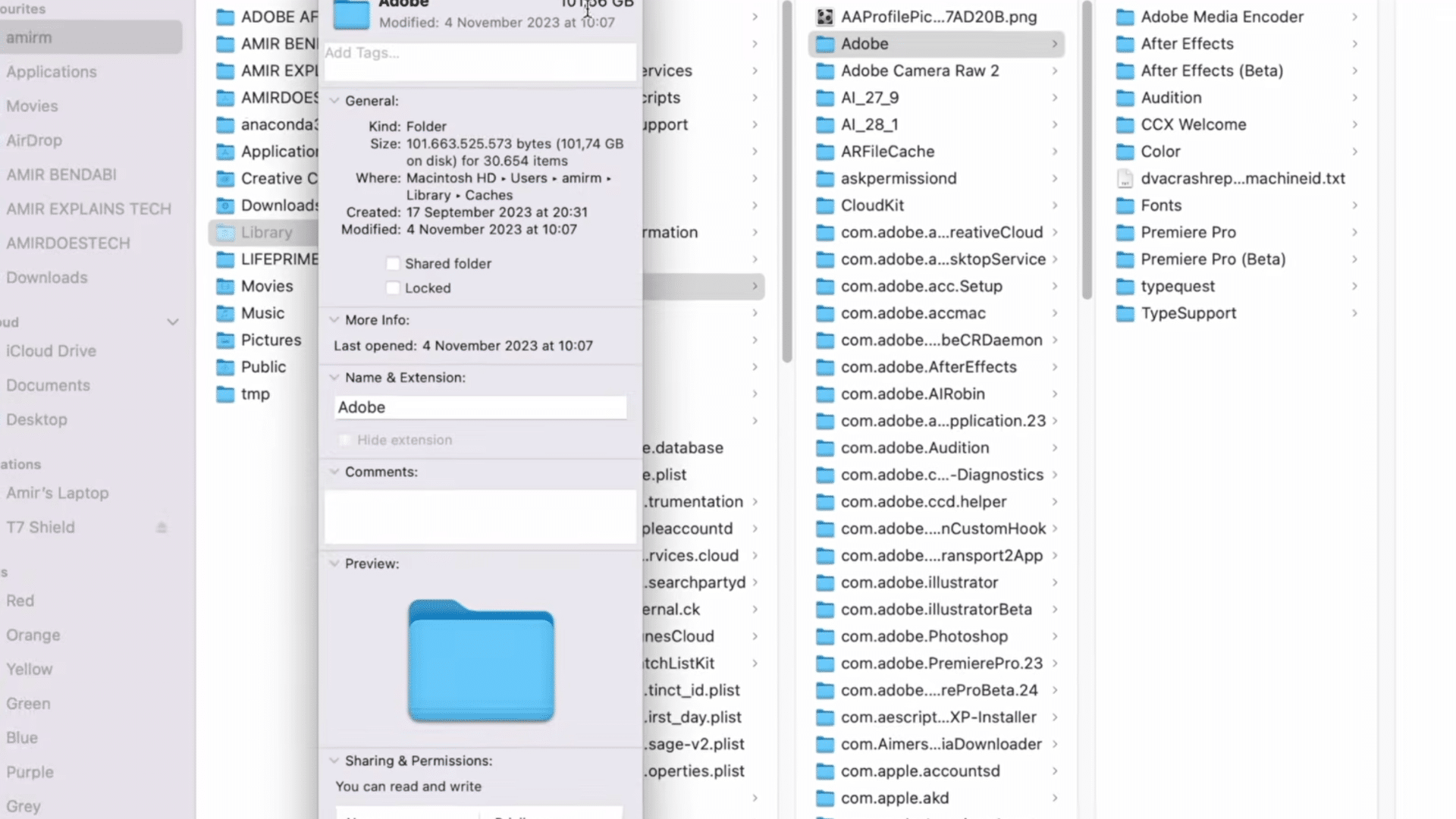
Select the large cache folders you no longer need. Press Command + Delete to move them to the Trash Bin. These files are temporary data used by apps and usually are safe to remove.
Deleting cache files does not uninstall the app itself.
It only clears stored temporary files that may have built up over time. This process can free a large amount of storage on your Mac quickly.
Step 6: Empty the Trash Bin
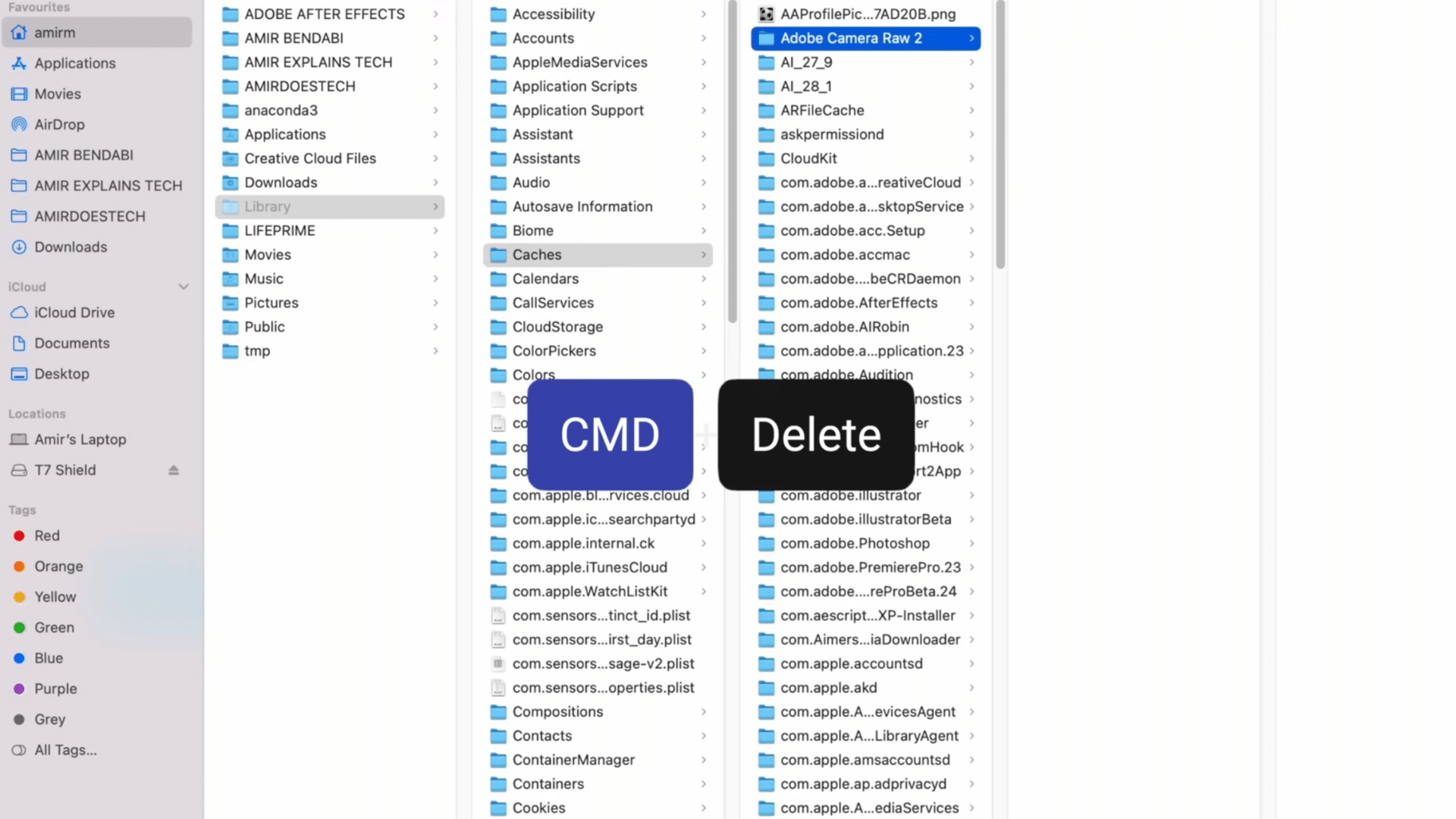
Open the Trash Bin from your Dock after moving the cache files there. Click the “Empty Bin” option to permanently remove the files from your Mac.
Wait for the deletion process to complete because large cache files may take a few minutes to clear.
Once the Trash Bin is emptied, your Mac will finally release the storage space that the cache files were previously using on the system.
Step 7: Check Storage Again
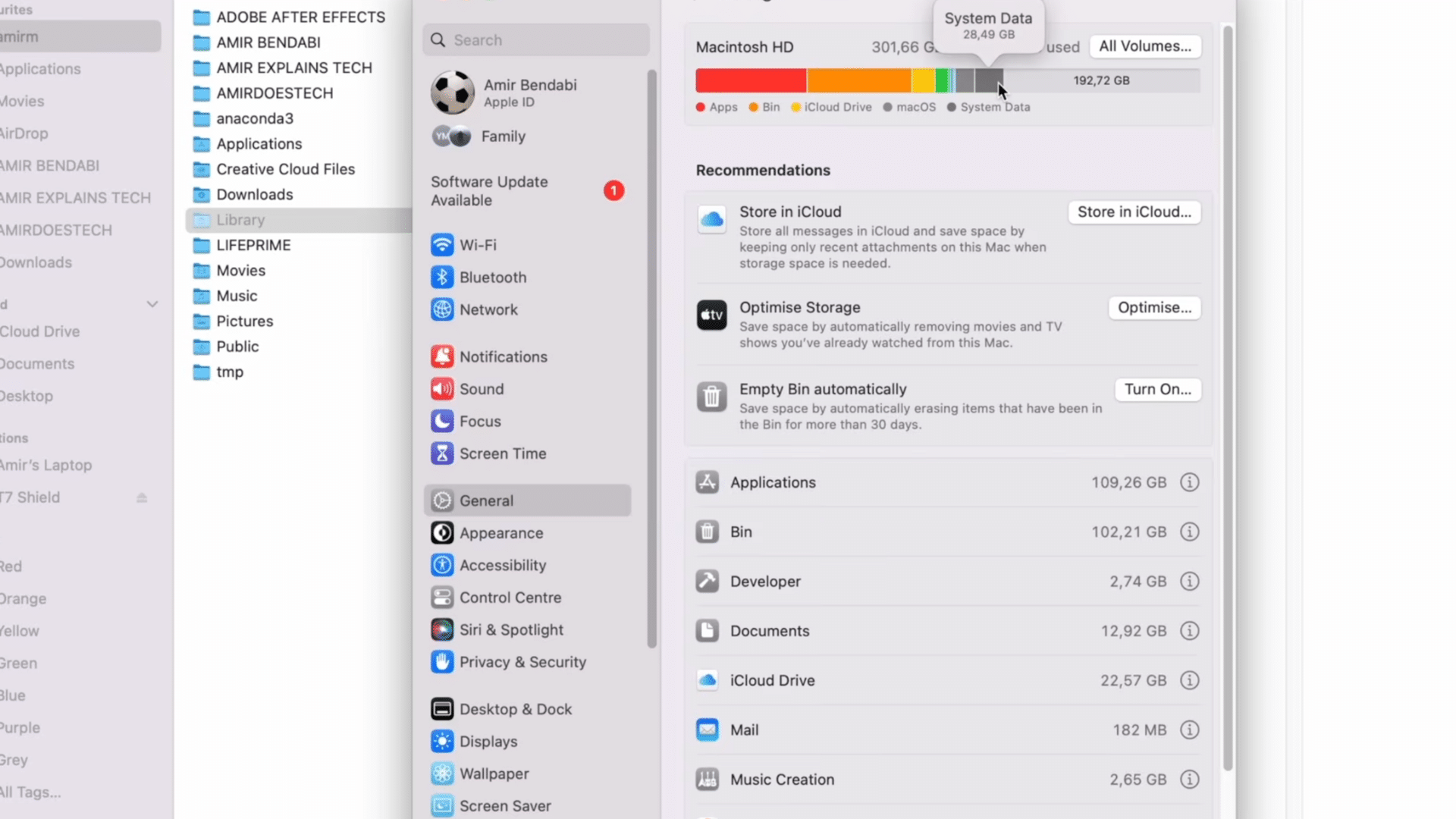
Go back to System Settings and open General, then Storage once more. Allow macOS a little time to refresh and recalculate your storage details.
Check the “System Data” section again to compare the updated storage usage. In many cases, clearing large cache files can reduce System Data storage by several gigabytes.
This helps improve free space and keeps your Mac running more smoothly during daily use.
Step 8: Test Your Apps
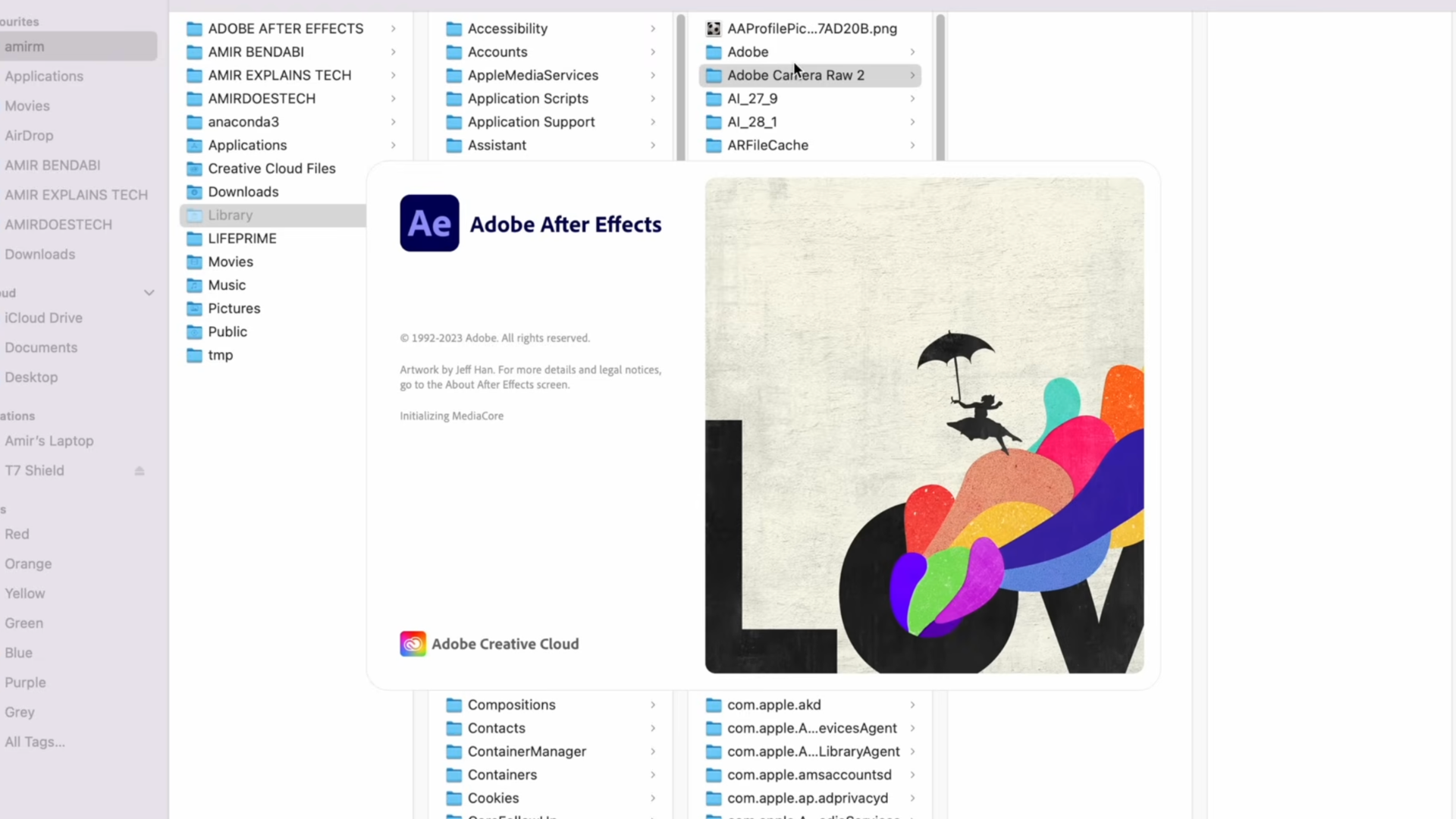
Open the apps you use most often after deleting cache files. Check that your layouts, plugins, and saved settings still work correctly.
Most apps recreate cache files automatically when needed, so removing them should not damage the software.
Testing your apps helps confirm that everything is working normally after the cleanup process. If an app loads slowly once, it is usually rebuilding fresh cache files in the background.
This tutorial is based on a helpful video by AMIR BENDABI. You can check out the original video on their YouTube channel here or watch it below.
Difference Between System Data and Other Storage
Both System Data and Other Storage contain hidden or uncategorized files, but they are created differently and store different types of data.
| Feature | System Data | Other Storage |
|---|---|---|
| Includes | Cache files, logs, temporary files, app support data, backups, and system files | Uncategorized files that do not fit into Apps, Photos, Documents, or other storage categories |
| Created by | macOS and installed apps | User downloads, leftover files, and unsupported file types |
| Common examples | Browser cache, Mail cache, Time Machine data, plug-ins, and developer files | ZIP files, DMG files, downloads, and random library files |
| Storage growth | Increases from app activity, updates, and background system processes | Grows from saved files, downloads, and unused data |
| Safe to delete? | Some cache and temporary files are safe to remove after checking | Many unused files can be deleted, but important files should be reviewed first |
Why Mac System Storage Gets so Large?
System Data grows as macOS and apps create cache, temporary files, logs, and leftovers that continue building up over time.
- Cache files keep growing over time: Apps and browsers store cache files to load faster, but these files continue building up in the background.
- Large apps create hidden storage files: Apps like Adobe, Chrome, Xcode, and Final Cut Pro create large support files, plug-ins, and temporary data.
- MacOS updates can increase system storage: Software updates often leave logs, backup files, and temporary installation data behind after installation.
- Deleted apps may leave leftover files: Some apps leave cache folders, settings, and support files even after the main app gets removed from the Mac.
How Much Free Space Should You Keep on A Mac?
Keeping 15% to 20% of your Mac storage free is a smart way to maintain smooth performance.
When storage gets too full, macOS has less room for temporary files, updates, and background tasks. This can slow down apps and system processes.
On a 256GB Mac, it is best to keep around 40GB to 50GB free. Large apps like Final Cut Pro, Photoshop, and Xcode also need extra space because they create temporary files while working.
More free space can help your Mac run faster and avoid storage warnings.
How to Check Mac Storage Usage?
Checking Mac storage regularly helps identify large apps, temporary files, and hidden data using unnecessary disk space. The built-in storage section in macOS provides a simple breakdown of storage categories for easier cleanup.
- Open Apple Menu: Click the Apple logo from the top-left corner of the screen to access Mac settings and storage options.
- Go to System Settings: Open System Settings to manage device preferences, storage details, and system controls.
- Click General: Select the General section to access storage management and other system-related settings.
- Select Storage: Open the Storage tab to view the complete breakdown of apps, photos, documents, and system files.
- Wait for Storage Analysis: Allow macOS a few moments to calculate storage usage and load the storage graph properly.
How Much Mac Storage Space Can You Recover?
The amount of storage you can recover depends on how many cache files, backups, downloads, and unused apps are stored on your Mac.
Some users may free only 5GB to 10GB, while Macs with large project files, old backups, or heavy cache folders can recover 100GB or more.
Apps like Xcode, Adobe Premiere Pro, and Chrome often create large temporary files over time.
Deleting duplicate videos, unused apps, and old iPhone backups can quickly free storage space and help your Mac run faster and more smoothly during daily use.
Tips to Free up Disk Space on Mac
Keeping your Mac organized by deleting unused files, apps, and old backups helps free up storage and improve performance.
| Tip | What to Do | Benefit |
|---|---|---|
| Delete Old Downloads and Unused Files | Remove old videos, duplicate documents, screenshots, and ZIP files regularly. | Frees storage space and keeps your Mac organized. |
| Remove Apps You No Longer Use | Delete unused apps, large games, and editing software. | Saves disk space and improves overall organization. |
| Clear Browser Cache When Needed | Clear Safari or Chrome cache occasionally. | Removes temporary website data and improves browser performance. |
| Delete Old iPhone Backups | Remove outdated iPhone backups stored on your Mac. | Quickly recovers storage space while keeping recent backups safe. |
| Move Large Files to External Storage | Transfer large videos, photos, and project folders to external drives. | Keeps enough free space available on your Mac. |
Should You Use a Mac Cleaner App?
Yes, a trusted Mac cleaner app can help manage storage faster and more easily.
These apps can find cache files, duplicate files, and temporary data, but some may remove files you still need or make exaggerated claims.
For most users, built-in macOS storage tools are the safest starting point.
If using a third-party cleaner, choose one with strong reviews and avoid apps asking for unnecessary permissions.
Good Mac cleaner apps may also help locate hidden large files, remove leftover app data, and simplify regular storage cleanup.
Conclusion
System Data on Mac can quietly take over your storage with cache files, temporary data, logs, and leftover app files. Cleaning these files regularly helps free up space, improve performance, and reduce storage warnings on your Mac.
The safest approach is to remove only unnecessary cache files, old backups, unused apps, and large temporary folders while avoiding important system files.
You can also free up iCloud storage if your Mac is syncing large files through iCloud Drive
Checking storage often helps stop System Data from growing again. It may help to review large apps or contact Apple Support for troubleshooting and storage management help.
Frequently Asked Questions
How to Delete System Data on Mac without Deleting Important Files?
Start with the ~/Library/Caches folder only. Avoid /System/Library and active app folders. Check folder sizes with Get Info and research unknown folders before deleting anything.
Is It Safe to Delete System Data on a Mac?
Yes, some System Data files like cache and temporary files are safe to remove, but important system folders and core macOS files should stay untouched.
Which Cache Files Are Safe to Delete on a Mac?
Most browser cache, app cache, and temporary files inside the Library > Caches folder are usually safe to delete after checking carefully.
How Frequently Should Mac System Data Be Cleared?
Most users should clear System Data once every few weeks or monthly to prevent storage buildup and keep the Mac running smoothly.
Does Clearing System Data Delete Personal Files?
No. Clearing cache and temporary files does not remove documents, photos, downloads, or app data. Your personal files stay safe during the cleanup process.