Finding an unfamiliar app on a Samsung phone can raise questions, especially when it appears without being installed manually. I often notice that the first thing people want to know is what the AR Zone app is and why it exists on their device.
This built-in Samsung feature offers AR tools that create interactive camera experiences, but many users still wonder about its purpose and safety.
The information here explains AR Zone’s features, including AR Doodle, its uses, permissions, and whether keeping it on a Samsung phone makes sense for daily use.
You can find clear answers about how it works and what options are available if you rarely use its tools. Understanding the app helps you make informed decisions easily.
What is the AR Zone App?
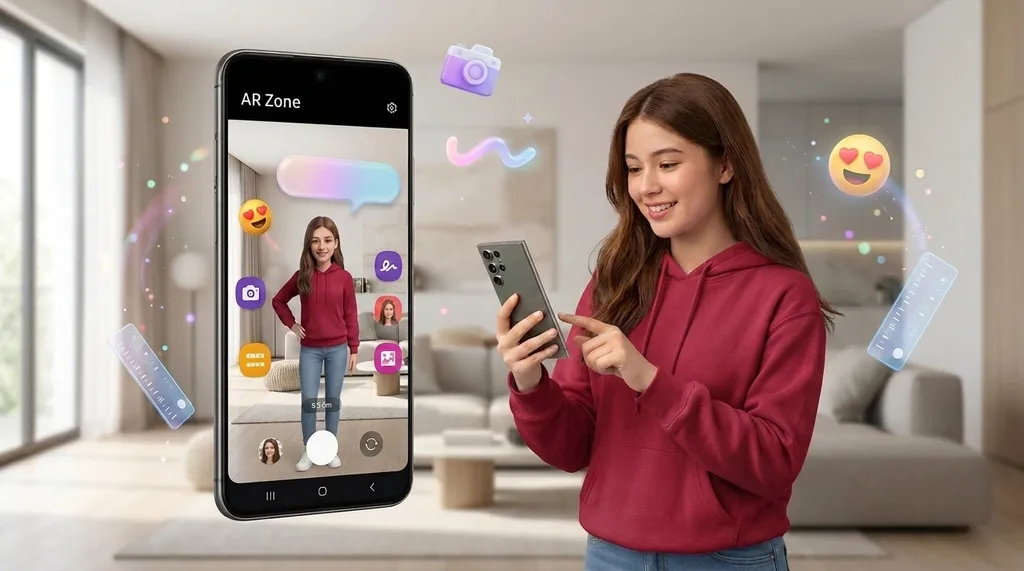
AR Zone is Samsung’s built-in home for augmented reality features, tied directly into your phone’s camera.
Instead of scattering these tools across separate apps, Samsung bundles them into one place inside the Camera app, so you can jump between drawing on your screen in 3D, building a cartoon version of yourself, or measuring a piece of furniture, all without leaving the camera.
According to Samsung’s own support page, AR Zone uses your phone’s camera and sensors to track your face or your surroundings, then places digital content on top of what the camera sees in real time.
It’s one of several lesser-known phone features Samsung folds into the camera app rather than promoting as a separate download.
Why Does AR Zone Come Preinstalled on Samsung Phones?
Samsung didn’t add AR Zone as an afterthought; it’s a deliberate part of how the company wants its camera to stand out.
- It shows off the camera hardware, since face tracking and depth sensing look more impressive through fun features than through settings menus
- It keeps users inside Samsung’s own apps instead of downloading Snapchat or Instagram just to get similar AR effects
- It comes bundled with One UI updates, so Samsung can add new AR features without asking users to install anything separately
- It gives casual users something playful to try right out of the box, without needing to know AR exists as a category of technology
The same instinct is now pushing manufacturers to build wearable AR technology directly into glasses, following a similar bundling logic.
None of this makes AR Zone mandatory to use; it just explains why Samsung includes it by default rather than as an optional download.
What Does AR Zone Actually Do on Samsung Phones?
AR Zone isn’t one single feature; it’s a small collection of tools grouped together under one name. Each tool handles a different kind of camera trick, from drawing in 3D space to building a cartoon version of yourself. Here’s what each one actually does in plain terms.
1. AR Emoji (Now Galaxy Avatar)
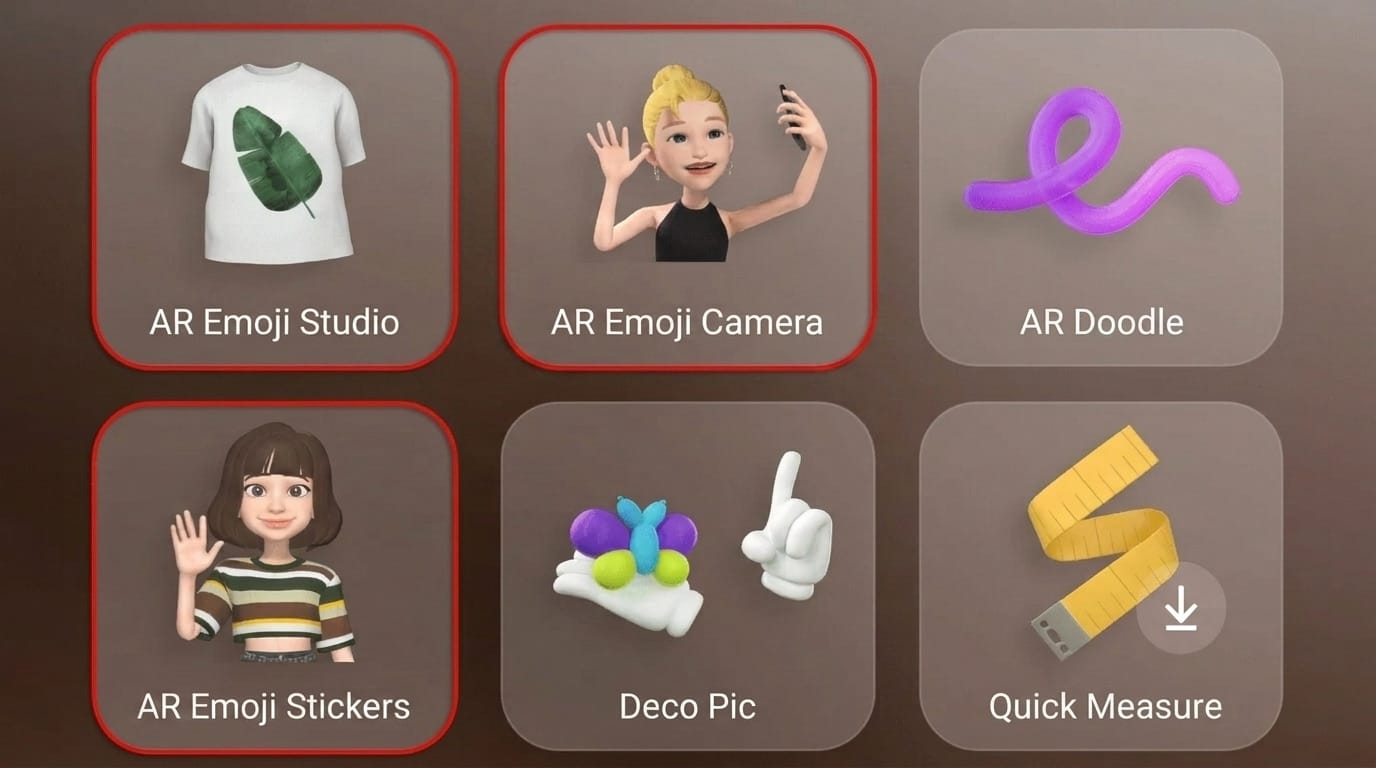
This feature turns a selfie into a cartoon avatar that looks like you, complete with your hairstyle, expressions, and even your facial movements when you record a video.
You can dress up your avatar, create stickers from it, and send those stickers in chat apps the same way you’d send any other emoji. On newer phones, this feature has been renamed to Galaxy Avatar, but the idea is the same.
2. AR Doodle
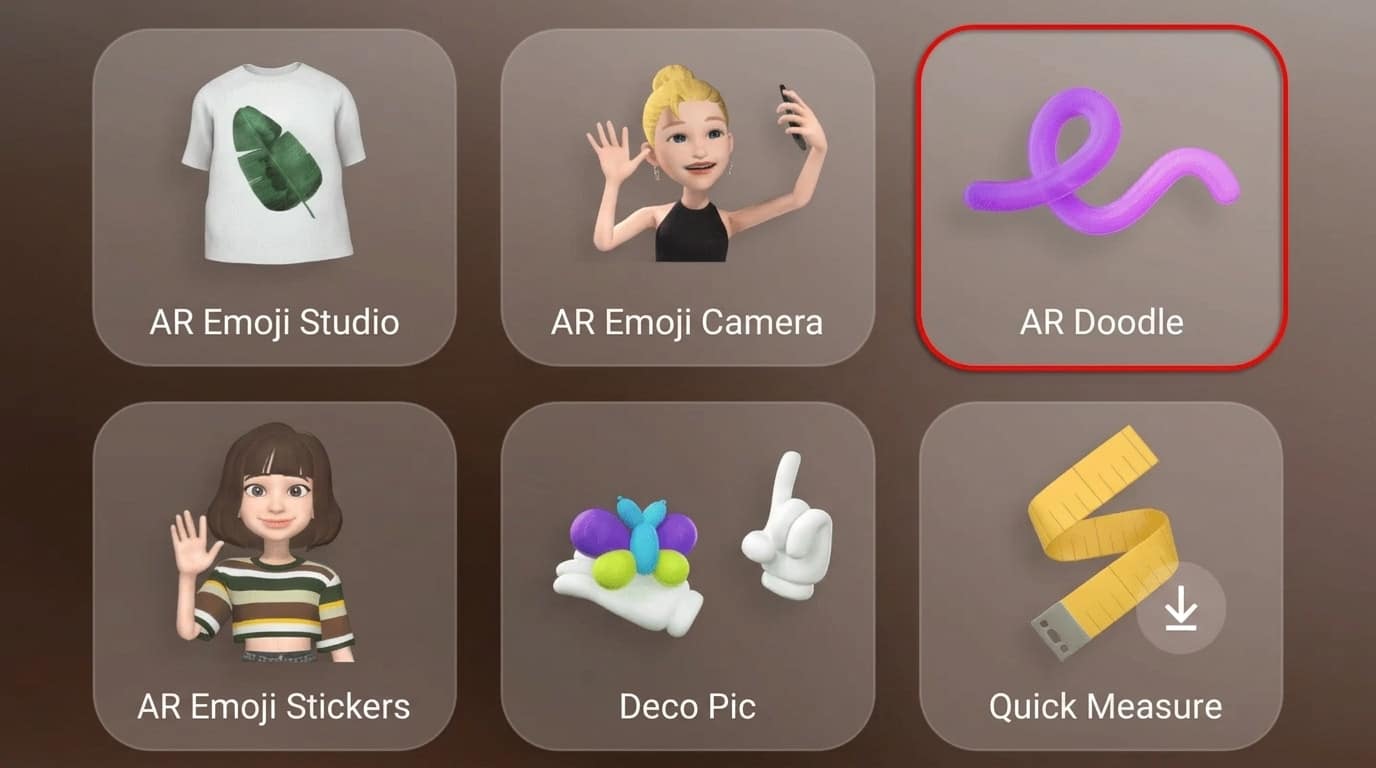
AR Doodle lets you draw or write directly onto the camera view, and your drawing sticks to whatever you pointed the camera at.
Draw a mustache on a friend’s face, and it follows their face as they move, or write a message in the air that stays fixed even as the camera moves. It’s mostly for quick, fun videos, and Samsung’s official guide walks through the steps.
3. Deco Pic and Quick Measure
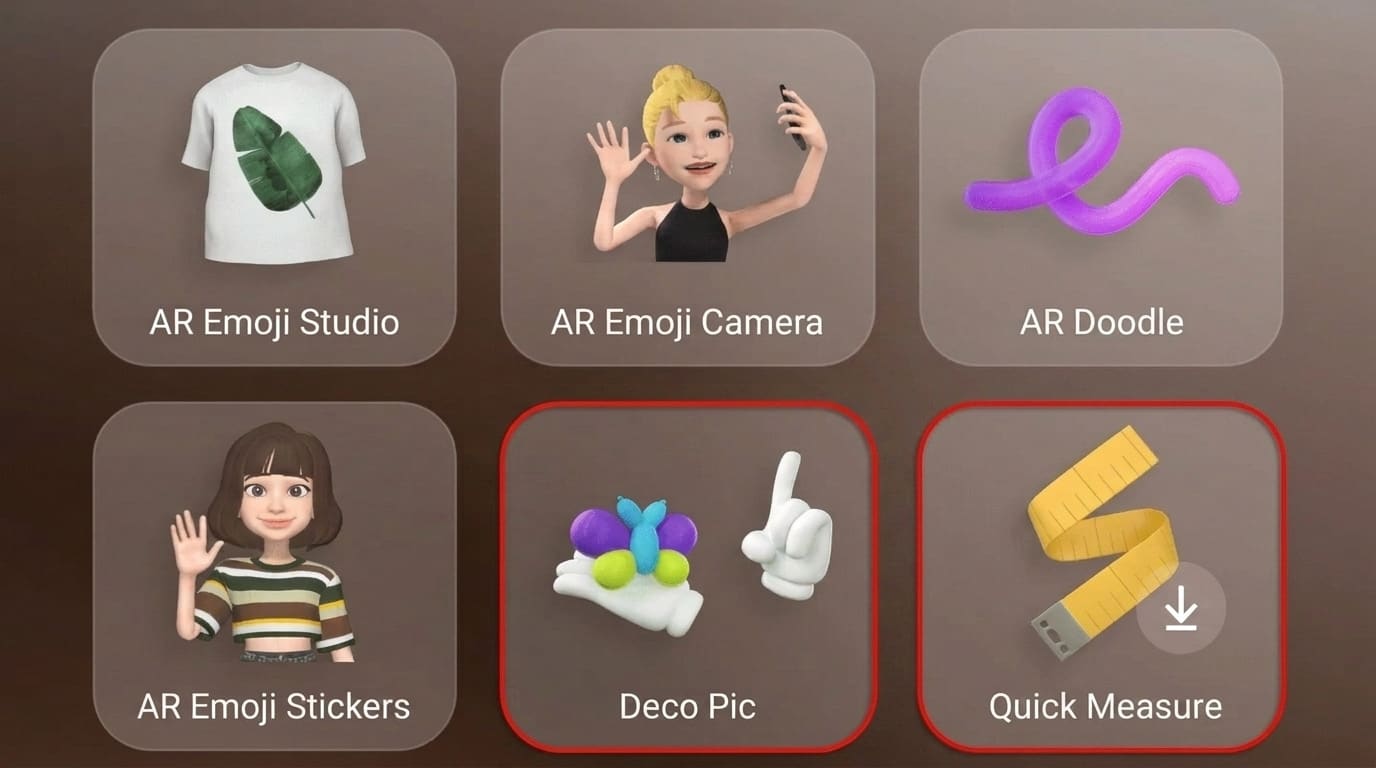
Deco Pic adds filters, stickers, and frames to your photos and videos, similar to what you’d find in a social media app, making it the simplest tool in the lineup.
Quick Measure is more practical: it uses your camera to estimate the length, width, or height of real objects, handy for a rough measurement when you don’t have a tape measure nearby.
How to Use AR Doodle on Samsung Phones
AR Doodle allows Samsung users to create fun drawings and effects that appear in real-world surroundings through the camera. Follow these simple steps to start using this AR feature
Want to follow along visually? This video from Samsung Care shows the whole process on screen.
- Step 1: Open the Camera app: Open the Camera app on your Samsung phone and make sure the camera is ready to capture your surroundings.
- Step 2: Tap More options: Tap the More option at the bottom of the Camera screen to access additional camera features and modes.
- Step 3: Select AR Zone: Find and select AR Zone from the available camera options to open Samsung’s augmented reality tools.
- Step 4: Choose AR Doodle: Inside AR Zone, tap AR Doodle to activate the drawing feature and view the available AR tools.
- Step 5: Draw on the screen: Use your finger or S Pen on supported devices to draw, write text, or add creative effects that appear in your camera view.
- Step 6: Record or capture the result: Tap the record button to create a video with your AR drawings or capture a photo to save your creation in the gallery.
Using AR Doodle on Samsung phones takes only a few steps and adds creative effects to photos and videos. Updating apps and checking permissions can fix most problems.
AR Zone vs Normal Camera Effects
It’s easy to assume AR Zone is just another set of camera filters, but the underlying technology is genuinely different.
| Feature | AR Zone | Normal Camera Effects |
|---|---|---|
| How it works | Tracks your face, body, or surroundings in real time | Applies a fixed overlay or color adjustment |
| Does it move with you? | Yes, content follows your face or stays fixed in physical space | No, filters stay in the same position on screen |
| Example | AR Doodle drawing that follows a moving face | A basic beauty filter or color filter |
| Best for | Interactive, movement-based content | Quick, simple photo edits |
Picking up a few basic smartphone camera tricks can help you get more out of either approach, whether you’re using AR Zone or sticking with standard filters.
The short version: normal filters change how a photo looks, while AR Zone actually understands and reacts to what’s in front of the camera.
Has AR Zone Changed on Newer Samsung Phones?
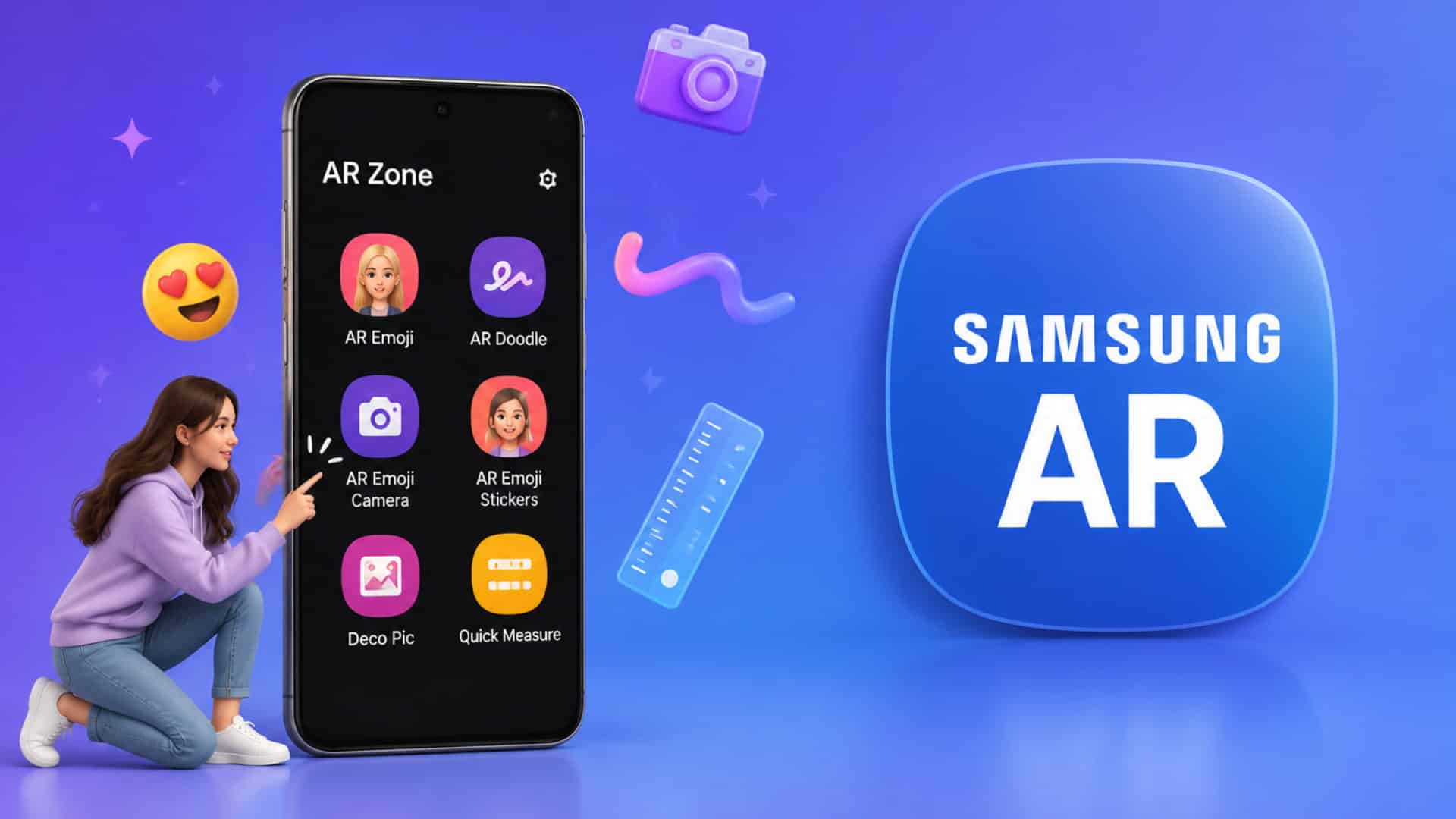
Yes, and this is something a lot of older blog posts on this topic miss. Starting with One UI 7 in 2025, Samsung stopped pre-loading the AR Zone app on new phones.
Instead of one bundled app, tools like AR Doodle, Quick Measure, and Deco Pic became separate downloads from the Galaxy Store, and AR Emoji was renamed to Galaxy Avatar as its own standalone feature.
If your phone is running One UI 7 or later, you may not see AR Zone as a single app at all; you’ll need to grab the specific tool you want from the Galaxy Store instead.
Is AR Zone Safe to Keep Installed?
Yes, AR Zone is safe. It’s a first-party Samsung app, not a random third-party download, and it behaves accordingly.
- Minimal permissions: it only asks for camera and storage access, nothing unusual like your contacts or location
- No hidden data sharing: it doesn’t send your photos or videos anywhere without you choosing to share them yourself
- Regularly updated: it’s maintained through Samsung’s normal software updates, the same way your camera app is
- No background activity: it doesn’t run in the background using data or battery when you’re not actively using it
If you’re cautious about pre-installed apps in general, that instinct is reasonable, but AR Zone specifically doesn’t raise any red flags.
Does AR Zone App Spy on Users?
No, the AR Zone app does not spy on users. It is a Samsung-developed application that uses camera access to provide augmented reality features such as AR Doodle, AR Emoji, and camera effects.
Since AR Zone comes pre-installed on many Samsung phones, some users may feel suspicious about why an unknown app is already on their device.
AR Zone requires camera access because its features depend on detecting faces, surroundings, and objects to create AR effects.
Camera permission alone does not mean an app is spying on you, as many legitimate apps need camera access to perform their intended functions.
Users can always check and control what permissions AR Zone has by going to Settings → Apps → AR Zone → Permissions and allowing or removing access based on their preferences.
Can You Delete or Disable the AR Zone App?
Some users prefer removing unused apps to save space or reduce clutter. AR Zone behaves differently from regular downloadable apps on Samsung devices. The available options depend on your phone model and software version.
- Disable it through Settings: open Settings, tap Apps, select AR Zone, then tap Disable if that option appears
- Full uninstall usually isn’t available: since it’s a system-level app on most Galaxy devices, hiding or disabling it is typically the closest option
- Only its features stop working: AR Doodle, AR Emoji, and Deco Pic turn off, but your regular camera keeps working as normal
- Re-enabling is simple: turn it back on through Settings, or grab the specific tool from the Galaxy Store if your phone uses the newer, split-app system
Disabling AR Zone is fully reversible, so there’s little risk in turning it off if you’re not using it. Most people can treat this as a low-stakes decision either way. If you’re ever unsure, disabling rather than trying to force an uninstall is the safer route.
How to Find and Open AR Zone on Your Phone
Getting to AR Zone only takes a few taps once you know where Samsung tucked it inside the Camera app. Follow these steps:
- Open the Camera app on your Samsung phone
- Swipe through the shooting modes near the bottom of the screen and tap More
- Look for AR Zone in the list, or tap directly into AR Doodle, AR Emoji, or Deco Pic if your phone lists them separately
- Select the specific tool you want to use and follow the on-screen instructions to get started
If AR Zone doesn’t appear at all, your phone is likely running One UI 7 or later, so check the Galaxy Store for the specific AR tool you’re looking for instead.
What People are Saying Online About AR Zone
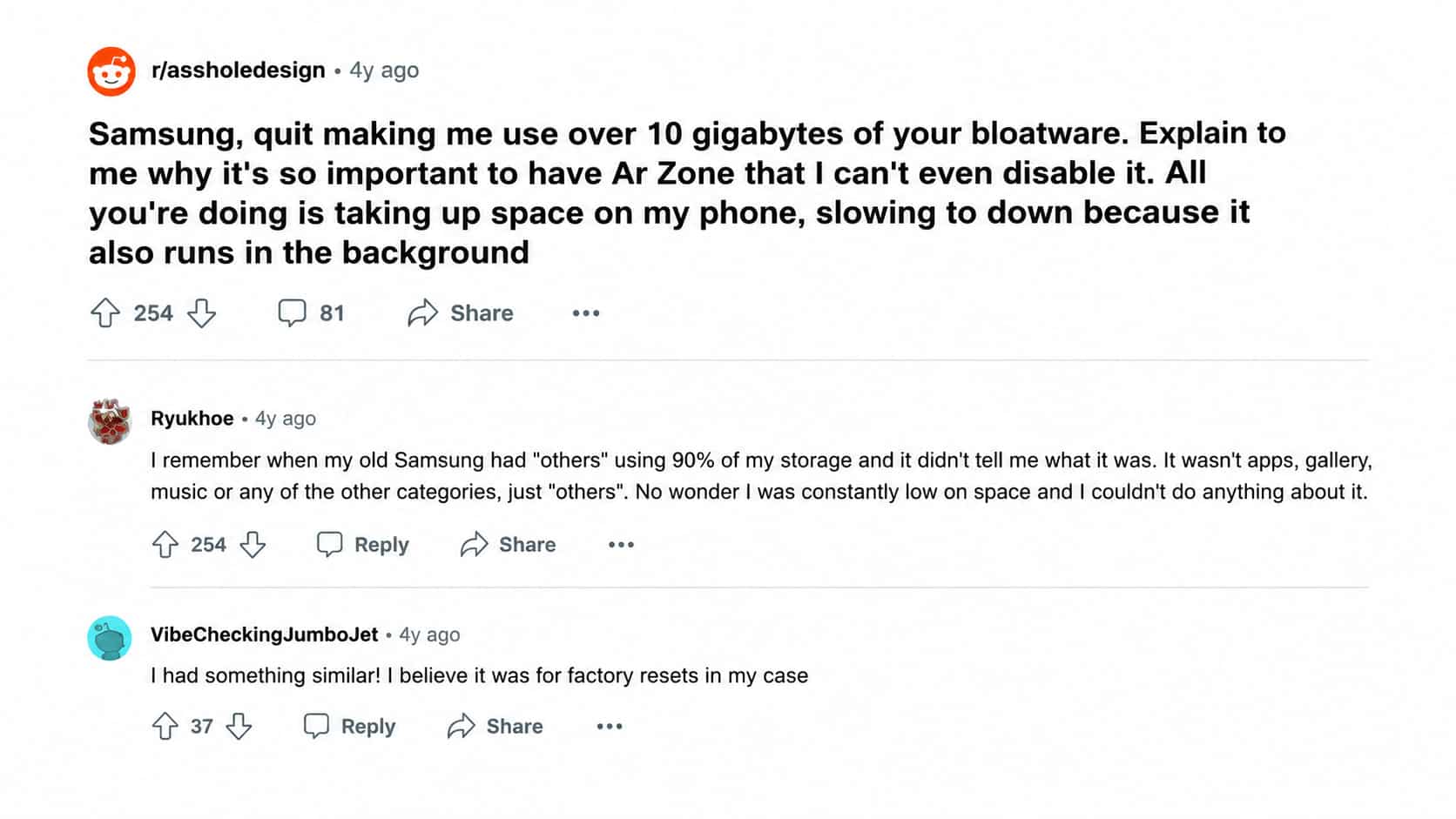
Complaints about AR Zone tend to center on one recurring theme rather than the feature itself.
In one widely shared Reddit thread, a user pushed back on Samsung repeatedly prompting them to use a feature that ended up consuming more than 10 gigabytes of storage, echoing a broader frustration with pre-installed features that grow larger than expected without a clear warning beforehand.
Similar threads on Samsung’s own community forums raise the same underlying complaint about storage and data use tied to bundled Samsung apps in general.
The common thread isn’t that AR Zone works poorly; it’s that its footprint can grow quietly in the background until someone actually goes looking for what’s taking up space.
Common Problems with AR Zone App
Most complaints about AR Zone trace back to one of a handful of common causes, and each one has a straightforward fix.
| Common Problem | Fix |
|---|---|
| AR Doodle won’t track a face or surface properly | Recalibrate by panning the camera slowly around the room when prompted, since poor lighting often causes this |
| AR Zone is missing after a software update | This usually means your phone updated to One UI 7 or later, so the individual AR tools now live in the Galaxy Store instead |
| AR Emoji looks nothing like you | Retake the photo in good, even lighting and face the camera directly, since shadows and poor angles throw off the face-mapping |
| The app crashes or freezes | Clear the app’s Cache in Settings, or restart your phone, which resolves this in most cases |
If a problem persists after trying its matching fix, updating your phone’s software fully usually clears up whatever’s left.
Final Thoughts
At its core, AR Zone is a genuinely low-risk, pre-installed feature that most Samsung users can simply ignore if AR content isn’t their thing.
Understanding what the AR Zone app actually does, from AR Doodle drawings to personalized avatars, makes it much easier to decide if it’s worth keeping around, especially now that newer phones split these tools into separate downloads.
Older write-ups on this topic still describe the version from a few years ago, so knowing what the AR Zone app is today matters more than it used to.
If you’re curious, open your Camera app now, tap More, and give AR Doodle a try before deciding for yourself if it’s actually useful.
Frequently Asked Questions
Will Disabling AR Zone Affect My Regular Camera App?
No, disabling AR Zone will not affect your regular camera functions. You can still capture photos, record videos, and use standard camera features without any changes to performance.
Does AR Zone Work on Non-Samsung Android Phones?
No, AR Zone is designed exclusively for Samsung Galaxy devices. It is not officially available for other Android smartphone brands through the Google Play Store or other platforms.
Does Using AR Doodle or AR Emoji Cost Anything?
No, AR Doodle, AR Emoji, and other AR Zone features are free to use on supported Samsung devices. Users do not need to pay extra charges or subscriptions.
Why is AR Zone Missing on My Samsung Phone?
If your Samsung phone uses One UI 7 or newer, AR Zone may not appear as a separate app. Individual AR features like AR Doodle may need to be downloaded separately from the Galaxy Store.