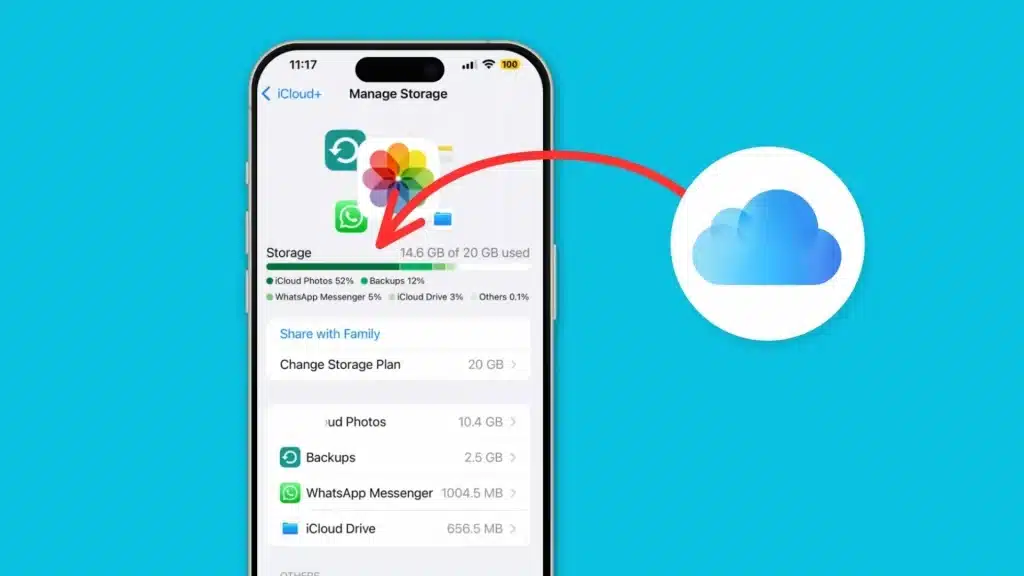
Seeing the iCloud storage full message can be frustrating, especially when you need to back up your iPhone, sync photos, or save an important file.
That is why learning how to free up iCloud storage is important. The good news is that you do not always need to pay for more space.
By removing old device backups, deleting large videos, clearing message attachments, emptying iCloud Drive, and cleaning up Mail, you can recover a lot of storage.
This also helps your Apple devices sync better and prevents backup errors. With the right steps, you can make iCloud work smoothly again without upgrading your plan.
But before we begin, let’s discuss why your iCloud storage remains full all the time.
What is Actually Eating Your iCloud Storage?
Before learning how to free up iCloud storage, check what is actually taking up the space. Guessing usually wastes time because the biggest storage user is not always obvious.
On iPhone or iPad, open Settings, tap your name, then tap iCloud. The storage bar at the top shows how much iCloud storage you are using. Tap Manage Account Storage to see the full breakdown.
The most common storage users are:
- Photos and videos (almost always the largest category)
- Device backups from current and old devices
- iCloud Drive files and app documents
- Messages attachments
- Mail with large attachments
If you recently updated to iOS 26 or macOS Tahoe, contact photos and posters now count toward your iCloud storage.
Apple introduced this change with iOS 26, so if your usage jumped after a recent software update, that is likely part of the reason.
This quick check helps you focus on the right cleanup steps first. Once you know what is using the most space, freeing up iCloud storage becomes much easier.
Check the “Recommended for You” Section First
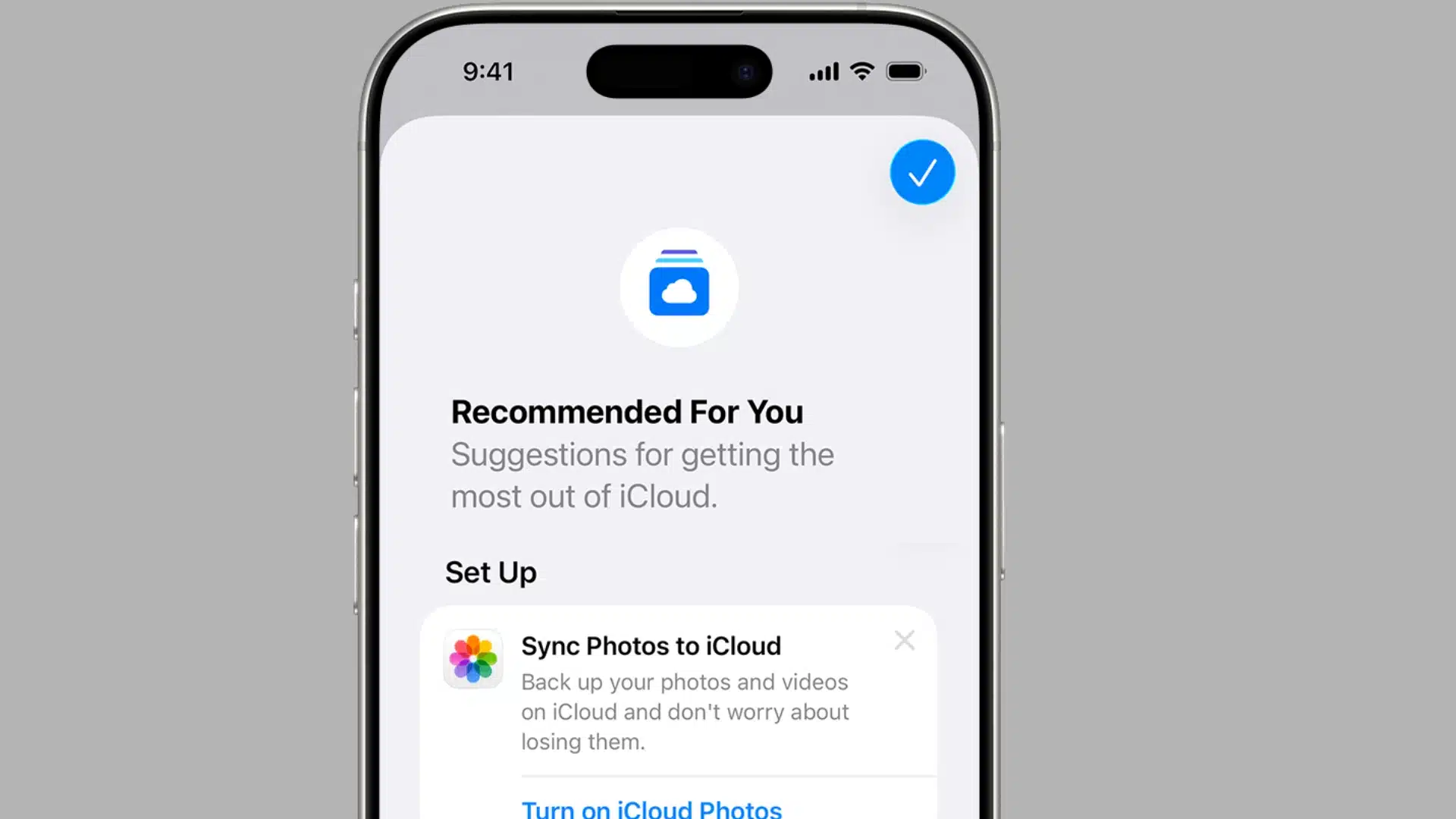
Apple’s Recommended for You section is the fastest first stop if you are using iOS 17 or iPadOS 17 or later. It appears inside iCloud storage settings and gives suggestions based on what is using space in your account.
Apple uses this area to surface old backups, large files, and photos that are ready to be reviewed or removed, saving you from checking every app category by hand.
To find it on iPhone or iPad:
- Open Settings
- Tap your name
- Tap iCloud
- Tap Recommended for You
- Review the suggestions
- Delete only the items you are sure you no longer need
This section is useful because it saves you from checking every app manually. It points you toward storage-heavy items first, which is exactly where most users should begin.
Fastest Way to Free Up iCloud Storage by Managing Photos
Photos and videos are usually the biggest storage category in any iCloud account.
They are often the biggest space users because modern iPhones capture high-resolution photos, 4K videos, Live Photos, slow-motion clips, and large-screen recordings.
A handful of 4K clips from a single event can take up more space than hundreds of photos combined.
If iCloud Photos is turned on, deleting a photo or video on one device also deletes it from other devices that are signed in to the same Apple Account.
Here is how to clean up photos and videos:
- Open the Photos app on your iPhone or iPad.
- Remove blurry shots, duplicate angles, old screenshots, screen recordings, and videos you no longer need. Start with videos, as they free up the most space.
- After deleting, go to Albums, open Recently Deleted, and permanently remove the files there.
Use Optimize iPhone Storage to Save Space Without Deleting
If you do not want to delete photos and videos, you can reduce how much space they take up on your device by turning on Optimize iPhone Storage.
This setting keeps full-resolution files in iCloud and stores smaller, device-sized versions on your iPhone or iPad, which frees up local storage for backups and other data.
To enable it: Go to Settings> Your Name> iCloud> Photos and select Optimize iPhone Storage.
If photos are piling up because you shoot a lot at professional or corporate events, the tips in our guide on effective conference photography can help you get better shots with fewer takes, which reduces storage pressure over time.
Other Ways to Clean iCloud Storage

Another smart step in freeing up iCloud storage is deleting old iCloud backups from devices you no longer use.
Backups can quietly take up a lot of space, especially if you have upgraded iPhones over the years and never removed older backups.
On iPhone or iPad:
- Go to Settings
- Tap your name
- Tap iCloud
- Tap iCloud Backup
- Review the list of devices under your account
- Tap an old device you no longer own, then select Delete Backup
On Mac:
- Open System Settings
- Click your name
- Click iCloud, then click Manage
- Choose Backups
- Select the old backup and delete it
Reduce Your Active Backup Size
You can also shrink the size of your current device backup by turning off iCloud Backup for apps that can be reinstalled from the App Store.
Go to Settings, tap your name, tap iCloud, then tap iCloud Backup, and tap Show App Data. Toggle off any apps you do not need backed up.
Note that deleting a backup also stops automatic iCloud Backup for that device going forward. Keep the backup active for any iPhone or iPad you are still using.
Free Up Space in iCloud Drive
If you are still figuring out how to free up iCloud storage, do not ignore iCloud Drive, Messages, and Mail.
These areas can grow slowly over time, especially if you save documents, receive large attachments, and keep conversations forever.
iCloud Drive stores files across your Apple devices. It may include folders from the Files app, documents from apps, downloads, PDFs, spreadsheets, videos, and Mac Desktop and Documents folders if that sync setting is turned on.
- On iPhone or iPad: Open Files app > Browse > iCloud Drive > Check non-required software > Open Recently Deleted and permanently delete the files.
- On Mac: Open Finder > Click iCloud Drive > Sort files by size or date modified > Delete old folders, large downloads, duplicate files, and outdated documents.
Files in shared folders may not always count against your storage if someone else owns the folder. Focus on files and folders you own first.
Remove Messages Attachments
Messages can take up iCloud storage because old chats often store photos, videos, voice notes, GIFs, PDFs, and other files. Group chats are usually the biggest offenders.
To clean them up:
- Messages
- Choose a conversation
- Tap the contact or group name at the top
- Review photos, links, and documents, and delete large attachments you no longer need
You can also delete full conversations or set Messages to auto-delete after 30 days or one year. To change this, go to Settings, tap Messages, tap Keep Messages, and choose your preferred option.
Setting messages to auto-delete is one of the simplest set-it-and-forget-it habits you can build into your device management routine. It keeps storage from quietly building up between cleanups.
Clean Up iCloud Mail
Mail can also use iCloud storage, especially when old emails include PDFs, receipts, images, or other attachments. Start by searching for emails with attachments and delete anything you no longer need.
After that, empty the Trash folder. You can also check for an iCloud Mail Cleanup option in your settings if your device supports it.
Knowing how to clear app cache on iPhone is another practical step that pairs well with iCloud cleanup to recover even more space on the device itself.
When to Upgrade to iCloud+ Instead?
Sometimes, clearing iCloud storage is not enough. If you take a lot of photos, record long videos, back up multiple Apple devices, or share storage with family, Apple’s free 5 GB plan can run out fast.
That is where iCloud+ makes more sense. Apple’s current iCloud+ pricing is listed below. Verify these are current before publishing, as pricing can change:
| Storage Tier | US Monthly Price | Key Features Included |
|---|---|---|
| 50 GB | $0.99 | iCloud Private Relay, Hide My Email, 1 HomeKit Camera |
| 200 GB | $2.99 | Family Sharing up to 5 members, up to 5 HomeKit Cameras |
| 2 TB | $9.99 | Family Sharing, Unlimited HomeKit Cameras |
| 6 TB | $29.99 | Family Sharing, Unlimited HomeKit Cameras |
| 12 TB | $59.99 | Family Sharing, Unlimited HomeKit Cameras |
Upgrading to iCloud+ makes sense if you:
- Keep seeing storage warnings even after running through the cleanup steps
- Use iCloud Photos as your primary photo library across multiple devices
- Back up more than one iPhone or iPad regularly
- Share storage through Family Sharing
- Want Apple’s additional privacy features included with iCloud+
To upgrade on iPhone, open Settings, tap your name, tap iCloud, then tap Manage Account Storage or Storage. Choose Change Storage Plan or Upgrade to iCloud+, pick the plan that fits your usage, and confirm the purchase.
Conclusion
Learning how to free up iCloud storage is mostly about knowing where your space is hiding.
Photos, videos, device backups, iCloud Drive files, Messages, and Mail attachments usually take the biggest share without making it obvious.
I would always clean those areas first before paying for more storage, because many people can recover space in a few minutes.
Still, iCloud+ makes sense if your photos, family backups, or work files keep growing every month.
The smart move is simple: clear what you do not need, keep what matters, then upgrade only when cleanup no longer helps.
That way, your iPhone stays easier to manage, and your iCloud account does not feel packed again right away.
Which iCloud cleanup step gave you the most space back? Tell us, share with us in the comments below.
Frequently Asked Questions
Will Deleting an iCloud Backup Affect the Apps or Data Already on My Device?
Deleting an iCloud backup does not remove apps and data already stored on your iPhone.
However, it removes that backup from iCloud, and Apple warns that deleting the backup for an iPhone or iPad also stops automatic iCloud Backup for that device.
Can I Share iCloud Storage with Family Members?
Yes. iCloud+ storage can be shared with family members through Family Sharing. This is useful when multiple people need more than the free 5 GB plan for photos, files, and device backups.
Is iCloud Storage the Same as iPhone Storage?
No. iPhone storage is the physical storage inside your device. iCloud storage is cloud storage linked to your Apple Account. Your iPhone can have free space while iCloud is full, or your iPhone can be full while iCloud still has room.
What Happens If I Run Out of iCloud Storage?
When iCloud storage is completely full, your device stops backing up to iCloud, new photos and videos stop uploading to iCloud Photos, iCloud Drive and other iCloud apps stop syncing across devices, and you can no longer send or receive emails from your iCloud email address.