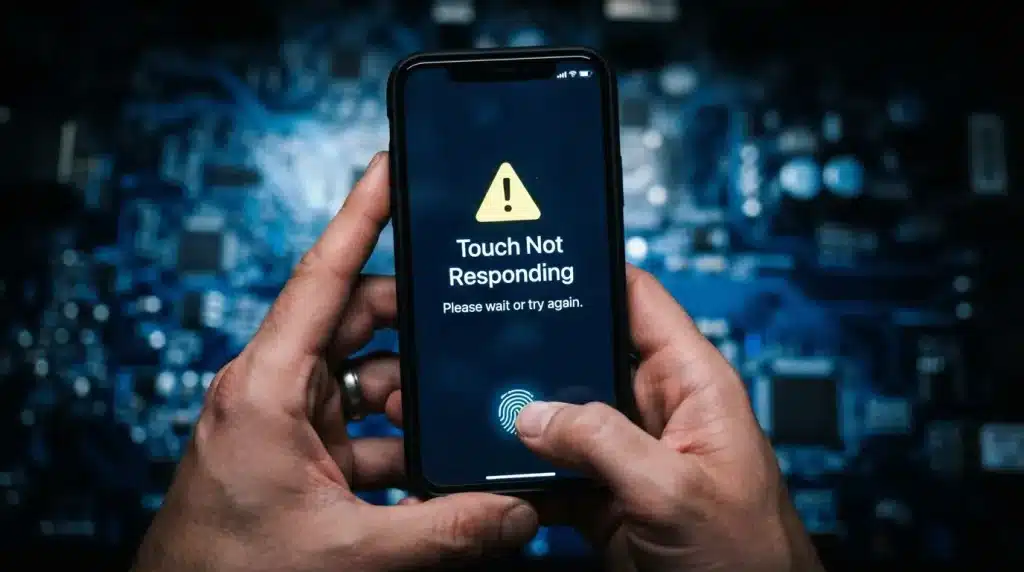
A phone that suddenly stops responding to touch can be frustrating, especially when the screen looks completely normal. A frozen app, moisture, damaged accessories, or a small software issue can prevent taps and swipes from working properly.
If you are searching for How to fix phone screen unresponsive touch, the first steps usually involve simple checks before considering a repair.
I have seen many touch problems get resolved with basic fixes like restarting the device, cleaning the display, or adjusting settings.
Understanding practical solutions for both Android and iPhone users, including quick fixes, advanced troubleshooting, and signs that the issue may need professional attention.
Why is My Phone Touchscreen Not Responding?
A touchscreen can stop working for many reasons, and the cause is not always a damaged display. Sometimes, the problem is temporary and disappears after a simple restart, while other situations require deeper troubleshooting.
The most common reasons include:
| Problem | Possible Cause | What Usually Helps |
|---|---|---|
| The screen does not respond at all | System freeze or software crash | Force restart |
| Touch works slowly | Low storage or background apps | Clear space and close apps |
| Touch stops while charging | Faulty charger or cable | Change charging accessories |
| Certain areas do not respond | Display or digitizer damage | Screen inspection |
| Touch behaves randomly | Moisture or dirty display | Clean and dry the screen |
Before trying complicated solutions, check if the phone has recently fallen, come into contact with water, or started showing problems after installing a new app or accessory.
Identifying the cause makes troubleshooting easier because software-related issues can often be fixed at home, while hardware damage usually requires repair.
How to Fix Phone Screen Unresponsive Touch: Quick Common Fixes
Before trying advanced troubleshooting, start with these simple checks. Many touchscreen issues are temporary and can be fixed within a few minutes without technical help.
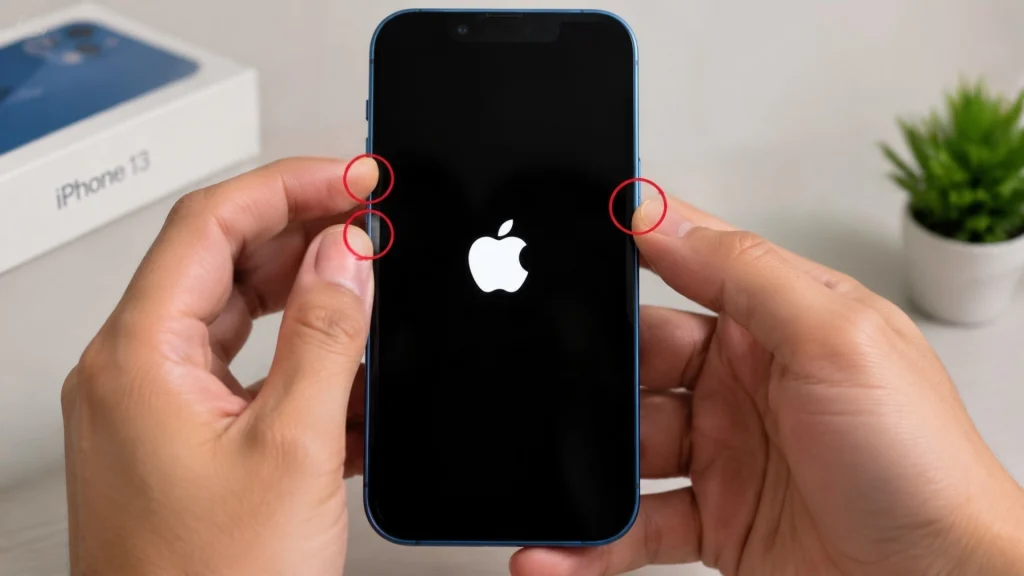
- Restart Your Phone: Restarting refreshes the system and closes processes that may have frozen the touchscreen. A force restart can also clear temporary errors without deleting your data.
- Clean the Screen and Remove Moisture: Dirt, oil, and moisture can affect touch response. Turn off the phone and clean the display gently with a microfiber cloth. Avoid harsh cleaners or excess liquid.
- Check the Screen Protector and Case: A damaged protector, air bubbles, or a tight case can reduce touch sensitivity. Remove them temporarily to check if the screen works properly.
- Disconnect Chargers and Accessories: Faulty chargers or cables can interfere with touch response. Remove connected accessories, test the screen, and switch to a reliable charging cable if needed
These quick fixes can resolve many common touchscreen issues. If the problem continues, move on to advanced troubleshooting steps.
Troubleshooting for an Unresponsive Touch Screen
Follow these troubleshooting steps to identify common causes behind an unresponsive touchscreen. Start with simple fixes and move toward advanced solutions to restore phone functionality.
Step 1: Restart Your Phone
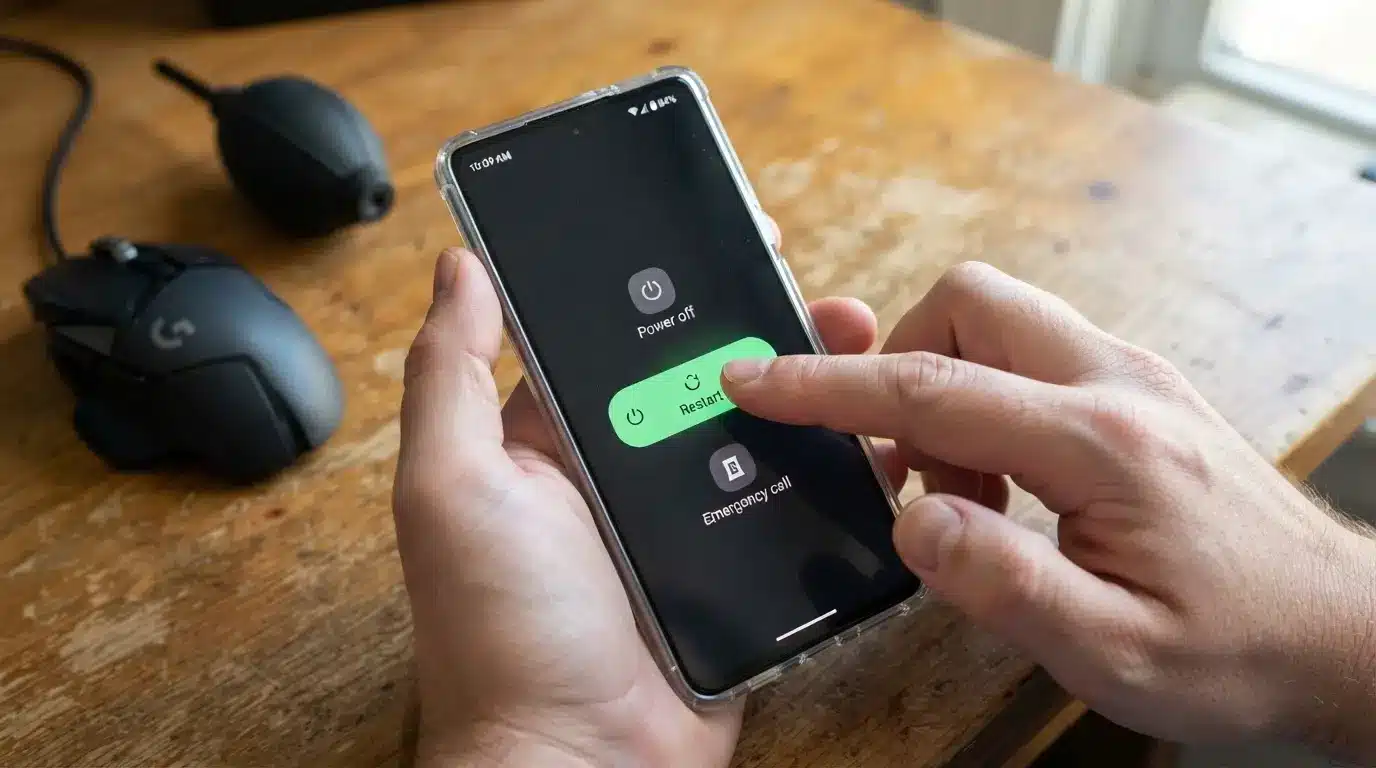
A simple restart can fix temporary touchscreen problems caused by system freezes or stuck background processes. Press and hold the power button, then select restart if the option appears.
Restarting refreshes the operating system without removing your apps, photos, or personal files. After the phone turns back on, check if the touchscreen responds normally again.
Step 2: Remove The Battery If Possible
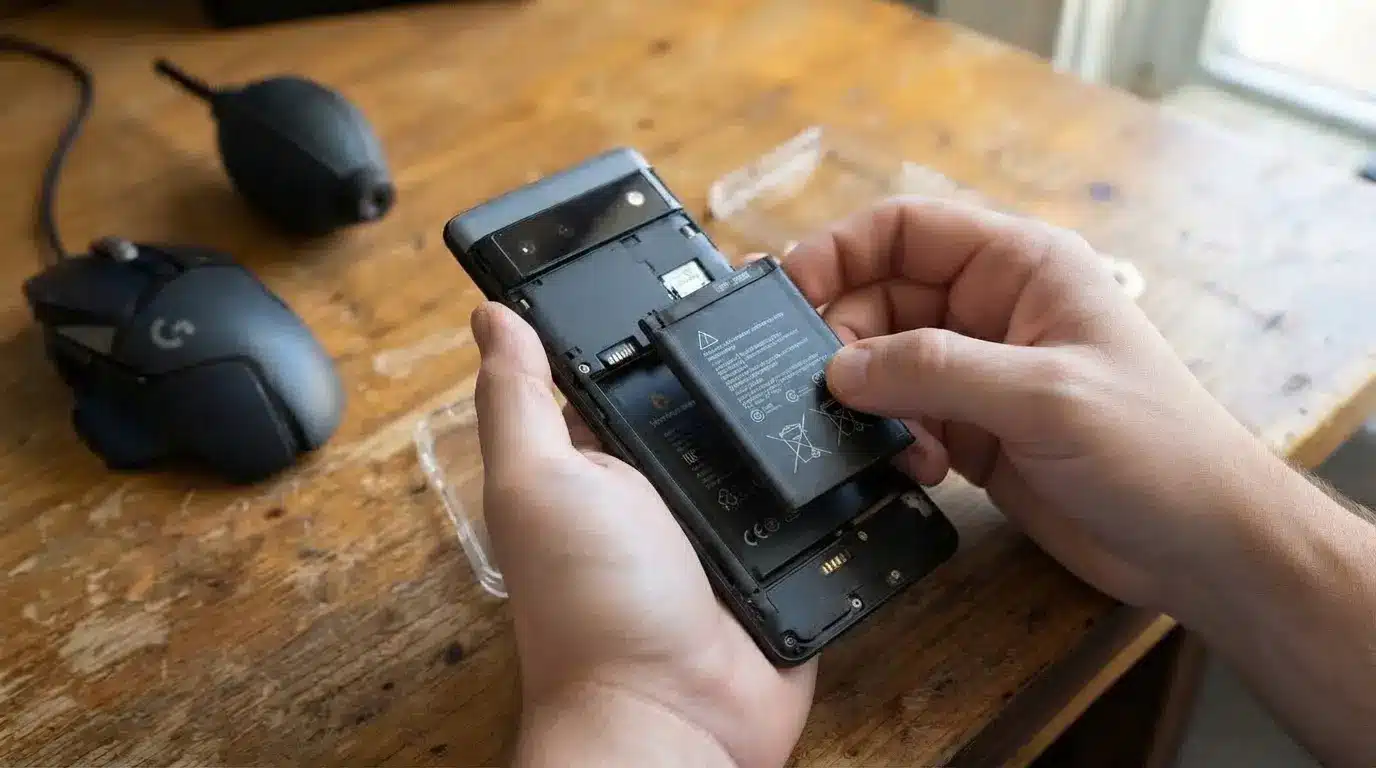
Some older Android phones with removable batteries can benefit from a complete power cycle. Remove the battery carefully, wait for around one minute, then place it back correctly.
Turn the phone on and test the touchscreen again. This process can clear temporary system errors that prevent the display from responding properly.
Step 3: Force Restart Your Phone
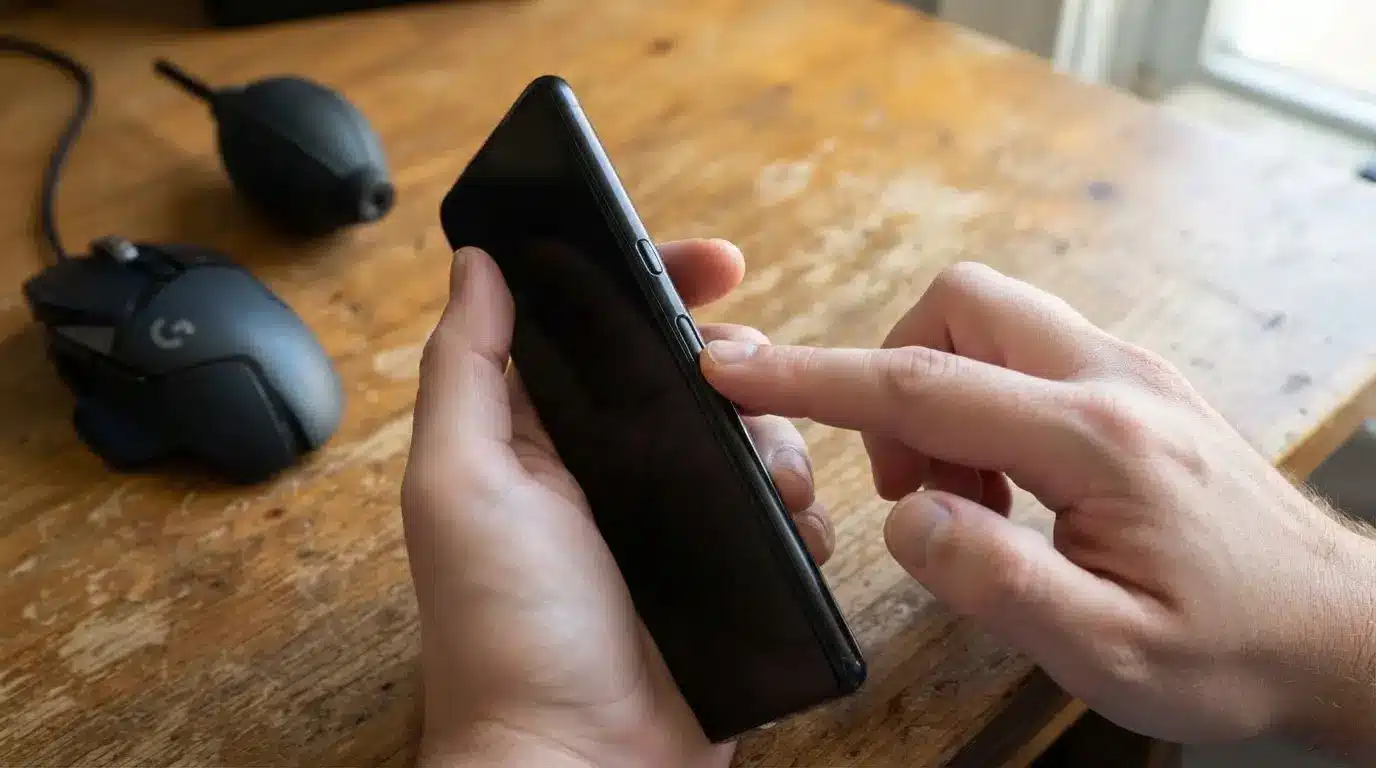
A force restart helps when the touchscreen is completely frozen and normal restart options cannot be used. Press and hold the power button with the required volume button combination for your phone model.
Wait until the device logo appears, then release the buttons. After restarting, check whether the touchscreen starts responding again.
Step 4: Boot Your Phone in Safe Mode
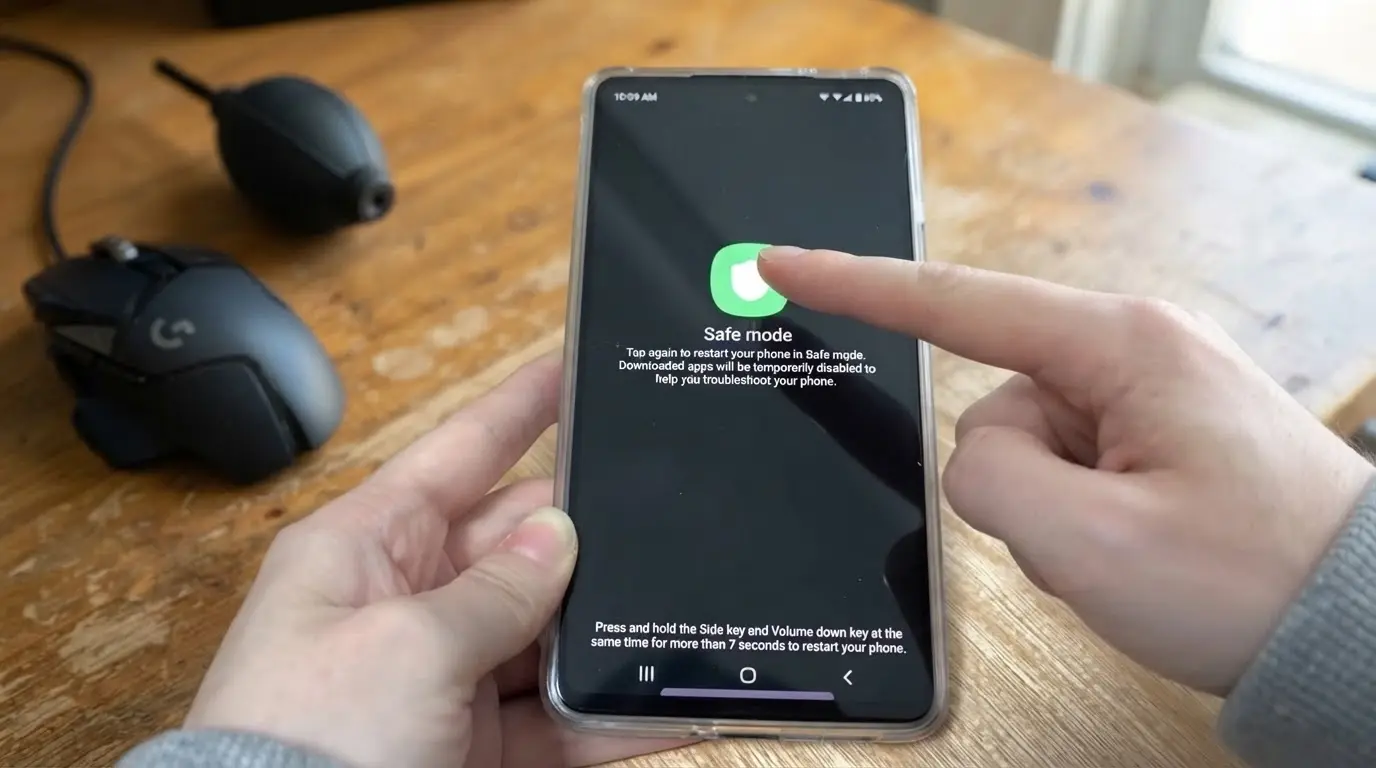
Safe Mode helps identify whether a recently installed app is causing touchscreen problems. Start the phone in Safe Mode, where only essential system applications run.
If the touchscreen works correctly in this mode, remove recently installed apps one by one. This helps find and remove the application causing the touch issue.
Step 5: Remove SIM Card and SD Card
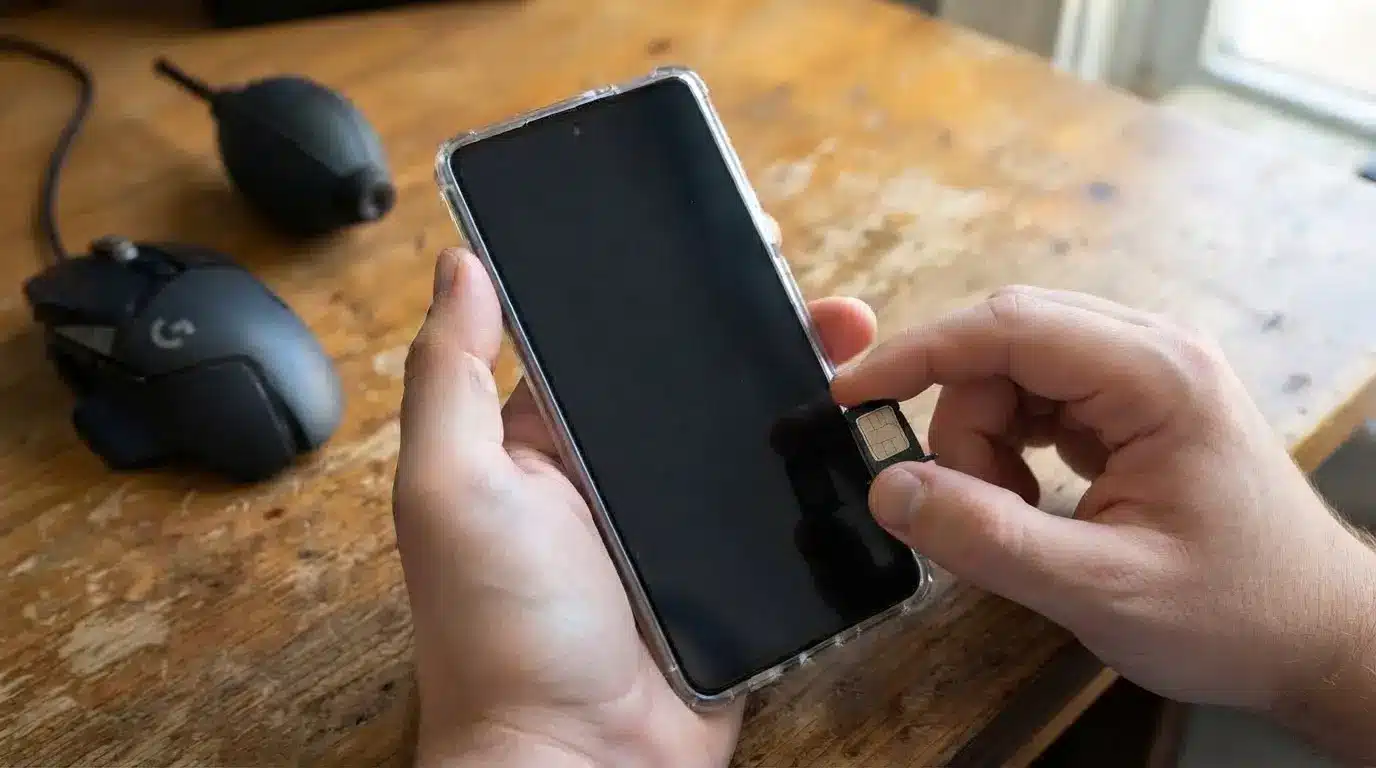
A damaged or corrupted SIM card or SD card may sometimes affect phone performance and cause touchscreen problems.
Remove these cards carefully from the device, restart the phone, and check the display response. If the touchscreen works normally afterward, one of the removed cards may have been causing system-related problems.
Step 6: Remove Screen Protector and Clean The Display
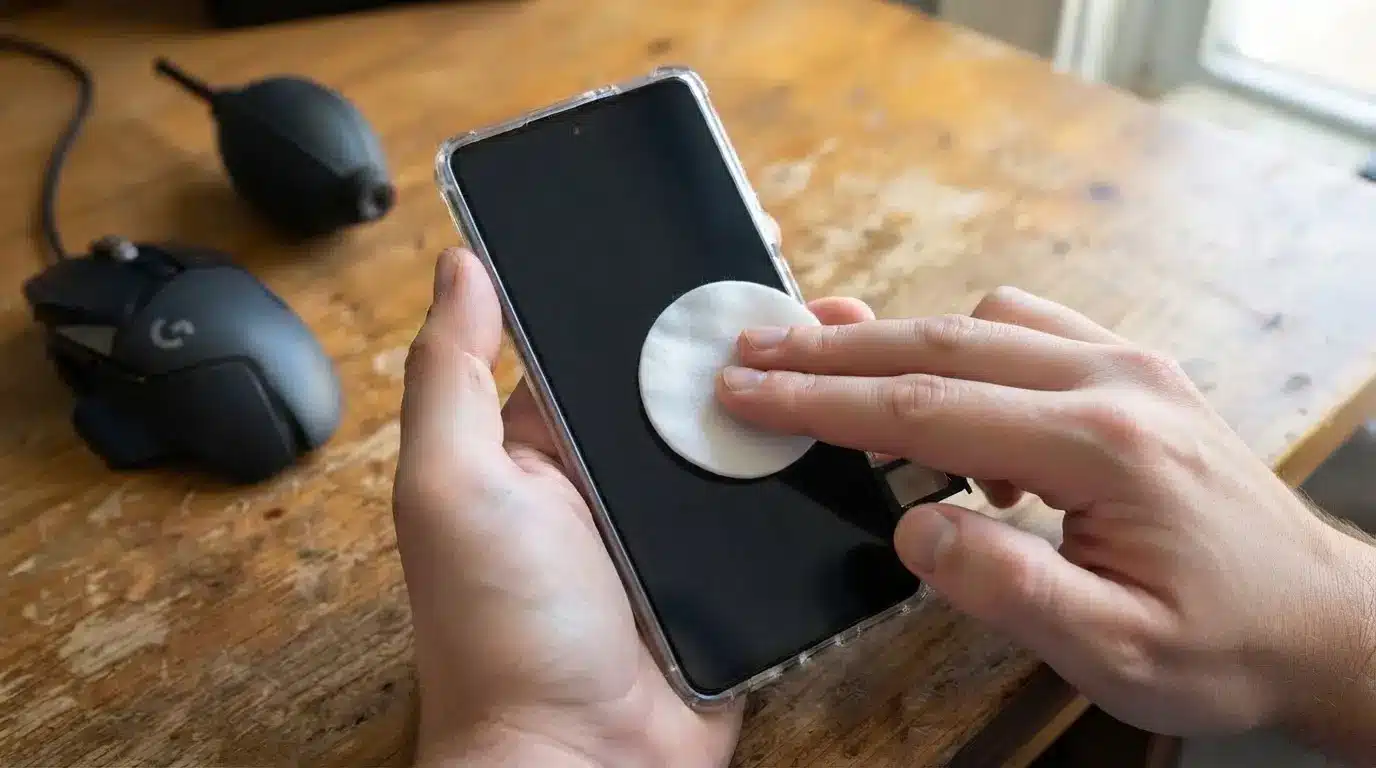
A damaged screen protector, incorrect case placement, or dirt buildup can reduce touchscreen sensitivity. Remove the protector and phone case, then gently clean the display with a soft, dry cloth.
Restart the device after cleaning and check whether the touchscreen responds properly without any obstacles affecting touch detection.
Step 7: Factory Reset Your Phone
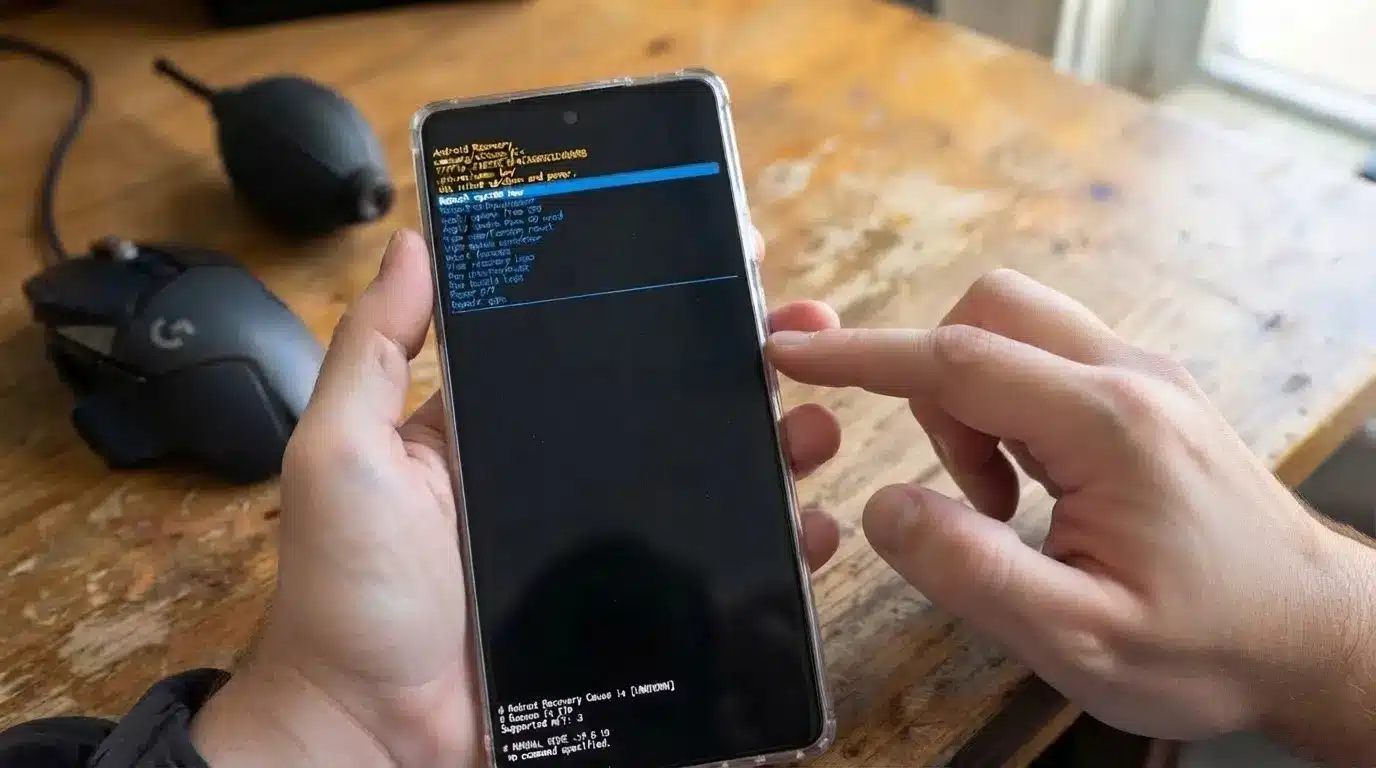
A factory reset can solve serious software problems by wiping the device clean and restoring its original settings. However, this process removes saved data, installed apps, and personal files, so create a backup first.
If the touchscreen cannot be used, recovery mode may be required to complete the reset process safely.
These troubleshooting steps move from simple solutions to advanced fixes, helping identify whether the touchscreen problem comes from software issues, accessories, or hardware damage.
Check out this video for more detailed Steps
Check for Hardware Damage Causing Touch Problems
When software troubleshooting does not restore touch response, physical damage may be affecting the display components. The touchscreen uses a digitizer layer that detects finger movements, and damage to this layer can stop touch input.
Signs Your Phone May Have Hardware Damage:
| Symptom | Possible Issue |
|---|---|
| Cracked glass or broken display | Physical screen damage |
| Black spots or lines | Display panel damage |
| Only certain areas respond | Digitizer failure |
| Touch stopped after a fall | Internal connection damage |
| Problems after water exposure | Moisture-related damage |
| Screen separating from frame | Internal display issue |
A damaged digitizer usually requires professional repair because software settings cannot restore a physically damaged component.
What to Do If the Entire Touch Screen Stops Working
A completely frozen touchscreen can make normal troubleshooting difficult because you cannot open menus or change settings. In this situation, use alternative methods to regain control of the device.
Try these options:
- Perform a force restart.
- Connect an Android phone to a USB mouse using an OTG adapter.
- Use voice assistants like Google Assistant or Siri.
- If possible, connect the phone to a computer for backup.
- Remove accessories and test again.
If the phone has important files and the display still works visually, creating a backup should be a priority before attempting repairs. Avoid repeatedly pressing the screen with force because this can worsen possible display damage.
User Experience with an Unresponsive Touch Screen
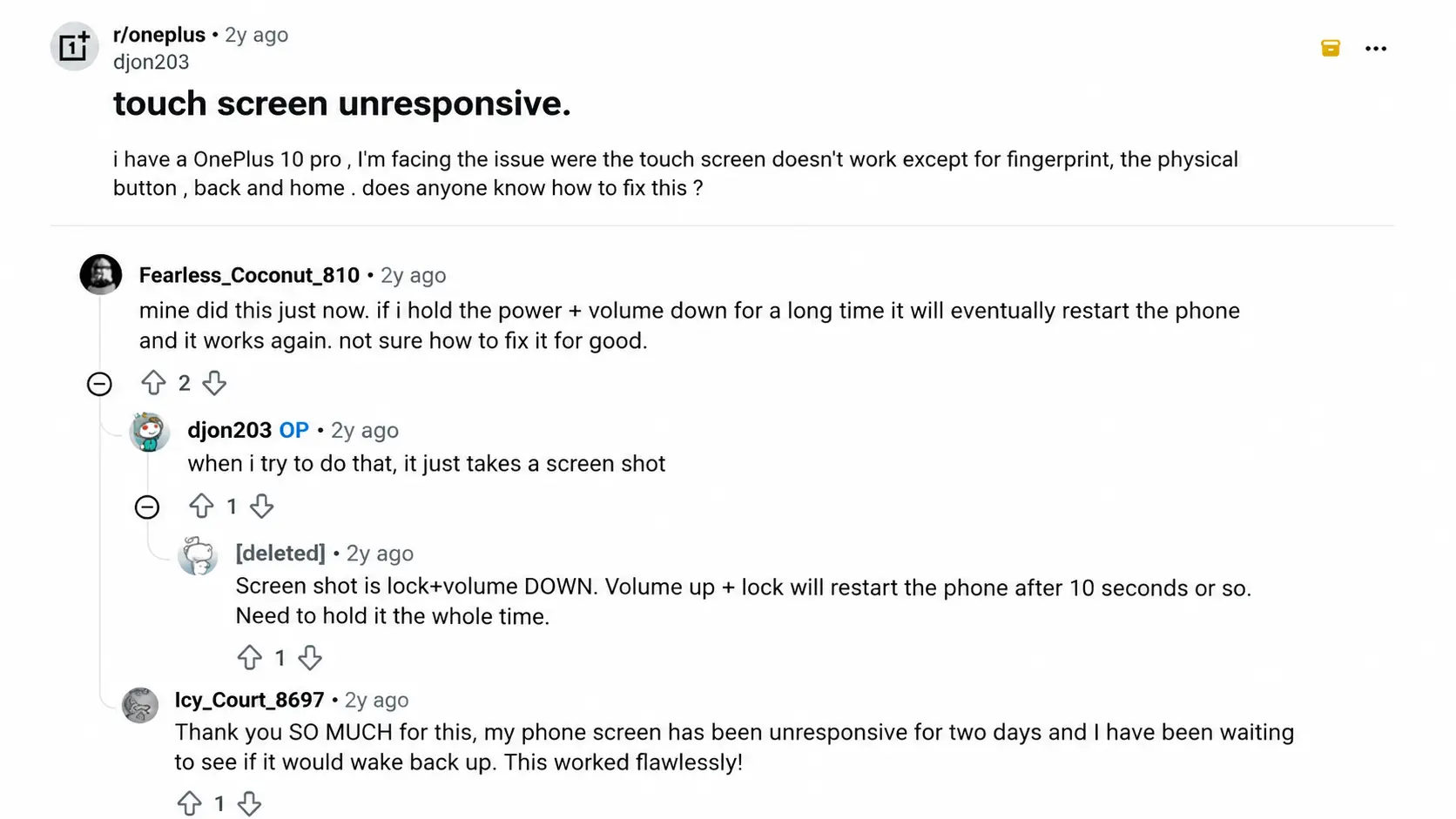
Reddit users on r/oneplus discuss an issue where a OnePlus 10 Pro touchscreen becomes completely unresponsive while other functions, such as fingerprint scanning and physical buttons, continue working.
The original poster asks for possible solutions, and community members suggest performing a force restart using specific button combinations.
Some users explain that pressing the wrong buttons only captures screenshots, while others clarify the correct method to restart the device. Additional comments share similar experiences where holding the correct buttons temporarily restored touchscreen functionality.
The discussion mainly focuses on troubleshooting an unresponsive touchscreen, identifying restart methods, and finding possible solutions before considering professional repair.
When Should You Repair or Replace Your Phone Screen?
A touchscreen that stays unresponsive after troubleshooting may indicate a hardware issue. Before paying for repairs, consider the phone’s condition, repair cost, and overall value.
- Touch Still Does Not Work: If the screen remains unresponsive after a force restart, software updates, and other fixes, the issue may require professional inspection.
- Visible Display Damage: Cracks, black spots, lines, or other screen damage can affect touch response and may require display repair or replacement.
- Water Damage Is Present: Moisture exposure can damage internal components, including the digitizer that detects touch input
- Only Certain Areas Respond: Partial touch response often indicates damage to the touchscreen layer or internal display components.
- The Phone Was Recently Dropped: A fall can loosen internal connections or damage the screen even if cracks are not visible.
Before replacing the screen, check warranty coverage and consider an authorized repair center. A technician can determine if only the digitizer needs attention or if the entire display assembly requires replacement. In many cases, repairing the screen is more practical than buying a new phone.
How to Prevent Phone Touch Screen Problems
Simple care habits can reduce touchscreen issues and improve long-term device performance. Most problems can be avoided with regular maintenance and careful handling. Daily Care Checklist:
| Habit | Why It Helps |
|---|---|
| Clean the screen regularly | Prevents dirt and moisture buildup |
| Use reliable chargers | Reduces charging-related issues |
| Keep software updated | Fixes bugs and improves stability |
| Maintain free storage | Prevents slow performance |
| Protect against drops | Reduces display damage |
| Avoid extreme heat | Protects internal components |
Avoid These Actions:
- Using damaged cables
- Pressing the screen forcefully
- Installing unknown apps
- Ignoring cracks or moisture exposure
- Using poor-quality protectors
Consistent care takes only a few minutes but can help prevent common touchscreen problems and extend the usable life of your device.
Final Takeway
A phone touch issue does not always mean the screen needs replacement. I have found that simple steps like restarting the device, cleaning the display, checking accessories, and updating software can solve many common problems.
If you are still searching forhow to fix a phone screen unresponsive to touch, start with the easiest solutions before moving toward advanced troubleshooting. These checks can save time and help identify the real cause.
If the screen has physical damage or keeps failing, professional repair is the safer option. Try these tips, share your experience in the comments, and check out related troubleshooting topics for more solutions.
Frequently Asked Questions
Can a Phone Screen Protector Cause Permanent Touch Issues?
A screen protector usually does not cause permanent touch damage. However, poor-quality protectors, incorrect installation, or trapped debris can affect sensitivity. Removing the protector can confirm if it is causing temporary touch problems.
Why Does My Phone Touch Screen Work with a Stylus But Not Fingers?
This may happen because the stylus and fingers use different detection methods. A damaged or less sensitive capacitive layer may still recognize a compatible stylus while failing to detect regular finger touches.
Can A Factory Reset Fix a Completely Dead Touchscreen?
A factory reset can fix software-related issues but cannot repair physical damage. If the touch layer, display connector, or digitizer is damaged, resetting the phone will not restore touchscreen functionality.
Why Does My Touch Screen Work After Charging?
A phone may temporarily regain touch response after charging because the system restarts processes or recovers from low power conditions. Frequent issues after low battery levels may indicate a deeper software or battery-related problem.
Can a Phone Screen Be Repaired Without Replacing The Display?
In some cases, only a damaged component like the digitizer or connector may need attention. However, many modern phones combine display layers, making complete screen replacement more common during repairs.