A dinner timer, a track playing in the kitchen, and a delivery driver two minutes out lined up on the same sliver of screen while I ran speaker wiring behind a client’s TV last week.
She asked what that pill was doing, and that question is why this exists. The Dynamic Island iPhone feature packs alerts, Live Activities, and background tasks into one space, so you stop reopening apps to check on them.
Even the Dynamic Island iPhone 15, the first non-Pro model to get it, runs the same system the newest Pro phones do.
Ahead: what each gesture does, which models juggle more than one activity, the setting worth checking first, and where the feature still falls short.
What Is Dynamic Island on iPhone?
In the years I’ve spent setting up smart home systems and phones for clients, this is the section people usually skip and then ask about a week later.
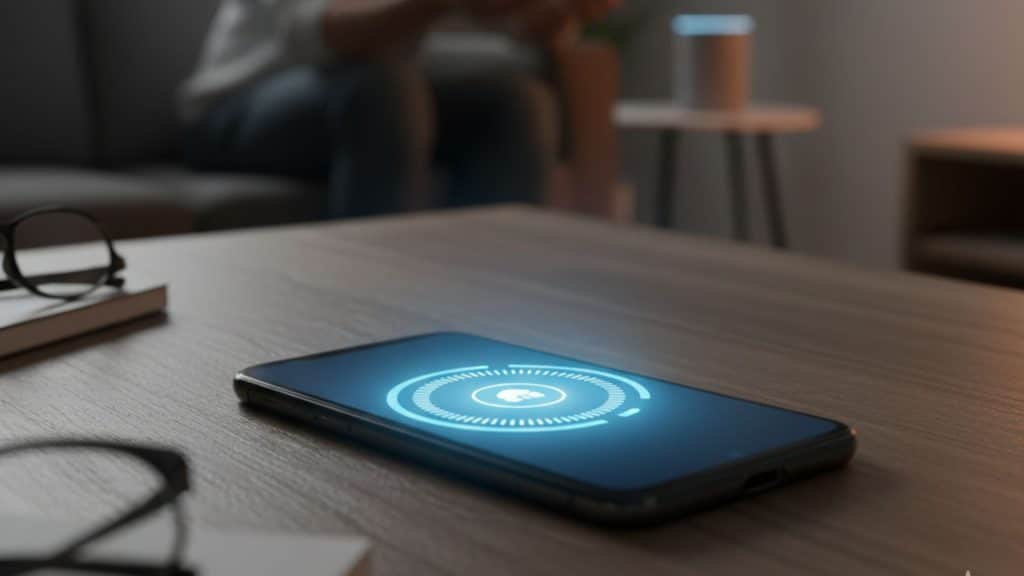
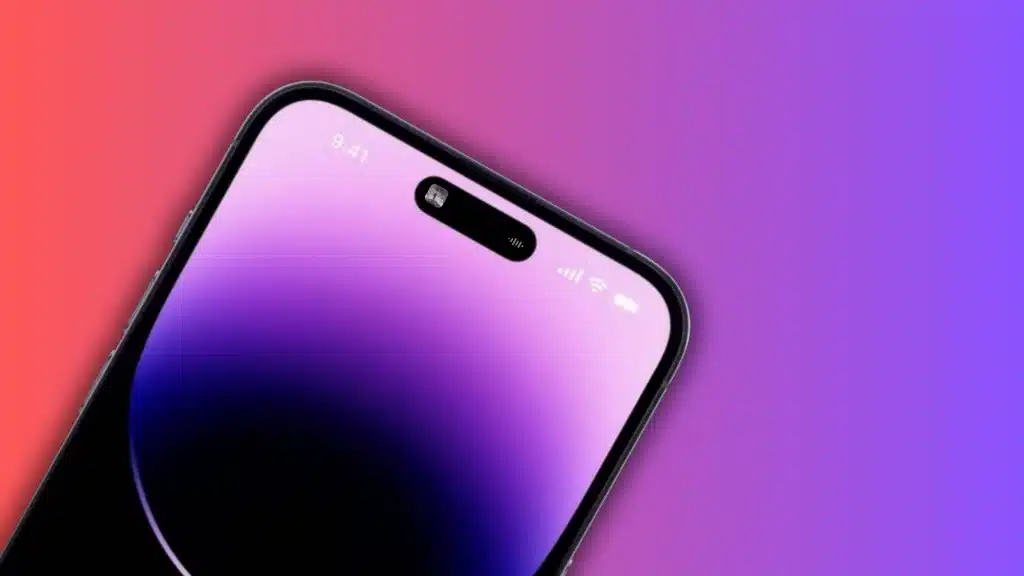
Dynamic Island is the interactive area at the top of supported iPhone screens that works around the front camera and Face ID hardware while displaying useful information.
Instead of hiding background activity behind a lock screen or a banner that vanishes in a few seconds, this area stretches, shrinks, or splits into two sections. What it shows depends on what your phone is doing at that moment.
A countdown timer, a playing song, or an incoming call all show up here in real time, and the shape shifts smoothly as the information changes.
It sits in the same physical spot the notch used to occupy, but instead of being a fixed cutout, it behaves like a small screen of its own.
Which iPhone Models Support Dynamic Island
Not every iPhone shows this feature the same way, and the number of updates it can hold has grown with each release.
|
iPhone Model |
Introduced |
Live Activities at Once |
|---|---|---|
|
iPhone 14 Pro / Pro Max |
2022 |
1 to 2 |
|
iPhone 15 series |
2023 |
2 |
|
iPhone 16 series (excluding 16e) |
2024 |
2 |
|
iPhone 17 series (excluding 17e) |
2025 |
2 |
|
iPhone 18 Pro / Pro Max |
2026 |
Up to 3, in a smaller pill |
Older models cap out at two live updates at once, while the newest Pro models can hold three without crowding the screen.
The Dynamic Island iPhone 15 was the first non-Pro model to carry the feature, meaning Apple’s mainstream lineup and its priciest phones finally ran the same interface for the first time.
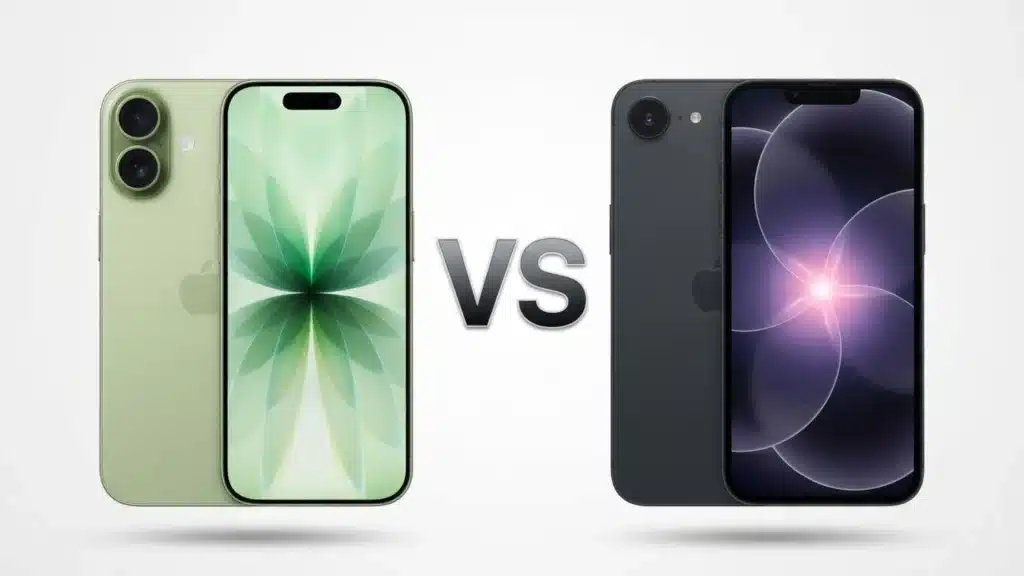
Neither the 16e nor the 17e picked up Dynamic Island, since Apple kept both on the older notch design to hit a lower price point, a gap that shows up clearly once you start comparing newer iPhone models side by side.
Key Features of Dynamic Island
The main features fall into a few practical groups. Some provide a quick status update, while others stay active as long as an app or system task is still running.
1. Alerts and System Status
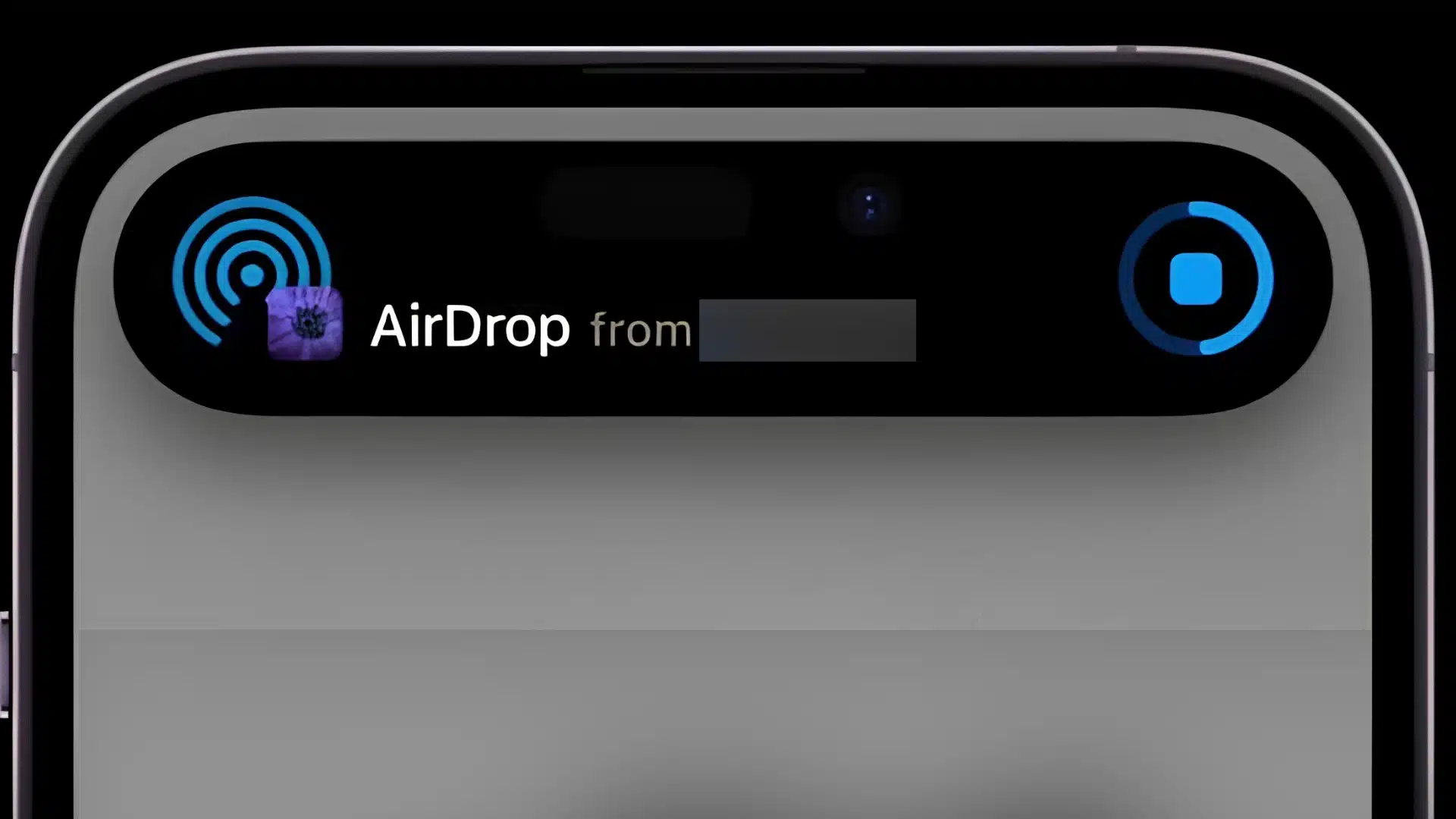
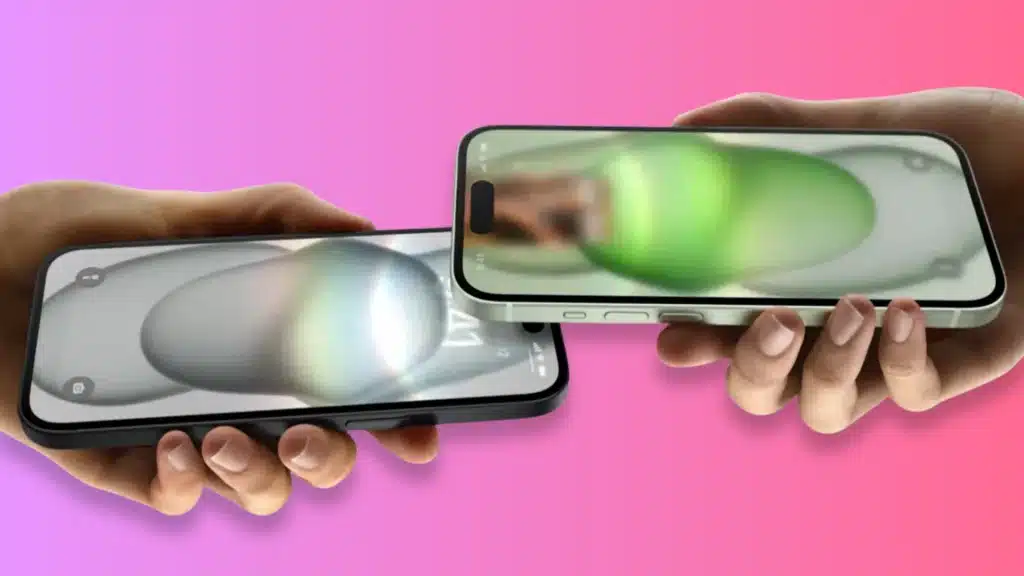
Dynamic Island can briefly show system activity without taking over the whole screen. An AirDrop connection and other supported status changes can appear near the top while you continue using your current app.
These short updates shrink again once the system no longer needs to show as much information.
2. Live Activities
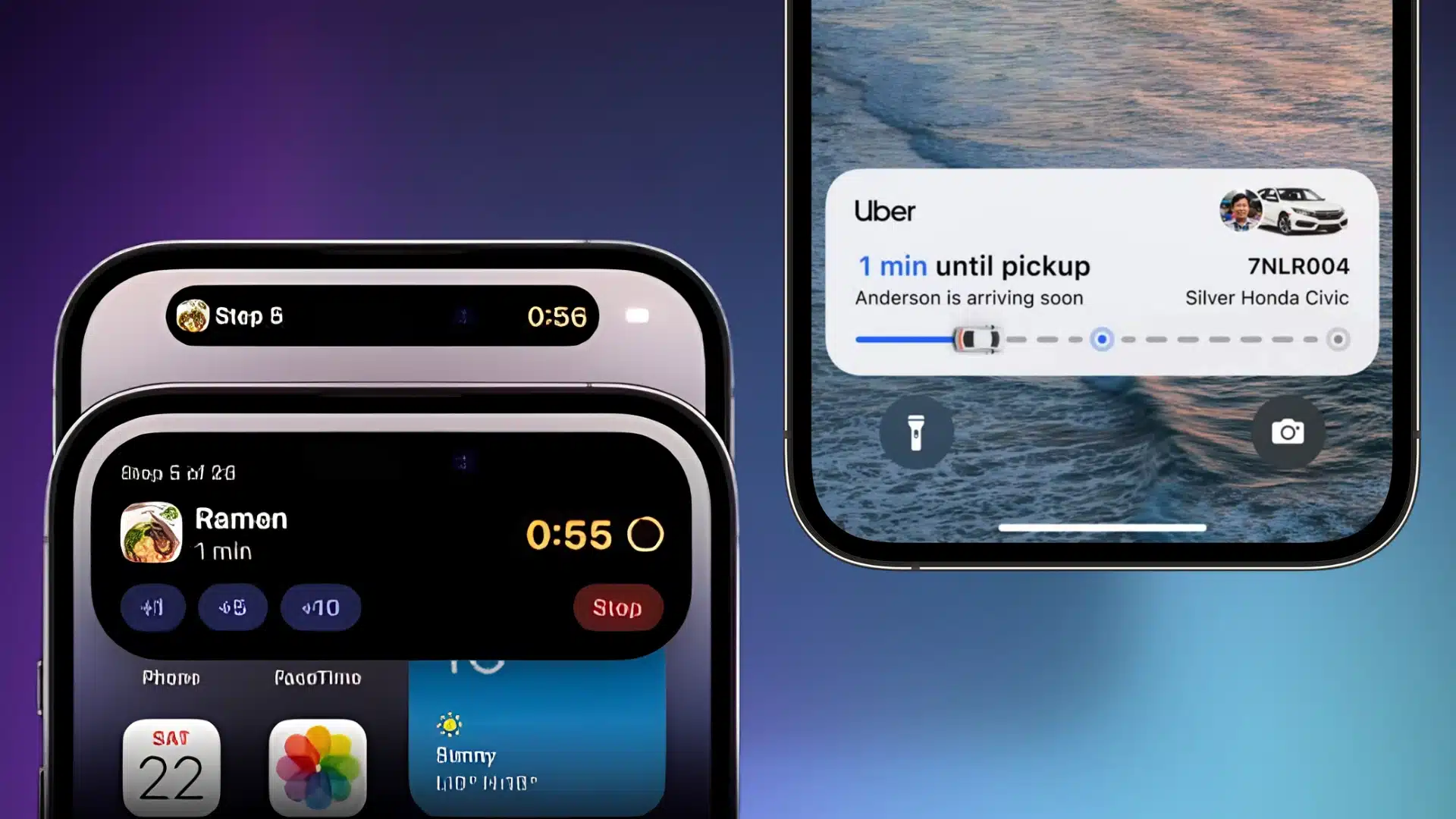
Live Activities are made for information that changes over time. A supported app can show a delivery ETA, live sports score, workout progress, or another ongoing event without requiring you to keep that app open.
Live Activities can appear in Dynamic Island while you use your iPhone and continue on the Lock Screen when the phone is locked. Apple’s Live Activities documentation describes them as glanceable updates for activities, events, and tasks that can change over several hours.
3. Background Activities
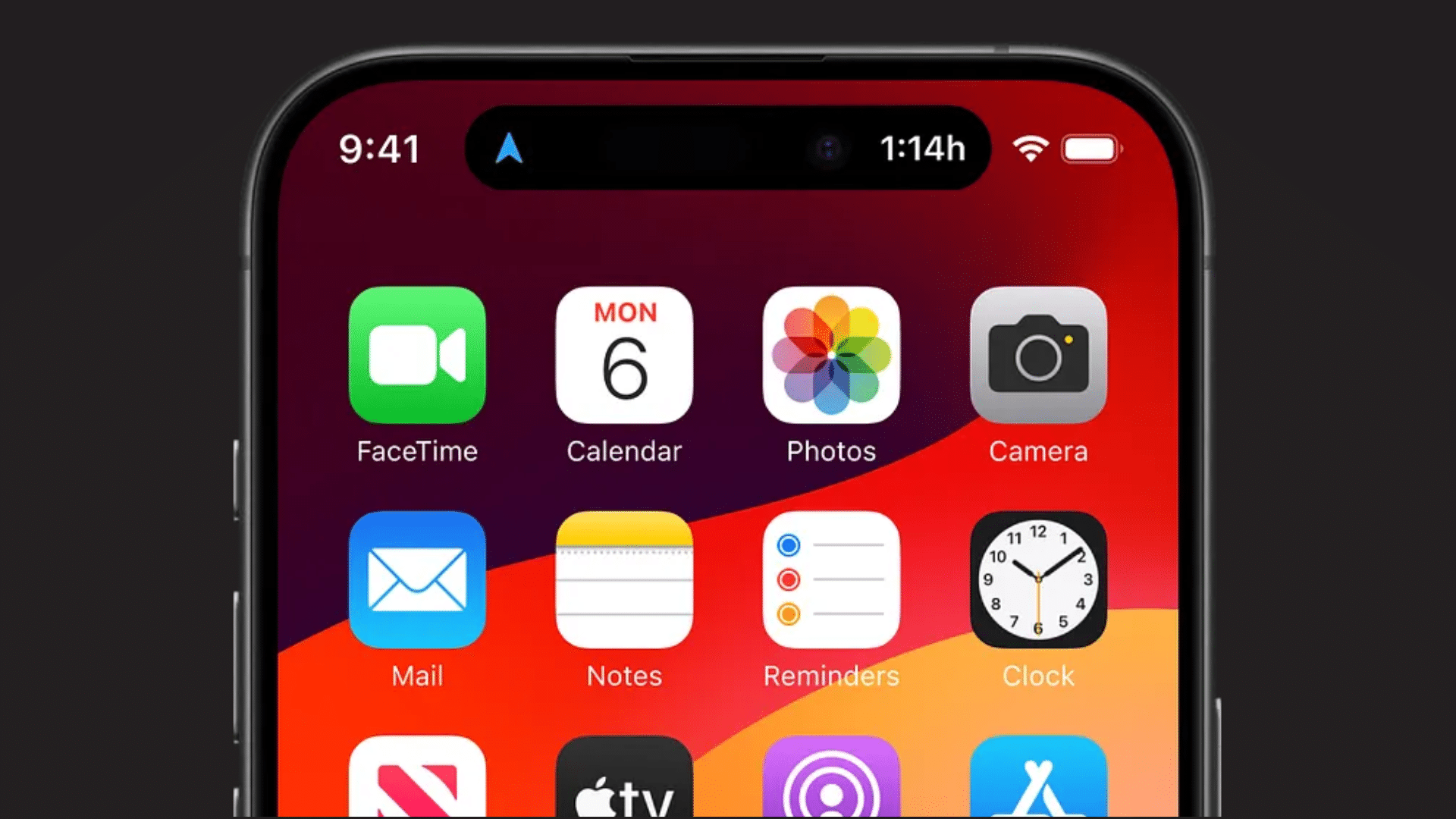
Tasks that continue after you leave an app can also remain visible. Examples include playing media, recording a Voice Memo, following Maps directions, or completing an AirDrop transfer.
Instead of reopening the original app just to check whether something is still running, you can glance at the top of the screen and see its current state, one of several other hidden phone features that quietly save time.
4. Ongoing App Controls
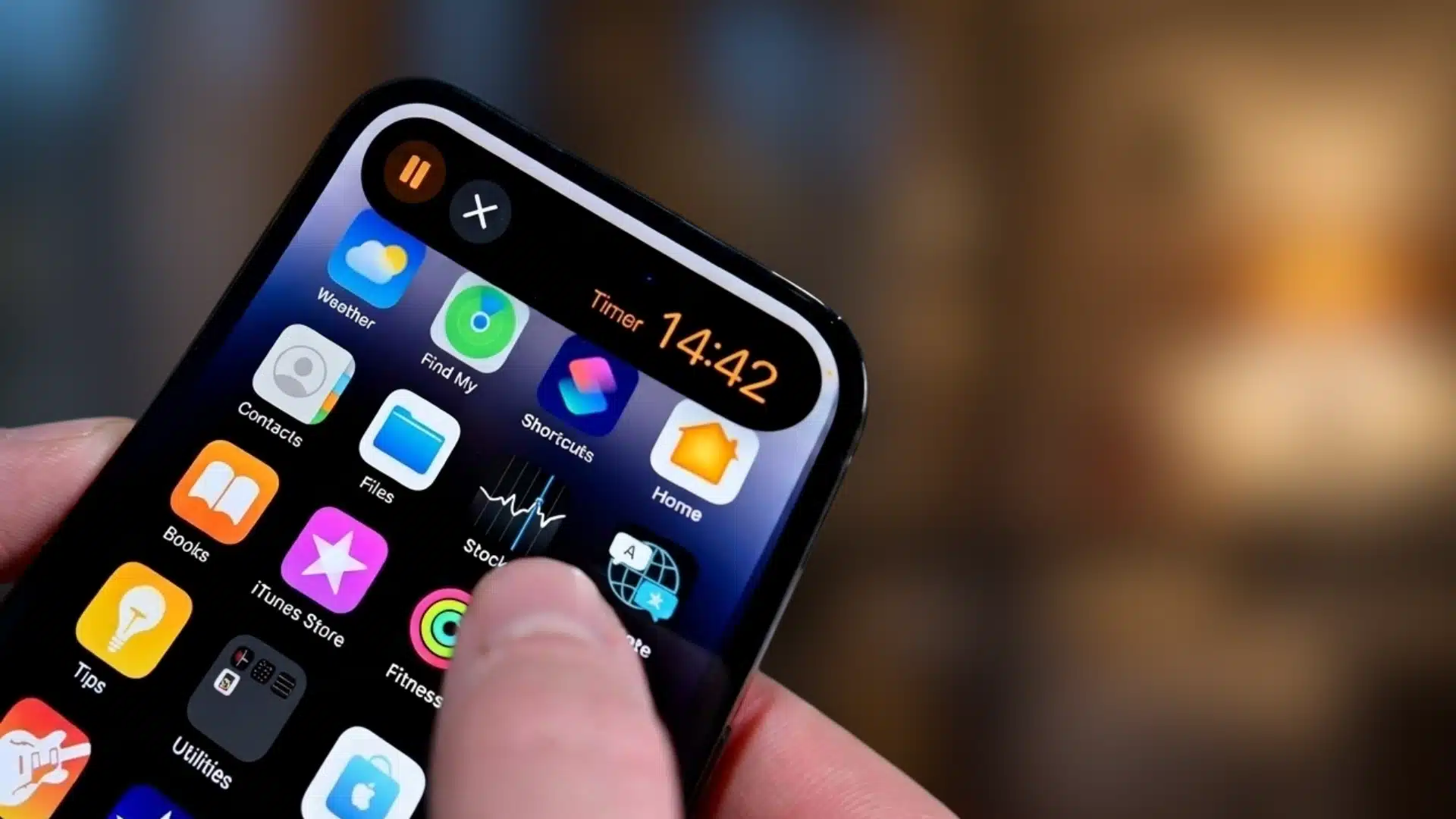
Dynamic Island is not limited to displaying information. Supported Live Activities can include buttons or other controls that let you perform useful actions without launching the full app.
The options depend on the activity, but Apple allows developers to include actions such as buttons and toggles directly inside a Live Activity.
5. Multiple Activities at Once
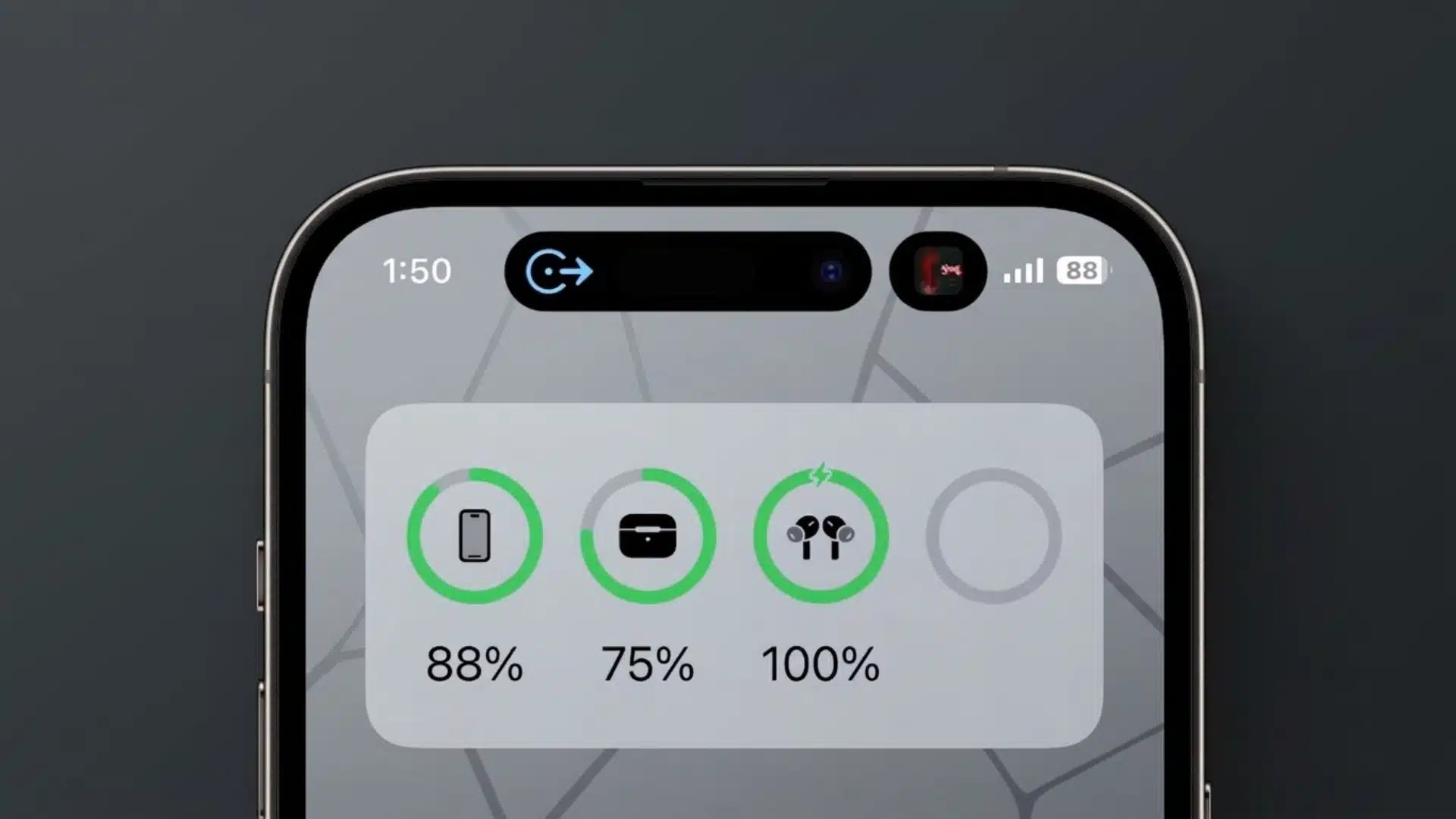
When more than one supported activity is running, Dynamic Island can keep two activities available and let you switch between them, so a timer can continue beside another ongoing task instead of one replacing the other.
On the iPhone 18 Pro models, Apple expanded that capacity to up to three Live Activities at once, letting you track something like a flight, a set of directions, and a timer at the same time.
That combination – alerts, background tasks, and controls in one space – is what makes the Dynamic Island iPhone experience feel calmer than a lock screen stacked with banners.
How Dynamic Island Works: Tap, Hold, and Swipe
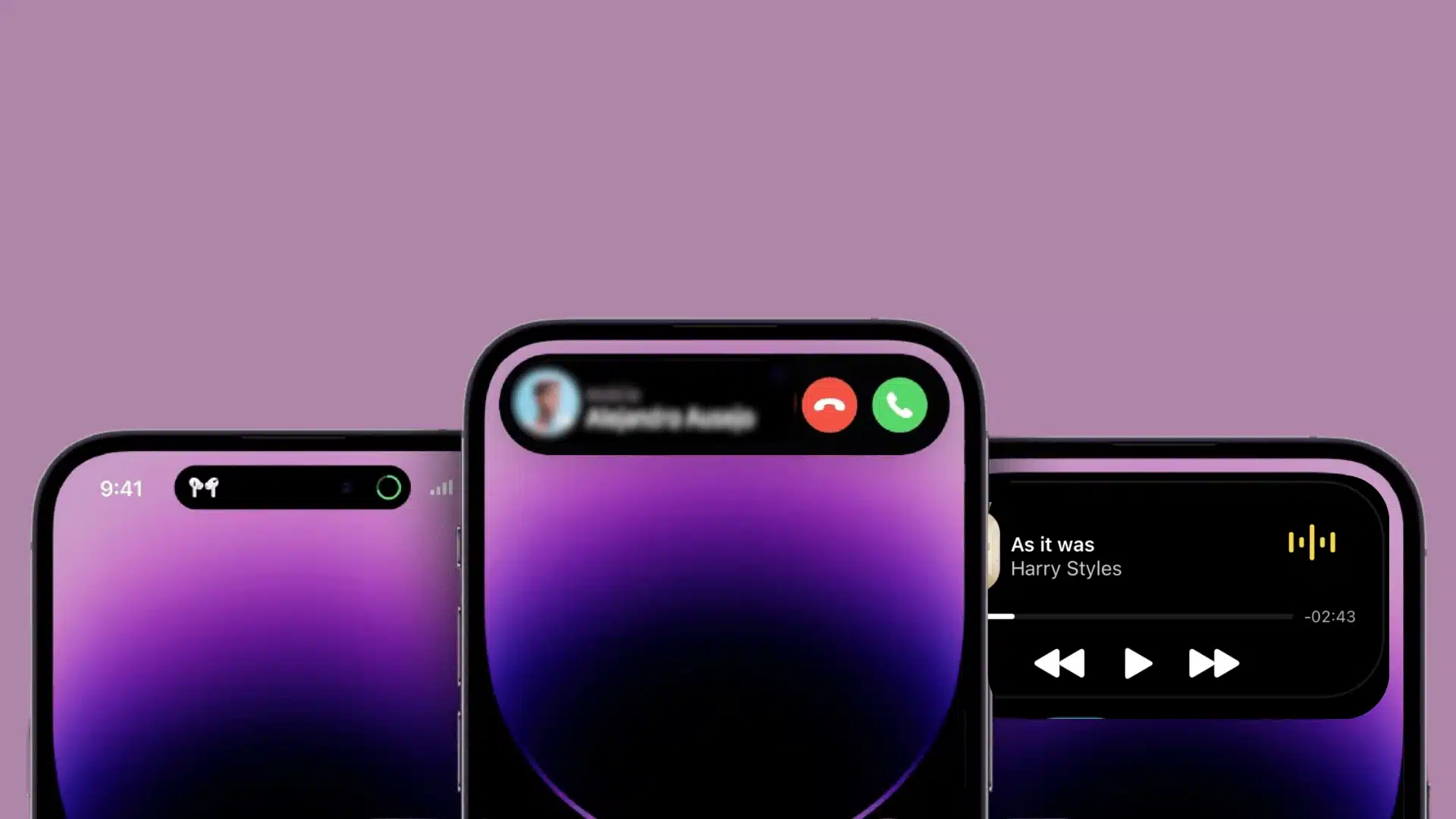
Interacting with it comes down to three simple motions, and each one does something different depending on what is showing.
Single Tap: Tap an activity to return to the app or content connected with it. The exact action depends on how that app built its Live Activity, so not every item responds the same way.
Touch and Hold: Touch and hold an activity to expand Dynamic Island and see more information. Depending on the activity, the expanded view may also provide controls or other actions without requiring you to leave the app you are currently using.
Swipe to Expand, Collapse, or Switch: Swipe from the center toward either side to expand an activity. Swipe from an outer side toward the center to collapse it and make Dynamic Island smaller.
When two or three activities are available, swipe from one side or the other to switch between them. Collapsing an activity does not stop the task itself. Apple’s iPhone User Guide for Dynamic Island lists these same gestures.
Everyday Examples of Dynamic Island in Use
A few everyday tasks show where the feature is most useful and what type of information you can expect to see.
|
Situation |
What Shows Up |
What You Can Do |
|---|---|---|
|
Playing music or a podcast |
Album art and a small waveform |
Tap to open, hold to pause or skip |
|
Navigating with Maps |
Next turn and remaining distance |
Tap to reopen full directions |
|
Running a timer |
Live countdown number |
Hold to pause or cancel |
|
Rideshare or food delivery |
Driver status and arrival time |
Tap to view full tracking details |
|
Ongoing phone call |
Caller name and call length |
Tap to return to the call screen |
|
Screen recording or low battery |
A quiet status indicator |
Tap for quick system controls |
Third-party Live Activities have to be built into the app, so the information and controls you see can differ from one app to another. Apple’s ActivityKit documentation explains how apps provide these live updates and interactions.
How to Turn On Live Activities Step by Step
Turning on Live Activities takes under a minute once you know where the toggle is in each app’s settings.
- Open the Settings app on your iPhone.
- Scroll down and tap the specific app you want to enable, such as Maps, Music, or a delivery app.
- Tap Live Activities inside that app’s settings page.
- Switch on Allow Live Activities.
- If the option is available, turn on More Frequent Updates for closer to real-time tracking.
Once enabled, the app sends its updates straight to the pill at the top of your screen, with no extra taps.
Apple’s support page has a full breakdown of Live Activities settings if a specific app isn’t behaving as expected.
Does Dynamic Island Affect Battery Life?
Dynamic Island itself barely touches the battery, since it is a display region rather than a sensor running constantly in the background. The apps behind it are the real factor.
A Live Activity that refreshes every few seconds, like a rideshare tracker with More Frequent Updates turned on, pulls more power than a single countdown that barely changes.
My general rule with clients is to leave More Frequent Updates on for the one or two apps they actually rely on and skip it everywhere else.
Turning off Live Activities for apps you never check clears clutter and saves a small amount of battery, but it will not fix a phone that already drains fast for unrelated reasons.
What to Do if Dynamic Island is Not Showing an Activity
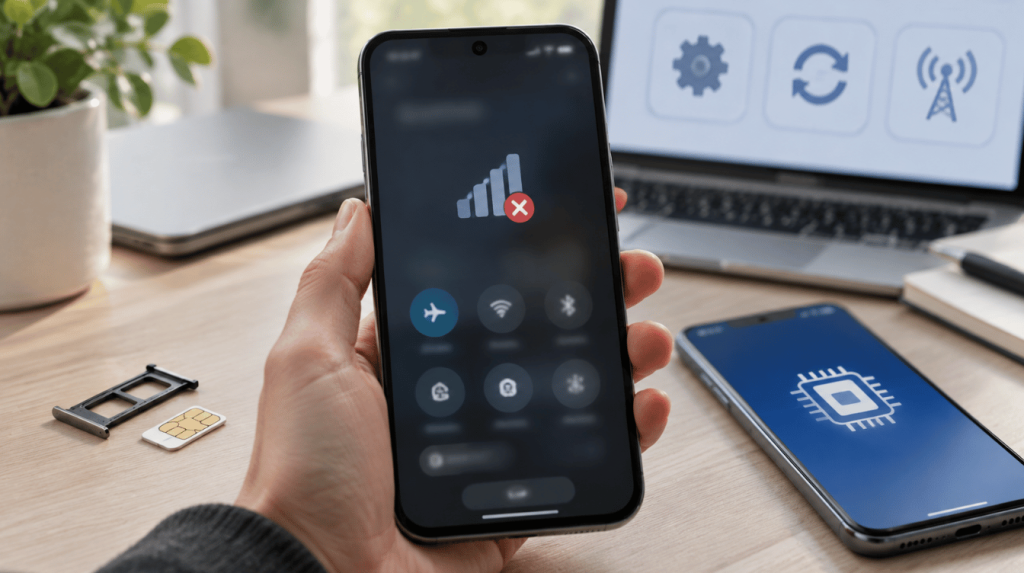
If an expected timer, delivery update, recording, score, or other activity does not appear, check the feature in order before changing unrelated settings.
- Confirm that your iPhone model has Dynamic Island.
- Check that the app supports Live Activities.
- Confirm the master toggle covered above is on, then check the app’s own Live Activities setting too.
- Start the actual task inside the app. Opening an app does not automatically create a Live Activity.
- Check the Lock Screen if you locked your iPhone while the activity was running.
- Install available iOS and app updates if something that worked before has stopped appearing.
- Close and reopen the affected app if its activity appears stuck.
Because developers must specifically add Live Activities support, a missing activity does not always mean Dynamic Island itself is malfunctioning.
Limitations Worth Knowing
Not every app supports Live Activities, and available controls vary between apps. One activity may include useful buttons or changing details, while another may provide only a simple status update.
Dynamic Island also does not replace Notification Center or keep a permanent history of every alert. It is mainly designed for information connected with something happening now. When you lock the iPhone, supported Live Activities can continue on the Lock Screen instead.
Its position may also be harder to reach one-handed on larger iPhones. More Frequent Updates can use extra battery, so reserve faster refreshes for apps where timely information is genuinely useful.
Final Thoughts
Dynamic Island only works well once you know which gesture does what and which setting has to be on first. Tap reopens whatever is running, hold expands it, and swiping moves between two or three activities depending on the model.
The one master toggle under Face ID and Passcode is worth checking before blaming an app that is working fine.
Even if you are on the newest Pro model or a Dynamic Island iPhone 15, the same gestures and the same settings apply, and the Dynamic Island feature stops being a strip you tolerate once you know how to run it. Try the gestures on the app you use most today, then check out our other iPhone breakdowns for more.
Frequently Asked Questions
Can Dynamic Island Be Turned Off Completely?
There is no single master switch to remove it, since it also houses the camera and Face ID hardware, but you can stop individual apps from sending Live Activities through each app’s own settings, and you can turn off the Lock Screen toggle covered above to hide them there.
Is Dynamic Island the Same as Always On Display?
No. Always On Display keeps a dimmed version of your whole Lock Screen visible when the phone is idle, while Dynamic Island specifically shows Live Activities and alerts near the camera cutout. The two features run independently and often appear on the same iPhone models, but one is not a setting inside the other.
Does Every App Work with Dynamic Island Automatically?
No. Developers have to build support for it into their app. To check whether an app you use supports it, open the app’s settings and look for a Live Activities entry. If there isn’t one, that app relies on standard banner notifications instead.
Can You Customize What Shows in Dynamic Island?
Not directly. You cannot reorder or pin a specific Live Activity to the front. Which one appears first is generally decided by which app started its activity most recently, not by a preference you set. Your real control is at the app level, choosing which apps are allowed to use Live Activities at all.
Do All Dynamic Island iPhone 15 Units Support Three Live Activities Like the 18 Pro?
No. The three-activity capacity is exclusive to the redesigned, smaller Dynamic Island on iPhone 18 Pro models. A Dynamic Island iPhone 15, along with the 16 and 17 series, still caps out at two Live Activities at once.