Locked out of your phone and can’t remember the PIN? You’re not alone, and yes, there is a way out.
If you’re searching for how to factory reset Android without a password, you’re likely stuck staring at your lock screen with no access at all.
The good part is, you can still reset your device using a few proven methods. The catch is simple: a factory reset will erase all your data.
Before you move ahead, know what to expect and pick the method that best fits your situation.
Things to Know Before You Reset
A factory reset wipes everything from your phone, including apps, photos, contacts, and settings. This is irreversible, so if your data is not backed up, it will be lost after the reset.
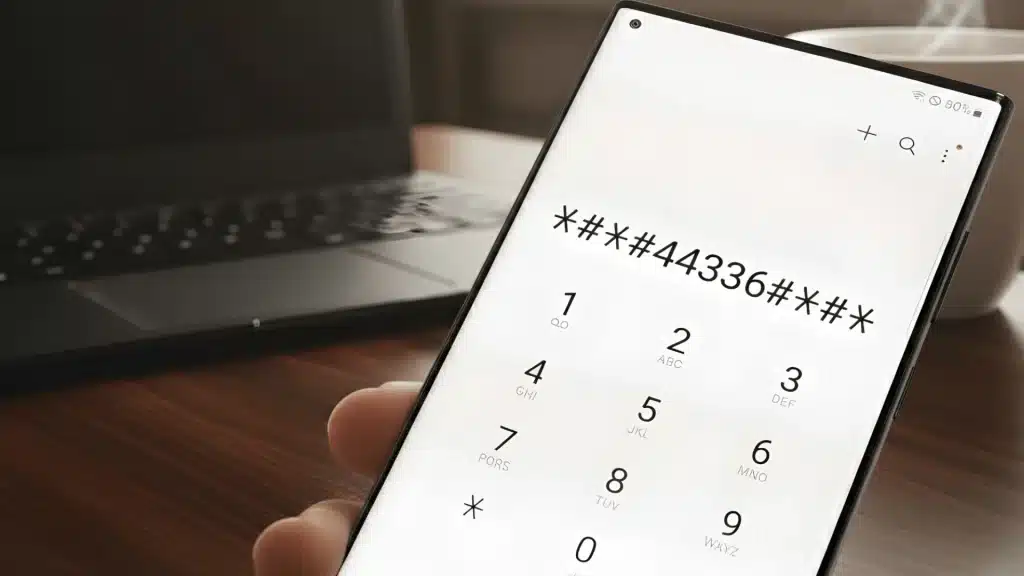
One common way to perform this is through Android Recovery Mode, which is often used when you cannot access the device normally.
If data loss is a concern, it is worth noting that in some situations you can unlock an Android phone without a password using account-based methods that skip the wipe entirely.
Second, your phone may ask for the previously linked Google account after the reset due to FRP lock. This is a security feature, not an error.
Lastly, make sure your device has at least 50 percent battery to avoid interruption during the reset process, which can cause further issues.
All Ways to Factory Reset Android Without a Password
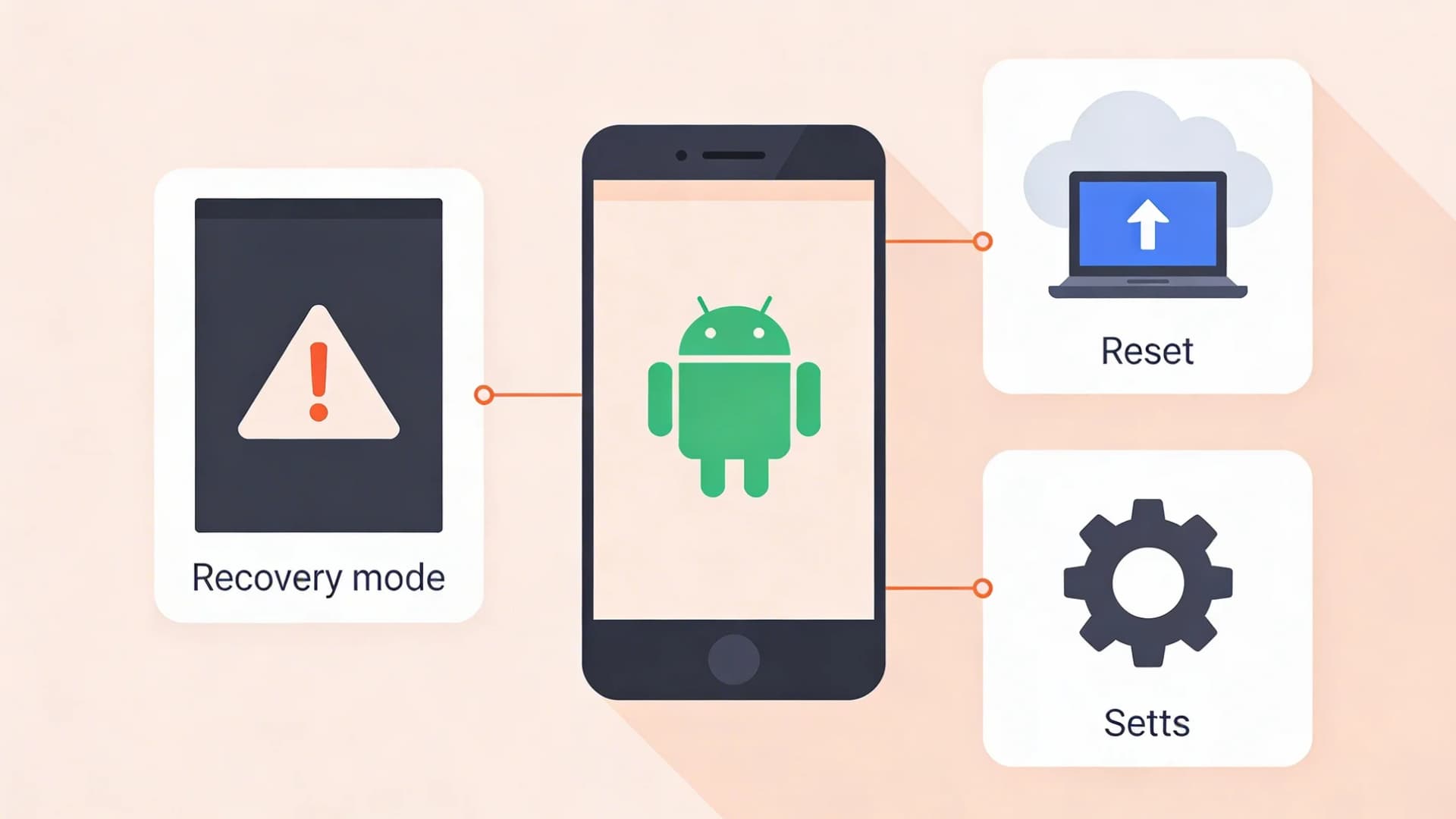
If you are locked out, there are several proven methods you can use. Each one works in different situations, so choose based on your device and access.
1. Recovery Mode Reset
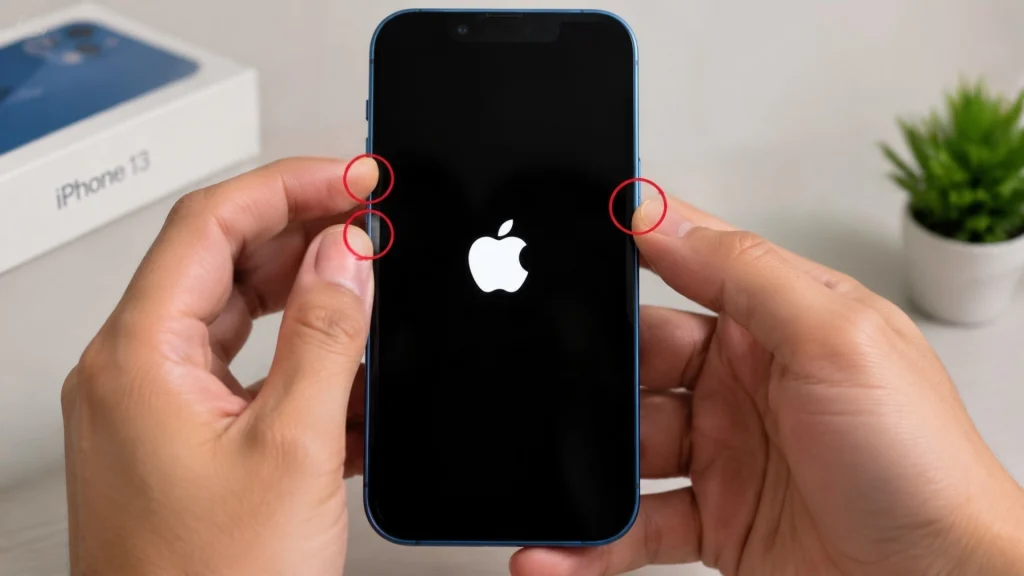
This is the most reliable method if you cannot access your phone at all. Turn off your device, then press a combination of buttons, such as Power and Volume Up or Down, to enter Recovery Mode.
Use volume keys to navigate and select Wipe data or factory reset using the power button. Confirm your choice and wait for the process to complete.
The exact button combination can vary by brand, so you may need to try a couple of options depending on your device model.
2. Google Find My Device
This method works only if your phone is connected to the internet and linked to your Google account.
Go to the Find My Device website from another device and sign in with your Google account. Select your locked phone and choose the Erase device option.
This will remotely reset your phone without needing the password. It is one of the easiest ways if your phone is online, but it will remove all data and sign you out of your device.
3. Samsung Find My Mobile
If you are using a Samsung phone, this method is often the easiest. Visit the Samsung Find My Mobile website and log in with your Samsung account.
Select your device and choose the Erase data option. This tool is designed specifically for Samsung users and often works smoothly with minimal steps.
It can reset your phone remotely as long as your device is connected to the internet and your Samsung account is active on the device.
4. ADB Method
This method is meant for users who are comfortable with technical steps. ADB, or Android Debug Bridge, allows you to send commands from a computer to your phone.
You need USB debugging enabled on your device before it gets locked. Connect your phone to a computer, open the command prompt, and use specific commands to remove the lock screen files.
This method does not work reliably on devices running Android 8 or above due to tightened security policies. It is only worth attempting if you set up USB debugging in advance and your device is an older model.
5. Third-Party Software
There are many third-party tools that claim to reset Android devices without a password. Some of them work, but many come with risks.
You may face issues like malware, data leaks, or even payment scams. If you decide to use one, choose well-known software with proper reviews.
These tools can be helpful when other methods fail, but they should always be your last option due to safety concerns and inconsistent results across different devices.
I’d like to give credit to Tenorshareofficial for their informative video, which served as a reference for this guide.
Which Method Should You Choose?
Choosing the right method depends on your situation and what access you still have. If your phone has no internet connection or is completely locked, Recovery Mode is your safest and most reliable option.
If your device is online and linked to your Google account, Find My Device is the quickest way to reset it remotely.
Samsung users get an extra advantage with Find My Mobile, which is simple and works smoothly in most cases.
If you are comfortable with technical steps and had USB debugging enabled earlier, the ADB method can also work in specific scenarios.
Will a Factory Reset Erase All Your Data?
The honest answer is yes, in most cases, you will lose your data after a factory reset. This process is designed to wipe everything from your device, including apps, photos, contacts, and settings.
There is no standard way to bypass this. However, you might still be able to recover your data if you had a backup in place.
Google backups, cloud storage, or brand-specific backup services can help restore your data during setup.
In some cases, files stored on an external SD card may remain safe, depending on your device settings before the reset.
Anyone who wants a step-by-step breakdown of the full process can follow the same button combinations and menu navigation used to reset a locked Android device through recovery mode.
Tips to Avoid This Problem Next Time
A few simple habits can help you avoid getting locked out again and keep your data safe, even if something goes wrong in the future.
- Use a password manager: Store your PINs and passwords securely so you never forget them, even if you rarely use them.
- Enable biometric unlock: Use fingerprint or face unlock for quick access while keeping your main password as backup.
- Turn on automatic backups: Sync your data with Google or cloud services so you can restore everything easily after a reset.
- Keep recovery options updated: Make sure your Google account and recovery details are always accessible and up to date.
- Avoid overly complex passwords: Choose something secure but memorable to reduce the chances of getting locked out again.
Conclusion
Getting locked out of your phone can feel frustrating, but as you have seen, there are multiple ways to handle it.
Whether you use Recovery Mode, remote tools, or advanced options, knowing how to factory reset Android without a password gives you a clear way out.
Just remember that data loss is part of the process in most cases, so backups matter more than ever. Pick the method that fits your situation and follow the steps carefully.
If you still have questions or run into any issues, leave your comments below, and let’s figure it out together.