A ringing phone in a meeting, a theater, or a quiet office is a small but constant annoyance, and silent mode iPhone settings do not always behave the way people expect.
Mine has gone off mid-movie more than once because muting the ringer does not mute the phone completely, only the parts Apple considers optional.
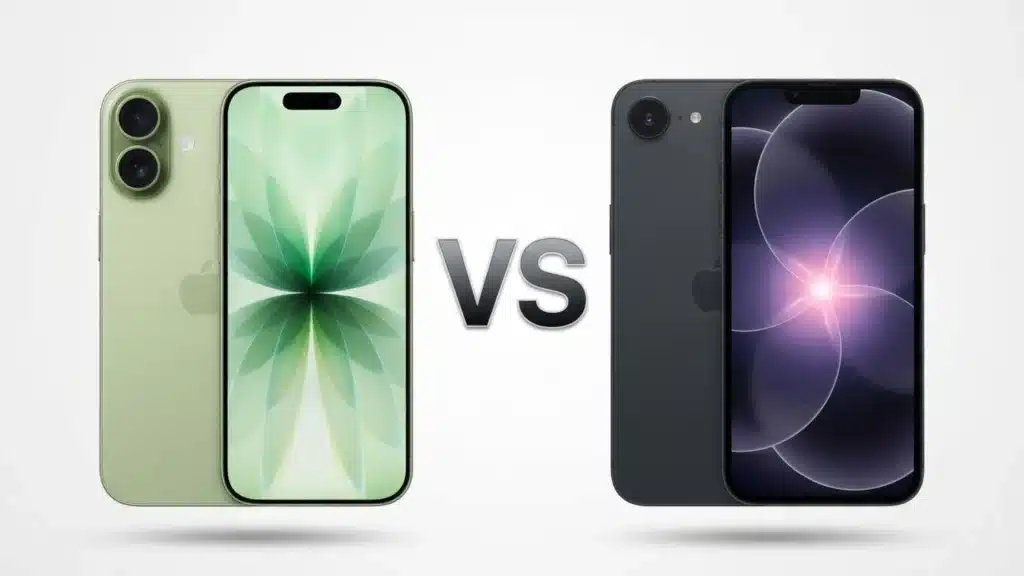
iPhone 15 Pro and later models swapped the physical switch for a programmable Action button, while earlier phones use the classic toggle, which trips up almost everyone switching devices.
Here is what actually happens when you flip that switch or press the Action button, which sounds slip through even when the phone is silenced, and how to silence an iPhone compared with Do Not Disturb.
Does Silent Mode Actually Mean Silent?
Silent Mode stops an iPhone from ringing, but it was never built to make the phone completely quiet.
Turning it on cuts ringtones, message tones, and most system alerts, though the way text messages get delivered depends on network settings that sit outside Silent Mode entirely. It doesn’t block every sound the phone makes, and that gap is where most confusion starts.
Apple treats Silent Mode as a ringer control, not a master volume switch. Anything the phone considers urgent, or anything you actively started playing, still comes through.
In my case, it was a podcast still buffering in the background, not an alarm or a call. Knowing what Silent Mode skips is what decides which extra setting actually solves the problem, and the next few sections walk through that in order.
Silent Mode iPhone: How to Turn It On
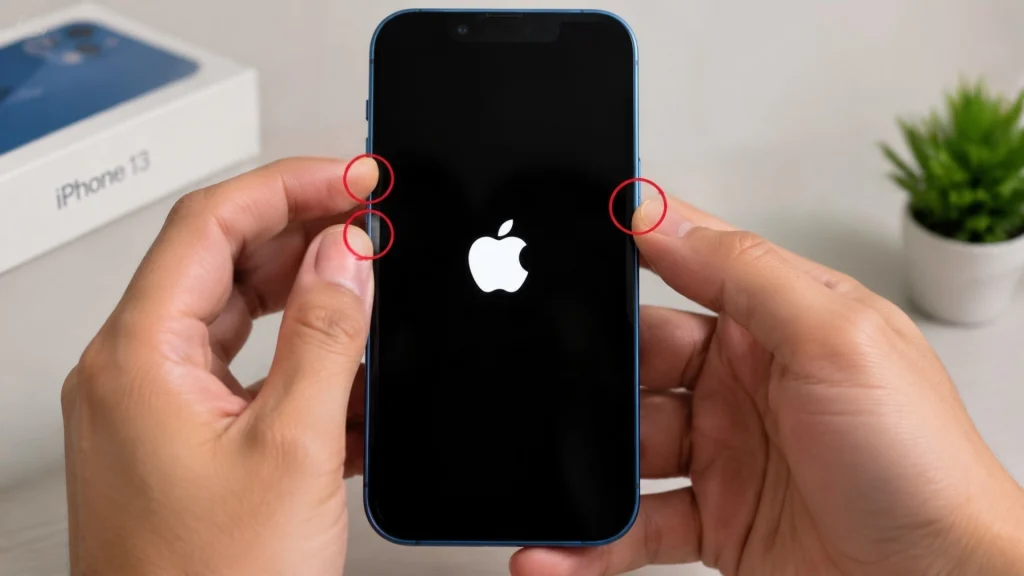
To silence an iPhone, start by checking the left edge of the phone. The control there determines which steps apply, and using the wrong one usually leads to a confusing trip through Settings.
1. Action Button Models (iPhone 15 Pro and Later)
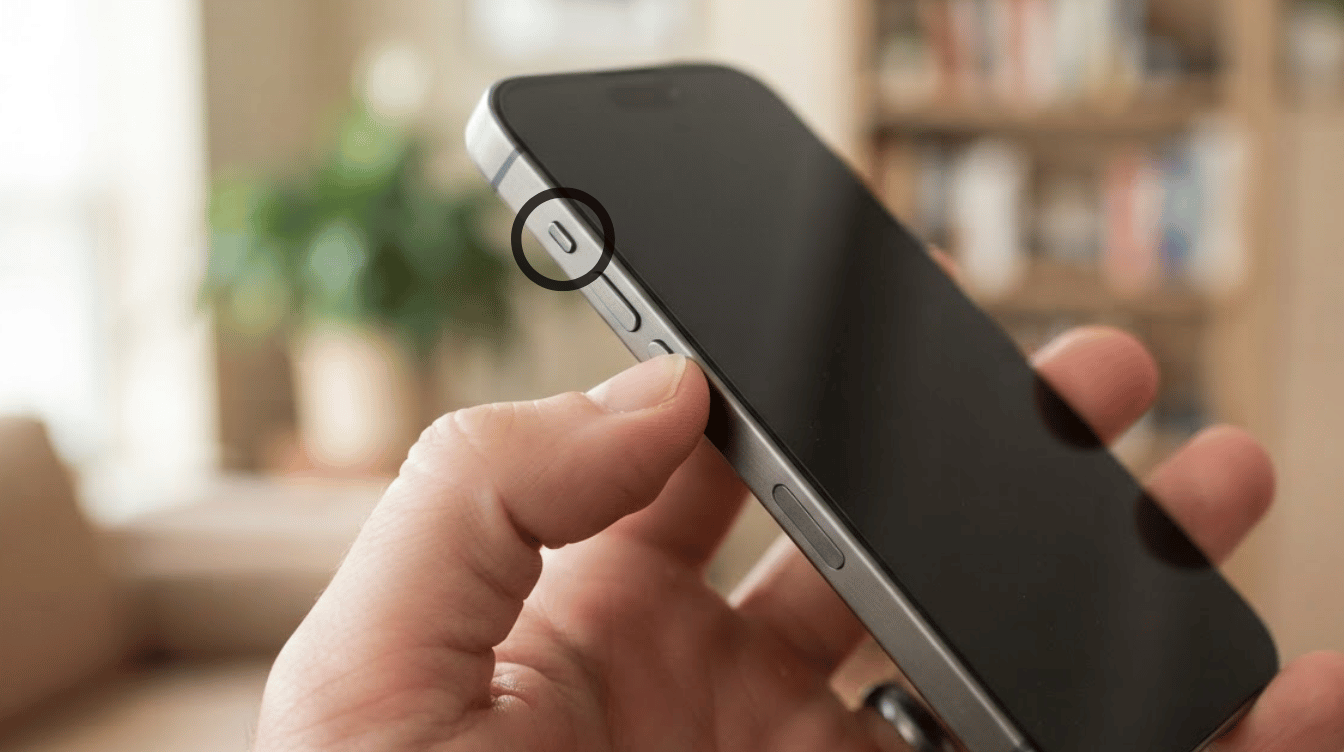
iPhone 15 Pro, iPhone 16, iPhone 17, and iPhone Air models replaced the side switch with a programmable Action button.
Open Settings, tap How to Silence Your iPhone under Sounds & Haptics, then turn Silent Mode on or off. You can also assign the Action button to Silent Mode under Settings > Action Button, which turns a two-tap process into a single press.
2. Ring/Silent Switch Models (iPhone 15, 15 Plus, and Earlier)
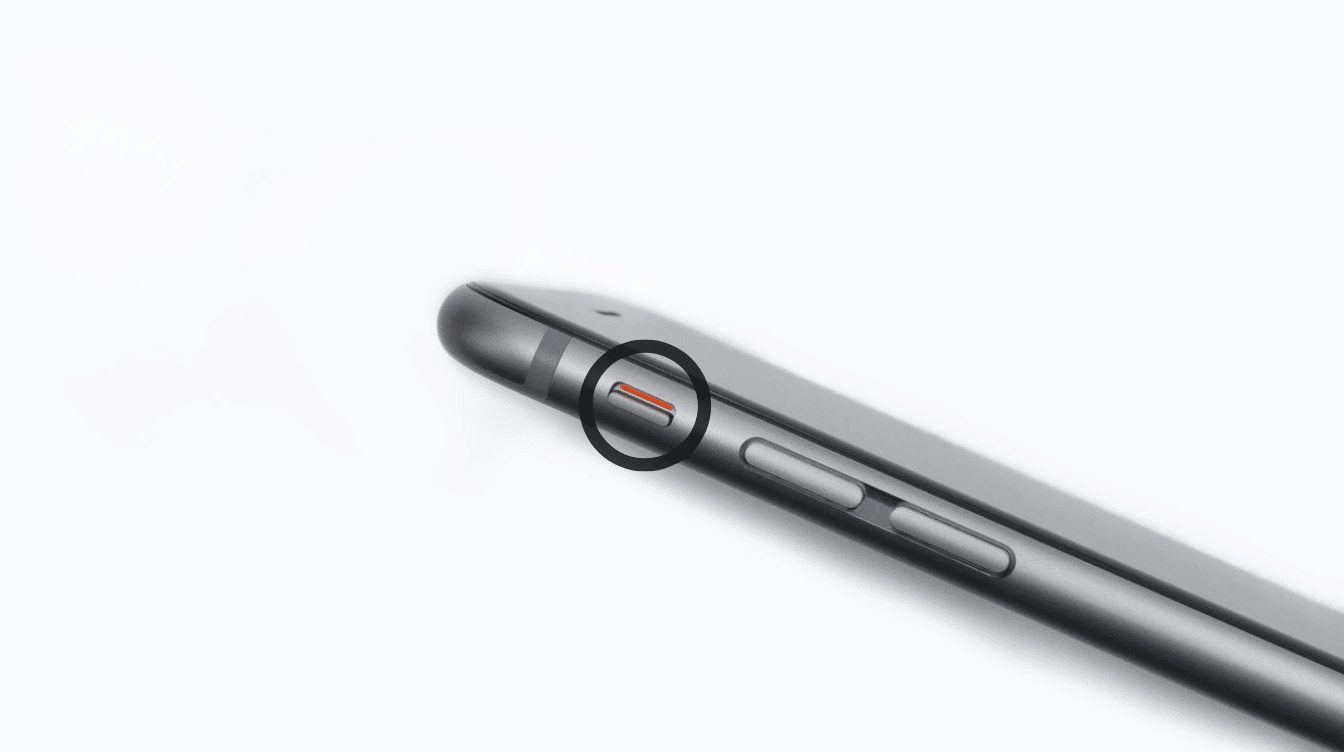
Every iPhone from the original model through the iPhone 15 and 15 Plus uses a small switch on the left edge, just above the volume buttons. Flip it toward the back of the phone to turn Silent Mode on, and toward the front to turn it off.
An orange strip appears along the switch when Silent Mode is active, giving a quick physical check even while the screen stays off, without waking the phone first.
3. Confirming Silent Mode is Actually On
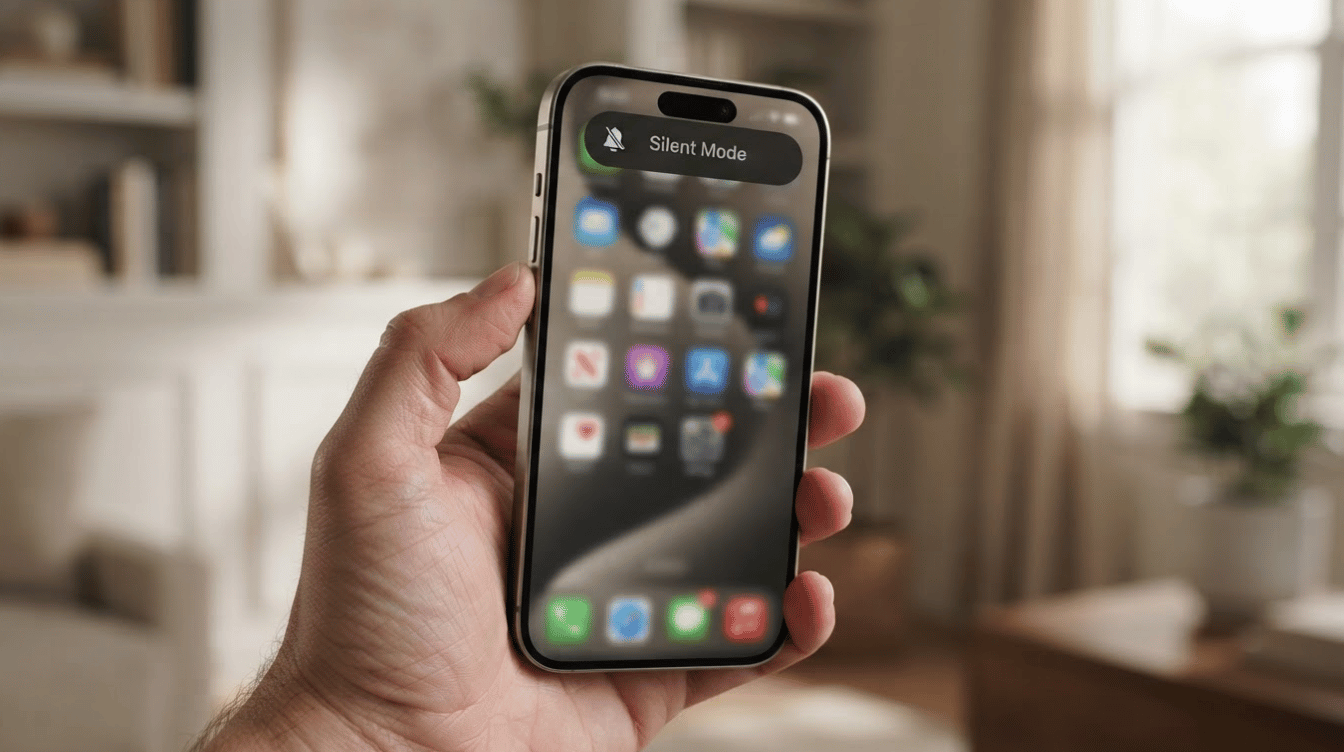
On Action button models, Settings > Sounds & Haptics also shows an “On” or “Off” label beside the Silent Mode toggle, which helps with a slower double-check. The Settings app groups plenty of similar toggles this way, including adjusting your location settings, if there’s more than just sound worth tidying up.
On Action button models, Settings > Sounds & Haptics also shows an “On” or “Off” label beside the Silent Mode toggle, which helps with a slower double-check.
Neither confirmation appears on the Lock Screen itself, so Control Center or Settings remains the only reliable way to verify status before a call.
What Still Makes Sound When an iPhone is on Silent
Apple carved out several exceptions on purpose, and a few are stricter than most people expect:
- Clock alarms set in the Clock app
- Music, podcasts, or videos already playing
- Many games and other audio apps that request sound directly
- Camera shutter sounds and Voice Memos effects, which are standard practice rather than a legal requirement in markets like Japan and South Korea, though the convention is strong enough that most manufacturers do not offer a way to disable it there
- Calls from contacts marked as Favorites, and Emergency Alerts issued by local authorities
You can’t turn off can of these exceptions through Silent Mode itself. Apple treats each one as a sound you either requested directly or need to hear regardless of the ringer setting, so each needs its own separate adjustment.
Silent Mode vs Do Not Disturb
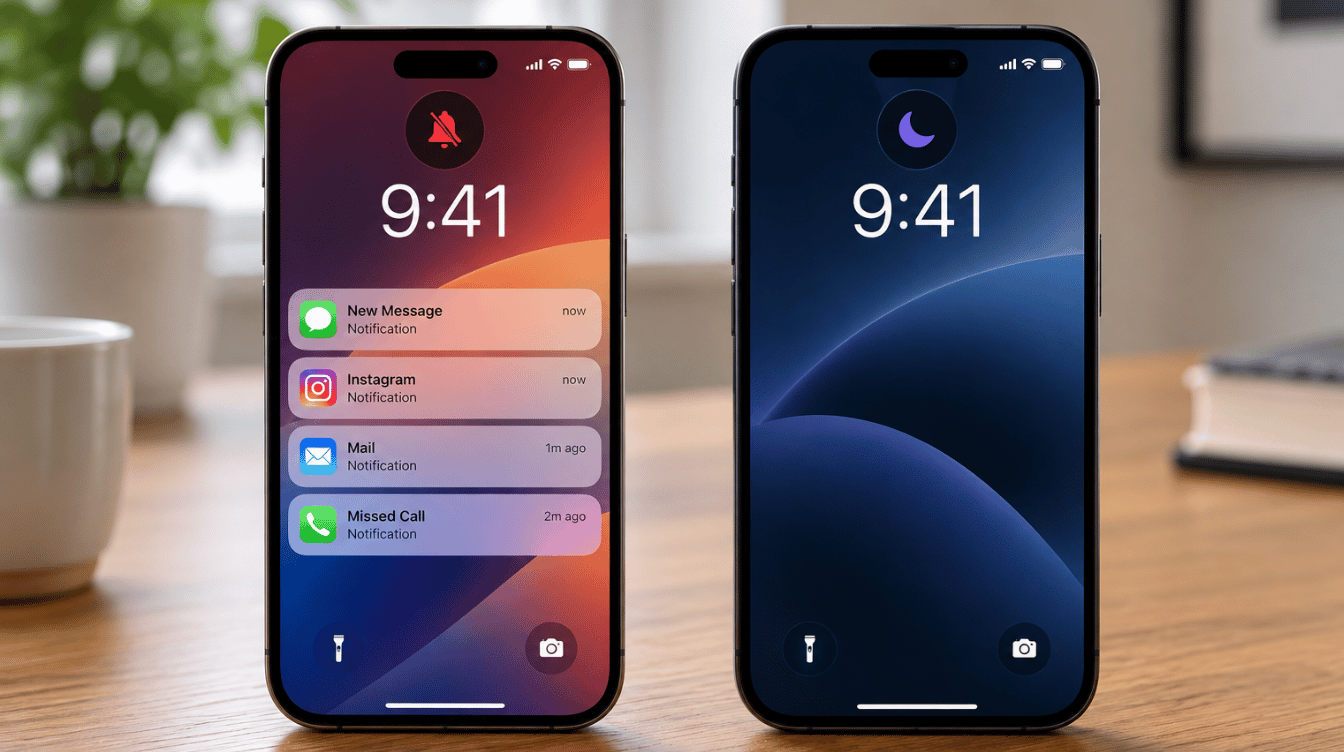
Silent Mode and Do Not Disturb get mixed up constantly, yet they solve different problems. One removes sound. The other manages who and what reaches the phone at all, including whether notifications reaching your Apple Watch get held back too.
|
Feature |
Silent Mode |
Do Not Disturb |
|---|---|---|
|
Stops ringtone and alert sounds |
Yes |
Yes |
|
Blocks notifications from appearing on screen |
No |
Optional, based on settings |
|
Allows exceptions for chosen people or apps |
No |
Yes |
|
Can be scheduled to turn on automatically |
No |
Yes |
|
Clock alarms still play |
Yes |
Yes |
|
Best suited for |
Quiet needed right now |
Longer, planned periods |
Silent Mode works best as an immediate, short-term fix for a single moment. Do Not Disturb, especially when scheduled through Focus, suits longer stretches like sleep, work blocks, or travel, where planned, hands-off quiet matters more than a quick mute.
Muting Sound and Vibration Together
Turning off ringtones alone still leaves an iPhone buzzing against a desk or inside a pocket, since vibration lives in a separate setting most people never touch. These steps turn off both sound and vibration.
- Open Settings, tap Sounds & Haptics, then tap Haptics near the bottom.
- Review the four options: Always Play, Play in Silent Mode, Don’t Play in Silent Mode, and Never Play.
- Choose Don’t Play in Silent Mode to stop vibration only while the ringer is off, keeping a buzz once you turn Silent Mode back on.
- Choose Never Play instead to remove vibration entirely in every ringer state if vibration is the part you don’t want.
Keyboard clicks and Lock Screen sounds sit in the same menu, so adjusting those alongside Haptics creates a genuinely quiet iPhone, not just a quieter one.
Does Silent Mode Affect Battery Life or Performance?
This section did not exist in the original draft. It closes a real gap: people search for this alongside silent mode questions, and it adds topical depth without padding.
Toggling Silent Mode has no measurable effect on battery life or performance. The setting only governs which sounds play, not how the phone’s processor, display, or radios behave.
Vibration draws slightly more power than a ringtone alert over time, so a phone set to Never Play under Haptics can, in theory, save a marginal amount of battery, though the difference is small enough that most people will never notice it in daily use.
Common Mistakes That Make People Think Silent Mode Is Broken
Added to build topical authority and give the piece a practical, first-hand angle instead of restating the exceptions list a second time.
- Assuming a case is blocking the switch. A thick case can partially obstruct the physical switch on older models, so it is worth pulling the case off to check before assuming a setting is at fault.
- Confusing a Focus mode banner for a Silent Mode confirmation. They use different icons, and only the bell icon confirms the ringer state.
- Forgetting that Bluetooth audio, once connected, plays through the accessory regardless of the ringer setting, since it counts as media already in progress.
- Leaving Haptics set to Always Play, then assuming Silent Mode “isn’t working” when the phone only vibrates.
If a phone still makes noise after checking all of this, a restart clears most lingering software glitches. Anything that persists after that usually points to a hardware fault with the switch or Action button itself.
How to Turn Off Silent Mode
Reversing Silent Mode uses the same controls as turning it on, so you don’t need to learn anything new.
On Action button models, open Settings, tap Sounds & Haptics, then switch Silent Mode off, or press the assigned Action button once if already configured.
On Ring/Silent switch models, flip the switch back toward the front until the orange strip disappears. Either method restores ringtones and alerts immediately, with no restart involved.
Action button models have one extra shortcut: you can add a Silent Mode tile to Control Center from Settings > Control Center > Add a Control, so you don’t have to reach for the physical control every time. Switch-based iPhones don’t offer this option.
Wrapping It Up
Getting an iPhone quiet comes down to knowing which control your model uses, and accepting that silent mode iPhone settings were never built to block every sound. Action button models take one tap in Settings or a press on the button, while switch-based iPhones use a simple flip along the edge.
Vibration lives in a separate menu, so a phone can look silenced and still buzz unless you adjust Haptics too. Alarms, media already playing, and Favorites calls are expected exceptions, not bugs, as my own phone reminded me last week.
Once you understand how to silence an iPhone properly, choosing between that and Do Not Disturb gets easier. Curious which of these caught you off guard? Tell me in the comments.
Frequently Asked Questions
Does Silent Mode Work the Same on iPad?
iPad uses a software-only version of Silent Mode found under Settings > Sounds, since most models skip the Action button and switch entirely. The same exceptions still apply, and alarms, music, and video audio keep playing after you turn it on.
Will Silent Mode Affect Screen Time Alerts?
Screen Time notifications follow the same sound rules as other system alerts, so they stay quiet whenever Silent Mode is on. Downtime and app limits still apply exactly as scheduled, since Silent Mode changes sound only, not app access.
Is Silent Mode Different From Airplane Mode?
Yes, and they are not interchangeable. Silent Mode only mutes sound while every other function, including calls, texts, and internet access, keeps working normally. Airplane Mode disables the phone’s radios entirely, which stops calls and data as well as sound, and does not use the switch or Action button at all.
Does Silent Mode Silence CarPlay and Bluetooth Audio?
No. Once a phone is connected to CarPlay or a Bluetooth speaker, that audio is treated as media already in progress, the same category as a podcast or a game, so it keeps playing regardless of the Silent Mode setting.
Can I Silence Only Text Messages and Not Phone Calls?
Not through Silent Mode itself, since it is an all-or-nothing ringer switch. For that level of control, set individual contacts or apps to Allowed or Silenced inside a custom Focus under Settings > Focus, which lets calls through while keeping message alerts quiet, or the reverse.