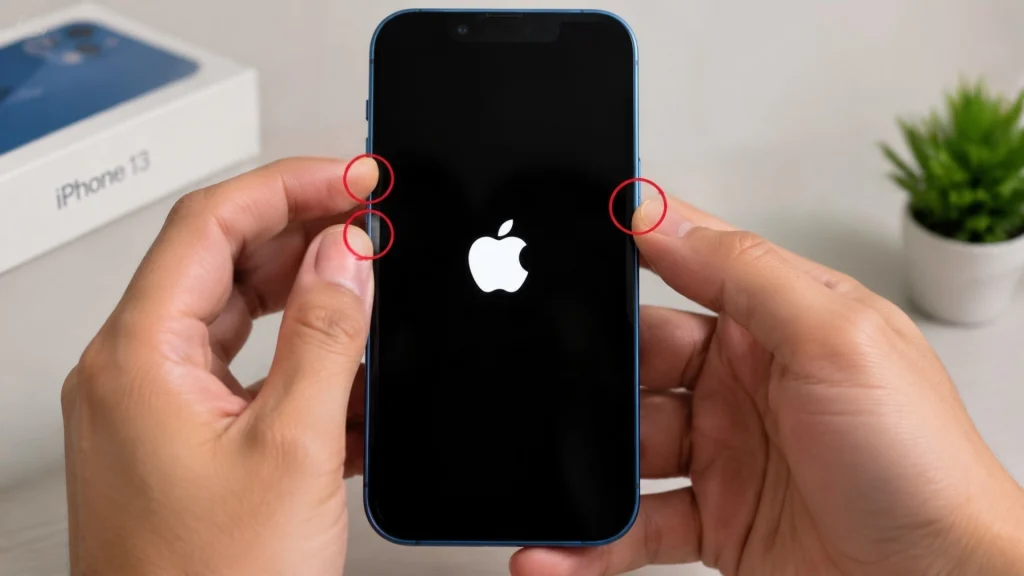
Three people were mid-demo when the iPhone 13 running their smart home setup stopped responding; the lights, thermostat, and speakers froze on a blank screen.
I have tested and repaired phones long enough to know what that specific freeze usually means, and it is not a trip to a repair shop.
A hard reset iPhone 13 owners can do themselves clears most frozen screens in under a minute, using nothing but three button presses in the right order.
Beyond that quick fix, you will also find how to reset an iPhone through Settings for a full factory wipe, how to erase one without a passcode, and the point where button presses alone stop being enough.
Force Restart vs. Factory Reset: Two Different Fixes
Matching the fix to the problem starts with understanding what each method does, since a force restart and a factory reset solve very different issues.
In everyday use, hard reset and force restart mean the same thing: restarting the phone using only the physical buttons, with nothing erased. A factory reset is different: it wipes the device completely. The table below keeps that distinction clear before the steps for each one.
|
Method |
What It Does |
Data Loss? |
Best For |
|---|---|---|---|
|
Force restart (hard reset) |
Restarts the device using only button presses |
No |
Frozen screen, unresponsive app, black display |
|
Factory reset |
Erases all data and settings, reinstalls a clean iOS |
Yes |
Selling or gifting the phone, persistent software faults |
Each option has its own steps, covered below one at a time. The same force restart versus factory reset distinction holds if you also carry an Android phone, though resetting an Android phone without a password follows a different set of steps.
How to Hard Reset iPhone 13
The right method depends on what is wrong with the phone; these three situations are among the most common iPhone problems people run into, and they are broken out below one at a time.
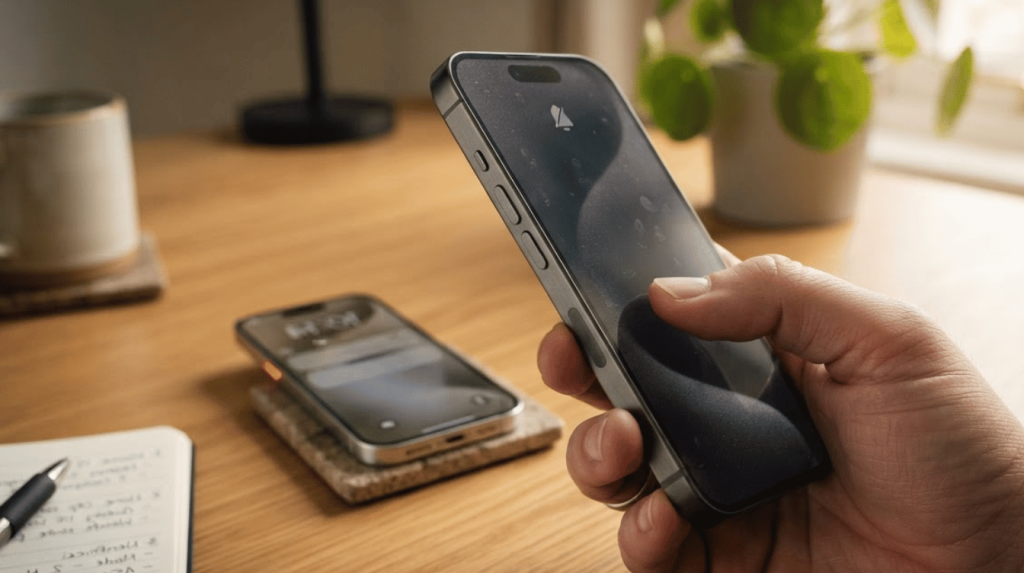
1. Hard Reset with Buttons
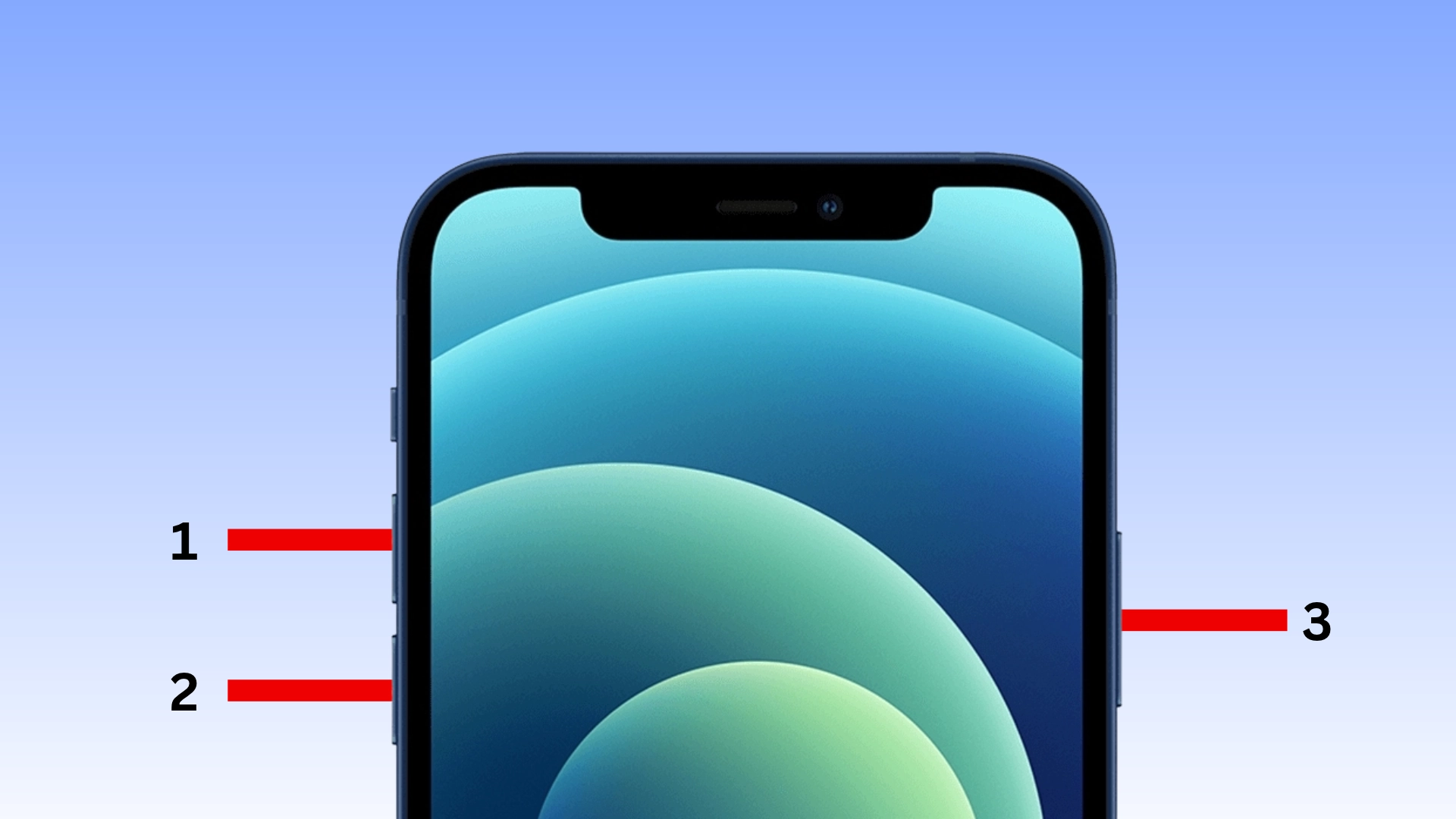
This is the fastest fix for a stuck or unresponsive iPhone 13, and it won’t affect stored photos, messages, or apps.
- Press and quickly release the Volume Up button.
- Press and quickly release the Volume Down button.
- Press and hold the Side button.
- Keep holding until the Apple logo appears on the screen, then release.
A “slide to power off” bar may appear partway through. Ignore it and keep holding the Side button. The screen will go black before the Apple logo appears, and the phone may take a little longer than usual to fully restart.
Apple’s own support page walks through the same sequence for reference.
2. Hard Reset with Settings
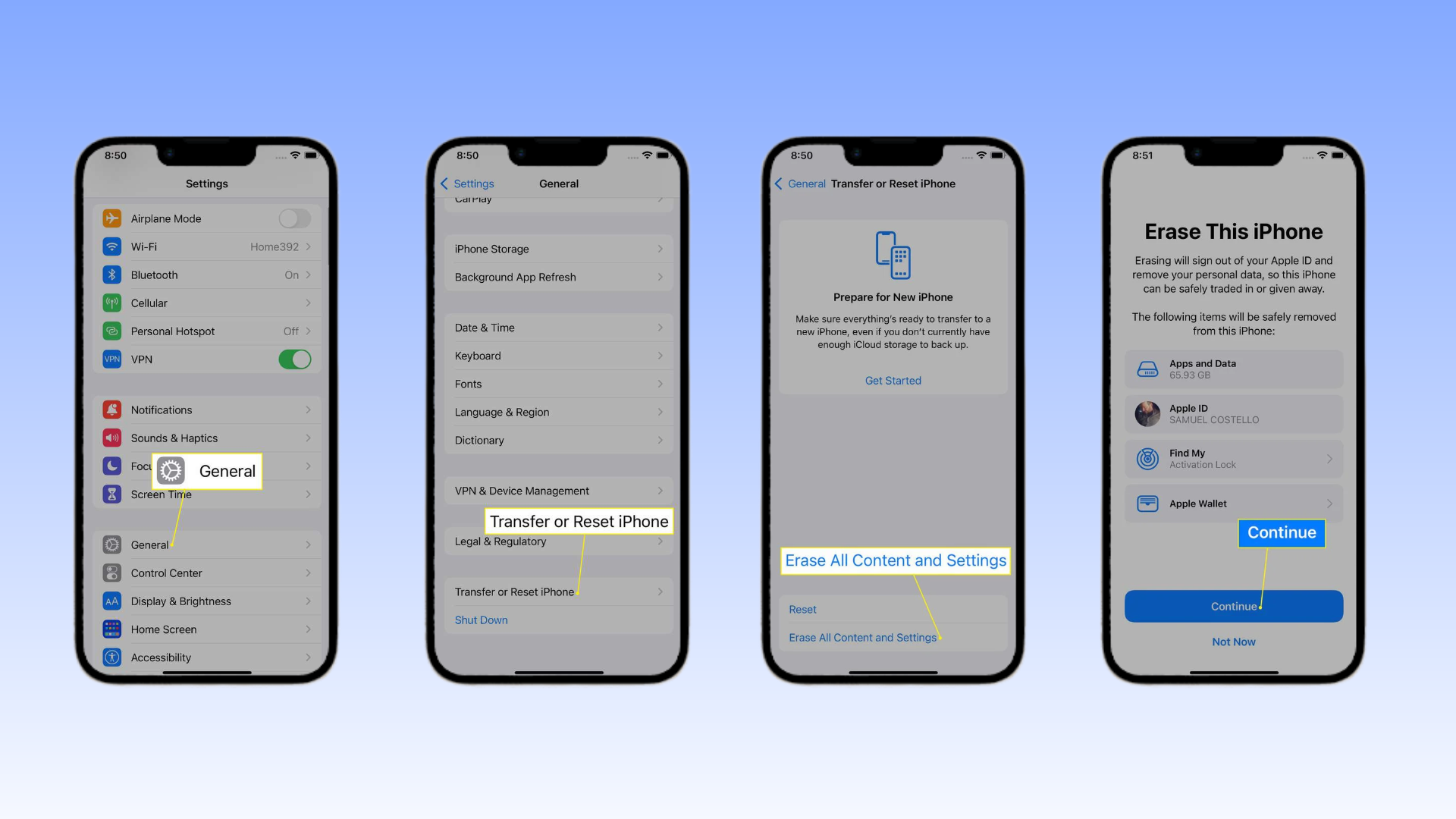
A factory reset clears everything on the device and restores it to it out-of-the-box state, so back up first.A factory reset clears everything on the device and restores it to its out-of-the-box state, so back up first.
Apple’s own factory reset walkthrough covers the same Erase All Content and Settings path in more detail if any step below looks different on your iOS version.
Before starting: back up the iPhone 13 to iCloud or a computer, since this process cannot be undone once it begins.
- Open the Settings app.
- Go to General, then Transfer or Reset iPhone.
- Tap Erase All Content and Settings.
- Enter the device passcode or Apple ID password to confirm.
- Follow the remaining on-screen prompts to complete the erase.
The phone will restart as a new device once the process finishes, ready for setup or a new owner.
3. Erasing an iPhone 13 without a Passcode
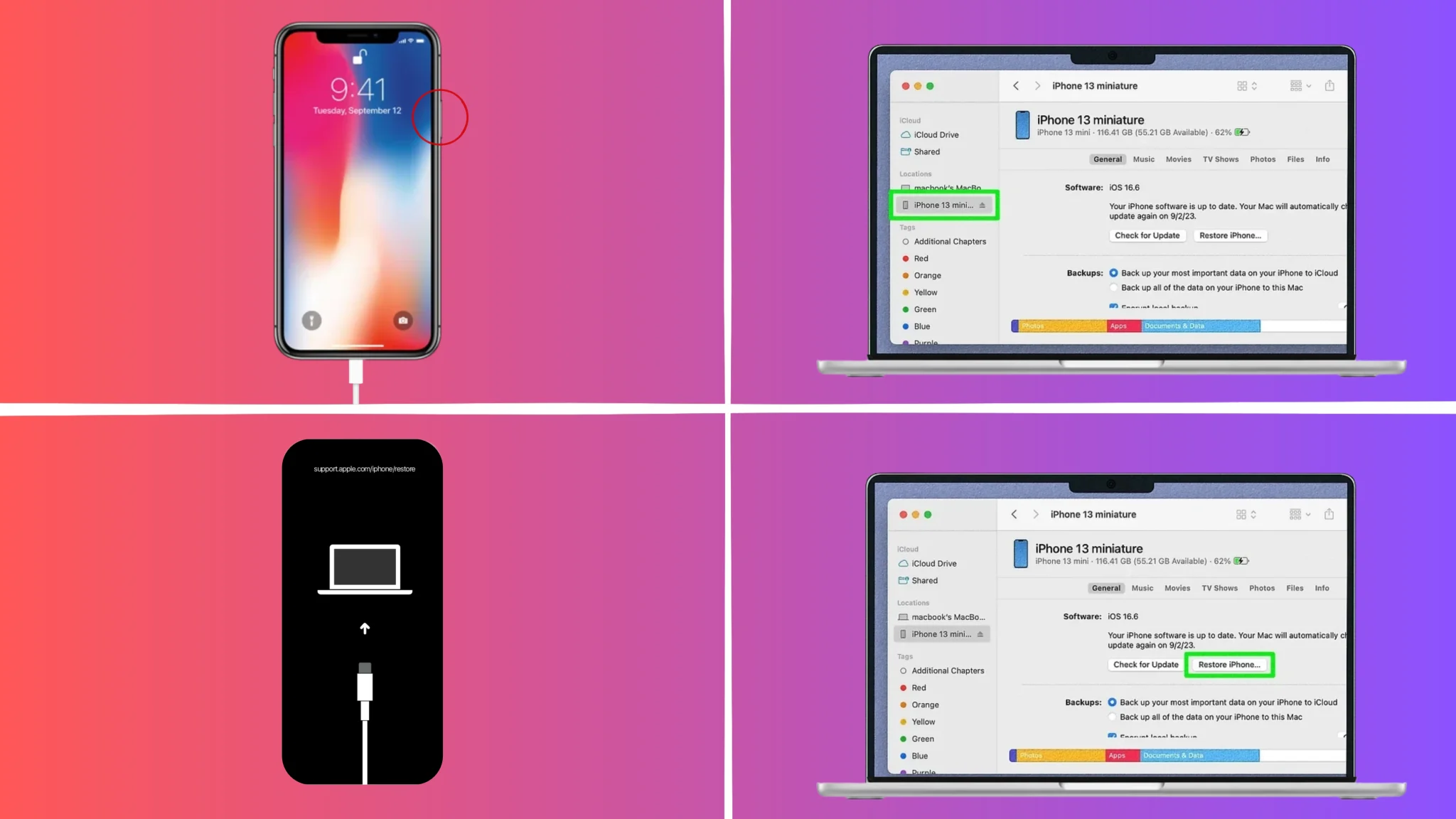
A missing passcode does not rule out a reset. Apple’s recovery tools handle this without third-party software, but both routes below erase the device completely. No method recovers a forgotten passcode while keeping the phone’s data. Apple’s passcode and recovery mode guidance walks through the same steps if your computer doesn’t detect the phone right away.
- Connect the iPhone 13 to a computer using a Lightning or USB-C cable.
- Open Finder (macOS Catalina or later) or iTunes (an earlier Mac or a PC).
- With the phone connected, quickly press Volume Up, then Volume Down, then hold the Side button until the recovery mode screen appears instead of the Apple logo.
- Select the device in Finder or iTunes and choose Restore, which erases the phone and reinstalls the operating system.
You can also remotely erase an iPhone signed into iCloud through Find My at icloud.com, which is a safer route than any paid passcode-removal tool and doesn’t require physical access to the device.
Screen Frozen or Not Responding? What to Check First
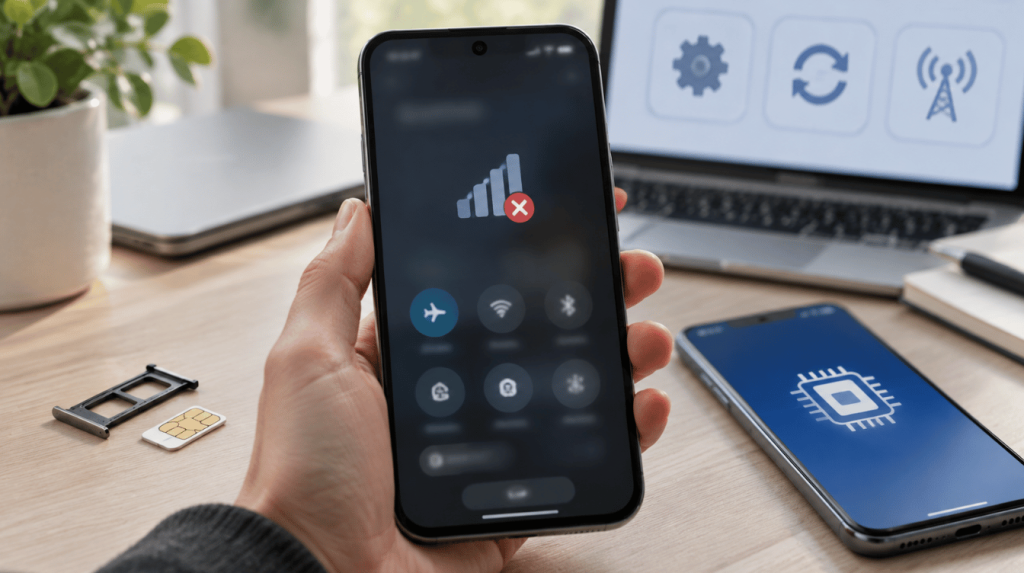
Sometimes the button sequence does not work on the first try, and that usually comes down to timing rather than a deeper fault. The Volume Up and Volume Down presses need to happen quickly, not be held.
Holding a volume button alone just raises or lowers the volume and doesn’t trigger the reset, and holding the Side button alone opens the power-off slider instead of restarting the phone. A tight-fitting case can also block a press from registering, so remove it before trying again.
Battery level matters too: an iPhone below a very low charge will not respond to any button combination until it has charged for several minutes.
If the Apple logo still does not appear after two or three attempts with the case off and the phone charging, the device may need recovery mode rather than repeated force restarts.
Why an iPhone 13 Freezes in the First Place
A frozen screen usually traces back to a few causes, and knowing which one you are dealing with helps you decide whether a force restart is enough or whether a fuller reset is coming next time.
One quick check to do first is clearing your app cache, since a single overloaded app is often the real cause of the freeze.
- A stuck iOS update: the phone restarts partway through installing an update and stalls on the Apple logo.
- An app that stopped responding: one app locks the whole interface instead of just crashing on its own.
- Storage running near full: iOS can behave unpredictably when there is almost no free space left for temporary files.
- A physically stuck button: rare, but a Side or Volume button that does not spring back can prevent the phone from waking normally.
In my testing, the update-related freeze is the most common by far, and a force restart clears it almost every time without any further steps.
When to Consider DFU Mode Instead
DFU (Device Firmware Update) mode is a step beyond recovery mode, reserved for cases where a force restart and a standard restore through Finder or iTunes both fail to fix the phone.
Rather than reinstalling the current version of iOS, DFU mode reloads the firmware itself, which can resolve issues an ordinary restore cannot, such as a phone stuck on a black or white screen after an update.
The trade-off is that DFU mode requires a precise button sequence held for exact durations, and getting the timing wrong usually just returns the phone to its previous stuck state without causing further harm.
For most iPhone 13 owners, a force restart or a standard factory reset solves the problem long before DFU mode becomes necessary, so treat it as a last resort, not a first attempt.
Apple does not publish an official step-by-step DFU guide for end users, since it is meant mainly for developers and service providers. If a standard restore keeps failing, Apple’s own troubleshooting for a device that will not update or restore is the safer next step before attempting DFU mode.
A Quick Backup Checklist Before Any Factory Reset
- Confirm your last iCloud backup date under Settings> [Your Name]> iCloud> iCloud Backup.
- Or connect to a computer and run a manual backup through Finder or iTunes.
- Check that the backup includes the photos and messages you care about, not just synced apps.
- Note down your Apple ID and password before erasing; you will need both to set the phone up again.
- If selling or gifting the phone, sign out of Find My first so the reset actually completes.
Final Thoughts
An unresponsive iPhone 13 rarely means the device is broken; it usually just needs a clean restart. The three-button sequence handles a stuck screen in seconds, the Settings path erases everything for a resale or a fresh start, and recovery mode steps in when the passcode is gone.
DFU mode remains a last resort when a standard restore fails. Back up first if the data matters, since only the button sequence leaves your content untouched.
That is the quickest way to hard reset an iPhone 13, and the same logic applies to resetting most recent models. Try the sequence next time your screen locks, and tell me how it went in the comments.
Frequently Asked Questions
Can I Hard Reset an iPhone 13 With a Cracked or Unresponsive Screen?
Yes. The entire force restart process uses only the physical Volume Up, Volume Down, and Side buttons, so it works even when the touchscreen itself is cracked, unresponsive, or completely dark.
Do the Same Reset Steps Work on iPhone 12 and iPhone 14?
Yes. Apple has used an identical three-button force restart sequence and the same Settings-based factory reset path across the iPhone 12, 13, and 14 lines, since all three share the same side-button layout with no Home button.
Will a Hard Reset Delete My Photos, Messages, or Apps?
No. A force restart only restarts the operating system; it does not touch anything stored on the phone. Only a factory reset, the Erase All Content and Settings option, or a restore through Finder or iTunes actually deletes data.
What if Recovery Mode Never Appears on the Computer?
Try a different USB port or cable first, since a faulty cable is the most common cause. Make sure Finder or iTunes is updated to the latest version, and quit and reopen it if the phone was already connected before you started the button sequence.