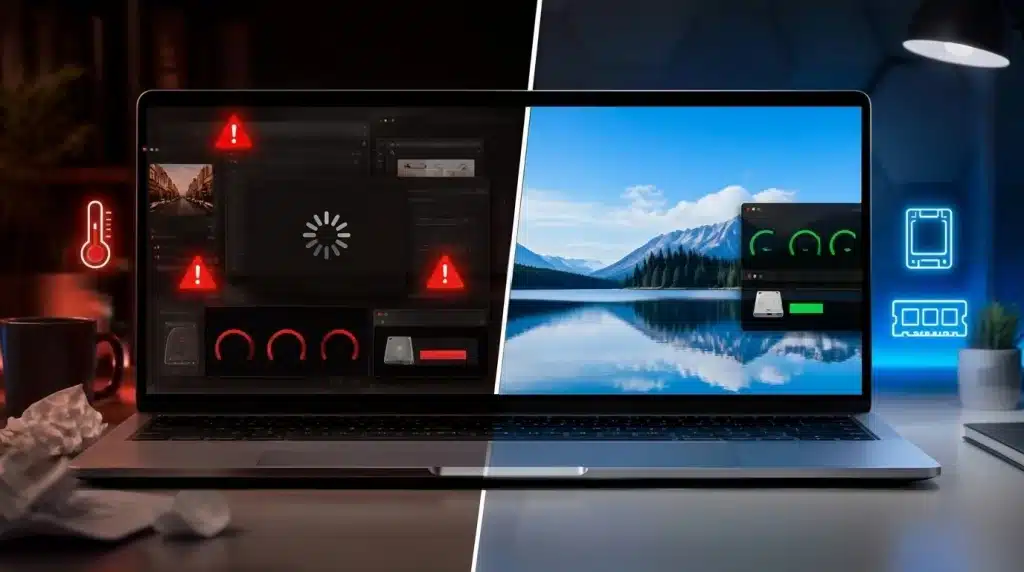
Is your laptop taking forever to open a simple file, or does it freeze the moment you open more than two tabs? You are not alone, and most slow laptops can simply be fixed without spending a single penny.
A slow laptop usually comes down to too many background programs, low storage space, outdated software, heat buildup, or aging hardware.
So now I’ll tell you how you can fix a slow laptop, walk you through simple checks, free fixes you can try today, and upgrades worth the money if the basics don’t help. And by the end of it, your laptop should feel noticeably quicker and easier to use.
Why Your Laptop Feels So Slow?
Before trying any fix, it helps to understand what usually causes a laptop to slow down, since guessing at the problem often wastes time.
Most slowdowns come down to a mix of four things already touched on earlier: too many programs running quietly in the background, limited storage space that leaves little room for temporary files, and aging hardware.
Such as an older hard drive or low memory struggling with newer software, and heat buildup from dust blocking the vents, which forces the system to slow itself down to stay safe.
Once you know which of these matches your laptop, the fixes further down this guide become much easier to follow and apply with confidence.
How to Fix a Slow Laptop
Once you have identified what is causing the slowdown, work through the fixes below in order. Start with the free solutions first, then consider hardware changes only if your laptop still struggles.
1. Restart Your Laptop
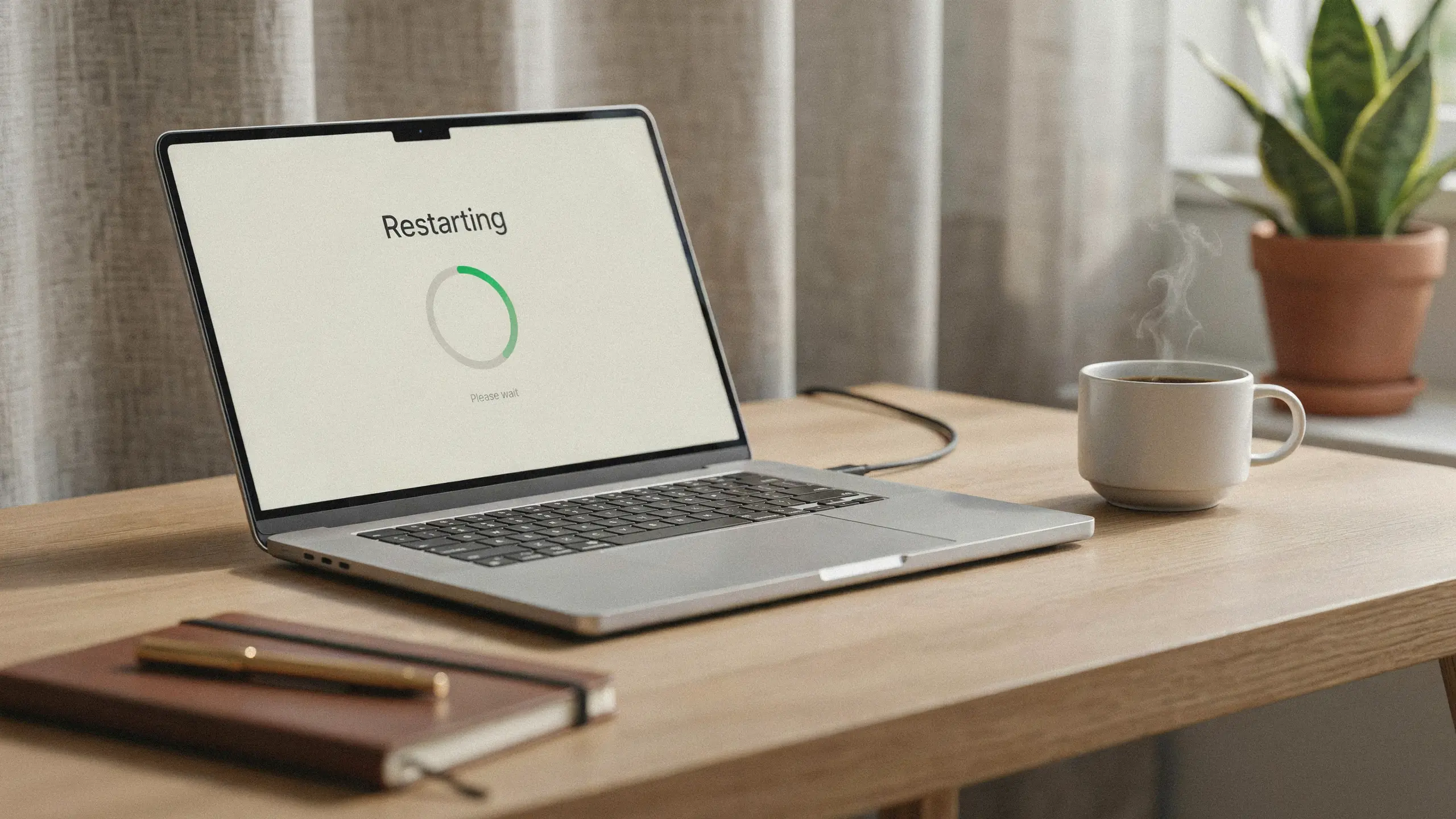
Restarting clears temporary memory, closes stuck processes, and refreshes system resources. Apps may continue consuming resources even after you stop using them.
A simple restart can fix minor performance issues and improve responsiveness, especially if your laptop has been running for several days without interruption.
2. Reduce Background Activity
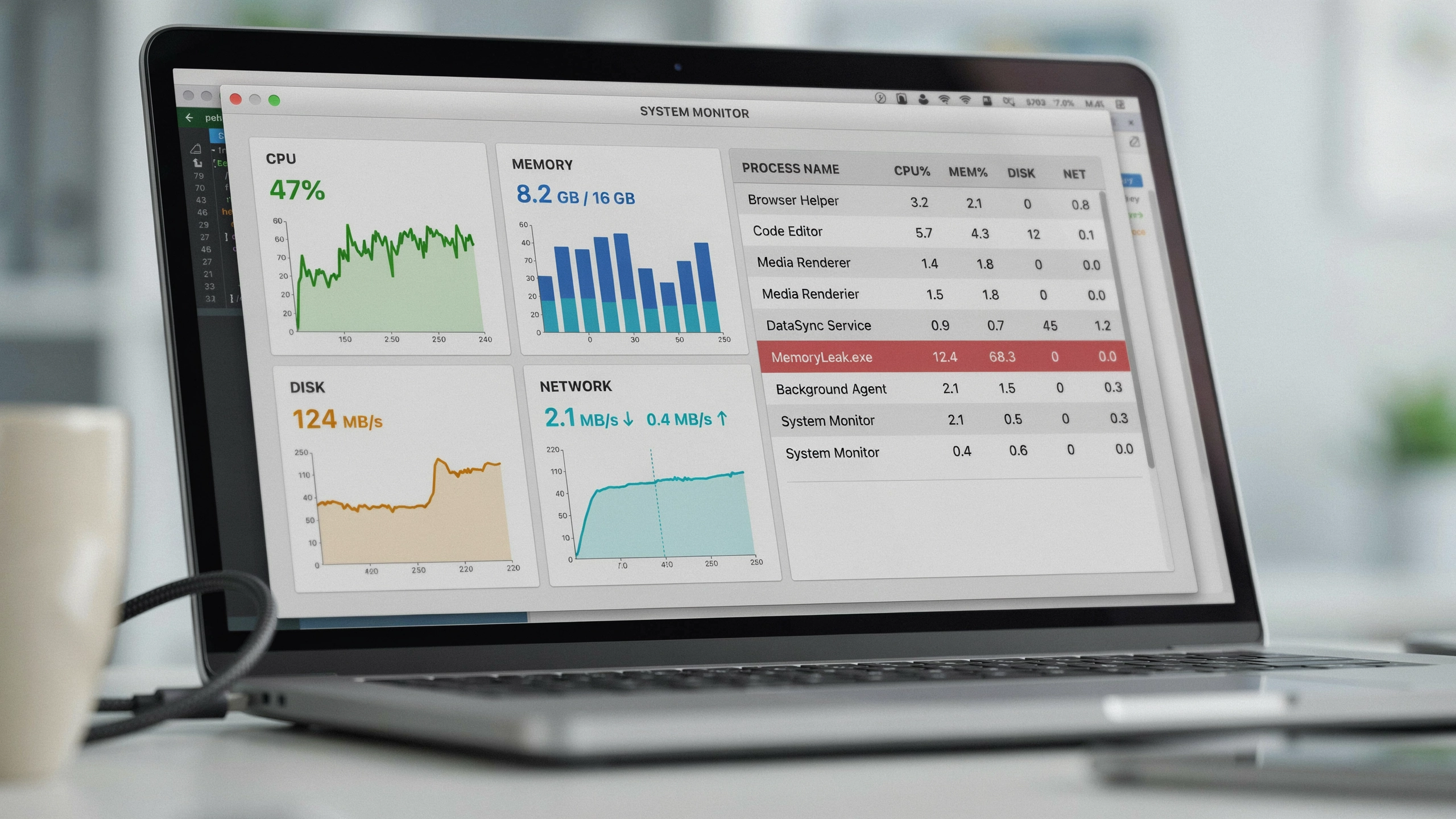
Background applications silently use CPU, RAM, and disk resources. Check your Task Manager to identify programs consuming the most resources. If an app won’t close on its own, quitting unresponsive programs usually clears it out.
Close unnecessary apps and review unfamiliar processes carefully. Reducing background activity frees resources, helping your laptop run more smoothly and improving performance during everyday tasks.
3. Manage Startup Programs
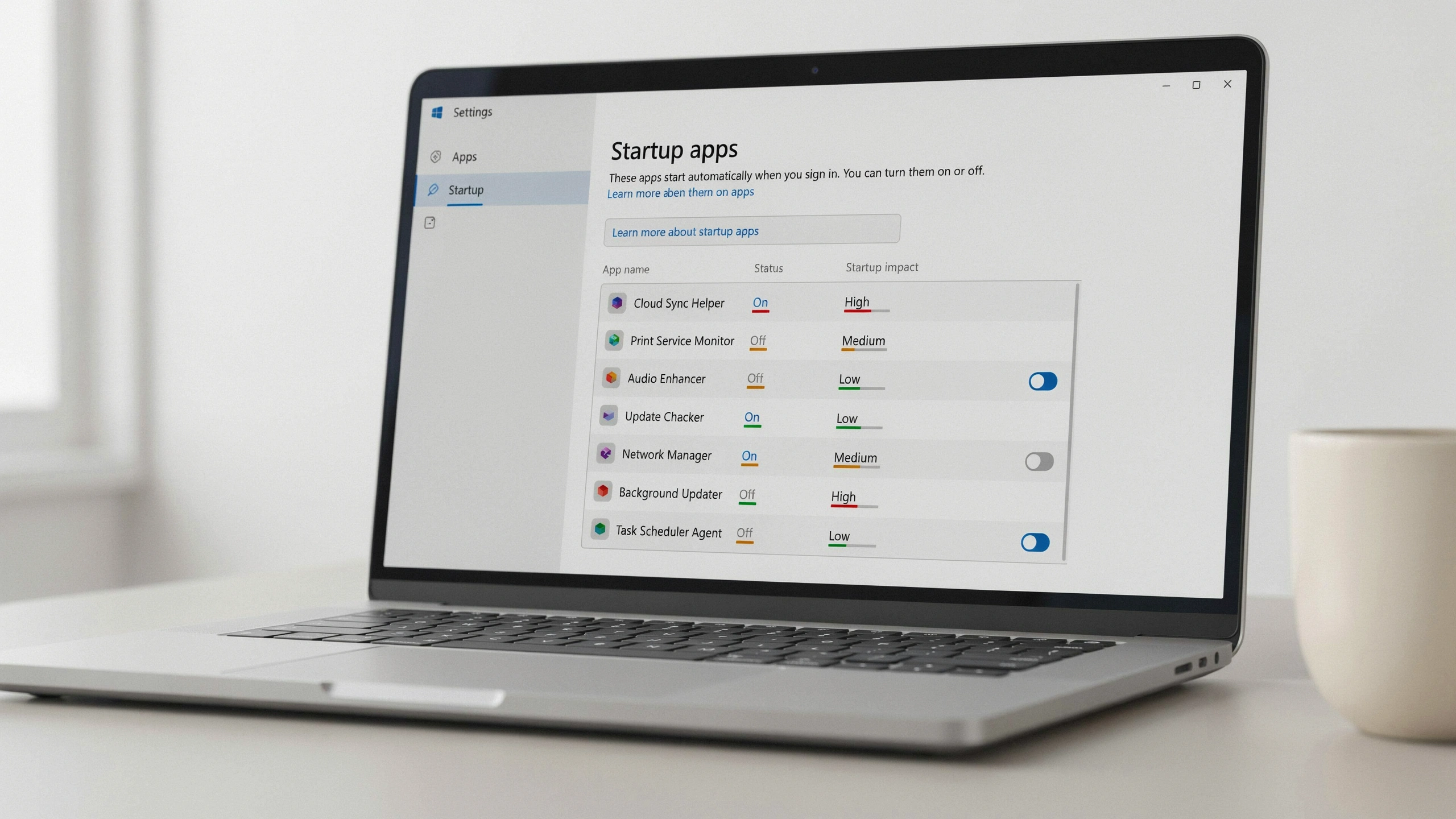
Startup programs launch automatically when your laptop turns on, increasing boot time and using memory immediately. Review startup settings and disable apps you rarely need at startup.
Keep essential services and security software enabled. Managing these programs helps your laptop start faster and improves overall system responsiveness.
4. Free Up Storage Space
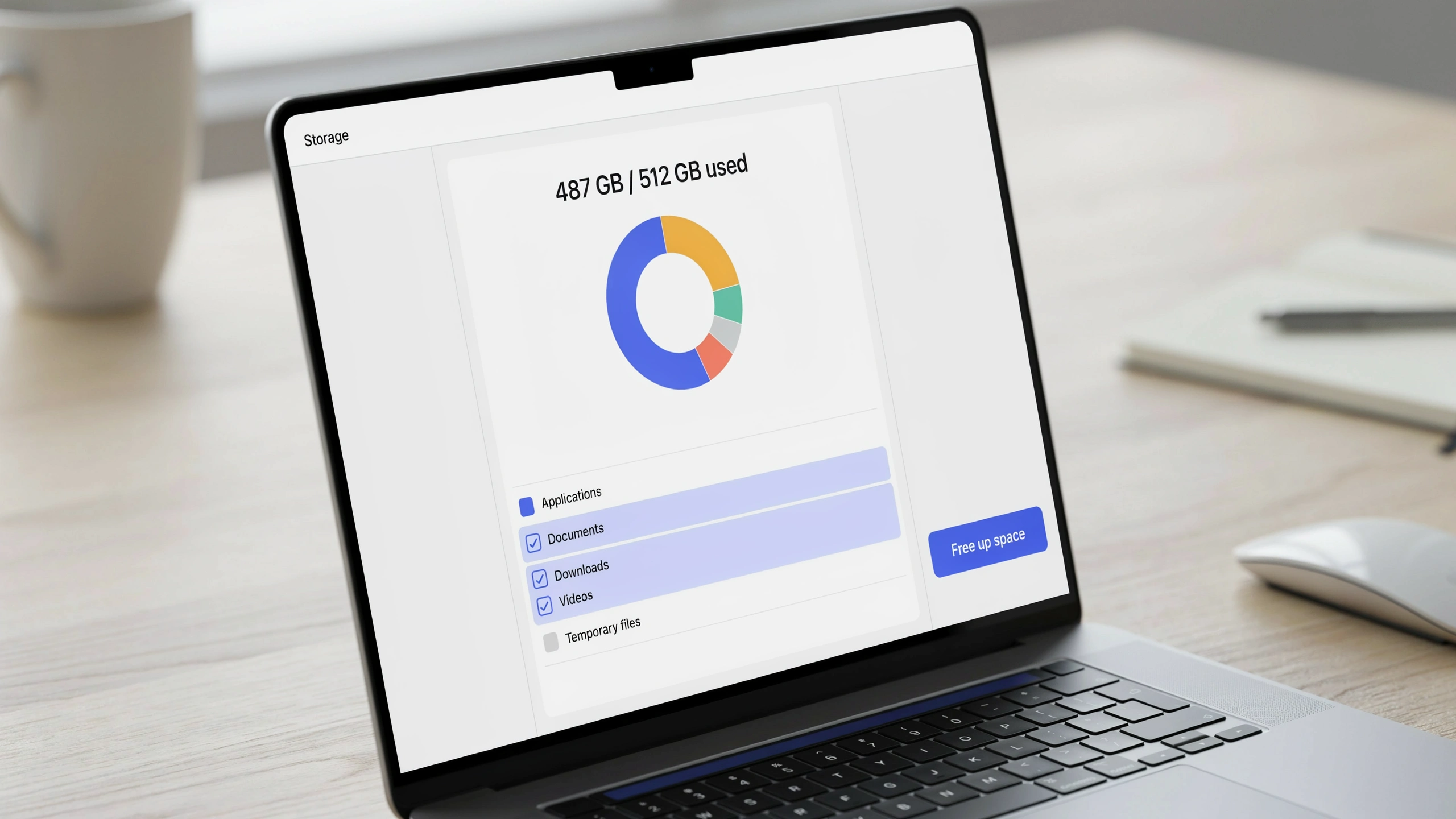
A nearly full storage drive can slow down system performance and affect daily tasks. Remove unused applications, delete temporary files, clear old downloads, and move large files to external storage or cloud services.
Several methods can reclaim storage safely without losing any files you actually need. Keeping enough free space helps your laptop run efficiently and prevents unnecessary slowdowns.
5. Install System and Driver Updates
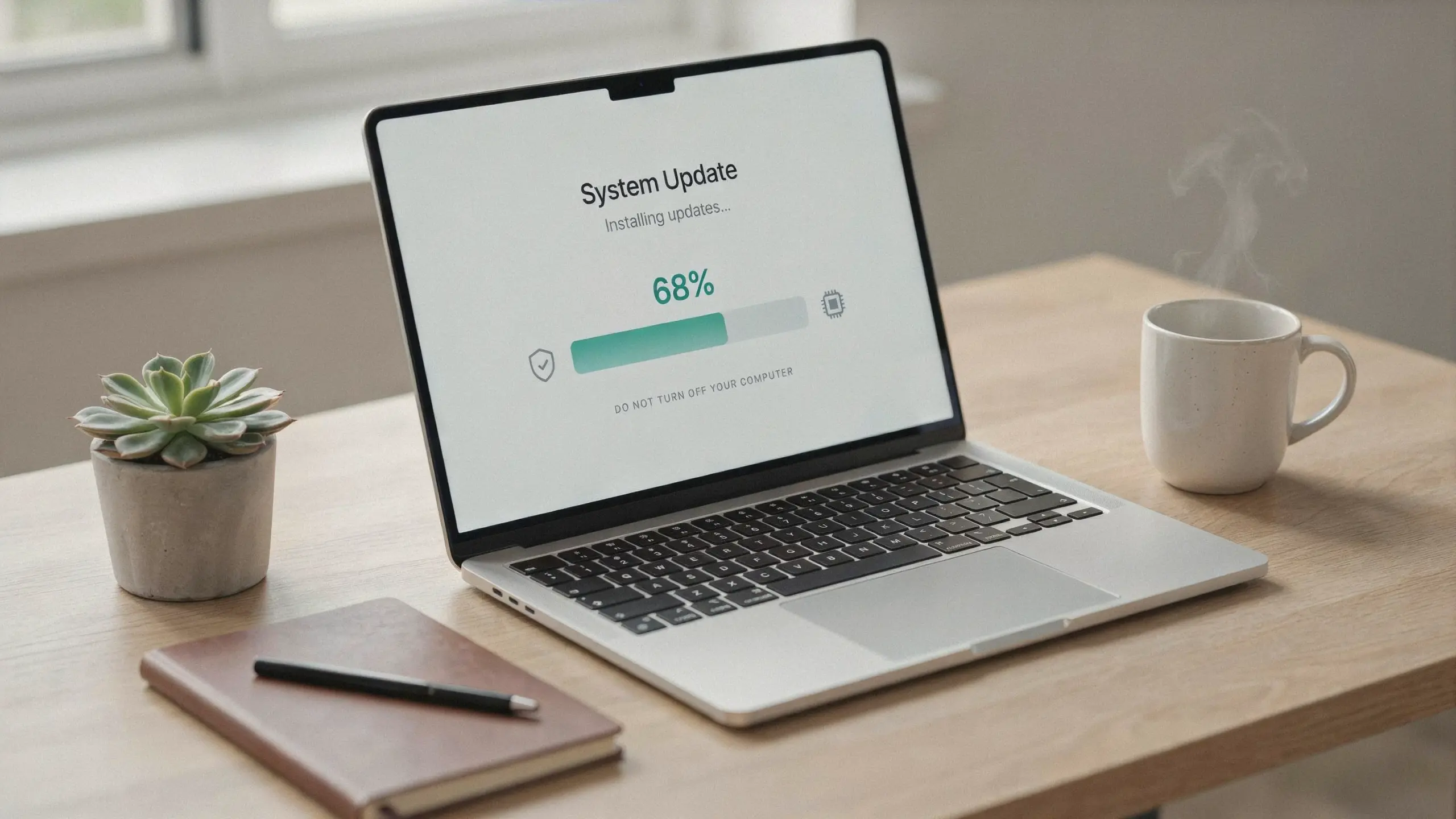
Outdated software and drivers can create performance issues, compatibility problems, and system errors. Regularly update your operating system, applications, and important hardware drivers like graphics and chipset drivers, since updating GPU drivers alone can resolve a lot of lag and display glitches.
Keeping everything updated helps fix known issues, improve stability, and ensure your laptop works smoothly with modern software.
6. Check for Malware
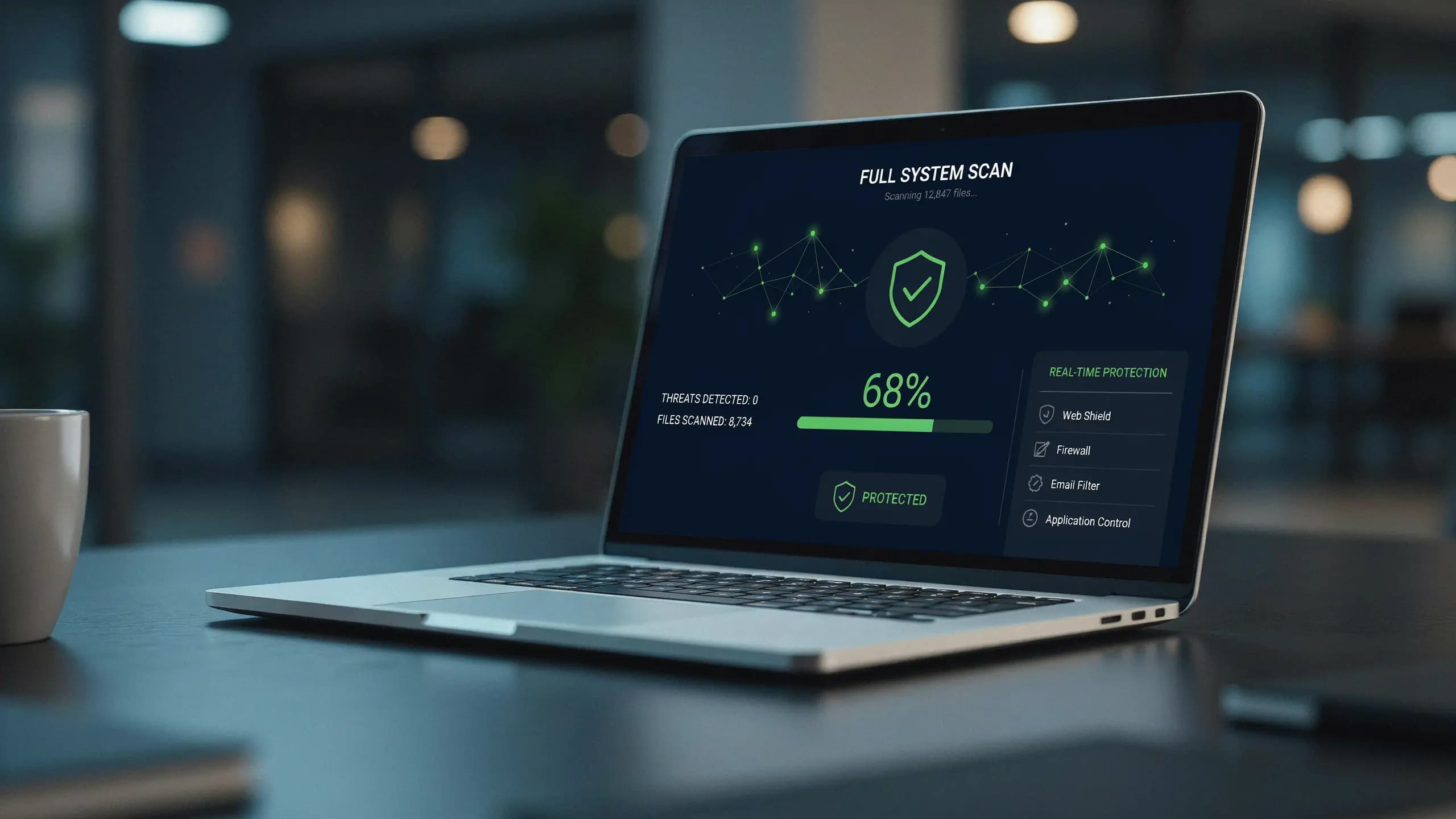
Malware can consume system resources, slow applications, and create unusual background activity. Run a full security scan if your laptop suddenly becomes slow.
Federal cybersecurity guidance recommends turning on auto-updates by default across your software, since outdated programs are one of the easiest entry points for attackers.
Remove suspicious programs carefully and avoid unknown optimization tools.
7. Clean the Vents and Manage Heat
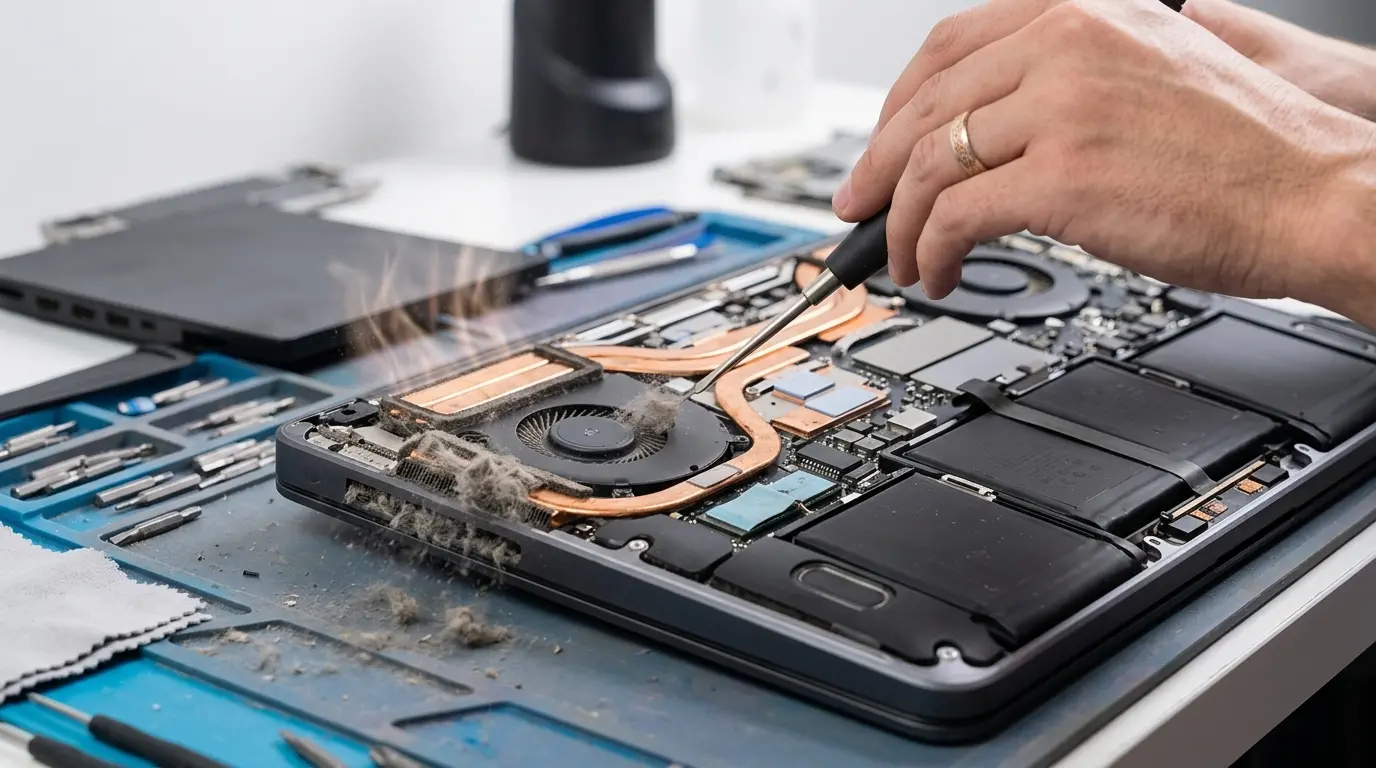
Overheating can force your laptop to reduce performance to protect internal components. Dust-blocked vents and poor airflow can increase temperatures.
Consumer safety guidance also notes that using soft surfaces like a sofa or bed can restrict airflow and push temperatures even higher.
Keep ventilation areas clear and place your laptop on a hard surface. Proper cooling helps maintain performance and prevents slowdowns caused by thermal limitations.
8. Reduce Unnecessary Browser Load
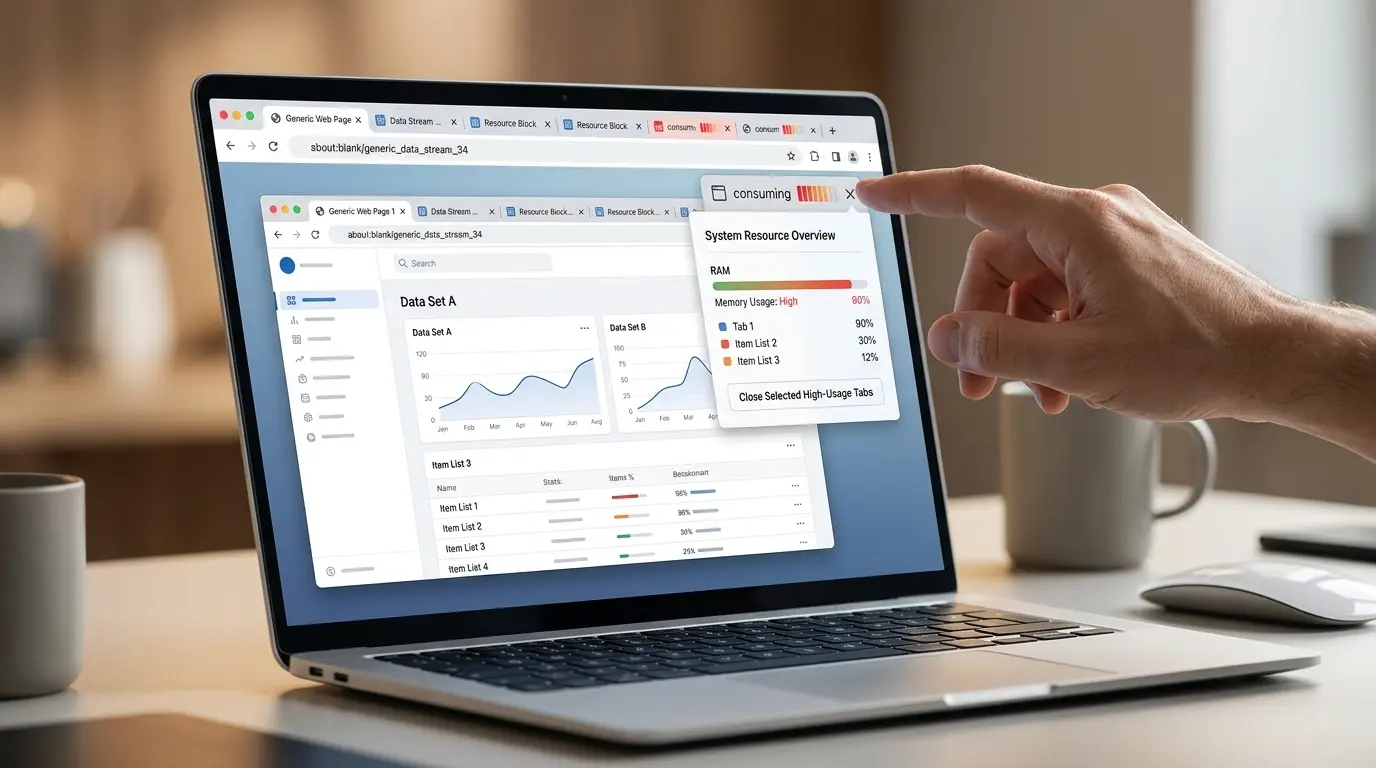
Browsers can consume large amounts of memory with multiple tabs, extensions, and web applications. Close unused tabs, remove unnecessary extensions, and restart your browser regularly.
These simple changes reduce RAM usage and improve performance, especially on laptops with limited memory during multitasking.
9. Add More RAM
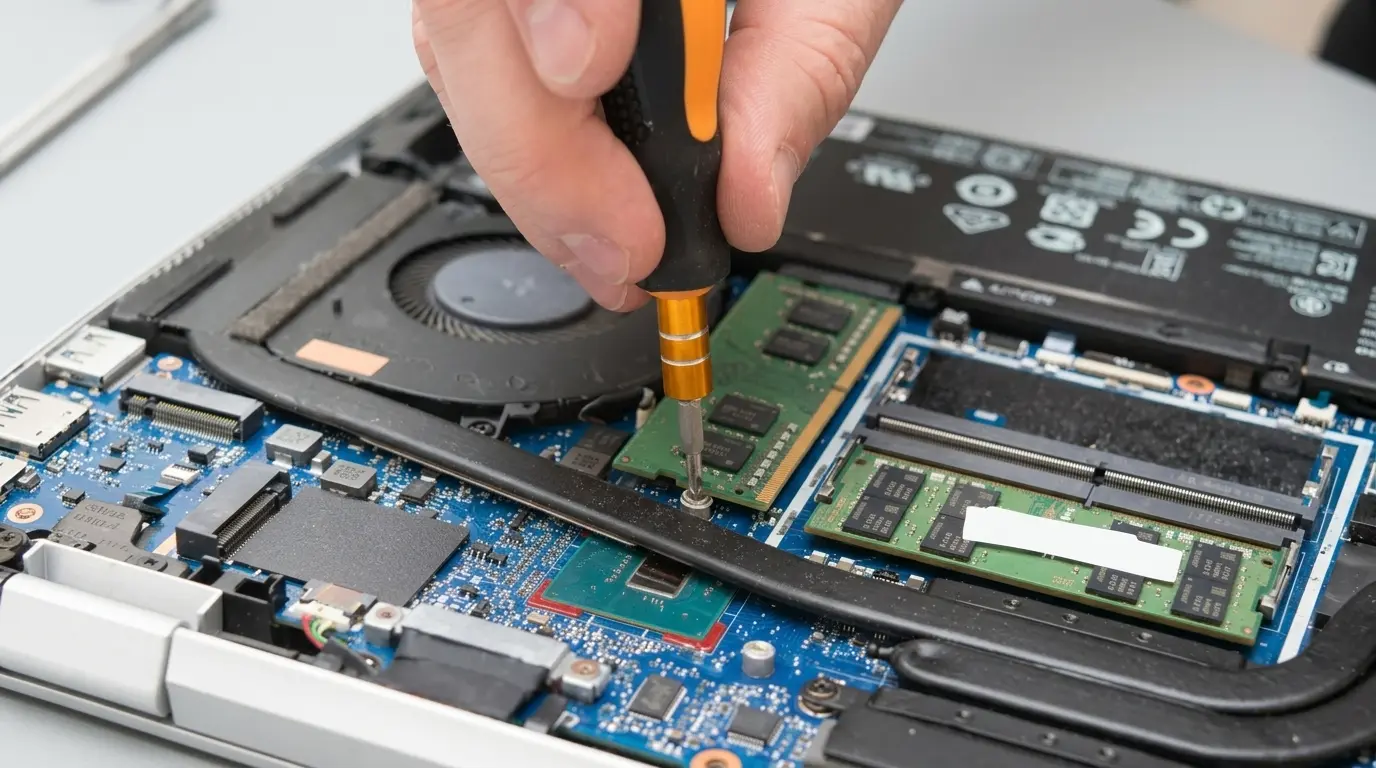
Upgrading RAM can improve performance when your laptop struggles with multitasking, multiple browser tabs, or demanding applications.
Check your laptop’s supported memory type and maximum capacity before upgrading. If you can’t expand RAM, consider other improvements, like storage upgrades, that may provide better performance benefits.
10. Replace an Older Hard Drive with an SSD
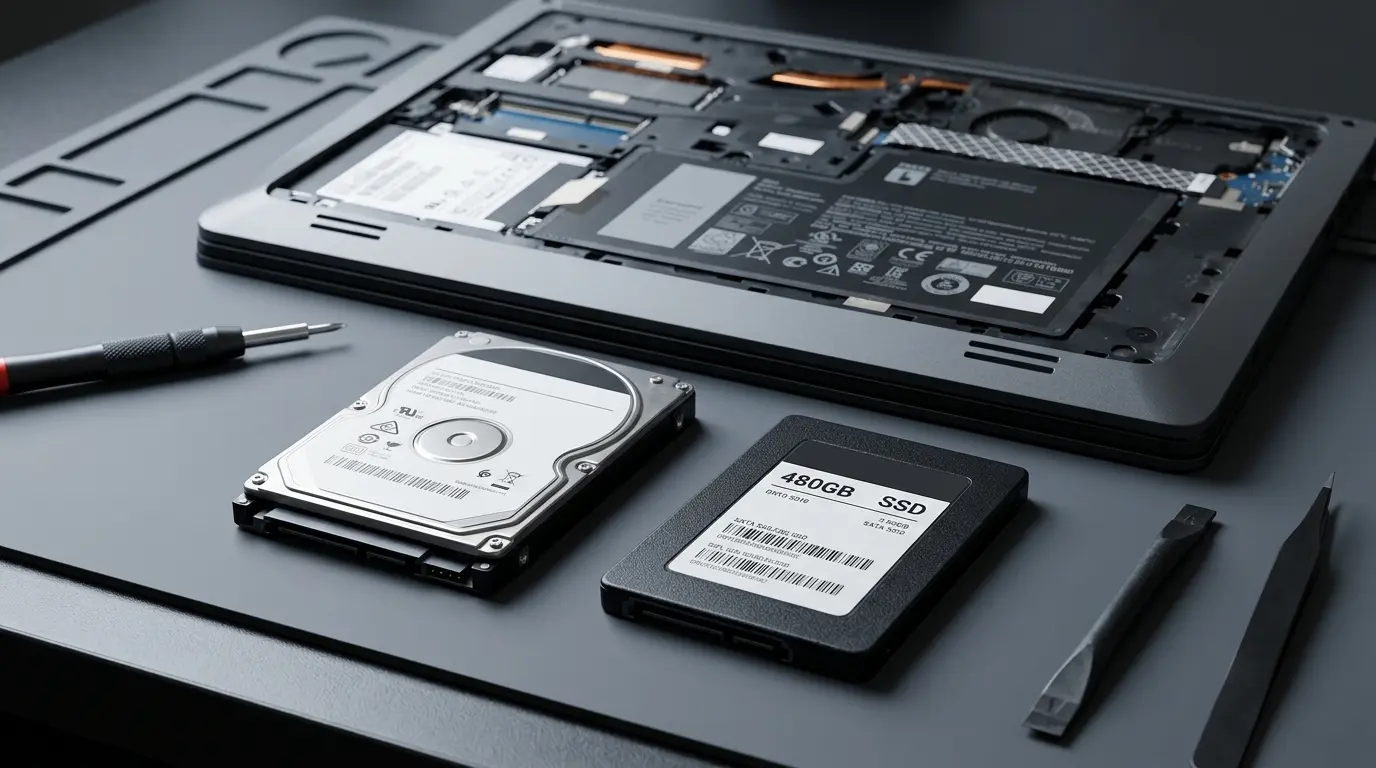
Switching from an HDD to an SSD can significantly improve an older laptop’s speed. SSDs provide faster startup times, quicker application loading, and smoother file access.
Before upgrading, check compatibility and back up important files to avoid data loss during the replacement process.
11. Consider Repair or Replacement
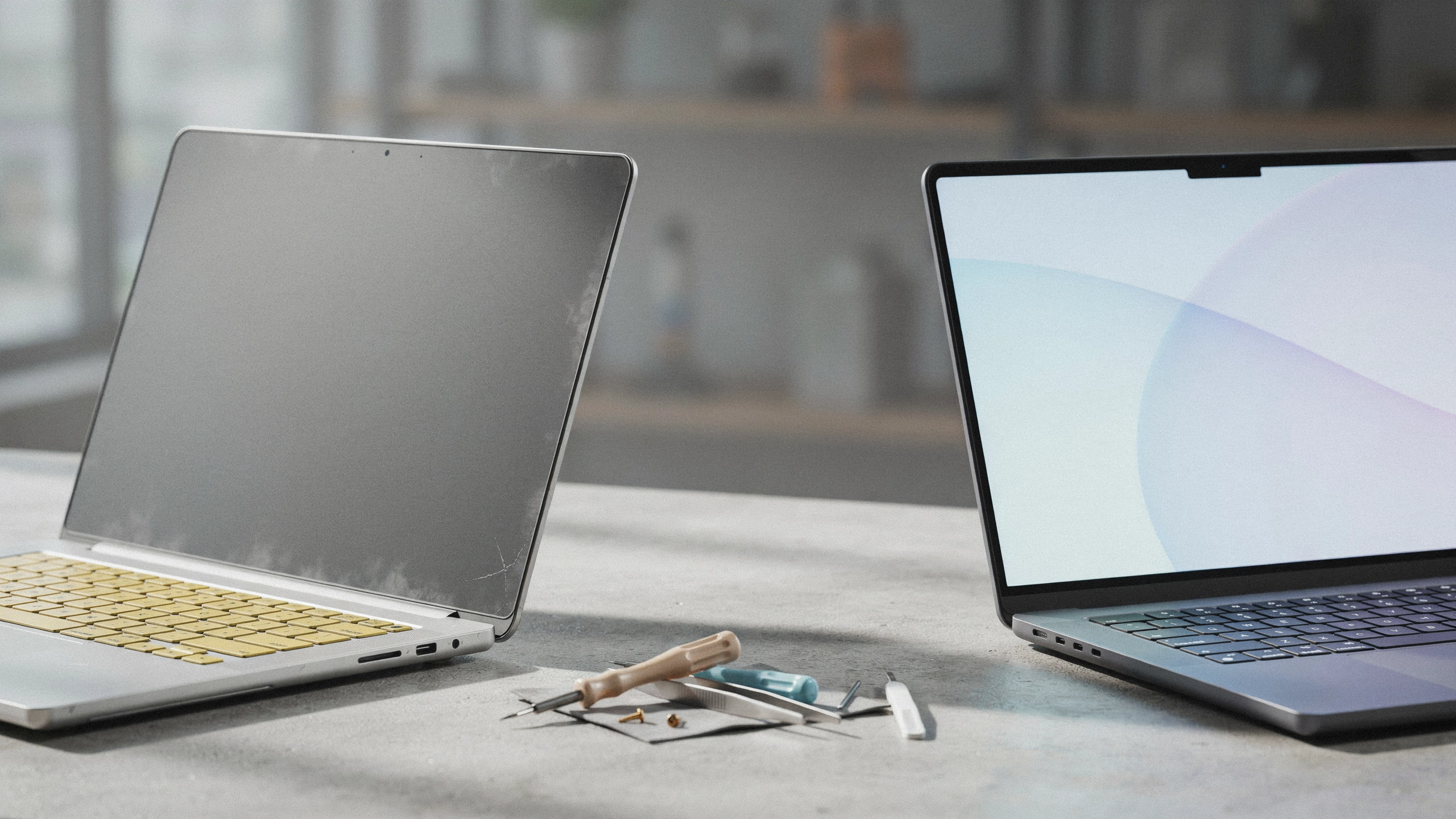
If software fixes and upgrades do not improve performance, evaluate whether repair or replacement makes more sense. Consider your laptop’s age, hardware condition, repair costs, and daily requirements.
Federal environmental guidance also favors upgrading before replacing a computer whenever possible, since it reduces electronic waste.
However, if several major components are failing or repairs approach the cost of a replacement, upgrading may no longer be the practical choice.
How to Choose the Right Fix for Your Slow Laptop
Not every slow laptop needs the same solution. The right fix depends on what is causing the slowdown, your usage habits, and the condition of your hardware. Identifying the problem first helps avoid unnecessary changes and expenses.
| If You Notice | Try This First |
|---|---|
| Laptop takes too long to start | Disable startup programs or upgrade to SSD |
| Apps freeze frequently | Check RAM usage and close background programs |
| Storage is almost full | Remove unnecessary files and clean the drive |
| Laptop becomes hot quickly | Clean vents and improve cooling |
| Games or heavy apps lag | Upgrade RAM or graphics hardware |
| Laptop is several years old | Check upgrade options before replacing |
Before making major changes, monitor performance and identify the component causing the slowdown. A targeted fix usually provides better results than changing multiple settings randomly.
Before spending money on a replacement, check whether a few simple improvements can restore useful performance.
Common Mistakes That Make Your Laptop Slower
Many users unknowingly create habits that reduce laptop performance over time. Avoiding these mistakes can help maintain better speed and stability.
- Installing unnecessary software: Too many optimization tools or unsafe programs can run in the background and consume resources.
- Keeping storage full and skipping updates: Low storage and outdated software can affect system performance and cause compatibility issues.
- Running too many apps at once: Excessive multitasking can overload RAM and slow down your laptop.
- Ignoring overheating: High temperatures can reduce performance and affect hardware health.
Small changes in daily usage habits can prevent common slowdowns and help your laptop maintain smoother performance for longer.
When Should You Replace Your Slow Laptop?
Sometimes repairs and upgrades are no longer practical. Knowing when replacement makes sense can help avoid spending money on outdated hardware.
Consider replacing your laptop if:
- It cannot support modern software updates
- Hardware upgrades are unavailable
- Repairs cost nearly as much as a new device
- The processor struggles with basic tasks
- The laptop frequently crashes
- Battery life has become extremely poor
However, a slow laptop does not automatically need replacement. Many devices regain good performance after storage cleanup, system optimization, or hardware upgrades.
Evaluate the condition, age, and upgrade options before deciding. A small investment may continue supporting your daily needs for years.
How Often Should You Optimize Your Laptop?
Regular maintenance keeps a laptop faster and prevents performance issues from building up over time. A simple schedule helps manage storage, system resources, and hardware health without requiring advanced skills.
| Frequency | Tasks to Complete | Benefits |
|---|---|---|
| Weekly | Restart the laptop, remove unnecessary downloads, close unused programs, and check for slowdowns. | Keeps the system refreshed and reduces minor performance issues. |
| Monthly | Remove unused apps, clear temporary files, review startup programs, and install updates. | Improves speed, reduces clutter, and boosts startup performance. |
| Every Few Months | Run malware scans, clean vents, review storage, and check hardware condition. | Maintains long-term performance and prevents bigger problems. |
Regular laptop maintenance does not require advanced technical knowledge. Following a simple schedule can improve speed, reduce performance issues, and help your device stay efficient for everyday tasks.
Wrapping Up
A slow laptop rarely means you need a new one right away. Simple steps like restarting your system, clearing out storage, updating software, and checking what is running in the background can bring back a lot of speed on their own.
If those steps are not enough, upgrades like more RAM or a solid-state drive often solve what basic cleanup cannot.
Start by finding the actual cause of the slowdown, then apply the fix that matches your situation instead of guessing.
With a little regular upkeep, your laptop can stay quick and reliable for years longer than you might expect. Try one fix today and see the difference for yourself.
Frequently Asked Questions
Does Closing a Laptop Lid Slow It Down Over Time?
No, closing the lid only puts your laptop to sleep. Performance stays the same either way, though a full restart still clears memory more effectively than sleep mode alone.
Should You Use a Cooling Pad on a Laptop Every Day?
A cooling pad helps mainly during long gaming sessions or heavy workloads. For everyday browsing and typing, clean vents make a bigger difference than running a pad daily.
Is a Factory Reset Safer Than Reinstalling the Operating System?
A factory reset keeps your current setup and mainly removes extra files, while reinstalling the operating system builds a completely fresh copy from scratch. Back up files first either way.
Does Having Many Desktop Icons Slow Down a Laptop?
Extra icons use a small amount of memory to display, but they rarely cause a noticeable slowdown unless your laptop already has very little memory free to begin with.
Can Disabling Visual Effects Make an Older Laptop Faster?
Yes, turning off animations and transparency effects in your display settings lowers the load on older graphics hardware, which can make menus and windows feel noticeably quicker to respond.