Have you ever shared a Facebook post and wished you could stop the comment section from turning into a place you no longer want to manage?
Whether it is a personal update, a business announcement, or a group discussion, unwanted replies can quickly become frustrating.
Facebook does not always provide a simple “turn off comments” button for every post, which can make the setting hard to find.
The right method depends on whether you are using a personal profile, Page, or Group.
Now, you will learn how to control comments on different Facebook posts and what options to use when the full comment-off feature is unavailable.
How to Identify Where Your Post Appears
Facebook does not use the same comment controls for every type of post. The options available depend on whether the post is shared on your personal profile, a Facebook Page, or a group.
Before trying to turn off comments, first check where the post was published. A profile post may only allow you to limit who can comment, while Page and group posts often provide more advanced moderation options.
Once you know the post type, you can follow the correct steps without searching for settings that may not exist on your account.
Managing who can interact with your content is just one part of protecting your privacy, alongside reviewing location settings on your iPhone.
How to Control Comments on Posts
Facebook does not use the same comment settings for every type of post. The option you see depends on whether you shared the content from a personal profile, Facebook Page, or Group. Before changing any settings, identify where the post was published so you can use the right method.
1. Personal Profile Posts: Limit Who Can Comment
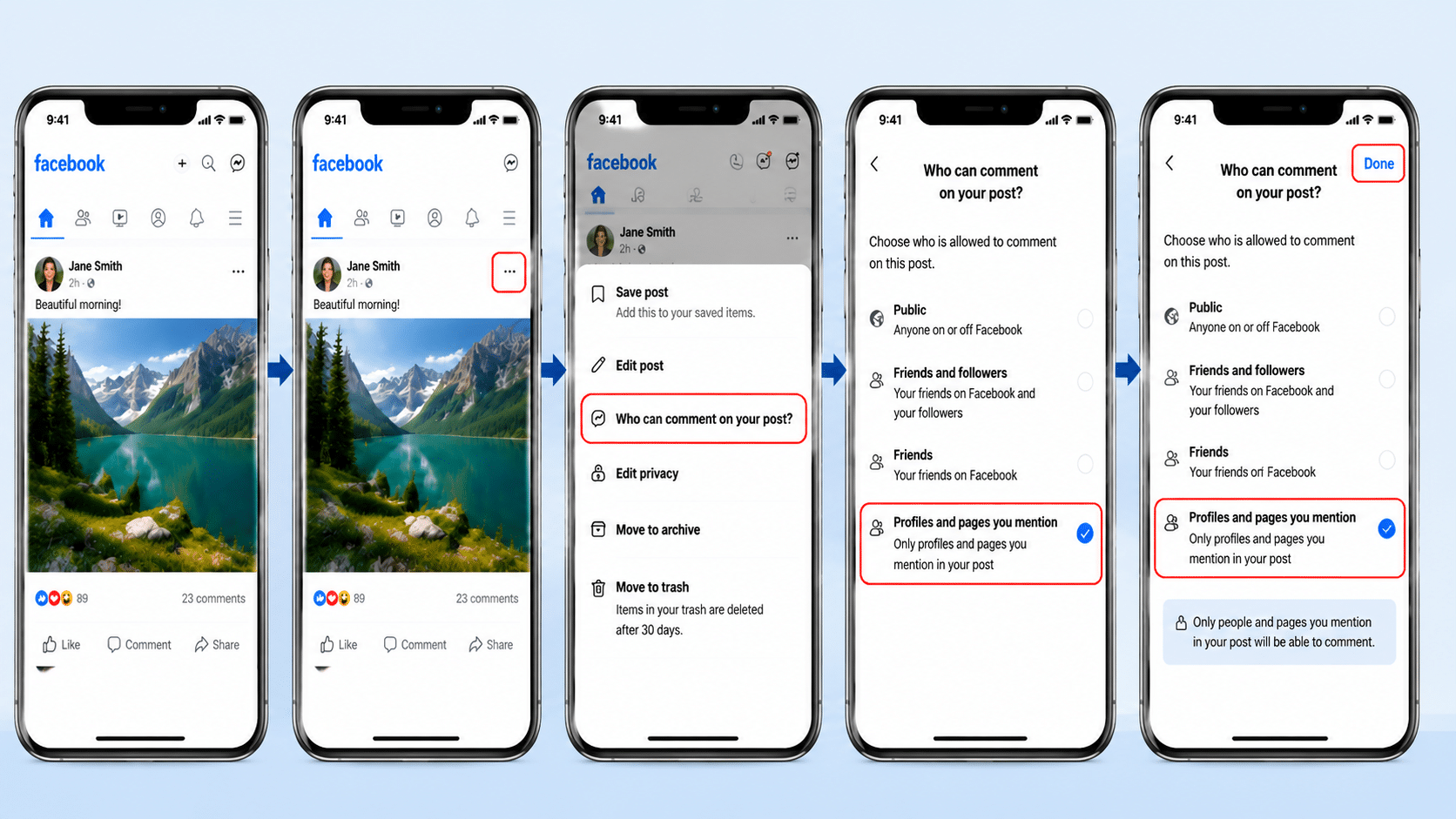
If you shared a post from your personal profile, Facebook usually does not provide a complete option to remove comments. Instead, you can control who is allowed to reply by adjusting the comment audience.
Steps to follow:
- Open Facebook and go to the post you want to manage.
- Tap or click the three-dot menu on the post.
- Select Who can comment on your post?
- Please choose the most limited option available, such as the Profiles and Pages you mentioned.
- Confirm the setting if required.
If the post does not mention or tag anyone, this setting prevents other users from adding new comments. Keep in mind that existing comments will remain unless you remove them manually.
Adjusting comment visibility is just one part of managing your online privacy, especially if you want more control over who can interact with your content and personal information.
2. Facebook Page Posts: Manage with Page Controls
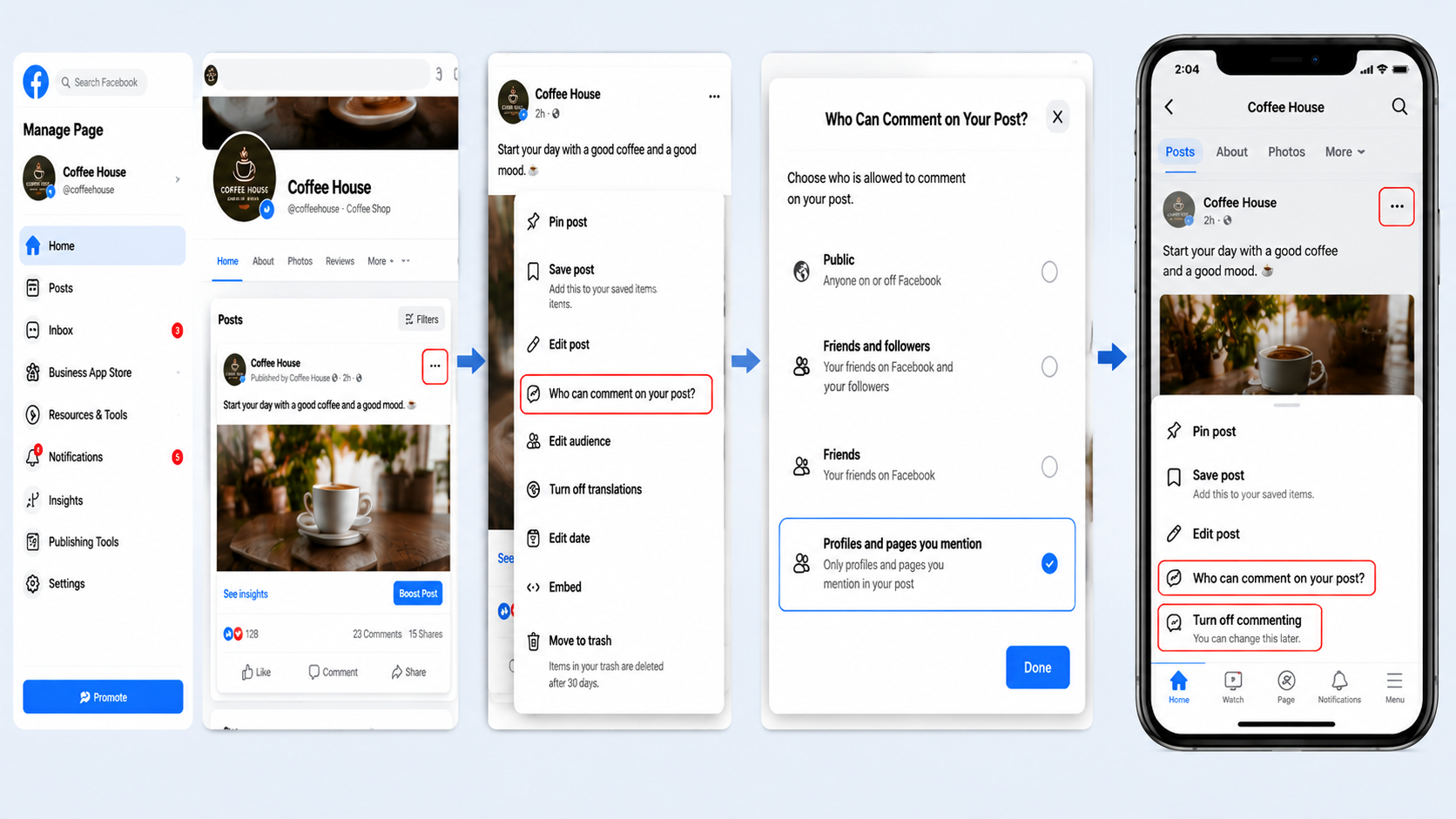
Facebook Pages offer more tools for handling comments because they are designed for public communication. Depending on your Page settings and the type of post, you may be able to restrict comments or manage them through moderation options.
Steps to follow:
- Open your Facebook Page and find the post.
- Select the three-dot menu on the post.
- Check the available comment control options.
- Apply the most suitable setting for your Page.
If disabling comments is unavailable, Page moderation tools can help reduce unwanted replies. Admins can filter certain words, hide inappropriate comments, and control how discussions appear on posts.
3. Facebook Group Posts: Turn Off Comments Directly
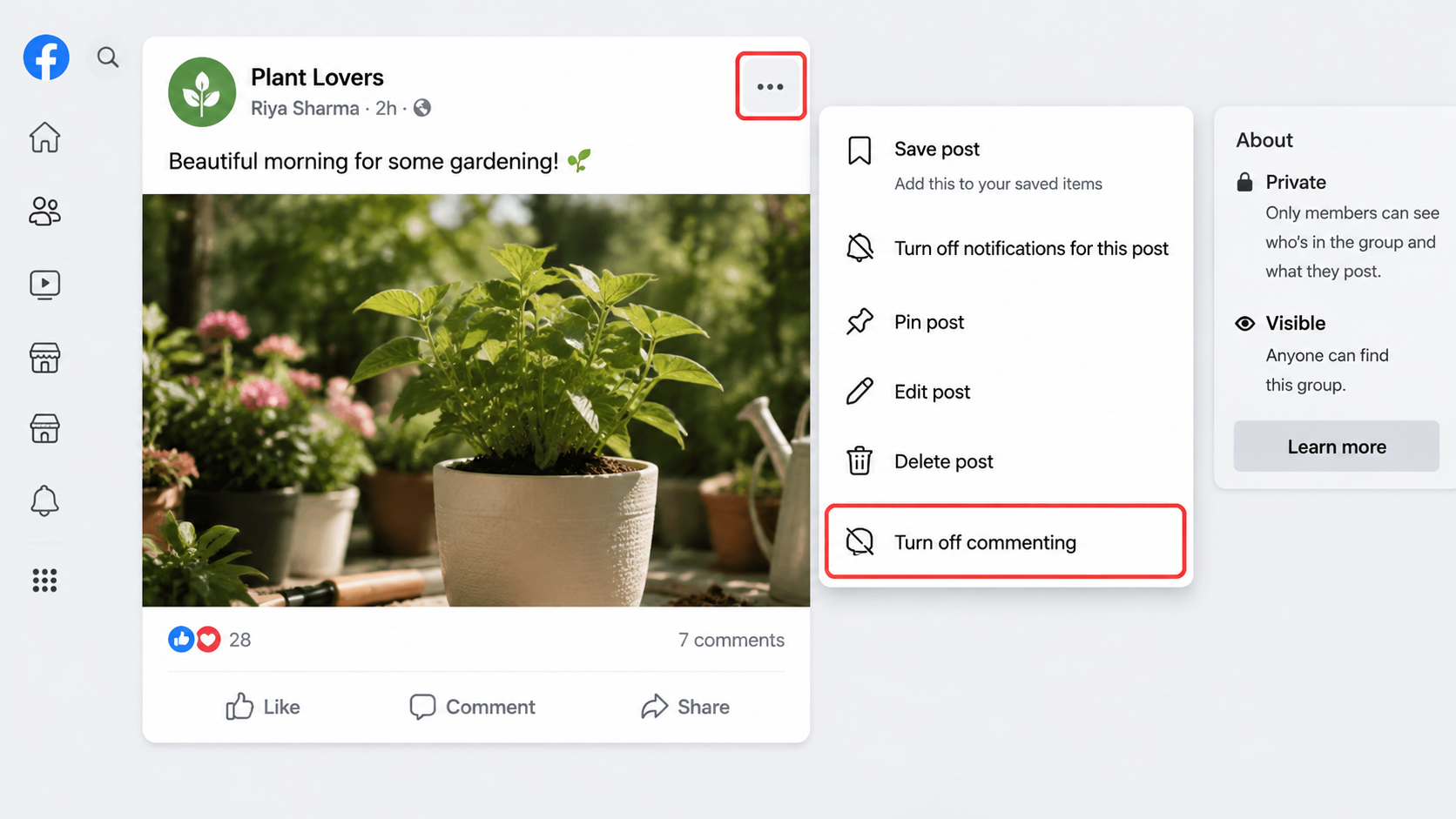
Facebook Groups provide the most straightforward option for disabling comments. Admins, moderators, and eligible members can turn off replies on specific group posts.
Steps to follow:
- Open the post inside the Group.
- Tap or click the three-dot menu.
- Select Turn off commenting.
- The comment section will no longer accept new replies.
You can follow the same steps later and select Turn on commenting if you want members to respond again.
What to Do if Facebook Does Not Show the Turn Off Commenting Option
A missing comment-control option is one of the most common complaints tied to this topic, and it almost always traces back to one of a handful of causes. Working through the list below usually turns up the reason within a minute or two.
- Confirm post ownership: options to restrict or turn off comments only appear for posts made by the current account, Page, or someone with an admin or moderator role over it.
- Check the post’s privacy setting: a public post sometimes shows different options than one set to friends only, especially on a profile.
- Update the Facebook app: comment controls have shifted locations more than once, and an outdated app version can be missing a menu entirely.
- Try a different device: mobile, desktop, and Meta Business Suite occasionally show slightly different menus for the same post.
- Check the post type: shared posts, posts with attached ads, and some scheduled posts can restrict which comment settings show up until the post finishes publishing.
Running through this checklist resolves most missing-option reports. When none of it applies, and the setting still refuses to appear, reporting the issue through Facebook’s Help Center is the next step, since it may point to an account-specific restriction rather than a general limitation.
Other Ways to Control Unwanted Facebook Comments
Disabling comments is not the only tool available when a thread turns unpleasant, and several alternatives leave more of the post’s normal function intact.
| Method | What It Does | Best Suited For |
|---|---|---|
| Hide a comment | Removes it from public view while leaving it visible to the commenter and their friends, so no one gets notified of the hide. | A single comment that does not warrant permanent removal. |
| Delete a comment | Removes it completely for every viewer, with no way to restore it afterward. | Spam or content that should not stay visible to anyone. |
| Block a specific person. | Stops that account from commenting on any future post, not just the current one. | A repeat offender rather than a one-time comment. |
| Adjust audience settings before posting. | Narrows who sees the post from the start, such as friends only, cutting down on unwanted comments before they happen. | Sensitive posts where prevention beats cleanup. |
| Use Page or group moderation tools. | Keyword filters, the profanity filter, and Meta Business Suite’s shared inbox handle volume automatically. | Ongoing patterns across many posts on a Page or in a group. |
Choosing between these usually comes down to scale. A single troublesome comment calls for hiding or deleting it, a single troublesome account calls for blocking, and an ongoing pattern across many posts calls for the filters and moderation tools built into Pages and groups.
Common Mistakes When Managing Comments
Managing Facebook comments requires care. Avoiding common mistakes helps maintain healthy discussions, protect your audience experience, and keep your posts organized without limiting valuable interactions.
- Assuming every post type offers the same controls, when profiles, Pages, and groups each work from a different menu.
- Confusing hiding a comment with disabling comments, since hiding only affects one comment while disabling blocks new ones from appearing at all.
- Forgetting that a post’s privacy setting can change which comment options show up, especially on a personal profile.
- Trying to change Page or group settings without admin or moderator permission, which hides the option entirely rather than showing an error.
- Expecting a setting to remove comments that were already posted, when most controls only affect future activity.
Avoiding comment management mistakes helps you build better conversations on Facebook. Use the right settings, moderation tools, and strategies to maintain a positive online presence.
Conclusion
Avoiding these five mistakes clears up most remaining questions about why a setting looks different from what a guide or a friend described.
Turning off comments on Facebook depends on where your post was shared and what type of control Facebook provides.
Personal profiles usually allow you to limit who can reply, while Pages and Groups offer stronger options for managing discussions.
If you cannot find a complete comment-off button, adjusting audience settings or using moderation tools can still help reduce unwanted replies.
Share your experience or thoughts on this below.
Frequently Asked Questions
Can I Change Comment Settings After a Post Is Already Published?
Yes. Comment settings can be changed any time after a post goes live, not just while creating it. Open the three-dot menu on the published post, select the comment option for that account type, and apply the new setting immediately.
Can I Stop One Person from Commenting without Blocking Them?
Yes. Hiding a single comment removes it from public view without notifying the commenter, avoiding the permanence of a full block. A full block prevents that same person from commenting on any future post as well.
Can a Friend Turn Off Comments While I Cannot?
Yes. A friend with a Page or group role has access to a dedicated toggle, while a personal profile only offers audience restrictions through the Who Can Comment on Your Post option.