Finding your most-used apps or files every time you turn on your computer can take longer than it should. A desktop shortcut gives you quick access with a single click and helps keep your daily tasks simple.
In this guide, I will show you how to create a shortcut on the desktop for apps, files, folders, websites, and Start menu items in both Windows 10 and Windows 11.
You do not need advanced computer skills, and each method is easy to follow.
I will also explain when to use different shortcut options, how to add a Chrome shortcut, and what to do if a shortcut is missing or does not work.
By the end of this article, you will know the easiest ways to organize your desktop and save time when you use your Windows PC.
Quick Answer: How to Create a Desktop Shortcut in Windows?
To create a desktop shortcut in Windows, right-click the item and choose “Send to” followed by “Desktop (create shortcut),” or use the “New” and “Shortcut” option.
This works for apps, files, folders, and even websites, such as a shortcut to your router’s IP address page for quick network access.
The exact method depends on whether you are creating a shortcut for an app, file, folder, website, or Start menu item.
Windows 10 and Windows 11 both include built-in options that let you add shortcuts without changing or moving the original item.
What Is a Desktop Shortcut in Windows?
A desktop shortcut in Windows is a small link that opens an app, file, folder, or website without moving the original item.
Instead of storing the actual program or file, a shortcut points to its location on your computer. This lets you access frequently used items directly from the desktop, saving time and reducing the need to browse through multiple folders or menus.
Shortcuts are identified by a small arrow on their icons, making them easy to distinguish from the original files.
Deleting a shortcut removes only the link, not the original app or file it references.
Windows allows you to create shortcuts for many items, including applications, documents, folders, drives, printers, and websites, making everyday navigation faster and more organized.
Why Create a Shortcut on the Desktop?
Desktop shortcuts make frequently used apps, files, folders, and websites easier to access while helping keep everyday computer tasks organized.
- Faster Access: Open frequently used apps, files, or folders with one click instead of searching through multiple menus or File Explorer.
- Saves Time: Reduce repetitive navigation during daily tasks, making routine work quicker and improving overall productivity on your Windows computer.
- Improves Organization: Keep important shortcuts in one visible location, making it easier to find commonly used items without unnecessary searching.
- Supports Better Workflow: Place shortcuts for work, school, or personal tools together to switch between tasks more efficiently throughout the day.
- Protects Original Items: A shortcut links to the original app or file, so deleting the shortcut does not remove the original content.
- Easy to Customize: Rename, move, or arrange desktop shortcuts without affecting the location or functionality of the original app or file.
- Quick Website Access: Create shortcuts to frequently visited websites so you can open them directly from your desktop instead of repeatedly typing web addresses.
How to Create a Shortcut on the Desktop?
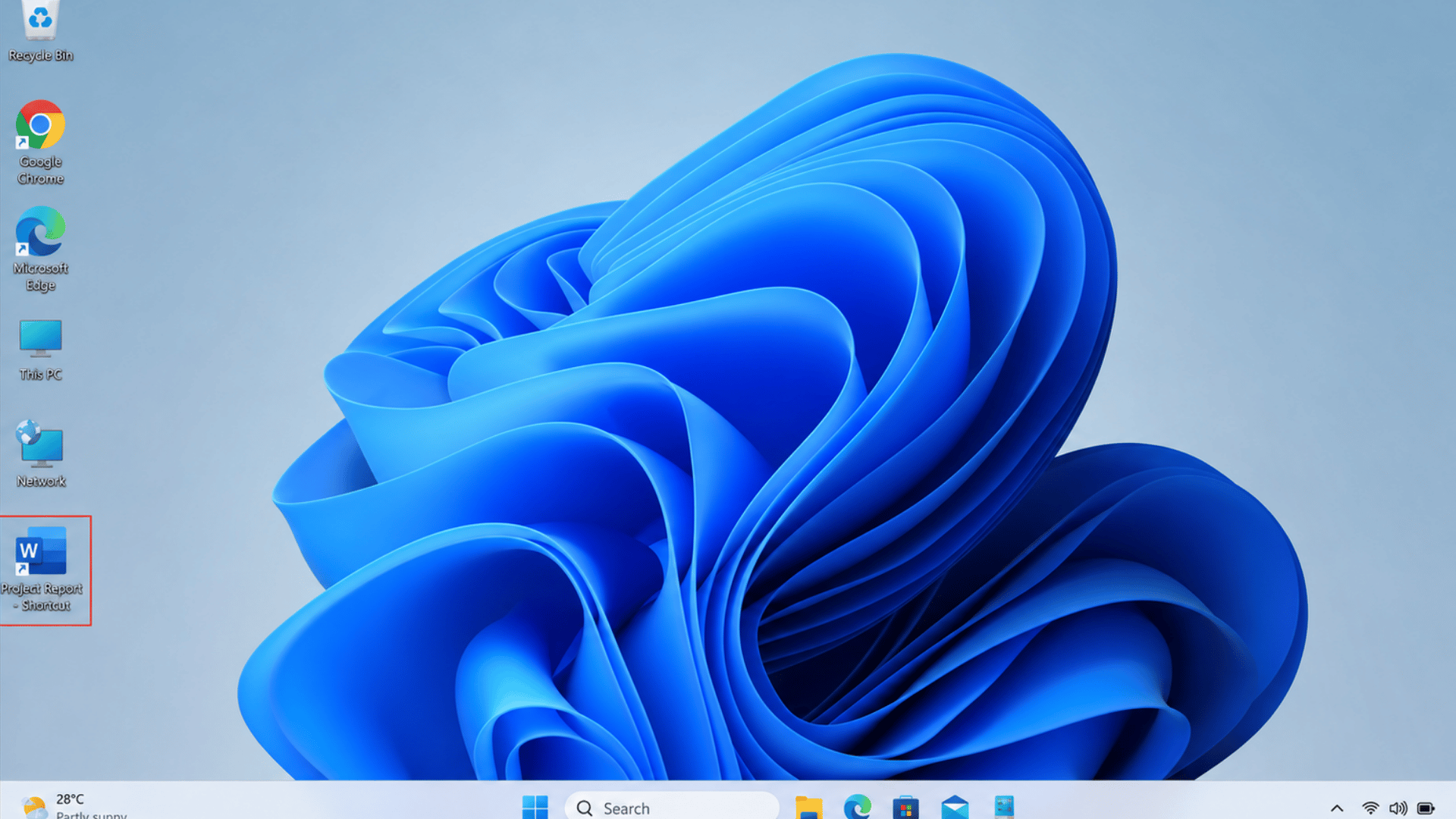
Windows offers several built-in methods to create desktop shortcuts for apps, files, folders, and Start menu items.
1. Create a Shortcut for an App
Creating a desktop shortcut for an app provides quick, one-click access to programs you use regularly.
Instead of searching through the Start menu each time, you can launch the app directly from your desktop, making everyday tasks faster and improving your overall workflow.
- Click Start.
- Search for the app.
- Right-click the app.
- Select Open file location.
- Right-click the app shortcut.
- Click Send to.
- Select Desktop (create shortcut).
2. Create a Shortcut for a File
A desktop shortcut for a file lets you open frequently used documents, PDFs, spreadsheets, images, or presentations with a single click.
The shortcut simply links to the original file, so moving or deleting the shortcut does not affect the file stored on your computer.
- Open File Explorer.
- Locate the file.
- Right-click the file.
- Click Send to.
- Select Desktop (create shortcut).
- Rename the shortcut if needed.
3. Create a Shortcut for a Folder
A desktop shortcut for a folder provides one-click access to locations you open regularly, such as project folders, Downloads, or work files.
It saves time by eliminating repeated navigation in File Explorer while keeping the original folder exactly where it is.
- Open File Explorer.
- Find the folder.
- Right-click the folder.
- Click Send to.
- Select Desktop (create shortcut).
- Arrange the shortcut on your desktop as desired.
4. Create a Shortcut from the Start Menu
This method is useful for installed desktop applications that appear in the Start menu but do not already have a desktop shortcut.
It creates a quick-access icon on your desktop, allowing you to launch the app more quickly without searching the Start menu each time.
- Open the Start menu.
- Search for the application.
- Right-click the app.
- Select Open file location.
- Right-click the app shortcut.
- Click Send to.
- Select Desktop (create shortcut).
Difference Between Website Shortcuts and Browser Shortcuts
Although both provide quick access from the desktop, they serve different purposes and behave differently when opened.
| Feature | Website Shortcut | Browser Shortcut |
| Purpose | Opens a specific website | Opens the web browser |
| Opens | A particular webpage | Browser home page, new tab, or last session |
| Example | Google, YouTube, Facebook | Google Chrome, Microsoft Edge |
| Desktop Icon | Usually uses the website’s icon | Uses the browser’s icon |
| Best For | Frequently visited websites | Launching the browser quickly |
| Created From | Browser menu or website options | Start menu or browser installation folder |
| Internet Required | Yes, to load the website | Only when browsing the web |
| Typical Use | Direct access to one website | General web browsing |
How to Add a Chrome Shortcut to the Desktop?
To add a Chrome shortcut to the desktop, create one from the Start menu or the Chrome installation folder in Windows.
If Chrome is installed, search for it in the Start menu, right-click it, and select Open file location.
In the File Explorer window, right-click the Chrome shortcut, choose Send to, and then select Desktop (create shortcut).
If this option is unavailable, browse to Chrome’s installation folder, typically located under Program Files, right-click chrome.exe, and create a desktop shortcut from there.
The shortcut lets you launch Chrome with one click without affecting the original installation.
You can also rename or move the shortcut anywhere on your desktop while the browser remains installed in its original location.
Windows 10 vs Windows 11 Shortcut Creation
Both Windows versions let you create desktop shortcuts using similar methods, with only a few interface differences.
| Feature | Windows 10 | Windows 11 |
| Right-Click Menu | The full context menu appears immediately | Simplified menu with Show more options |
| Send To Option | Available directly | May require Show more options |
| Start Menu Layout | Live tiles and app list | Centered Start menu with pinned apps |
| Create Shortcut Wizard | Available through New, then Shortcut | Available through New, then Shortcut |
| Open File Location | Supported for most desktop apps | Supported for most desktop apps |
| Website Shortcut Creation | Supported in Chrome and Edge | Supported in Chrome and Edge |
| Overall Shortcut Functionality | Same shortcut features and behavior | Same shortcut features and behavior |
Best Practices for Managing Desktop Shortcuts
A well-organized desktop makes it easier to find important shortcuts and helps keep your Windows workspace clean and efficient.
- Keep Only Essential Shortcuts: Add shortcuts for frequently used apps, files, and folders to avoid unnecessary desktop clutter and improve accessibility.
- Use Clear Names: Rename shortcuts with simple, descriptive names so you can quickly identify the correct app, file, or folder.
- Group Similar Shortcuts: Place related shortcuts together, such as work, school, or personal items, to create a more organized desktop layout.
- Remove Unused Shortcuts: Delete shortcuts you no longer use to keep the desktop clean without affecting the original files or applications.
- Arrange Icons Neatly: Align shortcuts in rows or columns to make them easier to locate and maintain a tidy desktop appearance.
- Check Shortcuts Regularly: Test shortcuts occasionally to ensure they still point to the correct apps, files, or folders after updates or file moves.
- Avoid Duplicate Shortcuts: Keep only one shortcut for the same item to reduce confusion and make desktop navigation more efficient.
- Back Up Important Files: Remember that shortcuts are only links, so regularly back up the original files stored elsewhere on your computer.
Common Problems and Fixes with Desktop Shortcuts
Desktop shortcut issues are usually caused by missing files, incorrect settings, or permission restrictions, and most can be resolved quickly.
| Problem | Fix |
| Shortcut does not appear on the desktop | Refresh the desktop or check whether desktop icons are enabled. |
| Shortcut is broken | Verify the original app, file, or folder still exists and recreate the shortcut. |
| Send to option is missing | Restart File Explorer or restore the SendTo folder if necessary. |
| Open file location is unavailable | Use the app’s installation folder or create the shortcut manually. |
| Chrome shortcut is missing | Recreate it from the Start menu or the Chrome.exe installation folder. |
| Access denied when creating a shortcut | Sign in with an administrator account or check folder permissions. |
| Shortcut opens the wrong program | Edit the shortcut’s target or create a new shortcut that points to the correct item. |
| Desktop icons are hidden | Right-click the desktop, select View, and enable Show desktop icons. |
| Shortcut icon is blank | Refresh the icon cache or recreate the shortcut. |
| Shortcut no longer works after moving files | Update the shortcut target or create a new shortcut for the new file location. |
Conclusion
Creating desktop shortcuts is one of the simplest ways to make your Windows computer easier to use. If you want quick access to an app, file, folder, Start menu item, or Chrome, the right shortcut can save time and reduce unnecessary clicks.
I find that spending a few minutes organizing my desktop makes everyday tasks feel much smoother.
As you continue using Windows, you can always add, remove, or rearrange shortcuts to match your workflow without affecting the original items.
The methods in this guide work for most users and are easy to follow, even if you are new to Windows.
If one of these methods works, or another tip works better, share it in the comments to help others keep their desktops organized.
Frequently Asked Questions
What Are the Five Types of Desktop Icons?
The five common desktop icons are This PC, Recycle Bin, User’s Files, Network, and Control Panel. Windows lets you show or hide them in Desktop Icon Settings.
What Are 10 Shortcut Keys?
Common shortcut keys include Ctrl + C, Ctrl + V, Ctrl + X, Ctrl + Z, Ctrl + Y, Ctrl + A, Ctrl + S, Ctrl + P, Ctrl + F, and Alt + Tab.
What Is Ctrl+F4 Used For?
Ctrl + F4 closes the current document, tab, or child window within an application without closing the entire program.
How to Create a Shortcut to a Specific Website on My Desktop?
Open the website in Chrome or Edge, choose the browser menu, select Create shortcut, confirm the name, and save it to your desktop.