Your router does a lot of work in the background, but most people only think about it when the Wi-Fi slows down or the password needs changing.
That is usually when one small detail becomes important: the router IP address.
I know this can sound a bit technical at first, but it is easier than it looks. Your router’s IP address is the number you use to open your router settings.
From there, you can manage your Wi-Fi name, update the password, check connected devices, or fix simple network issues.
In this guide, you will learn what a router IP address means, why it matters, and how to find router IP details on Windows, Mac, iPhone, Android, and other common devices.
By the end, you will know where to look and what to do next.
What Is a Router IP Address?
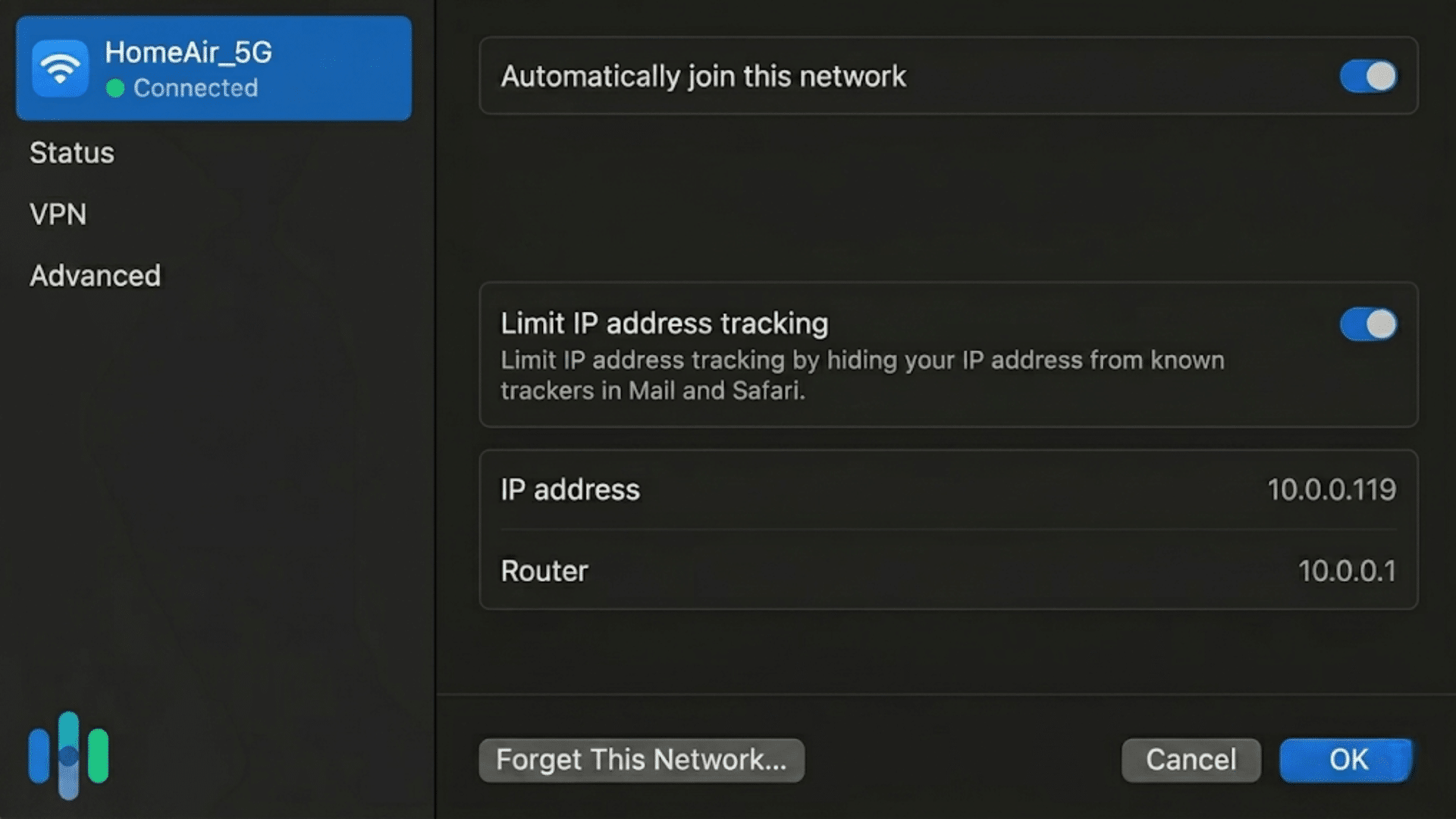
A router IP address is the private IP address your device uses to find and communicate with your router on your home network.
It may appear as “Default Gateway,” “Gateway,” or “Router” in your device settings.
An IP address works like a digital address for a device. Your phone, laptop, smart TV, and router all use IP addresses to send and receive data.
A router IP address is the local address of your router, so your devices know where to send internet requests.
It also helps you understand the difference between Wi Fi and the internet when managing your home network.
Common router IP addresses include 192.168.1.1, 192.168.0.1, and 10.0.0.1. This is different from your public IP address, which your internet provider uses online.
You may need your router IP address to change Wi Fi settings, check connected devices, or fix network issues.
Private IP Address Vs. Public IP Address
A private IP address works inside your home network, while a public IP address connects your network to the internet.
| Point | Private IP Address | Public IP Address |
| Used For | Devices inside your home network | Your network on the internet |
| Given By | Your router | Your internet provider |
| Example | 192.168.1.1 | 203.0.113.10 |
| Visible Online | No | Yes |
| Common Use | Connects phones, laptops, and a router | Let’s websites and apps find your network |
| Can Be Shared By Many Homes | Yes | No, it is unique online |
Why Your Router IP Address Matters?
The router IP address gives you direct access to your network settings and controls. It helps you manage Wi-Fi, improve security, and troubleshoot internet connection issues quickly.
- Network Access: Lets you open the router settings page from a web browser.
- Wi-Fi Management: Helps you change the Wi-Fi name and password at any time.
- Device Monitoring: Allows you to check which devices are connected to your network.
- Security Control: Makes it easier to update security settings and enable parental controls.
- Troubleshooting Support: Helps fix slow internet speeds and connection problems.
- Router Management: Gives you access to restart the router and adjust network settings.
How to Find the Router IP Address on Different Devices?
The router IP address may appear under different names, such as Default Gateway, Gateway, or Router, depending on the device you use.
1. On Windows
On Windows, your router IP address usually appears as the Default Gateway in your network details. The fastest way to find it is through Command Prompt.
This method is useful because you do not need to open several settings menus, and it works for both Wi-Fi and Ethernet connections.
- Step 1: PressWindows + R on your keyboard.
- Step 2: Type cmd in the Run box.
- Step 3: Press Enter to open Command Prompt.
- Step 4: Type ipconfig and press Enter.
- Step 5: Look for the Default Gateway under your active Wi-Fi or Ethernet connection
| Pros | Cons |
| Fast to check. | Commands may confuse beginners. |
| Works for Wi-Fi and Ethernet. | Many adapters may appear. |
| No extra app needed. | An active connection must be clear. |
2. On Mac
On a Mac, your router’s IP address is usually shown as Router in the network settings. You can find it by opening the details of your active Wi-Fi or Ethernet connection.
This makes the process simple because macOS keeps the router address in one clear place under the TCP/IP section.
| Pros | Cons |
| Clearly shown as Router. | Menus may vary. |
| Easy for beginners. | Takes a few clicks. |
| Works for Wi-Fi and Ethernet. | TCP/IP may be missed. |
- Step 1: Open the Apple menu on your Mac.
- Step 2: Select System Settings.
- Step 3: Click Network.
- Step 4: Choose your connected Wi-Fi or Ethernet network.
- Step 5: Open Details, go to TCP/IP, and check the Router address
3. On iPhone or iPad
On an iPhone or iPad, your router IP address is shown in the details of the Wi-Fi network you are currently using. You can find it by opening Wi-Fi settings and tapping the information icon beside your connected network.
The address usually appears next to the word Router.
- Step 1: Open Settings on your iPhone or iPad.
- Step 2: Tap Wi-Fi.
- Step 3: Find the Wi-Fi network you are connected to.
- Step 4: Tap the information icon (i) beside that network.
- Step 5: Look for the Router address
| Pros | Cons |
| Easy to find. | Only shows connected Wi-Fi. |
| No command needed. | The info icon may be missed. |
| Clearly labeled Router. | Older iOS versions may differ. |
4. On Android
On Android, the router IP address may appear as Gateway, Router, or Advanced network information. The exact wording depends on your phone brand and Android version.
Samsung, Pixel, OnePlus, and other phones may place this detail in slightly different menus, but it is usually under your connected Wi-Fi network.
- Step 1: Open Settings on your Android phone.
- Step 2: Go to Network & Internet or Connections.
- Step 3: Tap Wi-Fi.
- Step 4: Choose the Wi-Fi network you are connected to.
- Step 5: Open Details and check Gateway, Router, or Advanced settings.
| Pros | Cons |
| Found in Wi-Fi details. | Menus vary by brand. |
| No computer needed. | Maybe under Advanced. |
| Works from your phone. | May show as Gateway. |
5. On Linux
On Linux, the router IP address is commonly found through the Terminal. It usually appears in the default route line linked to your active connection.
This method is useful because it quickly shows where your device sends traffic when it needs to reach the internet through your router.
- Step 1: Open Terminal on your Linux device.
- Step 2: Type ip route in the Terminal window.
- Step 3: Press Enter to run the command.
- Step 4: Find the line that starts with default via.
- Step 5: The number shown after “via” is usually your router’s IP address.
| Pros | Cons |
| Fast through Terminal. | Feels technical. |
| Command is direct. | Multiple routes may show. |
| Works for active networks. | The correct route must be chosen. |
6. On ChromeOS
On ChromeOS, your router IP address is usually shown in the active Wi-Fi network details as Gateway or similar IP information.
You can find it by opening your connected network settings. The menu name may vary slightly, but the address is normally listed with the network’s connection details.
- Step 1: Open Settings on your Chromebook.
- Step 2: Go to the Network section.
- Step 3: Select your connected Wi-Fi network.
- Step 4: Open the network details or connection information.
- Step 5: Look for Gateway or similar IP information.
| Pros | Cons |
| Found in network details. | Menus may vary. |
| No command is usually needed. The | Gateway label may confuse. |
| Works for connected Wi-Fi. | Managed devices may limit details. |
When Do You Need to Know Your Router’s IP Address?
You need to know your router’s IP address to access your router settings or fix network issues. It is useful for changing Wi-Fi details, checking devices, and managing security.
I once used my router’s IP address to remove unknown devices, change my Wi-Fi password, and fix slow internet at home.
You may need it when updating your Wi-Fi name, changing the password, setting parental controls, or checking which devices are connected.
It also helps when your internet is slow, a device will not connect, or you need to restart or update router settings.
In many cases, your router’s IP address is the key to the admin page. From there, you can manage your home network instead of guessing what is wrong.
How to Log in to Your Router Using an IP Address?
A router IP address opens the router’s admin page, where basic network settings can be viewed or changed.
- Connect to Your Network: Use the Wi-Fi or Ethernet connection linked to the router you want to access.
- Open A Web Browser: Use Chrome, Safari, Edge, or Firefox on your phone, tablet, laptop, or desktop computer.
- Type The Router IP Address: Enter the router IP in the browser address bar, not in the search box.
- Enter Admin Login Details: Use the router’s admin username and password, which may differ from your Wi-Fi password.
- Check The Router Settings: After logging in, you can view Wi-Fi, security, parental controls, and connected device settings.
- Log Out After Use: Sign out when finished, especially if you used a shared or public device.
Common Router IP Address Problems and Easy Fixes
Router IP address issues are often caused by incorrect network settings, typing errors, or changes to router settings.
| Problem | Easy Fix |
| The router IP address does not open | Type it in the browser address bar, not the search box. |
| The login page will not load | Check that you are connected to the correct Wi-Fi network. |
| The default gateway is blank | Reconnect to Wi-Fi, restart your device, or restart the router. |
| Admin password does not work | Check the router label, manual, or app for login details. |
| More than one gateway appears | Use the gateway linked to your active Wi-Fi or Ethernet connection. |
| Common IP address fails | Find the exact router IP in your device’s network settings. |
| Page says the connection is not private | Make sure the address is correct and belongs to your own router. |
What to Do when the Default Router IP Does Not Work?
Sometimes your router’s default IP address may stop opening the login page. This can happen because of network issues, wrong settings, or device conflicts.
- Check the Router Label: Look at the sticker on the back or bottom of the router. Most brands print the default IP address, username, and password there.
- Use the Command Prompt: Open Command Prompt on Windows and type
ipconfig. Check the “Default Gateway” section to find the active router IP address. - Try Common Router IPs: Many routers use addresses like
192.168.0.1,192.168.1.1, or10.0.0.1. Enter them one by one in your browser. - Restart the Router and Device: Turn off the router for about 30 seconds and restart your computer or phone. This can fix temporary network problems.
- Disable VPN or Proxy Settings: VPNs and proxy servers can block local network access. Turn them off for a few minutes and try again.
- Clear Browser Cache: Old browser data may stop the router page from loading correctly. Clear cache and cookies or use another browser.
- Reset the Router: Press and hold the reset button for about 10–15 seconds. This restores factory settings and brings back the default IP address.
- Update Network Drivers: Old or damaged network drivers may cause connection issues. Updating them can help restore router access.
Router IP Address Vs. Device IP Address
A router IP address belongs to the router, while a device IP address belongs to a phone, laptop, tablet, or other connected device.
| Router IP Address | Device IP Address |
| Belongs to your router. | Belongs to your connected device. |
| Opens the router settings page. | Helps identify one device on the network. |
| Example: 192.168.1.1. | Example: 192.168.1.25. |
| Often shown as a router or Gateway. | Often shown as an IP Address. |
| Used to manage the network. | Used to keep devices connected. |
Router IP Address Safety Tips
Router IP address safety is mainly about protecting the settings that control your home Wi-Fi network.
- Change The Default Admin Password: Default router passwords are easy to guess, so create a strong password that only trusted people in your home know.
- Use Strong Wi-Fi Security: Choose WPA2 or WPA3 encryption when available, because older security options can make your network easier to access without permission.
- Keep Router Firmware Updated: Firmware updates can fix bugs, improve performance, and close security gaps that may affect your router or connected devices.
- Check Connected Devices Often: Review the device list in your router settings to quickly spot any unknown phones, laptops, cameras, or smart home devices.
- Avoid Sharing Admin Login Details: Your admin login controls important router settings, so do not share it with guests, neighbors, or unknown support callers.
- Log Out After Making Changes: After checking router settings, log out properly, especially when using a shared computer, tablet, or borrowed device.
Conclusion
Knowing your router IP address can make managing your home network much easier.
Once you know where to find it, you can open your router settings, change your Wi-Fi name, update your password, check connected devices, and fix basic connection problems with more confidence.
The good news is that you do not need to be a tech expert to understand it.
Your device usually shows it as Router, Gateway, or Default Gateway, and the steps are simple once you know where to look.
A router IP address gives you more control over the network you use every day.
Have you ever had to find your router IP address to fix Wi-Fi or change settings? Share your experience in the comments below.
Frequently Asked Questions
Is 100.100 a Private IP?
No. Private IPv4 ranges are 10.0.0.0/8, 172.16.0.0/12, and 192.168.0.0/16. 100.100 is not private.
What Does IP Route 0.0 0.0 0.0 0.0 Mean?
It means a default route. Traffic with no more specific route is sent to the next-hop router or exit interface.
What Is L1, L2, L3, And L4 In Networking?
L1 is physical, L2 is data link, L3 is network, and L4 is transport in the OSI model.
What Are the Three Common Routing Protocols?
Three common routing protocols are RIP, OSPF, and BGP. OSPF is common inside networks, while BGP routes between networks.