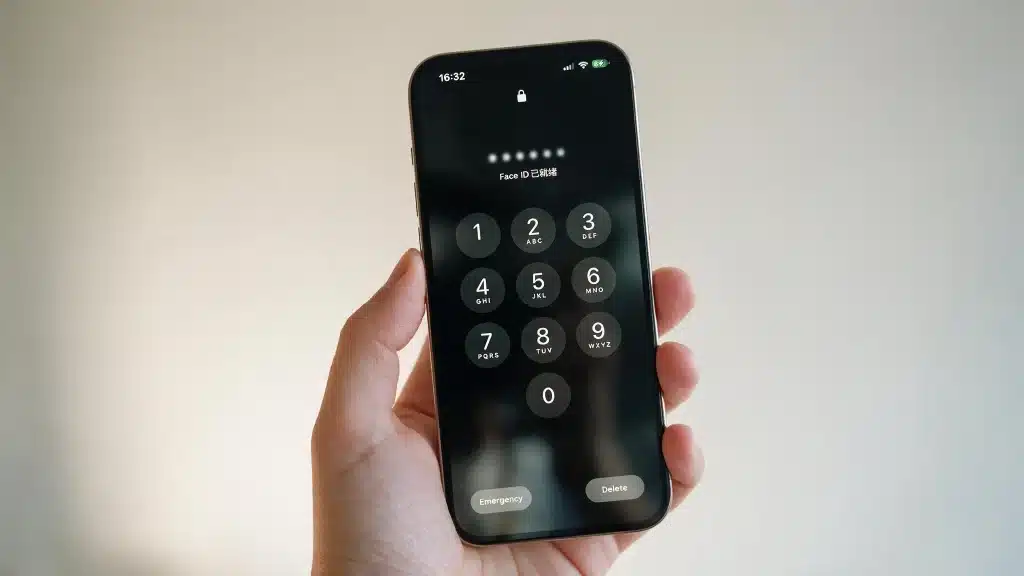
Your iPhone passcode is the one thing standing between your photos, messages, and banking apps and anyone who picks up your phone.
It only takes a few seconds for someone to look through what is on your screen if it is still the default code.
Apple lets you change it in under a minute once you know where to look, and the steps are almost the same whether your iPhone uses Face ID or has a Home button.
Below are the exact taps to change your passcode, plus how to pick a stronger code and what a few related settings do.
What is an iPhone Passcode?
An iPhone passcode is the short code you type in to open your phone whenever it restarts, wakes up after sitting idle for a while, or asks for extra confirmation.
It is separate from your Apple ID password, which signs you into iCloud, the App Store, and Apple Music instead of the device itself. Two different jobs, two different codes, even though it is common to mix the two up.
Setting a passcode does more than keep the screen closed to strangers. It also turns on data protection, which encrypts everything stored on your iPhone with 256-bit AES encryption. You can read more about how this works on Apple’s official passcode support page.
A strong passcode is only one part of protecting your privacy. Many people also review location settings on their iPhone to control which apps can access their whereabouts.
When Should You Change Your iPhone Passcode?
There is no single reason people look this up. Here are the ones that come up most often.
- Someone else may know it: a passcode typed in front of a friend, coworker, or repair shop is worth changing afterward.
- You are still using the default four digits: plenty of people never revisit the passcode they set on day one.
- You want a stronger format: moving from a plain numeric code to something harder to guess.
- A device got lost or borrowed: any time the phone was out of your hands for a stretch.
- Routine security habit: changing it now and then costs nothing and closes a small window of risk.
Whatever brought you here, knowing the reason helps you decide which passcode type to switch to in the steps below.
How to Change Your Passcode on iPhone (Step by Step)
Follow these steps to update your iPhone passcode safely, provided you still know the current passcode protecting your device.
1. Open Settings and Choose Face ID & Passcode
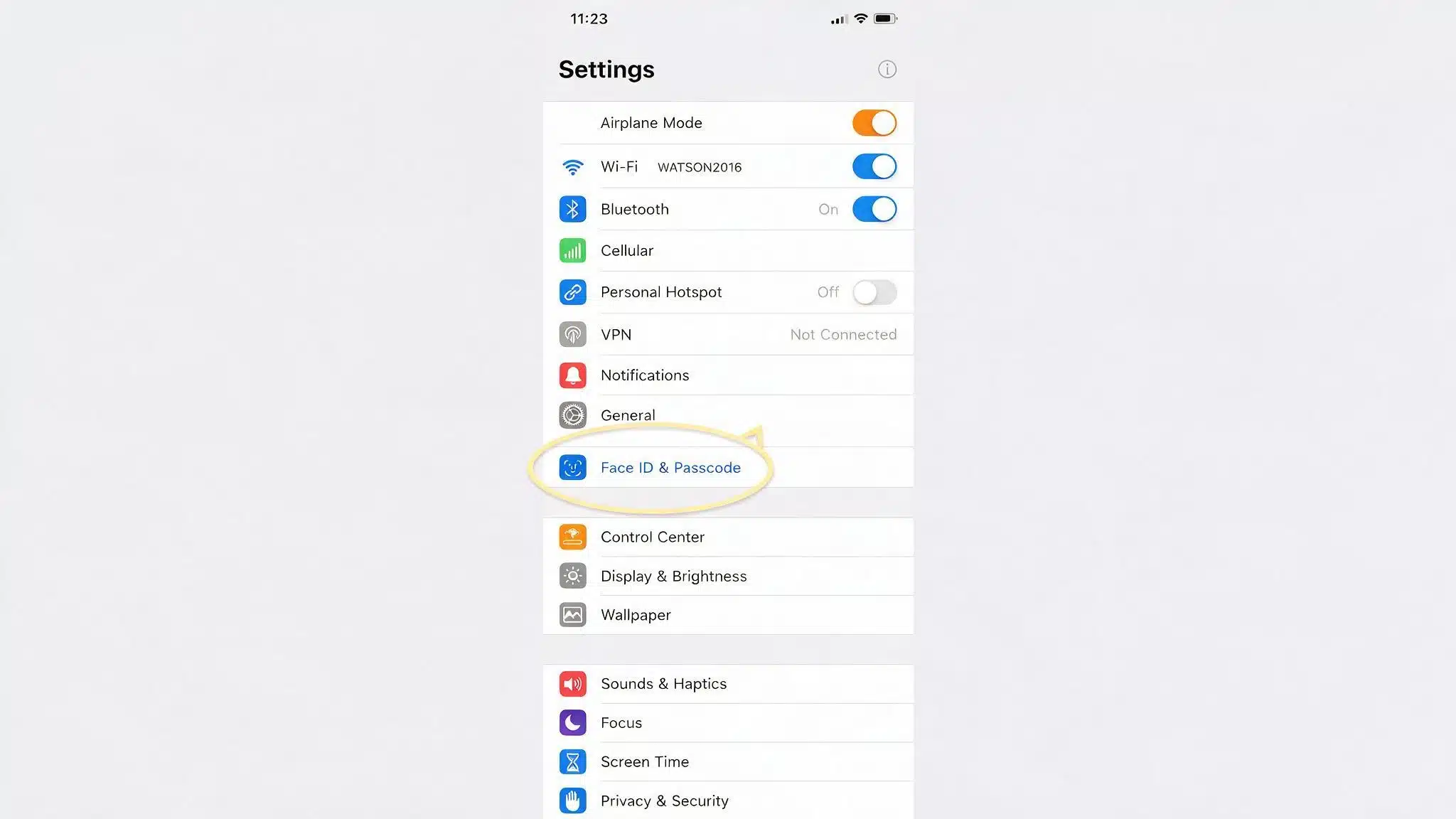
The first step is opening the passcode settings, where Apple stores all security and device lock options in one place.
- Open the Settings app and scroll down until you see Face ID & Passcode. On an iPhone with a Home button instead of Face ID, the same row is labeled Touch ID & Passcode.
- Both menus lead to the exact same set of options, so the model you own only changes this one label, not anything that follows.
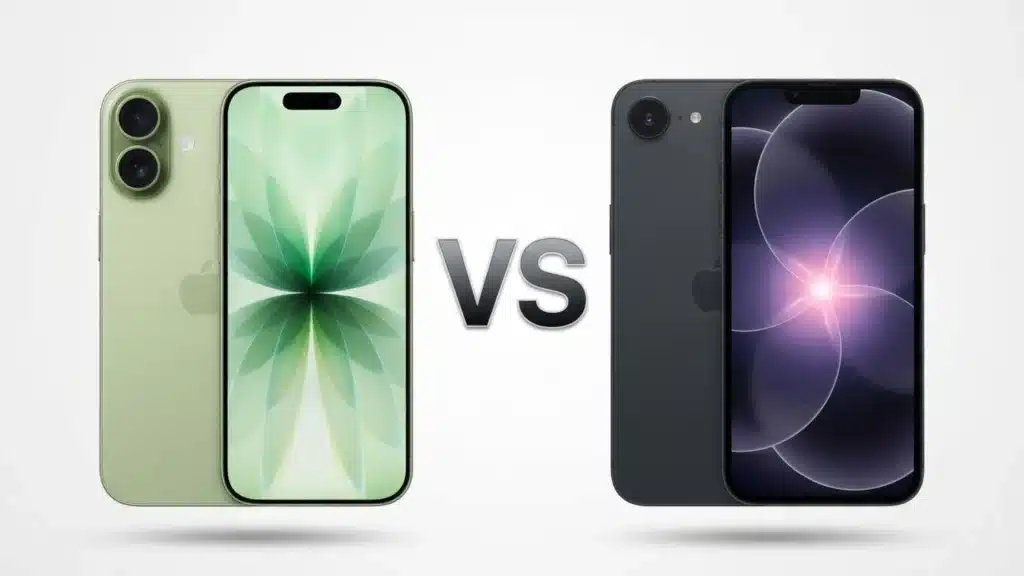
- If you are not sure which type your iPhone has, look at the bottom edge of the screen. A Home button means Touch ID. No Home button means Face ID.
2. Enter Your Current Passcode
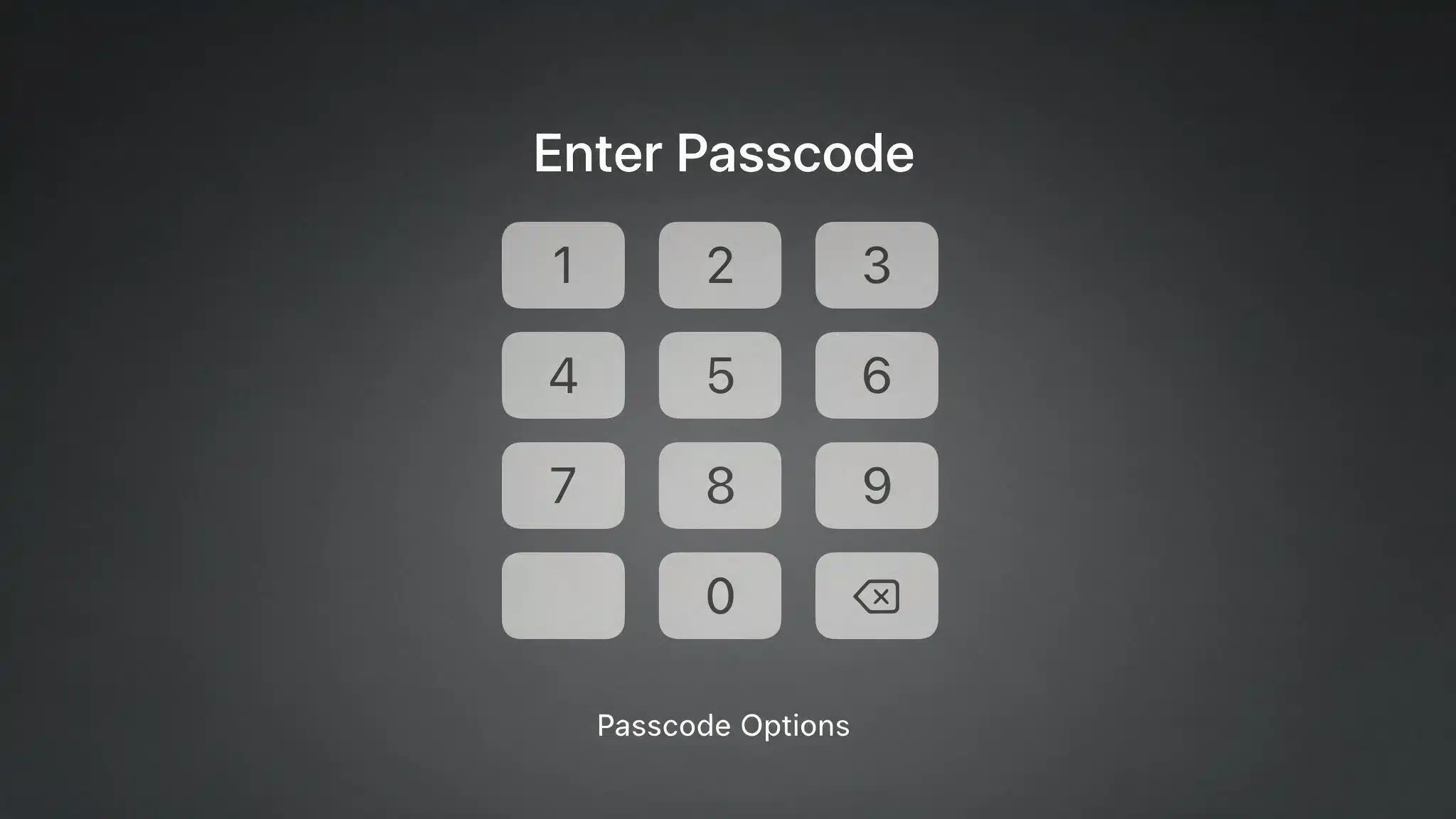
Apple asks for your existing passcode to confirm that you are authorized to make changes to your device’s security settings.
- Tapping into this menu immediately asks for your current passcode.
- Type it in, and you will land on the full Face ID & Passcode settings screen.
- If you cannot remember your current passcode, skip ahead to the forgotten-passcode question near the bottom of this page instead of guessing your way through it.
3. Tap Change Passcode
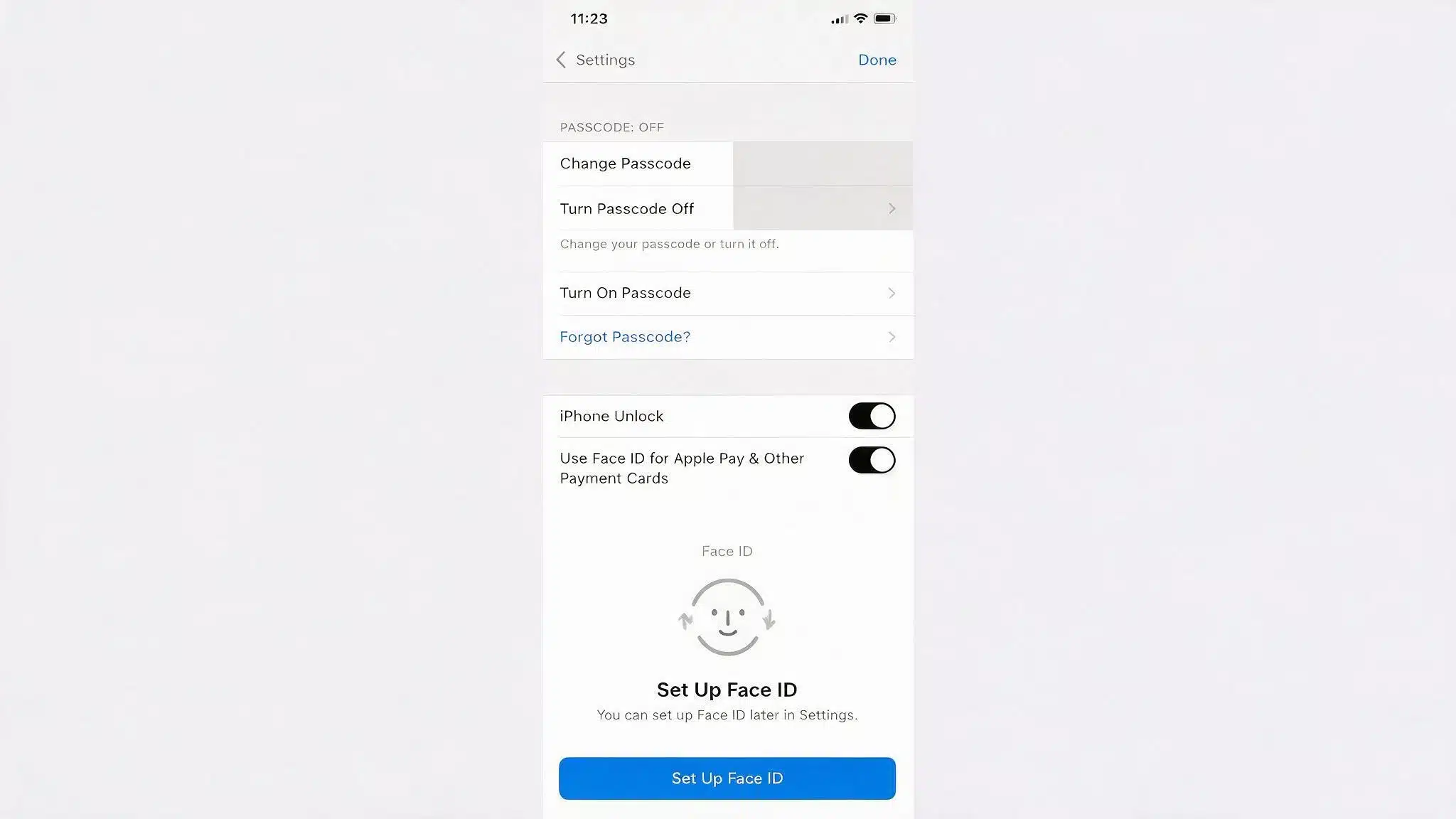
After unlocking the settings menu, choose the option that allows you to replace your current passcode with a new one.
- Once you are on the settings screen, look for Change Passcode, usually near the top of the list.
- It sits close to Turn Passcode Off, so read the label before tapping.
- Since the two buttons do very different things, read the label carefully.
4. Confirm Your Identity Again
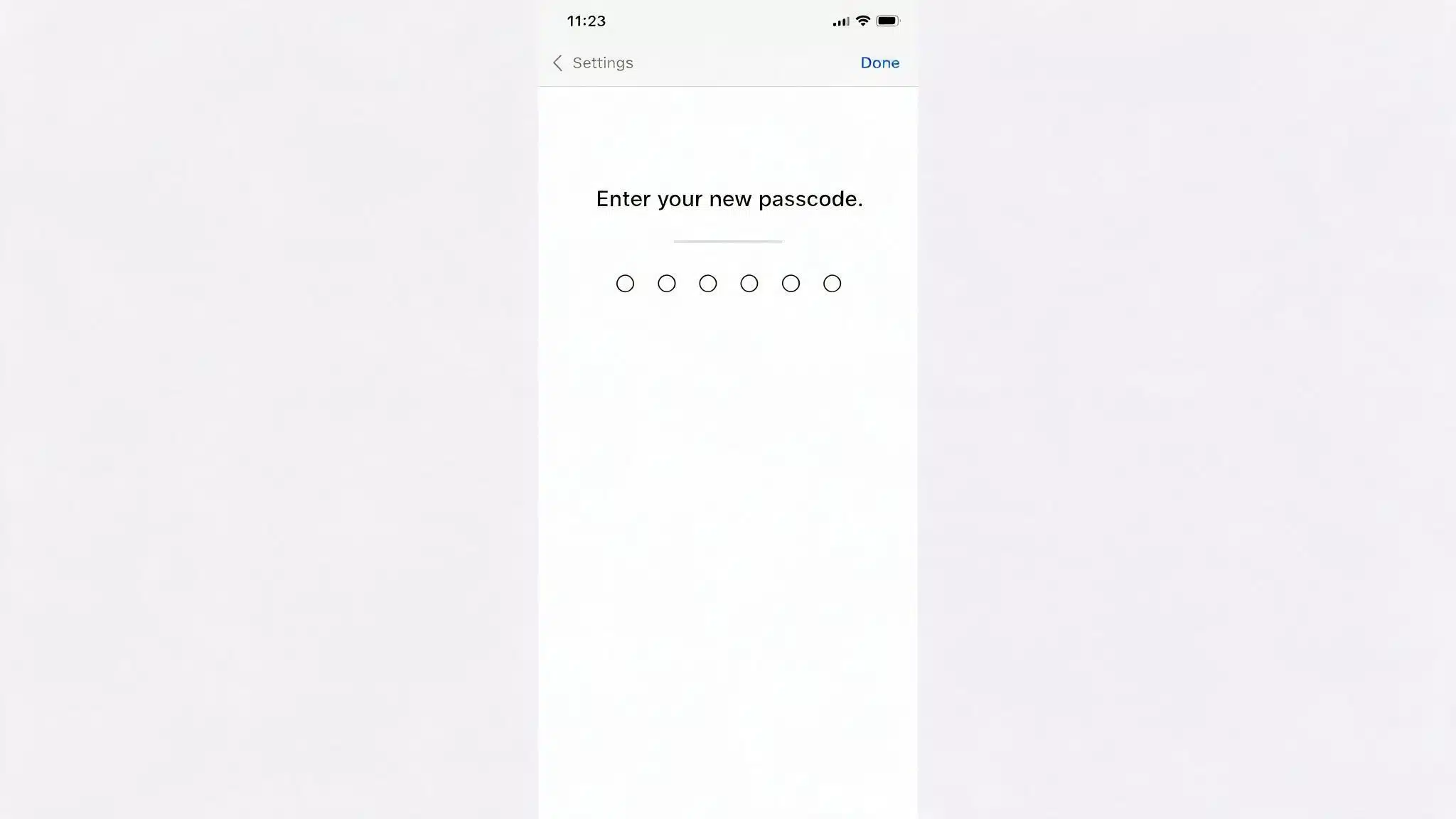
A second verification helps prevent unauthorized changes if someone gains temporary access to your unlocked iPhone during the process.
- Right after tapping Change Passcode, iOS asks for your current passcode one more time.
- It can feel repetitive, but this second check protects you.
- In case someone else grabbed your phone in the few seconds between you opening Settings and reaching this screen.
5. Set and Verify Your New Passcode
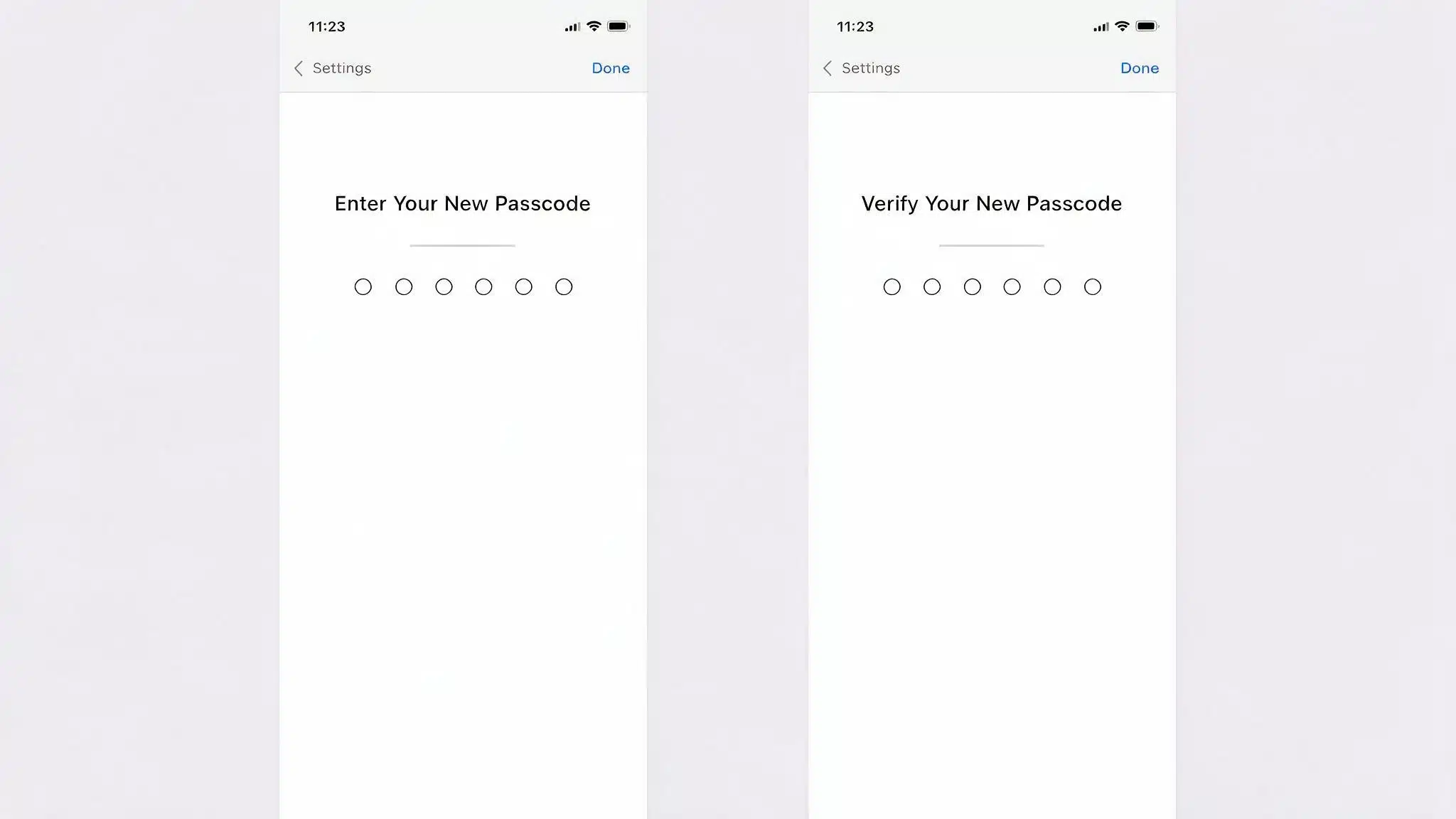
Create a new passcode and confirm it carefully to ensure your iPhone saves the correct code for future use.
- Type the new passcode you want to use on the Enter Your New Passcode screen.
- You will then be asked to type it again on the Verify Your New Passcode screen.
- If the two entries do not match, iOS simply asks you to try again. It does not lock you out or count as a failed attempt.
6. Pick a Stronger Passcode Type
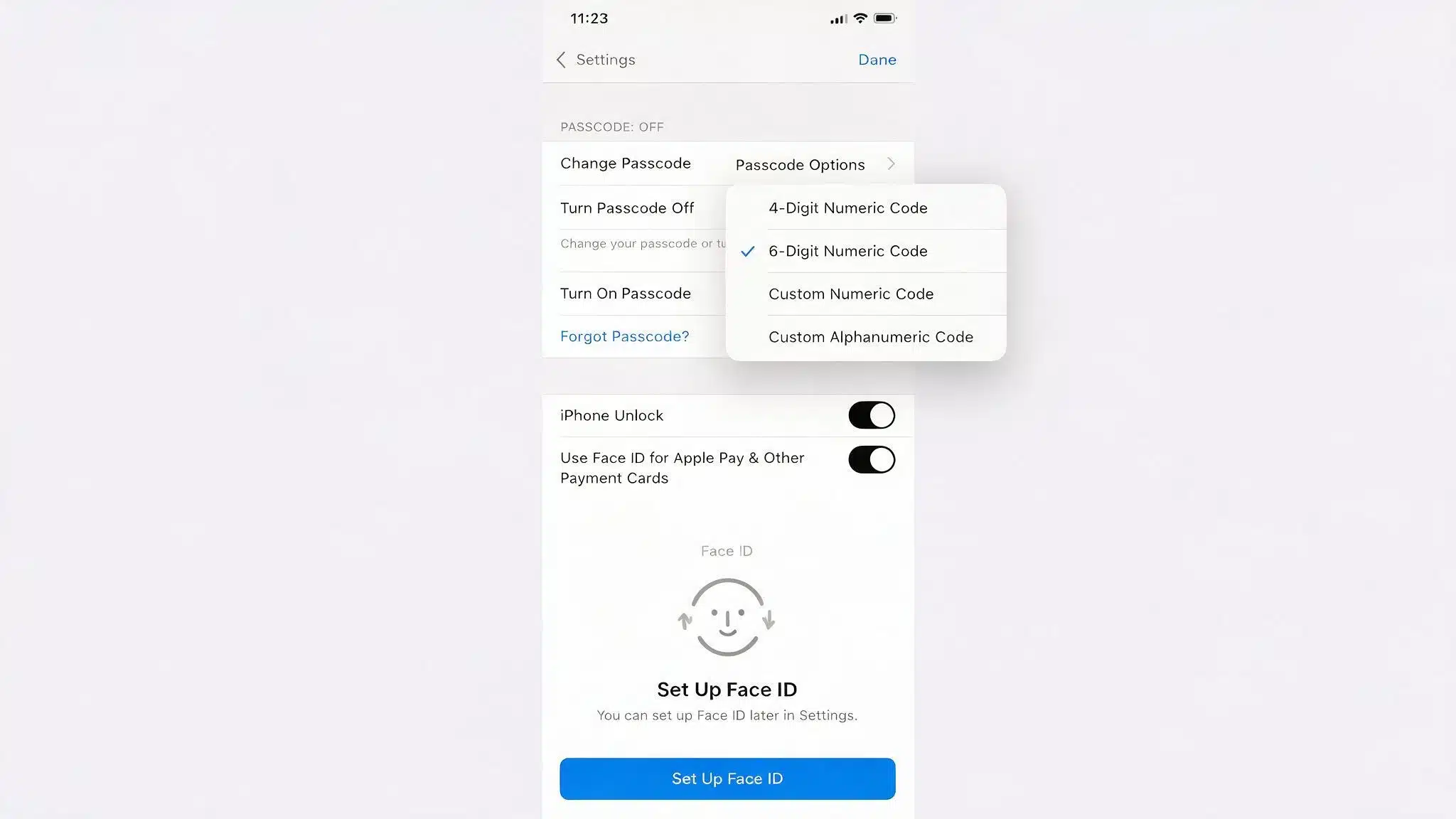
Before saving your new passcode, consider which format provides the right balance between convenience and everyday security.
- Before typing your new passcode, look for Passcode Options just below the number pad. Tapping it opens four formats to choose from.
- 4-Digit Numeric Code: the fastest to type, but the easiest for someone to guess if they watch you enter it. 6-Digit Numeric Code: the default on most iPhones, and a reasonable balance of speed and security for everyday use.
- Custom Numeric Code: numbers only, but any length you choose, which raises the number of possible combinations. Custom Alphanumeric Code: letters and numbers together, the strongest option Apple offers.
7. Turn On Auto-Lock and Erase Data
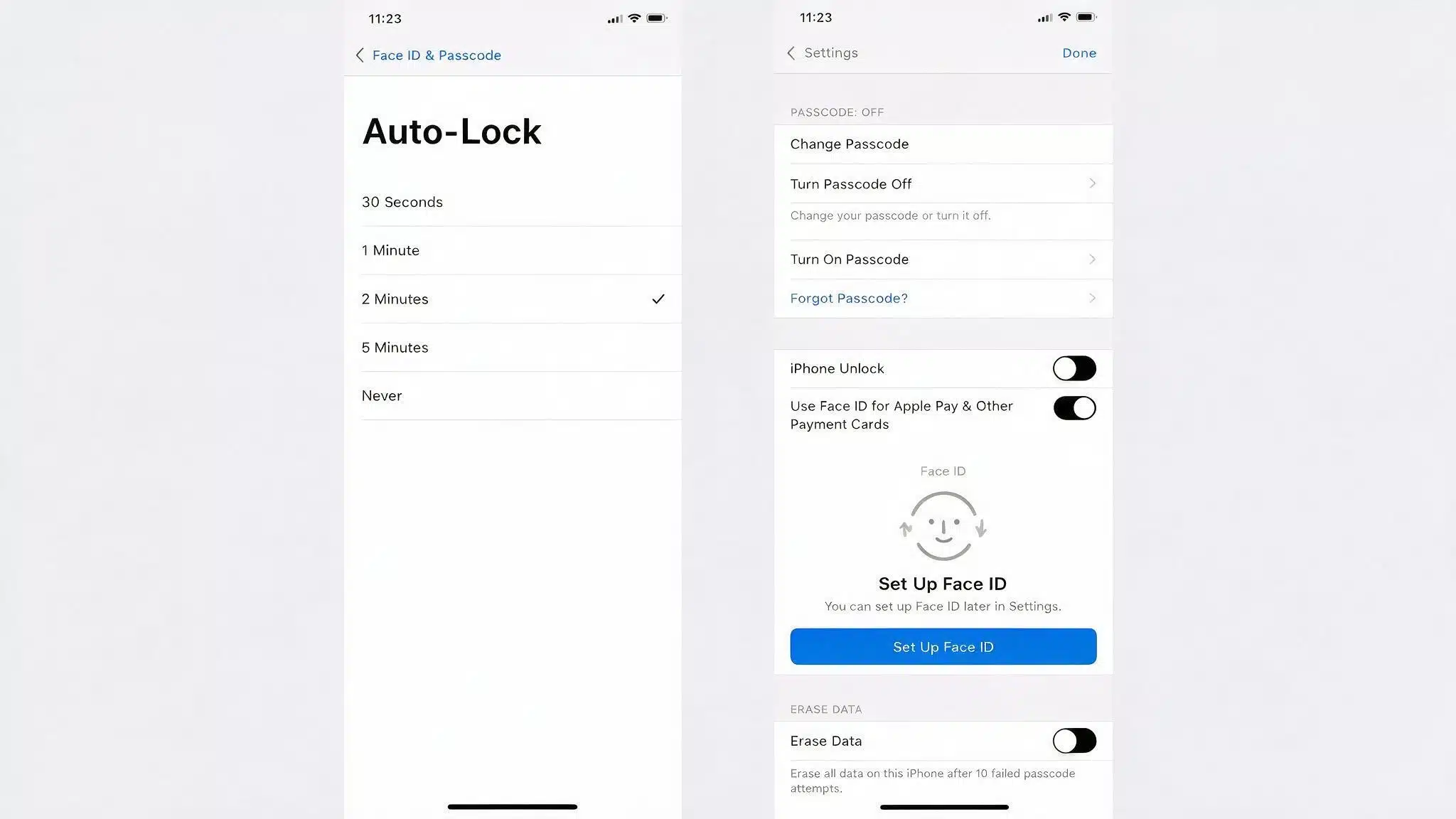
These additional security settings help protect your iPhone if it is left unattended, lost, or accessed by someone else.
- Two related settings are worth adjusting right after you change a passcode. Auto-Lock, found under Settings, then Display & Brightness, then Auto-Lock, controls how quickly the screen locks on its own when you are not using it.
- A shorter window means less time for anyone else to pick up a phone that is still open and active. Erase Data, near the bottom of the Face ID & Passcode (or Touch ID & Passcode) screen, wipes the device automatically after 10 failed passcode attempts in a row.
- It is off by default, and turning it on is a reasonable safeguard if your phone is ever lost.
You can also extend that protection by using Face ID on Messages to help keep your conversations private when someone else has your phone.
Passcode vs. Apple ID Password
Your iPhone passcode and Apple ID password protect different parts of your Apple experience, so understanding the distinction helps avoid confusion.
| Feature | iPhone Passcode | Apple ID Password |
|---|---|---|
| What it protects | The device itself | Your Apple account, including iCloud, the App Store, and Apple Music |
| Where you set it | Face ID & Passcode, or Touch ID & Passcode | Settings, then your name, then Password & Security |
| Format | 4 to 6 or more digits, or letters and numbers together | Any password that meets Apple’s account requirements |
| Can they be the same? | Technically yes, but it is safer if they are not | Technically yes, but it is safer if they are not |
Keeping the two separate limits the damage if either one is ever exposed. If someone learns your passcode, your Apple account stays protected, and the other way around.
Best Ways to Keep Your iPhone Passcode Secure
Good security habits make your iPhone harder to access without adding much effort to your daily routine or changing how you use it.
- Skip the Obvious Codes: birthdays, repeating digits, and patterns like 1234 are the first things anyone guessing a passcode will try.
- Do Not Reuse Your Apple ID Password: keeping the two different limits the damage if one of them is ever exposed.
- Keep Face ID or Touch ID Turned On: it does not replace the passcode, but it means typing the longer, more secure code by hand far less often.
- Turn On Erase Data: an automatic safeguard if the phone is ever lost or taken.
What Does Apple Recommend for the Strongest Passcode?
Apple’s own guidance points to the Custom Alphanumeric Code as the strongest format available, because it is not limited to just ten possible digits per character the way a numeric code is.
Adding letters, and the option to mix in symbols and capitalization, multiplies the number of possible combinations by a wide margin.
The tradeoff people worry about is convenience: having to type a longer code by hand every time. In practice, pairing an alphanumeric passcode with Face ID or Touch ID solves that problem.
You will rarely type the full code once biometric access is set up. The extra security costs almost nothing in daily use.
Quick Tips for Managing Your iPhone Passcode
Simple habits can strengthen your iPhone’s security and help protect your personal information without changing the way you use it daily.
- Avoid sharing your passcode out loud: typing it in front of someone, even briefly, is the most common way a passcode gets guessed later.
- Update it after lending your phone: even to someone you trust completely.
- Write it down somewhere offline: not in a notes app stored on the same phone.
- Check your Auto-Lock timing: a shorter lock window often matters more than the passcode format itself.
- Test Face ID or Touch ID right after changing your passcode: confirms nothing else needs to be set up again.
- Note the date you changed it: a small habit that makes it easier to remember when it is time to change it again.
Common Mistakes When Changing an iPhone Passcode
Knowing the most common mistakes beforehand helps you complete the passcode change smoothly and avoid unnecessary security or setup problems.
| Common Mistake | Why It Causes Problems |
|---|---|
| Skipping the current passcode entry | iOS will not move forward until it is confirmed |
| Confusing this with an Apple ID password change | Leads to the wrong settings screen entirely |
| Choosing a new code just as guessable as the old one | Defeats the purpose of changing it in the first place |
| Forgetting to revisit Auto-Lock or Erase Data | Leaves related security settings outdated |
Avoiding these keeps the whole process quick and actually improves your security, rather than just resetting the same weak habit under a new set of digits.
Final Thoughts
Changing an iPhone passcode takes about a minute once you know the menu name to look for on your specific model.
The real value is not just in making the change; it is in picking a stronger format and pairing it with Auto-Lock and Erase Data, so the whole setup works together.
If you have been putting this off, there is no better time than right now to open Settings and take care of it.
It is one of the fastest security upgrades available on any phone. A stronger passcode today means one less thing to worry about later on.
Frequently Asked Questions
Does Changing Your Passcode Affect Face ID or Touch ID?
No. Both continue to work exactly as before. The iPhone will still occasionally ask for the passcode directly under specific conditions, like right after a restart or after several failed Face ID or Touch ID attempts, but that behavior has nothing to do with having just changed the code.
What Happens If You Enter the Wrong Passcode Too Many Times?
Four wrong attempts in a row temporarily disable the iPhone for a short cooldown period. If Erase Data is turned on, 10 consecutive failed attempts wipe the device completely, after which it needs to be restored from a backup or set up again as new.
Can You Turn Off Your iPhone Passcode Completely?
Yes, through Turn Passcode Off on the same settings screen used to change it. Doing this also disables the phone’s built-in data encryption, so it is worth thinking through before switching it off.
Does the Passcode Process Work the Same on Every iPhone Model?
Yes. Every iPhone with Face ID, including the 11 through the 16 lineup, uses the identical steps under the Face ID & Passcode menu. Older models with a Home button use the same process under Touch ID & Passcode instead, with no other differences.
Can You Change a Passcode on iPad the Same Way?
Yes, iPad uses the same Face ID & Passcode or Touch ID & Passcode menu and the same steps as iPhone.