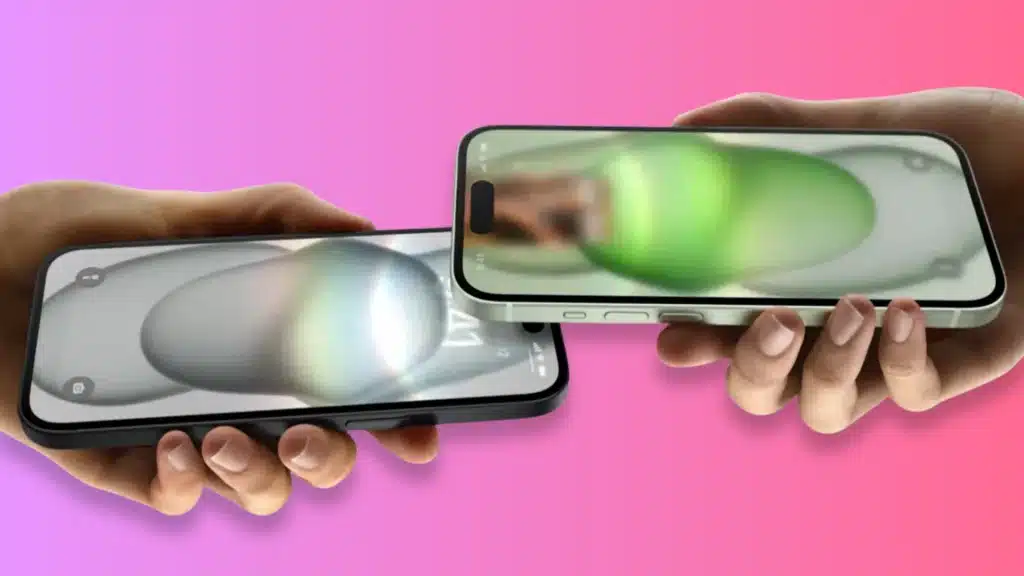
An iPhone that still displays an old owner’s Name or a default label can make everyday tasks like Bluetooth pairing and AirDrop sharing confusing.
This often happens after purchasing a used device, restoring a backup, or managing multiple iPhones connected to the same network.
Learning how to change your iPhone name takes only a minute and helps you give your device a clear identity across Apple services.
The updated Name makes it easier to recognize your iPhone when connecting with other devices or managing your Apple products.
Find the steps to rename your iPhone, understand what the device name affects, and see where it appears in AirDrop, Bluetooth, and Personal Hotspot.
What is Your iPhone Name?
Your iPhone name is the label your device uses to introduce itself to other Apple gadgets, computers, and nearby connections, long before you ever open an app.
Think of it as a simple, everyday nickname, not an ID number. This Name pops up whenever you send a file through AirDrop, pair headphones over Bluetooth, share a Personal Hotspot, or plug your iPhone into a computer.
Knowing where it appears helps explain why picking a clear name matters, especially if several Apple devices sit in the same home or office. Renaming it only changes this visible label.
Your Apple ID, phone number, photos, and personal data stay the same, no matter how many times you update the Name in Settings.
How to Change iPhone Name from Settings?
Renaming your iPhone takes only a few taps once you know where to look. The setting lives in one place and works the same way on every current iPhone running iOS 16 or later.
Step 1: Open Settings and Go to About
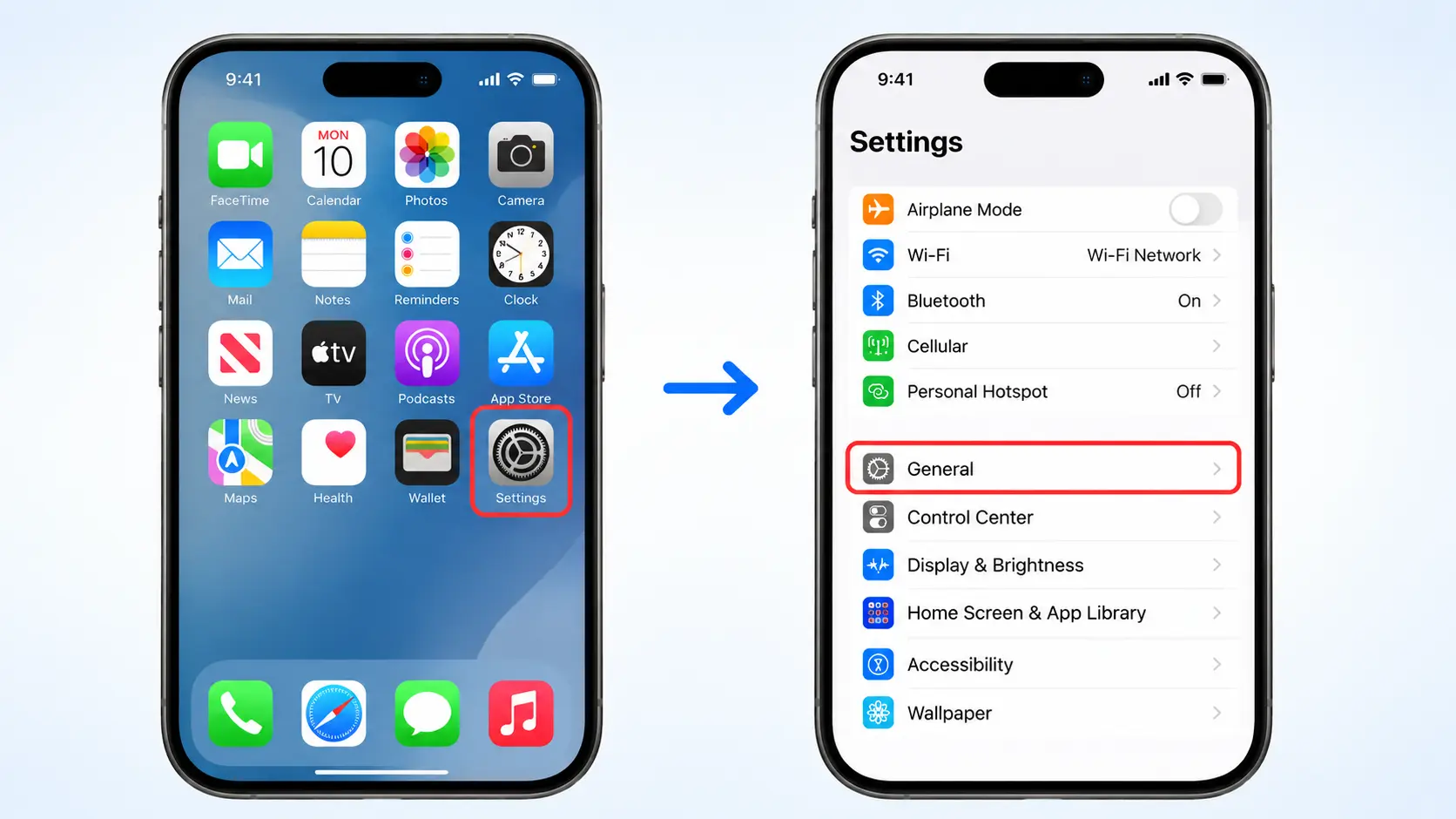
- Open the Settings app on your iPhone by tapping the gray gear icon on your Home Screen.
- Tap General from the menu, then select About to access your device details.
- Find the Name option on the About page, where you can view and change your iPhone’s current Name.
Step 2: Tap Name and Clear the Current Text
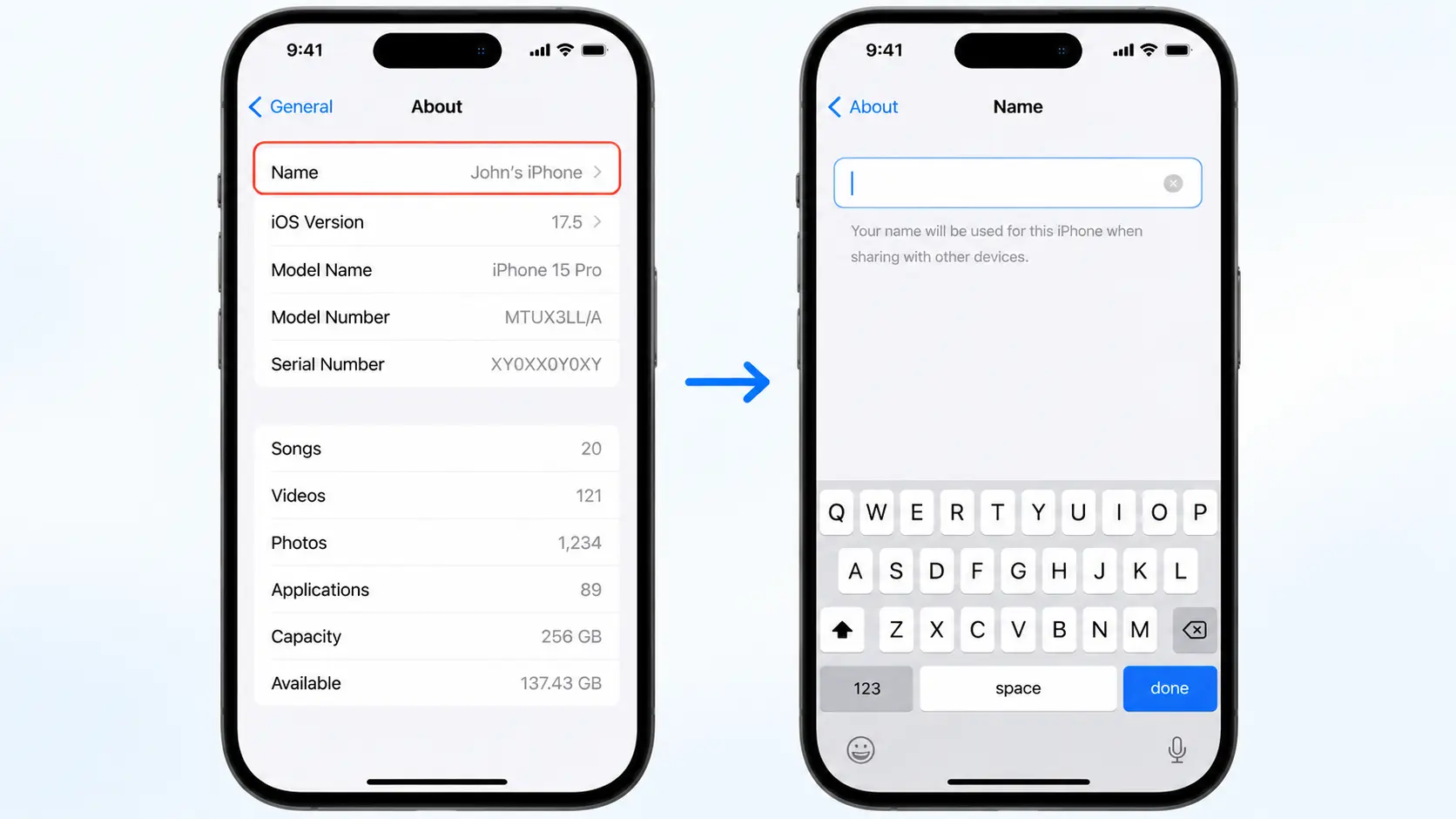
- Tap Name on the About screen to open the editable text field with your current iPhone name.
- Tap inside the field to open the keyboard and select the existing text.
- Delete the old Name completely, then enter your new iPhone name in the empty field.
Step 3: Type Your New Name
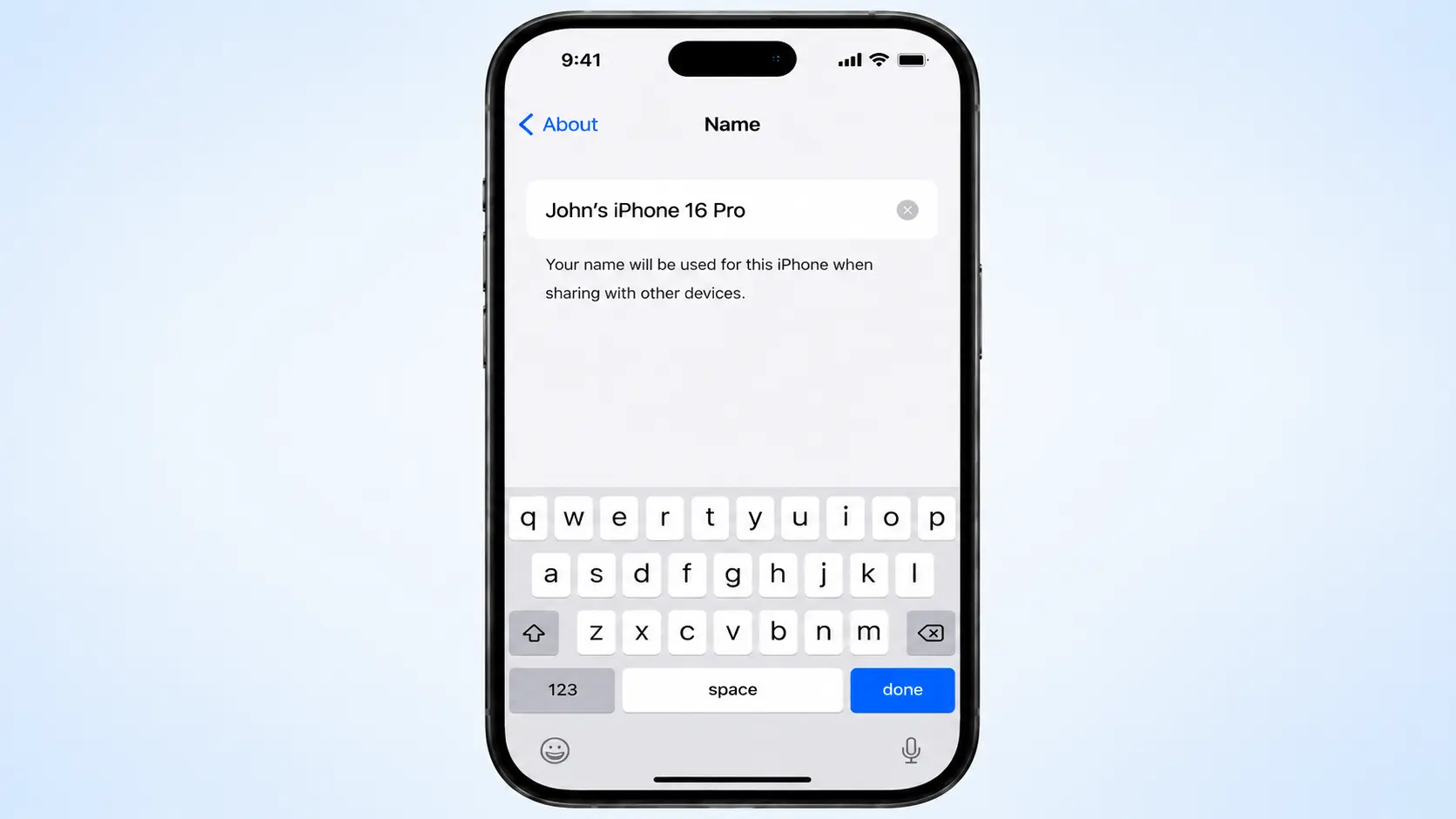
- Type the new Name you want your iPhone to display, choosing a short and recognizable label.
- Use a unique name if you own multiple Apple devices to avoid confusion in AirDrop or Bluetooth connections.
- Check for autocorrect changes before saving and adjust the text if needed.
Step 4: Tap Done to Save the Change
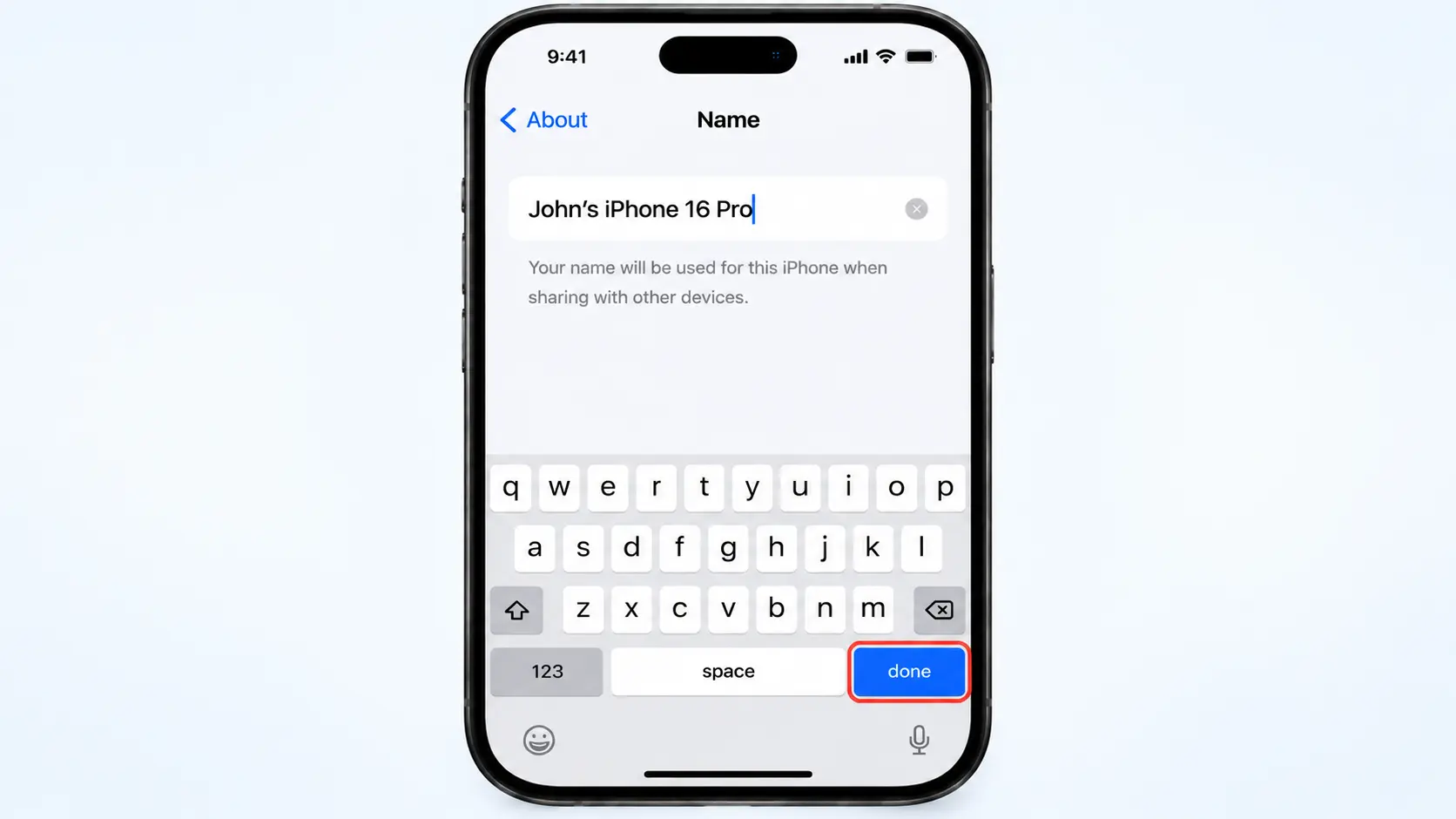
- Tap Done after confirming the new iPhone name is correct in the text field.
- The change saves immediately and updates the Name shown for your device connections.
- Your updated Name will appear across supported Apple services and connected devices without additional setup.
Changing your iPhone name takes just a few taps in Settings and updates how your device appears across connected services.
Choose a clear name to make your iPhone easier to identify among other Apple devices.
What Does Changing Your iPhone Name Actually Do?
The Name displayed on your iPhone works like a label for every wireless connection it makes. Before the steps, it helps to know what this label affects and what it leaves alone.
Your iPhone device name is the identifier Apple uses across iCloud, nearby connections, and any computer you connect it to.
It has no link to your Apple ID, phone number, or personal data, and renaming it does not remove photos, contacts, apps, or settings.
Think of the Name as a nickname rather than an identity. Two devices can share the same Name until you add a personal label, which matters most when several Apple devices sit in one room.
If privacy is your main concern, remember that changing your device name is separate from managing location settings on your iPhone, which control when apps and services can access your location.
Where Your New iPhone Name Appears After You Change It
Changing your iPhone’s name updates the label that appears whenever your device connects, shares content, or communicates with other devices.
| Location | Why the Name Appears |
| AirDrop | Lets nearby people identify which device is sending or receiving a file |
| Bluetooth | Displays your device name when pairing with headphones, speakers, or a car |
| Personal Hotspot | Shows the network name other devices see when they join your hotspot |
| iCloud and Find My | Identifies your iPhone among other devices signed in to the same Apple Account |
| Computer connections | Shows the device name in Finder on a Mac or in file transfer apps on Windows |
Apple’s device naming documentation confirms this. Its AirDrop support page and Personal Hotspot instructions explain how sharing and tethering use the Name. This confirms the change saved correctly.
Picking an Easy-to-Recognize iPhone Name
A good device name should tell you which phone is which the moment it appears on a list, whether at home or at work. A few simple habits keep that clear even when several Apple devices sit in the same room.
- Use a first name or nickname, such as “Alex’s iPhone.”
- Add the device purpose, like “Work Phone” or “Travel iPhone.”
- Separate personal and business devices with a short label such as “Home” or “Office.”
- Avoid generic names like “iPhone” or “New Phone” when other Apple devices are nearby, since duplicates make AirDrop and Bluetooth harder to sort through.
Picking a distinct name now saves confusion later, especially when sharing files or pairing with a car’s Bluetooth system.
Why Should You Change Your iPhone Name?
Most people never think about their iPhone’s Name until it shows up somewhere confusing, like a stranger’s Name lingering after a factory reset or a hand-me-down phone.
Giving your device its own Name makes everyday moments easier, like sending a photo through AirDrop at a family gathering or connecting to your car’s Bluetooth for the first time.
It also helps when you own more than one Apple device, since two phones both labeled iPhone can make picking the right one on a shared network frustrating.
A clear name saves a few seconds of guesswork and a lot of accidental taps on the wrong device. It costs nothing, takes under a minute, and makes your iPhone instantly easier to recognize.
While you’re updating device settings, it’s also worth reviewing Face ID protection for the Messages app if you want to keep personal conversations more private.
iPhone Name vs Apple Account and Other Device Names
Apple uses separate names for different devices and services. Updating your iPhone name changes how that iPhone appears in connections like AirDrop and Bluetooth, but other Apple names remain unchanged.
| Name | What it controls |
| iPhone device name | Appears in AirDrop, Bluetooth, Personal Hotspot, and computer connections. |
| Apple Account name | Your account profile and Apple service information. |
| AirPods name | The label shown for your earbuds in Bluetooth settings. |
| Apple Watch name | The Name assigned to your watch separately from your iPhone. |
Updating one device name does not carry over to any of the others, so anyone managing several Apple products should check each device individually after a purchase or a hand-me-down transfer.
Common Problems When Renaming an iPhone
Most name changes take effect immediately, but a few situations can cause the update to lag or appear incomplete. The checklist below covers the most common naming issues and how to resolve them.
- New Name not showing right away: Wait a minute or two, since some Apple services take a short time to sync the change.
- AirDrop still showing the old Name: Toggle Wi-Fi and Bluetooth off and back on, then check the Name again.
- Bluetooth devices displaying outdated information: Forget the paired device under Settings> Bluetooth, then pair it again.
- No visible update after restarting: Confirm the correct device was renamed by checking Settings > General > About > Name.
- Multiple Apple devices with similar names: Double-check which device was edited if a family member’s phone uses a similar label.
Restarting the iPhone clears most temporary syncing delays and is worth trying before assuming the change failed.
If the name still looks wrong afterward, revisit the Name screen under Settings to confirm the entry saved correctly.
Final Verdict
Knowing how to change iPhonename helps you keep your device easier to recognize across Apple services and connected devices.
A clear iPhone name makes it simpler to identify your phone when using AirDrop, Bluetooth, Personal Hotspot, or managing multiple Apple products.
Understanding the difference between your iPhone device name, Apple Account details, and other device labels also helps avoid confusion when different names appear across services.
From setting up a new iPhone to updating your current device, choosing a recognizable name keeps your Apple experience more organized and convenient.
What Name did you give your iPhone? Share your creative ideas in the comments below!
Frequently Asked Questions
Can I Use Emojis in My iPhone Name?
Yes, you can use emojis in your iPhone name. They can help make your device easier to recognize when multiple devices appear nearby.
Does Changing My iPhone Name Affect My Warranty?
No, changing your iPhone name does not affect your warranty. It only updates the device label and does not modify hardware or Apple service coverage.
Can I Change My iPhone Name Without Updating iOS?
Yes, you can change your iPhone name without updating iOS. The option is available through Settings on supported iPhone versions.