Various experts, including professional event managers, tend to use the best and the most advanced tech to do their job well. Most of them choose Mac as their primary device: apart from having a great and innovative design, it performs excellently under pressure, and it’s considered a perfect option for creatives across different industries.
However, even Apple can let you down at the worst possible moment. If you get your Mac frozen at event, you might respond with panic; it’s natural, sure, but try to avoid it, as unnecessary haste will only exacerbate the situation. First, be sure to check this guide to figure out how to escape a soft freeze; if the problem is more serious, see how to force restart your Mac. After that, study the tips below: one of them is guaranteed to help you.
Why Mac Freezes During Live Events
Before getting to solutions, let’s establish why Macs can freeze during live events.
- Having too many apps running can overwhelm your Mac, especially an older model. This problem occurs frequently during real-time attendee tracking and livestreaming.
- External hardware conflicts might also lead to a freeze when you’re connecting your camera, projectors, audio mixers, and other displays at the same time.
- An unstable Internet connection can freeze your Mac as well: the system will get agitated when trying to sync all the attendee data and streaming presentations.
- Viruses and outdated macOS versions can result in a sudden crash when everything seems to be going fine.
Knowing the reasons for the freeze can help you with your current problems, and keeping Mac cleaners at the ready will prevent most of the outlined problems from occurring in the first place.
Emergency Recovery: How to Restart Your Mac and What to Do Next
Let’s say your Mac has frozen already, so no preventive measures can help at the moment. What should you do? There are four solutions for you to apply.
Attempt a Soft Exit
If your Mac stopped responding right in the middle of a live event, your screen will be stuck on the same image; no amount of clicking or jabbing will help liven it up. In this case, the first thing you’ll need to do is determine whether the app or Mac has frozen.
Try using Command + Tab: this will help you switch apps. If the system reacts, then the problem lies with the livestreaming app you’ve been using to host your event. Try reopening it again; chances are, your issues will end here.
If this didn’t help, try doing a soft exit. Follow these steps:
- Press the Command + Option + Escape combination. This should trigger the Force Quit window.
- Select the app that froze. This can be Safari itself, Keynote, registration software, and so on.
- Once you choose the problematic app, click Force Quit and wait for a couple of moments.
If this didn’t help, tough luck! Your Mac is frozen completely, and no app switching will help here. Fortunately, there are more solutions to consider.
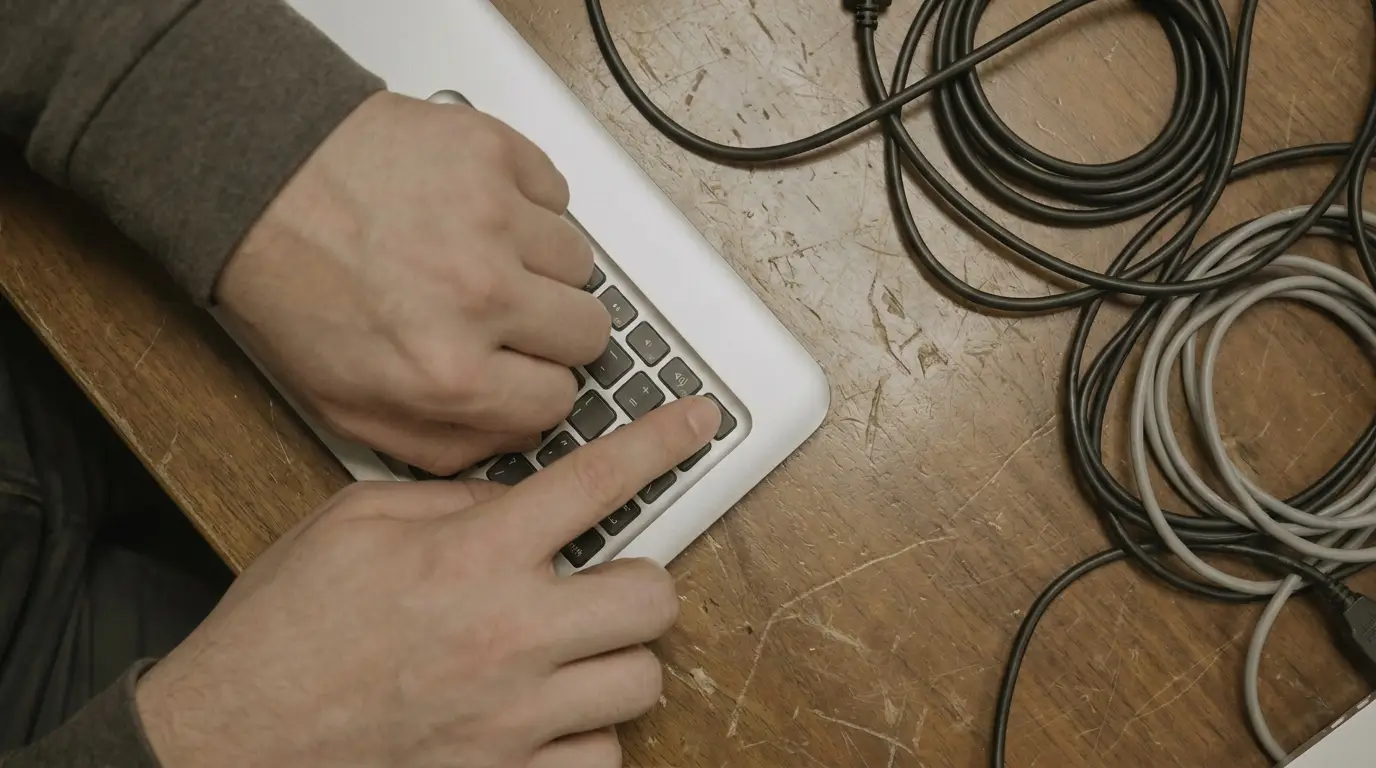
Force Restart Mac with the Power Button
If your Mac is definitely frozen, you will have to give it a kick. Here is what you should do:
- If you’re using a MacBook Pro or Air, hold the Touch ID or the power button for about 10 seconds. Wait for the screen to go black.
- If you have a Mac Mini, hold the physical power-off button. You can try counting to 10, too, but it’s better to wait until the system shuts down.
- On older Macs, press Control + Command + Power button at the same time and hold this combination for a few seconds.
Don’t worry, you won’t damage your Mac in any way if you force it to unfreeze like this. Mac has been designed to withstand emergency shutdowns, so the sooner you turn it off, the faster you’ll be able to get back online.
Turn Mac On and Reconnect Event Systems
After doing the force reboot macOS, wait for at least 5 seconds and then turn it on once again. If you see a familiar Apple logo, great news: the shutdown helped, and now the system is being rebooted normally.
If the reboot didn’t help, charge your Mac ASAP. Still nothing? Then the problem is more serious, and you’ll need something more complex than emergency recovery. However, in 99% of cases, the shutdown will work; if it does, here is what you need to do next.
- Open the livestreaming app right away. If you had a presentation going, it might be recovered automatically.
- If you don’t see it, go to your backups, such as the USB stick, cloud storage, or an email attachment.
- Reupload the files you need and go back to your attendees. Explain what happened and apologize for the delay.
Note that having backups before live events is essential. Something can always go wrong, so you need to protect yourself as much as possible.
Prepare for Recurrence
If the freeze happens once, it can happen again, and the people who participated in your live event might not be as understanding the second time around. That’s why you need to prepare for potential recurrence.
Update your macOS regularly and use only reliable apps. Don’t do updates and don’t install anything new shortly before the event, though; you never know what might happen. Hold backups close, preferably on extra devices, and use dedicated Mac antiviruses and clean-up tools. They will keep your system protected and notify you in case something weird is happening.
Hold Live Events with Confidence
While having your Mac freeze during live events is frustrating, it’s not the end of the world. This problem has a lot of quick fixes; you know what they are now, so if the worst comes to pass, try applying them one by one. Stay collected and unhurried, and follow the tips we’ve shared closely. Communicate with your audience, and you’ll come out of this unfortunate situation with minimal losses.