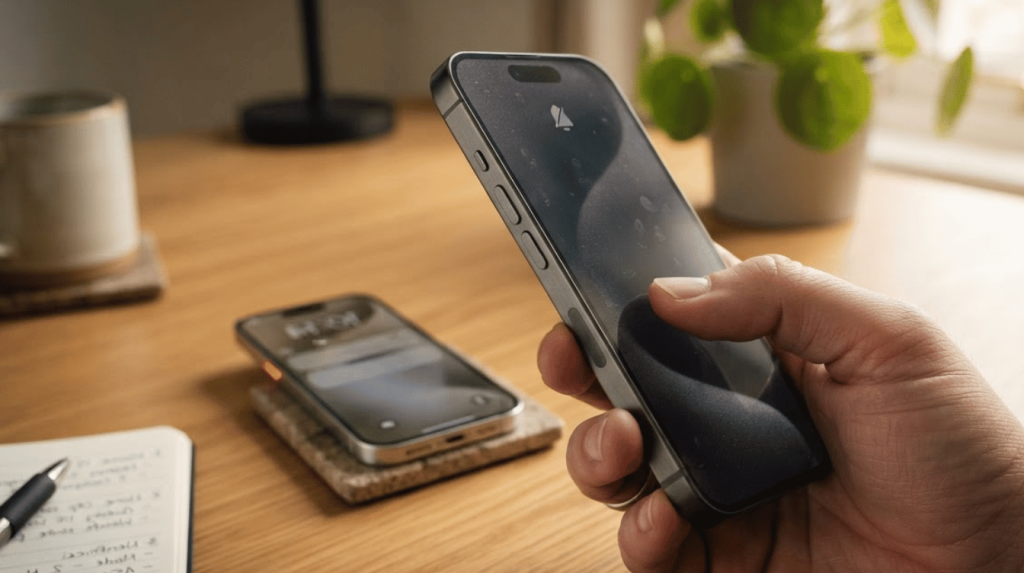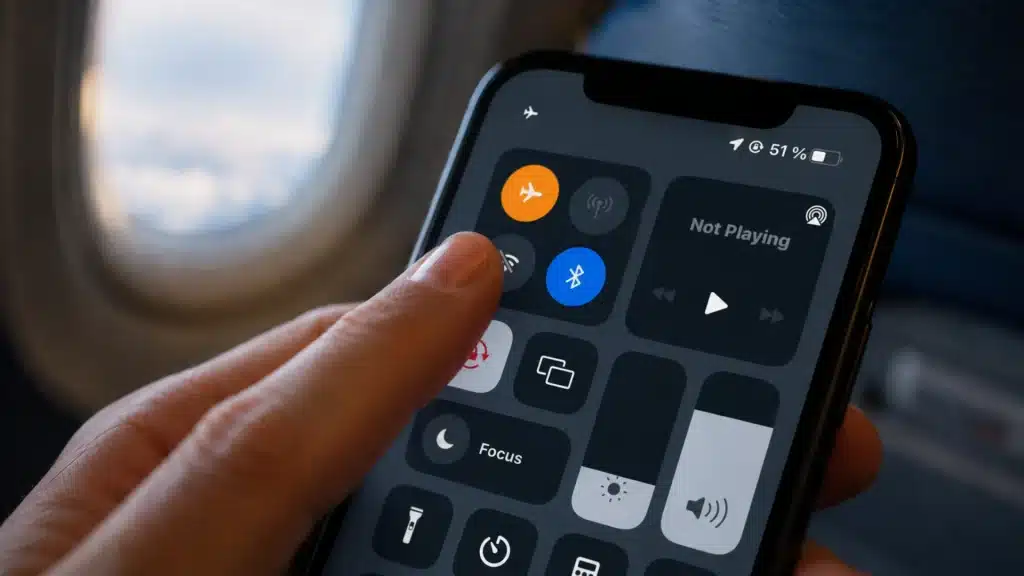
Your iPhone hits 11 percent before lunch, and suddenly every tap feels risky because your charger is nowhere near you.
That is when airplane mode feels like a quick rescue, but does airplane mode save battery enough to matter? I have seen this trick help most when the signal is weak, but it is not the only smart battery move.
I will tell you about simple ways to extend phone battery life beyond airplane mode, including how to save battery on an iPhone.
You will learn when airplane mode helps, what it turns off, and which iPhone settings save power daily.
Before changing anything, let us first understand what airplane mode really does, because that decides when it helps your battery most.
What is Airplane Mode & How Does it Work?
Airplane mode is a phone setting that turns off the wireless connections on your device with a single tap.
It was originally designed for flights to prevent phones from communicating with cellular networks, but it is now also commonly used to save battery life, reduce distractions, and stop unwanted notifications temporarily.
When airplane mode is enabled, your phone disconnects from mobile networks and limits wireless communication until you manually turn services back on again.
Here is what happens when you turn airplane mode on:
- Cellular turns off permanently: Your phone stops calls, normal texts, mobile data, and tower searching right away.
- Wi-Fi turns off first: You can turn Wi-Fi back on manually, which is why in-flight Wi-Fi still works.
- Bluetooth may turn off: You can re-enable Bluetooth for earbuds, speakers, Apple Watch, or other smartwatch pairing.
- Offline apps still work: Saved music, downloaded videos, notes, alarms, camera features, and other offline tools continue working, but live internet features stop until you reconnect through Wi-Fi or mobile data again.
Does Airplane Mode Actually Save Battery?
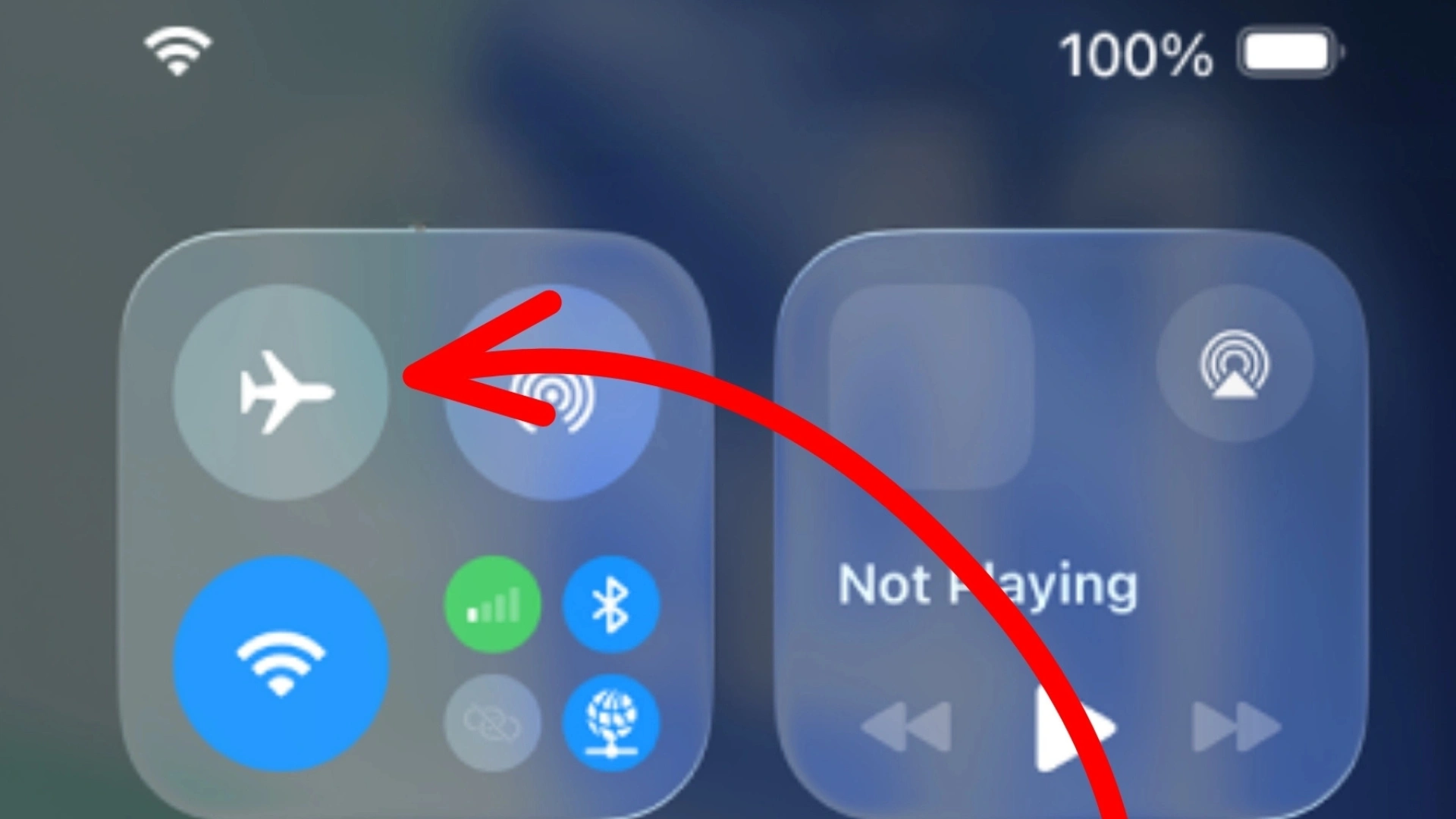
Yes, airplane mode does save battery, and it helps most when your phone has a weak signal around you. Your phone keeps searching for nearby towers, even when it is just sitting in your pocket.
That search uses more power in basements, elevators, rural roads, thick buildings, and remote areas with bad coverage.
When airplane mode is on, your phone stops that signal hunt, so the battery gets a real break.
It also stops Wi-Fi and Bluetooth background scans at first, unless you turn them back on manually. Online app refresh also pauses, so fewer apps wake up your phone in the background.
For iPhone users stuck in low-signal areas, airplane mode often outperforms even Low Power Mode for raw battery preservation. For Android users, the logic is the same.
If your phone is hot and draining fast with no strong signal nearby, airplane mode is the single fastest fix available.
For more practical daily fixes, check our guide on how to extend your smartphone battery life without relying on one setting.
When Does Airplane Mode Save the Most Battery?
Airplane mode becomes most useful in situations where the phone constantly struggles to maintain connections. Instead of repeatedly searching for signals, the device can focus only on essential functions.
- Weak or No Signal Areas: Phones consume extra battery while searching for mobile towers. Airplane mode stops this continuous signal hunt and saves power.
- Phone Overheating Situations: Constant background network activity can increase device temperature. Turning on airplane mode pauses these wireless processes and helps the phone cool down more quickly.
- Emergency Battery Saving Without a Charger: When the battery is critically low, airplane mode reduces overall power usage by disabling wireless communication, giving extra usage time before the phone shuts down.
- Overnight Battery Preservation: If calls and notifications are not needed during sleep, airplane mode can reduce overnight battery drain. Alarms and offline functions still continue to work normally.
Why Do Flights Require Airplane Mode to Be Turned on?
Flights require airplane mode because the Federal Aviation Administration (FAA) and Federal Communications Commission (FCC) consider possible interference from portable electronic devices.
The FAA AC 91.21-1D focuses on possible interference with aircraft communication and navigation systems, especially during takeoff and landing.
The FCC side is more direct. FCC Rule 47 CFR § 22.925 prohibits the operation of cellular telephones on airborne aircraft.
When a plane leaves the ground, personal cellular phones must be turned off or set to airplane mode to prevent interference with terrestrial cellular networks.
There are real incidents behind the rule. In 2011, Alec Baldwin was removed from an American Airlines flight after refusing a crew request to turn off his device. The rule existed then as it does now.
Airplane mode also saves battery by stopping tower searches mid-flight.
Limitations of Airplane Mode
Airplane mode is useful for quickly saving battery, but it also cuts off important phone features. That is why it works best as a quick fix, not an everyday battery habit.
- No calls or SMS: You cannot make or receive normal calls or text messages while cellular service is off.
- No cellular data: Apps that need mobile internet will not refresh, load, sync, or send updates in the background.
- Bluetooth turns off first: Your earbuds, speakers, or Apple Watch may disconnect unless you turn Bluetooth back on manually.
- Apple Watch may lose features: Notifications, syncing, and many app features can stop when the watch loses iPhone connection. Apple Watch losing charge fast is often a background activity problem that Low Power Mode on the Watch itself handles better than relying on airplane mode.
- Emergency access gets slower: You must turn airplane mode off first before making a normal emergency call.
Apple Watch Low Power Mode: What it Does
Apple Watch Low Power Mode helps extend battery life when the watch battery is running low or when longer usage is needed throughout the day.
Available on watchOS 9 and later, this feature reduces power consumption by limiting certain background activities and features that use extra battery.
Users can turn it on by opening Control Center on the Apple Watch, tapping the battery percentage, and enabling Low Power Mode.
Once activated, some features may work differently to save energy.
The Always On display can turn off, background heart rate and health readings may happen less often, and certain workout-related functions can be reduced.
This mode becomes especially useful during long travel days, outdoor activities, extended workouts, overnight sleep tracking, or situations where charging is not possible for several hours.
It is also helpful before reaching home with low battery remaining, helping the Apple Watch last longer without completely shutting down.
Other Ways to Save Battery Life on iPhone
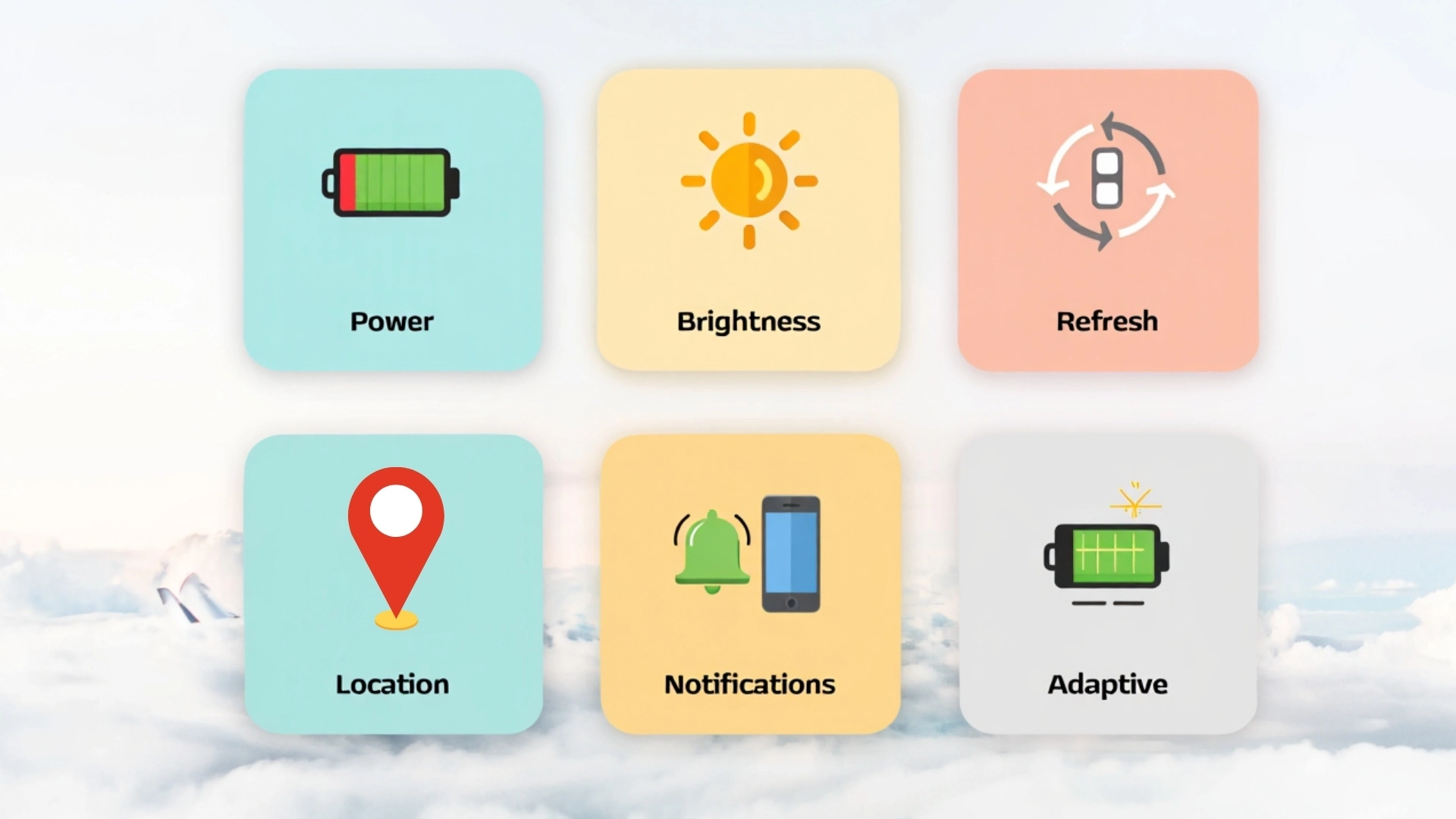
Airplane mode is helpful, but these iPhone settings save battery without cutting you off from calls, messages, and the internet.
1. Enable Low Power Mode
Low Power Mode is the easiest iPhone battery fix when you still want to stay reachable. Go to Settings > Battery > Low Power Mode, or add it to Control Center for faster access.
It reduces background app refresh, pauses some iCloud activity, and slightly lowers display behavior. Unlike airplane mode, it keeps calls, texts, Wi-Fi, and mobile data working normally.
2. Reduce Screen Brightness or Enable Auto-Brightness
Your iPhone screen eats a big part of your battery, especially when the brightness stays high for hours. Lower the brightness from Control Center when you are indoors or not using direct sunlight.
You can also turn on Auto-Brightness from Settings > Accessibility > Display & Text Size.
It adjusts the screen light for you, so your iPhone does not waste power when full brightness is not needed.
3. Turn Off Background App Refresh
Background App Refresh lets apps update content even when you are not using them. That sounds useful, but it can quietly drain the battery all day.
Go to Settings > General > Background App Refresh, then turn it off fully or app-by-app.
Social media, shopping, and news apps are usually the biggest battery hogs here. Apps will still refresh when you open them.
The fastest way to turn off location on your iPhone for specific apps is covered in a step-by-step breakdown that takes under two minutes.
4. Manage Location Services
Location Services can drain battery when too many apps track you in the background. Go to Settings > Privacy & Security > Location Services and check the list.
Change apps from “Always” to “While Using the App” when they do not need constant access.
Food, shopping, and social apps usually do not need your location all day. This saves battery and also cuts extra background data use.
5. Disable Raise to Wake and Trim Notifications
Raise to Wake turns on your screen whenever you lift your iPhone. That is handy, but it also wastes battery when your phone wakes up by mistake.
Go to Settings > Display & Brightness and turn off Raise to Wake. Then check Settings > Notifications and remove lock screen alerts from apps you do not need.
Fewer alerts mean fewer screen wake-ups and less battery drain.
6. Use Adaptive Power
Adaptive Power is a smarter iPhone battery setting in iOS 26. It learns your normal use, then steps in when it thinks your battery may drain faster.
Go to Settings > Battery > Power Mode > Adaptive Power to turn it on. It can lower brightness a little, limit background activity, and trigger Low Power Mode at 20 percent automatically.
The best part is that it works quietly after setup, so you do not have to babysit battery settings all day.
Conclusion
Saving battery is not about one magic switch, and airplane mode proves that better when your battery starts slipping fast.
It can help when your phone is fighting for signal, but daily battery life needs smarter choices that keep you reachable.
I would treat airplane mode like an emergency button, not something you keep using for every small battery drop daily.
Your iPhone can last longer when you cut the silent drains without cutting yourself off from calls and messages.
The real win is knowing when to stay connected and when to shut the noise down for a while. Once you understand that balance, how to save battery life on an iPhone becomes much easier.
Which battery trick actually helped you the most, and which one surprised you? Tell us, share with us in the comments below.
Frequently Asked Questions
Does Turning Airplane Mode on Make Your iPhone Charge Faster?
Yes, airplane mode can help your iPhone charge faster by turning off wireless radios and reducing background data activity. Your phone uses less power while charging, so more of the charger’s power goes straight into the battery.
Does Airplane Mode Affect GPS on iPhone?
No, airplane mode does not turn off GPS on iPhone. GPS uses satellite signals, not cellular towers or Wi-Fi. Offline maps and navigation can still work, but apps may need to download maps first.
Can You Still Use Your iPhone Alarm in Airplane Mode?
Yes, your iPhone alarm still works in airplane mode because alarms run from the device clock. The timer and stopwatch also keep working normally. Emergency SOS via satellite can also work on supported iPhone models and carriers.
Does Repeatedly Toggling Airplane Mode on and off Drain Battery Faster?
Yes, it can cause a small battery spike for a short time. Each time you turn airplane mode off, your phone searches again for cellular, Wi-Fi, and Bluetooth connections. Doing that again and again can add up.