Many people block websites on their iPhone to stay focused, manage screen time, or create a safer browsing experience for children.
iPhone makes it easy to manage website access; the goal is to avoid distractions, improve focus, or restrict certain websites for children. If the question is can you block a website on an iPhone, the answer is yes.
Apple’s Screen Time feature lets you block specific websites or allow access only to approved ones.
Learning how to block websites on iPhone is straightforward, and restricting a website on iPhone takes only a few settings changes.
This blog explains the available methods, step-by-step instructions, and helpful tips for managing website restrictions effectively.
Quick Answer: How to Block Websites on iPhone?
Block websites on an iPhone by enabling Screen Time and adding websites to the Never Allow list in Web Content settings.
Open Settings > Screen Time > Content & Privacy Restrictions, turn the feature on, then go to App Store, Media, Web & Games > Web Content.
Select Limit Adult Websites and add the websites to the Never Allow list, or choose Only Approved Websites to restrict access to approved sites only.
Can You Block a Website on iPhone?
Yes, iPhone lets users block websites using built-in Screen Time settings without installing another app.
Website restrictions can be enabled through the Content & Privacy Restrictions feature, allowing specific websites to be blocked or limiting access to approved sites only.
This built-in tool works well for parental controls, reducing distractions, or preventing access to unwanted content.
It also supports blocking multiple websites by adding each web address to the restricted list.
The restrictions apply across supported browsers that use Apple’s web content filtering, helping provide more consistent control over internet access.
You can also edit, remove, or add blocked websites at any time, making it easy to update restrictions as your needs change.
Website Blocking vs Website Restrictions on iPhone
Although the terms are often used interchangeably, blocking and restricting websites on an iPhone work differently.
| Feature | Block Individual Websites | Limit Adult Websites | Only Approved Websites |
|---|---|---|---|
| What It Does | Blocks only the websites added to the Never Allow list. | Automatically filters many adult websites while allowing most other websites. | Blocks every website except those added to the approved list. |
| Browsing Access | All other websites remain accessible. | Most websites remain available except for filtered or manually blocked ones. | Only approved websites can be opened. |
| Manual Setup | Add each website that should be blocked. | Optional lists can be used to block or allow additional websites. | Every allowed website must be added manually. |
| Level of Restriction | Low | Medium | High |
| Best For | Reducing distractions or blocking specific websites. | Parental controls and filtering explicit content. | Children’s devices, schools, or highly controlled browsing. |
Why Block Websites on an iPhone?
Blocking websites can improve browsing habits, reduce distractions, and create a safer online experience.
- Reduce Distractions: Blocking social media, gaming, or entertainment websites can reduce interruptions and help users spend less time on unnecessary browsing.
- Protect Children From Inappropriate Content: Website restrictions can prevent children from accessing adult, violent, or otherwise unsuitable content when using an iPhone.
- Improve Focus During Work or Study: Restricting access to distracting websites can make it easier to concentrate on assignments, meetings, or other important work tasks.
- Limit Access to Time-Wasting Websites: Blocking frequently visited websites can reduce excessive screen time and support better time management throughout the day.
- Cut Down on Phishing Risk: Blocking known scam or lookalike domains keeps them from loading even if a link is clicked by accident in a text or email.
Ways to Block Websites on iPhone
Remove blocked websites in just a few steps through Screen Time settings. Follow the instructions below to restore website access on iPhone
Step 1: Open Settings and Go to Screen Time
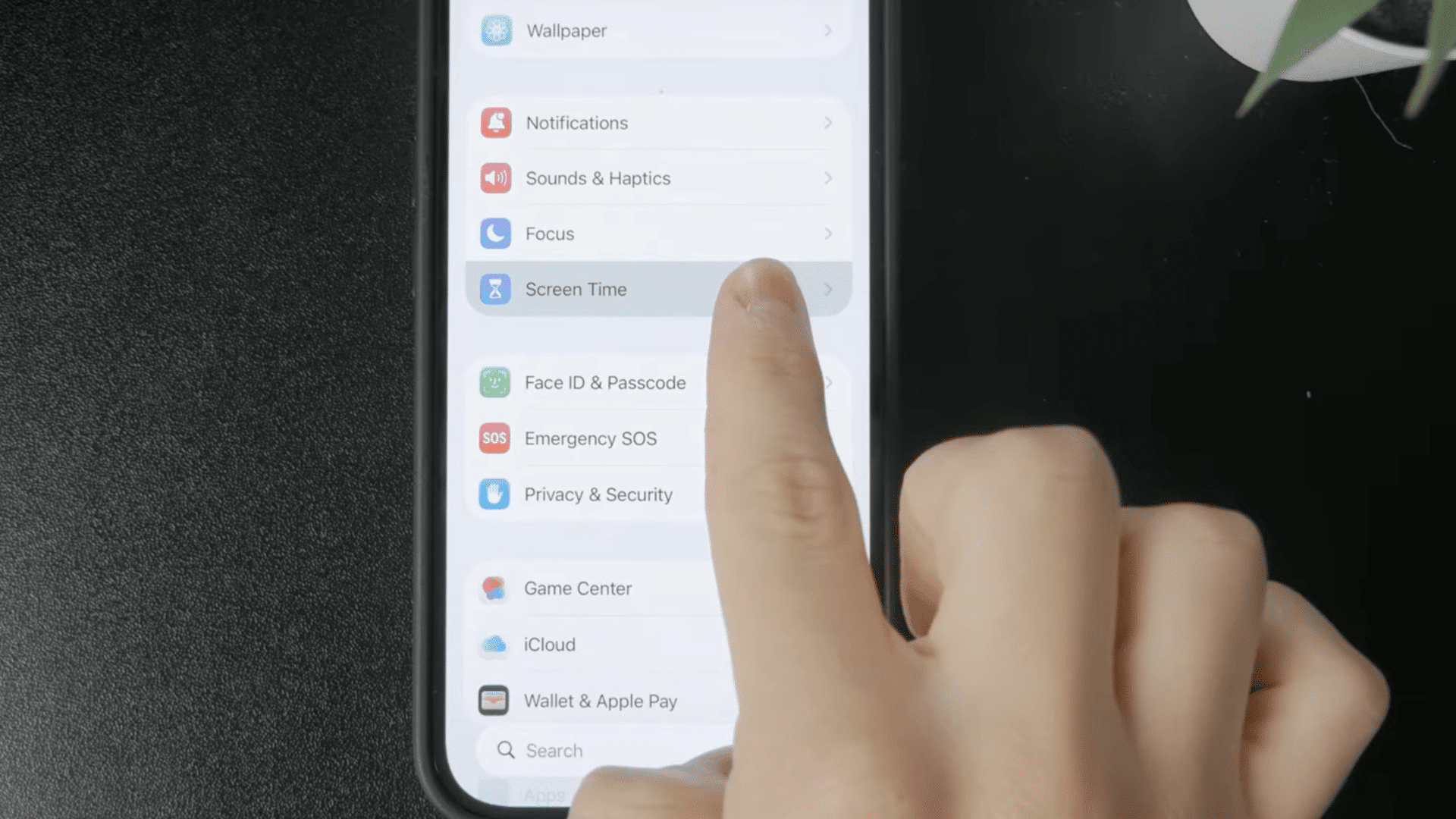
Open the Settings app on the iPhone and scroll until you see Screen Time. Tap it to access the controls used for managing app limits, website restrictions, and privacy settings.
If Screen Time is not enabled, enable it first, as website restrictions cannot be changed without it. This section contains all the controls needed to manage blocked websites.
After opening Screen Time, continue to the next menu to locate the available website restriction settings.
Step 2: Open Content & Privacy Restrictions
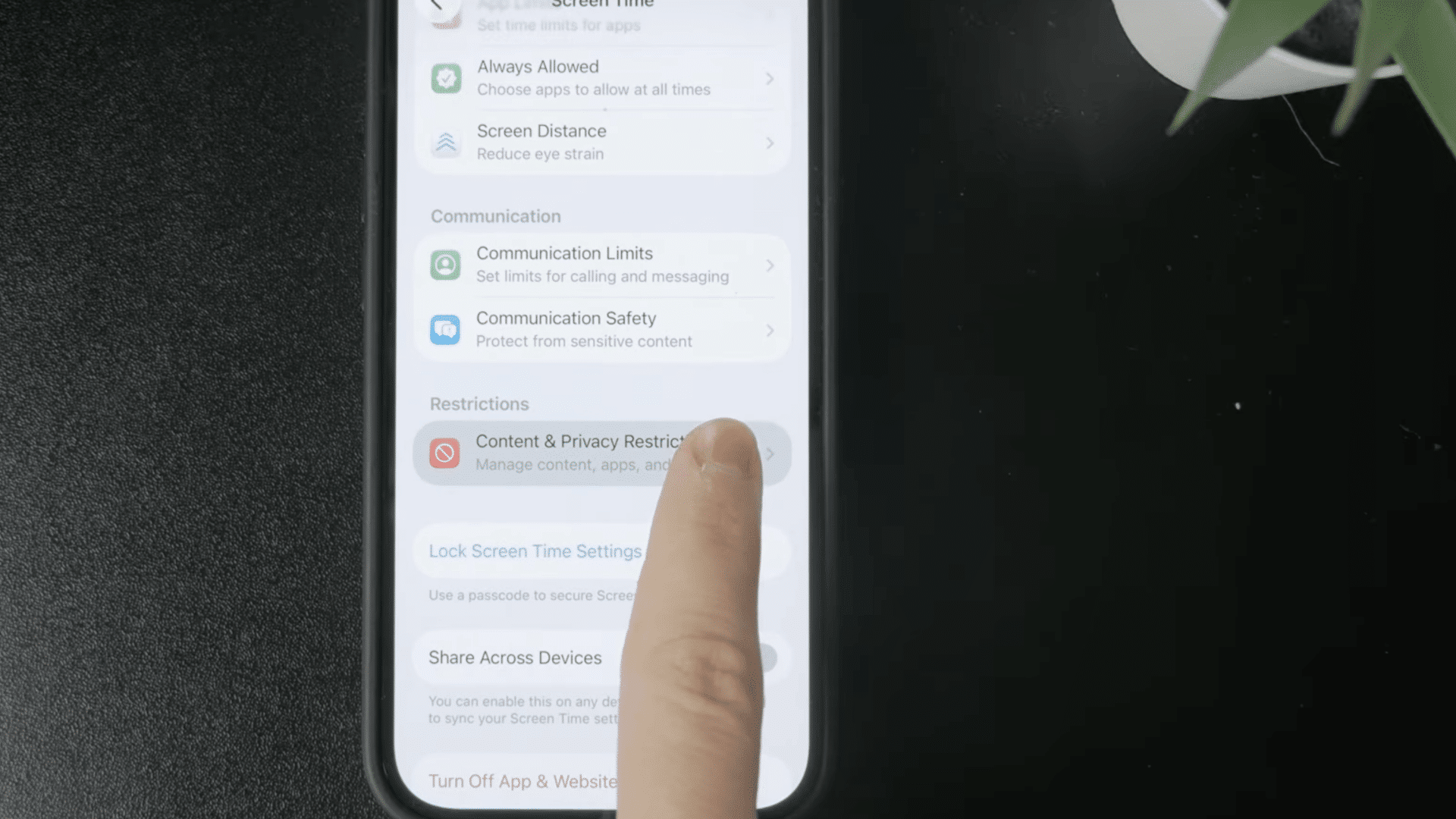
Inside Screen Time, tap Content & Privacy Restrictions to access content filtering options. Make sure the switch at the top is enabled before making any changes.
If this setting is turned off, the website restriction options remain unavailable.
Once enabled, the iPhone displays additional controls for apps, web content, purchases, and other restrictions.
This section manages the settings that determine which websites are allowed or blocked across the device and supported browsers.
Step 3: Tap Web Content
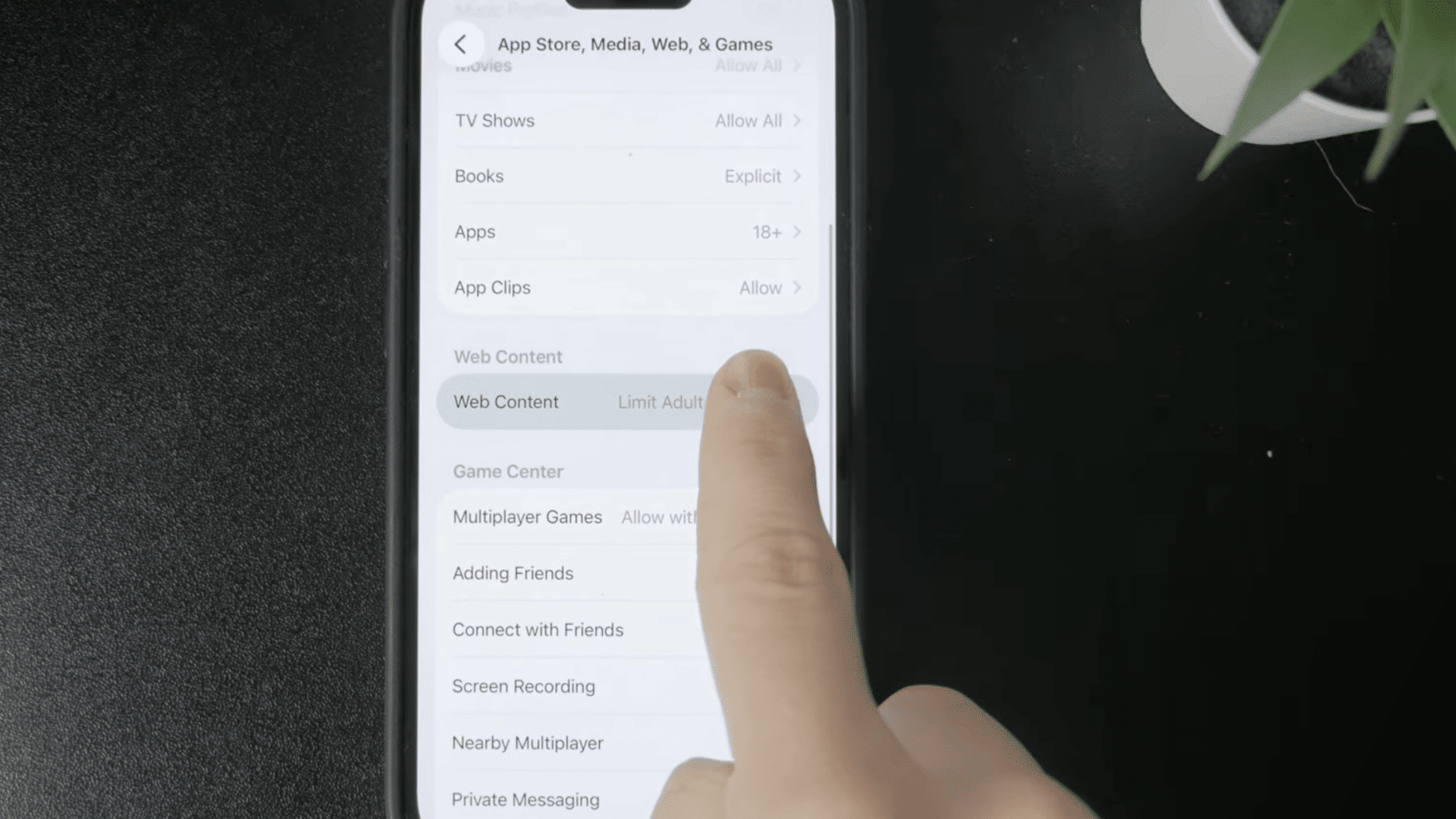
Under App Store, Media, Web & Games, tap Web Content to view the current website filtering settings.
This menu lets users allow unrestricted browsing, restrict access to adult websites, or manage specific blocked websites.
If a website has already been restricted, it appears in the Never Allow list. Opening this section gives access to every blocked website saved through Screen Time.
The next step is removing the website from this restricted list to restore normal access.
Step 4: Remove the Blocked Website
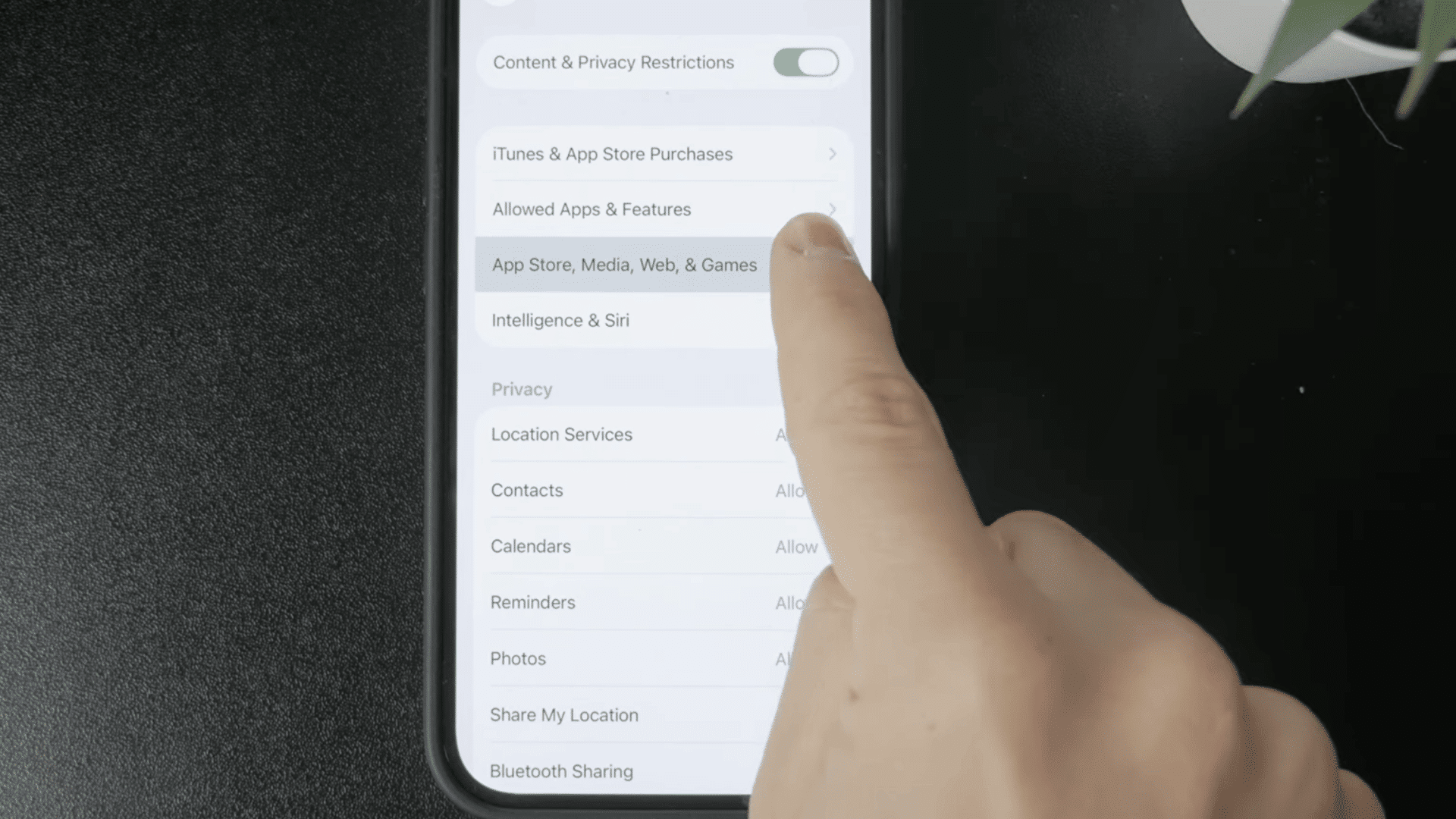
Scroll to the Never Allow section and locate the website that needs to be unblocked.
Select the website and remove it from the blocked list using the available delete option or swipe gesture, depending on the iOS version.
Once removed, the restriction no longer applies to that website. Double-check that the correct web address has been removed before leaving the page.
Saving the change ensures the website is no longer blocked by Screen Time settings.
Step 5: Verify the Website Is Accessible
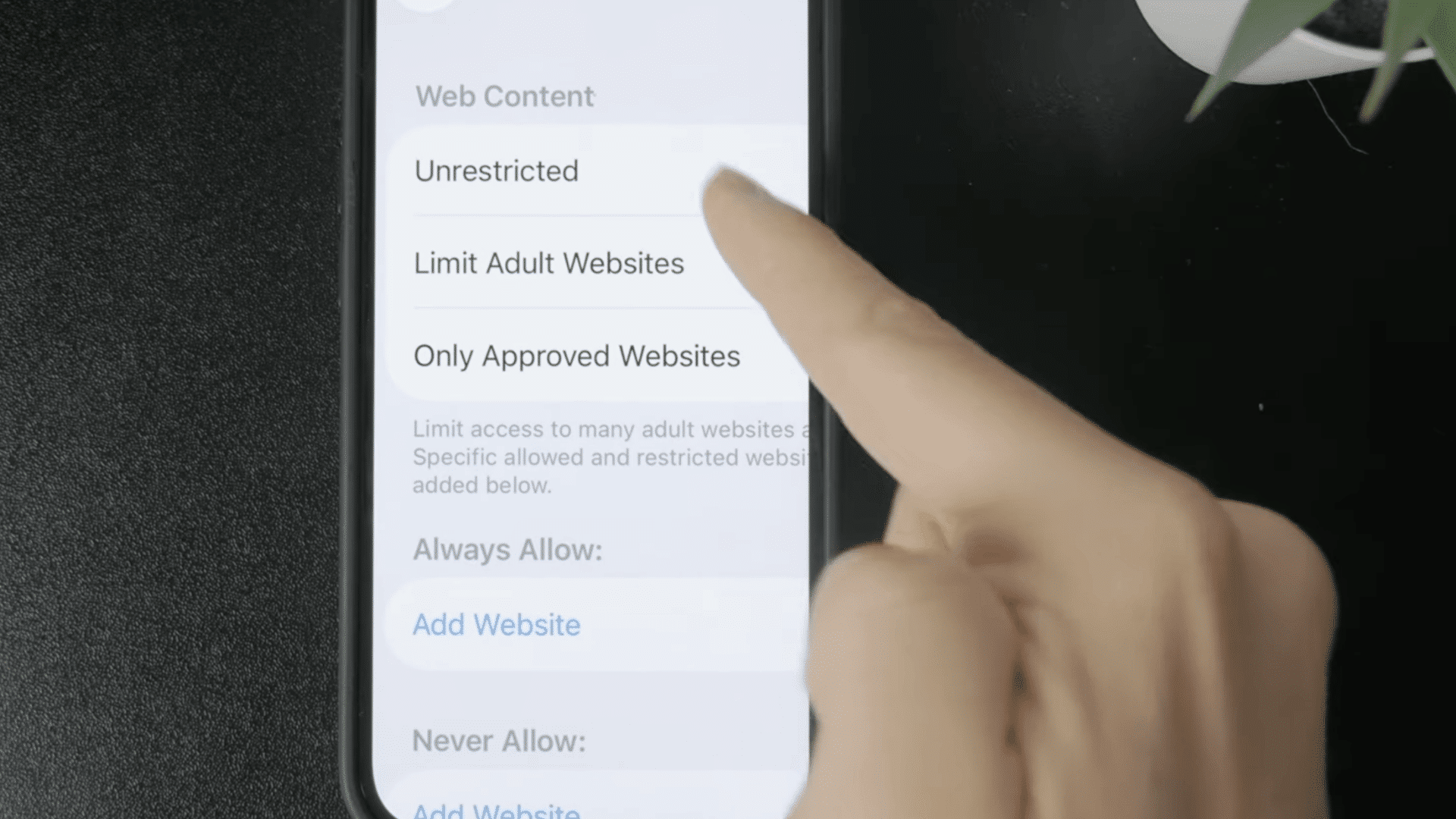
After removing the website from the blocked list, open Safari or another installed web browser and visit the same web address.
The page should now load without displaying a restriction message. Because Screen Time website restrictions apply across supported browsers, the website should remain accessible everywhere on the iPhone.
If access is still blocked, return to Web Content and confirm the website has been completely removed from the Never Allow section before testing again.
This tutorial is based on a helpful video by Foxtecc. You can watch the original tutorial on their YouTube channel here or view it below.
How to Restrict Websites on iPhone Using Only Approved Websites?
This mode is ideal for parents, schools, or anyone who wants to allow access only to trusted websites. Unlike blocking individual websites, it blocks all websites except those added to the approved list.
- Turn On Only Approved Websites: Open Settings > Screen Time > Content & Privacy Restrictions > Web Content, then select Only Approved Websites to restrict browsing.
- Add Approved Websites: Tap Add Website, enter the website name and URL, and then tap Save. Only websites on this list will be accessible.
- Remove Approved Websites: Open the approved websites list, select the website to remove, and delete it. Once removed, that website will no longer be accessible.
- Use It for a Child’s iPhone: This setting works well for a kid’s device by limiting internet access to educational or trusted websites and automatically blocking all others.
Best Website Blocking Apps for iPhone
If you want stronger website blocking than Screen Time offers, these apps are widely used for productivity, self-control, and parental controls.
| App | Best For | Standout Feature |
|---|---|---|
| Freedom | Blocking distracting websites across multiple devices | Blocks websites and apps on iPhone, Mac, Windows, and Android with scheduled focus sessions. |
| AppBlock | Reducing screen time and habitual browsing | Offers website blocking, scheduling, and Strict Mode to prevent changes to restrictions during focus sessions. |
| Qustodio | Parental controls | Let’s parents manage website access, monitor activity, and filter web content across multiple devices. |
| Opal | Productivity and focus | Uses focus sessions and delayed unlocking to make distracting websites and apps harder to access. |
Screen Time Limitations You Should Know
Screen Time is a convenient way to block websites on an iPhone, but it is not perfect for every situation. Understanding its limitations helps you decide if it provides enough control or if you need a more advanced solution.
- Anyone With the Passcode Can Disable It: Anyone who knows the Screen Time passcode can turn off website restrictions or change the settings, making it less effective for self-imposed limits.
- Some Content May Bypass Filters: Certain websites or pages opened through embedded browsers in apps, such as messaging or social media apps, may not always be blocked by Screen Time.
- Limited for Strict Content Control: Screen Time works well for most families and personal use, but it is not designed to provide enterprise-level or tamper-proof web filtering.
- Requires Ongoing Management: As browsing needs change, you may need to update the blocked website list or approved websites to keep the restrictions effective
Can Children Bypass Website Restrictions?
Yes, children can sometimes bypass website restrictions if Screen Time is not properly secured, but using the correct settings makes this much more difficult.
The most effective way to prevent changes is by setting a strong Screen Time passcode that only a parent or guardian knows.
Without this passcode, children cannot modify website restrictions or disable Screen Time settings.
For families with multiple Apple devices, Family Sharing lets parents manage Screen Time remotely, making it easier to monitor and adjust restrictions without needing the child’s iPhone.
It is also important to keep the Screen Time passcode private and avoid sharing it with children.
What the Reddit Users Say About Website Blocking?
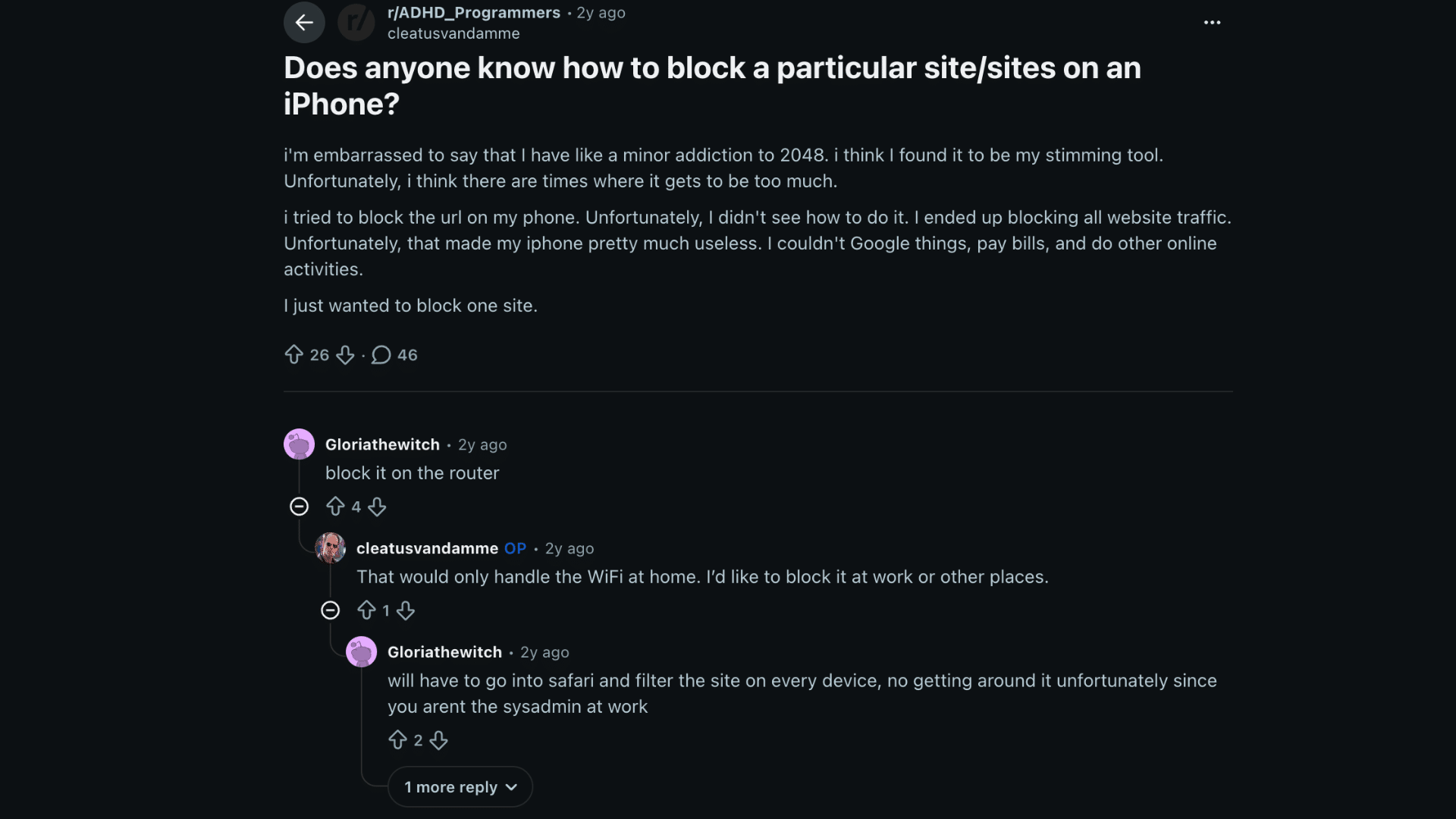
Reddit users often look for ways to block specific websites rather than restricting the entire web on their iPhone.
Many recommend using Screen Time and adding the website to the Never Allow list under Limit Adult Websites, which they describe as the simplest built-in solution.
Others suggest using App Limits for websites to reduce time spent on distracting pages.
Some users note that Screen Time can be inconsistent with certain websites or browser behaviors, so regular testing is recommended.
For stricter control, Reddit discussions also mention third-party website blockers or productivity apps.
Overall, the community agrees that Screen Time is the best starting point, especially for reducing distractions and improving focus without installing additional software.
How to Unblock a Website on iPhone?
If a website has been blocked through Screen Time, it can be restored by removing it from the Never Allow list. Follow these steps to regain access.
- Open Settings: Launch the Settings app and tap Screen Time.
- Turn On Content & Privacy Restrictions: Go toContent & Privacy Restrictions, then make sure the setting is enabled.
- Open Web Content: Tap App Store > Media > Web & Games, then choose Web Content.
- Find the Blocked Website: Scroll to the Never Allow section to view blocked websites.
- Remove the Website: Tap the Remove or Delete option to delete the website from the Never Allow list.
- Test Website Access: Open Safari, Chrome, Firefox, or Edge and visit the website to confirm it is no longer blocked.
Does Website Blocking Work in All iPhone Browsers?
Yes, Screen Time website restrictions work across Safari and most popular browsers on iPhone, including Chrome, Firefox, and Microsoft Edge.
This is because all iPhone browsers use Apple’s WebKit engine, allowing Screen Time web content restrictions to apply at the system level rather than only within Safari.
Once a website is added to the Never Allow list or browsing is limited through Only Approved Websites, the same restriction applies across supported browsers installed on the device.
As a result, switching from Safari to Chrome, Firefox, or Edge usually does not bypass these website restrictions.
Screen Time provides consistent parental controls, reduces distractions, and manages website access across the iPhone.
Tips for Managing Website Restrictions Effectively
These simple tips help keep website restrictions effective, improve device security, and make Screen Time settings easier to manage over time.
- Use a Screen Time Passcode: Create a passcode that others cannot easily guess to prevent unauthorized changes to website restrictions.
- Review Blocked Websites Regularly: Check the blocked and approved website lists to remove outdated entries or add newly distracting websites.
- Combine Restrictions With App Limits: Set time limits for browsers, social media apps, and entertainment platforms to manage overall device usage.
- Use Family Sharing for Children’s Devices: Manage a child’s Screen Time settings remotely through Family Sharing without needing direct access to the device.
- Keep iOS Updated: Install the latest iOS updates to receive current security improvements, fixes, and Screen Time features.
Conclusion
Website restrictions on iPhone provide a simple way to control internet access for different needs. Screen Time lets users block websites, filter adult content, or allow approved sites using simple built-in controls.
They can reduce distractions, improve focus during work or study, and create a safer browsing experience for children.
Screen Time requires no extra app, while the right restriction depends on your usage and control needs.
Review the settings regularly to keep them effective, then apply the method that best fits productivity or parental control needs for a safer, more focused browsing experience.
If you found this guide helpful, share it with others who want better control over website access on their iPhone.
Frequently Asked Questions
What Is the Secret iPhone Feature Everyone Should Know?
Screen Time is a useful built-in iPhone feature that can block websites, limit app use, filter content, and manage device usage without third-party apps.
How Can Everything Be Seen on a Child’s iPhone?
Apple’s Family Sharing and Screen Time can manage restrictions, app limits, purchases, and usage. However, private messages and personal content are not fully accessible.
Can a Website Be Permanently Blocked in Safari?
Yes, Safari can block specific websites through Screen Time. The restriction stays active until the website is removed or the Screen Time settings are changed.