Does your PC turn on, but the screen stays black? That can feel confusing, since the fans may spin, the lights may glow, and the keyboard may light up, yet nothing shows on the monitor.
A computer turns on, but no display situation can happen after building a PC, moving your setup, cleaning the case, upgrading RAM, adding a GPU (Graphics Processing Unit), or reconnecting cables.
If you searched for solutions to “my computerwon’tt turn on” but actually found the fans spinning with nothing on screen, this guide covers that exact scenario rather than a fully dead machine.
Start with the simple checks, then move on to RAM, GPU, power supply, BIOS, and Windows startup issues. This order helps you avoid opening the PC before you need to.
What a Black Screen Can Tell You
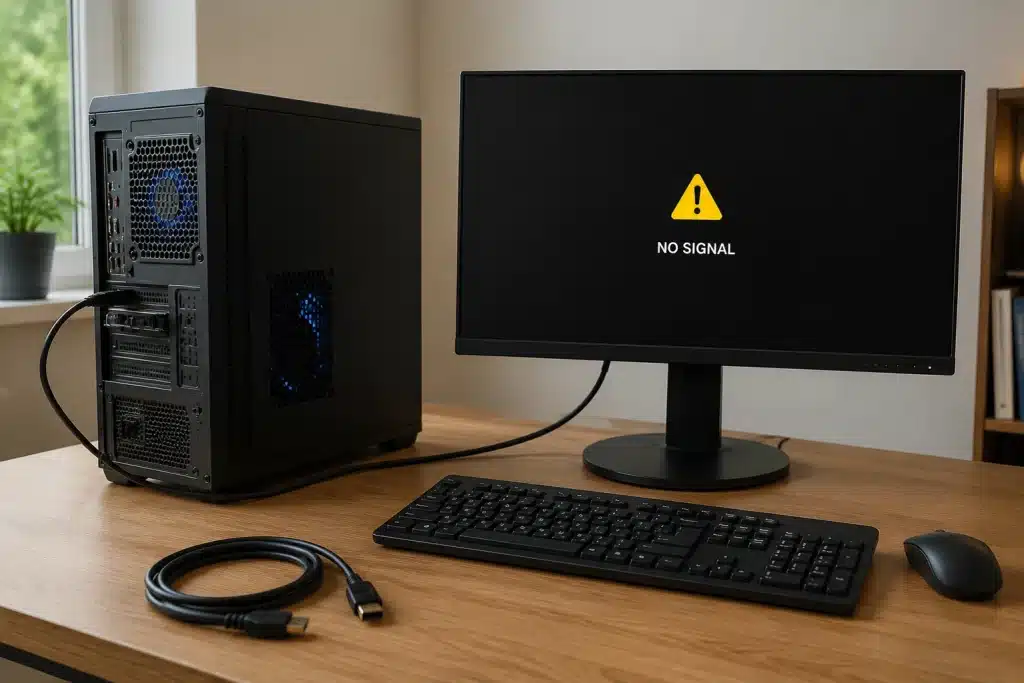
A computer turns on, but no display does not always mean your computer is dead. Your PC may still get power, spin its fans, and light up the keyboard, but fail to send a video signal.
That is a very different problem from why won’t my computer turn on at all, which usually points to the power supply or motherboard rather than the display path.
The first symptom you notice can help narrow down the cause. A “No Signal” message usually indicates the monitor, display cable, or DisplayPort.
If the fans spin but the screen stays black, check the RAM, graphics card, or startup process. If the PC keeps restarting, the problem may involve the power supply, RAM, or motherboard.
If the keyboard and mouse stay off, inspect the power connections and the motherboard. If the PC logo appears before the screen goes black, the issue is more likely related to Windows or the graphics driver.
Caution: Before opening the case, shut down the PC, unplug the power cable, and hold the power button for 15–20 seconds to drain any remaining power. Never open the power supply.
If you notice a burning smell, sparks, or clicking sounds, stop troubleshooting and get professional repair help.
Troubleshooting Steps to Try
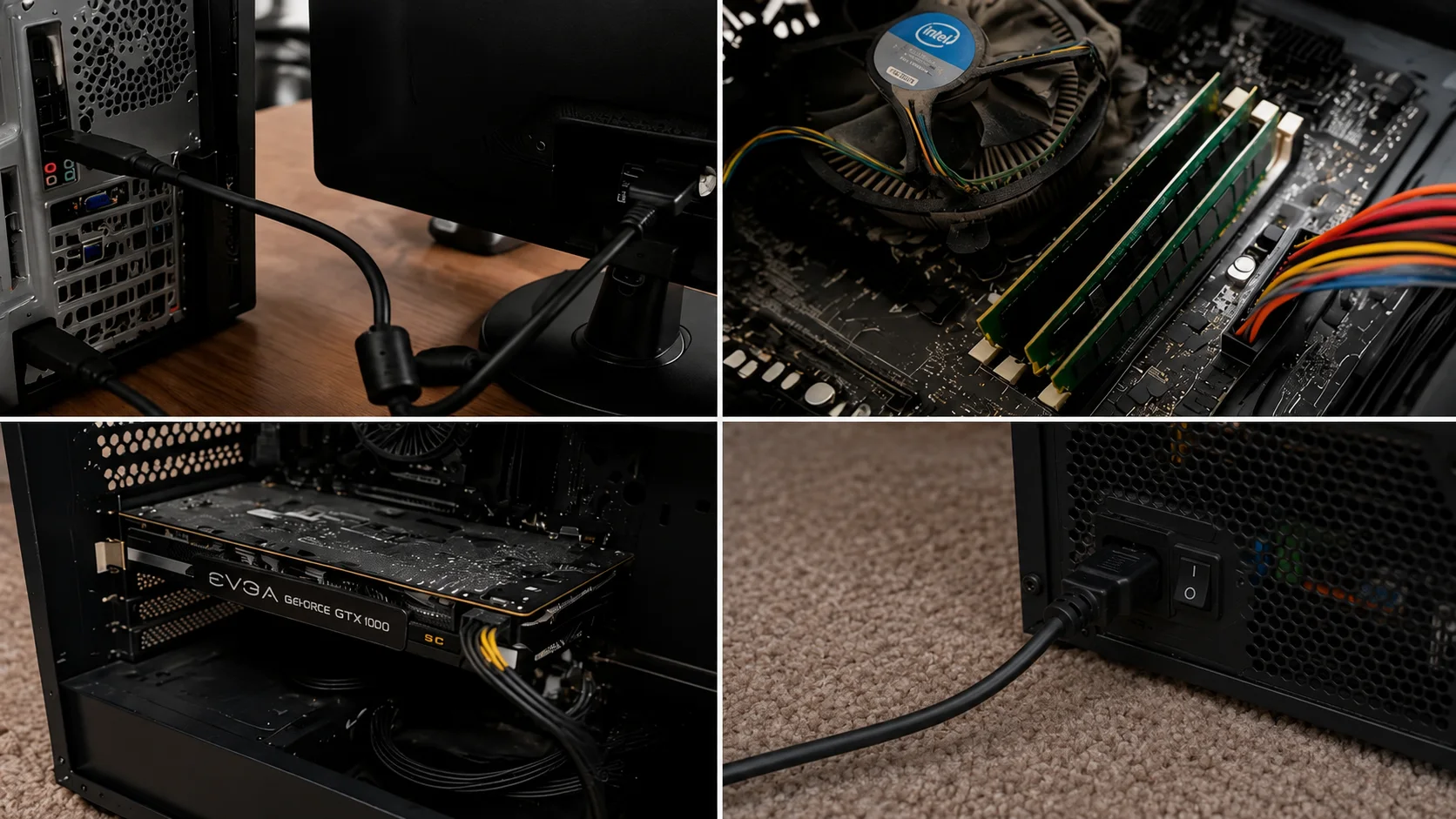
Work through these steps in order. Start with the monitor and cable before opening the case, and test after each step so you know what actually fixed the problem.
1. Check the Monitor and Cable
Most black-screen issues start with something simple, so rule out power issues, cable issues, and input mismatches before opening the case.
- Make sure the monitor has power.
- Select the correct HDMI, DisplayPort, VGA, or USB-C input.
- Reseat the video cable on both ends.
- Try another cable, monitor, or TV.
- Test the monitor with another device.
- Plug the cable into the graphics card, not the motherboard, if your PC has a dedicated GPU.
If the monitor still shows nothing after these checks, the problem likely sits inside the PC rather than the display.
2. Check the RAM and Graphics Card
If the screen is still black, shut down and unplug the PC before touching any internal hardware for safety.
- RAM: Reseat the RAM sticks, test one stick at a time, and try a different slot. Loose or faulty RAM can prevent the PC from completing startup and showing a display.
- Graphics Processing Unit (GPU): Reseat the graphics card, check all PCIe power cables, and try another HDMI or DisplayPort output. A loose or faulty GPU can stop the monitor from receiving a video signal.
- Integrated graphics: If your CPU supports integrated graphics, remove the dedicated GPU and connect the monitor to the motherboard’s DisplayPort. This helps determine whether the graphics card is causing the problem.
These internal components cause most black-screen problems, so testing them one at a time narrows down whether memory or graphics is at fault.
If a driver rather than hardware turns out to be the cause once Windows loads, refreshing or reinstalling the graphics card driver can resolve many display glitches without opening the case again.
3. Check Power and BIOS Setup
If RAM and GPU both look fine, check the startup power and motherboard settings next, since a loose cable or an outdated BIOS often causes this.
- Check the 24-pin motherboard cable.
- Check the CPU power cable.
- Check the GPU PCIe cables.
- Clear CMOS (Complementary Metal-Oxide-Semiconductor) after installing new RAM, a new GPU, BIOS changes, or a failed overclock.
- For a new build, check the wrong display port, a loose GPU, a missing CPU power cable, an outdated BIOS (Basic Input/Output System), or misplaced standoffs.
Power and BIOS issues are less common but still worth ruling out before assuming the hardware itself has failed. Stop if you smell burning, hear clicking, see sparks, or the PC keeps shutting off.
4. Fix Logo-Then-Black-Screen Issues
If the PC logo appears before the screen goes black, the monitor and cable are likely working, and software is the likely cause.
- Start in Safe Mode. On Windows, interrupt startup three times to open recovery options, then choose Safe Mode.
- Roll back, remove, or update the graphics driver.
- Use only one monitor.
- Lower the refresh rate.
- Undo any recent Windows update if the problem started after it.
These steps usually fix logo-then-black-screen cases, since they target Windows, drivers, and display settings rather than a hardware fault. Microsoft’s own guidance on troubleshooting blank screens in Windows walks through the same Safe Mode and driver-rollback sequence in more detail.
Practical Fixes You Can Try at Home
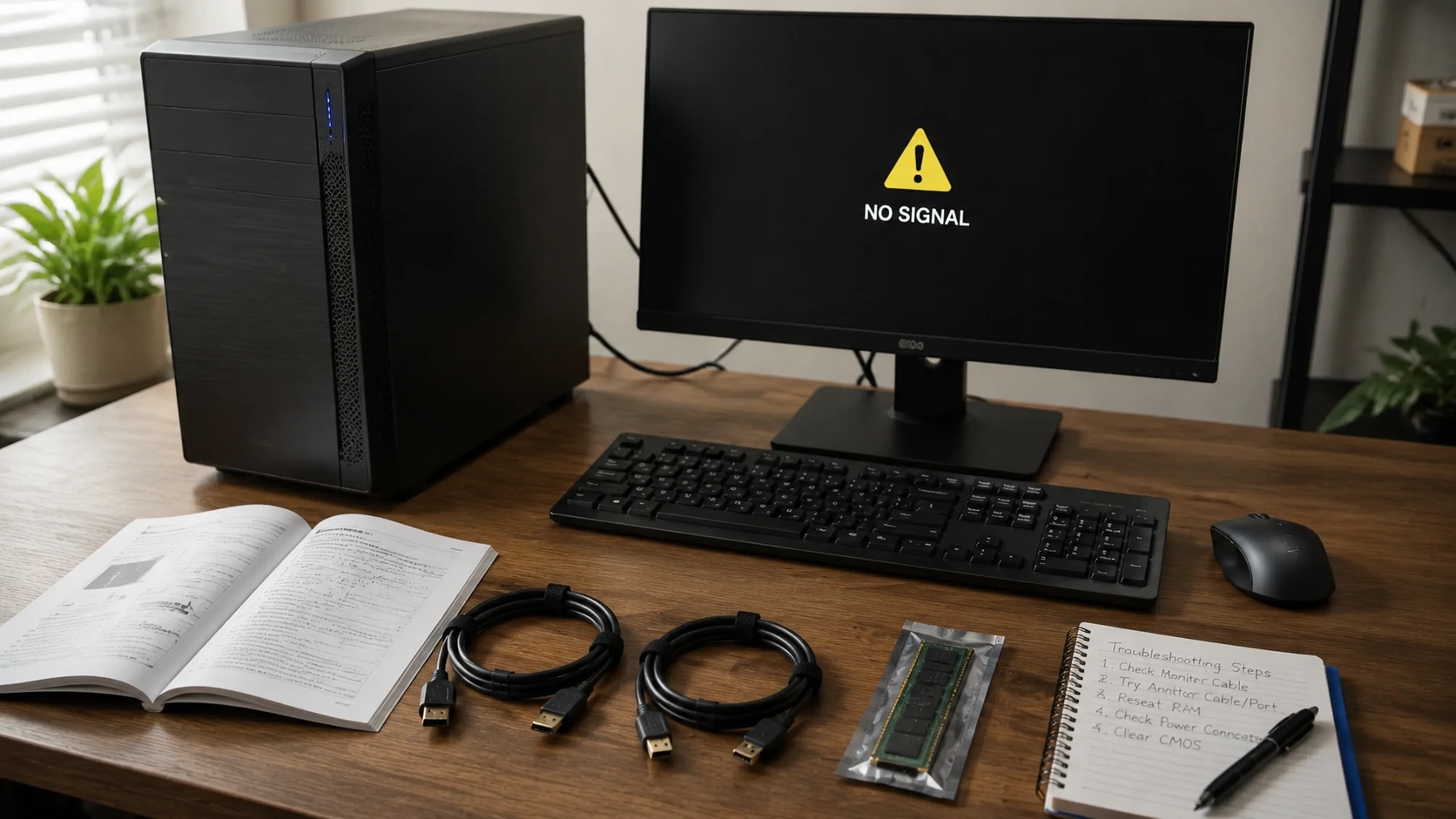
If you have identified a likely cause but the display still does not return, work through these fixes one at a time. A computer turns on, but no display problem? Almost always, the issue clears up once the faulty cable, stick, or slot is isolated, so test the PC after each step rather than changing multiple things at once.
- Disconnect extras: Remove USB drives, external hard disks, RGB hubs, and extra monitors so only the essentials remain connected.
- Boot with minimum hardware: Leave only the CPU, one RAM stick, a graphics card (if required), a keyboard, a monitor, and power connected.
- Try one RAM stick: Test each RAM module individually and in different slots to rule out a faulty stick or slot.
- Reconnect the graphics card: Remove the GPU, reinstall it securely, and reconnect all PCIe power cables.
- Clear the CMOS: Reset BIOS settings if the issue started after changing hardware or BIOS options.
- Test another display setup: Try a different monitor, cable, or display port to rule out a faulty connection.
- Swap known-good parts: If available, test with another power supply, graphics card, or RAM to identify the faulty component.
If the PC still shows no display after these steps, the motherboard, CPU, or another internal component may need professional diagnosis.
What Reddit Troubleshooting Shows
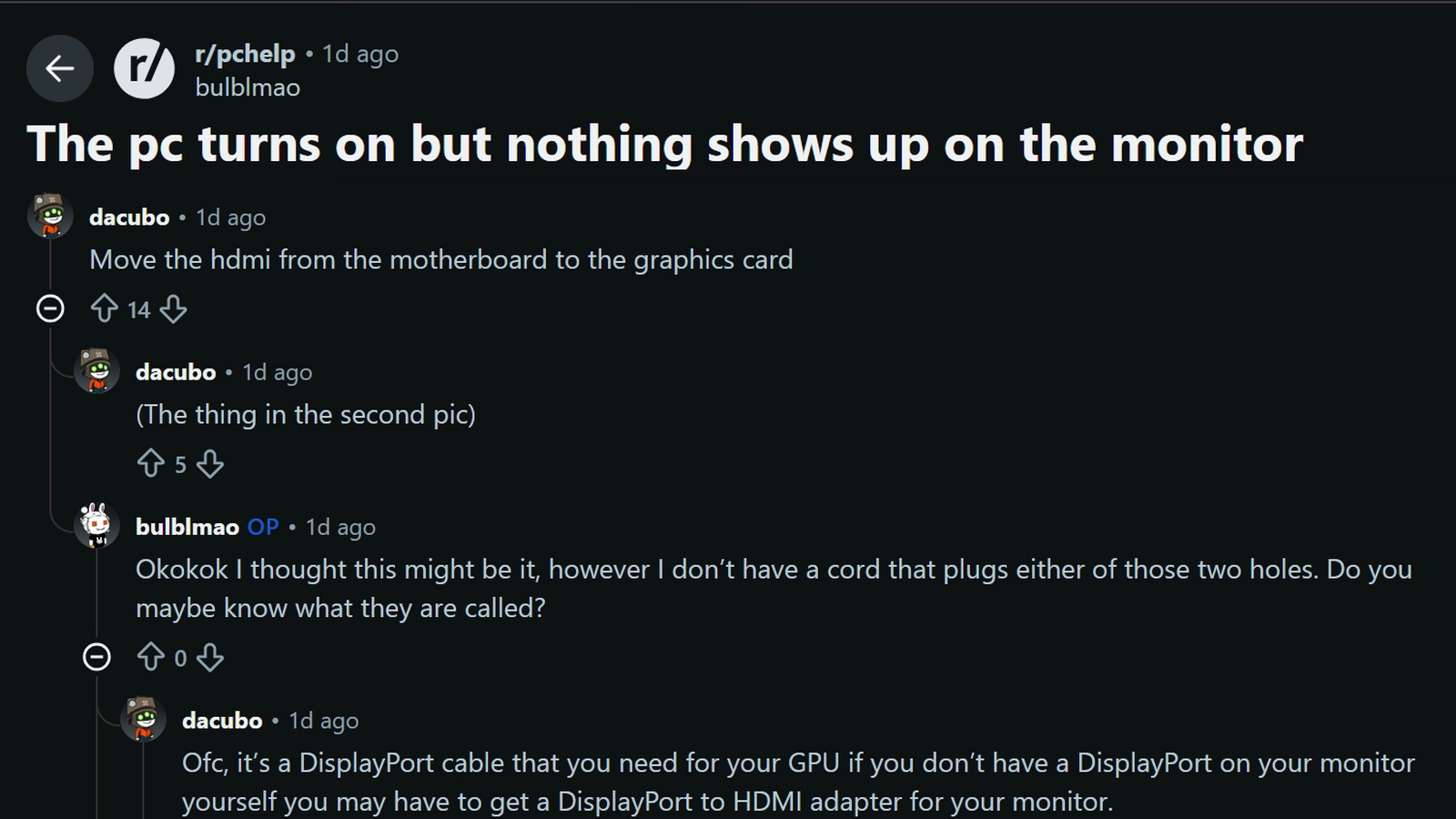
A Reddit user shared a second-hand PC that turned on but showed nothing on the monitor. Most replies pointed to a single issue: the display cable appeared to be plugged into the motherboard rather than the graphics card.
That matters because many CPUs lack built-in graphics. Even when the motherboard has display ports, they may not send video if the CPU lacks integrated graphics or if a dedicated GPU is installed.
The discussion also raised other useful checks, like GPU sag, missing rear brackets, and whether the graphics card is fully seated.
For your own PC, the first practical step is to check the DisplayPort, GPU seating, and the exact cable or adapter you are using. Similar reports appear in ASUS’s own troubleshooting guide for graphics cards with no display output, which covers cable seating, overclocking instability, and driver conflicts in more depth.
When to Get Repair Help
Stop troubleshooting if the PC shows signs of electrical damage, a power supply failure, or a motherboard issue, as these problems rarely improve with further testing at home.
Repeated restarts can worsen the damage and may put other internal parts at risk, especially once a short circuit or a failing component is already quietly present somewhere inside the case.
Get repair help if you notice a burning smell, sparks, clicking from the PSU, bent CPU pins, damaged display ports, repeated shutdowns, or a stuck CPU, DRAM, VGA, or BOOT debug light on the motherboard.
ASUS documents a similar escalation path in its device boot failure and no-display troubleshooting guide, which separates cable and driver checks from true hardware failure.
Any of these signs points to hardware failure rather than a simple software or cable fix, so continuing to test the system yourself only adds further risk to the parts that are still working normally.
Tip: If the PC or laptop is under warranty, contact the store, brand, or service center you bought it from before opening it or replacing parts.
Final Takeaway
If your PC powers on but the monitor stays blank, the key is to rule out the most likely causes in the right order.
A computer that turns on but shows no display is usually affected by a cable, RAM, GPU, or BIOS issue rather than a complete hardware failure.
Start by checking the monitor, input source, cable, and display port before opening the case. For new builds or recent upgrades, confirm the GPU connection, RAM seating, CPU power cable, and CMOS.
Stop troubleshooting if you notice a burning smell, sparks, clicking, or repeated shutdowns. Share in the comments which fix solved your problem.
Frequently Asked Questions
Can a Loose CPU Cause No Display?
Yes. If the CPU is not seated correctly or the cooler pressure is uneven, the PC may fail startup checks. This is more common after a new build or a change to the CPU cooler.
Why Is My PC On But USB Devices Do Not Work?
This can mean the system is not passing startup checks. Check RAM seating, motherboard power cables, CPU power, and debug lights before assuming the keyboard or mouse is faulty.
Can Dust Cause a No-Display Issue?
Yes, heavy dust can affect airflow, ports, RAM slots, GPU seating, and power delivery. Clean the PC carefully with compressed air after shutting down and unplugging it.
Should I Update the BIOS for No Display?
Only consider a BIOS update if your motherboard does not yet support the CPU. Do not update randomly during a no-display issue unless your board has a safe BIOS flashback feature. For broader computer issues beyond display problems, a comprehensive troubleshooting checklist can help rule out unrelated causes first.