Computers are a lifeline for work, school, and daily life, but when they start acting up, even simple tasks can feel impossible.
Slow systems, unresponsive programs, or sudden shutdowns disrupt productivity and test patience.
Most common computer problems have straightforward solutions that don’t require expensive repairs or advanced technical knowledge.
By understanding the root cause and following a methodical approach, it’s possible to quickly and efficiently get systems running smoothly again.
Consider this your go-to reference for keeping your computer performing at its best, avoiding downtime, and preventing minor glitches from turning into major headaches.
Quick Diagnosis Table
Use this table to identify your issue before working through the full fix steps below.
| Symptom | Most likely cause | First fix to try |
|---|---|---|
| Slow performance | Too many startup programs, full storage | Disable startup apps; run Disk Cleanup |
| Won’t power on | Loose power connection, faulty battery | Check all cables; remove the battery and test on the adapter only |
| Blue screen (BSOD) | Driver conflict, faulty RAM | Restart; note stop code; update or roll back drivers |
| Overheating or auto-shutdown | Dust in vents, malfunctioning fan | Clean vents with compressed air; check fan operation |
| No internet on one device | Network driver or adapter issue | Update network drivers; disable power management on the adapter |
| No internet on all devices | Router issue or ISP outage | Restart the router; contact the ISP if persistent |
| Frozen screen or unresponsive app | Low memory, stuck process | Force-quit via Task Manager; close background apps |
| Malware suspected | Infected download, outdated antivirus | Boot Safe Mode; run Malwarebytes full scan |
| Random restarts | Overheating, PSU fault, driver conflict | Monitor temps; review Event Viewer logs |
| No audio | Wrong default device, outdated driver | Check the default playback device; update the audio drivers |
| Storage nearly full | Accumulated temp files, large media | Run Disk Cleanup; move large files to an external drive |
| App crashing repeatedly | Corrupted install, software conflict | Uninstall and reinstall; check Event Viewer for error codes |
| Screen flickering or blank | Loose cable, GPU driver conflict | Reseat the cable; update or roll back the GPU driver |
| The keyboard or mouse is not responding | USB port fault, driver issue | Try a different USB port; reinstall the input device driver |
| Printer not printing | Stuck print queue, outdated driver | Clear print queue; restart Print Spooler service |
| External drive not detected | USB controller driver, power delivery | Check Disk Management; try a powered USB hub |
Why Are Most Computer Problems Easier to Fix Than You Think?
Most computer issues seem serious but often follow predictable patterns, such as hardware overload, software conflicts, or poor maintenance.
Spotting them early speeds up troubleshooting and prevents unnecessary repairs.
A structured approach makes a big difference when dealing with errors like slow performance, crashes, or connectivity failures. Identifying symptoms and narrowing down causes leads to quicker, more reliable fixes.
Small checks often fix issues that seem major, especially when systems slow down or freeze. Simple actions like restarting, clearing storage, or updating drivers can quickly restore normal performance.
With a basic understanding of how systems behave under stress, even non-technical users can handle most problems confidently and restore normal performance without delay.
Common Computer Issues and How to Fix Them
Most computer problems fall into a small number of categories: software conflicts, hardware strain, poor maintenance, or driver issues.
Understanding where a problem comes from speeds up the fix and reduces the chance of repeating it.
1. Computer Running Slow
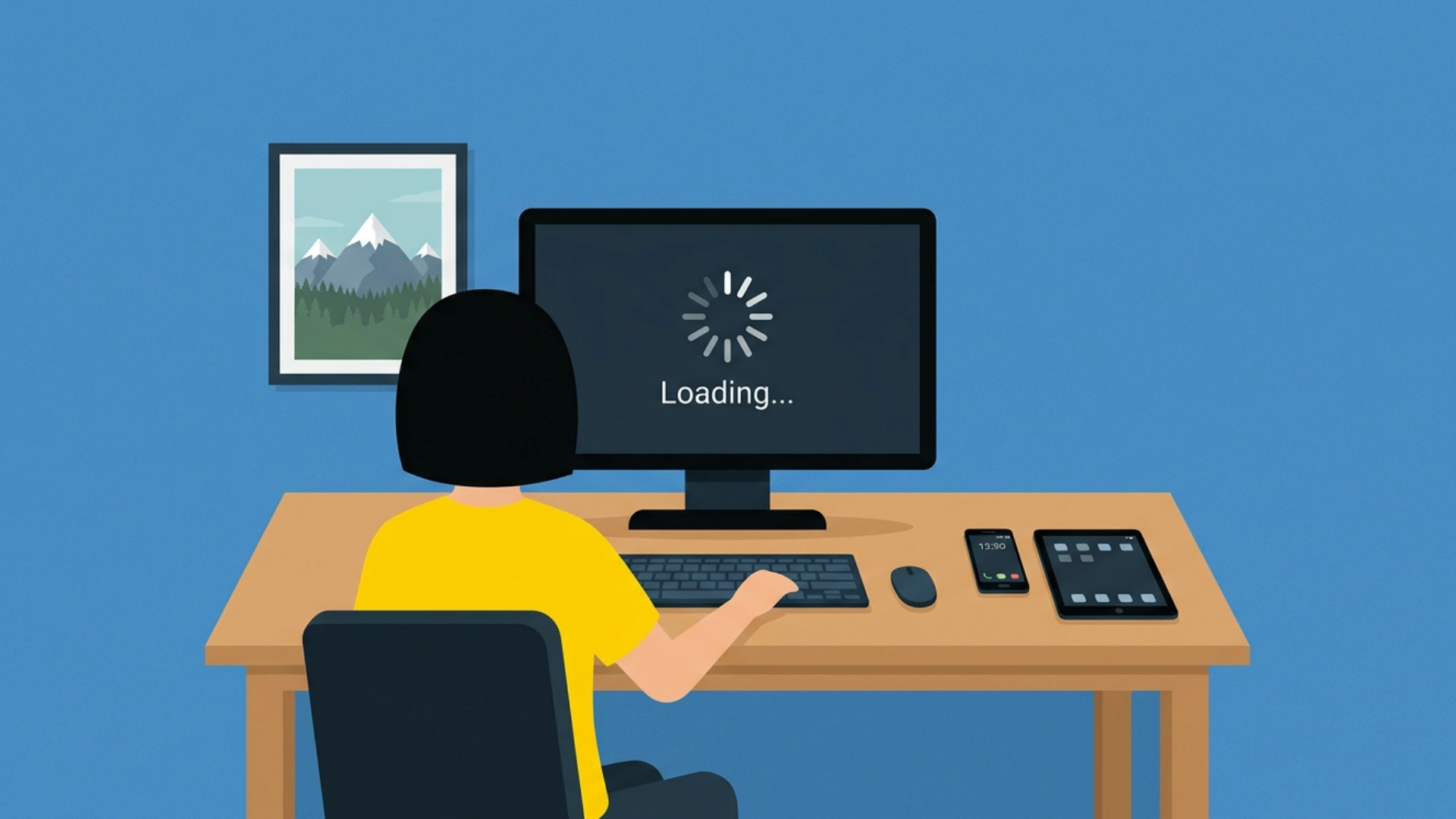
Slow performance is a common computer issue, often caused by too many tabs, full storage, or outdated hardware. Identifying the root cause can quickly restore speed and efficiency.
How to fix it:
- Manage startup programs: Review and disable unnecessary programs in Task Manager (Windows) or Activity Monitor (Mac). Reducing startup items frees memory and speeds up boot time.
- Free up disk space: Delete unused files, empty the recycle bin, and uninstall redundant apps. The system drive should have at least 10–15% free space to operate efficiently.
- Scan for malware: Run a full antivirus or malware scan. Hidden infections consume processor and memory resources in the background.
- Upgrade hardware: If the device is older than five years, adding RAM or switching to an SSD provides a speed boost that software fixes alone can’t replicate.
2. Computer Won’t Turn On

When a computer refuses to start, it can be alarming, but the cause is often simple. Loose power connections, a drained battery, or conflicting peripherals are frequent culprits.
How to fix it:
- Check all power connections: Ensure cables are fully connected at both the wall outlet and the device. Loose connections are a common cause of a device failing to start.
- Try without the battery (laptops): Remove the battery and power on using the adapter only. This helps identify if the battery is faulty.
- Disconnect peripherals: Remove USB drives, hubs, and other external devices. Sometimes connected hardware prevents the system from booting.
- Hold the power button: Press for 30–60 seconds to reset a frozen power state. This clears temporary electrical issues that can block startup.
3. Blue Screen of Death (BSOD)
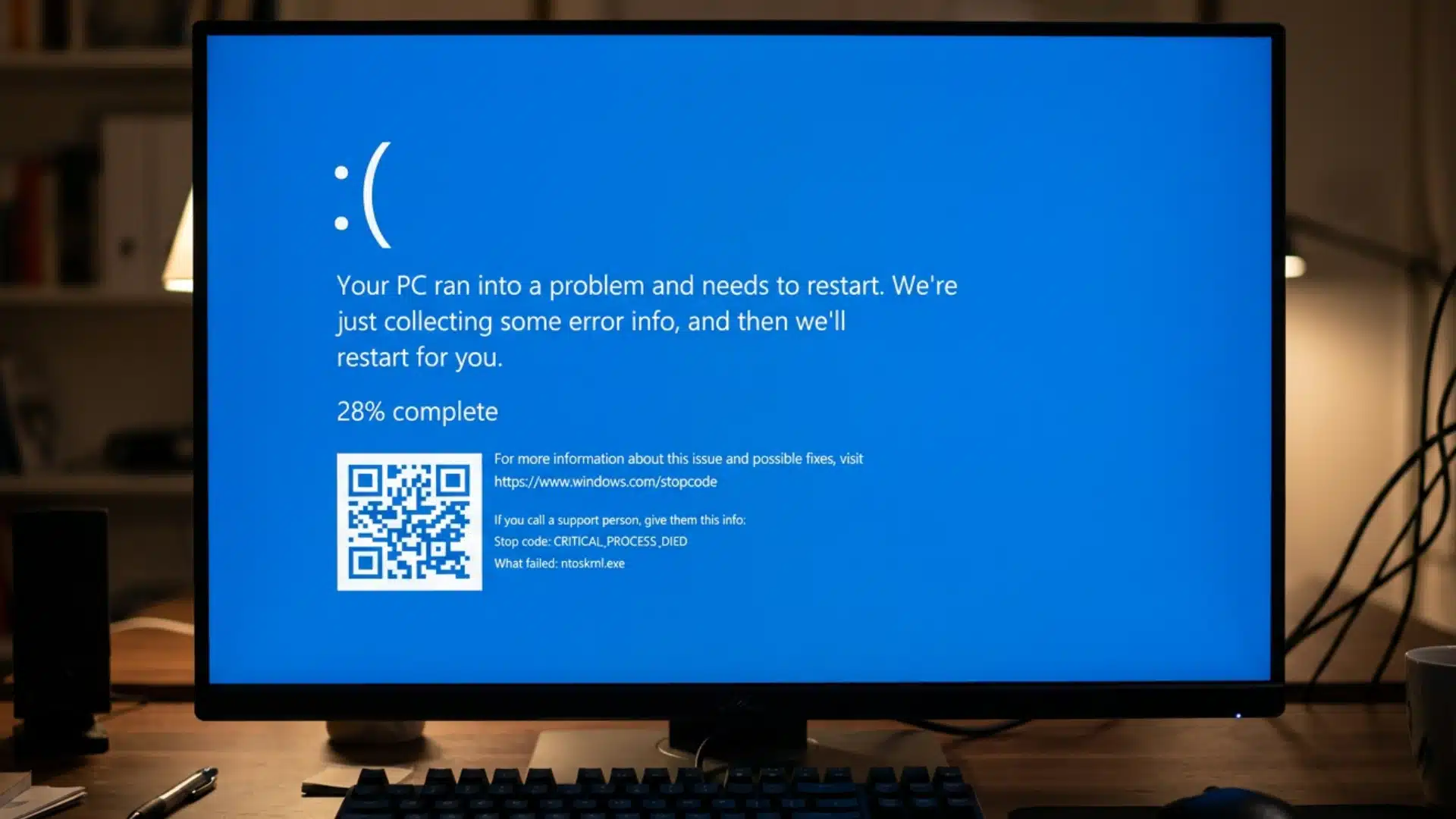
The Blue Screen of Death occurs when Windows encounters a critical error it cannot recover from. A single isolated BSOD does not always indicate a major hardware failure.
How to fix it:
- Restart the computer: Many BSODs are one-time events. A simple restart often resolves temporary glitches without further action.
- Note the stop code: Write down the error code displayed on the screen. This helps identify the specific cause and guides troubleshooting steps.
- Update or roll back drivers: Use Device Manager to manage drivers. Driver conflicts or recent updates are a common source of BSODs.
- Reseat hardware components: Check and firmly reseat RAM sticks or other removable parts. Loose hardware can trigger critical system errors.
- Run Windows Memory Diagnostic: Test RAM integrity for errors. Faulty memory modules are often the root cause of repeated BSODs.
4. Overheating
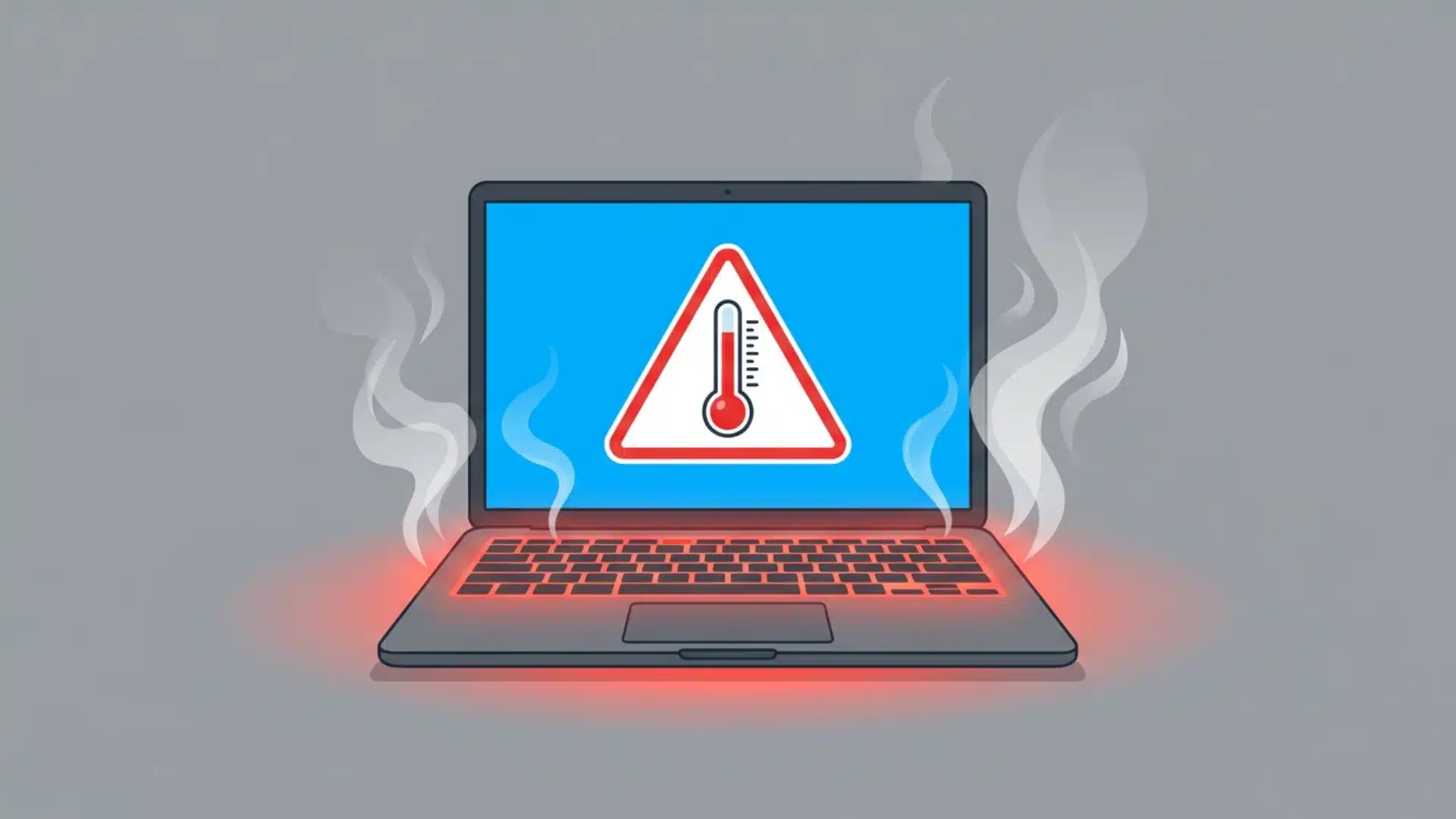
Excessive heat can severely damage computer components over time. Laptops are particularly vulnerable due to their compact designs, which restrict airflow.
How to fix it:
- Clean vents and fans: Use compressed air to remove dust buildup. This restores proper airflow and helps the system cool efficiently.
- Use a flat, hard surface: Keep laptops on desks or tables rather than beds or couches. Blocked vents reduce cooling and increase the risk of overheating.
- Check fan operation: Ensure fans are running correctly and replace them if needed. A malfunctioning fan can lead to thermal throttling or sudden shutdowns.
- Monitor temperatures: Use tools like HWMonitor or iStat Menus to track CPU and GPU heat. Keeping an eye on temps helps prevent long-term damage. Most CPUs should stay below 85°C under load; sustained readings above 95°C warrant immediate attention.
5. Internet Connectivity Problems

A lost or unstable internet connection can interrupt work, streaming, or gaming. Issues may stem from your device, router, or internet service provider.
Knowing the difference between WiFi and your internet connection helps narrow down where the problem actually sits, because the fix for a device-level issue is different from the fix for a network-wide outage
How to fix it:
- Restart the router: Unplug for 30 seconds, then plug it back in to refresh the connection. This clears cached settings and often resolves most connectivity issues.
- Check other devices: Determine if the problem is device-specific or network-wide. If only one device is affected, troubleshooting can focus on that device alone.
- Update network drivers: Use Device Manager to ensure your network adapter is up to date. Updated drivers improve stability and fix compatibility problems with your router.
- Disable power management: Prevent the adapter from shutting down automatically. This stops intermittent disconnects caused by energy-saving settings.
- Run the Windows network troubleshooter: Go to Settings > System > Troubleshoot > Internet Connections. Windows can detect and automatically fix common adapter and DNS configuration issues.
- Contact your ISP: If all devices are affected and the router is working fine, the issue is likely upstream. Your provider can check for outages, line issues, or configuration problems.
6. Unresponsive Programs or Frozen Screens
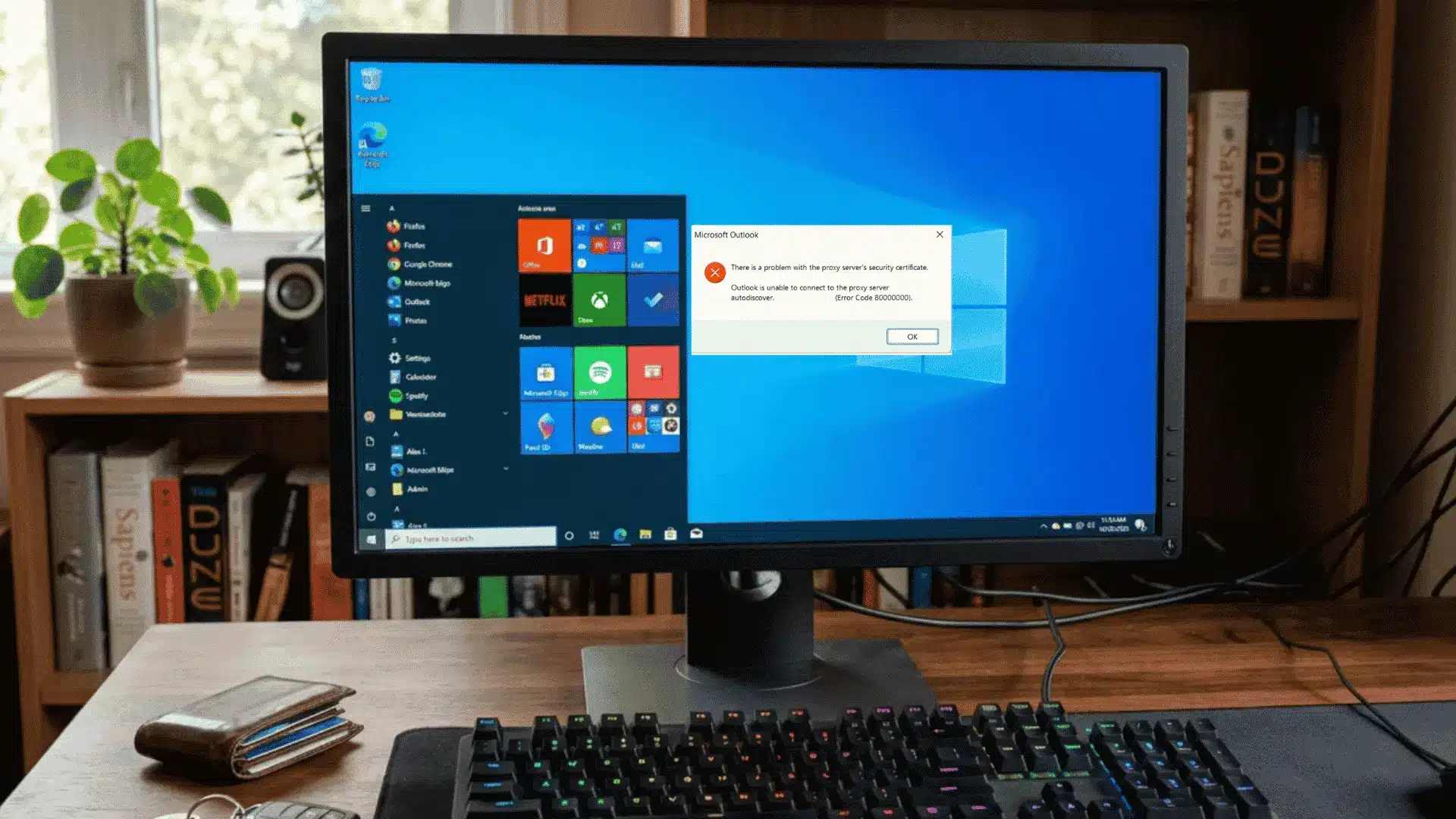
Programs that freeze usually indicate low memory or a software process stuck in an unrecoverable state. Acting quickly prevents data loss and restores system responsiveness.
How to fix it:
- Force quit the app: Use Task Manager (Windows) or Command + Option + Esc (Mac) to close unresponsive programs.
- Close background apps: Shut down unnecessary applications and browser tabs. Freeing memory reduces the chance of future freezes.
- Hard restart if needed: Hold the power button if the entire system is unresponsive. This restores system control when normal methods fail.
- Check disk space: Ensure the system drive has enough free space to operate properly. Low storage can cause programs and the OS to become unresponsive.
Note: While following the steps, make sure not to rush and to check for any specific app updates or compatibility mode.
7. Virus and Malware Infections
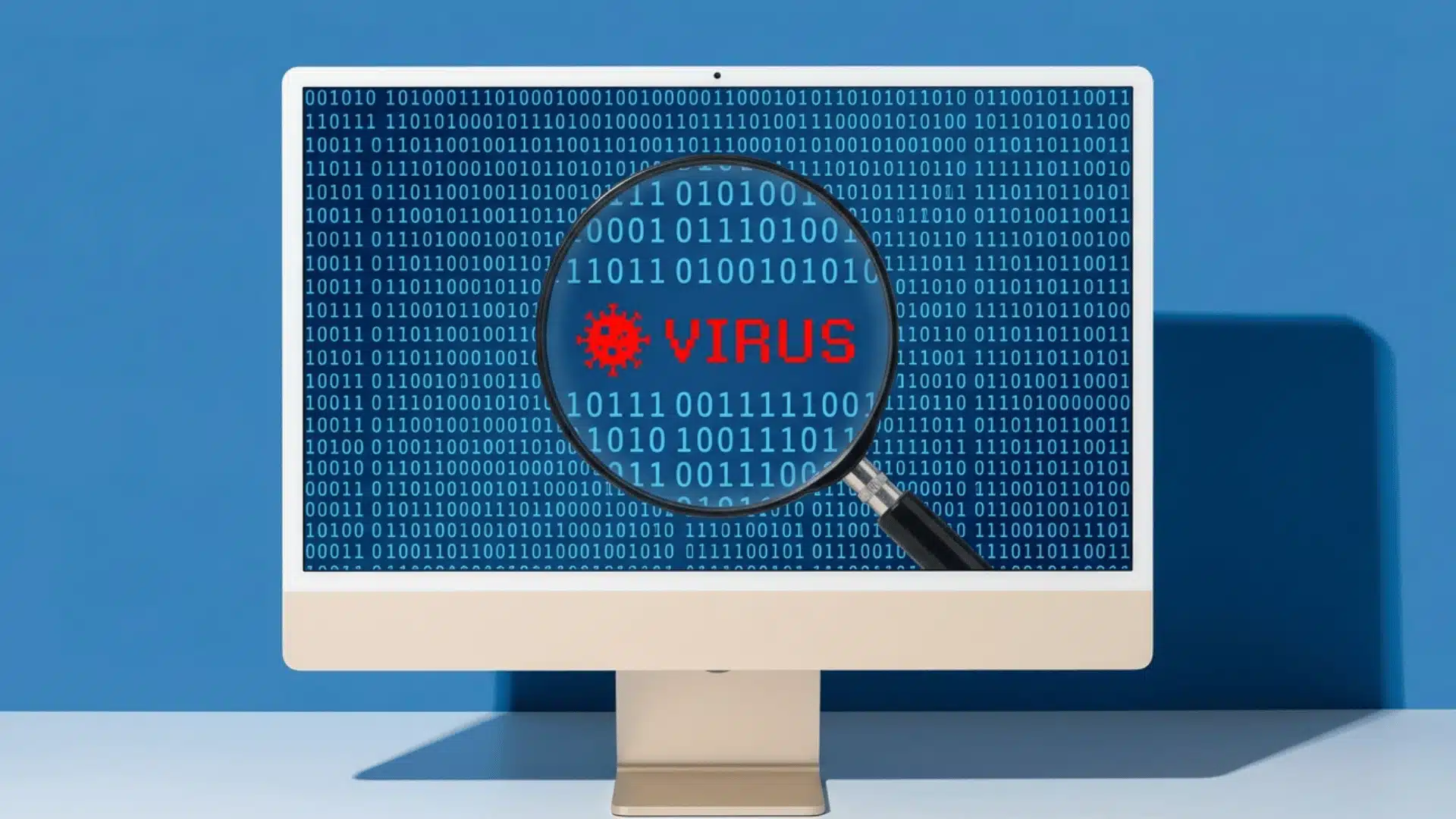
Malware infections can have severe consequences, ranging from data loss and system slowdowns to identity theft and unauthorized access to sensitive accounts.
How to fix it:
- Run a full antivirus scan: Use trusted software, such as Malwarebytes or your installed antivirus, to detect and remove infections.
- Boot into Safe Mode before scanning: Restart your computer in Safe Mode to prevent malware from loading during the scan.
- Change all passwords: After removing malware, update passwords for all accounts, especially banking or email accounts.
- Restore from backup: If malware has deeply affected your system, restoring from a known-good backup is often faster and safer than manual cleanup.
- Keep software and systems up to date: Install operating system, browser, and software updates as they become available.
For a detailed breakdown of malware types and federal guidance on response, refer to CISA’s official malware resource.
8. Unexpected Shutdowns and Restarts
Random shutdowns or restarts often result from overheating, a failing power supply, or driver and hardware conflicts. Identifying the underlying cause helps prevent damage and maintain system stability.
How to fix it:
- Monitor temperatures: Use tools like HWMonitor or iStat Menus to check CPU and GPU temperatures. Excessive heat can trigger automatic shutdowns to protect your hardware.
- Check the power source: On desktops, inspect the power supply unit (PSU) for faults or insufficient power delivery. On laptops, test the charger and battery health to rule out power-related issues.
- Review system logs: Open Windows Event Viewer or macOS Console to identify critical errors recorded before the shutdown. These logs can help pinpoint hardware or software failures.
- Update drivers: Install the latest drivers for graphics, chipset, and other components to eliminate compatibility issues that may cause random restarts.
- Inspect cooling hardware: Clean dust from fans and vents on both laptops and desktops, and ensure cooling systems are functioning properly to prevent overheating.
- Disconnect external devices: Remove unnecessary USB devices and peripherals to check whether faulty hardware or driver conflicts are triggering unexpected shutdowns.
9. No Sound or Audio Issues
Audio problems are usually caused by muted devices, incorrect output settings, outdated drivers, or minor hardware issues. They can range from no sound at all to distorted or intermittent audio.
How to fix it:
- Check volume and connections: Ensure the system and app volumes aren’t muted and that speakers or headphones are properly plugged in.
- Update or reinstall drivers: Open Device Manager and update your audio drivers, or reinstall them if needed to ensure proper functionality.
- Verify playback device: Make sure the correct audio device is set as the default in the system sound settings for consistent output.
- Test hardware on another device: Plug headphones or speakers into another device to rule out any possible hardware failure.
If audio problems involve a headset microphone on PC or console, a separate common issue is mic monitoring on PC and PS5 , where the headset plays your own voice back to you during calls or gaming sessions.
10. Storage and Data Loss

Running out of storage slows performance and raises the risk of losing important files. Proper management and regular backups can prevent both system issues and data loss.
How to fix it:
- Run Disk Cleanup: Remove temporary files, caches, and old update files to free up space.
- Move large files: Store documents, videos, and archives on external drives or cloud storage.
- Enable automatic backups: Use Windows Backup or Time Machine to protect important data.
- Replace aging drives: If a drive is making clicking or grinding noises, back up data and replace it promptly.
11. Software Crashes and Application Errors

Applications that crash repeatedly often do so due to corrupted files, incompatible updates, or conflicts with other software. Identifying the root cause helps restore stability and prevent repeated interruptions.
How to fix it:
- Update the application: Install the latest version to fix known bugs and compatibility issues. Developers often release updates specifically to address stability problems.
- Uninstall and reinstall the program: Remove the application completely and install a fresh copy. This clears corrupted files that updates alone may not fix.
- Check for software conflicts: Look for recently installed programs that might interfere with the application. Disabling or uninstalling conflicting software can restore normal operation.
- Review system logs: Use Event Viewer (Windows) or Console (Mac) to check error codes linked to the crashes. Logs provide specific information to identify the cause and guide troubleshooting.
12. Display and Monitor Problems
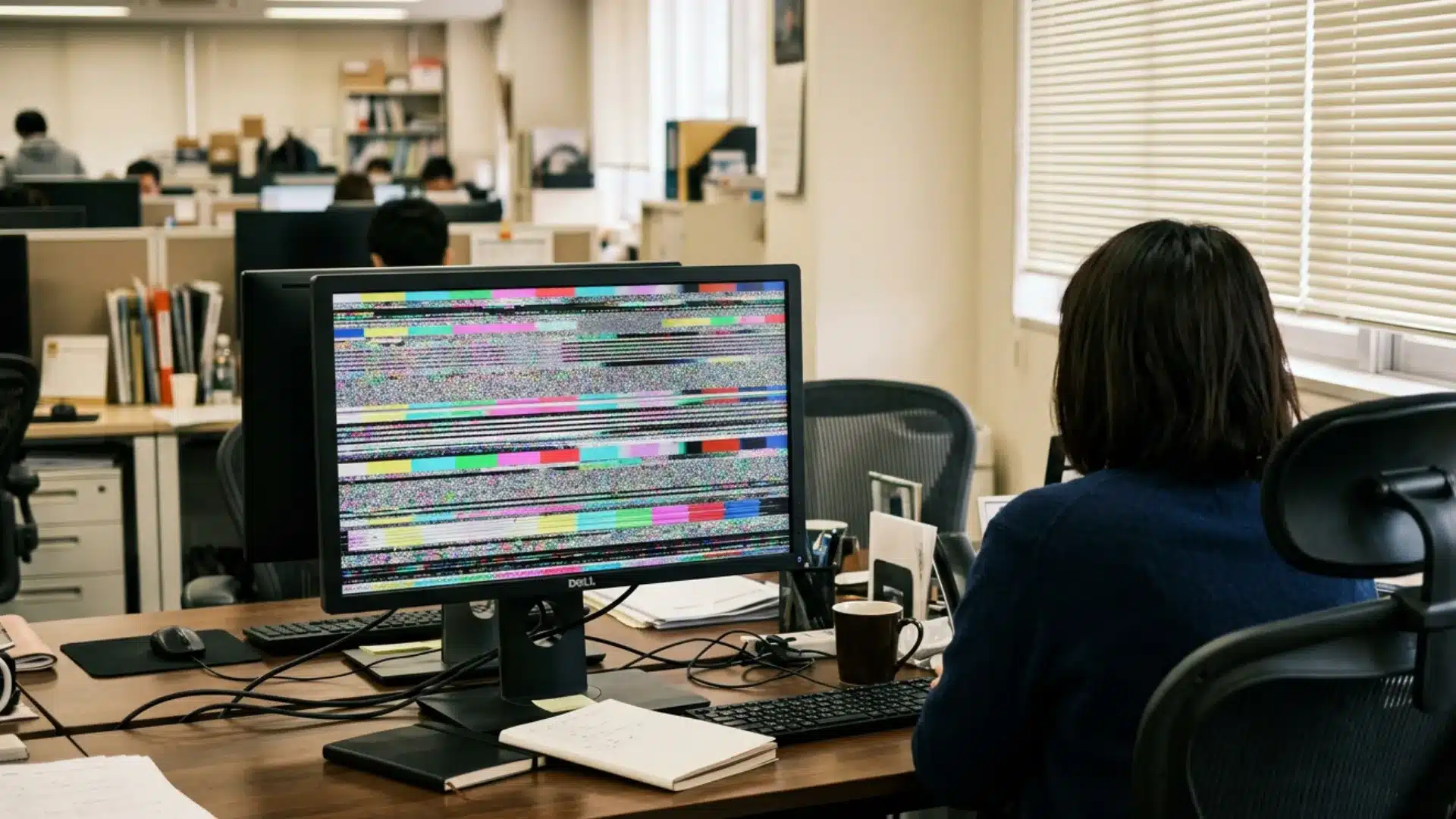
Screen flickering, blank displays, or distorted visuals can disrupt productivity and signal issues with your graphics drivers, cable connections, or the display hardware itself. Most cases are fixable without replacing the monitor.
How to fix it:
- Check cable connections: Reseat the HDMI, DisplayPort, or VGA cable at both ends. A loose connection is the most common cause of a blank or flickering screen.
- Update or roll back GPU drivers: Use Device Manager to update your graphics driver, or roll back a recent update if issues started after an upgrade. Driver conflicts are a frequent cause of display anomalies.
- Adjust refresh rate and resolution: Go to Display Settings and confirm the resolution and refresh rate match your monitor’s native specifications. Incorrect settings cause blurring, flickering, or overscan.
- Test with a different cable or monitor: Swap the cable or connect a separate display to isolate whether the fault lies with the cable, GPU, or monitor panel itself.
If the issue persists, pressing Win + Ctrl + Shift + B resets the GPU driver, a quick fix that clears the display stack without a full system restart.
13. Keyboard or Mouse Not Responding
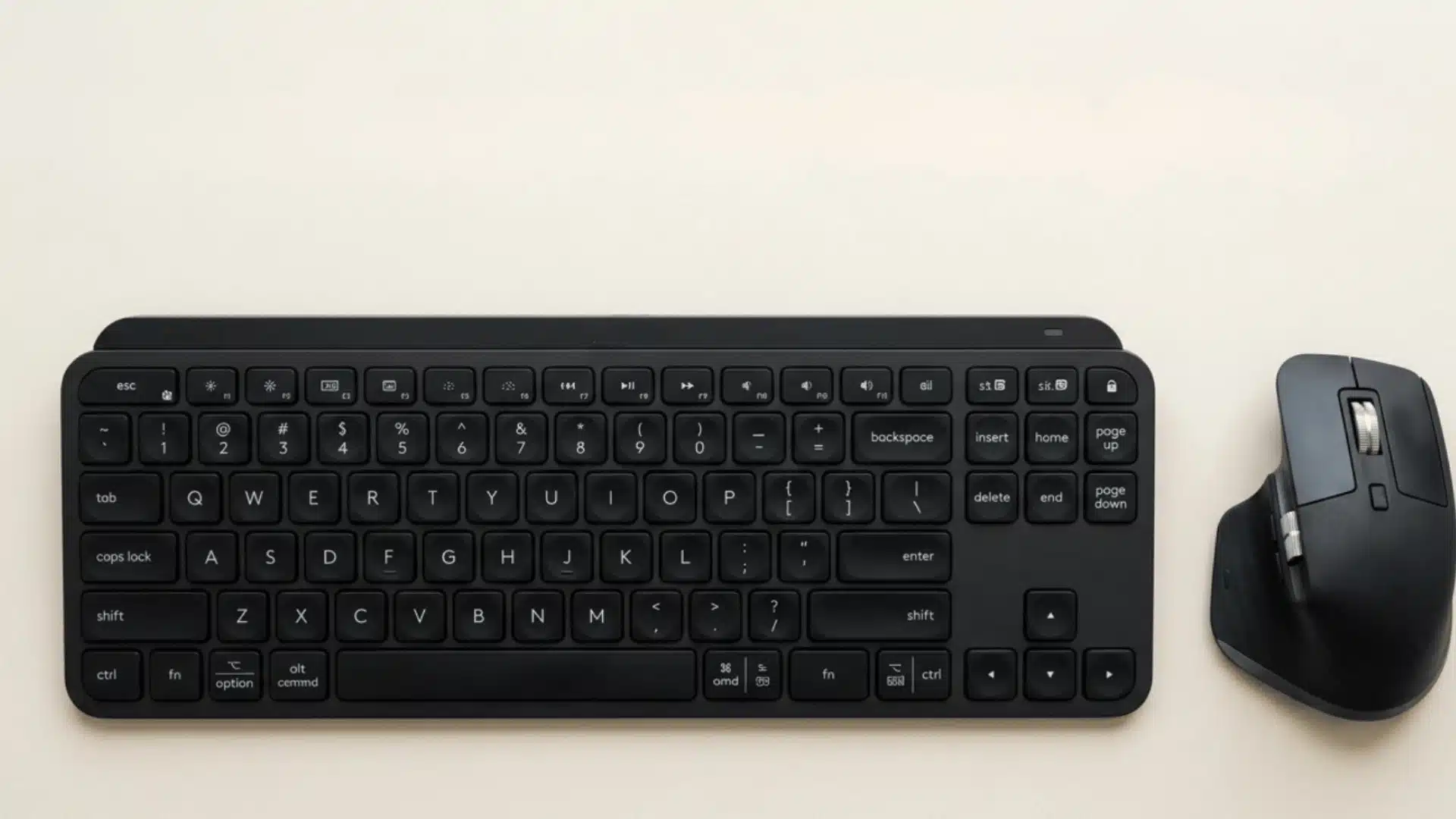
An unresponsive keyboard or mouse can instantly halt productivity. The cause is usually a driver fault, a USB port issue, or a wireless connectivity problem rather than a broken device.
How to fix it:
- Unplug and replug the device: Disconnect and reconnect the USB cable or receiver. This forces the system to re-recognize the device, often clearing the issue immediately.
- Try a different USB port: Plug the device into another port on the machine. Faulty or power-limited ports frequently cause intermittent input failures.
- Replace batteries or re-pair wireless devices: For wireless peripherals, replace batteries and re-sync using the manufacturer’s pairing instructions. Low power is a common cause of dropped connections.
- Update or reinstall input device drivers: Open Device Manager, locate the keyboard or mouse under Human Interface Devices, and update or uninstall the driver. A fresh driver installation resolves most persistent recognition issues.
14. Printer Not Working

Printer failures are among the most frustrating peripheral issues, often caused by outdated drivers, stuck print jobs, or communication errors between the device and your computer.
How to fix it:
- Clear the print queue: Open the print queue from your taskbar and cancel all pending jobs. A stuck job at the top of the queue blocks every subsequent print request.
- Restart the Print Spooler service: Open Services via the Run dialog (services.msc), locate Print Spooler, and restart it. This resets the print management process and clears software-level blockages.
- Reinstall the printer driver: Download the latest driver directly from the manufacturer’s website and perform a clean installation. Generic or outdated drivers cause the majority of communication failures.
- Check the connection type: For USB printers, try a different cable or port. For network printers, ensure the device and computer are on the same Wi-Fi network and that the printer’s IP address has not changed.
15. Computer Not Recognizing External Devices
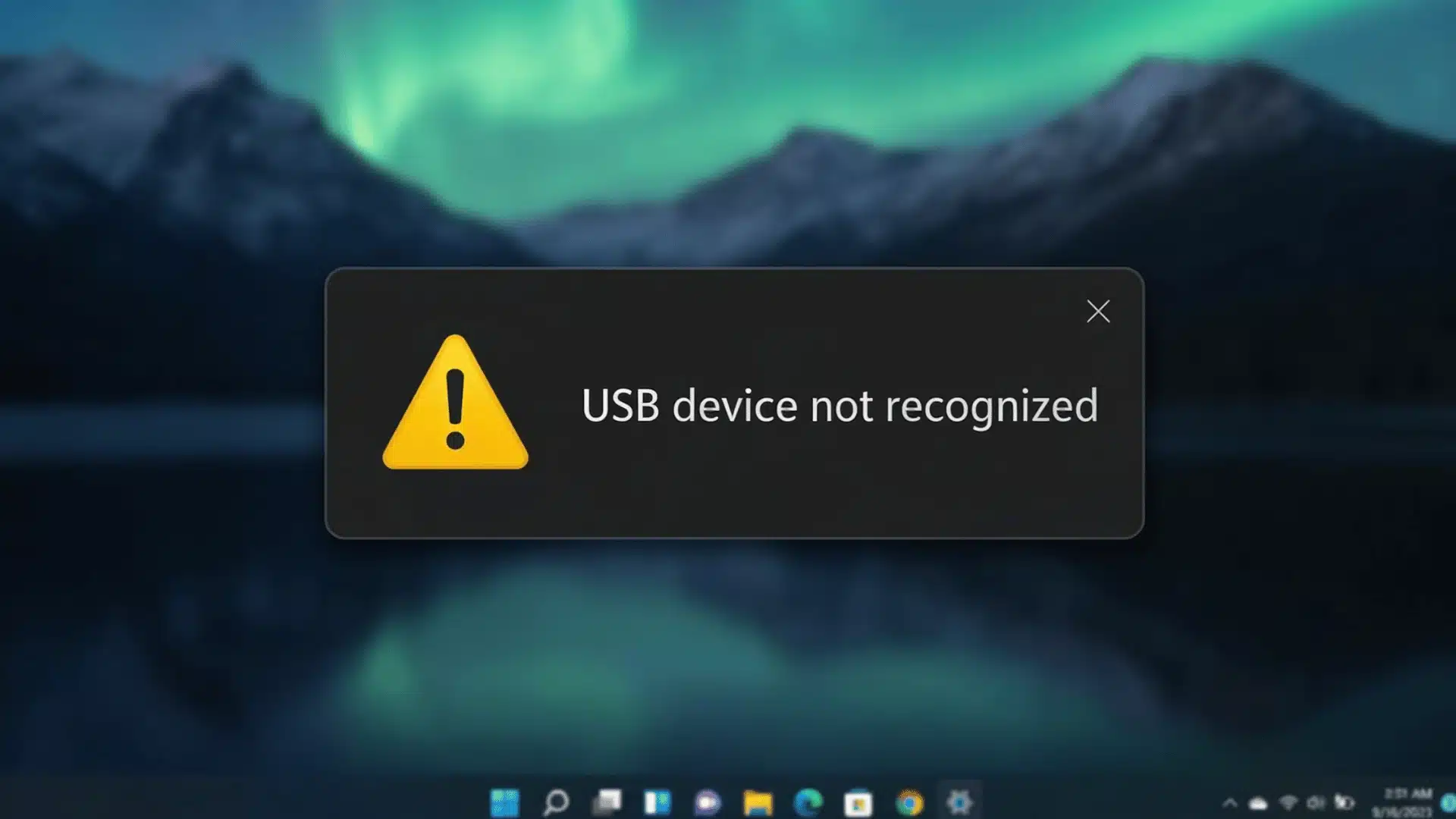
When your computer fails to detect an external drive, USB device, or SD card, the issue typically lies with the USB controller drivers, drive formatting, or power delivery rather than a broken device.
How to fix it:
- Check Disk Management: Open Disk Management (Windows) or Disk Utility (Mac) to see if the drive appears but is simply unformatted or unassigned a drive letter.
- Update USB controller drivers: Open Device Manager and update the drivers under the Universal Serial Bus Controllers section. Outdated controller drivers are a common cause of external devices going undetected.
- Test on another computer: Connect the device to a second machine to confirm whether the fault is with the device or the original computer’s ports and drivers.
- Check power requirements: Use a powered USB hub or connect the drive’s dual USB cable to two ports simultaneously to ensure adequate power delivery.
Be mindful of security when using unfamiliar USB devices. The CISA guidance on using USB drives safely outlines how attackers can use infected drives to compromise your system without your knowledge.
Preventive Maintenance Tips
Regular maintenance keeps your computer running smoothly and helps prevent costly repairs. Following these simple practices can improve performance, extend hardware life, and reduce the risk of unexpected failures.
- Disk Cleanup: Perform a monthly disk cleanup to remove temporary files, clear caches, and free up valuable storage space.
- Antivirus Scans: Run regular antivirus scans to detect malware early and protect your system from security threats.
- Software Updates: Keep your operating system, drivers, and applications up to date to improve security, stability, and compatibility.
- Dust Removal: Clean dust from vents and fans periodically to maintain proper airflow and prevent overheating.
- Data Backups: Back up important files to the cloud or an external drive to prevent data loss due to hardware failure or cyberattacks.
- Power Protection: Use a surge protector or UPS to safeguard your computer against power fluctuations and unexpected outages.
Outdated systems are among the most common entry points for cyber threats that compromise personal and professional data alike.
How to Optimize Your Computer for Long-Term Performance?
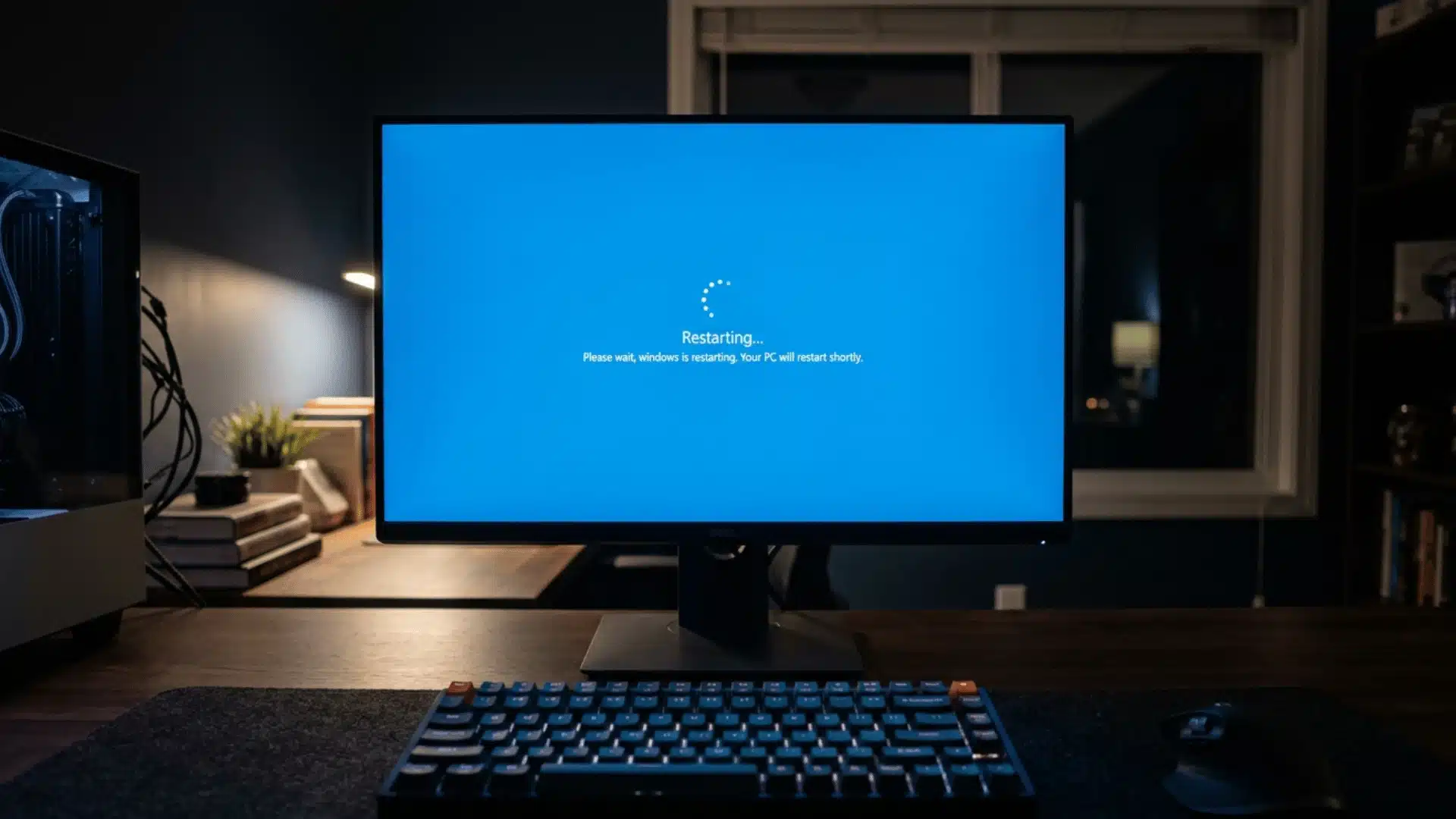
Long-term performance depends on keeping your system clean, up to date, and well optimized. Managing startup apps and background processes helps reduce load and prevent slowdowns.
Updating your operating system, drivers, and software improves speed, security, and stability. Clearing cache and temporary files also helps maintain smooth performance.
Using an SSD and monitoring heavy apps through Task Manager or Activity Monitor improves responsiveness and overall efficiency.
Understanding the distinction between WiFi and the internet helps you diagnose whether slowdowns are coming from the device or the connection, a slow network experience might be a router problem, not a computer problem at all.
Regular disk cleanup and maintenance scans keep the system fast and reliable over time.
Diagnostic Tools You Should Know
Using the right diagnostic tools saves time, prevents unnecessary repairs, and keeps your system running smoothly.
Key tools:
- HWMonitor / iStat Menus: Track CPU, GPU, and motherboard temperatures to prevent overheating. Helps spot thermal issues before they damage components.
- Windows Memory Diagnostic: Test RAM for errors causing crashes or BSODs. Identifies faulty memory that may affect system stability.
- Ping / PingPlotter: Identify network issues, packet loss, or latency problems. Shows whether connectivity problems are local or with your ISP.
- Event Viewer (Windows) / Console (Mac): Review system logs to diagnose crashes and errors. Provides detailed error codes for troubleshooting hardware and software issues.
- Task Manager / Activity Monitor: Monitor CPU, memory, disk, and network usage to spot resource-heavy apps. Helps optimize performance by closing unnecessary processes.
- SpeedTest / Fast.com: Check internet speed and stability to troubleshoot connectivity issues. Confirms whether slow network issues are due to your device or service provider.
- Antivirus Health Check: Verify that real-time protection, virus definitions, and scheduled scans are enabled and up to date. Use software such as Norton 360 Deluxe, Malwarebytes Premium, and Kaspersky for maximum protection against the latest threats.
When to Call a Professional?
Most computer issues covered here are solvable at home.
But some situations call for professional attention: physical damage, hard drive sounds like clicking or grinding, persistent BSODs after driver updates, or a machine that won’t power on after working through the standard steps.
Even minor issues, such as repeated software crashes or unexplained network problems, may indicate underlying hardware or system conflicts.
A professional can identify hidden issues and prevent them from worsening.
Additionally, professionals have the tools and experience to handle delicate components safely, such as replacing internal parts or recovering data from damaged drives, which reduces the risk of permanent damage or data loss.
Calling a professional ensures repairs are done safely, prevents further damage, and protects your data, giving peace of mind and saving time in the long run.
Conclusion
Most computer issues trace back to a small set of root causes: dust accumulation, outdated drivers, full storage, and software conflicts.
Addressing these through consistent maintenance prevents the majority of problems before they interrupt your work.
When something does go wrong, a methodical approach, check the symptoms, consult the table, follow the steps, resolves most issues without a repair bill.
Consistent maintenance, timely updates, and reliable backups ensure your system remains fast, secure, and efficient over time.
Start with the checklist in this guide, stay current on updates, and keep backups running. That combination handles most of what will come.
Have you encountered any of these computer issues yourself? Share your experiences and solutions in the comments below; your tips might help others avoid common pitfalls and keep their devices running smoothly.
Frequently Asked Questions
Should I Leave My Computer on All the Time or Shut It down Daily?
Shutting down daily lets your system apply updates, clear memory, and reset background processes. For most users, a daily shutdown is the better habit.
Does the Age of a Computer Affect How Often Issues Occur?
Yes. Hardware components degrade over time, and machines older than 5 years experience failures more frequently as parts near the end of their lifespan. Replacing a machine after five to seven years is often more cost-effective than repeated repairs.
Is It Safe to Download Free Diagnostic Tools from the Internet?
Tools from reputable developers like Malwarebytes and CrystalDiskInfo are safe. Always download from the developer’s official website and avoid lookalike tools from unofficial sources, which are often bundled with malware.
What Should I Do First when Any Computer Issue Appears?
Restart the device. This resolves a larger share of common computer issues than most people expect; it clears memory, resets driver states, and applies pending updates.
If the problem persists after a restart, use the quick diagnosis table in this guide to identify the likely cause before attempting a more involved fix.