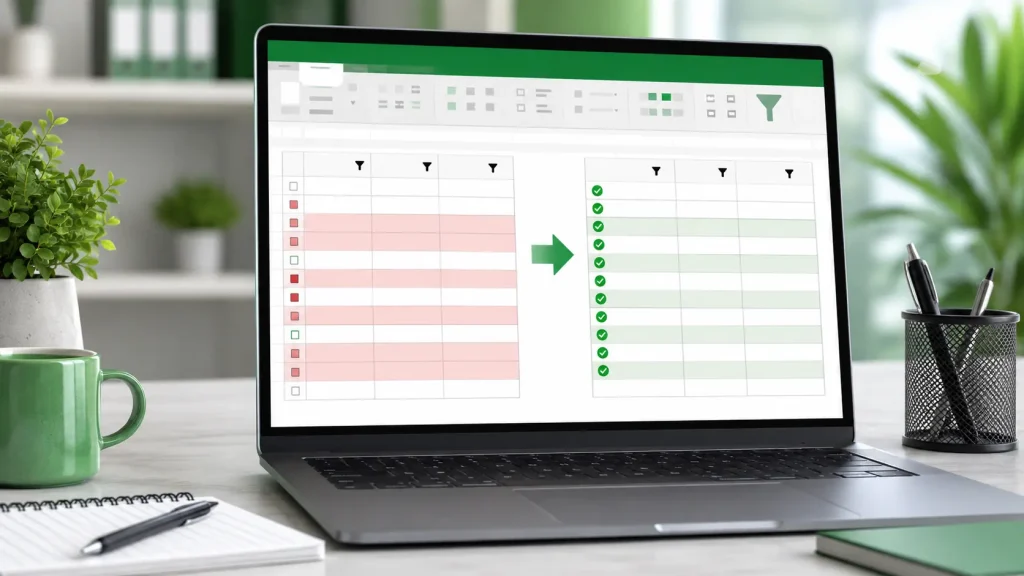
Have you ever opened an Excel file and noticed repeated entries hiding inside a list that should have been clean? The first step is not always deleting rows; it is understanding which records actually need removing.
Searches for Excel remove duplicates often come from the need to keep accurate unique values without losing useful data.
This happens when managing customer lists, reports, or shared spreadsheets with repeated information.
You will learn how to identify duplicate entries, create clean unique lists, and remove unwanted records safely using Excel’s built-in tools and formulas.
I will help you choose the right approach before making changes, so cleaner spreadsheets are easier to maintain and reliable for everyday analysis, reporting, and decision-making tasks.
What Counts as a Duplicate in Excel?
A duplicate in Excel is a value or record that appears more than once within a selected data range. Excel identifies duplicates based on the columns chosen during the checking process.
For example, selecting only a customer ID column marks repeated IDs as duplicates, while selecting multiple columns identifies only rows where all selected details match.
Duplicate checks can be affected by differences such as extra spaces, inconsistent formatting, numbers stored as text, or hidden characters.
Excel’s Remove Duplicates feature keeps the first occurrence of a matching record and removes the remaining copies
Knowing how Excel identifies duplicates makes it easier to choose the right cleanup method and avoid removing records that still contain valuable information.
Checking Your Data Before You Make Any Changes
Before touching anything, this helps to see the scope of the problem rather than guessing at it. Two diagnostic options do that without changing a single cell:
- Conditional Formatting: highlights duplicate values directly in the sheet, giving a quick visual read on how widespread the issue is.
- COUNTIF in a helper column: returns a count for how many times each value appears, offering more precision than a color highlight and surfacing patterns you might otherwise miss.
Neither option deletes or moves anything; both are purely diagnostic. The goal is simple: know whether this is a small issue or a larger one before picking a method to fix it.
Ways to Excel Remove Duplicates and Keep Unique Values
Excel offers multiple ways to handle duplicate data, but the right method depends on whether you want a separate unique list or permanent cleanup. Choose based on your goal.
Method 1: Extract Unique Values with the UNIQUE() Function
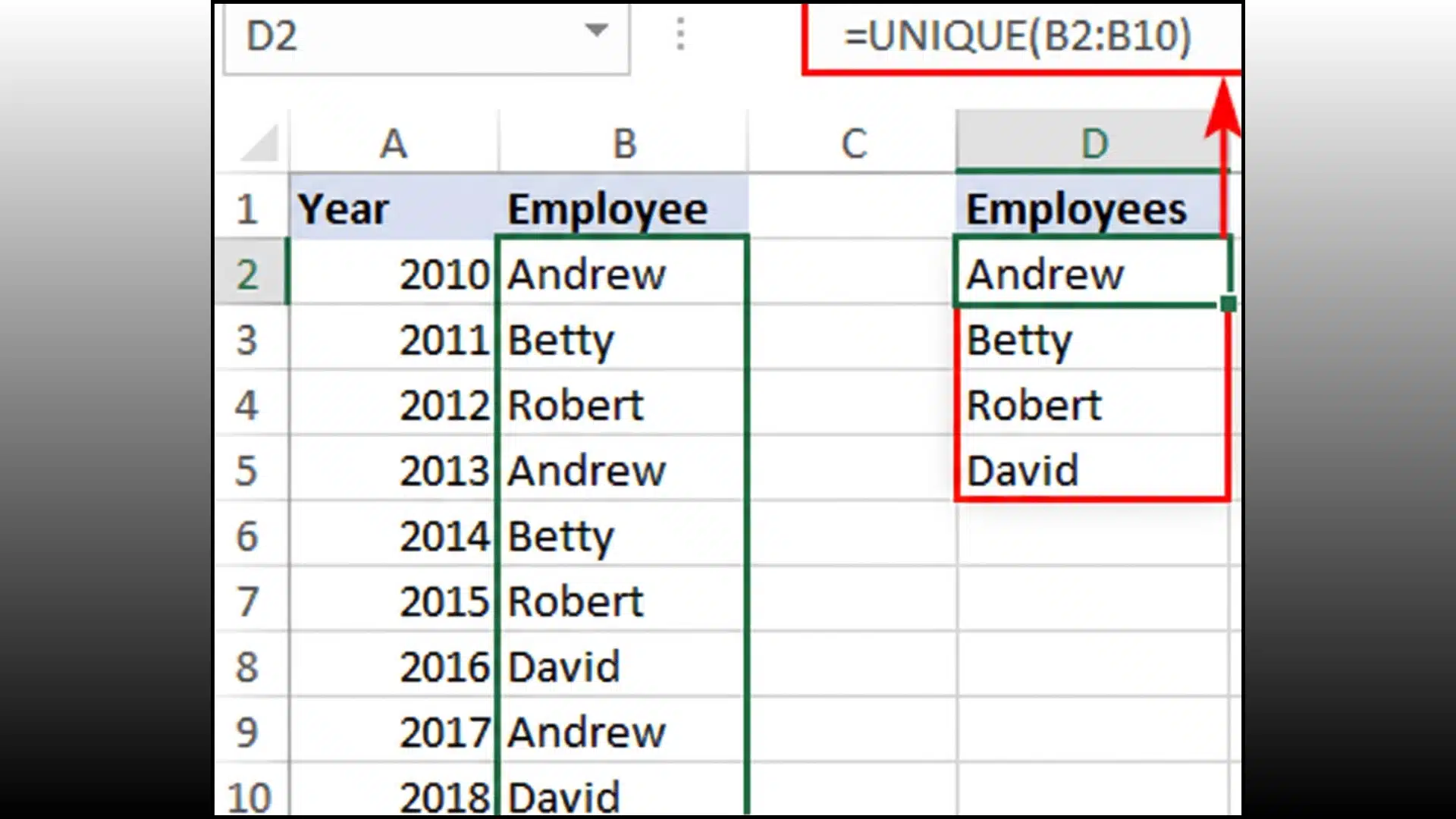
UNIQUE() builds a new list of distinct values without changing anything in your source range, making it the safest starting point when you’re not ready to delete anything yet.
- Step 1: Click an empty cell where the list should appear.
- Step 2: Type =UNIQUE( and select the range you want checked.
- Step 3: Close the parentheses and press Enter.
The results spill automatically into the cells below and refresh on their own as the source data changes, since it’s built on an auto-expanding array formula.
Best for: anyone who wants a clean list without touching the original range, or needs that list to stay current on its own.
Method 2: Filter for Unique Records Only with Advanced Filter
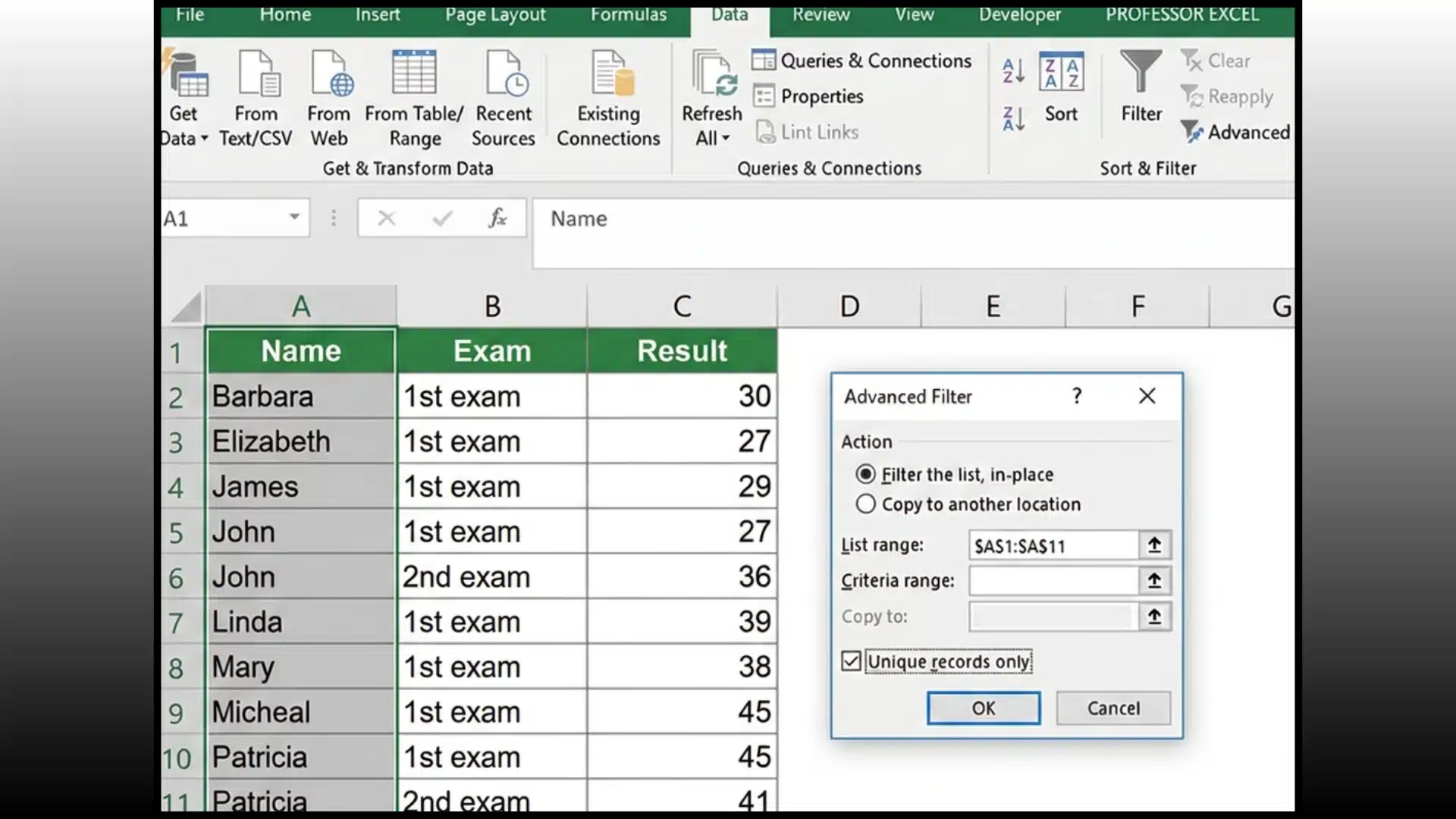
Advanced Filter does something similar to UNIQUE() but works on older Excel versions without auto-expanding array formulas, and it gives you a choice UNIQUE() doesn’t.
- Step 1: Select your data range.
- Step 2: Open the Data tab, then choose Sort & Filter, then Advanced.
- Step 3: Check the box for unique records only, then decide whether to filter in place or copy results elsewhere.
That last choice is the real advantage. You’re not locked into a formula-driven list elsewhere; you can clean the view directly on the same sheet.
Best for: users on Excel versions without array-spill support, or anyone who wants filtering handled in place.
Method 3: Remove Duplicates Tool (Destructive, Use With Caution)
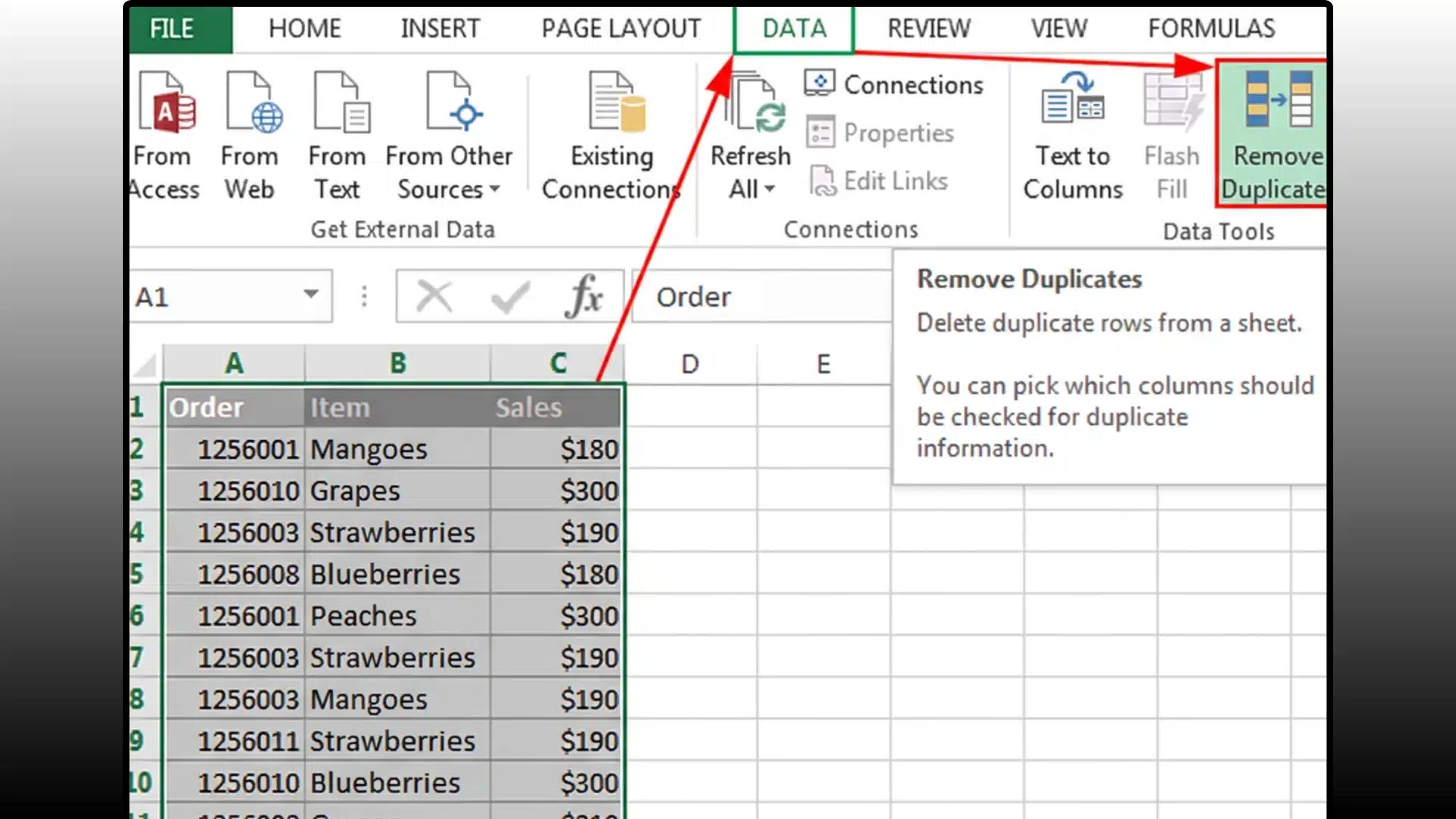
This is the tool most guides lead with, and it does exactly what its name suggests: it deletes rows permanently the moment you click OK.
- Step 1: Select your data range or click inside the table.
- Step 2: Go to the Data tab and click Remove Duplicates.
- Step 3: Check the columns to compare, based on whether the match is one field or the whole row, then confirm.
Only the first occurrence of each match survives; everything else is gone once you save. Copy the sheet first if there’s any chance you’ll need those rows again.
Best for: cleanup you’re already confident about, done only after backing up the file.
Method 4: Power Query (Best for Recurring Cleanup)
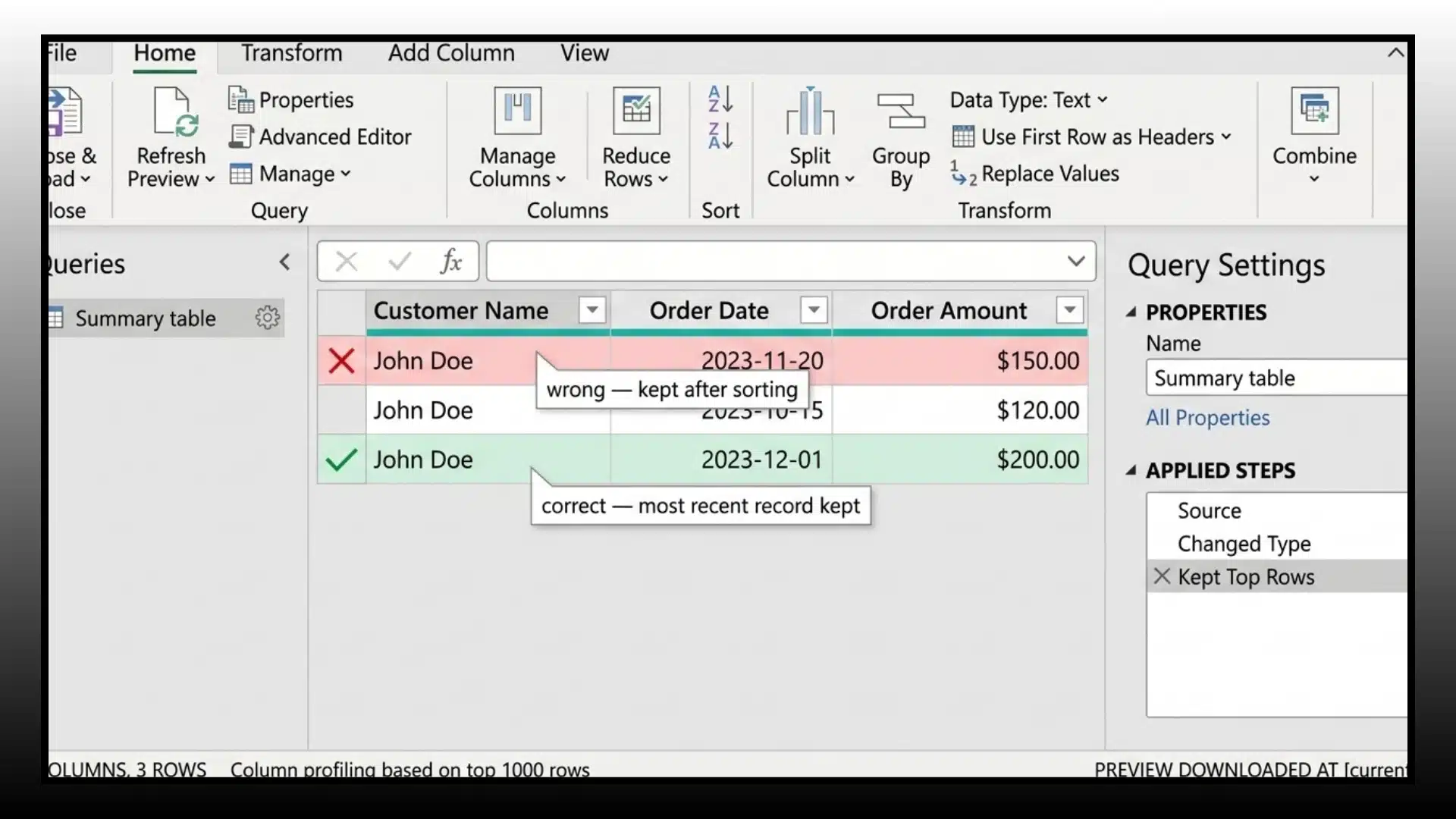
Power Query earns its place when cleanup isn’t a one-time job, or the dataset is large enough that a single click isn’t precise enough.
- Step 1: Load the range into Power Query through the Data tab.
- Step 2: Apply Remove Duplicates on the relevant column or columns.
- Step 3: Watch for one trap: sorting by date, then removing duplicates, can keep whichever row lands first, not the most recent one.
Grouping by the key column and pulling the maximum value instead avoids that, since it targets the true latest record rather than the sort order.
Best for: recurring jobs, larger datasets, or keeping the most complete record.
Each method serves a different purpose, from safe unique value extraction to complete data cleanup. Review your needs first to avoid removing information you may still require.
Why Excel May Not Remove Some Duplicate Values
Sometimes Excel does not remove duplicate values because the entries may look identical but contain hidden differences.
Extra spaces, inconsistent formatting, hidden characters, or numbers stored as text can prevent Excel from recognizing them as matches, a pattern documented in public-health record-matching guidance for large datasets.
For example, “Customer Name” and “Customer Name ” appear the same but are treated as separate values because of the additional space.
Similar issues can happen when data is copied from websites, PDFs, or different systems. Before removing duplicates, clean your data by standardizing formats and removing unnecessary spaces or hidden characters.
Using functions like TRIM() and CLEAN() can help prepare your dataset so Excel can accurately identify repeated values and remove them correctly.
Common Mistakes That Lead to Lost or Wrong Data
Duplicate removal is simple, but the wrong approach can delete useful information or leave incorrect results behind, echoing federal data protection standards that call for backups before permanent changes. Avoid these common mistakes before cleaning your spreadsheet.
| Mistake | Why It Causes Problems | Better Approach |
|---|---|---|
| Removing duplicates without checking columns | Excel compares only selected columns | Review the selected fields before confirming |
| Deleting duplicates from the original file immediately | Deleted records may be difficult to recover | Create a backup copy first |
| Ignoring formatting differences | Similar-looking values may not match | Clean spaces and formats before removal |
| Using Remove Duplicates when you need a unique list | Original records are permanently changed | Use UNIQUE() or Advanced Filter |
Reviewing these mistakes first helps you choose the right method and prevents avoidable data loss during duplicate cleanup
How to Prevent Duplicate Data in the Future
Preventing duplicate entries is easier than cleaning them later, since federal quality guidelines treat uniqueness as a basic requirement for reliable datasets.
A few simple data management habits can help keep your spreadsheets accurate, organized, and easier to maintain.
- Use Data Validation to restrict incorrect or repeated entries
- Create a shared entry form or template for team-based data collection
- Standardize formats for names, dates, numbers, and text fields
- Use consistent naming rules across all spreadsheets
- Review imported or merged data before adding it to your main file
- Perform regular checks to catch duplicates early
Following these preventive steps helps maintain cleaner spreadsheets and reduces the time spent fixing duplicate records later. Consistent data entry practices make reports and analysis more reliable.
Final Cleanup
Clean spreadsheet data starts with knowing how to handle repeated entries correctly. I found that the right Excel method depends on whether you need a unique list or a permanent cleanup.
You can use tools like UNIQUE() function, Advanced Filter, Remove Duplicates, and Power Query to manage data safely. The process of Excel remove duplicates becomes easier when you first check your data and choose the right approach.
These steps help you avoid lost records, improve accuracy, and keep reports reliable. I hope you can apply these methods confidently in your daily spreadsheet work.
Try these tips on your next file and share your experience or questions in the comments.
Frequently Asked Questions
Is There a Keyboard Shortcut for Removing Duplicates in Excel?
Yes, press Alt, then A, then M in sequence (not held together) to open the Remove Duplicates dialog directly. On Mac, there’s no direct equivalent shortcut.
Can I Remove Duplicates Across Two Separate Sheets or Files?
Not directly. Combine both ranges into one sheet first using copy-paste or Power Query’s append feature, then apply any deduplication method to the merged data.
Will Removing Duplicates Break My Pivot Tables or Charts?
Pivot tables and charts referencing the affected range will update automatically once refreshed, but totals and visuals may shift if the deleted rows fed calculations.
Does Excel Remove Duplicate Formulas Along With Duplicate Values?
Yes. Remove Duplicates deletes the entire row, including any formulas, Formatting, or comments in it, not just the compared values themselves.