Have you ever noticed how a single notification can interrupt your focus, even when you are in the middle of important work?
Windows notifications are designed to keep you updated, but frequent pop-ups, sounds, and alerts from apps can quickly become distracting.
If you want to learn how to turn off Windows notifications, disable all notifications, silence specific apps, remove notification banners and sounds, or fix alerts that keep appearing after being turned off, Windows provides several control options.
In Windows 11, you can manage notification settings by opening Settings, selecting System, and choosing Notifications. Windows 10 users can find these options under Settings, System, and Notifications & actions.
What Happens When You Turn Off Windows Notifications?
Turning off Windows notifications stops most alerts from appearing while you work, helping reduce interruptions and screen clutter. However, the exact effect depends on which notification settings you change.
Windows lets you control several types of alerts, including notification banners, Notification Center messages, sounds, lock screen notifications, app-specific alerts, and Microsoft tips. You can disable every notification or limit changes to selected apps.
Turning off notifications does not stop apps from running or prevent emails, messages, or updates from arriving. It only prevents Windows from notifying you when they do.
Features like Do Not Disturb silence alerts temporarily without changing your notification settings, while muting notification sounds removes audio alerts but continues to display visual notifications.
This flexibility allows you to reduce distractions, protect your privacy, or create a quieter workspace without affecting how your apps function.
How to Turn Off Notifications in Windows
Windows 10 and Windows 11 allow you to disable all notifications or customize alerts based on your preferences. While both versions provide similar controls, Windows 11 offers a redesigned notification menu with improved focus features.
1. Turn Off Notifications in Windows 11
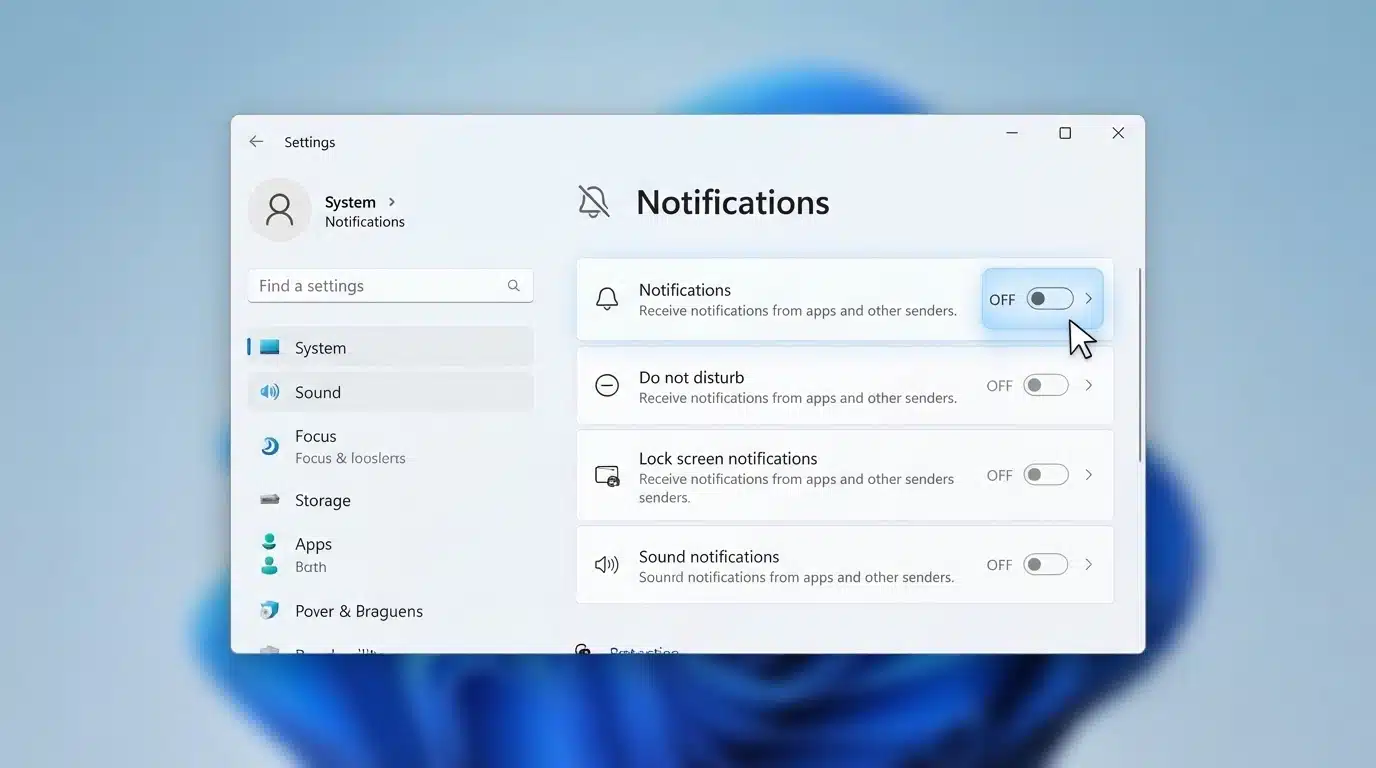
Follow these steps to disable notifications across Windows 11:
- Press Windows + I to open the Settings app.
- Select System from the left sidebar.
- Click Notifications.
- Turn off the Notifications toggle to disable alerts.
After disabling notifications, Windows hides most alerts, banners, and sounds, but some apps may require separate notification setting adjustments.
2. Turn Off Notifications in Windows 10
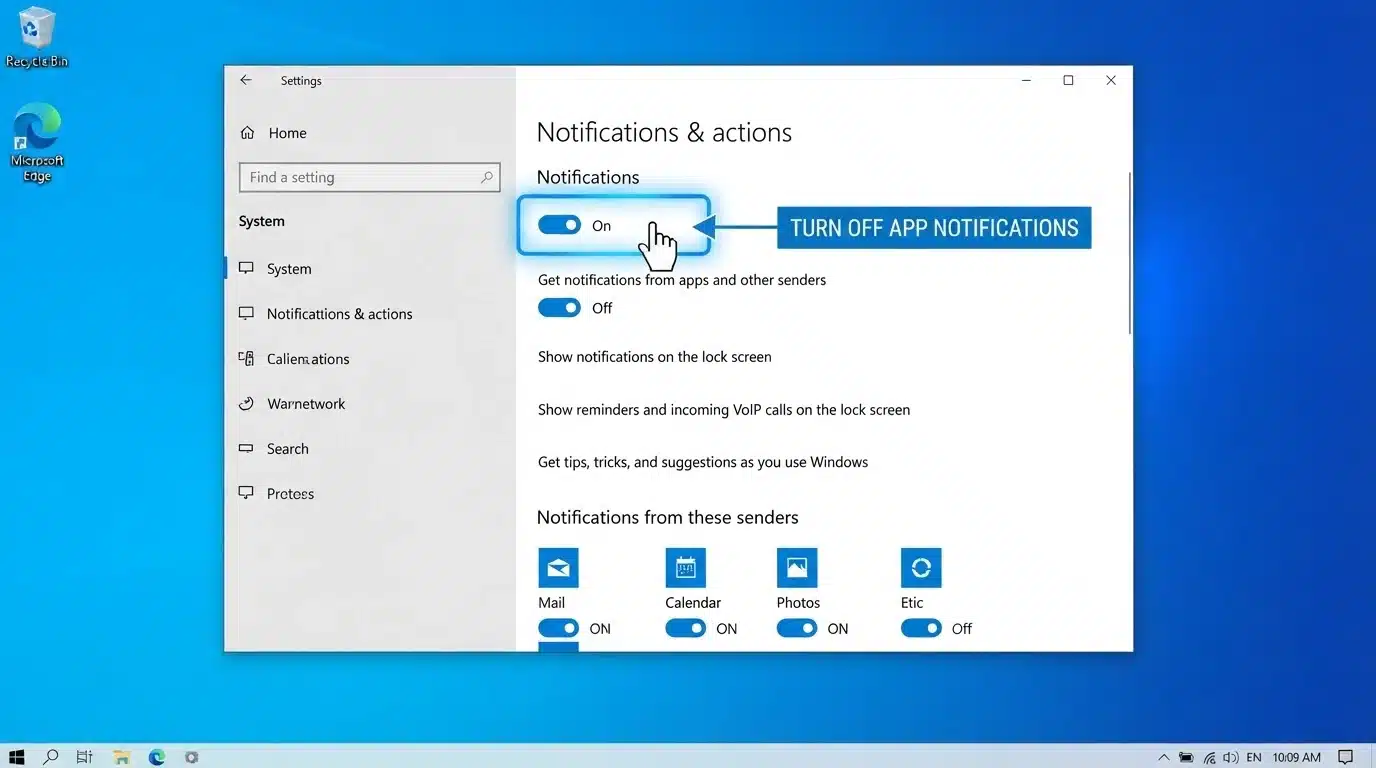
To disable notifications in Windows 10:
- Press Windows + I to open Settings.
- Select System.
- Click Notifications & actions.
- Turn off Get notifications from apps and other senders.
Windows 10 also allows you to manage individual app notifications, banners, sounds, and lock screen alerts.
3. Turn Off Notifications in Windows Apps
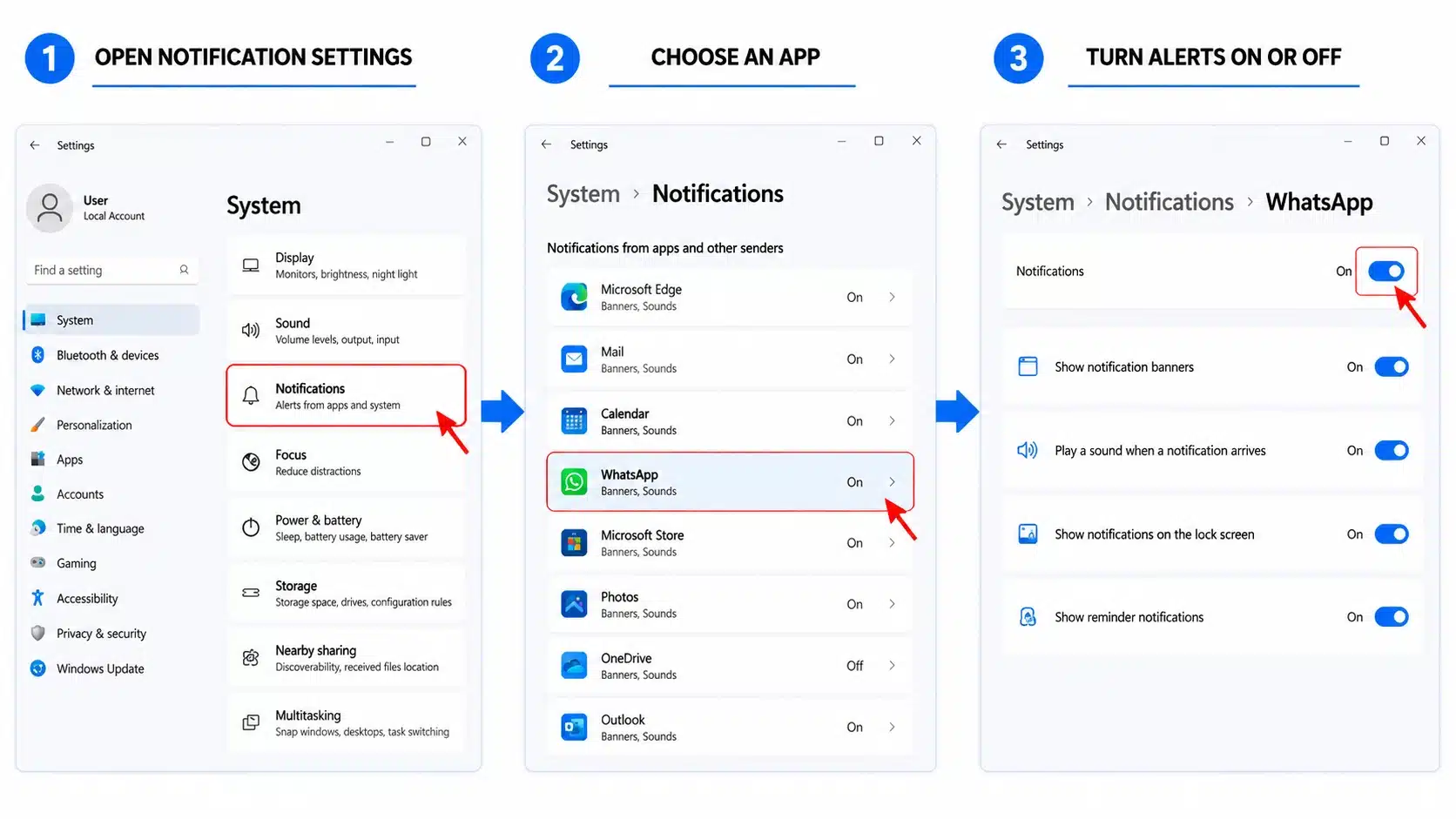
Follow these steps to turn off notifications in Windows apps:
- Press Windows + I to open Settings and select System from the left menu.
- Click Notifications to access notification settings and controls.
- Scroll to Notifications from apps and other senders and select the app.
- Turn off the switch to block notifications or adjust banners, sounds, and lock screen alerts.
Managing app notifications helps reduce distractions and gives you better control over alerts while keeping important updates accessible.
While adjusting app settings, it’s also a good idea to make sure your graphics card drivers are up to date if you’ve been experiencing display glitches or interface problems.
4. Turn Off Lock Screen Notifications in Windows
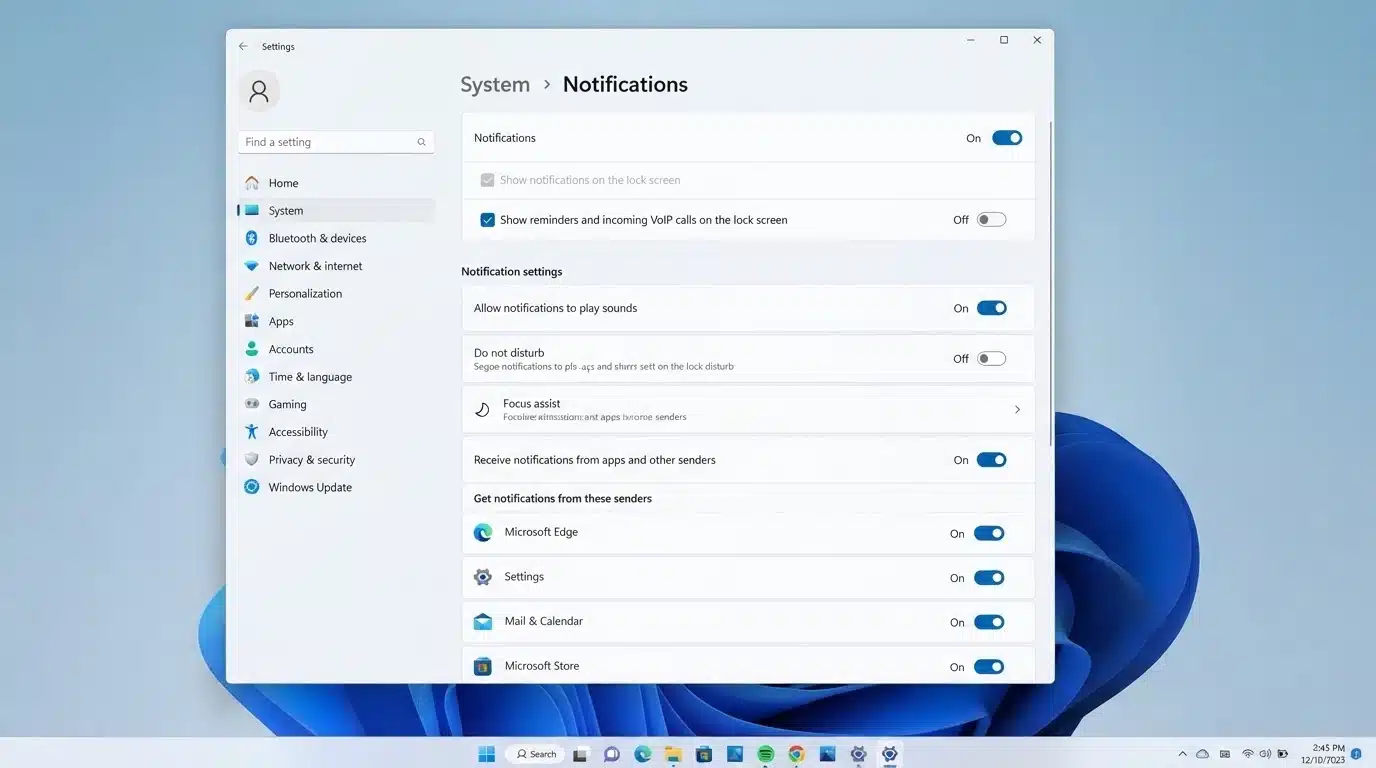
To disable lock screen notifications in Windows:
- Press Windows + I to open Settings.
- Select System from the left menu.
- Click Notifications.
- Disable the option that allows notifications to appear on the lock screen.
Windows will continue receiving notifications, but they will remain hidden on the lock screen to protect private information until you sign in.
Turning off Windows notifications helps create a distraction-free experience while protecting privacy. Whether using Windows 10 or 11, you can easily customize alerts, app notifications, and lock screen settings.
How to Manage and Silence Windows Notifications Without Turning Them Off
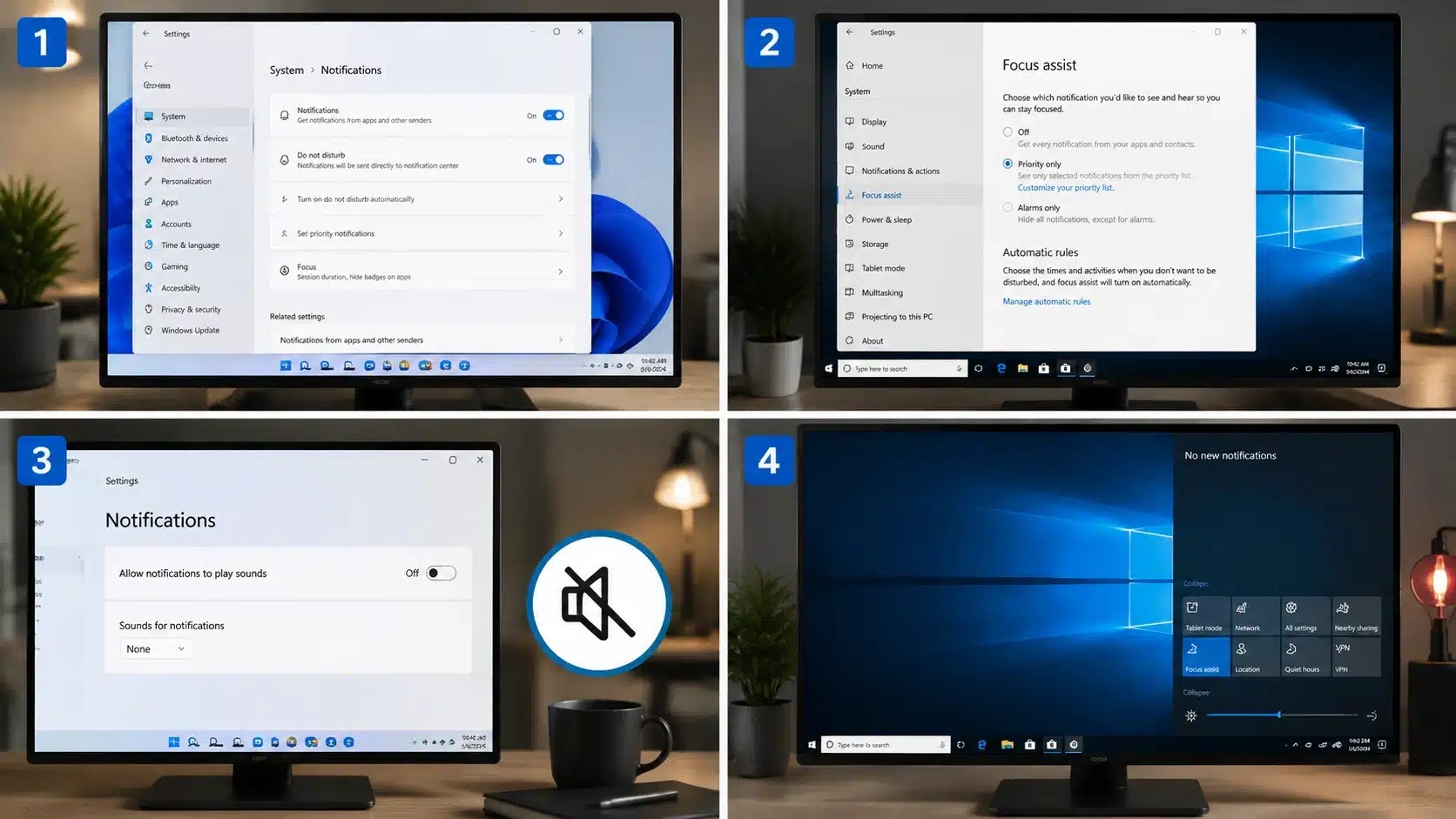
Windows allows you to control different notification elements separately instead of disabling every alert. You can remove notification sounds, hide desktop pop-ups, or temporarily pause interruptions without disabling alerts completely.
1. Do Not Disturb in Windows 11
Do Not Disturb temporarily blocks notification interruptions while allowing you to access missed alerts later through Notification Center. It is useful during meetings, focused work, or other activities where you need fewer distractions.
Steps:
- Open Settings.
- Go to System > Notifications.
- Enable Do Not Disturb.
After enabling this feature, Windows will stop showing distracting banners and sounds, but notifications will remain stored in Notification Center for when you are ready to check them.
2. Focus Assist on Windows 10
Windows 10 uses Focus Assist to control when notifications appear. It lets you choose how much interruption you want while keeping essential alerts available, depending on your selected mode.
Steps:
- Open Settings.
- Go to System.
- Select Focus Assist.
- Choose your preferred mode.
3. Turn Off Notification Sounds
Windows will continue showing visual alerts while muting notification sounds, allowing you to stay updated without interruptions. This setting is helpful during meetings, work sessions, and other focused activities.
Follow these steps to mute notification sounds:
- Open Settings using Windows + I.
- Select System and click Notifications.
- Expand notification settings and turn off the option that allows notifications to play sounds.
This keeps visual alerts available while removing distracting audio interruptions, which is useful during work, meetings, or focused activities.
4. Disable Notification Banners
Desktop pop-up notifications can interrupt your workflow and reduce focus. Windows allows you to disable notification banners while keeping alerts available in the Notification Center for later viewing.
Follow these steps to stop desktop pop-ups:
- Open Settings and go to System.
- Select Notifications.
- Choose the app you want to manage.
- Turn off the option for showing notification banners.
This removes bottom-right pop-ups while allowing you to check notifications manually from the Notification Center.
You can manage Windows notifications without disabling everything. Adjust sounds, banners, and lock screen alerts to reduce distractions, improve privacy, and keep important updates available.
How to Manage Notification Priority Settings
Managing notification priority settings allows you to control which alerts require immediate attention and which ones can wait. Open Settings > System > Notifications to customize how different apps send alerts.
You can allow important notifications from essential apps such as security tools, reminders, or work applications while blocking unnecessary alerts from distracting sources. Windows also lets you choose which apps can interrupt you with banners, sounds, or pop-ups.
Adjusting these preferences helps reduce interruptions without disabling notifications completely.
By customizing app priorities, you can maintain focus, improve productivity, and stay updated with the information that matters most.
How to Turn Off Windows Notifications That Keep Appearing
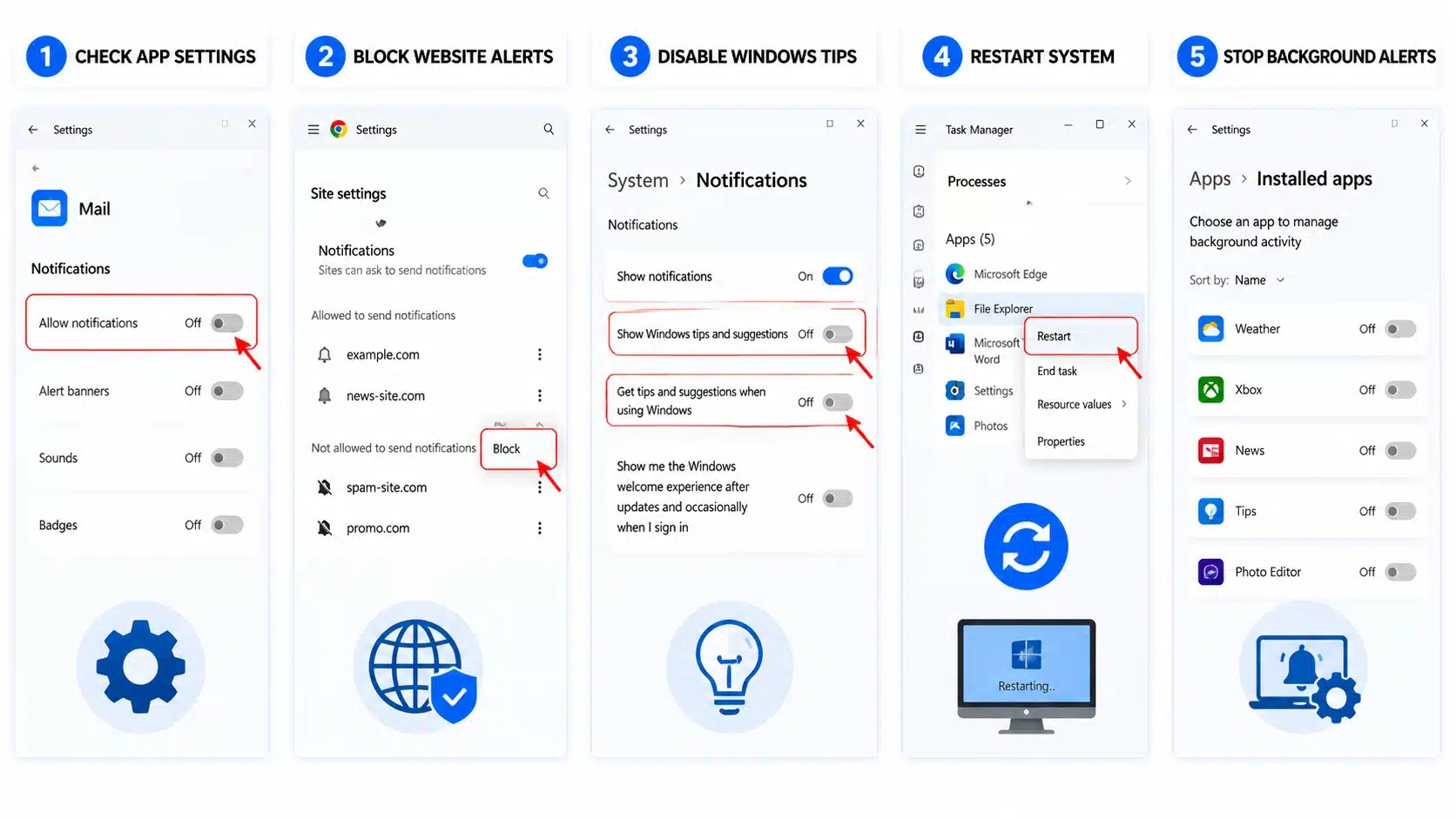
If Windows notifications keep appearing after you disable them, the cause may be separate app settings, browser permissions, or background services. Follow these steps to identify and fix persistent alerts.
Step 1: Check App-Specific Notification Settings: Some apps control notifications separately. Open the app settings and disable unwanted alerts from email apps, messaging tools, antivirus software, or other programs.
Step 2: Disable Browser Notifications: Browsers can send alerts even after Windows settings change. Open Chrome or Edge settings, review notification permissions, and block unwanted websites.
Step 3: Turn Off Microsoft Tips and Suggestions: Go to Settings > System > Notifications and disable Windows tips, suggestions, and recommendation alerts.
Step 4: Restart Windows Explorer or Your PC: Restart Windows Explorer from Task Manager or restart your computer to apply notification setting changes properly.
Step 5: Check Background Apps: Some apps running in the background may continue sending alerts. Review notification access and disable unnecessary background activity.
Checking app settings, browser permissions, system suggestions, and background activity can help stop recurring notifications and improve control over Windows alerts.
If a program becomes unresponsive while you’re changing these settings, you may also need to force quit an app on Windows before continuing.
Best Windows Notification Settings Based on Your Needs
Do Not Disturb and Focus settings help manage interruptions without turning off notifications completely. Choose these options when you need quiet time but still want important alerts.
| Use Case | Recommended Setting | Benefit |
|---|---|---|
| Meetings | Enable Do Not Disturb | Prevents interruptions while allowing important alerts |
| Gaming | Pause notifications temporarily | Reduces distractions and improves focus |
| Studying | Use Focus Settings | Helps maintain concentration without constant alerts |
| Presentations | Enable Do Not Disturb | Keeps pop-ups and sounds from appearing |
| Deep work | Schedule Focus sessions | Creates distraction-free working periods |
These settings help you control interruptions without disabling notifications permanently. You can stay focused while still receiving important alerts when needed.
Common Windows Notification Problems and Fixes
Windows notification settings may not always stop unwanted alerts immediately. Some notifications are controlled by individual apps, browser permissions, or background processes.
The table below highlights common notification issues and the settings you can check to resolve them.
| Problem | Possible Fix |
|---|---|
| Notifications return after restart | Check app permissions and background settings |
| Browser alerts continue | Remove website notification permissions |
| Microsoft suggestions appear | Disable Windows recommendations |
| Notification sounds continue | Review sound notification settings |
Reviewing these settings helps identify the source of recurring alerts and provides a more reliable way to manage Windows notifications.
Adjusting both system and app-level controls ensures important updates remain available while unnecessary interruptions are reduced.
Conclusion
Windows notifications can be controlled easily by adjusting system settings, app permissions, and focus features.
Learning how to turn off Windows notifications helps you reduce distractions, manage unwanted alerts, and create a more focused digital workspace.
Whether you want to disable all notifications, block alerts from specific apps, or fix notifications that keep appearing, Windows provides flexible options to customize your experience.
By choosing the right settings, you can keep important alerts while removing unnecessary interruptions.
If you have any questions about managing Windows notifications or face a specific issue, comment below and share your experience.
Frequently Asked Questions
Can Windows Notifications Be Disabled for a Specific Time Period?
Yes, Windows allows temporary notification control through Do Not Disturb and Focus settings, helping you pause interruptions during specific activities.
Do Disabled Notifications Affect Windows Updates?
No, turning off notifications only hides alerts and messages. Windows updates continue running normally in the background.
Why Do Some Apps Still Show Notifications After Being Blocked?
Some apps use separate notification settings or background permissions. Check the app itself and disable alerts from its internal settings.
Can Notifications Be Managed Without Administrator Access?
Yes, most notification settings can be changed from your user account. However, some advanced controls may require administrator permissions.