You send an important email and notice the mistake almost instantly. The attachment is missing, the wrong person received the message, or the information inside is no longer correct.
In these moments, you may wonder whether you can recall an email before it causes confusion.
Knowing how to recall an email in Outlook helps you understand when the recall option works, what limits affect it, and what to do when it fails.
You will learn the recall process, undo send options, common problems, and practical ways to prevent email mistakes before they happen.
What Happens When You Recall an Email in Outlook?
A sent email cannot always be removed after delivery, but Outlook provides a recall option for certain situations. The process sends a request to delete or replace the original message instead of instantly removing it from the recipient’s inbox.
Recall works best when both sender and recipient use supported Microsoft Exchange or Microsoft 365 accounts within the same organization.
If the recipient has already opened the email, uses another email service, or the message has been handled by another system, the request may not succeed.
The main difference between recall and Undo Send is when they work. Recall happens after an email has been sent, while Undo Send delays delivery briefly so you can cancel the message before it reaches the recipient.
According to Microsoft’s official recall support page, recall availability depends on mailbox settings and account type, so checking your Outlook setup first can save you time.
How to Recall an Email in Outlook Step by Step
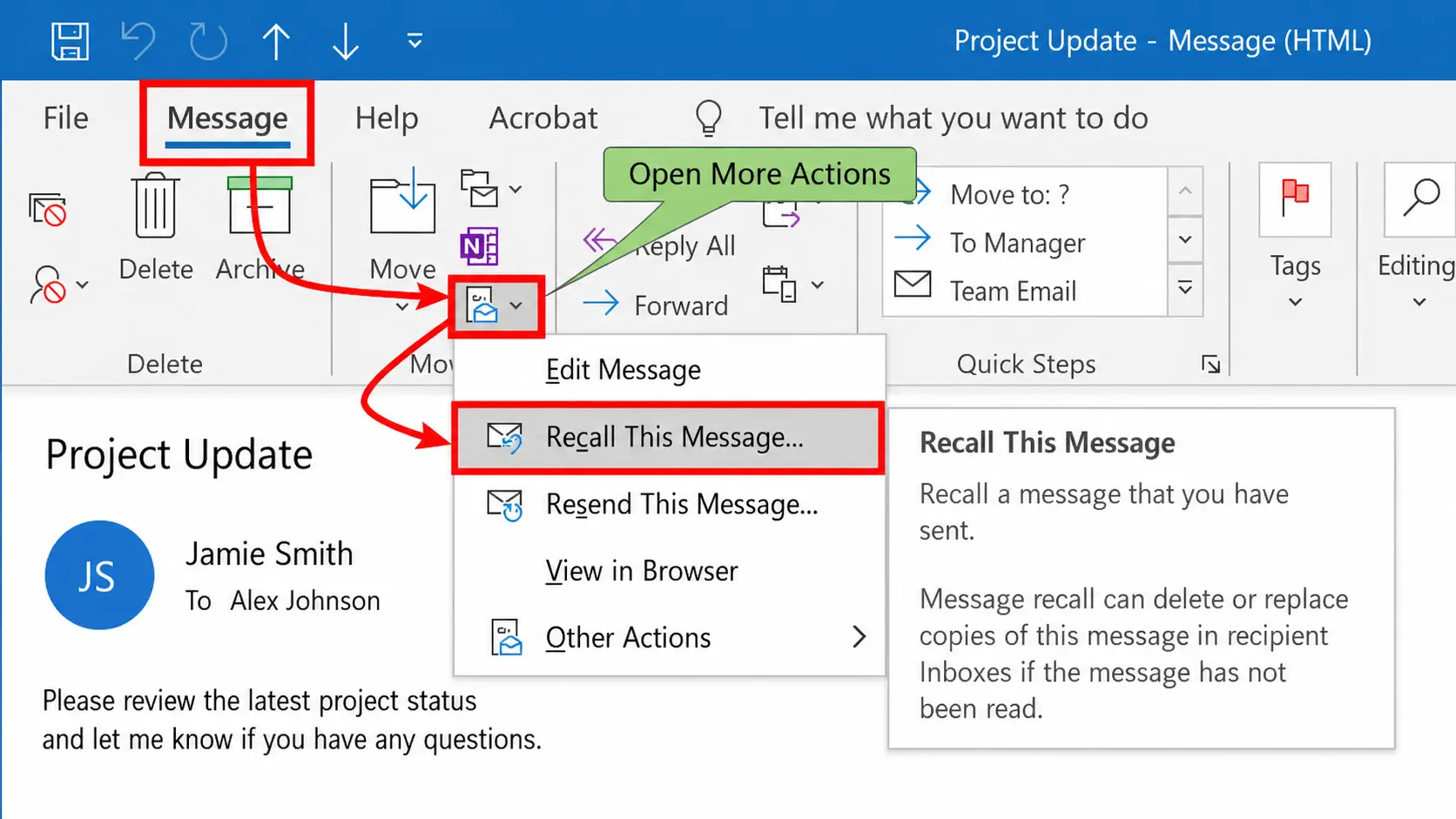
The recall option is mainly available through the Outlook desktop application. Before starting, make sure the email is still in your Sent Items folder, and your account supports message recall.
To recall a sent email in Outlook:
- Open Outlook Desktop and select Sent Items.
- Open the email you want to recall.
- Double-click the message to open it in a separate window.
- Select File from the top menu.
- Choose Info, then Resend or Recall.
- Click Recall This Message.
- Select your preferred option: Delete unread copies of this message or Delete unread copies and replace with a new message.
- Confirm the recall request.
If you choose the replacement option, Outlook opens the original email so you can edit the content and send a corrected version. This works for mistakes such as missing attachments, incorrect details, or typing errors, but only if the recall conditions are met.
After submitting the request, Outlook may send a recall status notification showing whether the attempt succeeded or failed.
Can You Unsend an Email in Outlook After Sending It?
Many users searching for how to unsend an email in Outlook want to cancel a message after clicking Send. Outlook works differently from some other email platforms because it does not provide a permanent unsend option after delivery.
Instead, users can rely on two features: Recall and Undo Send. Recall attempts to remove or replace a sent email, but it only works under certain conditions, such as compatible accounts and unread messages.
Undo Send works before delivery by creating a short delay, giving you time to cancel the email if you notice a mistake immediately. Knowing the difference helps you choose the right option for your situation.
To enable or adjust Undo Send in Outlook on the web:
- Open Outlook Settings.
- Select Mail.
- Open Compose and reply.
- Find the Undo Send option.
- Choose the available cancellation time.
Once that short delay ends, the email delivers normally, and recall becomes your only remaining option. The Microsoft support page on recalling or replacing a sent email walks through both features side by side if you want more detail.
Many of these email controls are managed through Outlook settings, including features like Out of Office automatic replies, which help manage incoming messages when you’re unavailable.
When Does Outlook Email Recall Work?
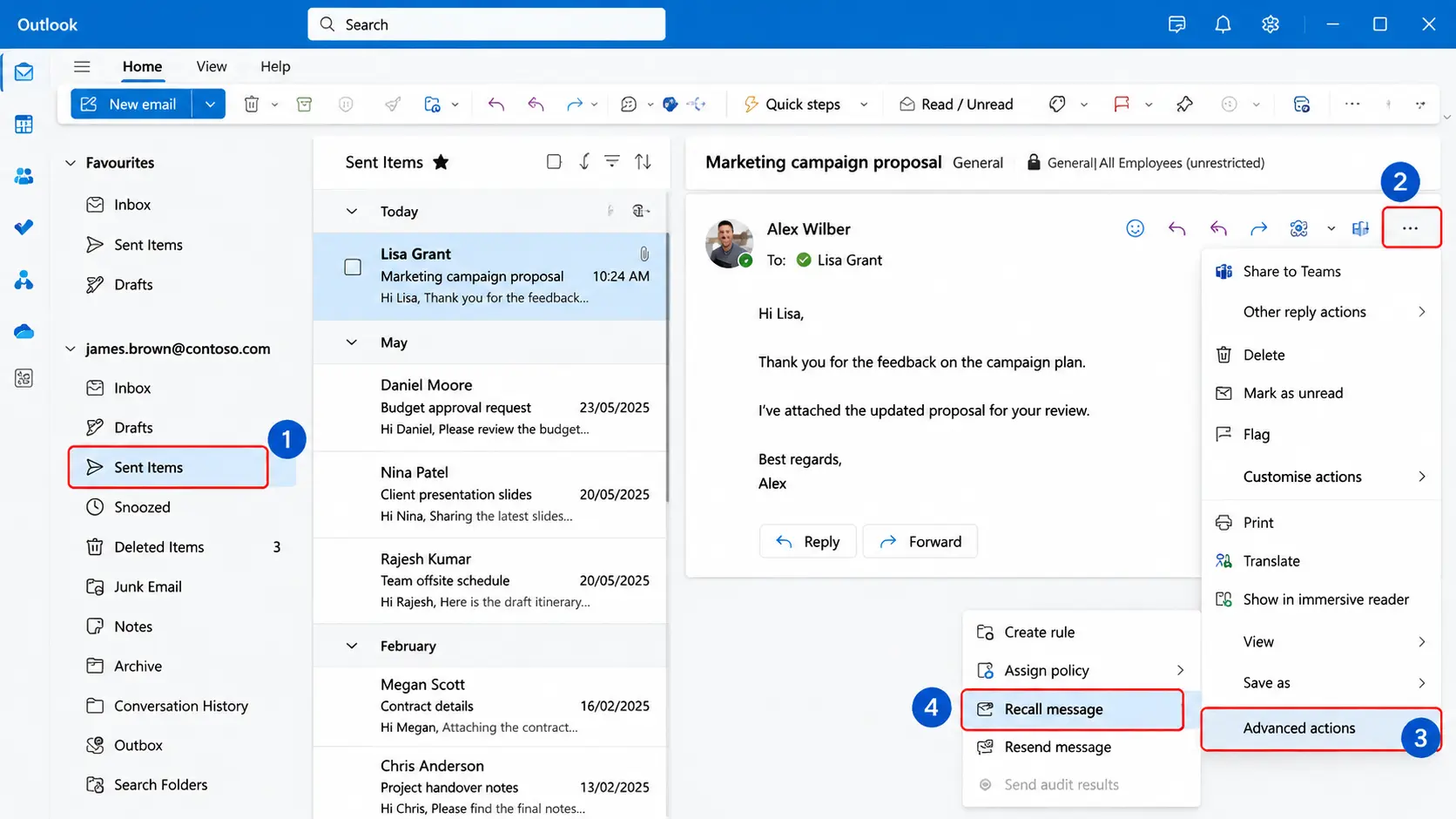
Outlook recall is most effective in specific situations. Before attempting a recall, check whether the message meets the conditions that allow Outlook to process the request successfully.
1. Recipient Uses Outlook Within the Same Organization
Recall usually works best when both people use Microsoft Exchange or Microsoft 365 accounts managed by the same organization.
For example, an employee who sends an incorrect email to a coworker using the same company Outlook system may be able to recall the message.
However, an email sent from a workplace Outlook account to a personal Gmail address usually cannot be recalled because the systems do not share mailbox control.
2. The Recipient Has Not Opened the Email Yet
The chances of recall are higher when the recipient has not opened the original message. Once someone reads the email, Outlook cannot reliably remove information they have already viewed.
Even if the email is later removed, the recipient may have already seen the content through a notification, preview pane, or connected device.
3. Both Accounts Meet Outlook Recall Requirements
A successful recall depends on several technical pieces lining up together. Both sender and recipient need supported Microsoft email services, the message needs to still be sitting in the recipient’s mailbox, and the sender needs an Outlook version that supports recall in the first place.
Microsoft Learn has more detail on how cloud-based message recall is processed behind the scenes.
Why Did My Outlook Email Recall Fail?
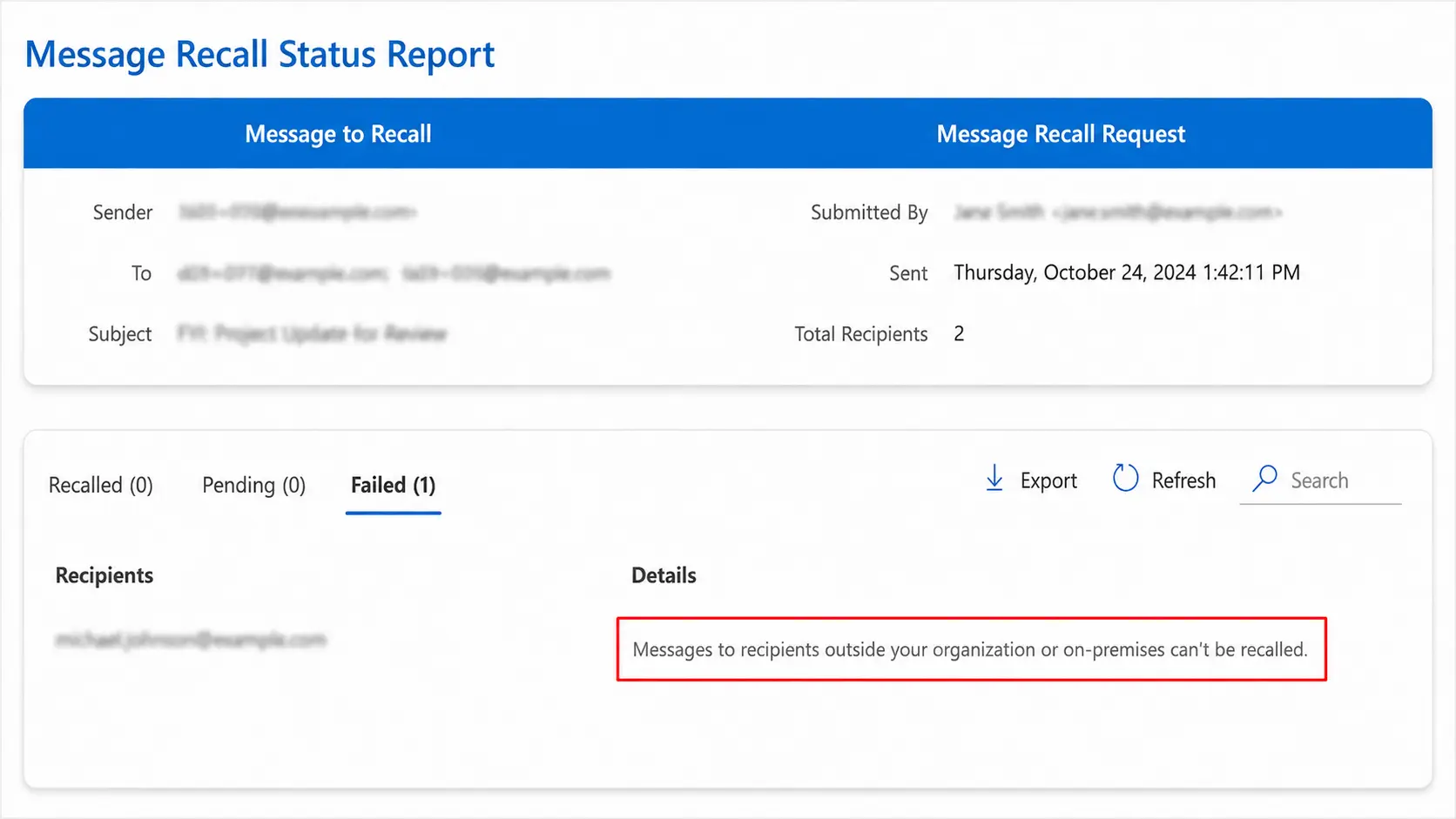
A failed recall usually happens because the email was already opened, the recipient’s account does not support recall, or the message was sent outside the required Microsoft environment.
Knowing the reason helps you choose the right solution instead of trying the recall process repeatedly.
- The Recipient Already Opened the Email: Outlook recall works best before the recipient reads the message. Once opened, the content may already be visible in Outlook, through notifications, or on connected devices.
- The Email Was Sent Outside Your Organization: Recall mainly works within the same Microsoft email environment. Messages sent to Gmail, Yahoo Mail, personal Outlook.com accounts, or other external providers usually cannot be removed after delivery.
- The Email Was Processed Automatically: Inbox rules, forwarding settings, or connected apps may process the message before Outlook completes the recall request.
- The Recall Option Is Missing: The recall option may be unavailable if you use Outlook mobile, an unsupported account, or a version that does not support recall. Checking your account type and Outlook version can help identify the issue.
Checking these common issues can help you understand why a recall failed and decide whether to send a correction message instead.
How to Check Outlook Recall Status
After requesting a recall, many users want to know if Outlook actually removed the email. The recall process does not always provide an immediate result, so checking the status report can help you understand what happened.
Outlook can send a recall notification that shows whether the attempt was successful or unsuccessful. However, a successful recall report does not always mean the recipient never saw the original email.
The result depends on several factors:
- The recipient’s mailbox status.
- Whether the message was opened.
- Whether both accounts support recall.
- Whether the original email was still available.
A recall status report is useful for confirmation, but it should not be treated as proof that the message was completely unseen.
Does Recall Work on Outlook.com?
Outlook.com personal accounts have different limitations compared with workplace Microsoft 365 or Exchange accounts. Many users assume that every Outlook email account has the same recall ability, but the feature depends on the type of mailbox being used.
For personal Outlook.com users, a sent email usually cannot be removed from another person’s inbox after delivery. In these cases, options like Undo Send or sending a correction message are more practical.
If you regularly send important work emails, using an organization-managed Microsoft 365 account may provide additional email management features.
What Can You Do If Outlook Recall Does Not Work?
When recall fails, the original email usually remains available to the recipient. The best solution depends on the type of mistake, how sensitive the information is, and how quickly you need to provide the correct details.
1. Send a Follow-Up Correction Email
A correction email is often the fastest fix after a failed recall. Briefly explain the mistake, provide the correct information, and ask the recipient to ignore the previous message. A clear follow-up prevents confusion without creating a longer email chain.
2. Ask the Recipient to Ignore the Previous Email
For minor mistakes, asking the recipient to disregard the earlier email may be enough. This works well for small errors like incorrect wording, missing details, or outdated information that does not affect the main message.
3. Use Delayed Sending to Prevent Future Mistakes
Delayed sending creates extra review time before an email reaches the recipient. This helps you catch common mistakes such as wrong recipients, missing attachments, outdated details, or typing errors before the message is delivered.
What Outlook Users Say About Email Recall Problems
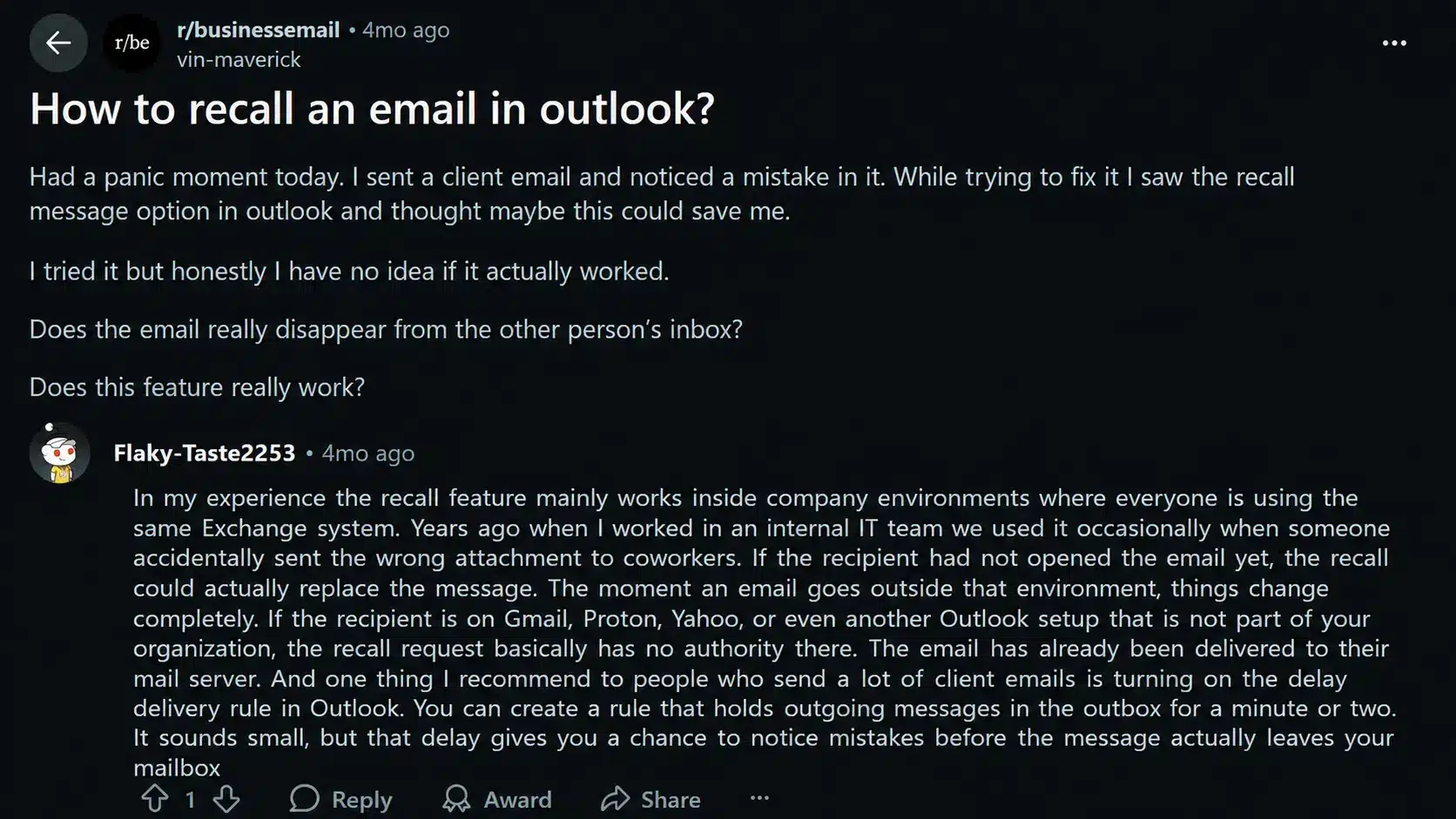
Reddit users often discuss email recall after sending messages to the wrong person, forgetting attachments, or sharing incorrect details.
Community discussions show that many users experience the same limitation: recall is more reliable for internal company emails, while messages sent outside an organization are often difficult to recover.
Users commonly recommend acting quickly, checking the recall option carefully, and waiting for the recall status notification before assuming the message was removed. Many also suggest preparing a correction email because recall is not guaranteed once a message has been delivered.
The main takeaway from user discussions is practical: try recall immediately when the conditions support it, but be ready to clarify the mistake if the original email remains visible.
Tips to Avoid Needing Email Recall in Outlook
Most email mistakes can be prevented with a quick review before sending. Building a simple checking habit is especially useful for workplace messages, client communication, and emails containing attachments.
Use this checklist before clicking Send:
- Confirm the recipient name and email address.
- Check that all attachments are included.
- Review important dates, numbers, and details.
- Read the subject line once more.
- Use delayed delivery for sensitive emails.
- Enable Undo Send when available.
These steps reduce the situations where you need to rely on recall after an email has already been delivered.
Outlook Email Recall vs Undo Send: Key Differences
Recall and Undo Send solve different email problems. Recall is designed for situations where the message has already been sent, while Undo Send gives you a short chance to stop the email before delivery.
| Situation | Recall Email | Undo Send |
|---|---|---|
| You noticed the mistake after sending | Useful if recall conditions are met | Not available after delivery |
| You want to stop an email before it leaves | Not designed for this | Best option |
| The recipient uses the same company Outlook system | More likely to work | Not required |
| The recipient has already opened the email | Usually cannot remove it | Not applicable |
| Best suited for | Fixing certain workplace email mistakes | Preventing mistakes before sending |
If you catch the mistake immediately, Undo Send gives you the quickest chance to stop the message. If the email has already reached the recipient, Recall may help only in supported situations.
Final Note
Email mistakes can happen even after careful review, but Outlook provides a few ways to reduce their impact. Understanding how to recall an email in Outlook helps you decide when a recall request is worth trying and when a correction message is the better solution.
Checking recipients, attachments, and important details before sending can prevent many avoidable errors. Tools like Undo Send and delayed delivery provide extra time to review messages before they reach another inbox.
By using these options wisely and knowing their limits, you can handle sent email mistakes more effectively and improve your overall email workflow. Try adjusting your Outlook settings today to create a safer sending process.
Frequently Asked Questions
Can Someone See a Recall Request in Outlook?
Yes, recipients may see a recall notification depending on their Outlook settings and mailbox configuration. The notification does not always mean the original email was removed successfully.
Does Recalling an Email Remove Attachments?
No, recalling an email does not guarantee attachment removal. If the recipient already opened or downloaded the attachment, the recall process cannot undo that access.
How Long Does Outlook Recall Take?
Outlook recall timing depends on mailbox conditions, server processing, and account compatibility. Some requests complete quickly, while others may take longer before a recall status notification appears.
Can I Recall Multiple Emails in Outlook?
Yes, you can request recalls for multiple messages separately. Each recall attempt is processed individually and depends on whether that specific email meets Outlook’s recall requirements.
Does Outlook Recall Work If the Email Is Unread?
Yes, Outlook recall has a better chance of working when the email is still unread. The feature attempts to remove or replace an unread copy, but success also depends on account compatibility and mailbox settings.