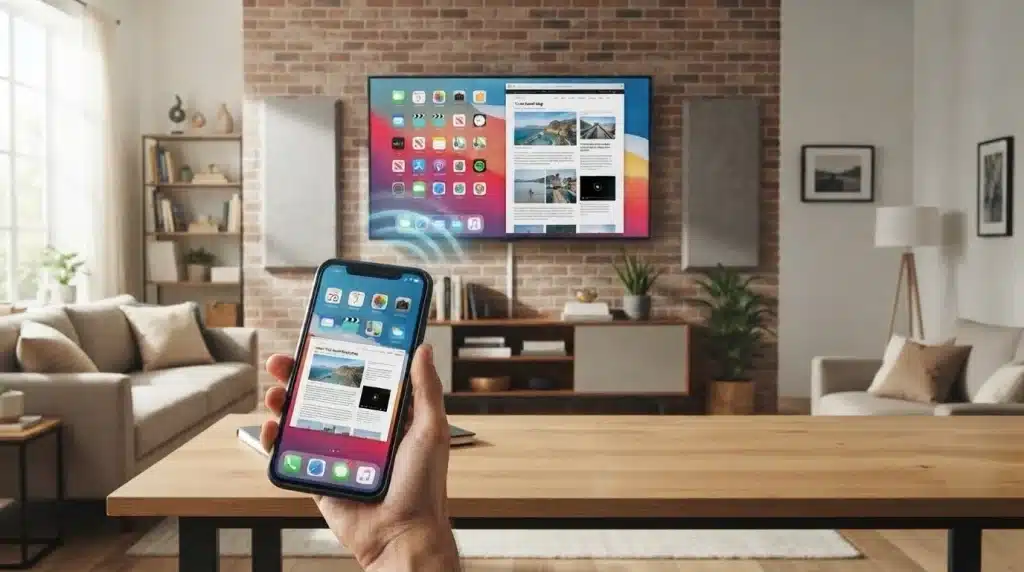
Have you ever wanted to share your phone screen on a TV or monitor without moving files or connecting multiple cables?
Screen mirroring lets you display everything from your smartphone, tablet, or computer on another screen in real time. It can make watching videos, viewing photos, playing games, and sharing presentations much easier.
Many devices now offer built-in screen mirroring features, while apps can help connect devices that need extra support.
Understanding how this technology works and the available connection options can help you choose the right way to share your screen.
What is Screen Mirroring?
Screen mirroring is a technology that allows one device’s display to appear on another screen in real time.
It creates a duplicate view of the original device, showing exactly what appears on the source screen without requiring manual file transfers.
When screen mirroring is active, users can view apps, photos, videos, presentations, websites, and notifications on a larger display such as a TV or monitor.
For example, a smartphone screen can be shown on a television so others can watch the same content at the same time. Unlike sharing individual files, screen mirroring displays the complete device interface as it appears on the original screen.
Benefits of Screen Mirroring
Screen mirroring has become a practical feature for both personal and professional use. It makes sharing content across devices faster and more convenient without transferring files.
- Watch on a larger screen: View photos, videos, and mobile apps on a TV or monitor for a better viewing experience.
- Share content instantly: Display your phone, tablet, or laptop screen in real time without copying or sending files.
- Support work and presentations: Present documents, slides, and reports directly from your device during meetings.
- Improve classroom learning: Allow teachers and students to share lessons, assignments, and projects with the entire class.
- Enhance entertainment: Enjoy movies, games, and streaming content with friends and family on a larger display.
- Connect multiple devices easily: Create a seamless experience across smartphones, laptops, tablets, and smart TVs for work, learning, or everyday use.
Devices That Support Screen Mirroring
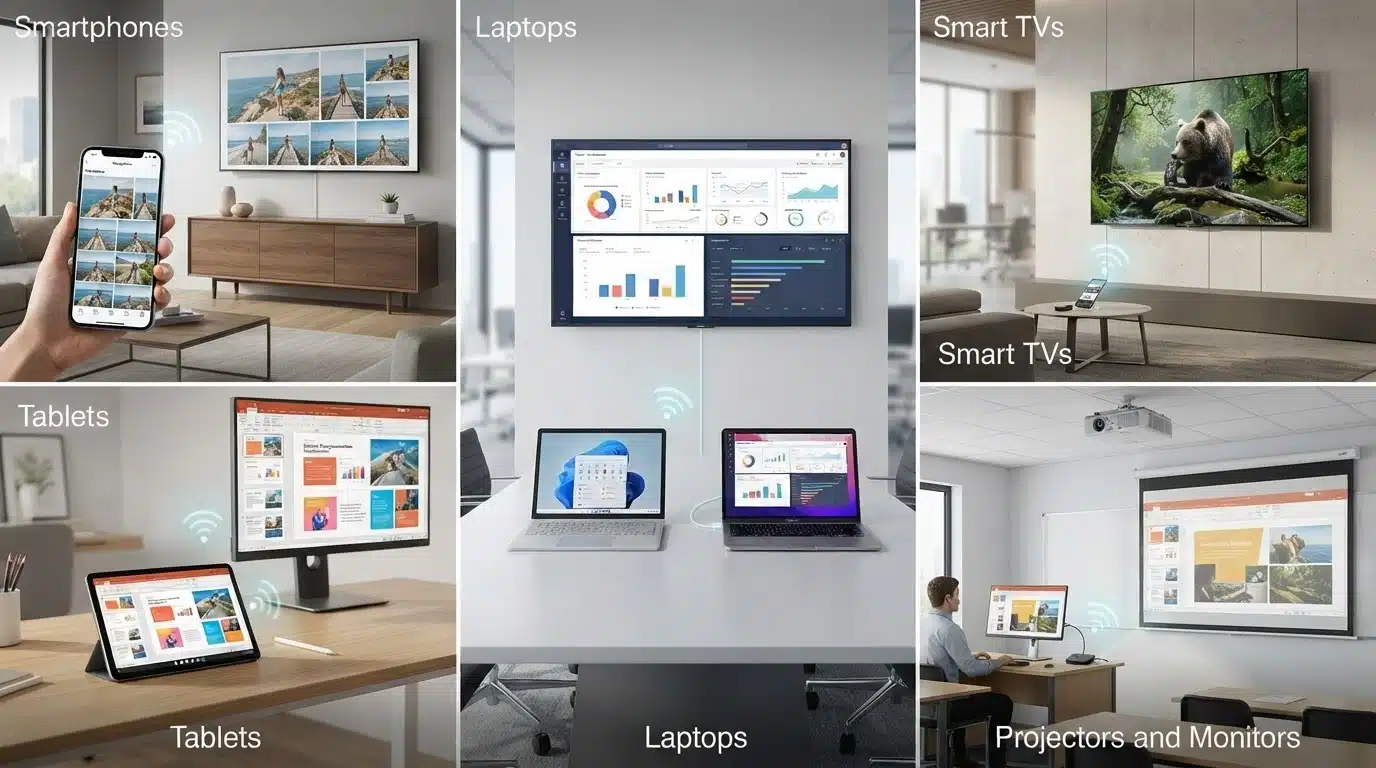
Screen mirroring works across many modern devices, but compatibility depends on the hardware and the technologies supported. Common devices that support screen mirroring include:
| Device | Screen Mirroring Support | Common Use |
|---|---|---|
| Smartphones | Most Android phones and iPhones support built-in screen mirroring or compatible apps. | Share photos, videos, games, and apps on a larger display. |
| Tablets | Android tablets and iPads can mirror their screens to compatible displays. | Present documents, stream videos, or view content on a larger screen. |
| Laptops | Windows PCs and Macs support screen mirroring through built-in or compatible technologies. | Present slides, share documents, or extend entertainment to larger displays. |
| Smart TVs | Many smart TVs support AirPlay, Google Cast, Miracast, or similar technologies. | Display content from phones, tablets, and computers wirelessly. |
| Projectors and Monitors | Many modern projectors and wireless-enabled monitors support screen mirroring. | Classroom lessons, business presentations, and conference meetings. |
Before connecting, ensure both devices support the same screen mirroring technology or require a compatible app or adapter.
Note: Screen mirroring availability can vary by device model, operating system, and manufacturer. Always check the supported features before choosing a connection method.
How Does Screen Mirroring Work?
Screen mirroring works by sending the display information from a source device, such as a phone or laptop, to a receiving device like a TV or monitor. The source device captures what appears on the screen and continuously transmits it, allowing the second display to show the same content in real time.
Wireless Screen Mirroring
Wireless screen mirroring uses wireless connections to share content without physical cables. The devices usually need to support the same technology to establish a connection.
Common wireless methods include:
- Wi-Fi connection: Devices connect through a wireless network to transfer screen content between the source device and the display.
- Same network requirement: Many wireless mirroring methods require both devices to be connected to the same Wi-Fi network.
- Wi-Fi Direct: Allows devices to connect directly without relying on a shared internet connection.
- Wireless display standards: Technologies such as AirPlay, Miracast, and Google Cast help devices communicate and share screens.
Popular wireless technologies include:
- AirPlay: Apple’s screen-sharing technology used with iPhones, iPads, Macs, and compatible TVs.
- Miracast: A wireless display standard commonly used with Android devices and Windows computers.
- Google Cast: Google’s technology that allows Android devices and Chrome browsers to share content with compatible displays.
Wireless mirroring is convenient for everyday tasks like watching videos, sharing photos, or presenting information. However, connection quality may depend on network strength and device compatibility.
Wired Screen Mirroring
Wired screen mirroring uses physical connections to send display signals between devices. It is often preferred when users need a more stable connection with less delay.
Common wired options include:
- HDMI cables: Connect devices directly to TVs, monitors, or projectors for reliable screen sharing.
- USB-C to HDMI adapters: Allow modern smartphones, tablets, and laptops with USB-C ports to connect to external displays.
- Lower delay: Wired connections usually provide faster response times, making them useful for gaming or interactive tasks.
- Stable connection: A direct cable connection can reduce interruptions during presentations, meetings, or long viewing sessions.
Wired mirroring is a practical choice when wireless connections are unavailable or when consistent performance is more important than convenience.
Screen Mirroring vs Casting: Key Differences
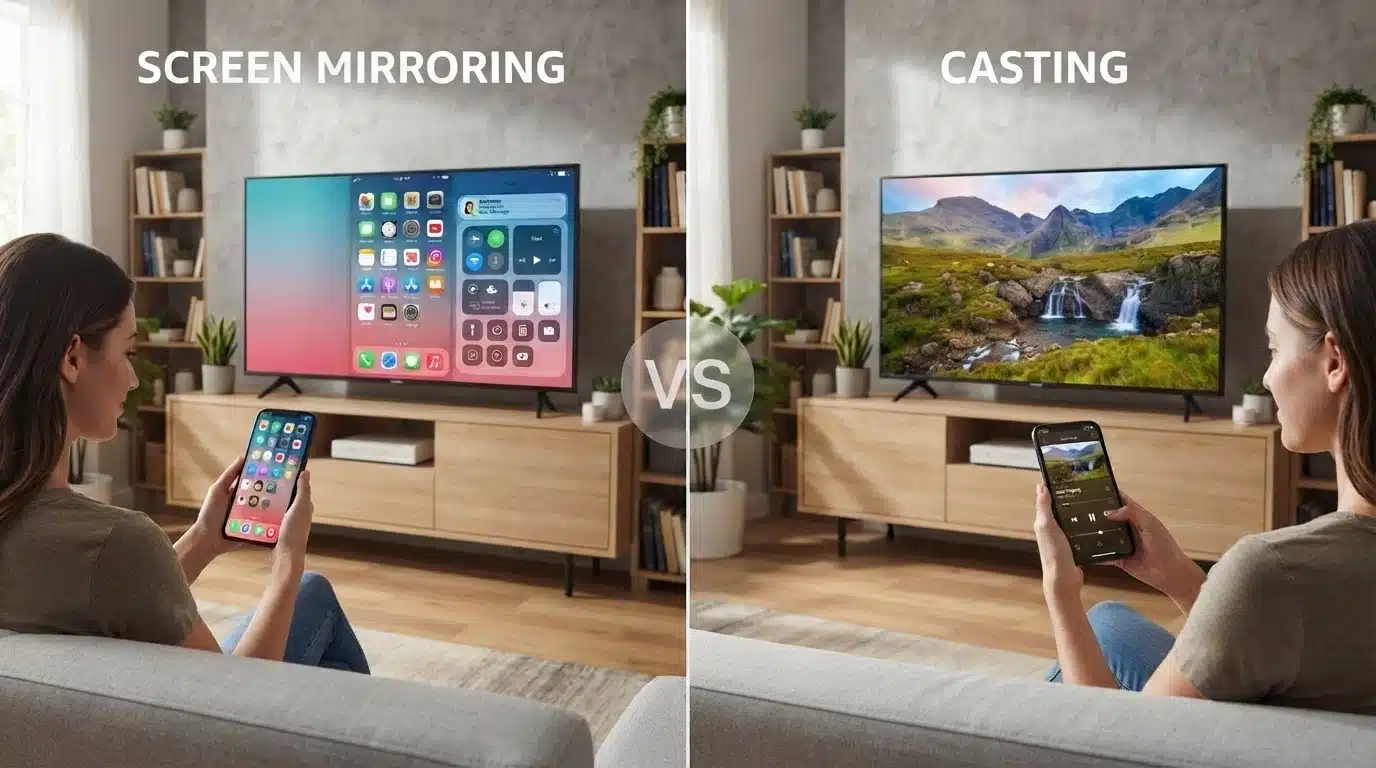
Screen mirroring and casting are often used interchangeably because both allow users to view content on a larger display.
However, they work differently. Screen mirroring shows the complete screen of your device, while casting sends specific content, such as a video or song, to another device for playback.
| Feature | Screen Mirroring | Casting |
|---|---|---|
| Display | Shows the full device screen | Shows selected content only |
| Control | Controlled from the source device | Controlled by the app or receiving device |
| Content | Apps, settings, notifications, and screen activity | Videos, music, and supported media |
| Device Usage | The device stays active during sharing | The device can be used for other tasks |
| Best For | Presentations, gaming, and demonstrations | Streaming videos and music |
| Connection | Can use Wi-Fi Direct or a local connection | Usually uses internet-based streaming |
| Performance | May use more battery and have a slight delay | Smoother playback for supported content |
Screen mirroring is ideal for sharing your full device screen during presentations, classes, gaming, or app demonstrations.
Casting works better for streaming videos, music, and other media while keeping your device free for other tasks. The right choice depends on whether you need to display everything on your screen or only specific content.
Screen Mirroring Technologies and Setup Methods
Different screen mirroring technologies allow devices to share content with compatible displays. The best option depends on your device type and the supported connection method.
1. AirPlay
AirPlay is Apple’s wireless screen-sharing technology that allows users to mirror screens or stream content from Apple devices to compatible displays. It works over a wireless connection and is commonly used to share photos, videos, presentations, and device screens.
- Supported devices: iPhone, iPad, Mac, Apple TV, and AirPlay-compatible smart TVs.
- Best for: Sharing Apple device screens, media, and presentations on larger displays.
2. Miracast
Miracast is a wireless display standard that creates a direct connection between devices without requiring an internet connection. It allows users to mirror Android phones or Windows PCs to compatible TVs, monitors, and projectors.
- Supported devices: Android devices, Windows PCs, and Miracast-compatible TVs or monitors.
- Best for: Wireless screen sharing, presentations, and displaying content without cables.
3. Chromecast and Google Cast
Chromecast and Google Cast allow users to send supported content from devices to compatible displays. It works with apps, browsers, and Google devices to stream videos, music, and other media on larger screens.
- Supported devices: Android phones, Chrome browsers, Google TV, and Chromecast devices.
- Best for: Streaming videos, music, and supported online content.
4. Samsung Smart View
Samsung Smart View is Samsung’s built-in screen-sharing feature that connects Galaxy devices with compatible Samsung TVs. It allows users to display phone content on a larger screen without additional cables or accessories.
- Supported devices: Samsung Galaxy smartphones and Samsung smart TVs.
- Best for: Viewing photos, videos, apps, and presentations on a TV.
Choosing the right screen mirroring technology depends on device compatibility. Before connecting, check that both devices support the same standard or require a compatible app for screen sharing.
Best Screen Mirroring Apps and Troubleshooting Tips
Choosing the right screen mirroring tool depends on your device, operating system, and the type of display you want to connect. Built-in options often provide the simplest experience, while third-party apps can help when devices need extra compatibility.
| App/Tool | Best for | Compatible Devices |
|---|---|---|
| AirPlay | Apple users | iPhone, iPad, Mac, Apple TV, AirPlay-compatible TVs |
| Google Home | Android casting | Android devices, Chromecast, Google TV |
| Smart View | Samsung devices | Galaxy phones and Samsung TVs |
| Third-party apps | Extra compatibility | Multiple devices and platforms |
These tools offer different features based on the devices they support. Checking compatibility before installation can help avoid connection issues.
Common Screen Mirroring Problems
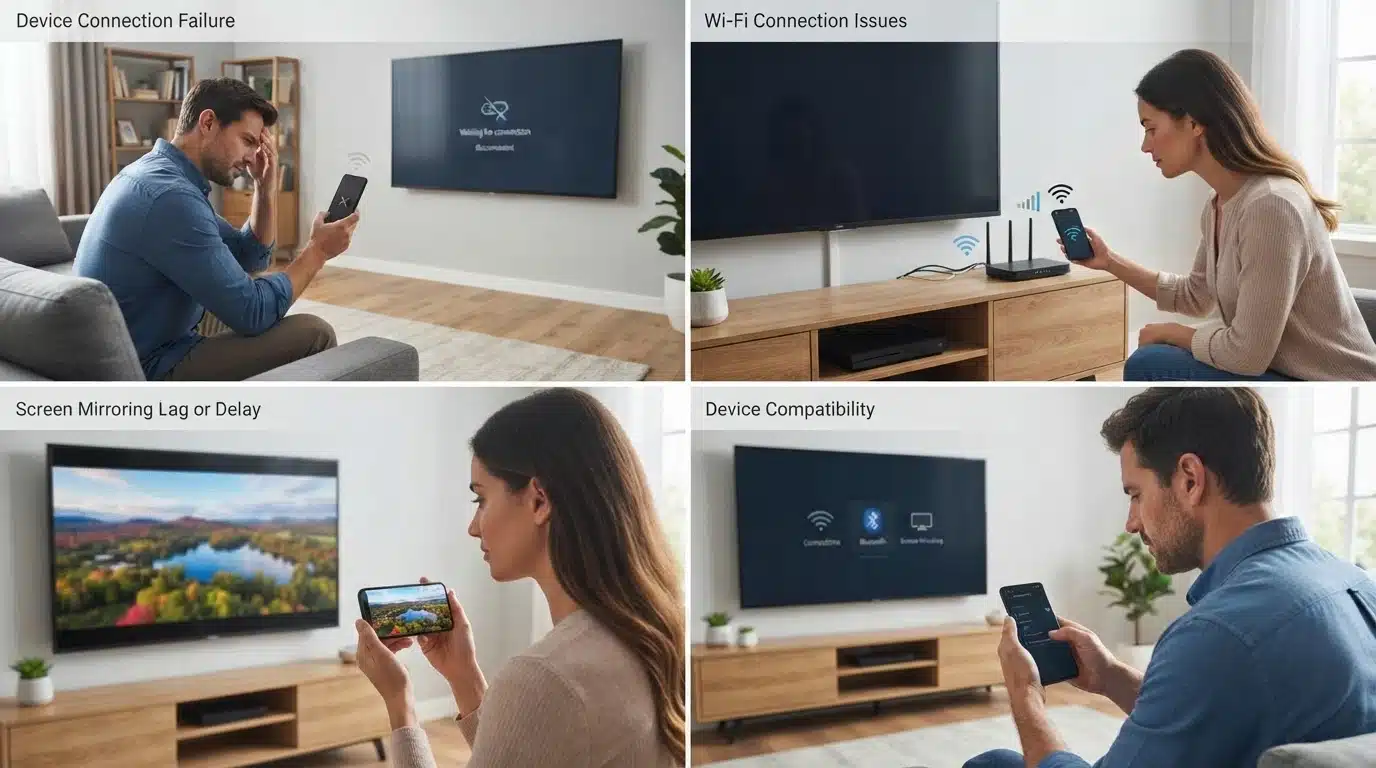
Even with the right app or built-in feature, screen mirroring may fail due to connection settings, network issues, or device compatibility issues. Most problems can be fixed with a few basic checks.
Device Not Connecting
Connection issues often happen due to compatibility or network settings. Try these fixes:
- Check device compatibility.
- Restart connected devices.
- Ensure both devices use the same Wi-Fi network.
Screen Lag or Delay
Screen delays are usually caused by weak connections or heavy network usage. Try:
- Improving Wi-Fi strength.
- Reducing connected devices.
- Using an HDMI connection for lower delay.
No Audio During Screen Mirroring
If the video works but the sound does not, check:
- TV or display volume settings.
- Correct audio output selection.
- App support for audio sharing.
Connection Drops Frequently
Frequent disconnections may result from software or network issues. Try:
- Updating devices and apps.
- Restarting the router.
- Reconnecting the devices.
Using the right screen mirroring tool and checking basic settings can help prevent most connection problems. Keep devices compatible and up to date for a smoother experience.
Is Screen Mirroring Safe and Worth Using?
Yes, screen mirroring is generally safe when used with trusted devices and secure connections. It allows convenient sharing between devices, but users should follow basic safety practices to protect their privacy and data.
Follow these steps to keep screen mirroring secure:
- Connect only trusted devices: Pair your phone, laptop, or tablet only with devices you recognize.
- Avoid unknown connections: Do not accept screen mirroring requests from unfamiliar TVs, computers, or displays.
- Be careful on public Wi-Fi networks: Avoid sharing sensitive information when connected to unsecured networks.
- Review device permissions: Check connection settings and remove access for devices you no longer use.
Keeping screen mirroring secure requires using trusted devices, safe networks, and regularly checking connection permissions.
Is Screen Mirroring Right for You?
Screen mirroring is a useful feature for entertainment, work, and learning. It makes it easier to share videos, photos, presentations, and apps on a larger display without transferring files. The best method depends on the devices you use:
- iPhone user: Use AirPlay for Apple devices.
- Android user: Use Cast or Miracast depending on device support.
- Windows user: Use Wireless Display for compatible screens.
- No wireless support: Use an HDMI adapter for a direct connection.
When the right method is chosen, screen mirroring can provide a simple way to share content across devices.
Final Thoughts
Screen mirroring makes sharing content from phones, tablets, and computers on larger displays simple without the need to transfer files between devices.
Understanding how it works, the available technologies, setup options, apps, common issues, and safety practices can help users choose the right way to connect their devices.
The best screen mirroring method depends on the device, connection type, and purpose. Built-in features like AirPlay, Google Cast, and Smart View often provide the easiest experience when devices support them.
Have you tried screen mirroring before? Share your preferred method or device setup in the comments below.
Frequently Asked Questions
Can Screen Mirroring Work without Installing an App?
Yes, many devices have built-in screen mirroring features like AirPlay, Cast, or Smart View, so additional apps may not be required.
Does Screen Mirroring Use Mobile Data?
Usually, screen mirroring uses a local Wi-Fi connection or direct connection between devices, not mobile data, unless streaming online content.
Can I Screen Mirror to a TV that Is Not Smart?
Yes, you can use devices like Chromecast, HDMI adapters, or streaming sticks to add screen mirroring support to older TVs.
Why Does Screen Mirroring Reduce Battery Life?
Screen mirroring uses continuous wireless communication and screen activity, which can increase battery usage on the source device.