Ever copied something and then could not find it again? Finding copied text or images is easy once you know where the clipboard is stored.
On Android phones, Samsung Galaxy devices, and Windows computers, clipboard access depends on the keyboard or system settings.
This guide explains how to open clipboard history, manage saved items, and clear content when needed. You will also learn why the clipboard may not appear, how to enable history, and how to use copied content more efficiently across devices.
With the right steps, you can quickly view recent entries and keep important text ready for reuse on any device whenever you need it.
Where Is My Clipboard?
The clipboard is not stored in a visible folder on your device. Instead, it works as a temporary space that keeps recently copied text, links, and supported images until you paste or replace them.
- On Android phones, the clipboard is usually available through Gboard or Samsung Keyboard.
- On Samsung devices, it can be opened from the keyboard toolbar or the three-dot menu while typing.
- On Windows computers, clipboard history is available by pressing Windows + V after enabling it in Settings > System > Clipboard.
Knowing where your clipboard is makes it easier to find copied items and reuse them without copying them again.
How to Access the Clipboard on Android with Gboard?
Most Android phones outside the Samsung Galaxy line run Gboard, Google’s default keyboard, and its clipboard works a little differently from Samsung’s version.
- Open the clipboard: Tap any text field to bring up Gboard, then tap the Clipboard icon at the top of the keyboard.
- Turn on clipboard history: If the panel is empty, open Gboard Settings, tap Clipboard, and switch on Clipboard History.
- Paste a saved item: Tap any entry in the clipboard panel to paste it into the active text field.
- Pin an item: Touch and hold an entry, then choose Pin to keep it available. Unpinned items clear automatically after about an hour.
How to Access the Clipboard on a Samsung Phone?
This guide explains how to find and use the clipboard on a Samsung phone, using Samsung Keyboard settings and built-in tools to efficiently manage copied text and history.
Step 1: Open Settings and Go to System Options
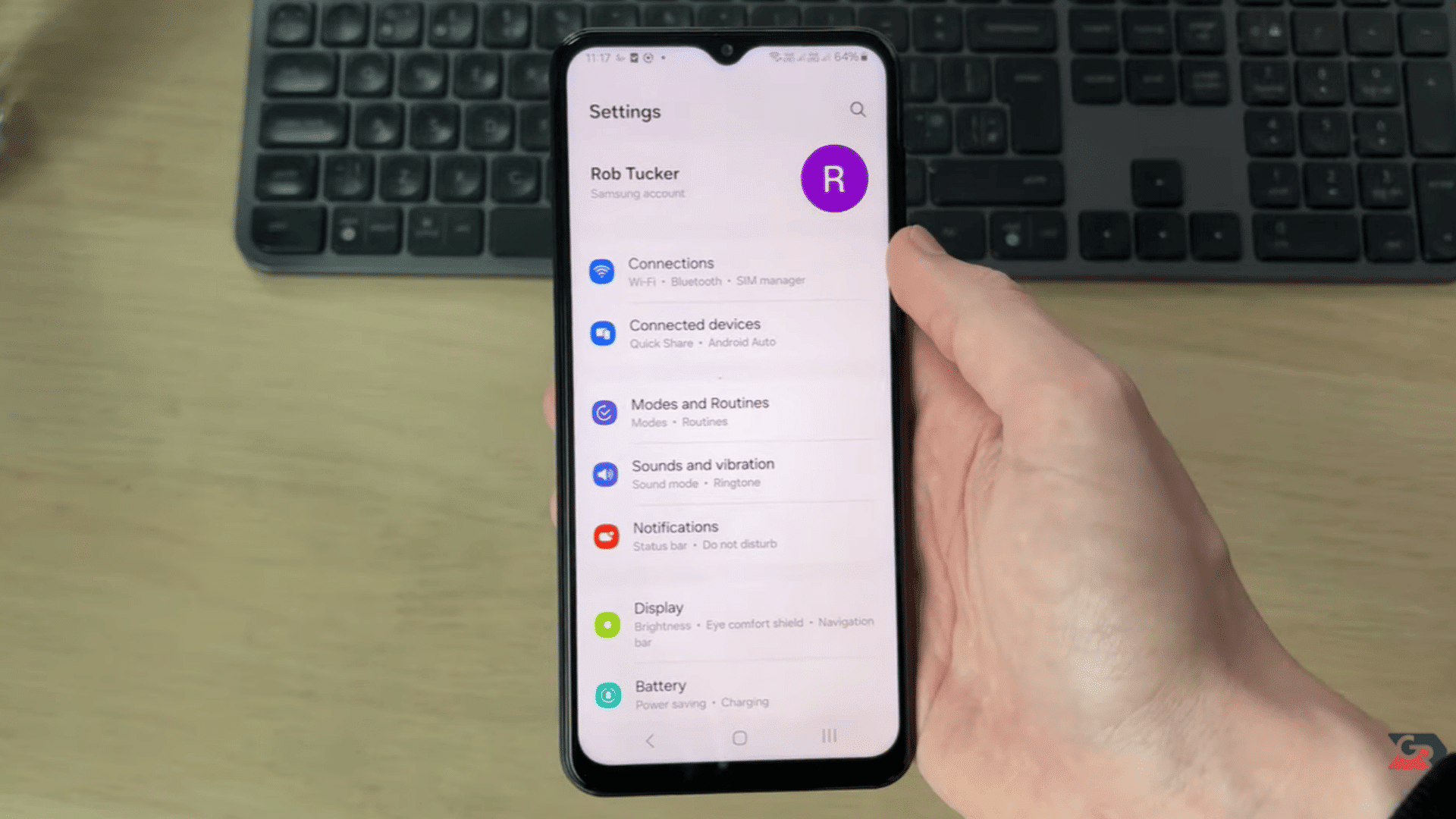
Start by opening the Settings app on a Samsung phone from the home screen or app drawer. Scroll down and tap General Management.
Where language, keyboard, input, and system controls are available. This section manages all typing-related features on the device. It is important because of clipboard settings.
And Samsung Keyboard configuration is controlled here, making it the essential first step toward enabling full clipboard access for users on the phone system.
Step 2: Open Keyboard List and Default Settings
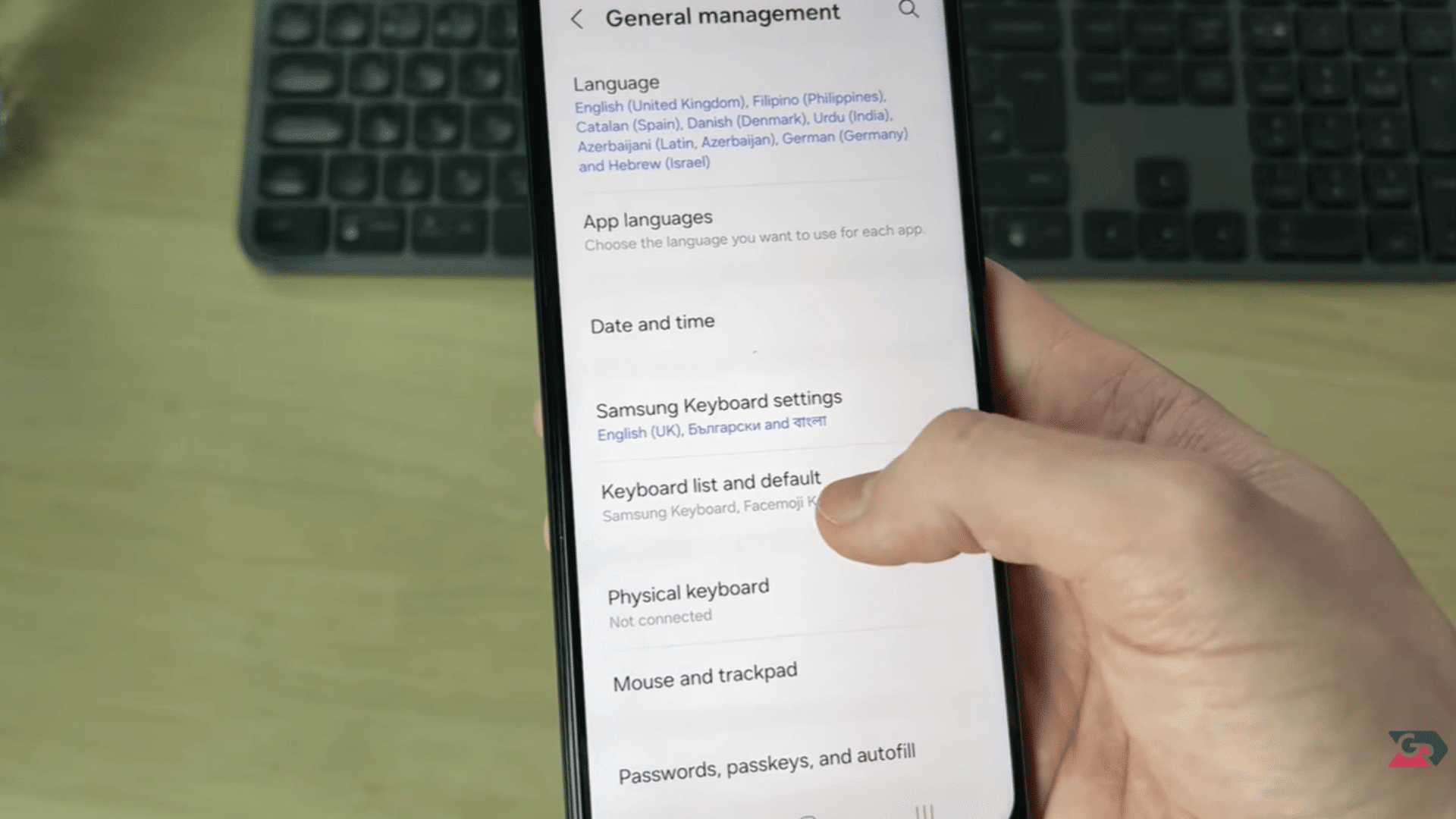
Inside General Management, tap Keyboard List and Default to manage input methods. Ensure Samsung Keyboard is selected as the default keyboard for proper functionality across all apps.
If multiple keyboards are installed, choose Samsung Keyboard to access full features. You can also use the search bar in settings to quickly locate this option.
This step ensures that all clipboard tools and keyboard-based features work correctly across typing fields and applications.
Step 3: Enable Keyboard Toolbar
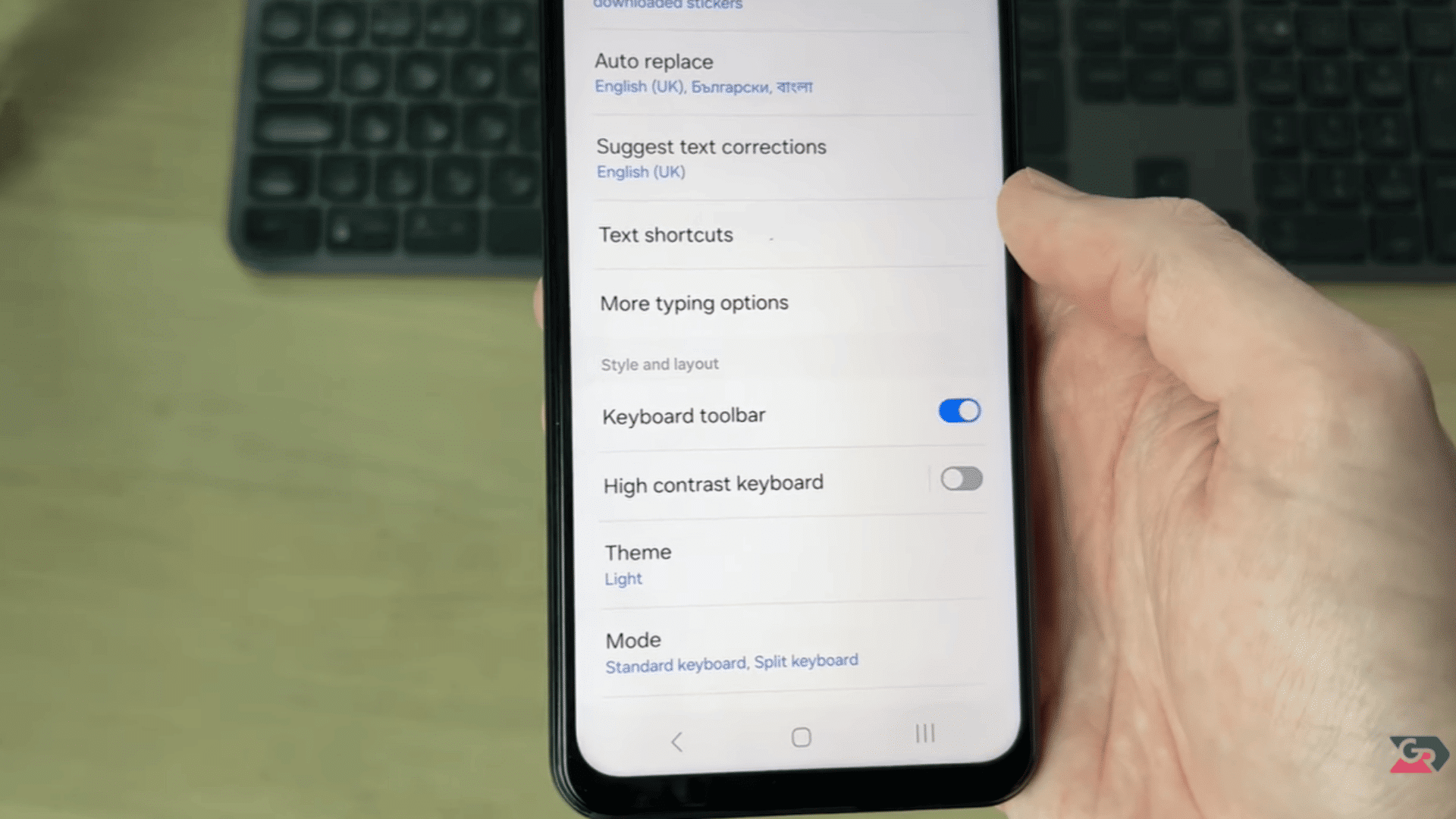
Open Samsung Keyboard settings and enable the Keyboard Toolbar option if it is turned off. This toolbar appears above the keyboard while typing and provides quick access to useful tools.
Such as the clipboard, emojis, and settings. Activating it is important because the clipboard icon is usually located in this toolbar area.
Once enabled, it improves accessibility and makes switching between tools faster, smoother, and more convenient during everyday messaging and typing tasks.
Step 4: Open Any App and Activate the Keyboard
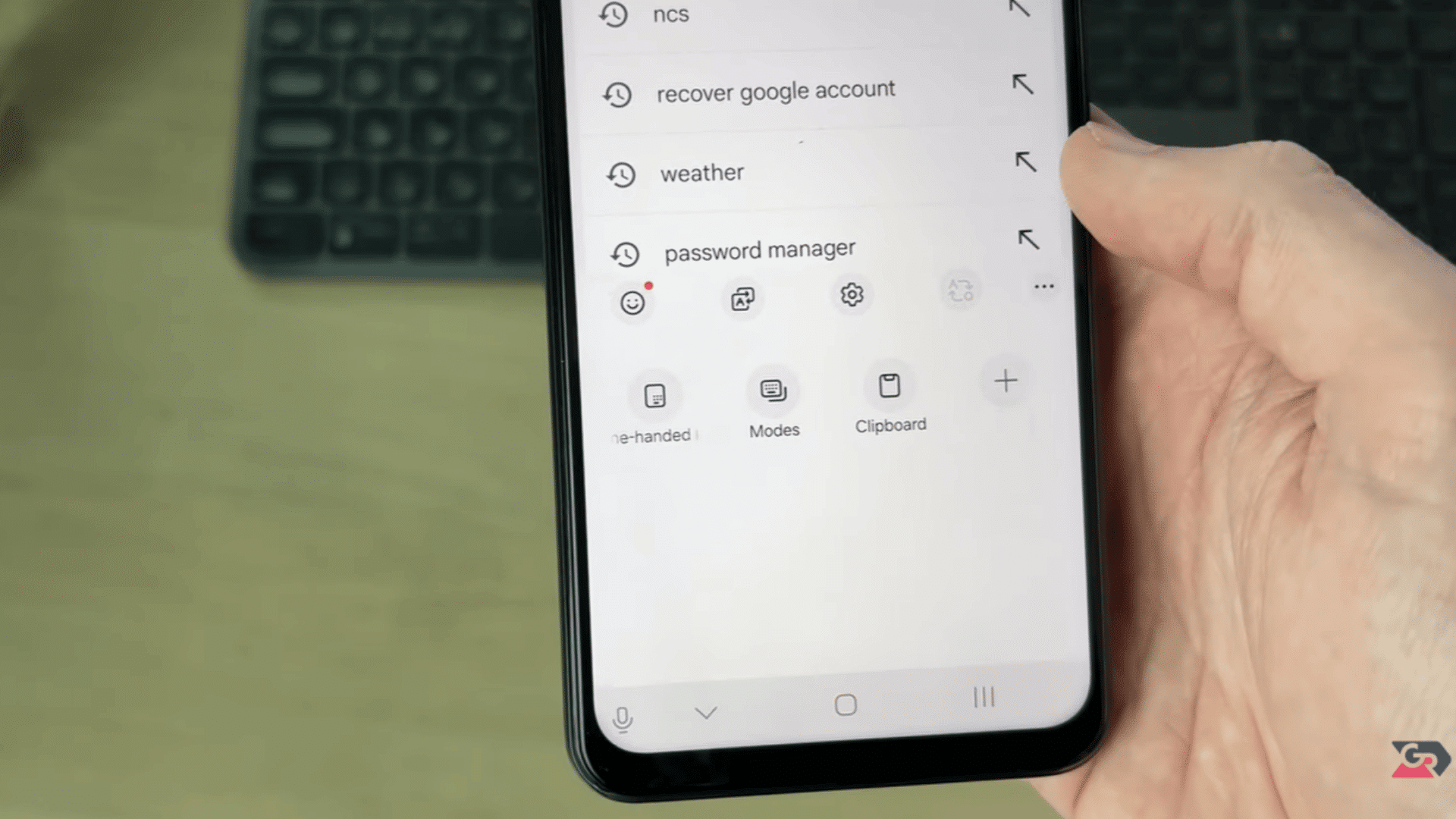
Launch any app that requires typing, such as Messages, Chrome, or Notes. Tap inside the text field to activate the Samsung Keyboard on the screen.
Once the keyboard appears, check the toolbar area at the top or side of the keyboard.
This is where tools like the clipboard, emojis, and shortcuts are located.
This step ensures that clipboard features become visible and accessible during normal typing usage across apps and services.
Step 5: Open Clipboard and View History
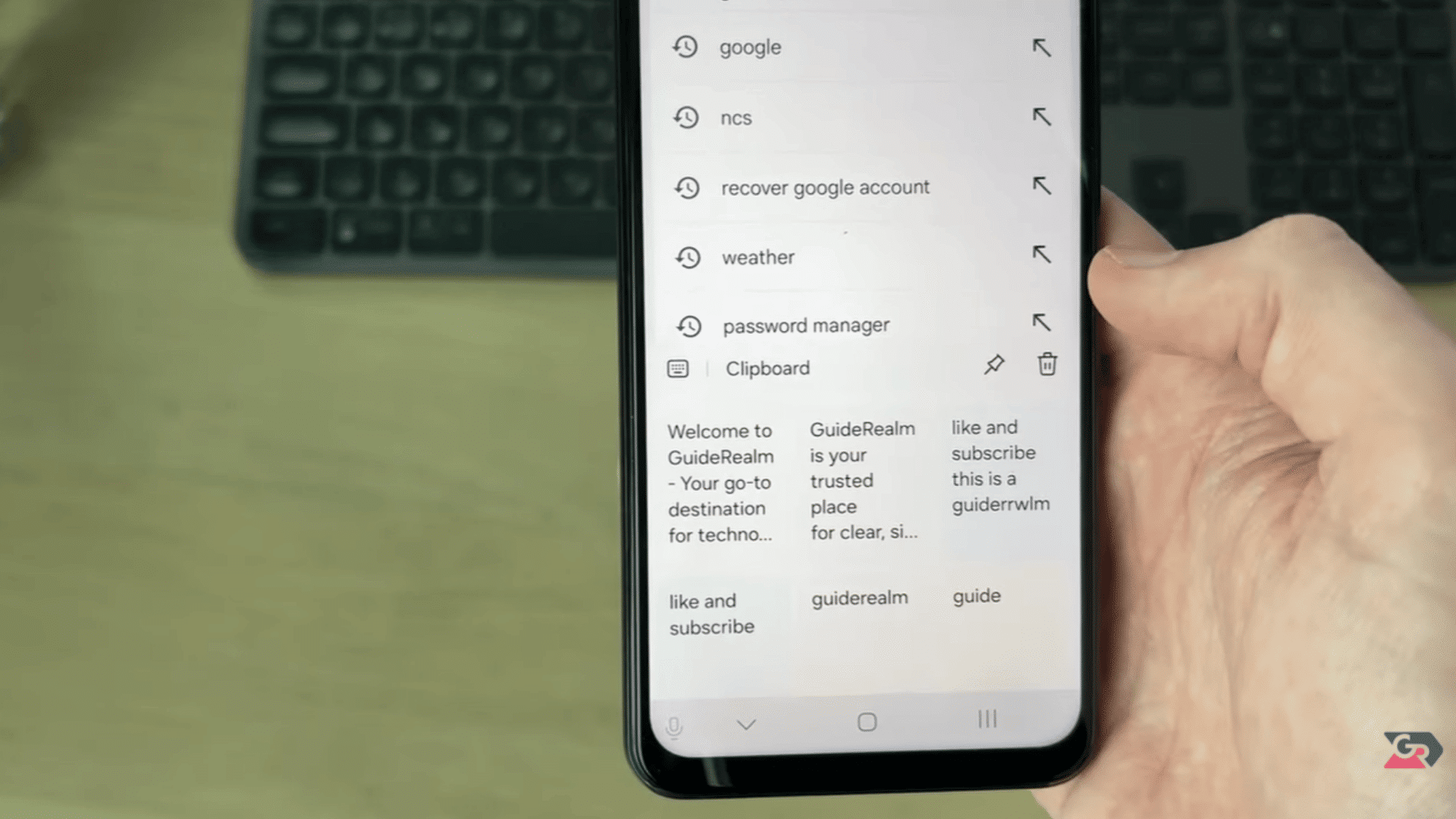
Tap the three-dot menu or clipboard icon in the Samsung Keyboard toolbar to open clipboard history. A list of recently copied items such as text and links. And supported content will appear on the screen.
Tap any item to paste it instantly into the active text field without repeating the copy process.
You can also pin important entries so they remain saved even after copying new content for later reuse.
This guide is based on the YouTube tutorial “How to Find Clipboard on Samsung Phone,” which demonstrates practical steps for accessing and using clipboard features on Samsung devices.
How to Manage Clipboard History?
Managing clipboard history helps you control copied content, improve privacy, and keep frequently used text easily accessible across apps and devices.
- Save Items: Pin important copied text or links to keep them available later.
- Delete Entries: Remove unwanted clipboard items to keep history clean and organized.
- Clear History: Manually erase all clipboard data for better privacy control.
- Auto Clear Option: Some devices allow automatic deletion after a set time or restart.
- Organize Usage: Regularly manage clipboard content to improve speed and productivity during daily copying and pasting.
How to See Clipboard History on Windows?
Windows provides a built-in clipboard history feature that lets users view, manage, and reuse previously copied text, links, and images for better productivity.
Step 1: Opening Windows Search Bar
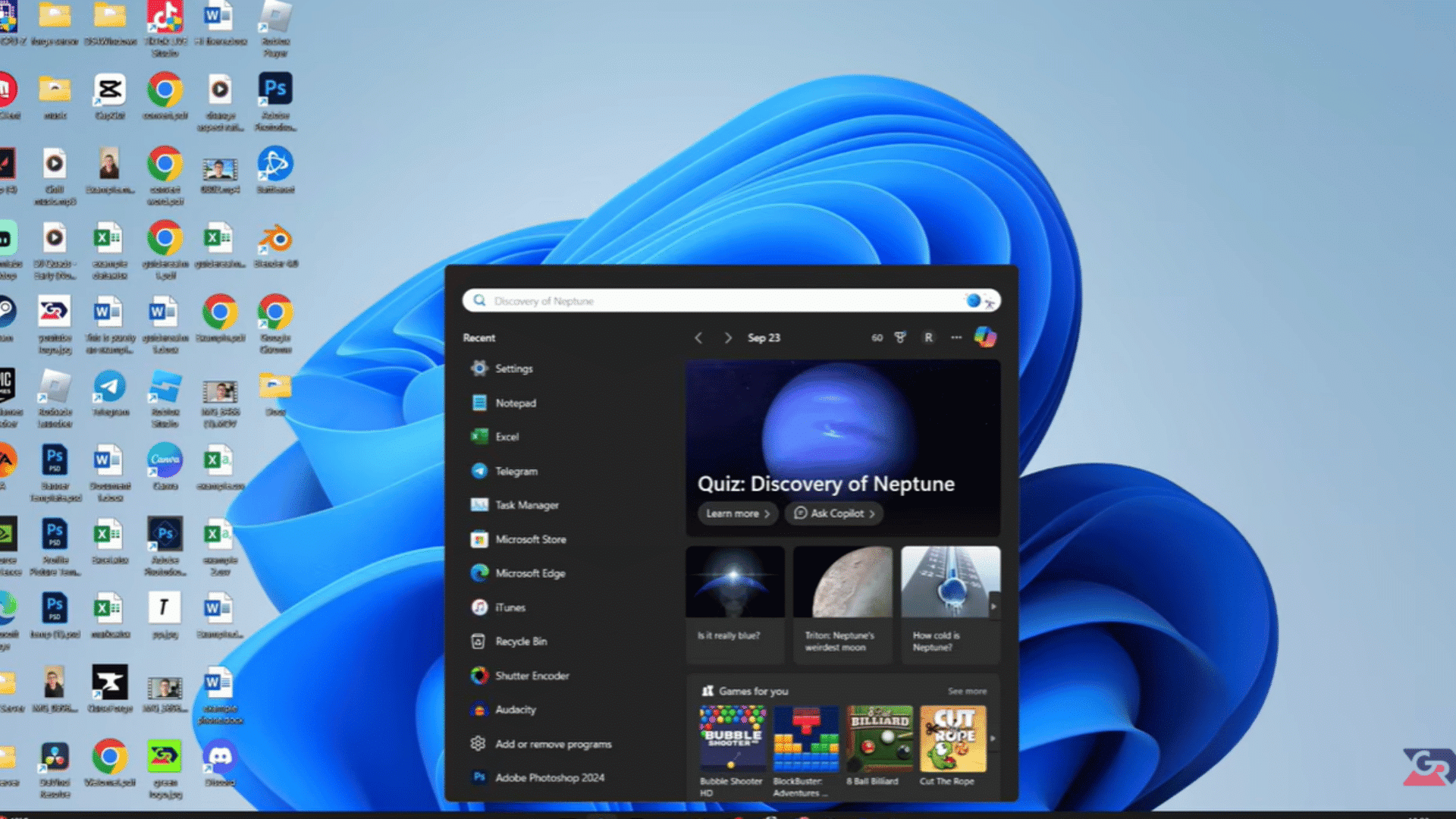
A Windows 11 or Windows 10 desktop is shown with the taskbar at the bottom of the screen. The user clicks on the Search icon and types “Settings” in the search box.
The interface clearly highlights the search field, showing how to begin accessing system settings.
The background shows a clean desktop environment, and the focus is on the first step in navigating to clipboard settings via Windows search.
Step 2: Navigating to System Settings
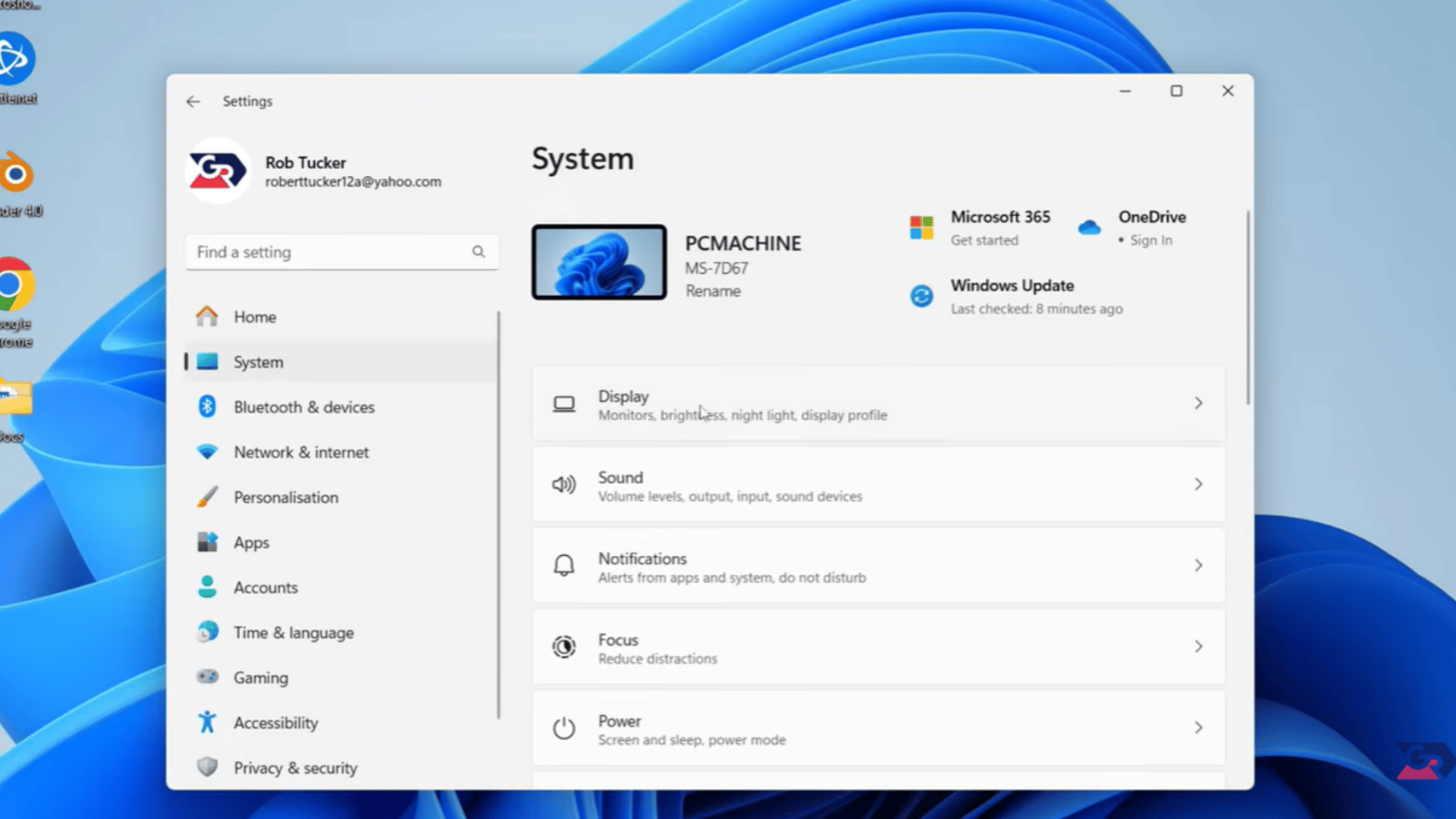
The Windows Settings window is open on the screen with a clean layout. On the left sidebar, the System option is highlighted to show where users need to click.
The interface shows a modern Windows design with categories listed vertically. The visual emphasizes navigation from Settings to the System section.
Helping users understand how to configure the clipboard step by step in the Windows Settings panel.
Step 3: Finding Clipboard Settings
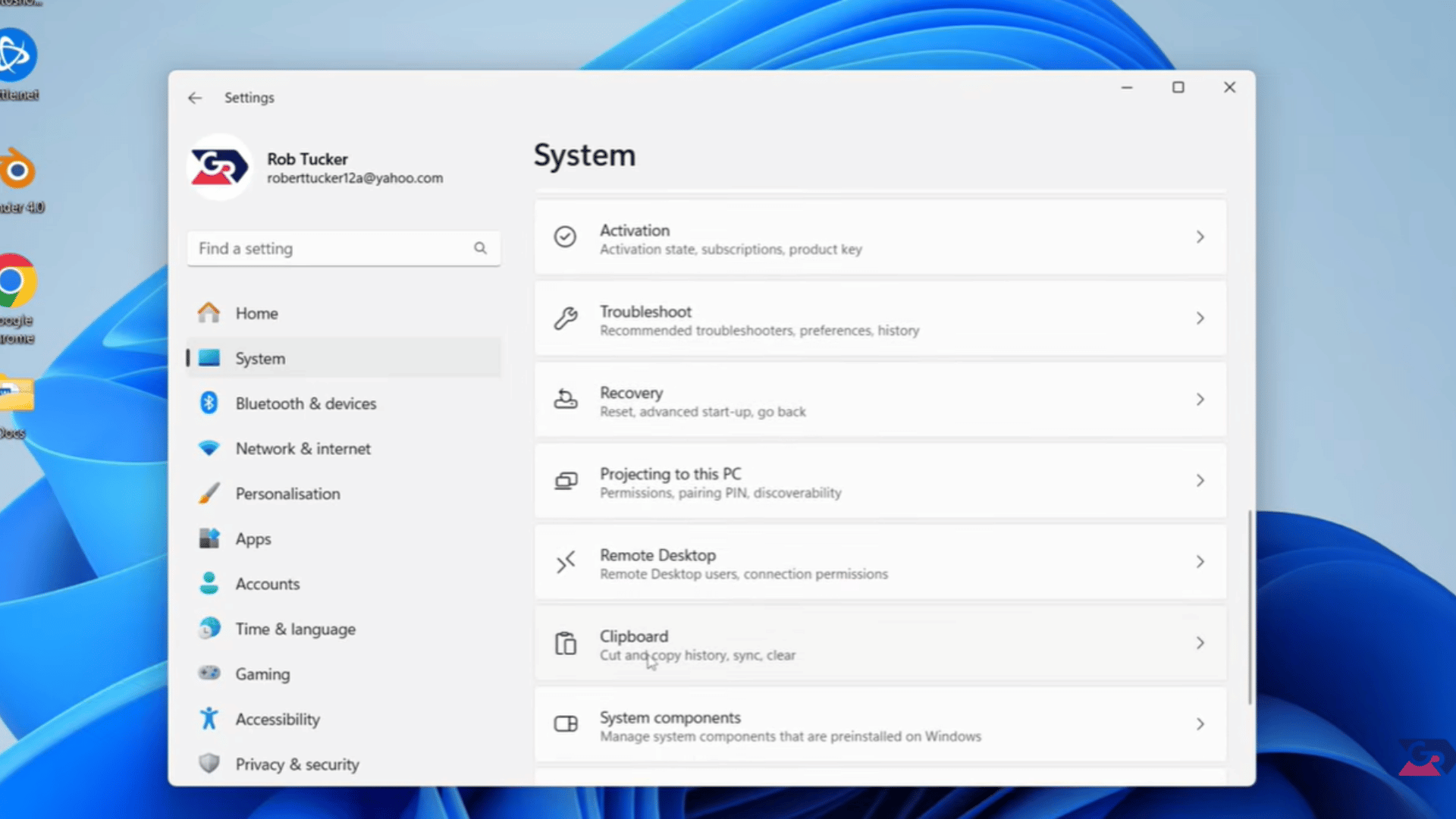
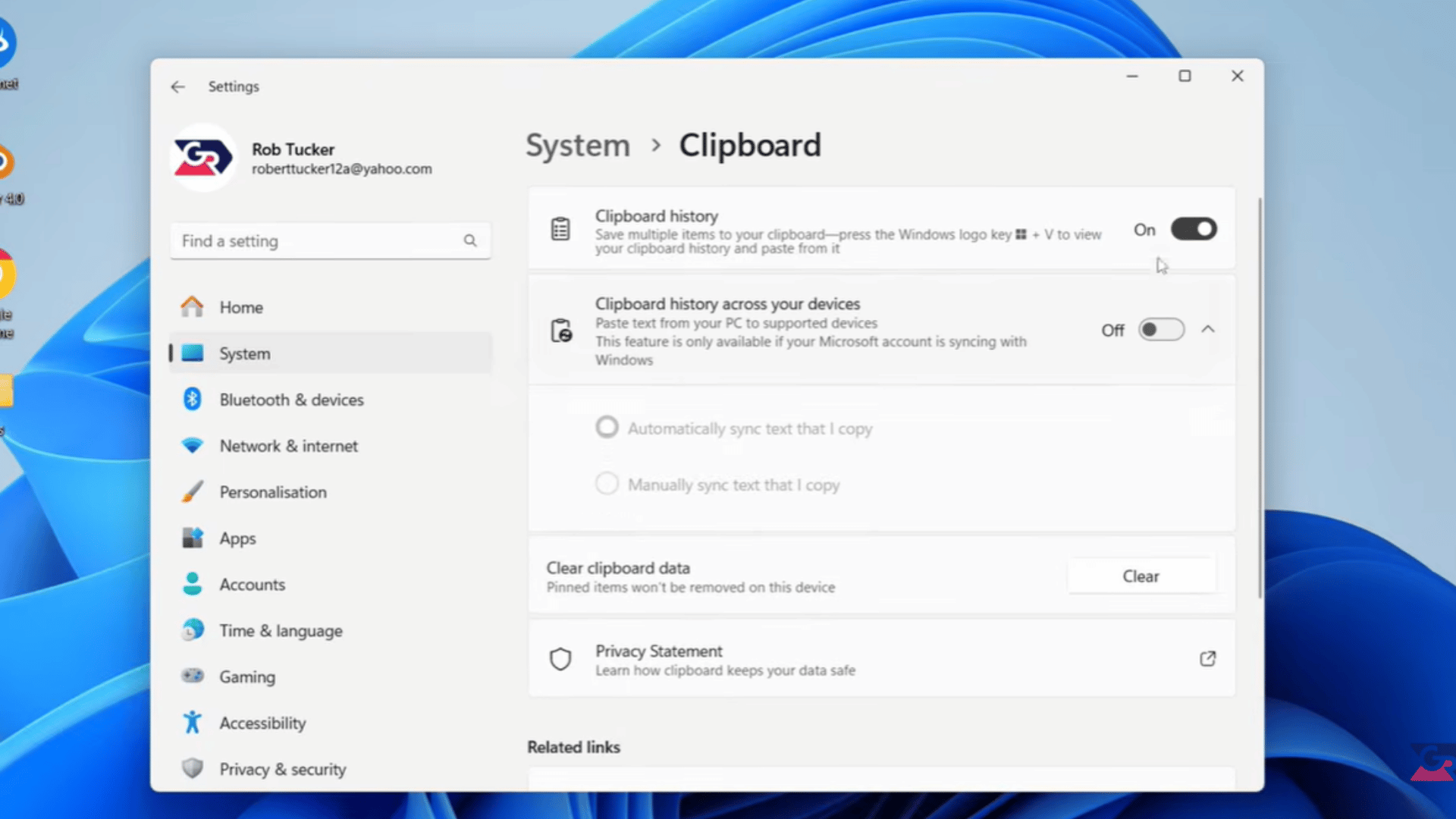
On the System settings page, the screen scrolls down to reveal the Clipboard section. A toggle switch for Clipboard history is visible and shown in the ON position.
The interface highlights how users can enable or manage clipboard settings. The design is clean and minimal.
Focusing on locating the clipboard option in system settings to enable copy-and-paste history features in Windows.
Step 4: Using Windows + V Shortcut
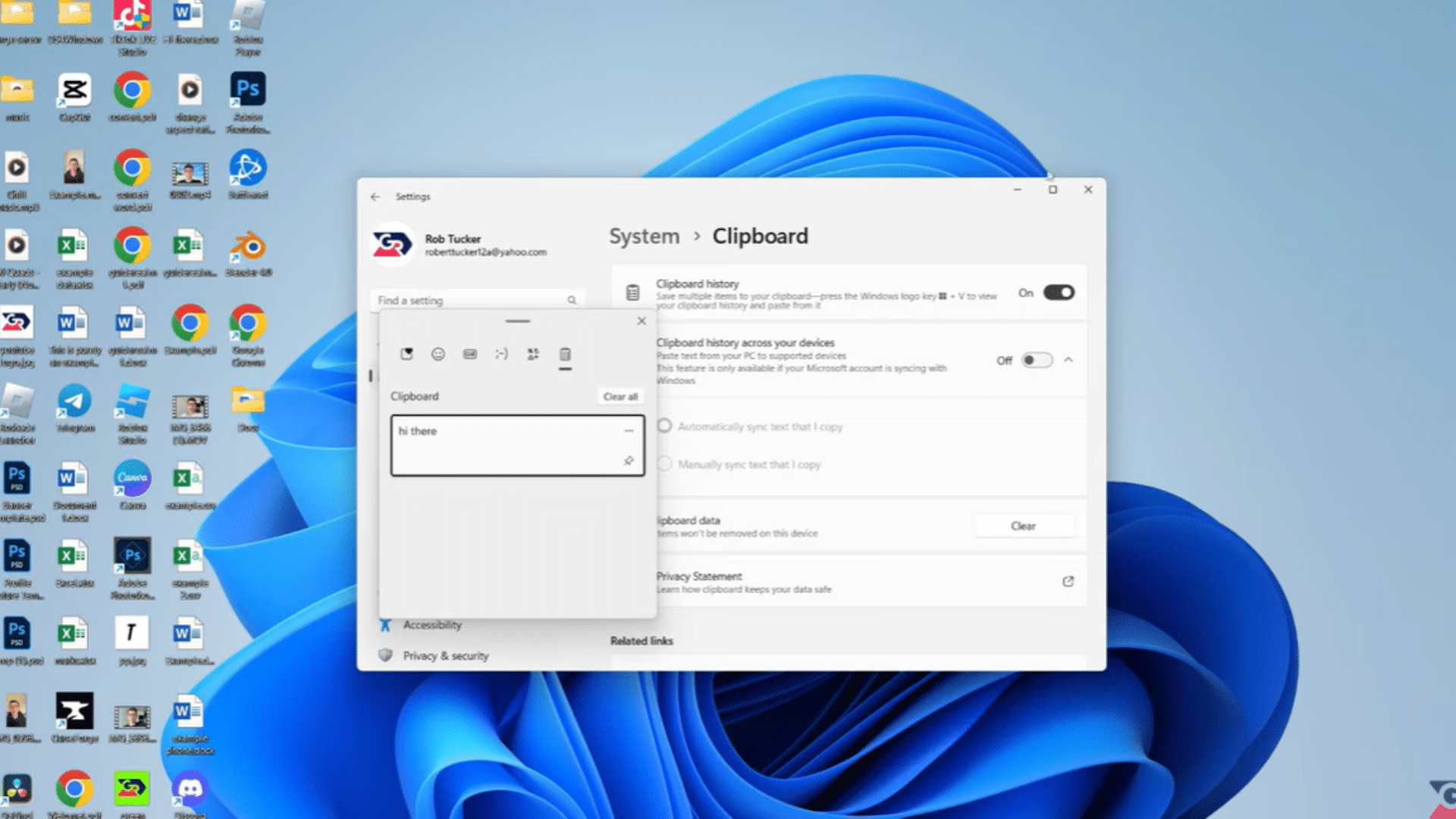
A keyboard is displayed with the Windows key and the V key pressed together. On the computer screen, a clipboard history popup appears showing recently copied items.
Such as text snippets and links. The visual clearly demonstrates how the shortcut instantly opens clipboard history.
It highlights the convenience of quickly accessing multiple copied items without opening settings, making copy-and-paste tasks faster and more efficient.
Step 5: Viewing Clipboard History List
A Windows clipboard history panel is open, displaying multiple copied entries in a scrollable list.
Each item shows previously copied text or links ready to paste. The user is selecting an item to paste into an active document.
The interface demonstrates how clipboard history stores multiple copies, allowing easy reuse of content.
It highlights productivity benefits and efficient text management within the Windows clipboard feature system.
This guide is based on the YouTube tutorial “How to Use Clipboard History on Windows 10/11,” which demonstrates practical steps for accessing, enabling, and managing clipboard history features on Windows devices.
Tips for Using the Clipboard More Efficiently
Using clipboard features smartly can speed up your workflow, improve productivity, and make copying and pasting tasks much easier across devices.
- Copy Multiple Items Faster: Use clipboard history to store several copied items and quickly switch between them without re-copying each time.
- Pin Frequently Used Text: Pin important text or links so they remain saved and accessible even after copying new content.
- Use Clipboard Across Devices: Sync clipboard data between phone, tablet, and PC using cloud features for seamless access.
- Organize Reusable Text Snippets: Save commonly used messages or templates in clipboard tools for quick reuse.
- Keyboard Shortcuts That Save Time: Use shortcuts like Windows + V or keyboard clipboard tools to access history instantly.
How does the Clipboard Work on iPhone and iOS?
On iPhone, the clipboard works differently from Android and Windows. iOS saves only the most recent item you copy, such as text, a link, or supported content.
There is no built-in clipboard history panel, keyboard toolbar, or shortcut that shows older copied items.
To use the copied content, tap and hold inside a text field, then select Paste. Once another item is copied, the previous one is replaced.
Some Apple features may allow copying and pasting between nearby Apple devices, but the iPhone still does not show a full clipboard history. For saved clipboard lists, a third-party clipboard manager app is required.
Common Clipboard Problems and Solutions
Clipboard issues on Android, Samsung, and Windows often occur due to settings, outdated apps, or disabled features, but most can be fixed quickly with simple adjustments.
| Problem | Solution |
|---|---|
| Clipboard history is not showing | Enable clipboard history in the settings or keyboard options, then restart the device. |
| Clipboard keeps deleting items | Disable auto-clear settings or remove cleaner apps that erase clipboard data. |
| Clipboard option missing | Update the keyboard app or switch to Gboard or Samsung Keyboard with the toolbar enabled. |
| Copied images are not appearing | Use apps that support image copying and ensure system clipboard support is active. |
| Clipboard not syncing across devices | Turn on sync settings in the Google account or Windows cloud clipboard options. |
| iPhone clipboard only shows one item | This is expected iOS behavior. Install a third-party clipboard manager from the App Store to support history. |
Conclusion
Understanding how the clipboard works on Android, Samsung devices, and Windows helps you manage copied content more efficiently and prevents the loss of important information.
Clipboard history and saved-item controls can make daily tasks faster, safer, and more organized.
Built-in tools like keyboard clipboard options, system settings, and shortcuts make copy-paste tasks faster and more convenient across devices.
Start applying these methods today to streamline your workflow and simplify everyday tasks.
For more practical tech guides and step-by-step tutorials, visit our latest articles to learn simple solutions that help improve digital productivity and smarter device usage.
Frequently Asked Questions
Where Is Copied Text Temporarily Stored?
Copied text is stored in temporary clipboard memory. It stays until it is replaced or cleared and can be accessed through keyboard shortcuts or system history features.
How Can the Clipboard Be Opened on Android Phones?
To open the clipboard, tap a text field in any app, then select the clipboard icon in the keyboard toolbar to view and reuse copied items.
Does Clipboard History Delete Automatically?
Yes. Android clipboard entries may be deleted after about one hour. Windows removes older items after 25 entries, unless they are pinned.