Data corruption can happen during downloads, file transfers, software installations, or even while your computer starts up, making it difficult to know where the problem began.
If you’re wondering what a checksum error is, it is a data integrity warning that appears when a file or system component doesn’t match its original checksum.
I have put together this guide to help you understand the reasons behind this error and the most effective ways to resolve it.
From BIOS and CMOS checksum errors to corrupted downloads and storage issues, you’ll learn what causes checksum errors, how to fix them, and the best practices to prevent them in the future.
Quick Answer: What Is a Checksum Error?
A checksum error occurs when the checksum calculated for a file or piece of data does not match the original checksum, indicating that the data has been altered or corrupted.
A checksum is a small numerical value created from the contents of a file using a mathematical algorithm.
When the file is downloaded, transferred, or stored, the system generates a new checksum and compares it with the original. If both values match, the file is considered intact.
If they do not match, a checksum error appears. Checksums verify data integrity during transfers, installations, backups, and storage.
Unlike a checksum, a cryptographic hash is designed not only to detect data changes but also to provide stronger protection against intentional tampering and unauthorized modifications.
How Do Checksums Verify Data Integrity and Detect Errors?
Checksums verify data integrity by creating a unique numerical value from a file’s contents before it is stored or transferred.
When the file is later accessed, downloaded, or copied, the system generates a new checksum and compares it with the original. If both values match, the file is considered unchanged and intact.
If the values differ, it indicates that the data has been modified or corrupted due to an interrupted transfer, storage failure, faulty hardware, or another issue.
Because even a small change in the file produces a different checksum, checksums provide a fast and reliable way to detect accidental errors before the file is used.
Common Types of Checksum Errors
Checksum errors can occur in files, firmware, storage devices, and software installations. Identifying the type of checksum error helps narrow down the source of the problem and choose the right solution.
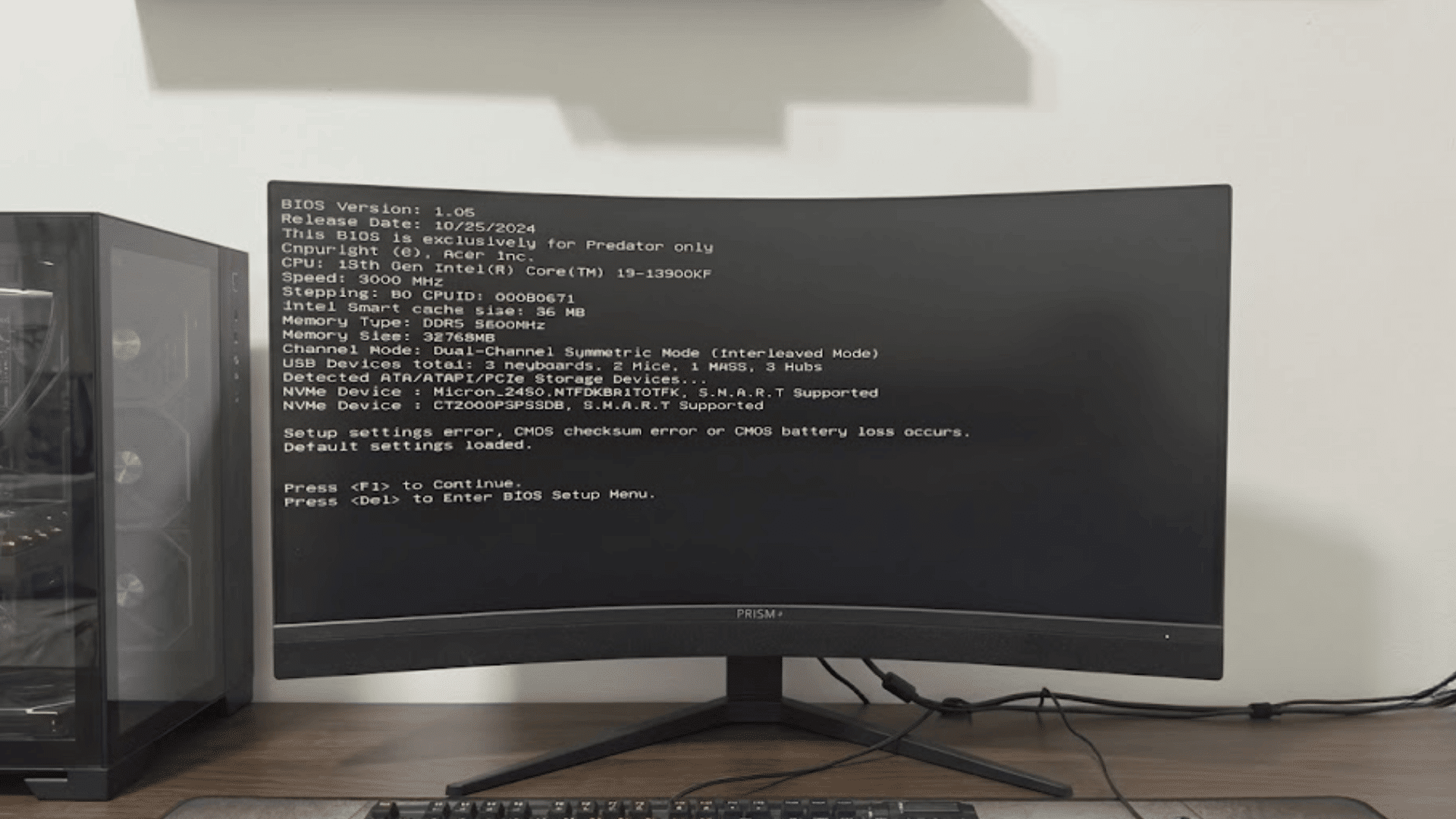
- BIOS checksum error: Occurs during startup when the BIOS detects that its stored settings or firmware data no longer match the expected checksum.
- CMOS checksum error: Appears when CMOS settings become corrupted, are reset unexpectedly, or the CMOS battery is weak or failing.
- ZIP and RAR checksum error: Happens when a compressed archive is incomplete, corrupted, or damaged, preventing files from being extracted correctly.
- Checksum mismatch when downloading files: Indicates that the downloaded file differs from the original version, often due to an interrupted or corrupted download.
- Software installation checksum error: Occurs when an installer detects that installation files have been modified, corrupted, or are missing required data.
- Checksum errors on SSDs and hard drives: It can result from bad sectors, failing storage devices, or file system corruption that alters stored data.
What Causes a Checksum Error?
A checksum error happens when data changes before it can be successfully verified. The most common causes include corrupted files, hardware faults, unstable connections, and interrupted write operations.
| Cause | Description | Common Example |
|---|---|---|
| Corrupted download | The file becomes incomplete or altered during the download process. | ISO files, software installers |
| Bad storage sectors | Damaged sectors on an HDD or SSD corrupt stored data. | External hard drives, aging SSDs |
| Faulty RAM | Memory errors modify data while it is being processed or transferred. | Random file corruption, application crashes |
| BIOS/CMOS issues | Firmware settings become corrupted or fail checksum verification during startup. | BIOS or CMOS checksum error at boot |
| Network interruption | An unstable internet or network connection causes incomplete file transfers. | Large downloads, cloud file transfers |
| Malware | Malicious software modifies files or system data without authorization. | Infected executables, altered system files |
| Power interruption | A sudden power loss interrupts read or write operations, leaving files incomplete. | USB drives, external storage devices |
Signs and Symptoms of a Checksum Error
A checksum error can show up in several ways, depending on which file, storage device, or system component is affected. Common signs include:
- Files won’t open: Documents, images, or programs fail to open because the data has become corrupted.
- CRC error messages: Cyclic Redundancy Check (CRC) errors appear when the system detects damaged or inconsistent data.
- Software installation failures: Installers stop or display an error because required files fail integrity checks.
- Archive extraction failures: ZIP or RAR files cannot be extracted successfully due to corrupted archive contents.
- BIOS warning during startup: A BIOS or CMOS checksum error message appears before the operating system loads.
- Corrupted downloads: Downloaded files fail verification or do not match the publisher’s original checksum.
- Data verification failures: Backup, synchronization, or verification tools report that stored data has changed unexpectedly.
- Unexpected file corruption: Files become unreadable, behave abnormally, or display missing or altered content without warning.
How to Fix a Checksum Error?
The right fix depends on what caused the checksum error. Follow these troubleshooting steps in order, starting with the simplest solutions before moving to hardware checks.
1. Verify the File Checksum
The first step is to compare the checksum of your file with the checksum provided by the software publisher or download source.
On Windows, you can generate MD5, SHA-1, or SHA-256 checksums using PowerShell’s Get-FileHash command or CertUtil in Command Prompt.
On macOS, use the built-in md5 or shasum commands in Terminal, while Linux users can use md5sum, sha1sum, or sha256sum.
If the generated checksum matches the published value, the file is intact. If the values differ, the file has likely been corrupted or altered and should be downloaded again from a trusted source.
2. Download the File Again
An interrupted or unstable download is one of the most common causes of a checksum error.
Delete the corrupted file and download a fresh copy from the official source instead of using cached or mirrored versions. If possible, use a stable wired connection or a reliable Wi-Fi network.
After the download finishes, verify the checksum again before opening or installing the file.
3. Test Your Internet Connection
An unstable internet connection can interrupt data transfers and corrupt downloaded files.
Restart your modem or router, switch to a more reliable network, or temporarily disable any VPN or proxy service that may interfere with downloads.
If you’re downloading large files, avoid using bandwidth-intensive applications at the same time. Once the connection is stable, download the file again and verify its checksum.
4. Run CHKDSK
If the checksum error involves files stored on your computer, scan the drive for file system errors and bad sectors using CHKDSK.
Open Command Prompt as an administrator and run the appropriate CHKDSK command for the affected drive.
Windows will repair logical errors where possible and identify damaged sectors that could be causing file corruption. Restart the computer if prompted to complete the scan.
5. Check SSD or HDD Health
A failing storage drive can repeatedly corrupt files and trigger checksum errors.
Check the drive’s SMART health status using built-in diagnostic tools or trusted utilities provided by the drive manufacturer.
Watch for warnings such as reallocated sectors, pending sectors, or declining drive health.
If the drive shows signs of failure, back up important files immediately and consider replacing the storage device.
6. Test Your RAM
Faulty memory can alter data during processing, leading to repeated checksum errors even when files are downloaded correctly.
Run Windows Memory Diagnostic or a dedicated memory-testing tool to scan for RAM issues.
If errors are detected, reseat the memory modules and test again. Persistent failures usually indicate that one or more RAM modules need to be replaced.
7. Replace the CMOS Battery
If you frequently see a CMOS checksum error during startup, the CMOS battery may no longer be supplying enough power to retain BIOS settings.
Replace the battery with a compatible CR2032 coin cell, then enter the BIOS to reset the date and time and any custom settings.
A new battery often resolves recurring CMOS checksum errors on older computers.
8. Reset or Update BIOS
Corrupted BIOS settings or outdated firmware can trigger checksum errors during boot. First, reset the BIOS to its default settings and check whether the error disappears.
If the issue persists, install the latest BIOS update from your motherboard or computer manufacturer.
Follow the official update instructions carefully, as interrupting a BIOS update can make the system unbootable.
9. Repair Corrupted ZIP or RAR Archives
If a checksum error occurs while extracting an archive, first download the file again to rule out corruption during download.
Many archive programs also include a repair feature that can recover partially damaged ZIP or RAR files.
If the repair is unsuccessful, request a new copy of the archive from the original source rather than attempting repeated extractions.
10. Scan for Malware
Malware can modify files, system components, and downloads, causing checksum verification to fail.
Run a full system scan using an up-to-date antivirus or Microsoft Defender to detect and remove malicious software. After cleaning the system, download or restore any affected files from a trusted source.
Keeping your security software up to date also helps prevent future checksum-related issues.
Useful Tools for Diagnosing Checksum Errors
Different tools help diagnose different causes of checksum errors, from damaged files to failing hardware. Using the right tool can make troubleshooting faster and more accurate.
- CHKDSK: Scans storage drives for file system errors and bad sectors, then repairs recoverable disk problems.
- CrystalDiskInfo: Monitors the health of HDDs and SSDs using SMART data to identify signs of drive failure.
- MemTest86: Performs an in-depth memory test to detect faulty RAM that may be causing data corruption.
- Windows Memory Diagnostic: Checks installed memory for hardware-related errors and reports potential RAM issues.
- Get-FileHash: Generates MD5, SHA-1, or SHA-256 checksums in PowerShell to verify a file’s integrity.
- CertUtil: Creates and compares file hashes from Command Prompt to confirm whether a file has been altered.
- SFC (System File Checker): Scans and repairs corrupted or missing Windows system files that may contribute to checksum errors.
- DISM: Repairs the Windows system image, helping restore files that SFC cannot fix on its own.
Checksum Error vs Machine Check Exception
A checksum error and a Machine Check Exception may both indicate that something has gone wrong with your computer, but they refer to different problems.
| Feature | Checksum Error | Machine Check Exception |
|---|---|---|
| What it means | Data integrity verification failed. | CPU detected a serious hardware failure. |
| Usually affects | Files, BIOS, downloads, and storage. | Windows system stability. |
| Common symptoms | Corrupted files, installation failures, or boot warnings. | Blue Screen of Death (BSOD), random restarts, or system freezes. |
| Main causes | Corrupted files, interrupted downloads, failing storage, or BIOS issues. | Hardware faults, overheating, or problems with RAM, CPU, or motherboard. |
| Difficulty | Usually moderate and often resolved with software or storage fixes. | Often requires hardware diagnostics and, in some cases, component replacement. |
How to Prevent Checksum Errors?
Good file handling practices and regular system maintenance can significantly reduce the risk of checksum errors.
- Download files from trusted sources: Use official websites or reputable providers to reduce the risk of corrupted or modified files.
- Compare published checksums: Verify the file’s checksum against the value provided by the publisher before opening or installing it.
- Keep storage drives healthy: Check your HDD or SSD regularly for errors and replace drives that show signs of failure.
- Safely eject external drives: Always eject USB drives and external storage devices before disconnecting them to avoid data corruption.
- Keep BIOS updated: Install BIOS updates from your device or motherboard manufacturer to improve stability and fix known issues.
- Replace aging CMOS batteries: Install a new CMOS battery if your computer repeatedly loses BIOS settings or reports CMOS checksum errors.
- Use reliable antivirus software: Keep it up to date and run regular scans to detect malware that could modify files.
Conclusion
A checksum error is a warning that your data may have been altered, corrupted, or damaged during storage, transfer, or installation.
Understanding checksums, common errors, and the right tools can help prevent data loss or system instability.
Regularly verifying file integrity, maintaining healthy storage devices, and keeping your system updated are simple steps that reduce the risk of future checksum errors.
If the issue persists after trying the recommended fixes, the problem may be hardware-related and require further diagnostics.
For more practical Windows troubleshooting and PC maintenance guides, check out our latest articles.
Frequently Asked Questions
Is a Checksum Error Serious?
A checksum error is not always serious, but it indicates that data integrity verification has failed. The affected file should be verified or replaced before it is used.
How Long Does a CMOS Battery Typically Last?
A CMOS battery typically lasts 3 to 10 years, depending on the computer’s age, usage, and battery quality. A weak battery can cause the BIOS settings and time to reset.
What Happens when Checksum Verification Fails?
When checksum verification fails, the calculated checksum differs from the original value, indicating possible file corruption, an incomplete transfer, storage issues, or unauthorized data modification.
How Can a Computer that Won’t Turn on Be Troubleshot?
Start by checking the power source, cables, battery, and power supply. If the system still does not start, inspect hardware components or seek professional diagnosis for underlying faults.