Getting locked out of your Apple Watch feels small at first, until you need it and the passcode will not work.
Maybe you forgot the code, bought a used watch, or want to wipe everything before selling it to someone else.
The tricky part is choosing the right reset method, because the iPhone path, Settings path, and button method work differently.
I will show you how to factory reset an Apple Watch, how to handle a forgotten passcode, and what Activation Lock changes.
You will also know what happens to backups, health data, Apple Pay, and setup before you erase anything important by mistake.
Before pressing reset, let us check what matters first so your watch does not stay locked after the wipe.
What to Know Before You Factory Reset Apple Watch?
Before starting any reset, there are a few things worth getting straight.
Skipping this part is how people end up with a locked watch they can’t use or a trade-in that the next person can’t set up. Here’s what to confirm first:
- Activation Lock is not the same as a factory reset: Erasing your watch doesn’t automatically remove it from your Apple ID. That’s a separate step, and we’ll cover it in detail later.
- Backup behavior depends on the method you use: Only unpairing through the iPhone Watch app creates an automatic backup.
- Charge the battery to at least 50% before starting; Apple recommends a minimum charge level to prevent the reset from interrupting the process mid-way. All methods also require the watch to stay on its charger throughout.
- Cellular plan users get a choice: If you have a GPS + Cellular model, the reset will ask whether to keep or remove your plan.
- Have your Apple ID password ready: You’ll need it to complete the unpair and disable Activation Lock. Without it, the process stalls.
- Passcode issues need a different approach: If too many wrong attempts have locked you out, or you’ve simply forgotten your passcode, the standard menu steps won’t work.
- Remove Transit cards first if selling: Apple recommends removing any Transit cards from Wallet before unpairing. Open the Watch app, go to Wallet & Apple Pay > Transit Cards, and remove them manually.
Before You Reset: Try a Restart First
A factory reset erases everything. If your Apple Watch is sluggish, frozen, or behaving oddly, a restart can fix most issues without affecting your data.
To restart: Press and hold the Side button until the Power Off slider appears, then drag it. Press and hold the Side button again to turn the watch back on.
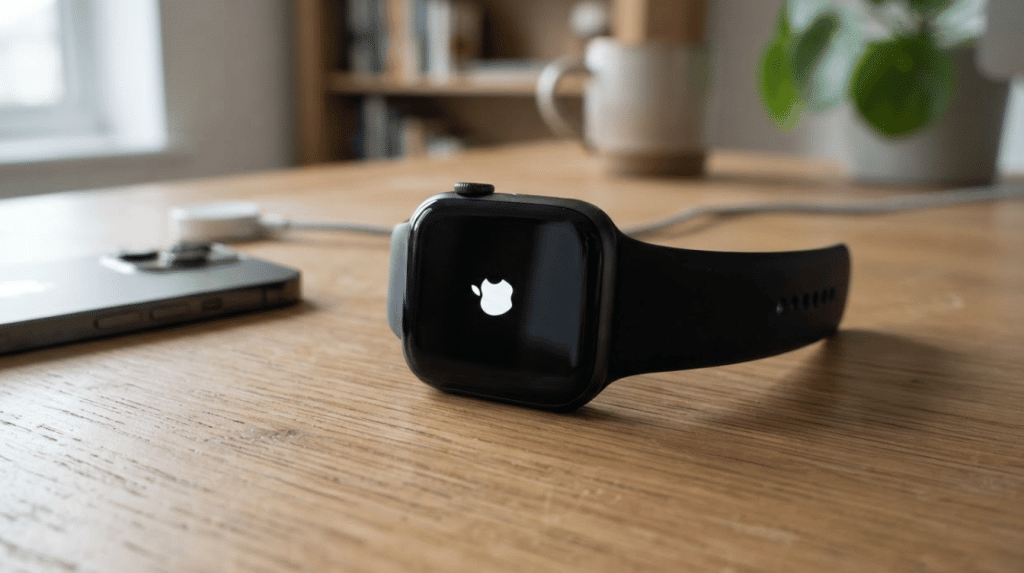
If the watch is completely frozen and unresponsive, press and hold both the Side button and Digital Crown together for about ten seconds until the Apple logo appears.
Only proceed with a factory reset if the problem persists after a restart, or if you are preparing the watch to sell, give away, or re-pair it with a new iPhone.
How to Factory Reset Apple Watch (Step-by-Step)
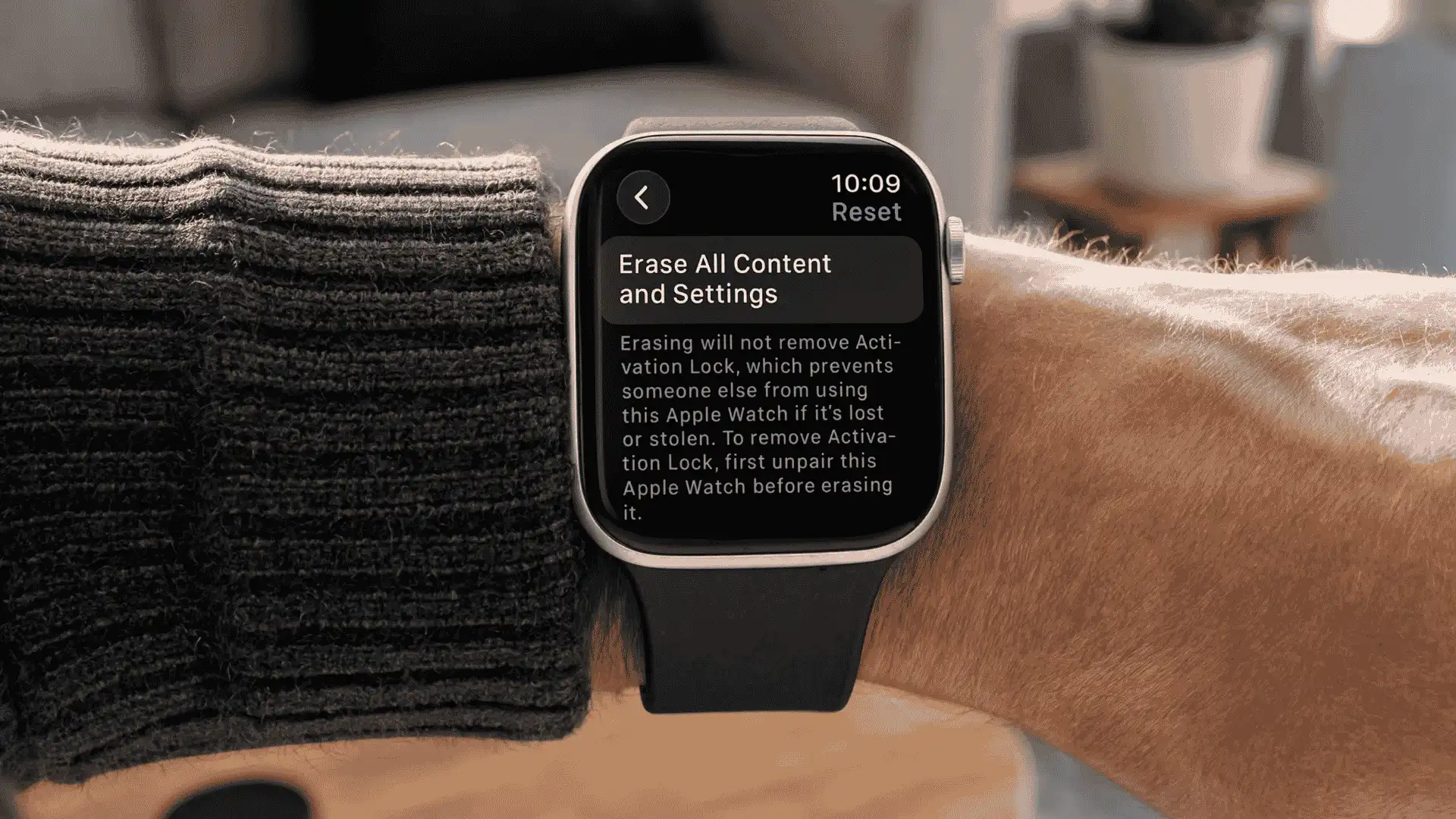
There are three ways to do this. The right one depends on whether your iPhone is nearby and whether the watch screen is still accessible.
If you are unsure which Apple Watch generation you own, it is worth taking a minute to confirm your Apple Watch model first, since button timing and menu labels vary slightly between older and newer generations.
1. Method 1: Using Your iPhone (Recommended)
This is the best method for most situations. It’s the only one that both removes Activation Lock and creates a full backup before wiping. According to Apple Support, here’s how to do it:
- Keep your iPhone and Apple Watch close together.
- Open the Watch app on your iPhone.
- Tap the My Watch tab, then tap All Watches at the top.
- Tap the info button (the “i” icon) next to the watch you want to reset.
- Tap Unpair Apple Watch, then confirm by tapping Unpair again.
- Enter your Apple ID password to disable Activation Lock and finish the unpairing.
Once it’s done, the watch shows the pairing screen. If you’re selling or giving it away, turn it off there. If you’re keeping it, pair it again, then restore from the backup when prompted.
2. Method 2: From the Watch Settings (No iPhone Nearby)
Use this if your iPhone isn’t around, but you can still access the watch’s Settings menu, and you remember your passcode.
Keep in mind that this method does not remove Activation Lock, and there’s no backup created before the wipe.
- Open the Settings app on your Apple Watch.
- Tap General, then tap Reset.
- Tap Erase All Content and Settings.
- Enter your passcode when prompted.
- Tap Erase All to confirm.
After erasing, you’ll need your Apple ID and password to get past Activation Lock during setup.
If you’re pairing with your iPhone again, keep your cellular plan. If you’re moving on, remove it and contact your carrier to cancel.
3. Method 3: Using the Physical Buttons (Screen Locked or Frozen)
This method is the fallback when the Settings menu is not accessible. It also works when your Apple Watch is stuck on the lock screen or unresponsive.
Before starting, place the watch on its charger and leave it there during the reset process.
Press and hold the Side button until the power menu appears on screen -> press and hold the Digital Crown until “Erase all content and settings” appears -> tap Reset on the screen -> tap Reset again to confirm.
This will erase the Apple Watch, but Activation Lock will stay active. You will still need your Apple ID to finish setup after the reset.
Note for older Apple Watch models: Series 2 and Series 4 watches can be stubborn with this step.
If the erase option does not appear, try a two-step approach: hold both the Side button and Digital Crown together for about 10 seconds until the Apple logo appears, release both buttons, wait a few seconds, then hold only the Side button for up to 20 seconds until the erase prompt appears.
Series 7 and newer models complete the erase faster than older generations due to upgraded storage chips. Older models, especially Series 3, may take up to eight minutes from the erase confirmation to the pairing screen.
How to Factory Reset Apple Watch without a Passcode?

If you’ve hit “too many passcode attempts” or you’ve genuinely forgotten your PIN, the standard Settings path is blocked.
The watch won’t let you in, so Methods 1 and 2 won’t get you to the reset screen. To reset Apple Watch without a passcode, use the physical button method with the steps below.
- Put the watch on its charger and keep it there throughout the process.
- Press and hold the Side button until the power menu appears on screen.
- Immediately press and hold the Digital Crown. Don’t let go until the erase screen appears.
- If the watch is stuck on the “too many attempts” screen, this sequence bypasses the Settings menu entirely and goes straight to the erase option.
- Tap Reset twice to confirm.
One thing to be clear about: this erases the watch, but it does not remove Activation Lock. According to Apple’s passcode reset guide, a backup is created on your paired iPhone before the wipe if the watch is still connected.
Once the wipe is done, you’ll need your Apple ID and password to get through the Activation Lock screen during setup. Without those credentials, the watch will complete the erase process but remain unusable for a new owner.
What Happens to Your Data After a Factory Reset?
Most guides just say “your data gets erased” and leave it there. The reality is a bit more specific, and it’s worth knowing before you pull the trigger, especially if health tracking data matters to you.
- Health and fitness data: Anything that has already synced to the iPhone Health app stays there. Data recorded on the watch but not yet synced to your iPhone at the time of the reset is gone permanently.
- Apple Pay cards: All cards are completely removed from the watch. You’ll have to add them again manually after setup. They stay active on your other Apple devices.
- Apps and settings: Everything gets wiped. If you restore from a backup (only available when you unpair via iPhone), most apps and settings come back. Without a backup, you’re starting fresh.
- Workout history: Synced sessions survive in the Health app. Any workout logged after the last sync is gone.
- Backups: Only the iPhone unpairing method (Method 1) creates an automatic backup before erasing. The direct watch reset and the button method don’t save anything beforehand.
If you’re resetting the watch to sell it, note that resale value takes a hit if Activation Lock wasn’t properly removed.
A buyer can confirm this on their end within the first few minutes of setup.
How long Apple Watches last is often a bigger factor in resale price than the reset method, but a clean Activation Lock removal is non-negotiable for the sale to go smoothly.
What the Apple Community Says About Resetting an Apple Watch?
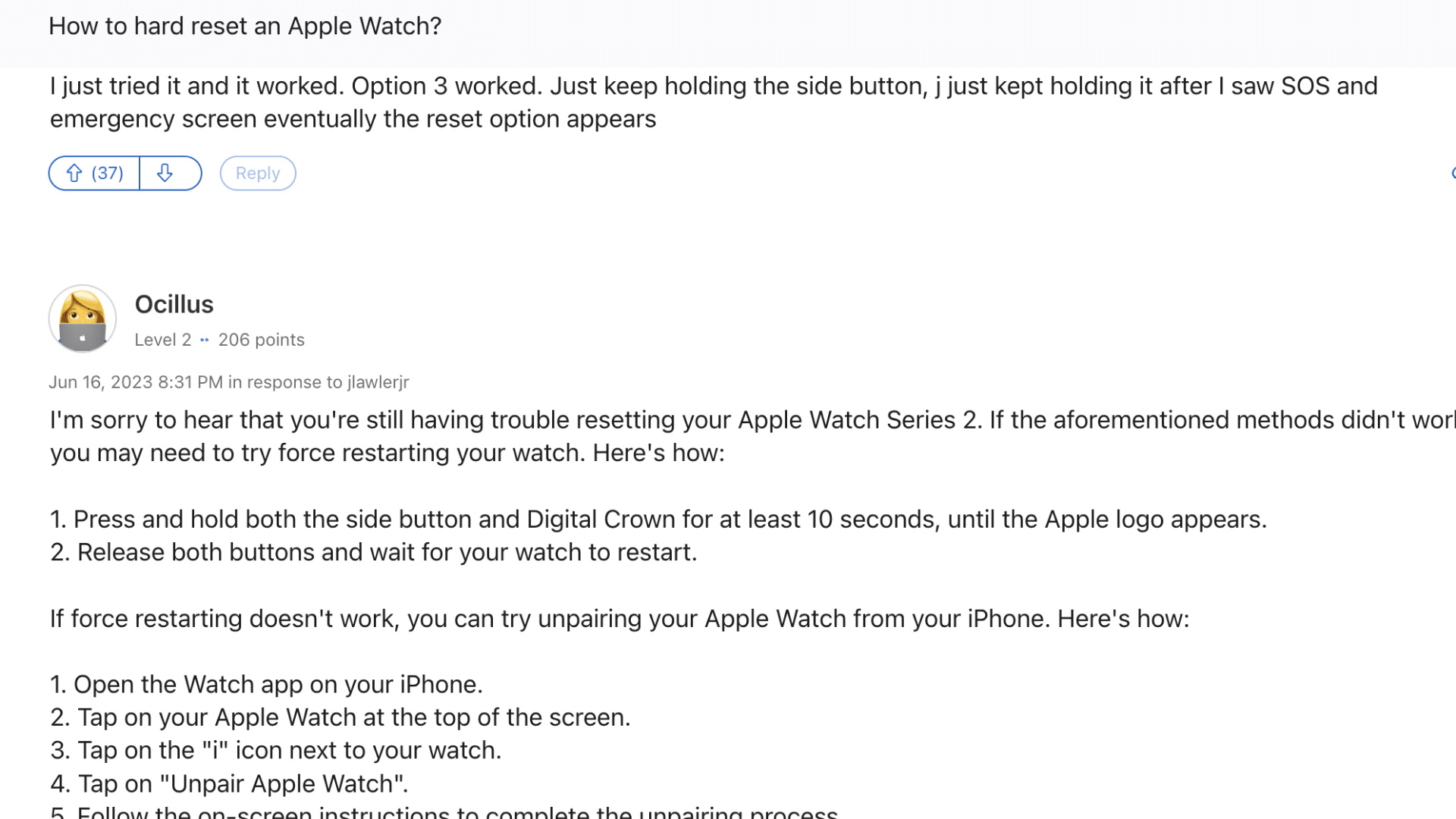
Apple Community discussions show that older Apple Watch models can be stubborn during reset attempts, especially after too many passcode tries.
Several users with Series 2 and Series 4 watches said the usual erase steps did not bring up the reset screen.
The fix many people reported was holding the Side button and Digital Crown together for about ten seconds until the Apple logo appeared.
After that, they released both buttons, waited a few seconds, and then held only the Side button until the reset option appeared.
Another common point was timing. Some users said the erase option appeared only after holding the Side button longer than expected, even past the SOS screen.
The main takeaway is simple: older Apple Watch models may need extra patience with button timing.
What to Expect When Setting Up Your Apple Watch Again?
The reset is done. Now the watch is sitting at the pairing screen. Here’s what comes next, because this part catches people off guard more than the reset itself does.
- Activation Lock screen: If it appears, you’ll need the Apple ID and password that was linked to the watch. If that was you, sign in and proceed. If it were a previous owner, the watch can’t be used until they remove it from their Apple ID at iCloud.com.
- Restore from backup or set up as new: If you unpaired via the iPhone app, you’ll get the option to restore from the most recent backup. This brings back most settings, apps, and health data. Setting up as a new skip, all of that.
- Re-add Apple Pay cards: Open the Wallet app on your iPhone and manually add the cards back to the watch. This is the step that is easiest to forget and most annoying to discover at the checkout counter. It has happened to me more than once.
- Re-enable health permissions: Some apps will ask to re-access health data after setup. Check the Health app permissions if anything looks off after pairing.
- Selling or giving it away: If the watch isn’t yours to keep, stop at the pairing screen and turn it off. Don’t complete the setup. The new owner handles pairing on their end.
If you are deciding whether to keep your current model or upgrade after the reset, the Apple Watch Series 9 review covers whether it still holds up as a daily driver today.
Specifically regarding Activation Lock, Apple’s Activation Lock guide explains the iCloud.com removal path if you need to handle it remotely.
Conclusion
Factory resetting an Apple Watch becomes easier when you match the reset method to the exact problem in front of you.
The Watch app is the best starting point when your iPhone is nearby because it backs up and removes Activation Lock.
The Settings menu can still help when your passcode works, but it will not clear Activation Lock for resale.
A locked watch usually needs the Side button and Digital Crown method, especially when the screen blocks normal access.
I would also check your Apple ID, synced data, cellular plan, and charger before wiping anything important from the watch.
Which reset method worked for your Apple Watch, and did any older model need extra button time? Tell us, share with us in the comments below.
Frequently Asked Questions
Does a Factory Reset Remove Activation Lock on Apple Watch?
Only the iPhone unpair method (through the Watch app) removes Activation Lock automatically. If you reset directly on the watch or use the button method, Activation Lock stays active.
The new owner will hit a login screen and won’t be able to use the watch without the original Apple ID credentials.
Will I Lose My Health Data if I Factory Reset My Apple Watch?
Health data that has already synced to the iPhone Health app stays there and isn’t affected by the reset. Anything recorded on the watch but not yet synced at the time of the wipe is permanently gone.
If keeping that data matters, sync first and unpair through the iPhone app to get a full backup.
Can I Factory Reset an Apple Watch Someone Else Gave Me?
You can erase the watch using the button method, but if the previous owner didn’t remove Activation Lock, the watch will be stuck at their Apple ID login during setup.
You’ll need them to sign into iCloud.com and remove the device from their account. Without that, the watch stays locked to their Apple ID regardless of how many times you reset it.
How Long Does a Factory Reset Take on an Apple Watch?
Most resets finish in 5-10 minutes. Older models or watches with a large amount of stored data can take up to twenty minutes. The watch shows a progress indicator during the erase.
Don’t remove it from the charger until the process completes and the pairing screen appears.