One failed drive can turn a normal morning into a panic, especially when your files live in only one place.
That is why RAID still matters for home NAS users, creators, and small teams storing important data every day.
A RAID array links several drives together so your system can keep working when one drive fails during normal daily use.
According to Backblaze’s 2024 Drive Stats report, the annualized failure rate across a monitored fleet of over 300,000 HDDs was 1.57%.
I will be telling you about what RAID is, how RAID levels work, and how to choose safer storage for your setup.
Before choosing any RAID setup, let us first understand what it means and why people still use it even today.
What Does RAID Stand for?
RAID stands for Redundant Array of Independent Disks, a storage technology that links multiple drives together so your system treats them as one.
It began with a 1988 paper from researchers at UC Berkeley, who proposed combining several smaller, cheaper disks instead of relying on one expensive drive. The original acronym used “Inexpensive” rather than “Independent.”
As RAID moved from academic research into enterprise data centers through the 1990s, vendors changed the wording.
“Independent” fits better because each drive in the array operates as a separate physical device, even while the array functions as a single unit.
The cost angle faded as storage got cheaper for everyone.
Today, some people use both terms interchangeably. What matters is the concept: multiple drives working together for speed, protection, or both.
How Does RAID Work?

RAID manages data across multiple drives using three techniques: striping, mirroring, and parity. Understanding each one separately makes every RAID configuration easier to follow.
1. Striping
Data gets split into chunks and written across several drives at once. Think of it like splitting a long book into chapters and handing each one to a different reader simultaneously.
The parallel processing is what makes striped arrays faster than a single drive. RAID 0 uses striping exclusively, which is why it delivers the best raw speed of any RAID level.
The tradeoff is that there is no redundancy, so a single drive failure takes everything with it.
2. Mirroring
Every write operation gets duplicated to a second drive in real time, creating an identical copy at all times.
If one drive dies, the mirror already has a complete, usable version of your data ready to go. There is no rebuild process needed, no recovery calculation, just an immediate failover.
The cost is storage efficiency. With mirroring, half your total drive capacity is used for the duplicate, so two 4TB drives give you only 4TB of usable space.
3. Parity
Instead of storing full copies, the system runs a mathematical calculation across the data on each drive and stores the result as parity information.
If one drive in the array fails, the system uses that parity data to reconstruct exactly what was lost.
It is more storage-efficient than mirroring because you are not dedicating an entire drive to duplicates. Parity-based RAID is a practical first line of defense against hardware failure, but it does not replace backups.
RAID Levels Explained: Which One Does What?
RAID levels are specific configurations that apply striping, mirroring, and parity in different combinations. Each level trades one thing to gain another, whether that is speed, storage capacity, or fault tolerance.
| RAID level | Technique | Min. drives | Fault tolerance | Usable capacity | Best for |
|---|---|---|---|---|---|
| RAID 0 | Striping only | 2 | None | 100% of total | Speed-first workloads where data loss is an accepted risk |
| RAID 1 | Mirroring only | 2 | 1 drive failure | 50% of total | Small setups where reliability outweighs capacity |
| RAID 5 | Striping + single parity | 3 | 1 drive failure | N-1 drives | Small business servers, NAS devices |
| RAID 6 | Striping + double parity | 4 | 2 simultaneous failures | N-2 drives | High-uptime environments where two failures must be survivable |
| RAID 10 | Mirroring + striping | 4 | 1 drive per mirrored pair | 50% of total | Database servers requiring both speed and redundancy |
No level is universally better than the others. The right choice depends on your workload demands and how much downtime you can afford.
Workstation builders often think about storage alongside their full peripheral setup.
If you are building out a high-performance gaming or video editing rig, our guide to gaming setup peripherals covers the audio side of that build.
How to Choose the Right RAID Level for Your Setup?
The level breakdown above only helps if you know which questions to ask yourself first. Run through these three before committing to a configuration.
Can you afford any downtime at all?
If the answer is no, RAID 6 or RAID 10 are your only realistic options. Both survive a failure during a rebuild. RAID 5 and RAID 1 leave you exposed the moment a second drive develops a problem while the first is being replaced.
Is speed your primary concern?
RAID 0 gives you the fastest read and write speeds of any level, but there is no safety net. It makes sense for scratch disks, render caches, or temporary project files where you have copies elsewhere.
Using RAID 0 for your only copy of critical data is a risk not worth taking.
How many drives do you have?
With two drives, your only options are RAID 0 or RAID 1. Three drives open up RAID 5. Four drives make RAID 6 and RAID 10 available.
If you are building a new setup, buying four drives upfront and running RAID 10 often costs less in the long run than recovering data from a failed two-drive RAID 1.
Hardware RAID vs. Software RAID
Not all RAID setups are built the same way. The configuration you choose determines who manages the array, how much it costs, and how your system performs under load.
| Feature | Hardware RAID | Software RAID |
|---|---|---|
| Who manages the array | Dedicated controller card | Operating system |
| Performance overhead | Minimal, handled independently | Uses your CPU |
| Cost | Higher, the controller adds expense | Free, built into OS |
| Best for | Enterprise servers, data centers | Home setups, personal NAS |
| Reliability | High, with faster rebuild times | Adequate for most beginners |
Most enterprise servers and secure data center infrastructure rely on hardware RAID, where uptime cannot slip.
For home users and small offices, software RAID through Windows Storage Spaces, Linux mdadm, or macOS RAID is a capable and free starting point.
What is RAID Used for?
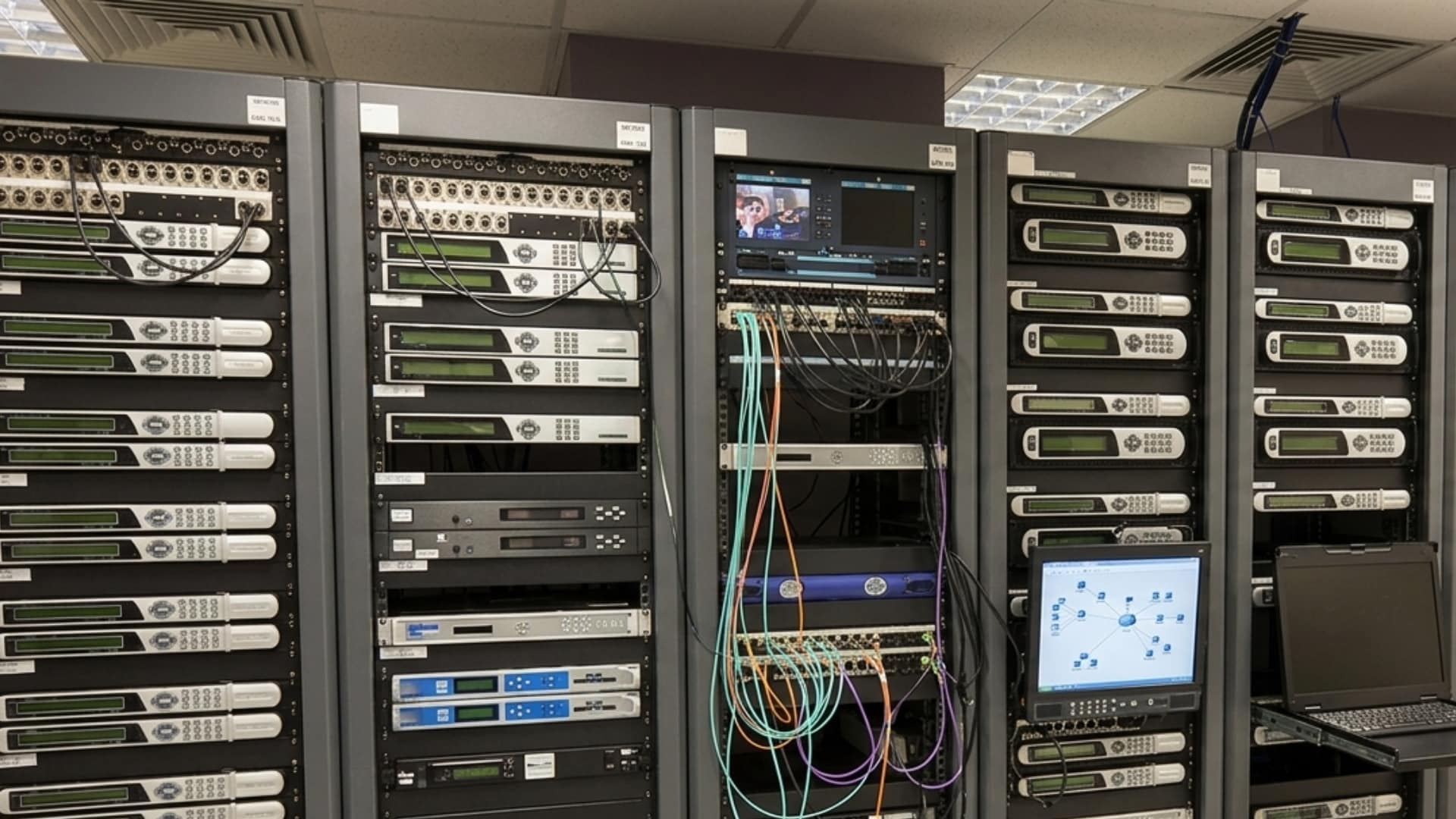
RAID is not just a server room technology anymore. As storage has become more affordable and NAS devices more accessible, they have found their way into home offices, creative studios, and small businesses alike.
- Home NAS devices: Personal network-attached storage setups often use RAID 1 or RAID 5 to protect family photos, videos, and documents against a single drive failure, without requiring cloud subscriptions.
- Small-business file servers: Offices that store shared documents, client files, and databases use RAID 5 or RAID 6 to keep data accessible even if a drive fails during business hours.
- Video production workstations: Editors working with large raw footage files rely on RAID 0 or RAID 10 for the read and write speeds needed to handle 4K and 8K video without dropped frames.
- Database servers: Applications that handle constant read and write requests, such as e-commerce platforms and CRMs, use RAID 10 to provide both the speed and redundancy that database workloads demand.
Is RAID a Backup?
No, RAID is not a backup. This is the misconception that catches most beginners off guard. RAID keeps your system running when a drive fails.
It does not protect your data from everything else that can go wrong. Accidental file deletion instantly removes data from every drive in the array.
Ransomware encrypts all drives simultaneously because the array appears to your operating system as a single disk.
The storage rule professionals follow is the 3-2-1 strategy: three copies of your data, on two different media types, with one copy stored offsite. RAID satisfies none of those conditions on its own.
Treat RAID as hardware fault tolerance, not data backup. Those are two different problems requiring two different solutions.
The Future of RAID
RAID has been a reliable infrastructure for decades, but the storage landscape around it is shifting fast.
Two developments stand out in 2026: NVMe adoption and the settled relationship between local RAID and cloud storage.
NVMe RAID is now mainstream.
Modern RAID controllers natively support NVMe SSDs, and the difference in rebuild times is significant. A failed 1TB NVMe drive rebuilds in under 2 hours.
That gap matters because the rebuild window is when your array is most vulnerable to a second failure.
Shrinking it from 20 hours to 2 hours changes the risk calculation considerably for anyone running a parity-based configuration.
The cloud-versus-RAID question has largely settled. Affordable cloud storage was expected to make local RAID irrelevant, but it has not.
Most setups now treat the two as complementary: RAID for local performance and fault tolerance, cloud for offsite protection.
Conclusion
RAID still matters because drive failure is not rare, and your data should not depend on one weak point.
A good RAID setup can keep your system running when one drive fails, which matters for home NAS users, creators, and small business teams.
I would still treat RAID as protection against hardware failure, not a full backup plan for every problem. You should pair your RAID array with cloud storage or another offsite copy for stronger data protection.
Newer NVMe drives also make rebuilds faster, which lowers risk during recovery. If you are planning a storage setup, choose the RAID level that matches your speed, safety, and budget needs.
Running RAID already, or planning your first setup? Tell us, share with us in the comments below.
Frequently Asked Questions
Can RAID Work with SSDs?
Yes. RAID works with SSDs the same way it works with traditional hard drives. Most modern RAID controllers and software RAID tools natively support SSD arrays.
What Happens During a RAID Rebuild?
When a drive fails and gets replaced, the array reconstructs the missing data using the remaining drives and any parity information stored across them.
During this process, the array runs in a degraded state with reduced or no redundancy.
Is RAID Still Worth It with Cloud Storage Available?
For most businesses and serious home users, yes. Cloud storage handles offsite redundancy well but cannot match local RAID for speed, latency, or the cost of moving large volumes of data daily.
What is the Difference Between RAID and a NAS?
A NAS (network-attached storage) is a physical device that connects to your network and provides shared storage.
RAID is a configuration method that can run inside a NAS, a server, or a desktop. Most NAS devices support RAID, but a NAS without RAID is just a single-drive storage box. The two are complementary, not interchangeable.