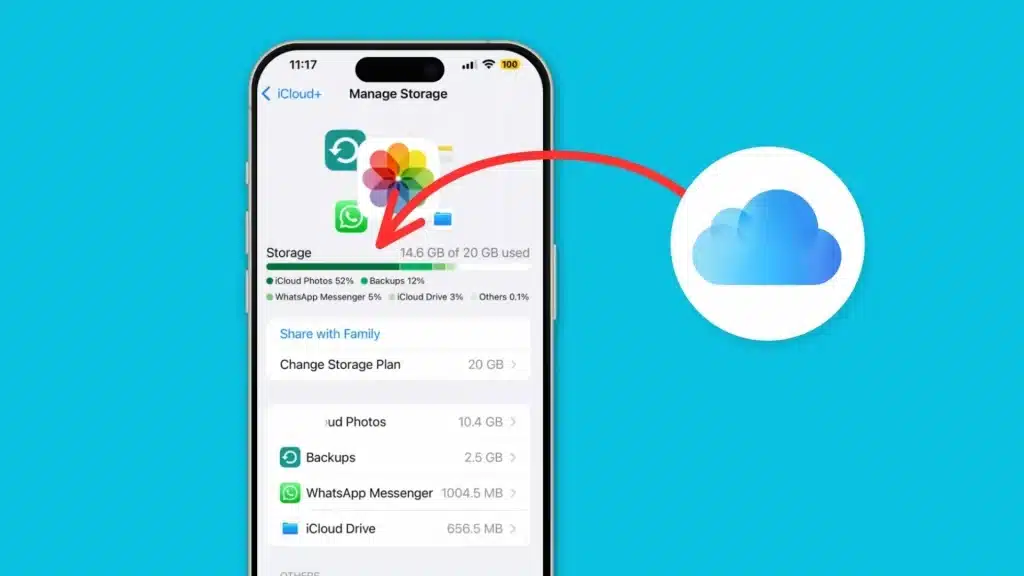
Most of us keep thousands of photos on our phones and laptops today. Family trips, birthdays, work projects, and daily moments all stay saved on our devices.
But one phone crash, accidental delete, or stolen laptop can wipe out years of memories in seconds.
That is why cloud storage has become so important. It gives you a safe way to back up photos, free up device space, and open your pictures from anywhere.
Not every service works the same. Some focus on privacy, while others offer smart tools or more storage for large photo collections.
In this guide, you will see some of the best cloud storage for photos and review the best photo backup solutions for casual users, photographers, and content creators looking for reliable storage options.
Quick Answer: What Is the Best Cloud Storage for Photos?
Google Photos is the best cloud storage for photos for most people because it is simple to use, works on Android and iPhone, and offers strong backup tools.
You can save photos automatically, search by faces or places, and free up space on your phone in seconds.
Apple iCloud is a good pick for iPhone users, while Amazon Photos works well for Prime members with unlimited photo storage.
Dropbox is useful for sharing files, but it costs more for photo storage.
For easy photo backup, smart search, and smooth syncing across devices, Google Photos is still the top choice for most users.
How to Free up Storage Space on Your Mac?
Before you set up cloud backups, clearing your Mac’s local storage helps you start with a clean baseline. These quick steps free up space and make syncing faster.
- Delete Old Downloads and Unused Files: Remove old videos, duplicate documents, ZIP files, and screenshots regularly to free storage space and keep your Mac organized.
- Remove Apps You No Longer Use: Delete unused apps, especially large games or editing software, to free storage space and improve overall Mac performance.
- Clear Browser Cache When Needed: Clear browser cache occasionally to remove temporary website files, free storage space, and improve browsing speed on your Mac.
- Delete Old iPhone Backups: Remove outdated iPhone backups stored on your Mac to quickly recover storage space and keep only useful recent backups.
- Move Large Files to External Storage: Transfer large videos, photos, and project files to external drives to free space and organize your Mac better.
What to Look for in the Best Cloud Storage for Photos?
The right cloud storage for photos comes down to five things: storage capacity, file format support, security, backup automation, and price.
Services that handle RAW files, HEIC formats, and large video uploads matter most to photographers and creators.
Strong security, including encryption and two-factor authentication, protects personal memories from unauthorized access.
Automatic backup and cross-device sync keep your library current without manual effort.
Before committing, compare monthly costs and storage ceilings carefully. I’ve seen clients lock into plans that feel affordable upfront but become costly once storage needs grow past the base tier.
Best Photo Backup Solutions for Storage
These are the top cloud storage services for safely storing, organizing, and backing up your photos across devices.
Each platform offers different features for privacy, storage space, automatic backups, and easy access to photos.
1. Google Photos

Google Photos is one of the easiest cloud storage services for everyday users. It offers automatic backups, smart AI search, and simple sharing tools that help organize large photo collections.
The platform works especially well on Android devices and keeps photos synced across multiple screens.
Although free storage is now limited, paid Google One plans offer affordable upgrades for users needing more backup space for photos and videos.
- Best For: Android users and people who want easy photo organization with AI-powered search tools.
- Key Features: Automatic backups, smart search by people or places, and shared albums for families and friends.
- Pros: Simple interface, strong AI search tools, reliable syncing, and easy photo sharing across devices.
- Cons: Limited free storage and privacy concerns may not suit every user.
2. iCloud Photos
iCloud Photos works best for people already using Apple devices like iPhones, iPads, and MacBooks. It automatically syncs photos, edits, and albums across connected Apple products without needing extra setup.
The platform also helps save device space by storing full-resolution files in the cloud.
Family sharing plans make it easier for households to manage storage together, though the service feels less flexible for users outside the Apple ecosystem.
- Best For: Apple users who want smooth syncing across iPhone, Mac, and iPad devices.
- Key Features: Automatic syncing, shared family storage, and photo updates across all connected Apple devices.
- Pros: Smooth Apple integration, easy setup, automatic syncing, and reliable cloud backups.
- Cons: Limited free storage and fewer benefits for Android or Windows users.
3. Adobe Creative Cloud
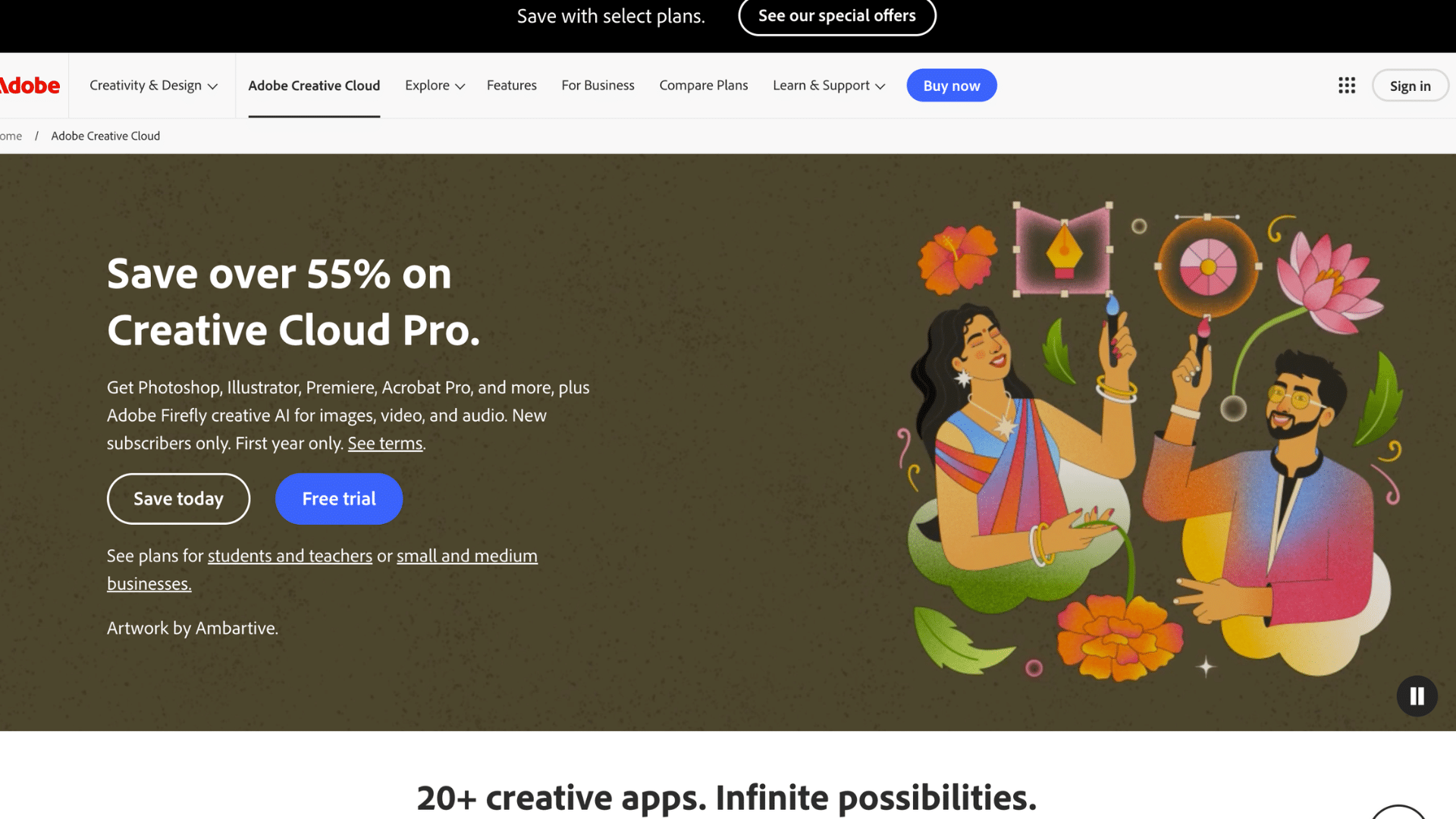
Adobe Creative Cloud is designed mainly for photographers, designers, and creators who work with high-quality image files every day.
It connects directly with Lightroom and Photoshop, allowing users to edit and store photos in one place.
RAW file support and cloud syncing help professionals continue projects across multiple devices easily.
- Best For: Professional photographers and creators working with editing software and RAW image files.
- Key Features: Lightroom integration, advanced editing tools, and cloud syncing for editing projects anywhere.
- Pros: Excellent RAW support, powerful editing features, and smooth workflow for creative professionals.
- Cons: Higher subscription cost, and may feel too advanced for casual users.
4. Amazon Photos
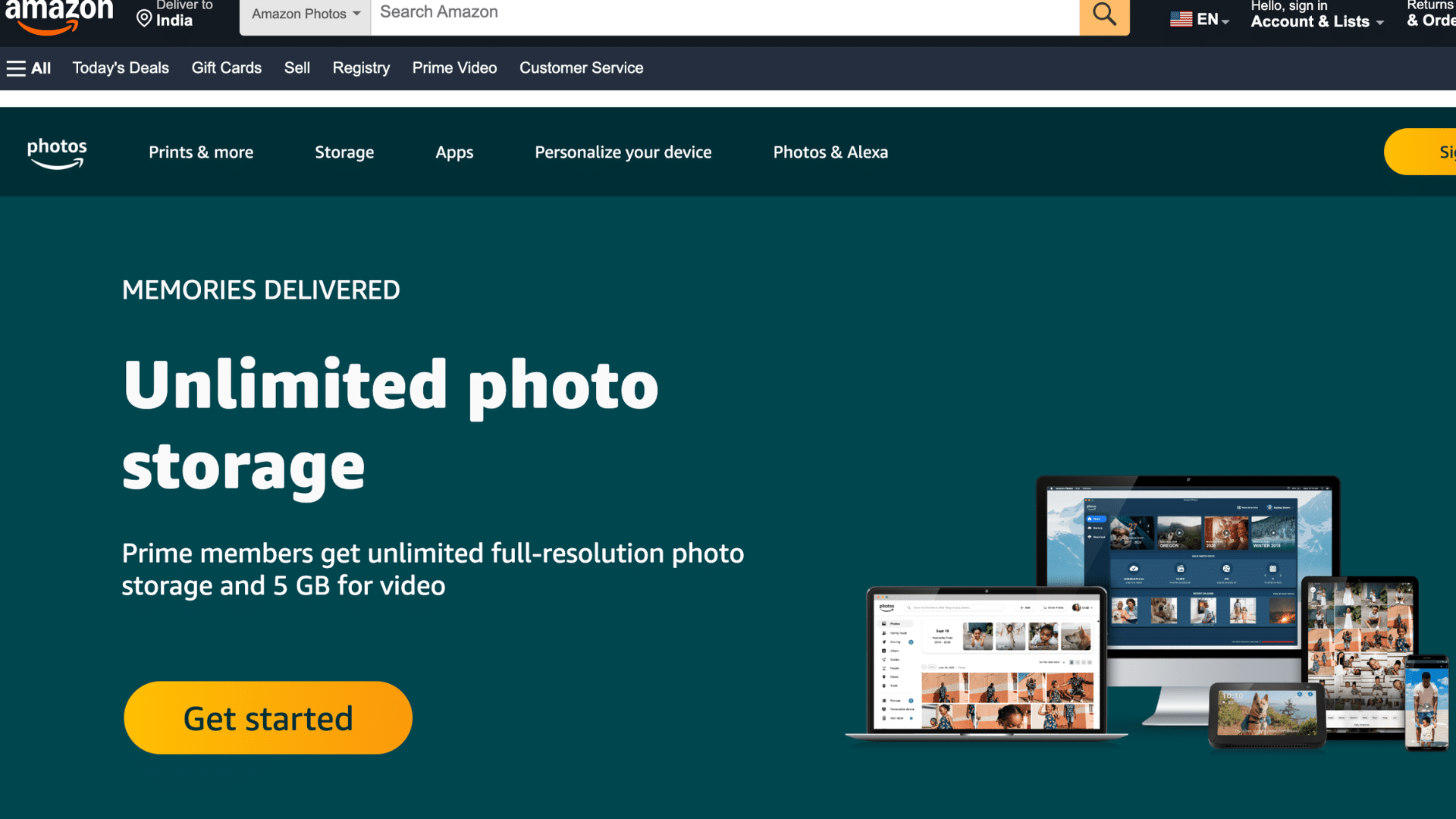
Amazon Photos is a strong option for Amazon Prime members because it includes unlimited full-resolution photo storage.
The service offers automatic backups, simple organization tools, and Family Vault sharing for multiple users.
Casual users often like how easy it is to set up and use across phones and tablets.
Although it lacks advanced editing features, it provides reliable cloud backups at a good value for people already paying for a Prime membership.
- Best For: Prime members looking for unlimited photo storage without paying extra monthly fees.
- Key Features: Unlimited photo uploads, Family Vault sharing, and automatic mobile device backups.
- Pros: Great value for Prime users, unlimited photo storage, and easy family sharing features.
- Cons: Limited editing tools and weaker organization compared to some competitors.
5. Dropbox
Dropbox is known for file sharing and collaboration, but it also works well for photo storage and backups. Users can organize pictures into folders, create shared links, and sync files across devices quickly.
Smart syncing tools help save local storage space by keeping files online until needed.
Although free storage space is smaller compared to many competitors, Dropbox remains a reliable choice for work-related photo sharing and project collaboration.
- Best For: Users needing cloud photo storage along with strong sharing and collaboration features.
- Key Features: Smart syncing, folder organization, shared links, and easy file access across devices.
- Pros: Reliable syncing, simple sharing tools, and excellent collaboration for teams and projects.
- Cons: Free storage is limited, and larger plans can become expensive over time.
6. Backblaze
Backblaze focuses on affordable cloud storage for people with very large photo collections.
It works especially well for advanced users and photographers who need long-term online backups without paying high monthly fees.
The platform also supports third-party backup apps for added flexibility.
- Best For: Advanced users and photographers storing massive photo archives online.
- Key Features: Low-cost storage, support for backup apps, and scalable cloud storage options.
- Pros: Affordable for large backups, flexible storage setup, and reliable long-term cloud storage.
- Cons: Less beginner-friendly and lacks smart photo organization tools.
7. Flickr Pro
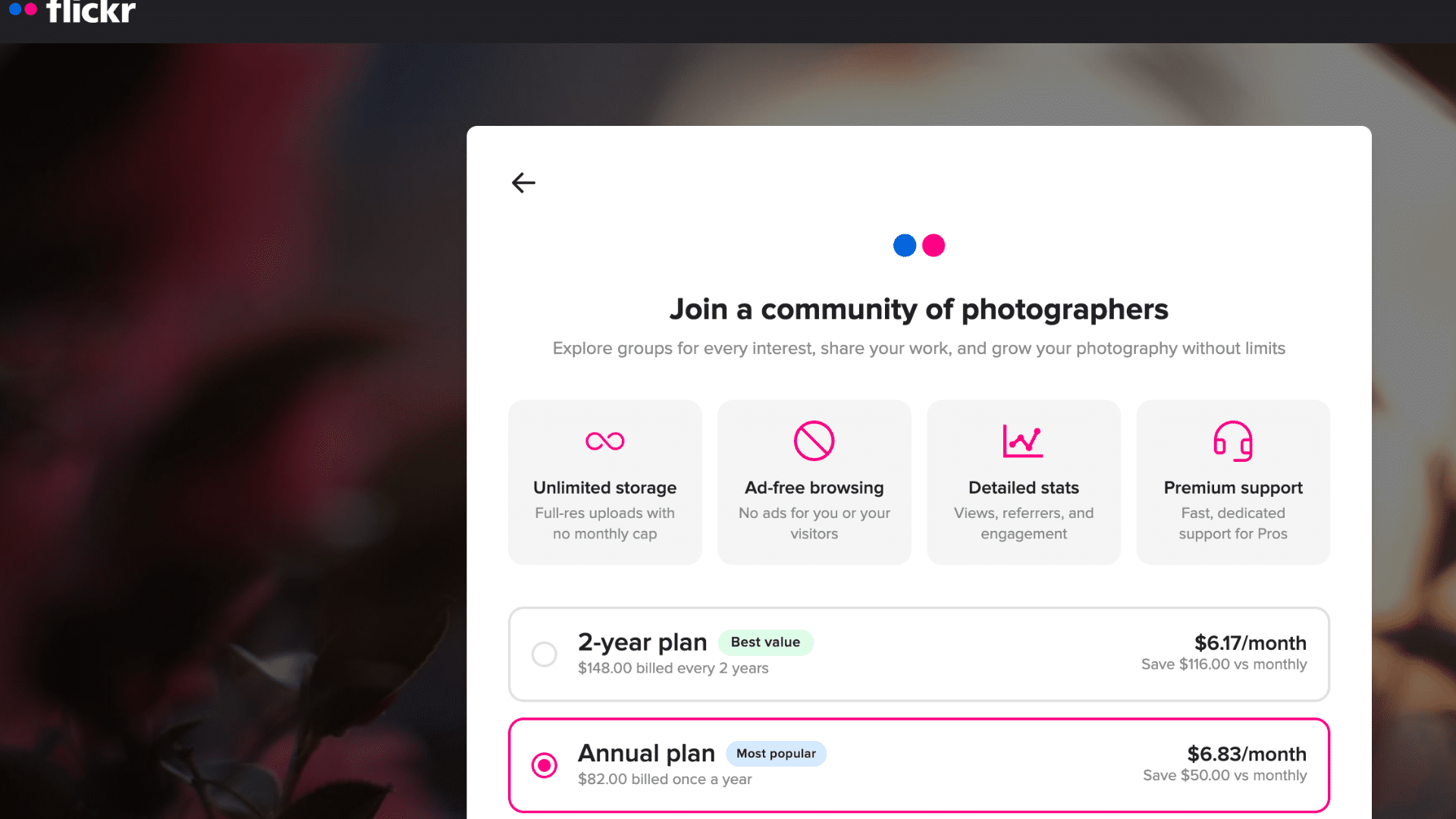
Flickr Pro remains popular among photographers who want both cloud storage and an online photo community.
The service supports large image uploads, public galleries, and social sharing features that help photographers showcase their work.
Users can organize collections into albums and connect with other photography fans easily.
While Flickr works well for public portfolios, it is less focused on full-device backup tools compared to traditional cloud storage platforms.
- Best For: Photographers wanting online portfolios and community sharing features.
- Key Features: Public galleries, large storage limits, and photography-focused social sharing tools.
- Pros: Strong community features, great public portfolio options, and high-quality photo uploads.
- Cons: Not ideal for full-device backups or advanced cloud syncing needs.
8. pCloud
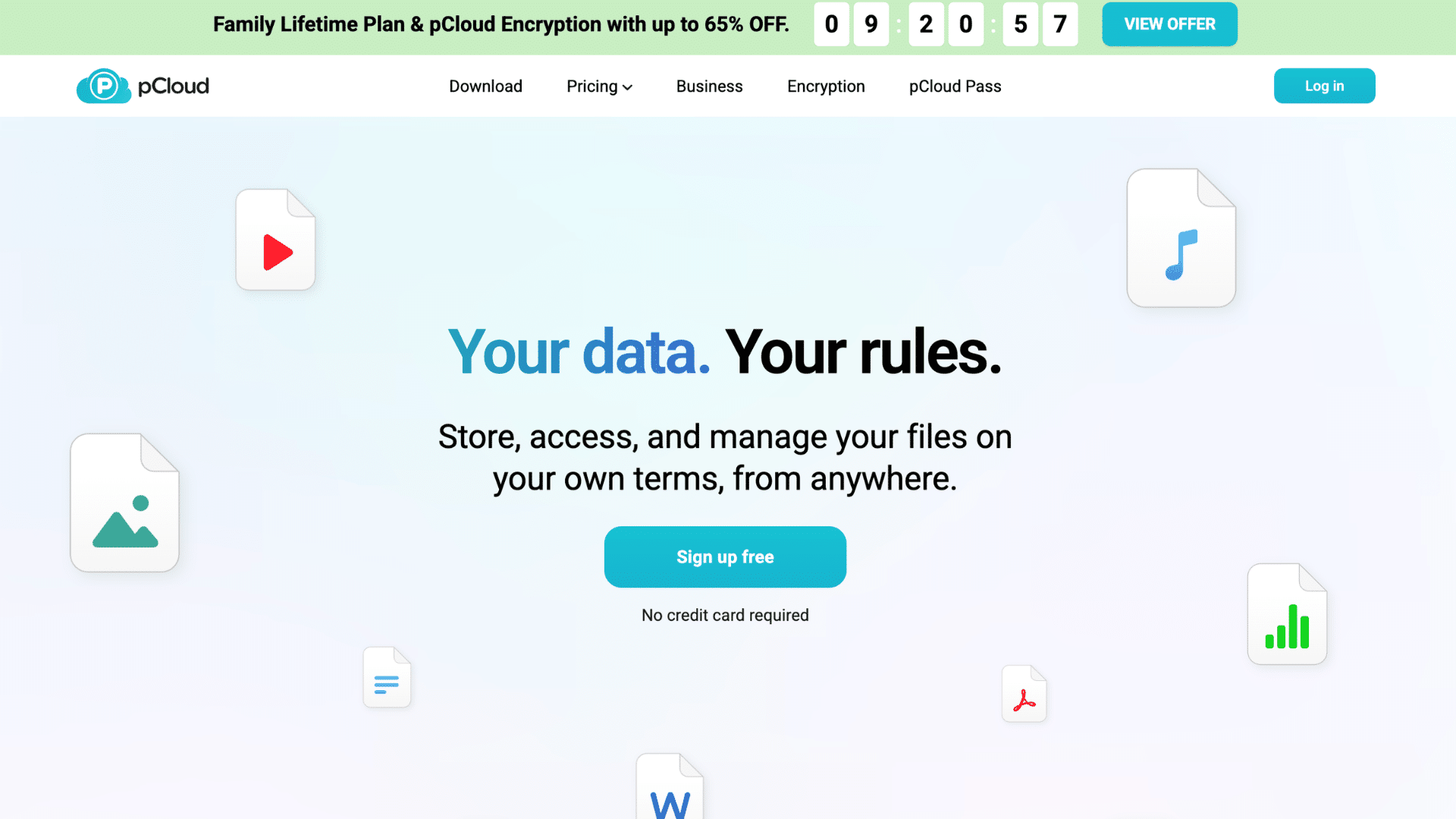
pCloud stands out because it offers lifetime storage plans instead of only monthly subscriptions.
Users can pay once and keep cloud storage access long term without recurring fees.
The platform also supports media playback, file sharing, and strong privacy tools for secure backups. Its clean design makes photo management simple for everyday users.
Although some security tools cost extra, many people like the long-term savings compared to yearly cloud subscriptions.
- Best For: Users looking for lifetime cloud storage instead of monthly subscriptions.
- Key Features: One-time payment plans, media playback support, and strong privacy features.
- Pros: Long-term value, clean interface, and strong privacy and file-sharing tools.
- Cons: Extra payment may be needed for advanced encryption features.
9. SmugMug

SmugMug is built mainly for photographers who want professional-looking online galleries and client management tools.
The platform allows users to create custom portfolios, proof galleries, and even sell prints directly online.
Unlimited photo uploads make it useful for storing large collections without worrying about space limits.
- Best For: Professional photographers creating client galleries and online photo portfolios.
- Key Features: Custom galleries, print selling tools, and unlimited high-quality photo uploads.
- Pros: Excellent portfolio design, unlimited uploads, and useful tools for photography businesses.
- Cons: Higher pricing and unnecessary features for casual photo storage users.
10. Proton Drive
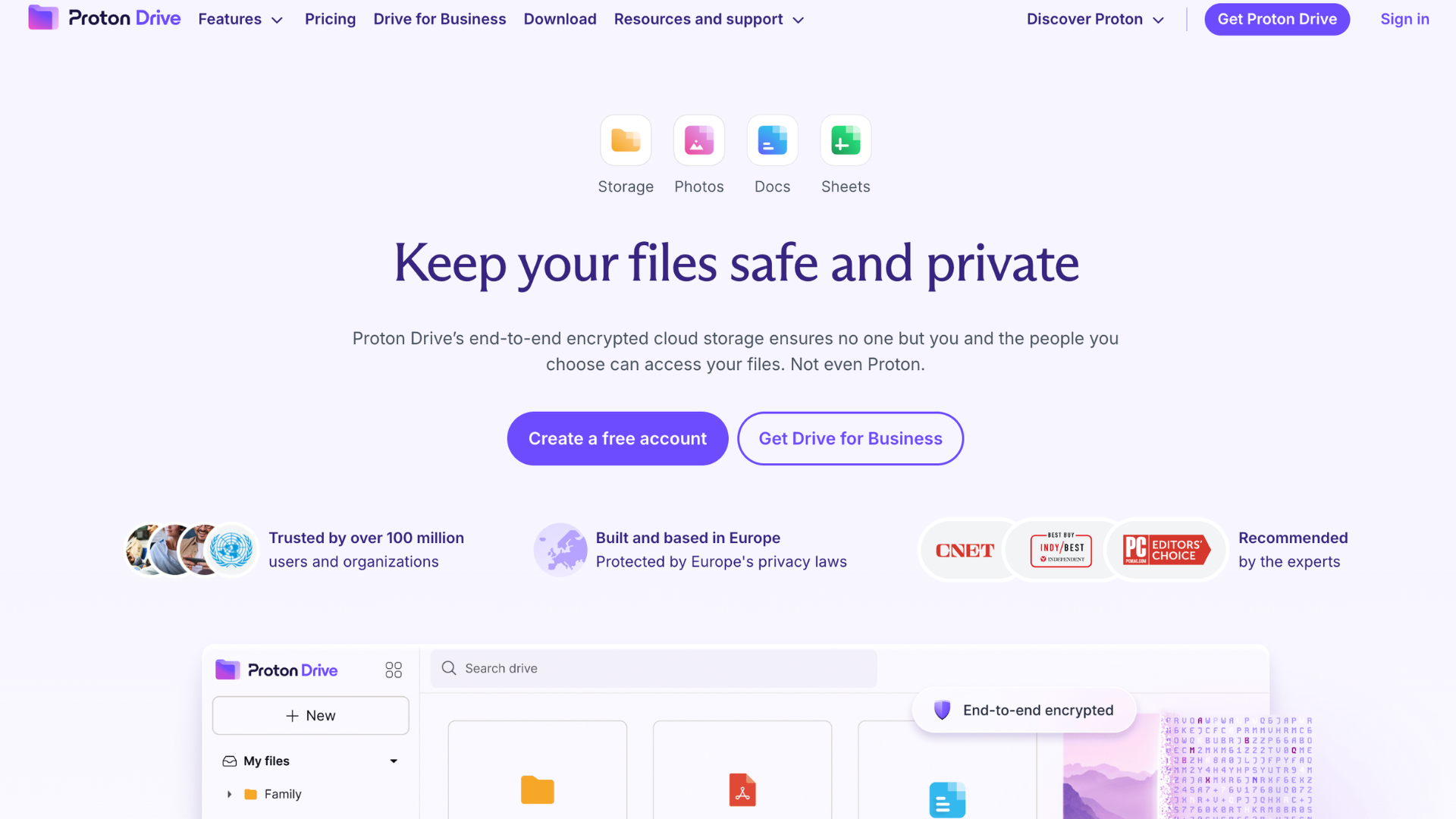
Proton Drive focuses heavily on privacy and secure cloud storage for personal files and photos. The service uses strong encryption to protect uploaded data from unauthorized access.
Users who care about online privacy often prefer Proton because the company is known for secure digital services.
While the platform still has fewer photo organization tools than larger competitors, it offers reliable storage for people wanting stronger protection for personal images and documents.
- Best For: Privacy-focused users who want secure cloud photo storage with strong encryption.
- Key Features: End-to-end encryption, secure file sharing, and privacy-focused storage protection.
- Pros: Excellent privacy protection, secure cloud storage, and trusted encryption technology.
- Cons: Fewer smart organization and photo management tools than larger platforms.
11. Internxt
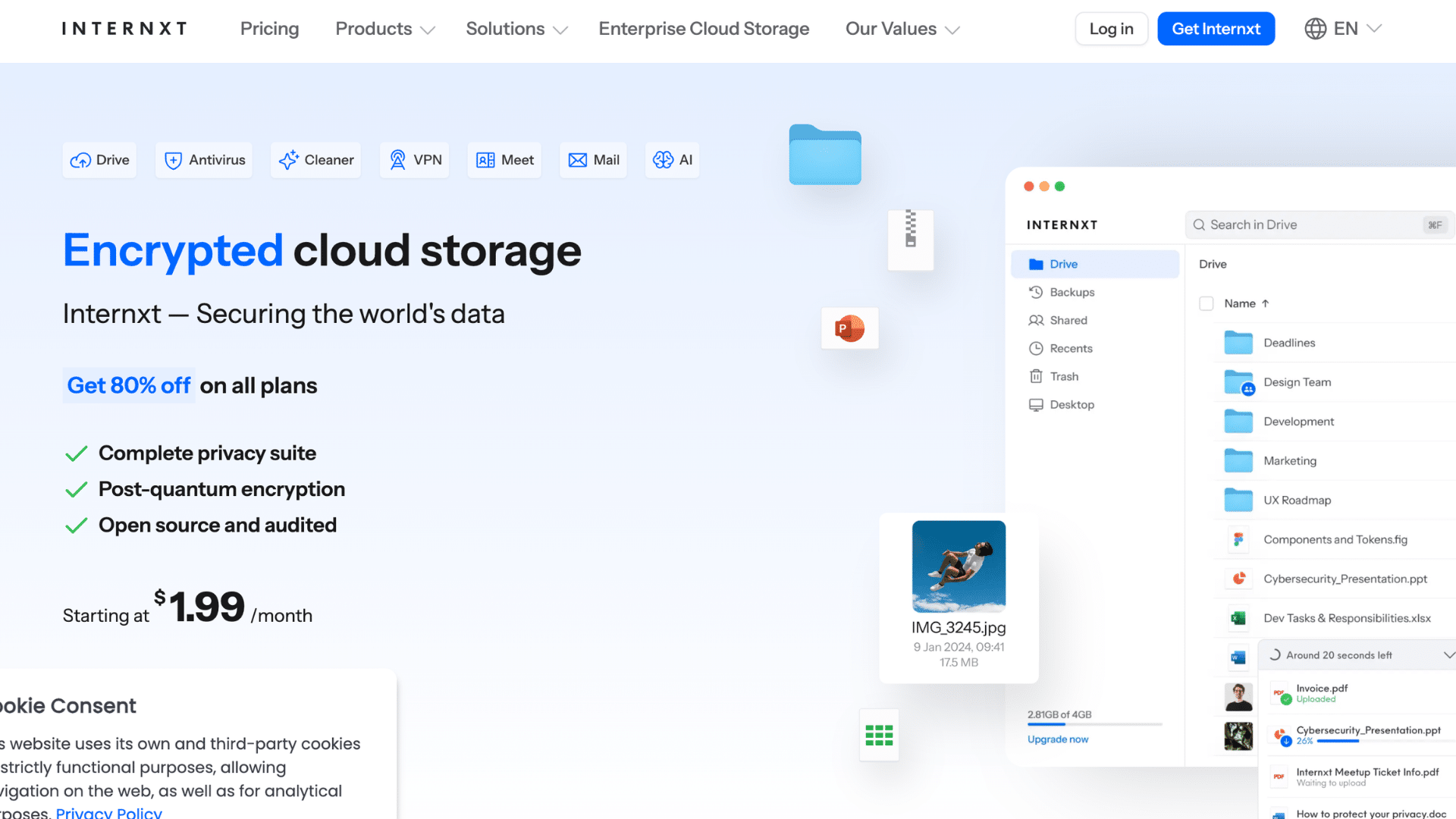
Internxt is a privacy-focused cloud storage service designed for users who want secure photo backups and encrypted file storage.
The platform uses zero-knowledge encryption, which helps keep personal photos and files private from unauthorized access. It supports automatic backups, file syncing, and access across multiple devices.
Internxt also offers clean storage management tools and flexible plans for personal use.
- Best For: Privacy-focused users wanting secure photo backups and encrypted cloud storage.
- Key Features: Zero-knowledge encryption, automatic backups, file syncing, and secure cloud storage.
- Pros: Strong privacy protection, simple interface, and reliable encrypted file storage.
- Cons: Fewer smart photo organization and editing tools compared to larger cloud storage platforms.
Best Cloud Storage for Every User
Different users need different cloud storage features based on photo backups, privacy, storage size, sharing tools, and device support.
| User Type | Best Cloud Storage Options | Why It Works Well |
|---|---|---|
| Casual Users | Google Photos, iCloud | Easy backups, simple syncing, and automatic photo uploads |
| Professional Photographers | Adobe Creative Cloud, SmugMug | RAW file support, editing tools, and large storage plans |
| Privacy-Focused Users | Proton Drive, Internxt | Strong encryption and secure cloud storage protection |
| Families | iCloud Family Sharing, Google Photos | Shared albums and family storage management |
| Content Creators | Dropbox, pCloud | Large file support, sharing tools, and cross-device access |
| Large Photo Collectors | Backblaze, pCloud | Affordable long-term storage for massive photo libraries |
Common Problems with Storing Photos Locally
Keeping photos only on phones or laptops may seem easy, but it can create storage, backup, and security problems over time.
- Device Crashes: Phones and laptops can stop working suddenly, causing permanent photo loss without proper backups or recovery options available.
- Accidental Deletion: Important photos may get deleted by mistake and become difficult to recover without cloud backups or extra storage copies.
- Limited Storage Space: Large photo and video collections quickly fill phone and laptop storage, slowing devices and limiting new uploads.
- Stolen Devices: Losing a phone or laptop can deprive you of access to years of personal photos stored only on that device.
- No Automatic Backups: Local storage often relies on manual backups, which many users forget to update. Apple users sometimes also experience iCloud syncing pauses that can interrupt automatic backups.
- Harder File Access: Photos stored locally are limited to one device and become harder to access across multiple screens.
What Happens to Your Photos If You Cancel a Cloud Plan?
This is one of the most common questions I get from clients, and the answer varies by platform. Most services give you a grace period, typically 30 to 90 days, before your files are deleted after a plan lapses.
Google Photos keeps your content accessible even after your storage is full, but stops accepting new uploads.
iCloud restricts access to files beyond the free 5GB limit once a paid plan expires. pCloud lifetime users keep access indefinitely since there is no recurring billing.
Backblaze deletes files 30 days after a subscription ends.
Before canceling any plan, download a local copy of your photos first. This is a step many people skip and regret later.
How Much Cloud Storage Do You Actually Need for Photos?
High-resolution images and 4K videos take up much more space than standard files, so casual users with phone photos may only need 100-200 GB.
The amount of cloud storage you need depends on how many photos and videos you save regularly.
While photographers and content creators often need 500 GB to 2 TB or more. It also helps to think about future storage growth and multiple devices.
Since your storage needs can increase over time.
Keeping all photos in one cloud account makes backups, syncing, and photo management much easier over time.Free vs. Paid Cloud Storage for Photos
Free plans suit casual users with small photo backups, while paid storage helps photographers store full-resolution photos with automatic backups.
| Feature | Free Cloud Storage | Paid Cloud Storage |
|---|---|---|
| Storage Space | Limited storage for small backups | Large storage for photos and videos |
| Backup Features | Basic syncing and uploads | Automatic backups and advanced syncing |
| Security | Standard protection features | Extra encryption and privacy tools |
| Photo Quality | May reduce upload quality | Full-resolution photo storage |
| Best For | Casual users and light backups | Photographers, creators, and families |
| Examples | Google Photos Free, Dropbox Basic | iCloud+, pCloud, Backblaze |
| Cost | No monthly payment | Monthly or yearly subscription plans |
Should You Use One Cloud Service or Multiple?
Most people default to one platform and assume that is enough. In practice, using two services for photo backup is safer and not as complicated as it sounds.
The 3/2/1 rule is a standard backup framework: keep three copies of your files, use two different storage types, and store one copy in a separate location.
For photos, this often means keeping files on your device, syncing to a primary service like Google Photos or iCloud, and running a secondary backup through something like Backblaze or IDrive.
I recommend this approach especially to anyone storing client work or irreplaceable family photos.
A single cloud service going down or deleting your files after a billing lapse is a real risk.
Tips to Keep Your Photos Safe in the Cloud
These simple tips can help protect family memories, travel photos, and work files from loss or unauthorized access.
- Use Strong Passwords: Create unique passwords with letters, numbers, and symbols to help protect your cloud storage account from hackers.
- Turn On Two-Factor Authentication: Adding a second login step improves security and keeps unauthorized users from accessing your photo library.
- Keep Multiple Backups: Save copies of important photos in multiple places, such as cloud storage and an external hard drive.
- Organize Albums Regularly: Clean and organize folders often, so important photos stay easy to find and manage over time.
- Avoid Storing Everything in One Place: Using different backup locations lowers the risk of losing all your photos at once.
- Download Copies Occasionally: Save local copies of important albums occasionally, in case your cloud account becomes unavailable.
Conclusion
Choosing the best cloud storage for photos comes down to how you work and what you stand to lose. Casual users who shoot on their phones will find Google Photos or iCloud more than sufficient.
Photographers handling RAW files and client work need something more robust, like Adobe Creative Cloud, SmugMug, or Backblaze.
Privacy-focused users may prefer Proton Drive or Internxt, while Backblaze and pCloud are great for large backups at lower long-term costs. Set up backups before something goes wrong.
Choose one trusted service, follow the 3/2/1 backup rule for important photos, and watch your storage limits before they fill up.
Your photos are worth protecting now, not after a device failure forces the issue.
Frequently Asked Questions
Will Photos Disappear without iCloud Payment?
No, but photo syncing may stop after storage becomes full. Existing photos usually remain available for a limited time before changes or backups stop working.
Which Storage Works Best for Photos Long Term?
Backblaze, pCloud, and Google Photos work well for long-term photo storage because they offer automatic backups, large storage plans, and easy access across devices.
What Does the 3/2/1 Storage Rule Mean?
The 3/2/1 rule means keeping three copies of files, using two different storage types, and saving one copy offsite or in cloud storage.
What Is a Common Cloud Storage Risk?
Unauthorized access is a common risk if passwords are weak or stolen. Two-factor authentication and strong passwords help keep cloud storage accounts safer.